How to Create an AI Avatar for YouTube Videos Like Bertha Cooks
By Alex Stevens
If you have ever wondered how to create an AI avatar for YouTube videos, the Bertha Cooks channel is the clearest proof that the format works at scale. With an estimated 170,000 subscribers and between $51,000 and $88,000 a month in estimated ad revenue (figures from Digital Maker AI's Faceless Finder, not the channel's real earnings), Bertha is a fictional AI-generated Mexican grandmother who posts Mexican cooking tips seven days a week, and no real person ever appears on camera. This guide walks you through exactly what makes that format tick and how you can build your own version of it using Digital Maker AI's AI Presenters feature.
What Makes the Bertha Cooks Format Work
The Bertha Cooks channel (@CookTheMexicanWay) sits at 170,000 subscribers and an estimated 6.3 million views a month, according to the Faceless Finder. That is a remarkable number for a channel with only 47 videos, and it points to something specific about how the format is built.
Three things drive the results. First, the persona is warm and named. Bertha is not a generic voiceover. She feels like a real grandmother who has been cooking Mexican food her whole life. Viewers come back for her, not just for the recipes. Second, the niche is tight. Every video is Mexican cooking and food tips. The algorithm knows exactly who to show it to, and subscribers know exactly what they are getting. Third, the upload cadence is relentless: seven videos a week. That kind of consistency feeds the algorithm and compounds the channel's reach fast.
Bertha is not a one-channel experiment either. The same creator has built an entire "Bertha universe" of channels: Bertha's Clean Home (193,000 subscribers, estimated $36,000 to $64,000 a month), Bertha's House Hacks (106,000 subscribers, estimated $21,000 to $36,000 a month), and Bertha's Garden Hacks (128,000 subscribers, estimated $41,000 to $71,000 a month). All estimates are from the Digital Maker AI Faceless Finder and are not the channels' real earnings. The multi-channel playbook is simple: one strong persona, several tight niches, the same face across all of them.
Nana Rosa Cooks (@NanaRosaKitchen) shows the same formula at an earlier stage. At 10,600 subscribers with an estimated $3,200 to $5,700 a month in ad revenue, Nana Rosa is a newer Mexican cooking AI avatar channel that is already pulling nearly 406,000 estimated monthly views from just 23 videos. The format clearly has room for more than one player.
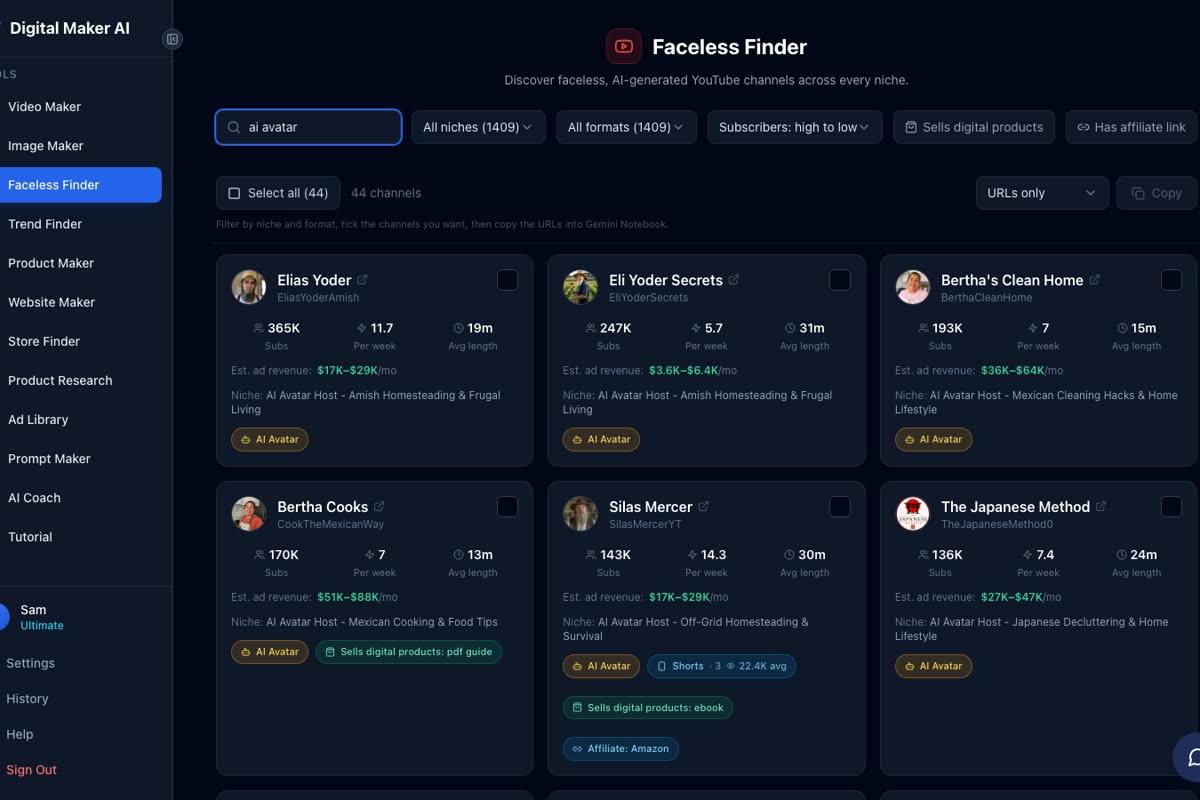
What all of these channels share is the same core structure: an AI-generated host character with a specific persona (a grandmother, a monk, an Amish farmer, a mechanic), a single tight niche, daily or near-daily uploads, practical tips, and no real person on camera. If you want to understand the format more broadly, the article on how Japanese Method style AI avatar channels work and what they earn is a useful companion read.
How to Create an AI Avatar for YouTube Videos: Step by Step
AI Presenters in Digital Maker AI are available on Premium and Ultimate plans. If you are not sure which plan fits your goals, check the pricing page for the current options. The feature is currently in beta, which means it is live and working but may be refined over time. Here is the full process from sign-up to finished video.
Step 1: Create Your Account and Sign In
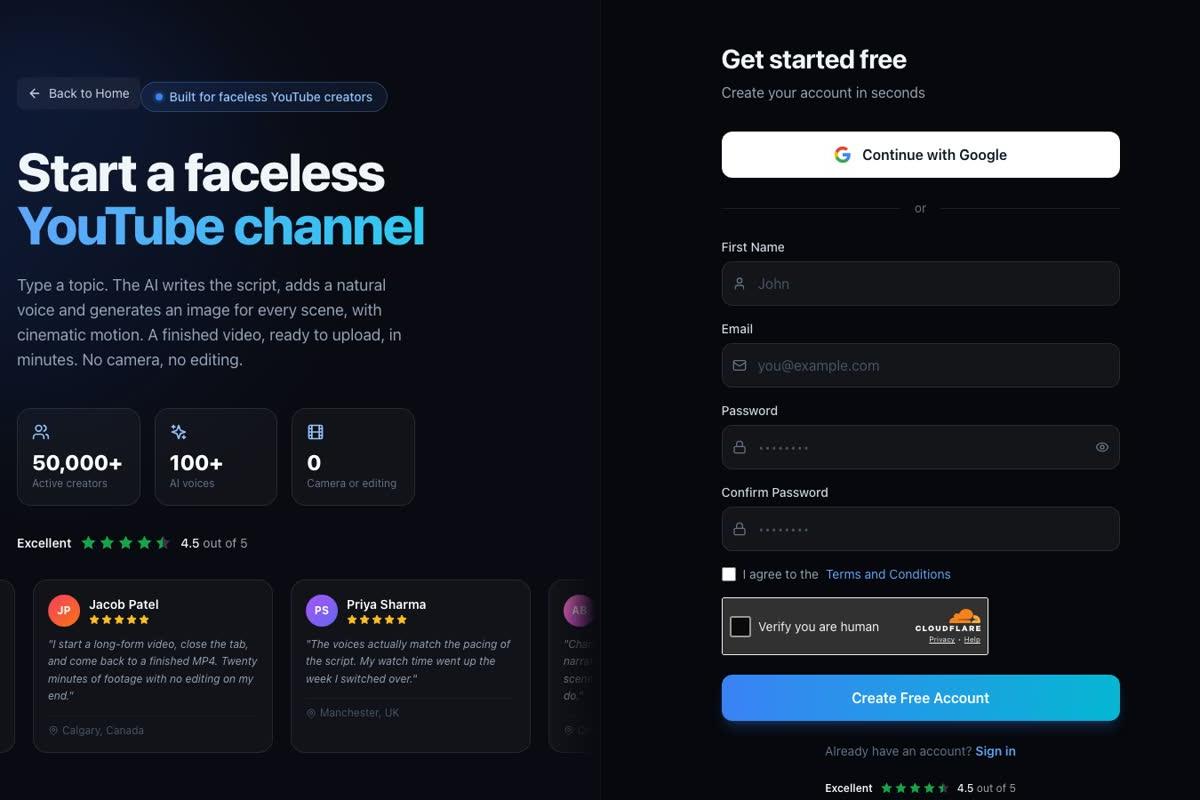
Head to digitalmaker.ai/faceless and create a free account. No card is needed to get started. Once you are in, upgrade to Premium or Ultimate to unlock AI Presenters.
Step 2: Create Your Presenter in Account Settings
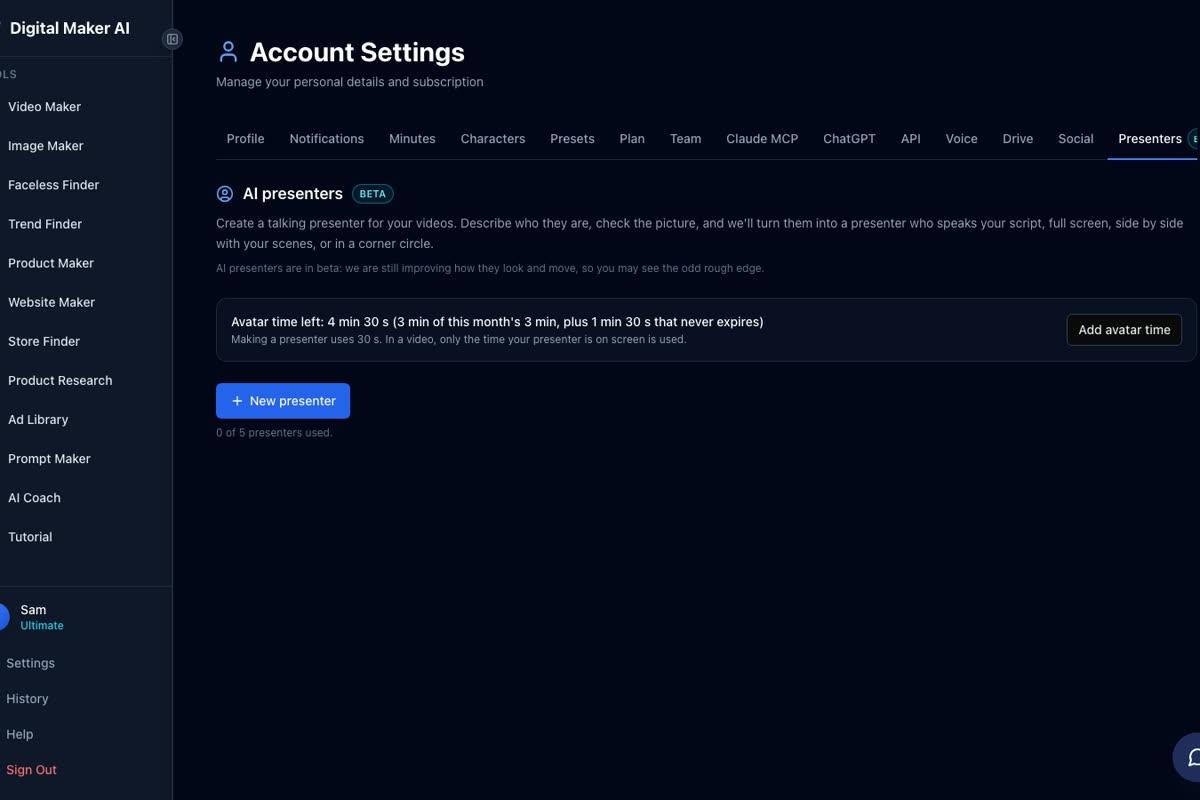
This is where your Bertha equivalent comes to life. Click your account icon, open Account Settings, and go to the Presenters tab. You will see your current avatar time balance and a New presenter button. Click it.
In the form that opens, describe your presenter in one or two sentences. Be specific: mention age, clothing, setting and personality. For a Bertha-style channel you might write something like: "Rosa is a warm Mexican grandmother in her seventies, wearing a floral apron, standing in a bright sunlit kitchen with clay pots and dried chillies on the wall." There are quick-pick suggestions if you want inspiration. When you are happy with the description, press Create picture. The AI draws a photoreal image of your presenter. Check it, and if you are satisfied, save it. Creating a presenter uses 30 seconds of avatar time, and you can save up to 10 presenters to reuse across videos.
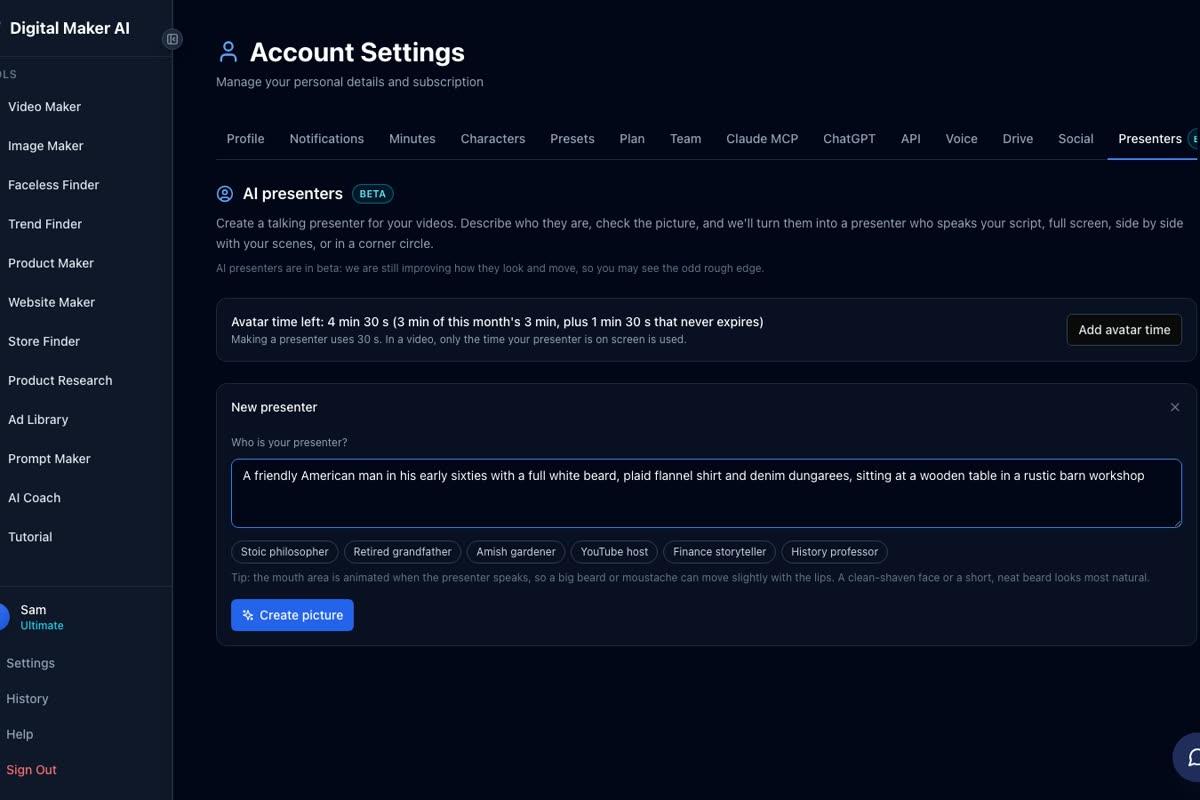
A quick note on avatar time: Premium and Ultimate both start with 1 minute 30 seconds of avatar time. Ultimate also receives 3 minutes of avatar time every month. Your video only uses the seconds your presenter is actually on screen, so a 10-minute video where the presenter appears for 20 percent of the runtime uses around 2 minutes of avatar time. Avatar Packs let you add more time as a one-off purchase; visit the pricing page for pack options. Pack time does not expire while you are subscribed.
Step 3: Start a Long Form Video in the Video Maker
From the dashboard, open the Video Maker and select Long-Form Faceless Video. At Step 1, choose Multi Scene. AI Presenters work with Multi Scene landscape videos only.
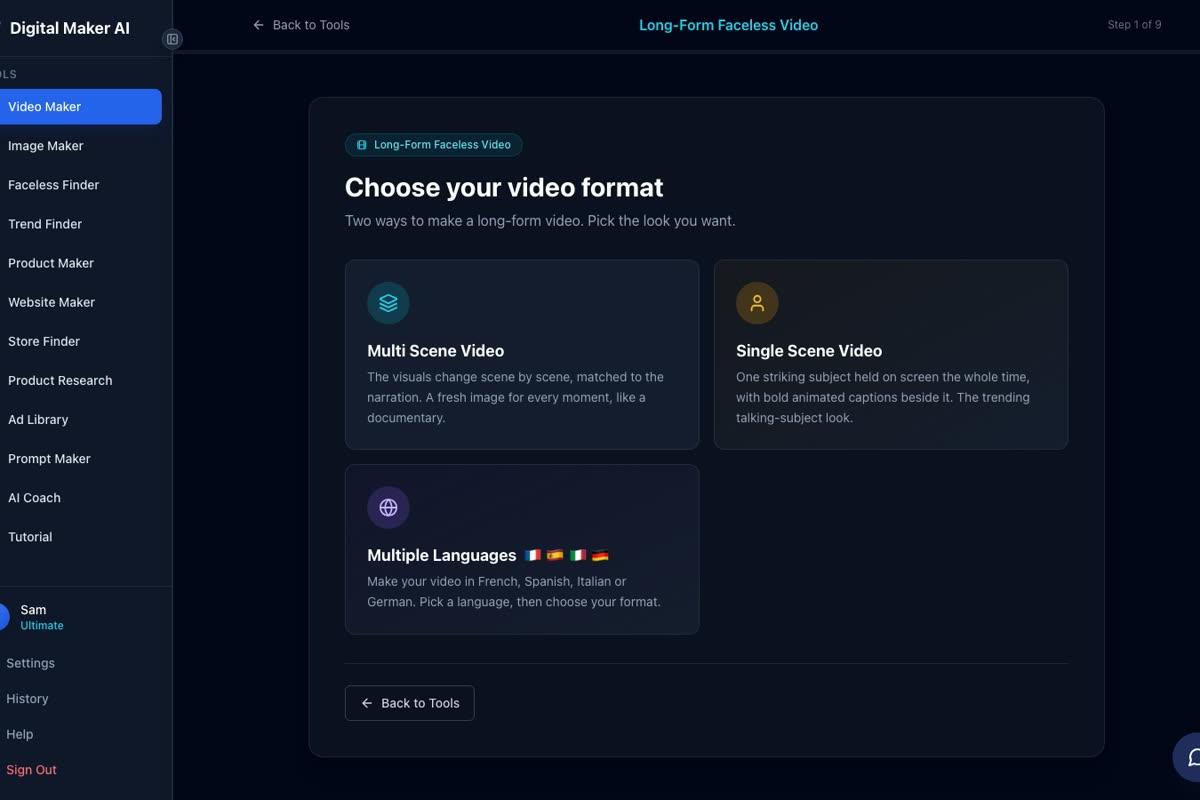
Work through the steps: at Step 3 type your video topic (for example "5 traditional Mexican salsas every home cook should know"), at Step 5 pick your visual style, and at Step 6 set the length. For a Bertha-style channel, Realistic or Everyday Visuals tends to match the warm kitchen aesthetic well.
Step 4: Pick Your Layouts and Set the Presenter on Screen
When you reach the presenter step, select the presenter you saved in Account Settings. Then tick one or more of the three layout options:
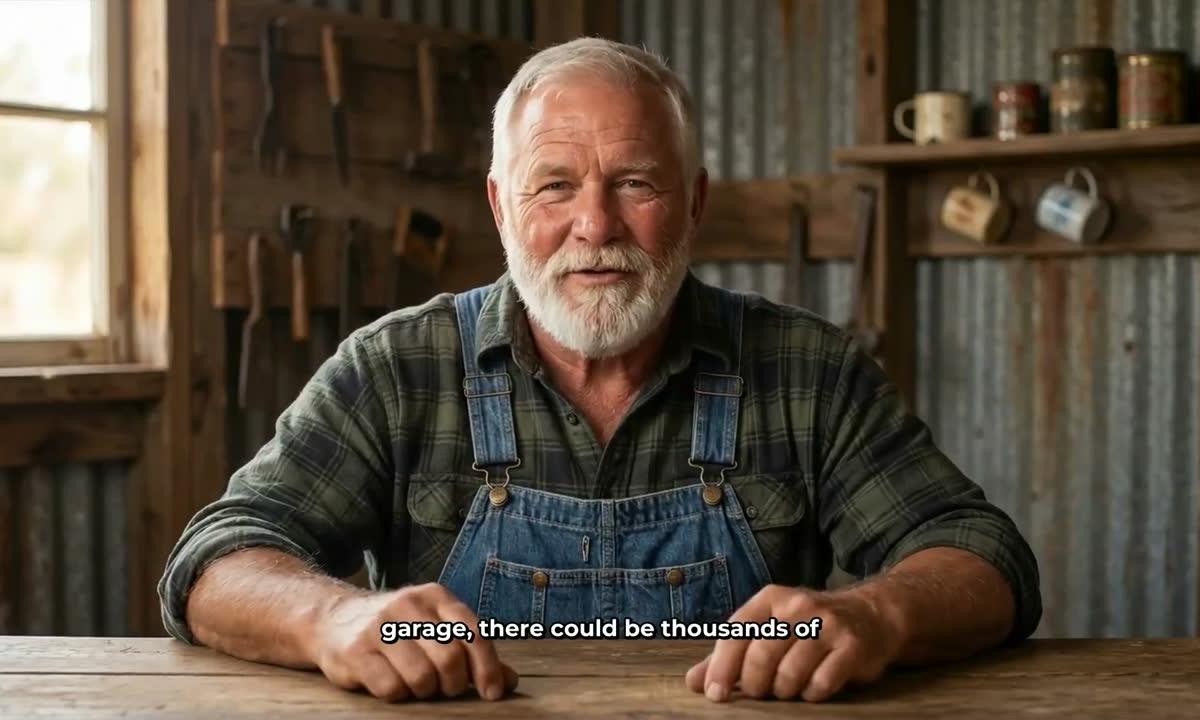
- Full screen: your presenter fills the entire frame, speaking directly to camera. This is the most personal and works well for introductions and sign-offs.
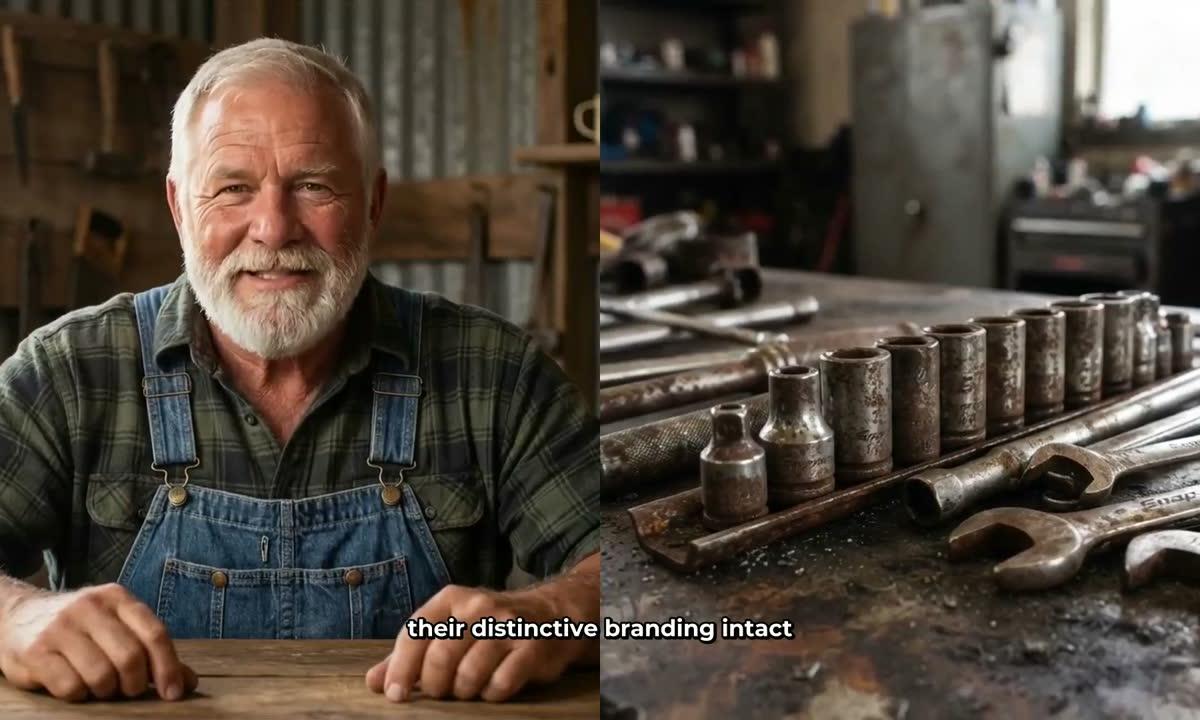
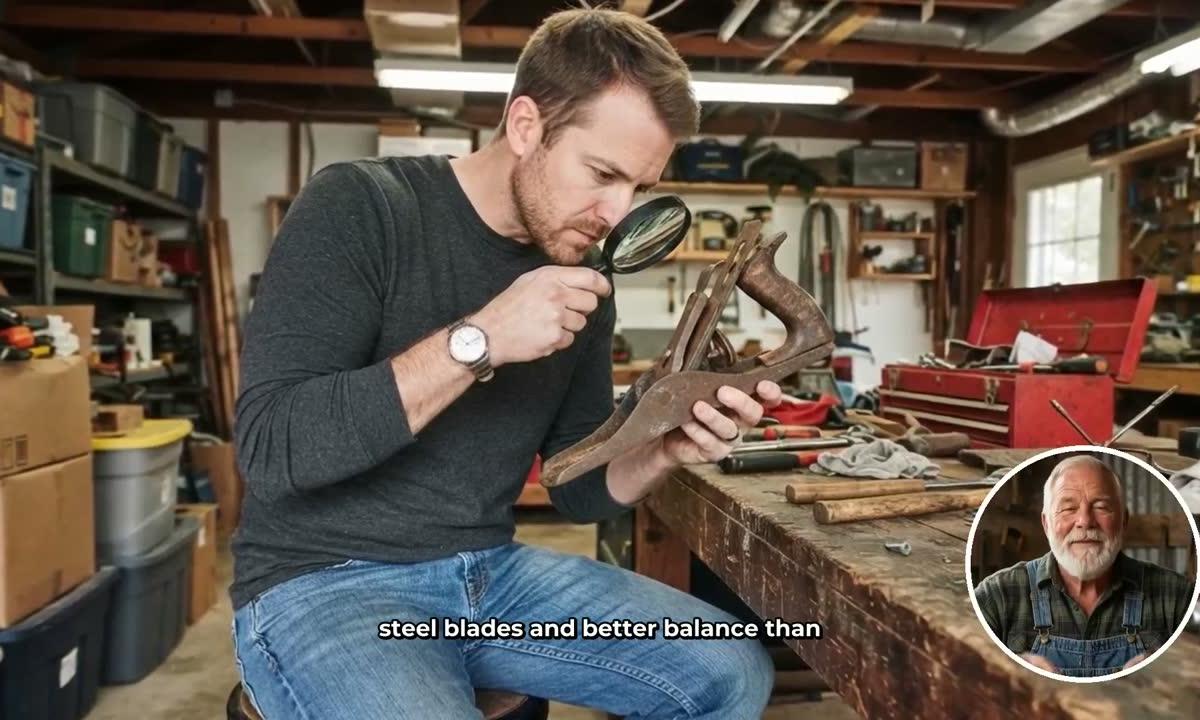
- Split screen: the presenter sits on the left half of the frame while the scene image appears on the right. Good for tutorials where you want to show something while the host explains it.
- Corner circle: the scene fills the frame and the presenter appears in a small round window in the corner. The least intrusive option, useful for mid-video segments.
If you tick more than one layout, the video rotates through them automatically. A slider lets you set how much of the video the presenter is on screen, from 5 percent up to the full runtime. Markers on a timeline bar let you choose where they appear: all at the start, at the start and end, or spread through the video. The rest of the runtime plays as normal scene images.
Step 5: Choose a Voice, Set the Pace and Generate
At Step 7, pick the narration voice your presenter will use. There are over 100 voices to choose from, with filters for gender, accent and style. The presenter speaks the same voice as the rest of the video, with captions burned in. On Premium and Ultimate you can also connect your own ElevenLabs cloned voice via Account Settings if you want a completely custom sound.
At Step 8, choose the pacing: Calm, Standard or Energetic. For a grandmother cooking channel, Calm tends to feel the most natural.
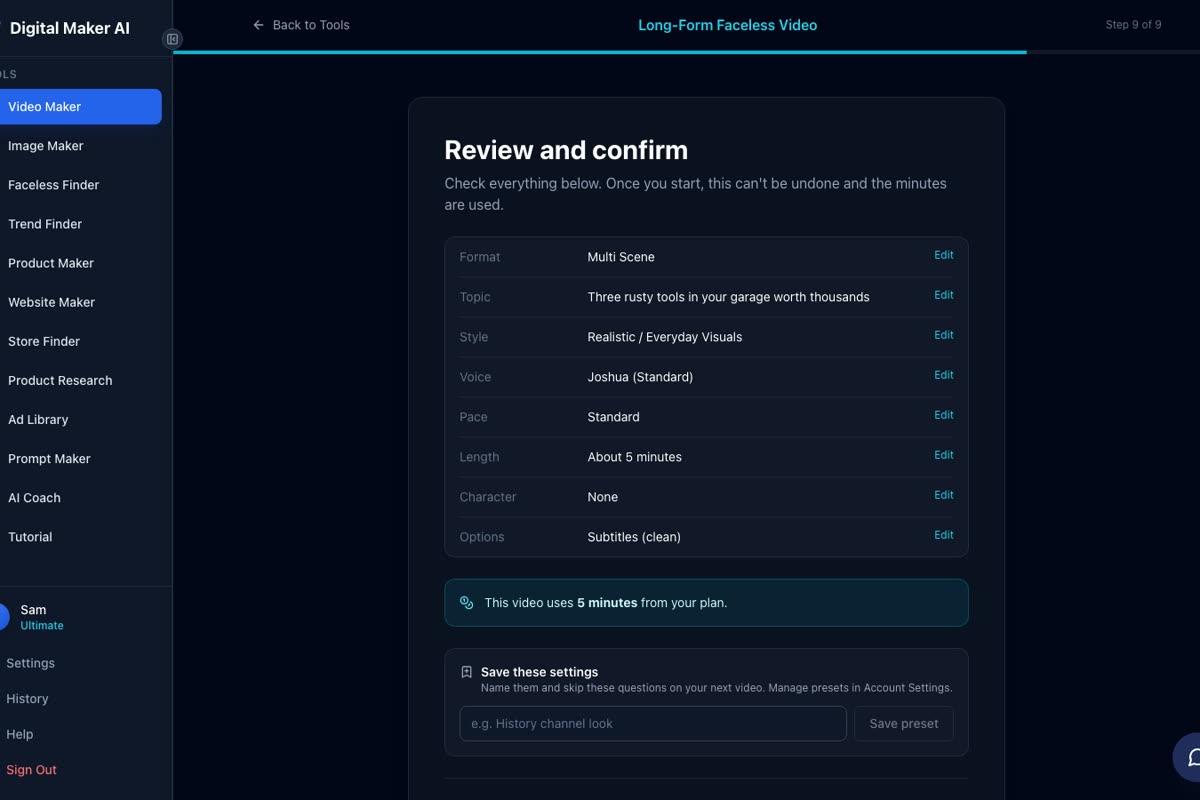
Step 9 is the review screen. Check your format, topic, style, voice, pace and length. The screen also shows exactly how many minutes the video will draw from your monthly pool. When everything looks right, press Generate Video.
Building the "Bertha Universe" Multi-Channel Playbook
One of the most interesting things about the Bertha channels is that the same persona scales across niches. Bertha Cooks handles food. Bertha's Clean Home handles cleaning. Bertha's Garden Hacks handles gardening. Bertha's House Hacks handles home tips. Each channel is tight, each feeds a different audience segment, and the same warm grandmother face ties them together.
You can replicate this structure in Digital Maker AI because you can save multiple presenters in Account Settings and reuse each one across as many videos as you like. Build Rosa for your cooking channel, then build a second version of her in a garden setting for a gardening channel, or create an entirely different persona for a third niche. The presenter creation step takes a few minutes per character, and once saved, each one is available in the Video Maker every time you start a new video.
For ideas on other niches where the AI avatar format is working right now, the AI avatar channel ideas for garage and car repair videos article is worth a look alongside this one.
Practical Tips for Your First AI Avatar Channel
- Name your presenter something memorable. Bertha, Nana Rosa, Elias, Silas: named characters build loyalty faster than generic hosts. Pick a name that fits the persona and the niche.
- Write a detailed presenter description. The more specific you are about age, clothing, setting and personality, the more consistent and believable the generated image will be.
- Start with Full screen for your intro and outro. Having the presenter speak directly to camera at the start and end of every video builds the sense of a real relationship with the audience.
- Keep the niche tight from day one. Bertha Cooks does not drift into Italian cooking or general life tips. Every video is Mexican cooking. That focus is a big part of why the algorithm rewards it.
- Upload consistently. Seven videos a week is ambitious, but even three or four a week compounds fast. The Faceless Finder data shows that the channels with the highest estimated revenue are almost all uploading daily or close to it.
- Use the Faceless Finder to validate your niche. Before you commit to a persona, search the Finder to see what AI avatar channels already exist in that space and whether there is room for a new player. Type "AI avatar" in the search box to filter to just those channels.
How to Create an AI Avatar for YouTube Videos: The Short Answer
The Bertha Cooks model is not complicated. It is a named persona, a tight niche, a consistent upload schedule, and an AI-generated face that viewers come to trust. The technology that makes it possible is now accessible to anyone on a Premium or Ultimate plan in Digital Maker AI. You create the presenter in Account Settings, describe who they are, check the picture, and save it. Then in the Video Maker you pick Multi Scene, select your presenter, choose your layouts and screen-time settings, pick a voice and a style, and generate. The whole process from sign-up to first finished video can take under an hour.
The Faceless Finder shows dozens of AI avatar channels at various stages of growth, from Nana Rosa Cooks at 10,600 subscribers to Bertha Cooks at 170,000 and beyond. The channels that are winning share the same fundamentals: a believable persona, a focused niche and a high upload cadence. All three are within reach right now.
If you want a guided introduction to the whole faceless video format before you dive in, the free Digital Maker AI course covers the core workflow from scratch and is a good place to start.
Alex Stevens: Alex Stevens writes for the Digital Maker AI team about faceless YouTube channels, AI presenters and AI video tools.