How to Create an AI Avatar for YouTube Videos Like Opal Rowe
By Alex Stevens
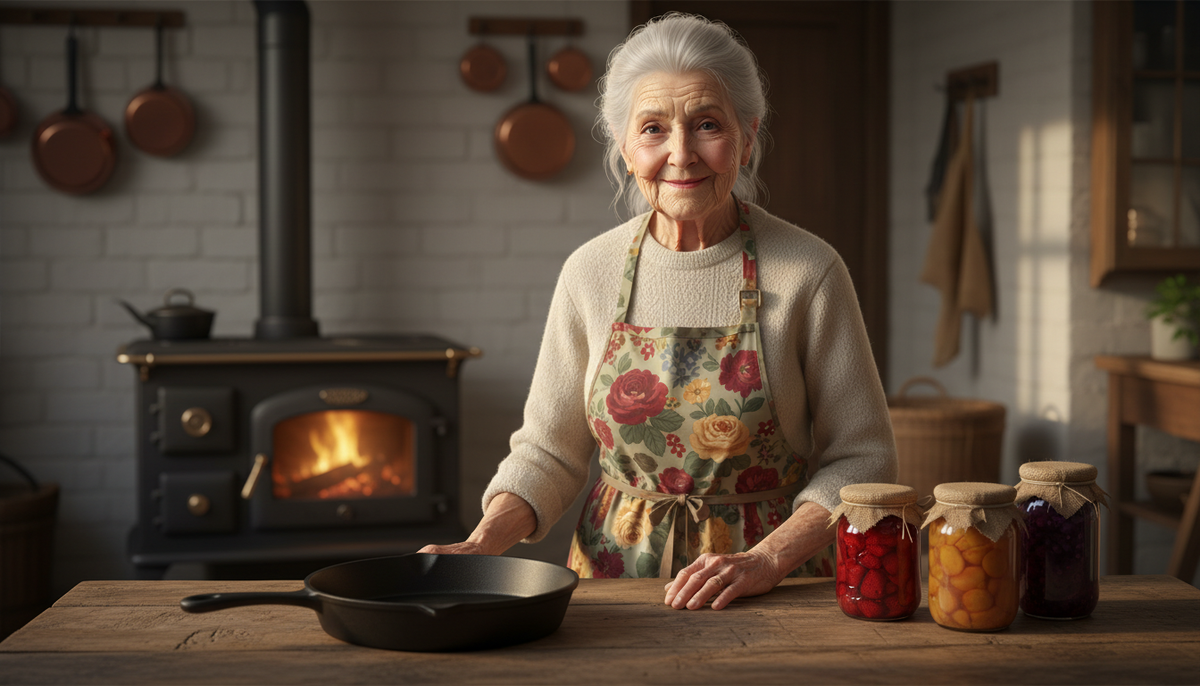
The Opal Rowe AI avatar YouTube channel is one of the clearest examples of what the new wave of AI presenter channels looks like in practice. Opal Rowe (@OpalRowe1945) has built a channel around an Appalachian grandma persona covering home cooking and practical tips. With 47,100 subscribers and an estimated 930,667 views a month, the channel pulls in an estimated $6,600 to $9,800 a month in ad revenue, according to the Faceless Finder tool inside Digital Maker AI. There is no real person on camera. The host is a fully AI-generated character, and the channel uploads around eight videos a week. This guide shows you exactly how to build something similar for yourself.
Why the Opal Rowe AI Avatar YouTube Channel Formula Works
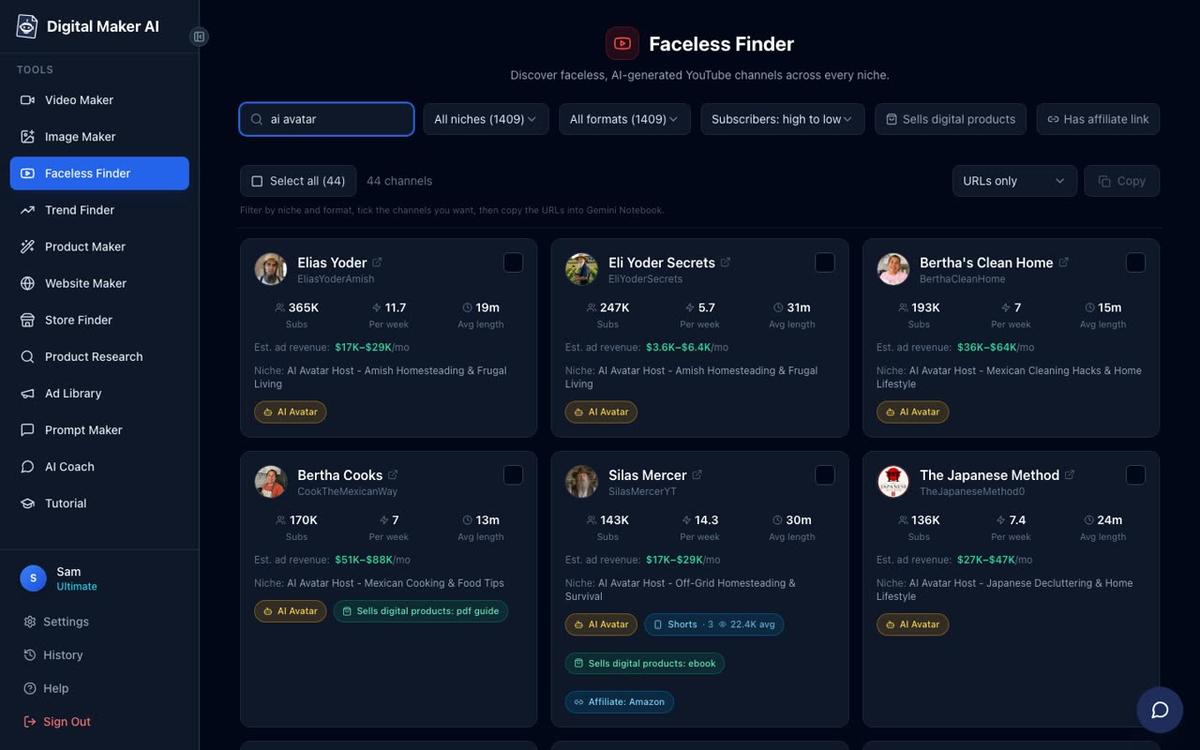
Opal Rowe is not a one-off success. A cluster of channels uses the same playbook: a strong, recognisable AI character, a tight niche rooted in a specific culture or lifestyle, and a relentless upload schedule. The Faceless Finder inside Digital Maker AI lets you search for AI avatar channels by typing "AI avatar" in the search box. Here are four channels from that list that sit in the same neighbourhood as Opal Rowe:
- Esther Yoder (68,900 subscribers): Amish homesteading and kitchen tips, about four uploads a week, estimated ad revenue $1,400 to $2,100 a month.
- SuperTips (249,000 subscribers): Amish-style home hacks and remedies, about three uploads a week, estimated ad revenue $1,800 to $2,700 a month.
- Backyard Bill (84,300 subscribers): senior gardening tips and hacks, about six uploads a week, estimated ad revenue $650 to $950 a month.
- Elias Yoder (369,000 subscribers): Amish homesteading and frugal living, about six uploads a week, estimated ad revenue $10,000 to $16,000 a month.
All figures above are Digital Maker AI's Faceless Finder estimates based on recent views and typical ad rates for each niche. They are not the channels' real earnings and should be treated as rough benchmarks only.
What these channels share is a tight formula. The host has a clear, memorable persona: an elderly Appalachian grandmother, an Amish farmer, a retired gardener. The niche is specific enough that every video fits the same audience. The upload pace is high, often daily. And there is no real person involved, which means the channel can scale without scheduling, travel or on-camera nerves.
You can find more channel ideas in this post on AI avatar channel ideas for Appalachian stories and nostalgia, which covers several directions in this space.
What You Need Before You Start
AI Presenters are available on the Premium and Ultimate plans only. If you are on a lower plan or just exploring, you can sign up for a free account to look around the tools and the Faceless Finder, then upgrade when you are ready. Check the pricing page for the current plan options.
Once you are on Premium or Ultimate, the workflow has two parts: create your presenter character in Account Settings, then add her to a long form video in the Video Maker.
Step 1: Create Your Appalachian Grandma Presenter
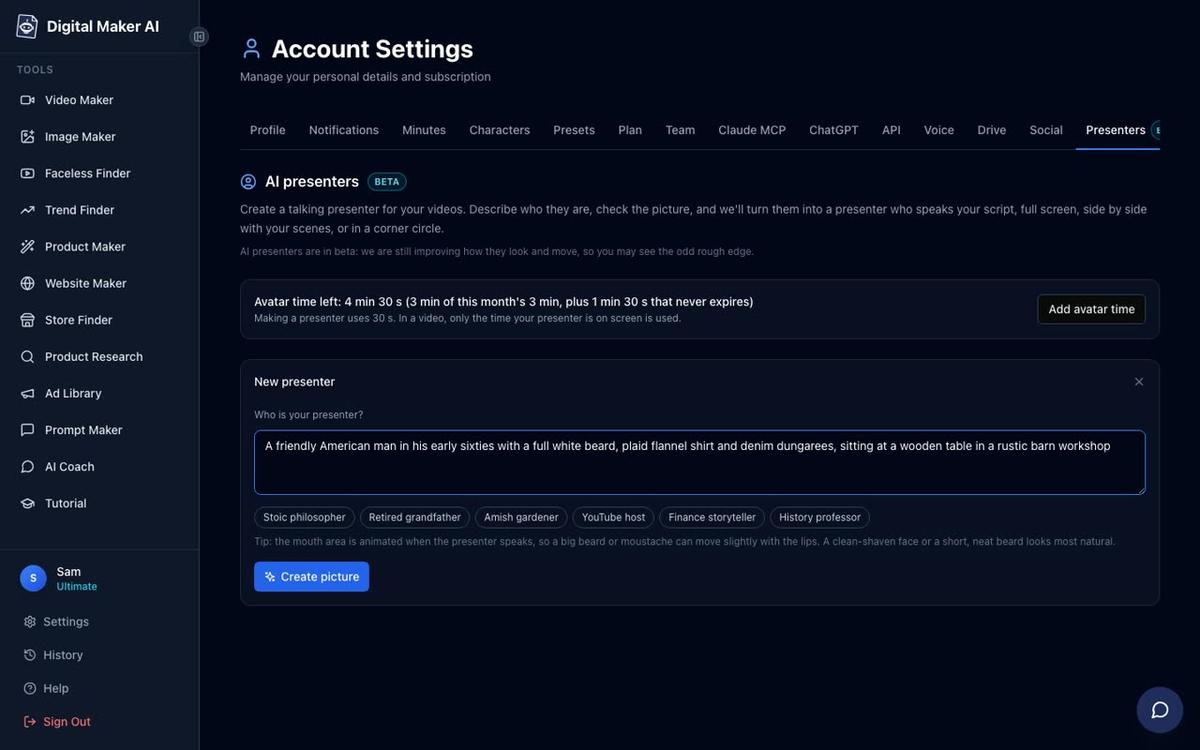
Sign in to your account and click your profile icon in the top right corner to open Account Settings. Find the Presenters tab. This is where all your saved presenter characters live. Click New presenter to open the creation form.
You will see a text box labelled "Who is your presenter?" along with some quick-pick suggestions like "Retired grandfather" and "Amish gardener." Ignore the quick picks for now and write your own description. For an Opal Rowe-style channel, something like this works well:
"A warm woman in her seventies wearing a floral apron, sitting at a farmhouse kitchen table with a cast iron skillet and jars of home-made preserves behind her. Soft natural light, Appalachian countryside visible through the window."
The more specific you are about setting and clothing, the more consistent your presenter will look across videos. Once you are happy with the description, press Create picture. The AI generates a photoreal portrait. Check it carefully: does she look warm and trustworthy? Does the setting feel right? If not, adjust the description and try again. Creating a presenter uses 30 seconds of avatar time, so a few attempts will not drain your balance. When you are satisfied, press Save. Your presenter is now stored in your account and ready to use in any video.
Step 2: Start a Multi Scene Long Form Video
Go to the Video Maker in the left sidebar and choose Long-Form Faceless Video. At step 1, select Multi Scene. AI Presenters only work inside Multi Scene long form videos, so this is the format to use.
At step 3, type your topic. For an Appalachian cooking channel, something like "Old-fashioned Appalachian cornbread secrets passed down through generations" is exactly the kind of specific, story-driven topic that performs well in this niche. The AI will write the full script, generate a scene image for every scene, add narration and captions, and return a finished MP4.
Step 3: Add Your Presenter and Choose Her Layouts
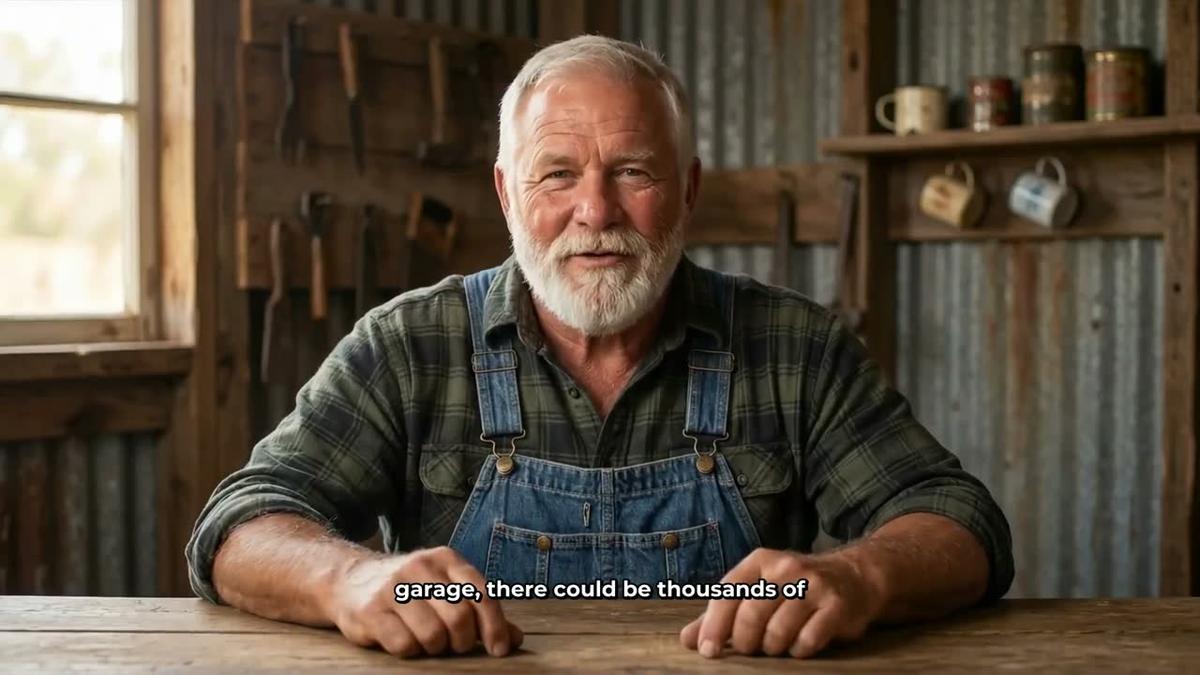
At step 4 (the presenter step), select the grandma character you just saved. You will then see three layout options to tick:
- Full screen: your presenter fills the entire frame while speaking. This is the most impactful for introductions and sign-offs.
- Split screen: presenter on the left, the scene image on the right. Good for tutorials where you want both the host and the visual context on screen.
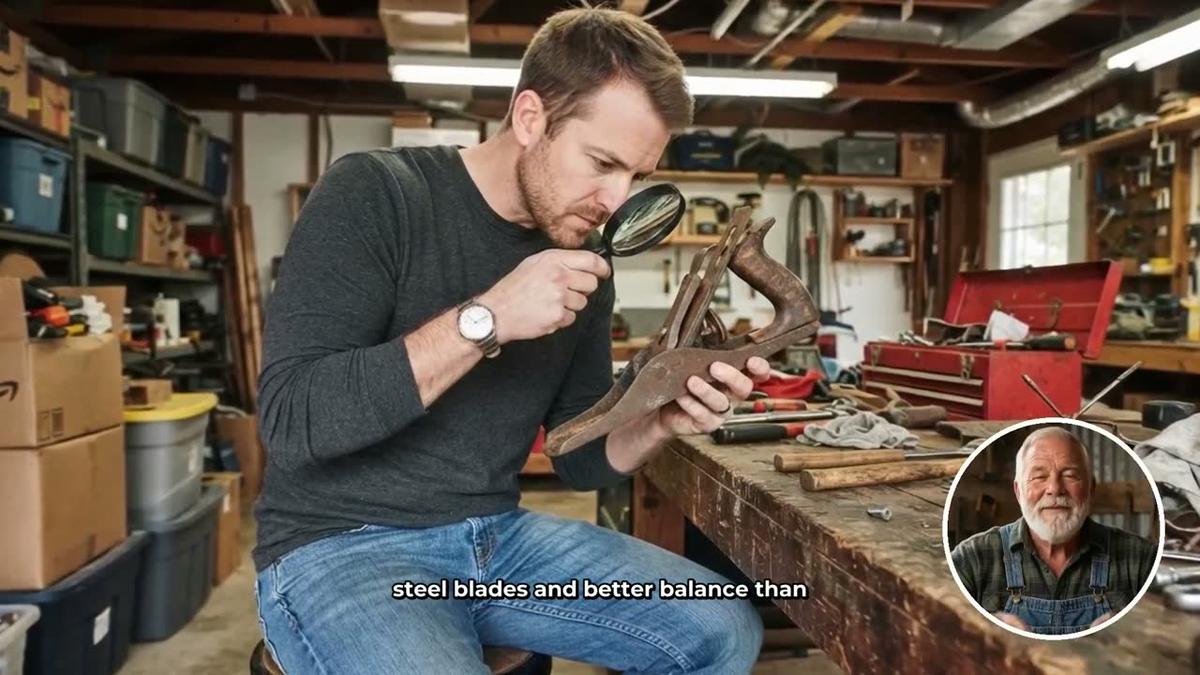
- Corner circle: the scene fills the frame and your presenter appears in a small round window in the corner. Subtle, and works well for mid-video sections where the scene image carries the story.
Tick one, two or all three. The video will rotate through whichever layouts you have ticked. A slider lets you set how much of the total video the presenter appears on screen, from as little as 5 percent up to the full video. Markers on a timeline bar let you place her at the start, the end, or at intervals throughout.
Step 4: Pick the Right Visual Style and Voice for an Opal Rowe AI Avatar YouTube Channel
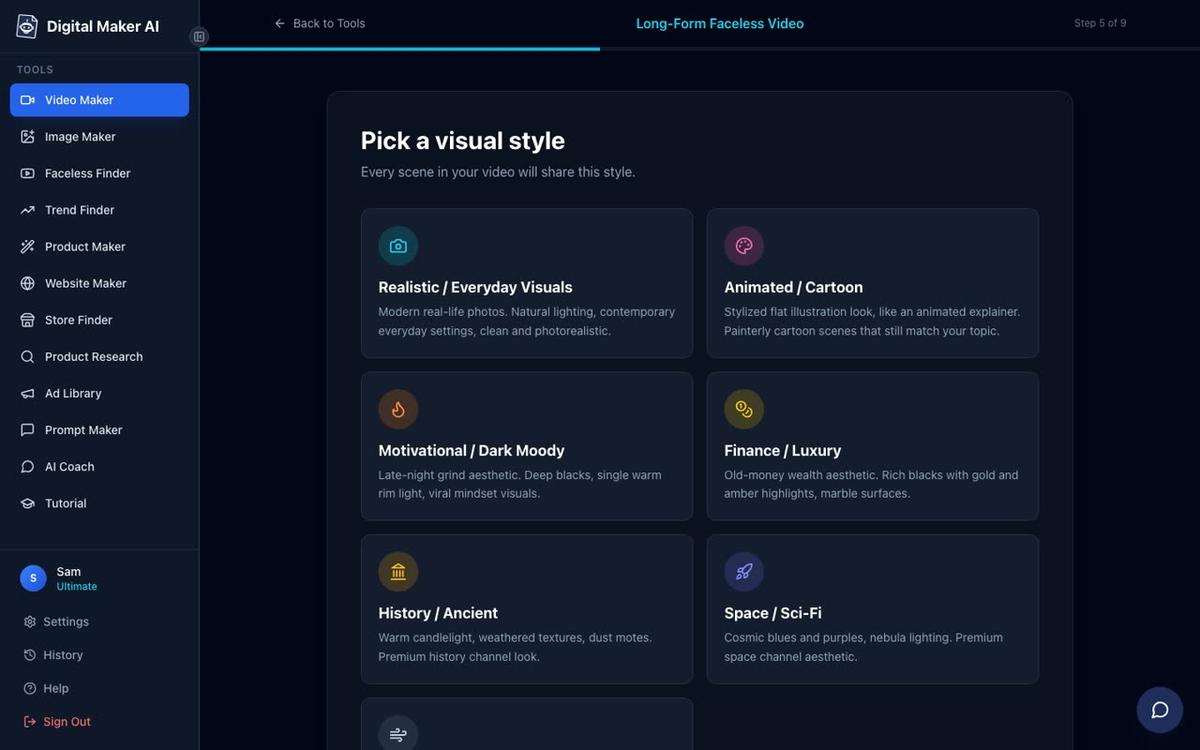
At step 5, choose your visual style. For an Appalachian cooking or homesteading channel, Realistic / Everyday Visuals is the right choice. It generates warm, grounded scene images that feel authentic to the niche. Avoid Space or Sci-Fi and Finance or Luxury, which would clash with the homespun tone.
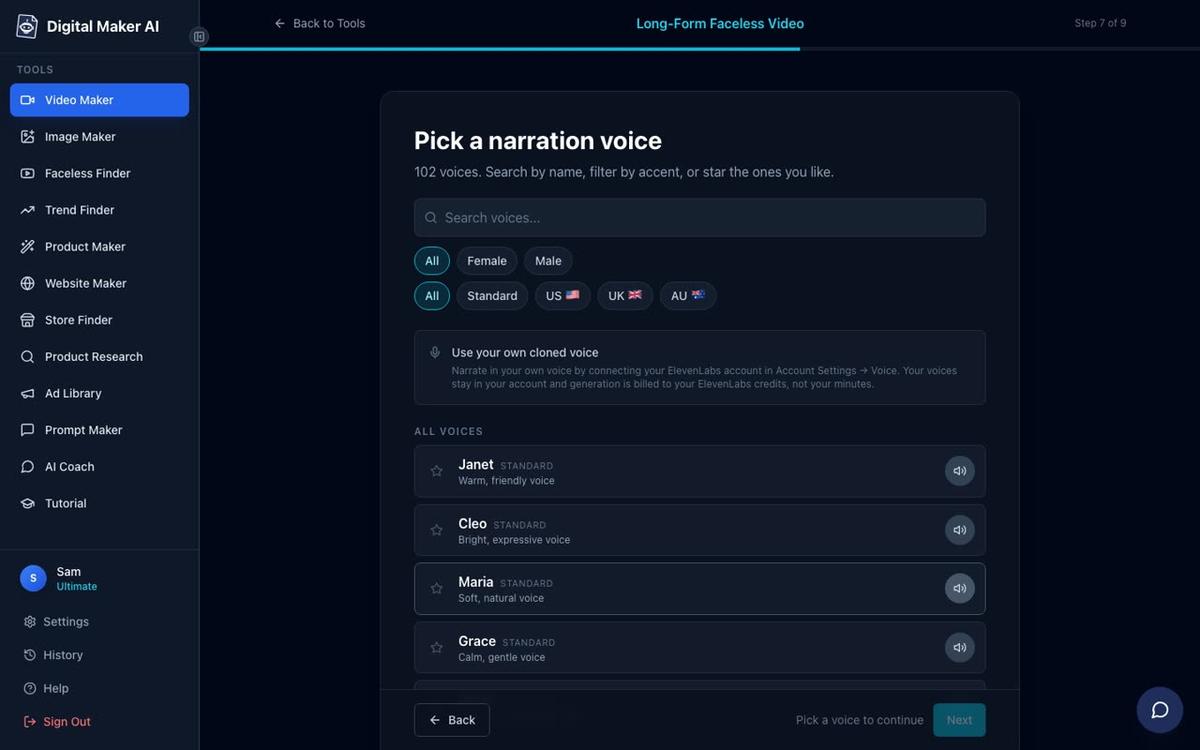
At step 7, choose a narration voice. Digital Maker AI has more than 100 built-in voices across male and female, US, UK and Australian accents. For a warm Appalachian grandma character, filter by Female and US, then audition a few until you find one that sounds calm, unhurried and friendly. The voice your presenter speaks is the same narration voice used throughout the video, so it needs to feel consistent with the character.
Premium and Ultimate users can also design a custom voice from a written description using the Voice Design feature, without needing an external account. If you want a voice that sounds specifically like a warm, older Southern woman, that is exactly the kind of description Voice Design is built for. Premium accounts keep one designed voice; Ultimate keeps three.
Understanding Avatar Time
AI Presenters run on a separate balance called avatar time, measured in seconds and kept apart from your video minutes. Creating a presenter costs 30 seconds. When a video is generated, only the seconds the presenter is actually visible on screen are counted, so a 10-minute video where the presenter appears for 20 percent of the time uses roughly 2 minutes of avatar time, not 10.
Premium accounts start with 2 minutes of avatar time and Ultimate with 5 minutes, with Ultimate also receiving 3 minutes every month. If you need more, Avatar Packs let you top up as a one-off purchase that does not expire while you are subscribed. See the pricing page for current Avatar Pack options.
Tips for Building a Channel Like Opal Rowe
Looking at what makes the Opal Rowe AI avatar YouTube channel work, and what the broader group of channels like Esther Yoder, SuperTips, Backyard Bill and Elias Yoder share, a few practical lessons stand out:
- Pick a persona with a point of view. "Grandma from Appalachia" is more compelling than "cooking tips channel" because it implies a whole world: a region, a history, a way of doing things. The more specific the character, the more loyal the audience.
- Stay in one niche. Every channel in this group covers one tight subject area. Opal Rowe does Appalachian cooking and home tips. Elias Yoder does Amish homesteading. Backyard Bill does senior gardening. Viewers subscribe because they know exactly what they are getting.
- Upload consistently and often. The channels with the highest estimated revenue all upload five or more times a week. With AI generating scripts, scenes and narration, this pace is achievable without a production team.
- Use the Corner circle layout for most of the video. Full screen is powerful for the intro and outro, but Corner circle keeps the presenter present without covering the scene images that illustrate each tip. Mixing layouts keeps the video visually varied.
- Match voice pace to the persona. A calm, unhurried voice fits a grandmother character far better than an energetic one. Use the pacing step in the Video Maker to set a slow or standard pace.
- Save your presenter and reuse her. Once your grandma character is saved in Account Settings, every new video uses exactly the same face and setting. That consistency is what makes the channel feel like a real ongoing show rather than a collection of unrelated videos.
What to Do After Your First Video
Once your first video is generated, you can regenerate any scene image you are not happy with (up to 10 free regenerations per video), swap in your own image, or edit the narration text. There is no timeline editor, but those three options cover most of the adjustments a cooking or tips channel would need.
Premium and Ultimate users can also post the finished video directly to YouTube from the Post to socials button, either immediately or on a schedule, after connecting their YouTube account once in Account Settings. Nothing posts automatically: you press Post and it goes. That makes it straightforward to queue up a week of videos in one session and have them publish on a daily schedule.
If you want to explore building and managing your AI avatar channel through a chat interface, the AI Coach on Expert mode (Premium and Ultimate) can draw a new presenter from a description, put her in a video, and even post it to YouTube, all from a single conversation.
For a look at how another channel in a similar space is built, the guide on creating an AI avatar YouTube channel like BEHIND THE CAR walks through the same process for a car maintenance niche, with useful notes on persona construction that apply equally well here.
The AI avatar video generator page has more detail on the Presenters feature if you want to read through the options before you start.
Start Building Your Own AI Avatar Channel
The channels in this space, from Opal Rowe to Elias Yoder to SuperTips, show that a well-built AI presenter character in the right niche can grow a real audience and generate meaningful ad revenue without a camera, a studio or a real person on screen. The tools to build one are available today. Sign up, describe your character, and make your first video. The free course at Digital Maker AI is a good place to start if you want a guided walkthrough of the whole faceless channel process from idea to upload.
Alex Stevens: Alex Stevens writes for the Digital Maker AI team about faceless YouTube channels, AI presenters and AI video tools.