How to Create an AI Avatar for YouTube Videos Like Otis's Kitchen
By Alex Stevens

Why the Otis's Kitchen AI Avatar YouTube Channel Is Worth Studying
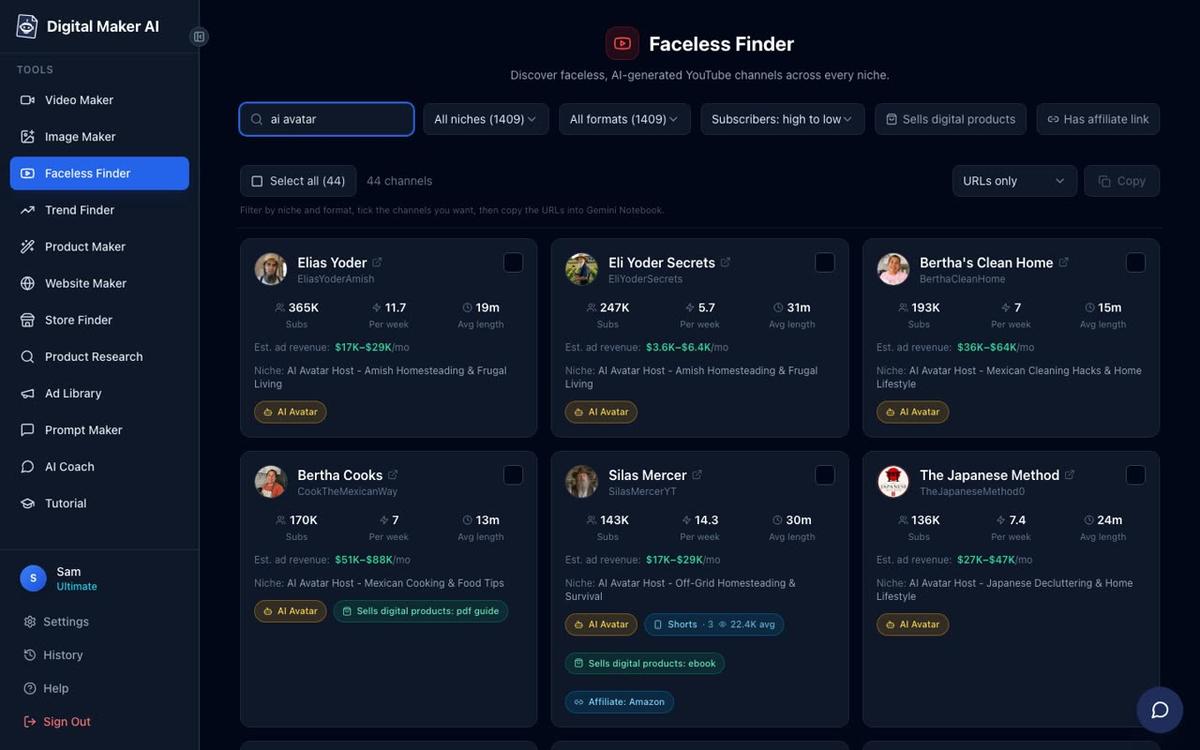
If you have been searching for proof that an AI avatar cooking channel can earn real money, the Otis's Kitchen AI avatar YouTube channel is one of the clearest examples available right now. According to the Digital Maker AI Faceless Finder, Otis's Kitchen (@OtisGrangerKitchen) has grown to 45,700 subscribers with around 47 videos, uploading roughly four times a week. The Finder estimates the channel pulls in about 1.5 million views a month and somewhere between $9,200 and $14,000 a month in ad revenue. Those are Faceless Finder estimates based on recent views and typical ad rates for the niche, not the channel's verified earnings, but they paint a compelling picture of what a tight, consistent AI avatar cooking channel can do.
Otis's Kitchen is not alone. The cooking and food niche is full of AI avatar channels at every stage of growth. Bertha Cooks has reached 211,000 subscribers across 61 videos, with the Finder estimating nearly 4.6 million monthly views and $28,000 to $42,000 a month in ad revenue. Further along the growth curve, Hana Yoshida sits at 69,500 subscribers and an estimated $4,300 to $6,400 a month, covering Japanese cooking and food tips at around six uploads a week. None of these channels feature a real person on camera. Each one is built around a strong AI generated persona, a tight niche, and a reliable upload schedule.
What These Channels Have in Common
Search for "AI avatar" in the Faceless Finder and a pattern emerges immediately. Every channel that is performing well shares a handful of traits:
- A specific, believable persona. Otis is an older man with a farmhouse kitchen and a lifetime of cooking knowledge. Bertha is a Mexican grandmother. Hana is a Japanese home cook. The persona is not vague; it has a face, a setting and a personality.
- A tight niche. Old-fashioned farm cooking, Mexican family recipes, Japanese frugal meals. Each channel owns one corner of the food world rather than trying to cover everything.
- Consistent, frequent uploads. Four to seven videos a week is common across the top performers. The AI handles the production, so the bottleneck is ideas, not editing time.
- Practical, tip-driven content. Viewers come back because every video teaches something useful: a technique, a substitution, a forgotten recipe. The presenter is the trusted guide who delivers it.
- No real person on camera. The host is entirely AI generated. There is no filming setup, no lighting kit, no need to appear on screen yourself.
That combination, a memorable AI face, a focused niche and daily practical tips, is exactly what you can build with Digital Maker AI's AI Presenters feature. Here is how to do it, step by step.
Step 1: Plan Your Presenter Before You Build Them
Before you open the app, spend five minutes deciding who your host is. For an Otis-style old-fashioned farm cooking channel, think about:
- Age and appearance. An older man in his sixties or seventies, weathered hands, a warm expression, wearing a well-worn apron over a plaid shirt.
- Setting. A farmhouse kitchen with a heavy wooden table, cast iron pans on the wall, natural light from a window, maybe a garden visible outside.
- Personality. Unhurried, knowledgeable, the kind of person who measures nothing and explains everything.
Write this down as one or two plain sentences. That description is exactly what you will paste into the presenter form. The more specific you are, the more consistent and believable the result will be.
Step 2: Create Your AI Presenter in Account Settings
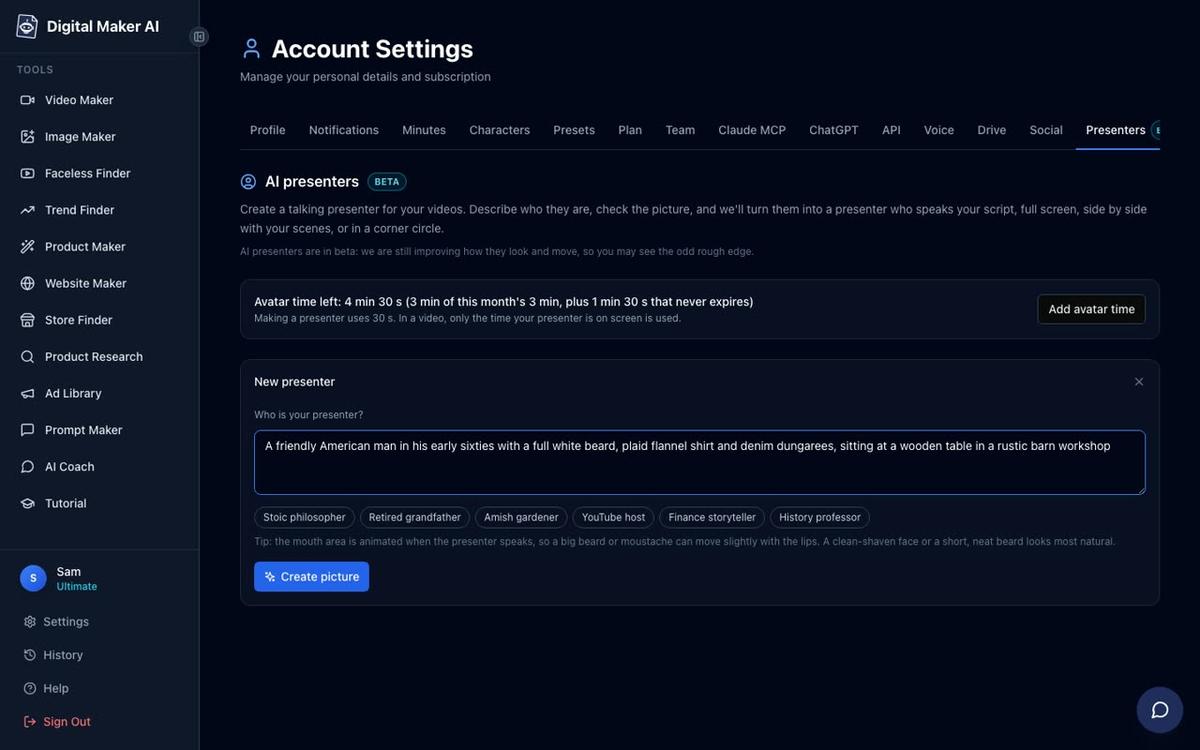
AI Presenters are available on Premium and Ultimate plans. Once you are signed in, go to Account Settings and open the Presenters tab. You will see a form with a text box asking who your presenter is. Paste in your description, for example: "An older man in his late sixties with a grey beard, wearing a faded apron over a plaid shirt, sitting at a heavy wooden table in a warm farmhouse kitchen with cast iron pans on the wall behind him." Then press Create picture.
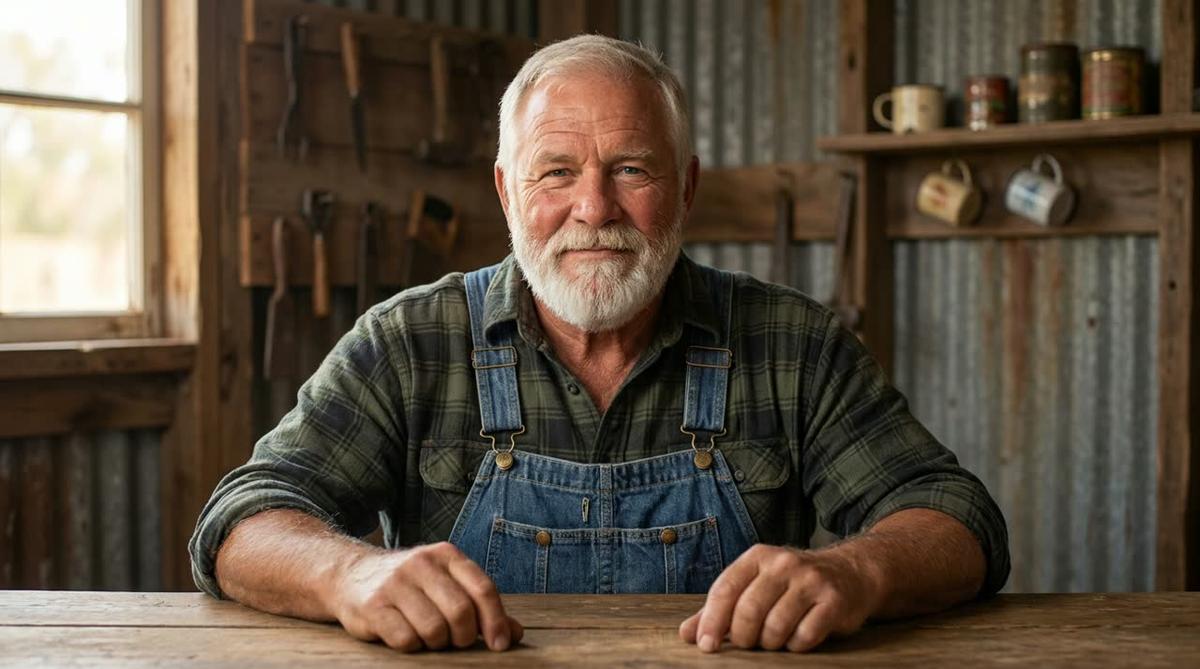
The AI generates a photoreal portrait of your presenter. Check it carefully. Does the face match the warmth and age you had in mind? Is the setting right? If you are happy with it, press Save. If not, tweak your description and regenerate. Once saved, this presenter is available in every video you make on that account. You can create several and switch between them for different series.
Step 3: Start a Long-Form Video and Add Your Presenter
Head to the Video Maker and start a new Long-Form Faceless Video. At Step 1, choose Multi Scene format. This is the only format that supports AI Presenters, so make sure you pick it. Work through the steps: at Step 3 type your topic (for example, "How to make a proper farmhouse beef stew the old-fashioned way"), then continue through to the presenter settings.
When the presenter step appears, select the presenter you just saved. You will then see three layout options to tick:
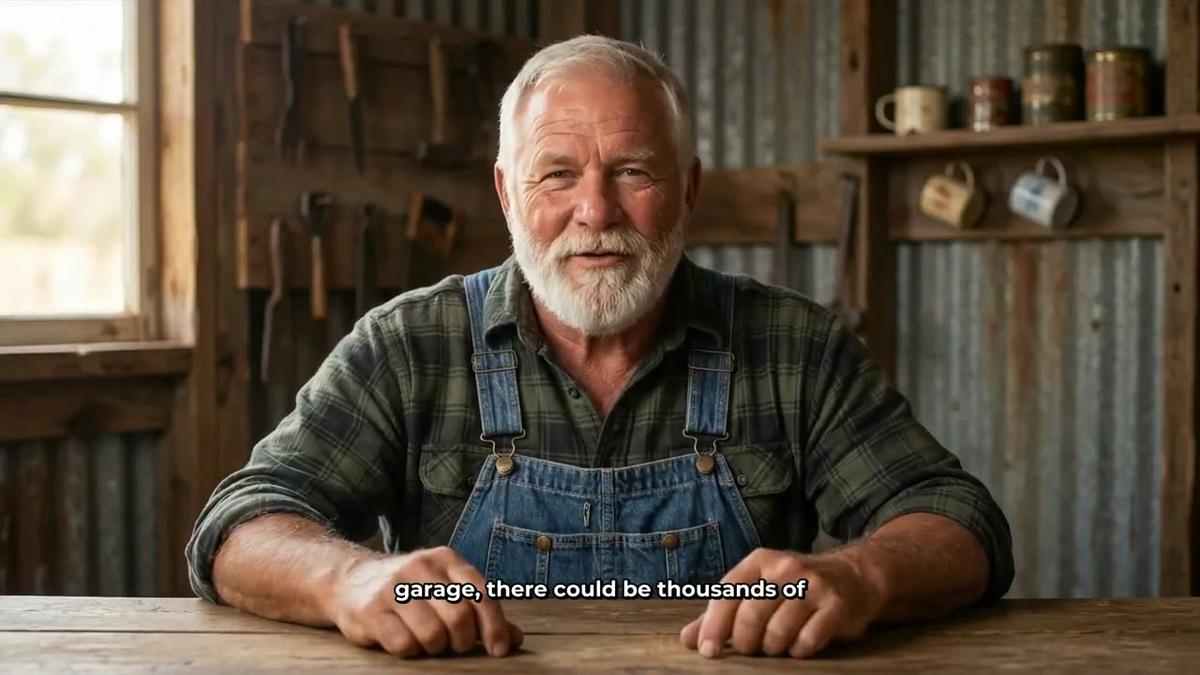
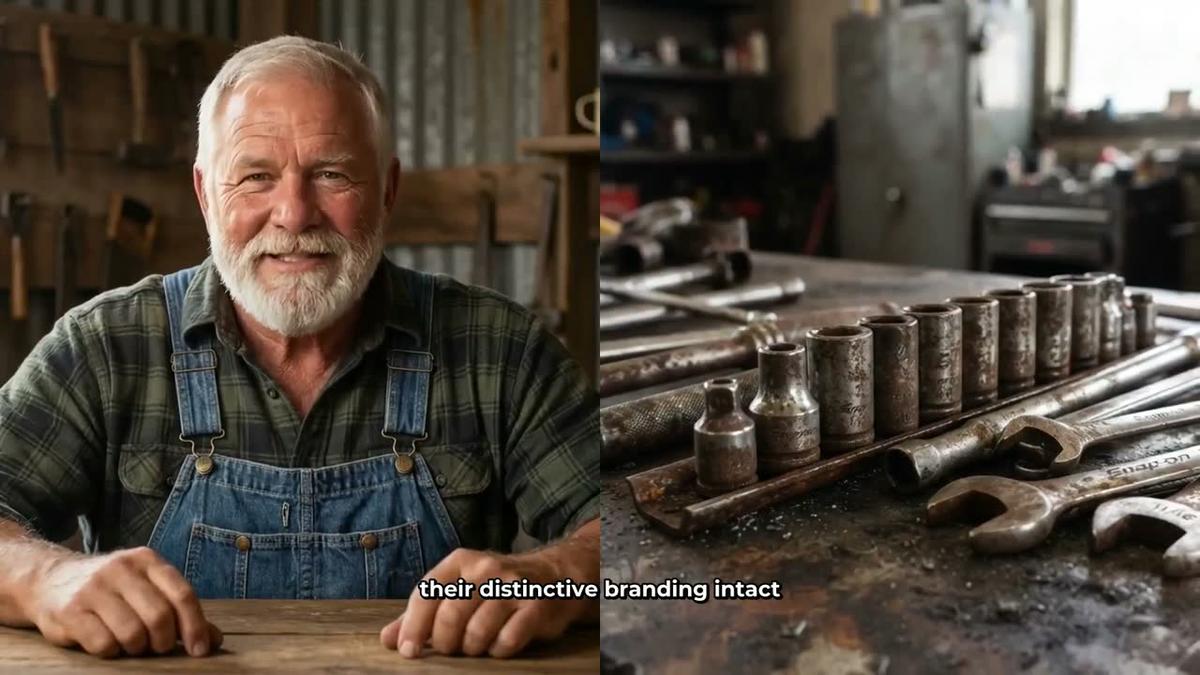
- Full screen: your presenter fills the entire frame, speaking directly to camera. This works well for introductions, tips and sign-offs where you want maximum presence.
- Split screen: the presenter sits on the left half of the screen while the scene image (the dish, the ingredient, the technique) fills the right half. This is ideal for cooking videos because the viewer sees both the host and what is being described at the same time.
- Corner circle: the scene image fills the full frame and the presenter appears in a small round window in the corner, keeping the food front and centre with the host still visible.
Tick all three layouts and the video will rotate through them, which keeps the viewing experience varied and engaging.
Step 4: Set Presenter Screen Time
A slider lets you control how much of the video your presenter is actually on screen, anywhere from 5 percent up to the full video. For a cooking channel, a good starting point is around 30 to 50 percent: the presenter introduces each section and delivers the key tips, while the rest of the video shows AI generated scene images of the food and the process. Markers on a timeline bar let you place the presenter at specific moments, for example at the opening, again in the middle when the main technique is explained, and once more at the end for the sign-off. The rest of the video runs as normal scene images.
Presenter time is counted separately from your video minutes. It runs on avatar time, measured in seconds. Creating a presenter uses 30 seconds of avatar time, and each video uses only the seconds the presenter is actually visible. Premium plans start with 2 minutes of avatar time and Ultimate plans start with 5 minutes, with Ultimate also receiving 3 minutes every month. If you need more, Avatar Packs let you top up at any time. See the pricing page for current pack options.
Step 5: Choose Realistic Style and a Warm Male Voice
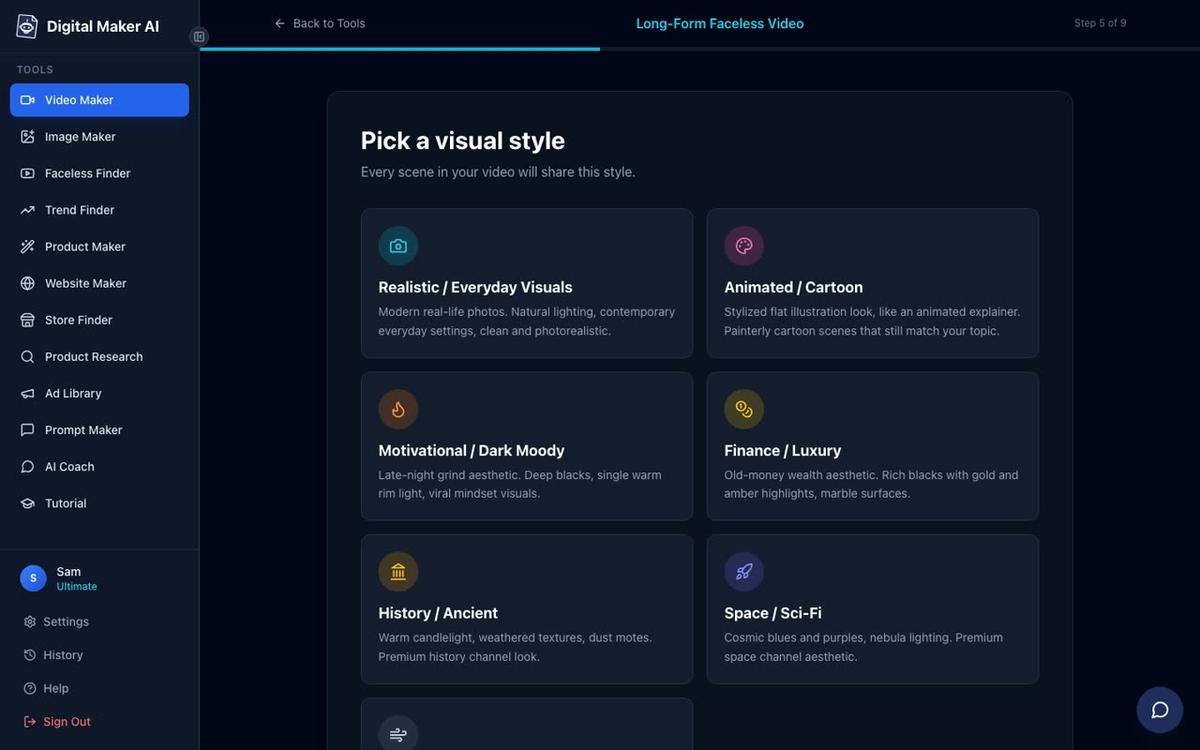
At Step 5, choose Realistic / Everyday Visuals as your visual style. For a farmhouse cooking channel this is the right choice: every scene image will look like a photograph of real food, real kitchens and real ingredients, which matches the honest, unpretentious tone of channels like Otis's Kitchen.
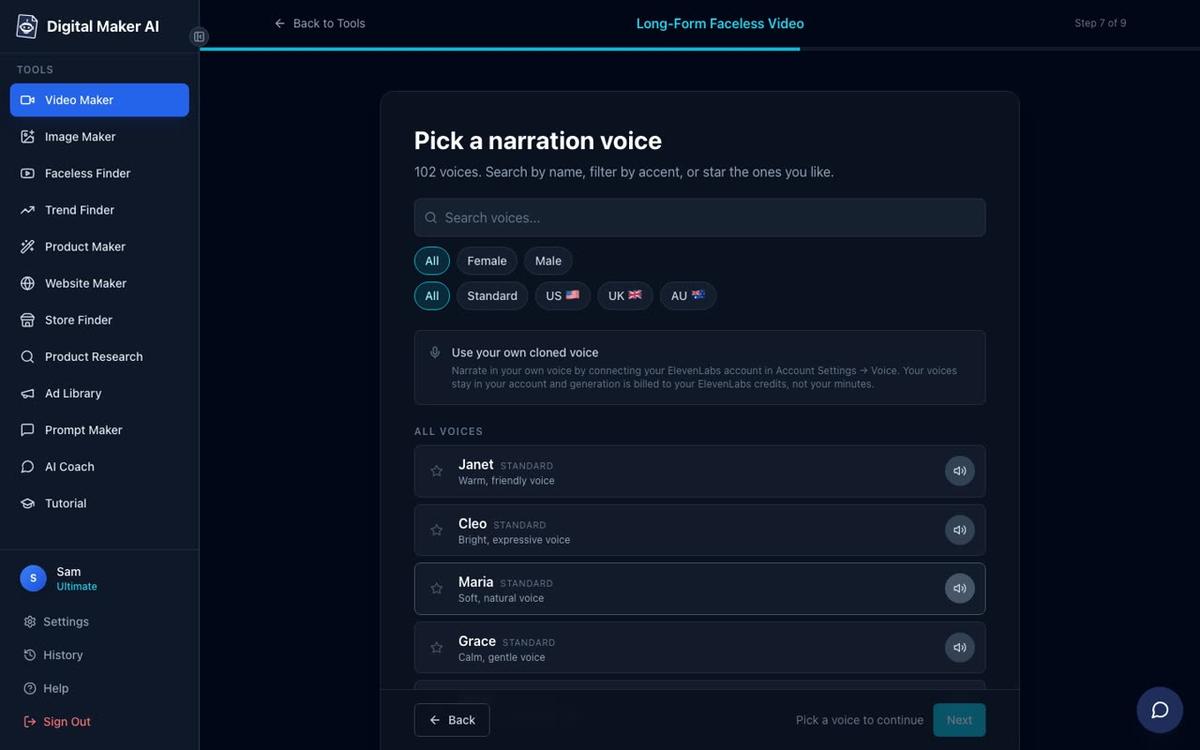
At Step 7, pick your narration voice. Digital Maker AI includes more than 100 built-in voices across male and female options with US, UK and Australian accents. For a warm, older male farm cooking host, filter by Male and listen to a few US voices until you find one that sounds unhurried and trustworthy. The same voice plays across the whole video, including the presenter segments, so consistency is built in.
Step 6: Review and Generate Your Video
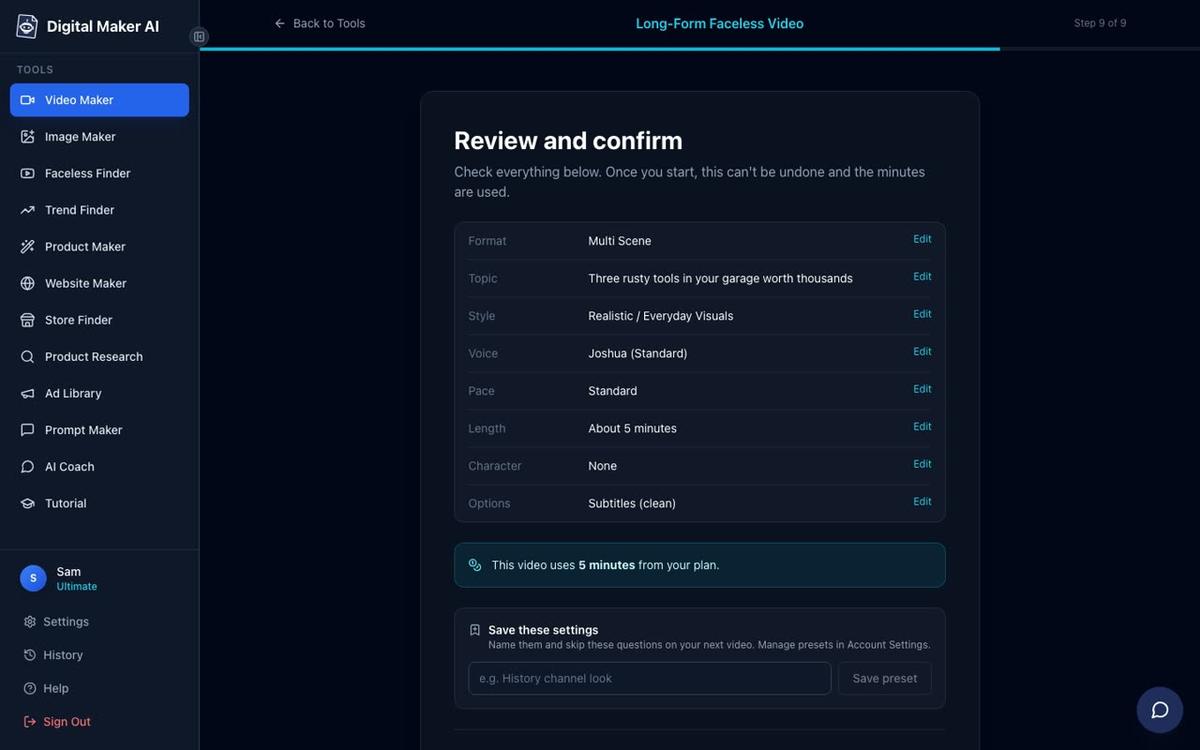
Step 9 is the review screen. Check that the format is Multi Scene, the style is Realistic, the voice is the one you chose, and the presenter is selected. You will also see how many minutes the video will use from your monthly pool. When everything looks right, press Generate Video. The platform writes the script, generates a unique scene image for every scene, records the narration, adds captions and builds the presenter segments, then returns a finished MP4 ready to upload to YouTube.
After the video is made you can regenerate any scene image you are not happy with (up to 10 free regenerations per video), swap in your own image or a short clip, or edit the narration text. There is no timeline editor, but those tools give you enough control to polish each video before it goes live.
Building a Channel That Looks Like the Otis's Kitchen AI Avatar YouTube Channel
The channels at the top of the AI avatar cooking space all made the same smart decisions early on. Here is how to apply those lessons from day one:
- Lock in the persona and never change it. Save your presenter, note the description you used, and use the same one for every video. Viewers follow the character, not the topic alone.
- Pick a sub-niche and own it. Old-fashioned farm cooking, grandma's Southern recipes, one-pot pioneer meals: the narrower the niche, the stronger the channel identity and the more loyal the audience.
- Batch your production. Because the AI handles scripting, imagery, narration and editing, you can queue up four or five videos in a session and schedule them across the week. That is the upload frequency that drives growth.
- Use Split screen for technique moments. When the script is explaining how to render lard or fold dumplings, Switch to Split screen so viewers see both the host and the food at the same time. It makes the tips feel more instructional and less like a voiceover.
- Match your thumbnail to the presenter. Use the Image Maker in Digital Maker AI to create thumbnails that feature your AI host alongside the dish. Channels like Otis's Kitchen use the presenter's face on every thumbnail, which builds recognition fast.
If you want to explore more cooking channel ideas before you commit to a direction, the article on AI avatar channel ideas for Italian and Indian cooking videos covers how other creators are carving out niches in the food space with AI presenters.
For a closer look at how a Japanese cooking avatar channel is built, the guide on creating an AI avatar channel like Hana Yoshida walks through the same process with a different persona and visual style.
Ready to Build Your Own AI Cooking Host?
The Otis's Kitchen AI avatar YouTube channel shows exactly what is possible when a strong persona meets a hungry niche and a consistent upload schedule. The same formula, a believable AI host, practical tips, and daily videos, is open to anyone willing to commit to a corner of the food world. The AI presenter video generator in Digital Maker AI handles the production side end to end, from the character portrait to the finished MP4, so you can focus on the ideas and let the platform do the rest.
To get started without a card, create a free account and explore the tools. When you are ready to add your AI presenter, upgrade to Premium or Ultimate and check the pricing page for current plan options and Avatar Pack details. And if you want a full walkthrough of building a faceless channel from scratch, the free faceless video course covers everything from niche selection to your first upload.
Alex Stevens: Alex Stevens writes for the Digital Maker AI team about faceless YouTube channels, AI presenters and AI video tools.