How to Create an AI Avatar for YouTube Videos Like BEHIND THE CAR
By Alex Stevens
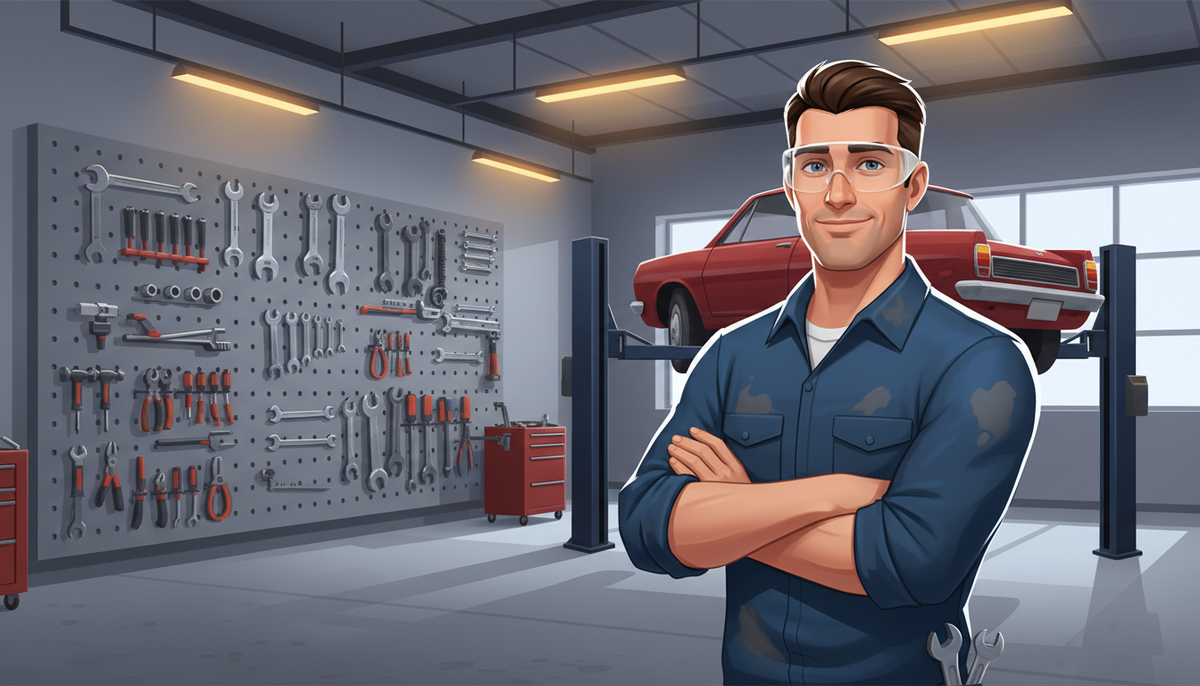
Car maintenance is one of those niches that never goes out of style. Every driver eventually needs to know when to change their oil, how to check tyre pressure, or what that dashboard warning light actually means. Channels built around an ai avatar youtube channel car maintenance format are proving that you do not need to get your hands dirty on camera to build a real audience in this space. BEHIND THE CAR is a clear example, and in this guide you will see exactly how it works and how to build something similar using Digital Maker AI's AI Presenters feature.
What the AI Avatar Car Maintenance Niche Looks Like
According to the Digital Maker AI Faceless Finder (all figures below are that tool's own estimates, not verified channel earnings), BEHIND THE CAR has grown to 45,500 subscribers with 110 videos, posting roughly five times a week. The Finder estimates the channel pulls in around 404,794 views a month and earns somewhere between $2,800 and $4,300 a month from ads. The niche is tight: oil changes, tyre advice, and practical car maintenance tips aimed at everyday drivers who want straight answers fast.
The Faceless Finder flags BEHIND THE CAR with an AI Avatar label, meaning the channel uses an AI-generated presenter rather than a real person on camera. It is not alone. Several other channels in adjacent niches follow the same playbook:
- Wes Tucker covers life hacks and home security with an AI avatar host, has reached 51,900 subscribers, and the Finder estimates $5,600 to $8,300 a month in ad revenue.
- Silas Mercer focuses on off-grid homesteading and survival, posts about 14 videos a week, has 149,000 subscribers, and the Finder estimates $14,000 to $21,000 a month.
- Eli Yoder Agriculture covers gardening hacks and home remedies with an AI avatar host, sits at 59,600 subscribers, and the Finder estimates $750 to $1,100 a month.
What these channels share is a consistent formula: a strong AI-generated host character with a clear persona, a very tight niche, near-daily uploads, and practical tips that viewers can act on immediately. No real person ever appears on screen. The presenter is the brand.
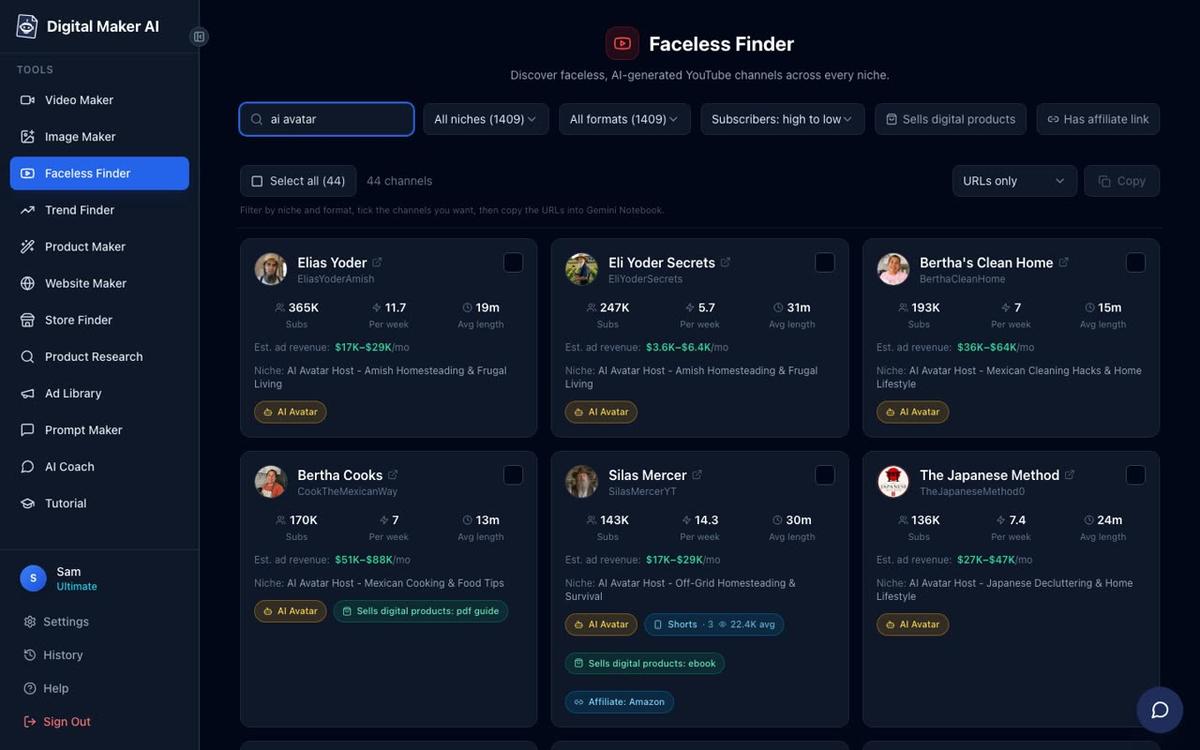
Typing "AI avatar" into the Faceless Finder search box filters the list to only AI-fronted channels, so you can study any niche you like and see what posting frequency and estimated revenue look like before you commit to a topic.
Why the Mechanic Persona Works So Well for an AI Avatar YouTube Channel Car Maintenance Format
A mechanic character has instant credibility signals: a workshop setting, work clothes, tools on the wall, and a confident no-nonsense voice. Viewers searching for car maintenance advice want someone who sounds like they know their way around an engine bay, not a generic narrator. An AI presenter lets you design exactly that character and keep it consistent across every video you publish, without booking a studio or hiring a presenter.
The other advantage is topic depth. Car maintenance is genuinely evergreen. Oil change intervals, brake pad wear, tyre rotation schedules, battery checks, cabin air filters: every one of those is a separate video, and every video can carry the same host. That consistency builds the kind of channel identity that turns one-time viewers into subscribers.
Step 1: Find Your Presenter in Account Settings
To use AI Presenters you need a Premium or Ultimate plan on Digital Maker AI. Once you are signed in, open Account Settings and click the Presenters tab. You will see a form asking you to describe who your presenter is and what their setting looks like. This is where you build your mechanic character.
A description like "a confident male mechanic in his forties, short dark hair, wearing a navy work shirt with a name patch, standing in a well-lit garage with tools on a pegboard behind him" is enough for the AI to generate a photoreal picture of your host. You can also use the quick-pick suggestions on the form for inspiration, then customise from there. Once you are happy with the image, save it. You can create several presenters and switch between them for different series or channel brands.
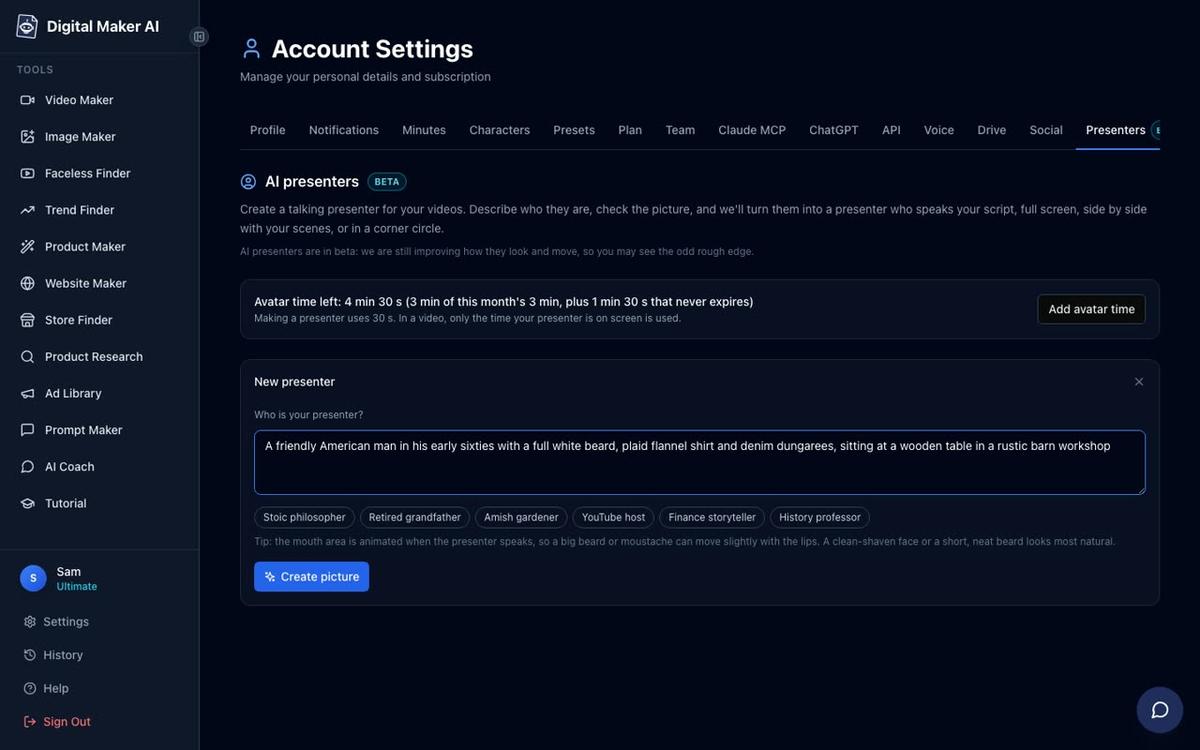
Creating a presenter uses 30 seconds of avatar time. Avatar time is a separate pool from your video minutes: it counts only the seconds your presenter is actually on screen in a finished video. Premium plans start with 2 minutes of avatar time and Ultimate with 5 minutes, plus 3 minutes added every month on Ultimate. If you need more, Avatar Packs let you top up as a one-off purchase. See the pricing page for current pack options.
Step 2: Start a Multi Scene Long Form Video
Go to the Video Maker and choose Long-Form Faceless Video. On step 1, select Multi Scene. AI Presenters work on landscape Multi Scene videos, so this is the format to pick for a YouTube car maintenance channel.
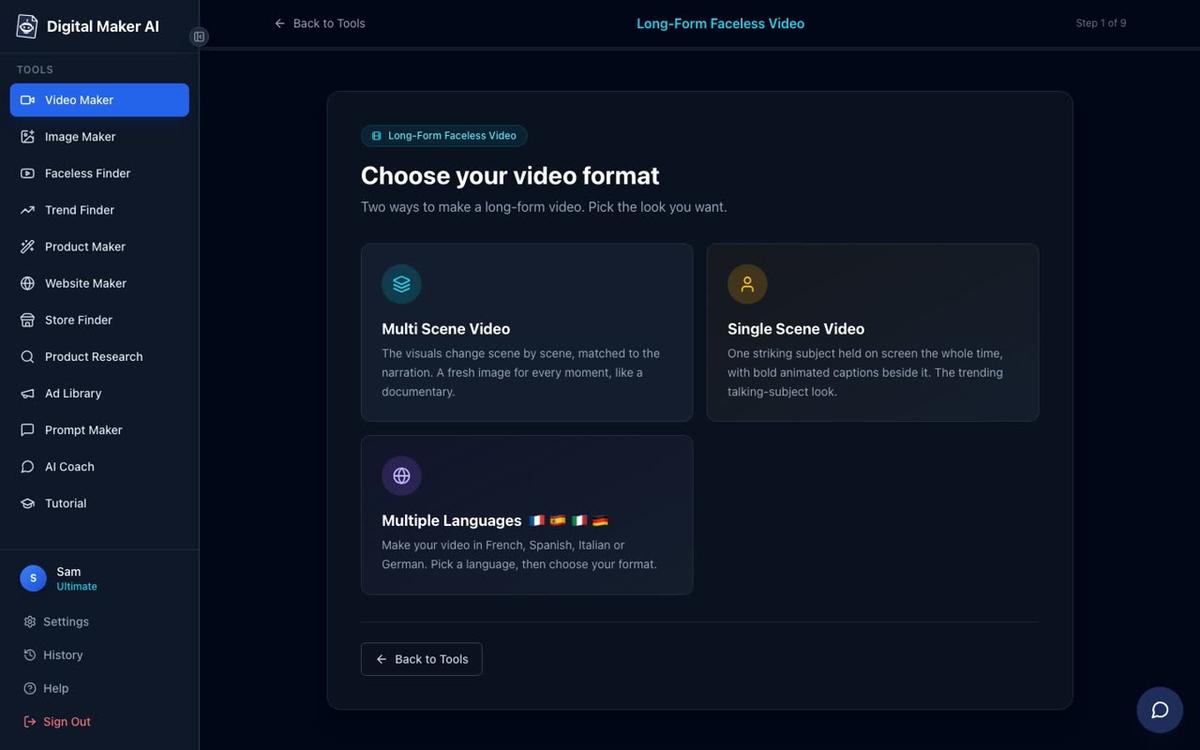
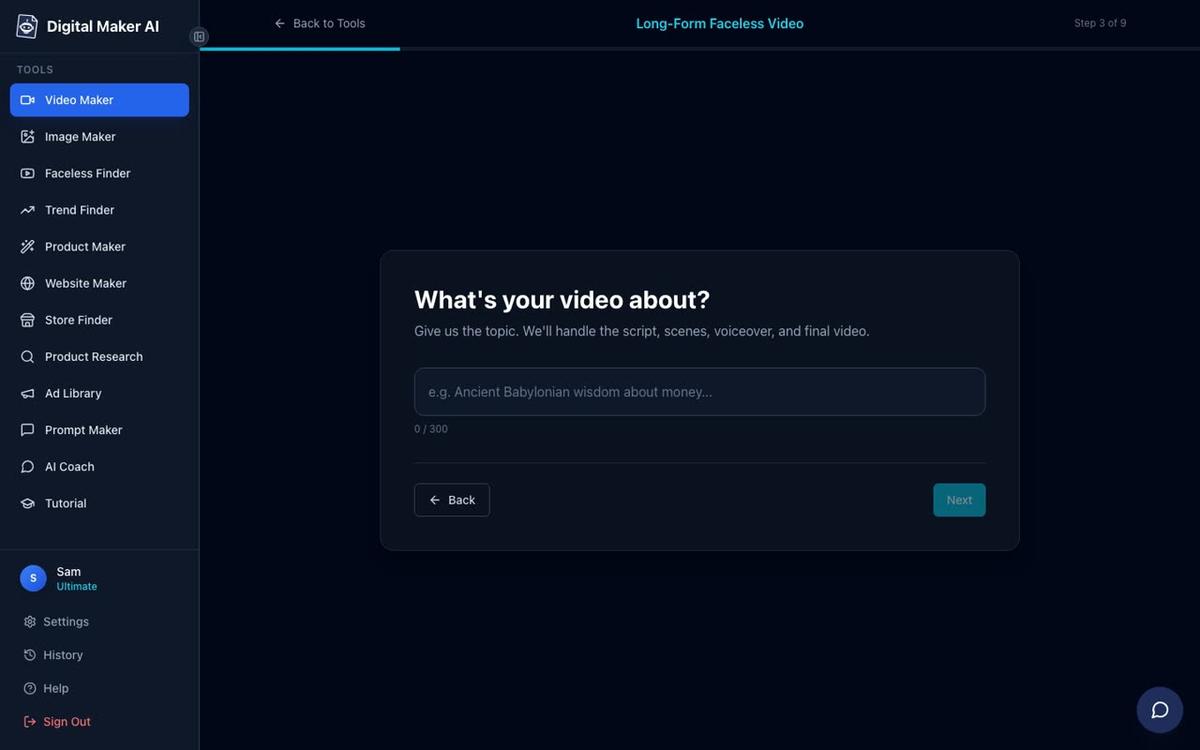
On step 3, type your topic. Something like "how to check and change your engine oil at home" or "5 signs your brake pads need replacing" works perfectly. The AI writes the full script, generates a scene image for every scene, adds narration and captions, and returns a finished MP4.
Step 3: Pick Your Visual Style and Voice for an AI Avatar Car Maintenance Channel
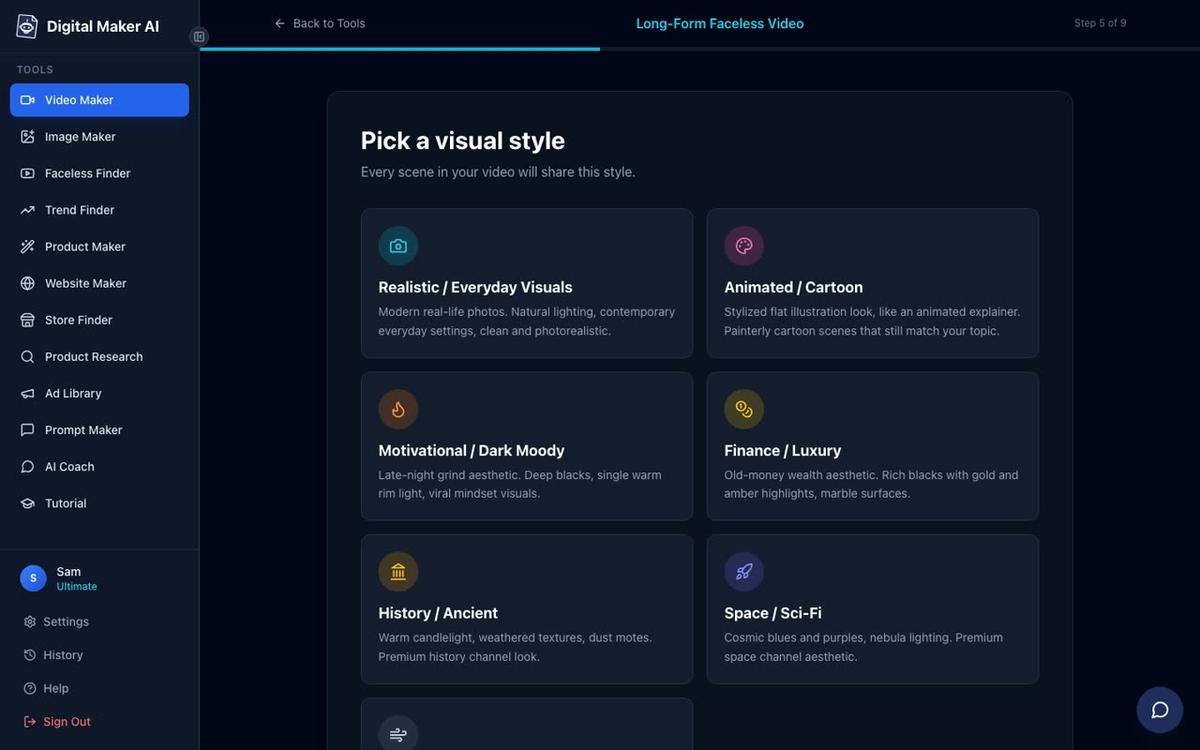
On step 5, choose Realistic or Everyday Visuals. For a garage and tools niche this style generates the most convincing scene images: close-ups of engine bays, oil filters, tyre treads, and workshop benches that look like real photographs rather than illustrations. Avoid Animated or Cartoon for this niche unless you are deliberately going for a how-it-works explainer look.
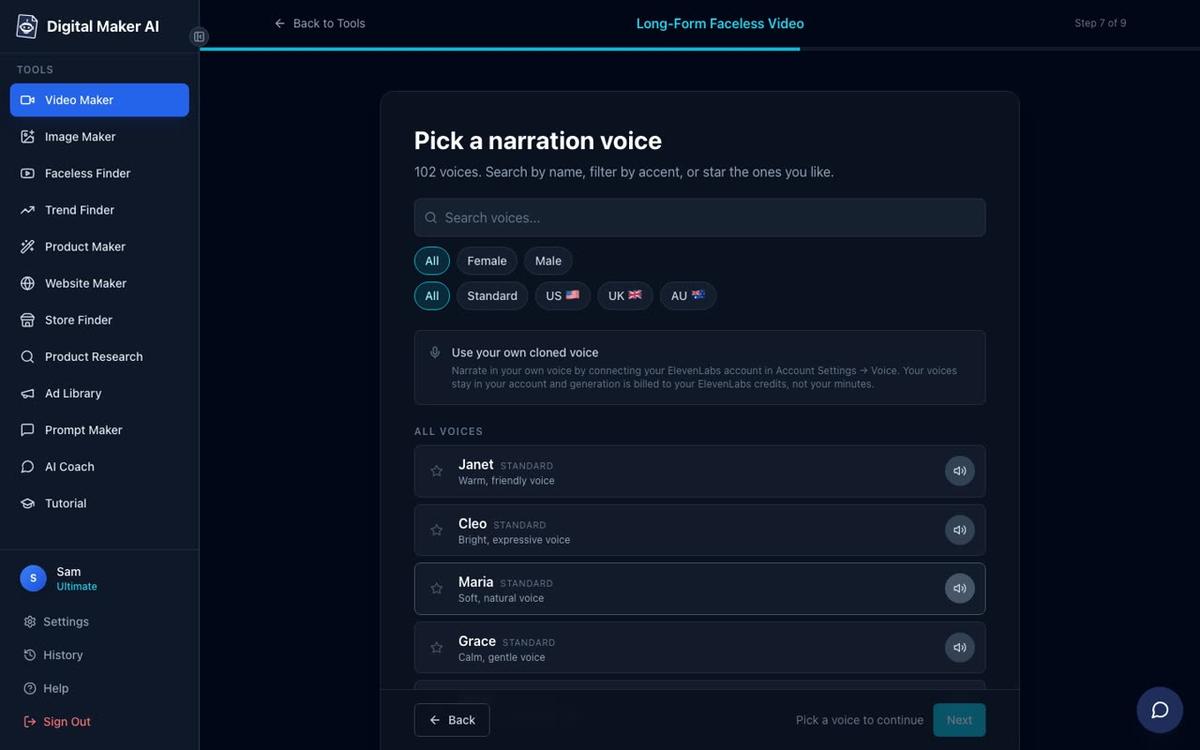
On step 7, pick your narration voice. Digital Maker AI includes more than 100 built-in voices with male and female options across US, UK, and Australian accents. For a mechanic-style channel, a confident male US voice with a standard or slightly energetic pace matches the no-nonsense tone that viewers expect. Filter by Male and US to narrow the list quickly, then preview a few before committing.
Step 4: Add Your Presenter and Choose the Corner Circle Layout
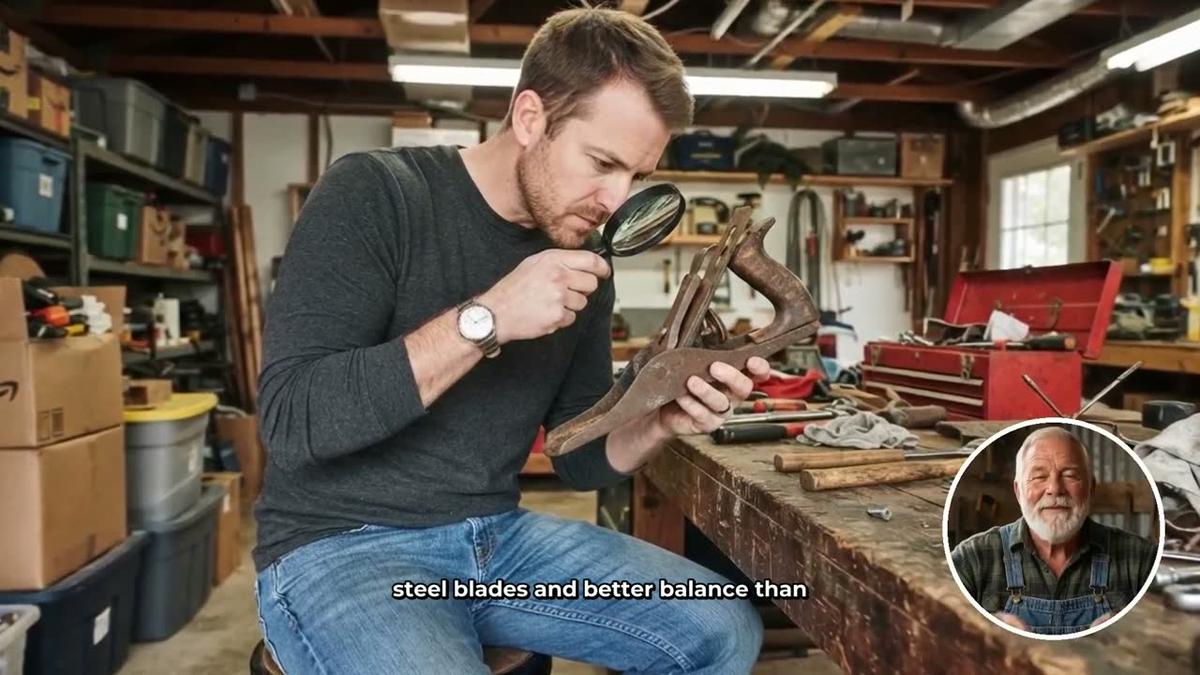
After picking your voice and pacing, the Video Maker will show you the presenter options. Select the mechanic presenter you saved in Account Settings. You will then see three layout choices to tick: Full screen (the presenter fills the frame), Split screen (presenter on the left, scene on the right), and Corner circle (the scene fills the frame with the presenter in a round window in the corner).
For a car maintenance channel, the Corner circle layout is particularly effective. It keeps the garage scene images front and centre, which is exactly what viewers want when they are trying to follow along with a repair or maintenance task. The presenter stays visible in the corner, maintaining the host-led feel without covering the useful visual content.
The Split screen layout is a strong second choice, especially for intro and outro sections where you want the presenter to feel more prominent. It places your mechanic host on the left half of the screen with the scene image on the right, which works well for tips that do not require a close-up visual.
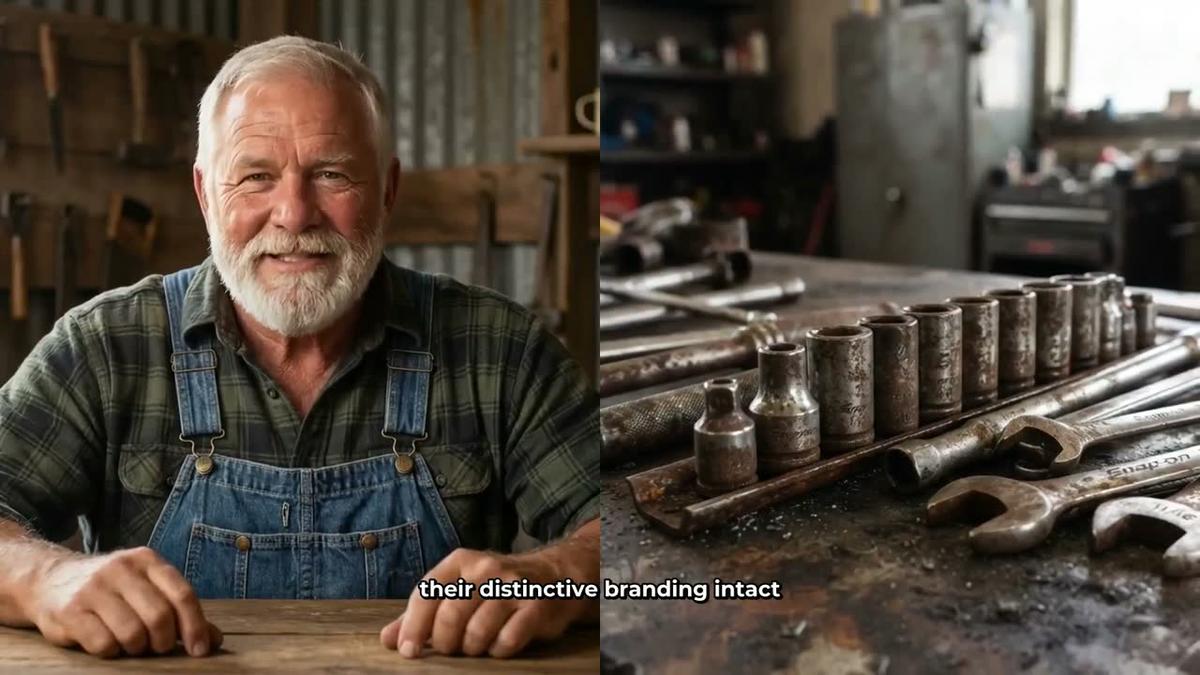
You can tick more than one layout and the video will rotate between them. A slider lets you set how much of the total video the presenter appears on screen, from 5 percent up to the full duration. Markers on a timeline bar let you place the presenter at specific points, for example at the opening, at a key tip mid-video, and at the call to action at the end.
Step 5: Review and Generate
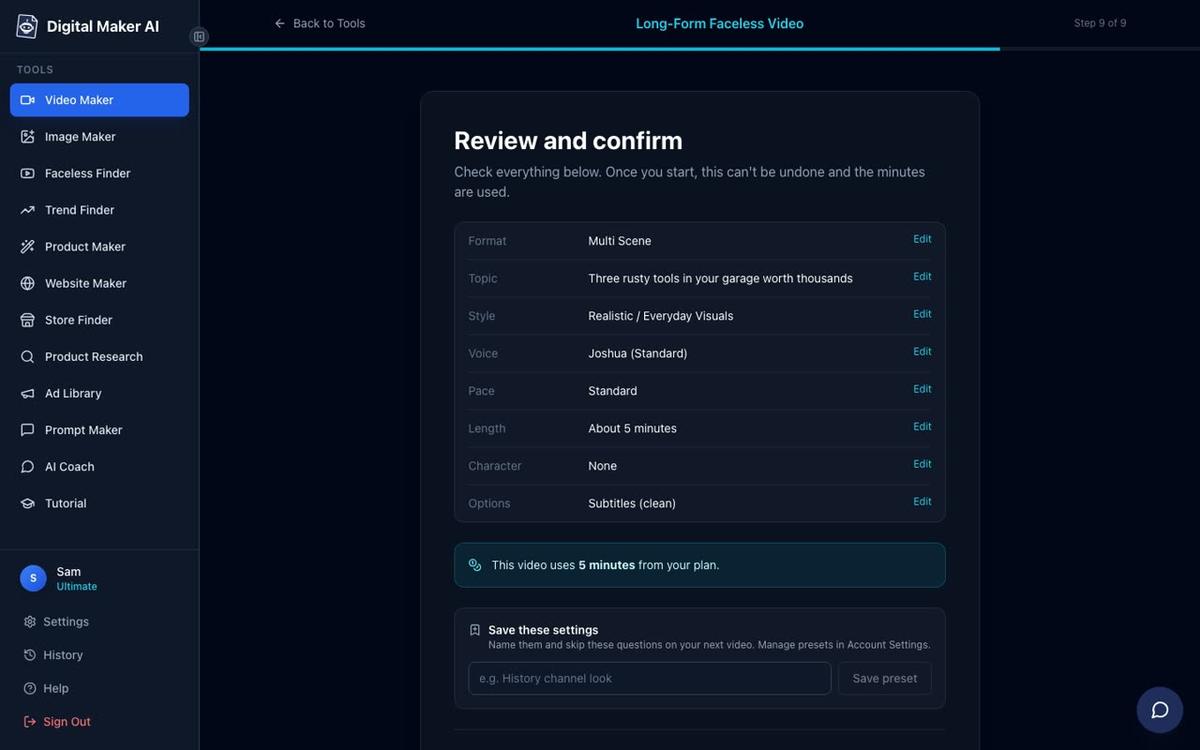
Step 9 is the review screen. Before anything is generated you can see the format, topic, visual style, voice, pace, video length, and how many minutes the video will use from your monthly pool. Check everything here, particularly the minute cost, so there are no surprises.
Press Generate Video and the platform writes the script, creates a scene image for every scene, records the narration in your chosen voice, adds captions, and assembles the finished MP4. Once it is ready you can regenerate any individual scene image (up to 10 free regenerations per video), swap in your own image or a short clip, or edit the narration text for any scene before downloading.
Tips for Building a Consistent AI Avatar Car Maintenance Channel
- Keep the presenter description specific. The more detail you give, the more consistent the generated image will be. Include clothing, setting, and lighting in your description so the character looks the same every time you create a new one.
- Batch your topics. Car maintenance has hundreds of evergreen angles. Write out 20 to 30 topic ideas before you start generating, so you always have the next video ready to go. The AI avatar video generator makes it fast to turn each topic into a finished video.
- Use the Faceless Finder for research. Search by niche to see what posting frequency and estimated revenue look like for channels similar to yours. It is available to every signed-in account, including Free.
- Match your caption style to the niche. Bold Pop or YouTube Yellow captions work well for car maintenance content because they are easy to read on garage-scene backgrounds. You can choose your caption style in the video maker.
- Reuse your presenter across every video. The whole point of an AI avatar channel is a consistent host. Save your mechanic presenter and select them for every new video so your channel builds a recognisable identity over time.
If you want to explore similar AI avatar channel approaches in other niches, the guide on how to create an AI avatar channel like Otis's Kitchen walks through the same process for a food and cooking format, and the guide on building a channel like Frugal Japan covers a frugal lifestyle niche. Both use the same AI Presenters feature and the same step-by-step workflow described here.
The car maintenance niche is genuinely underserved in the AI avatar space. BEHIND THE CAR shows that a focused mechanic persona, a tight topic list, and consistent uploads can build a real audience without anyone ever going on camera. With Digital Maker AI's AI Presenters, you can have your mechanic character designed, your first video generated, and your channel concept ready to launch in a single afternoon. Start with the free course at digitalmaker.ai to get a full walkthrough of the platform before you dive in.
Alex Stevens: Alex Stevens writes for the Digital Maker AI team about faceless YouTube channels, AI presenters and AI video tools.