How to Create an AI Avatar for YouTube Videos Like Elias Yoder
By Alex Stevens
If you have ever typed "AI avatar" into the Faceless Finder on Digital Maker AI and watched the results load, you will have noticed something striking: a cluster of Amish homesteading channels sitting near the top, all fronted by AI-generated presenters, all pulling in serious estimated ad revenue. The Elias Yoder AI avatar channel leads the pack, and understanding how it works is the fastest shortcut to building your own version. This guide walks through what makes the niche tick and shows you exactly how to create an Amish-style AI presenter in Digital Maker AI from scratch.
What the Faceless Finder Shows for Elias Yoder AI Avatar Channel and Its Neighbours
The Faceless Finder lists every confirmed AI avatar channel with an amber "AI Avatar" label. Type "AI avatar" in the search box and a clear picture emerges. All figures below are Digital Maker AI Faceless Finder estimates, not verified channel earnings, and are included here as a rough guide to the opportunity.
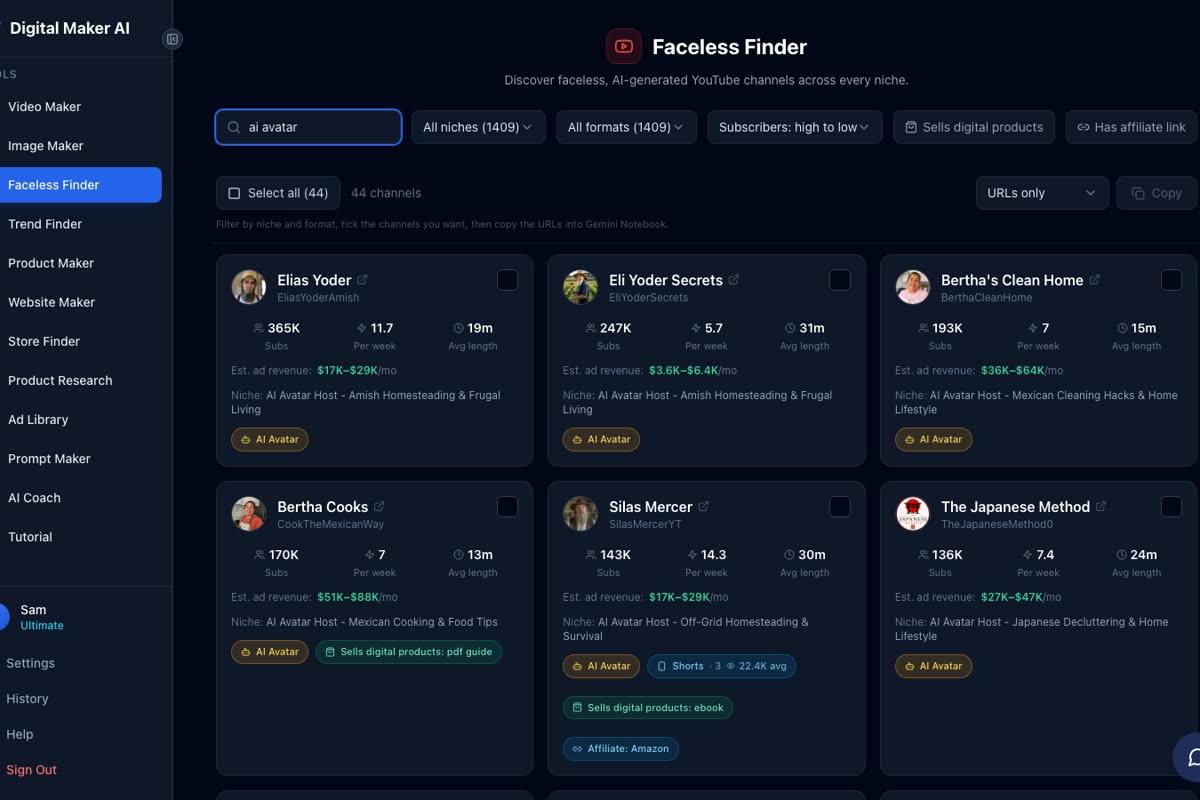
The Amish homesteading cluster alone shows just how deep this niche runs:
- Elias Yoder: 365,000 subscribers, an estimated 2,074,002 views a month, estimated ad revenue $17,000 to $29,000 a month.
- Eli Yoder Secrets: 247,000 subscribers, estimated ad revenue $3,600 to $6,400 a month.
- SuperTips: 245,000 subscribers, estimated ad revenue $2,900 to $5,100 a month, covering Amish-style home hacks and remedies.
- Esther Yoder: 65,800 subscribers, estimated ad revenue $2,300 to $4,000 a month, focused on Amish homesteading and kitchen tips.
- Amish Gardening: 106,000 subscribers, estimated ad revenue $650 to $2,300 a month.
That is five channels in essentially the same niche, all growing at the same time, which tells you the audience is large enough to support multiple creators. The Finder also shows that the AI avatar format extends well beyond Amish content: channels like Silas Mercer (off-grid homesteading, estimated $17,000 to $29,000 a month) and other avatar-led channels are finding the same formula works across different personas and niches.
Why the Amish Homesteading Niche Works So Well for AI Avatar Channels
The success of the Elias Yoder AI avatar channel format is not accidental. Several things line up to make it unusually well suited to the AI presenter approach.
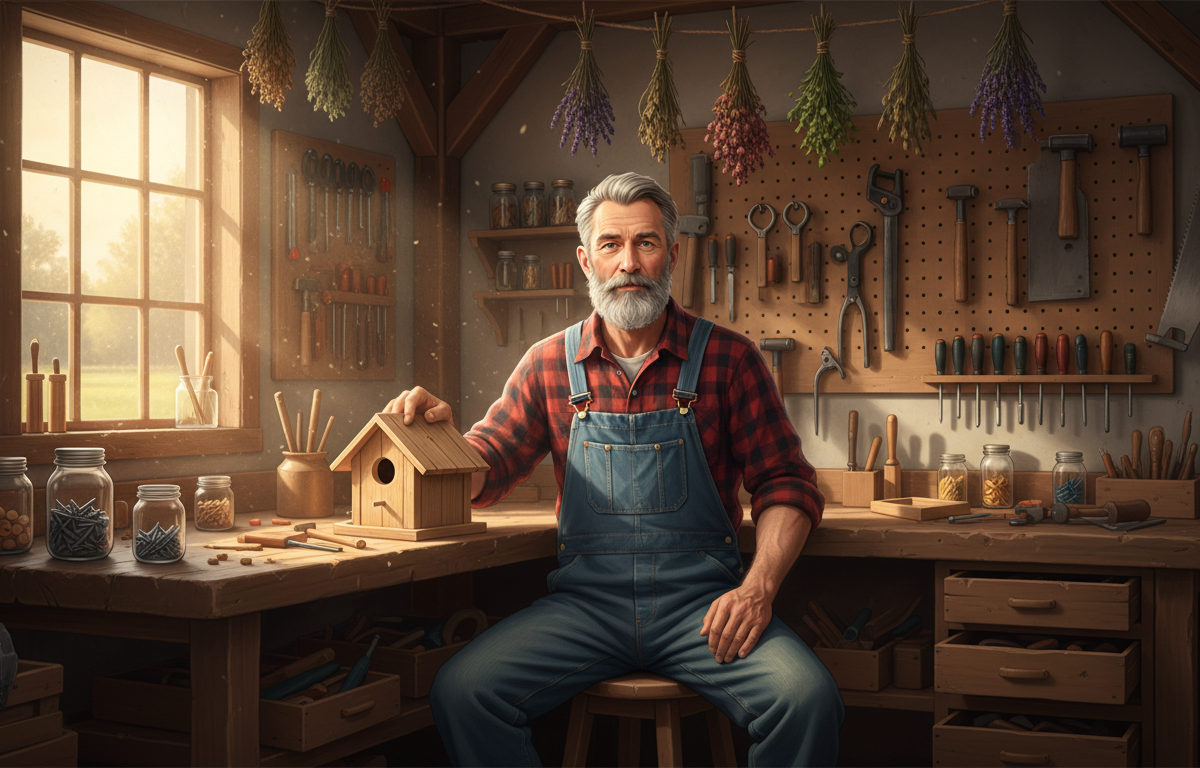
The persona feels trustworthy without needing a real face. An elderly bearded farmer in dungarees reads as warm, plain-spoken and knowledgeable. Viewers are not looking for a celebrity: they want someone who feels like a neighbour who has been doing this for forty years. An AI-generated character can nail that look consistently across hundreds of videos.
The topics have evergreen search demand. Frugal living, food preservation, natural remedies, garden tips and simple home repairs are searched every single day by people of all ages. These are not trend-driven topics that spike and vanish: they compound over time as a back catalogue.
The format rewards daily uploads. Short, practical how-to videos of five to fifteen minutes can be produced quickly when the AI handles the script, scenes and narration. Elias Yoder uploads around twelve times a week. That kind of cadence is only realistic with AI assistance.
No real person needs to appear on camera. The whole appeal of the niche is the character, not the creator. That means no filming setup, no need to show your face and no dependency on one person's schedule or appearance.
Step 1: Sign Up and Open the Presenters Tab
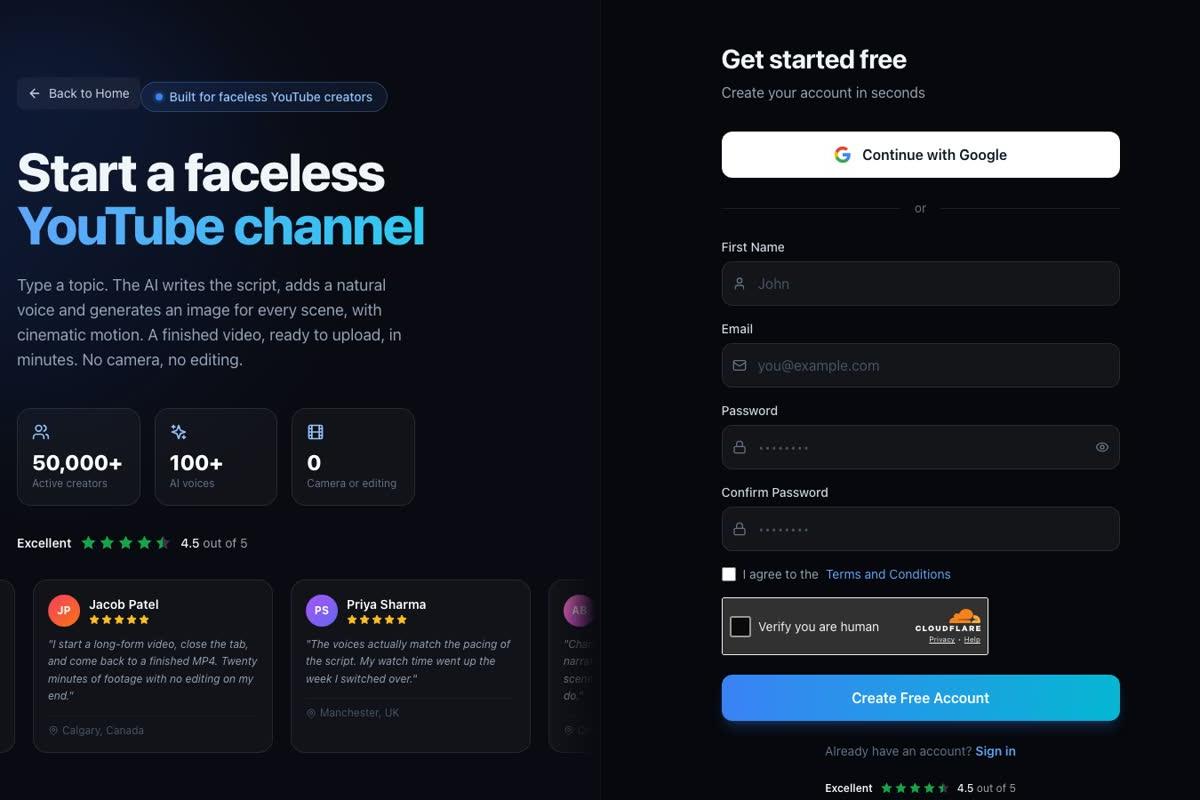
AI Presenters are available on Premium and Ultimate plans on Digital Maker AI. If you do not have an account yet, head to digitalmaker.ai/faceless and create one. The sign-up form takes about thirty seconds.
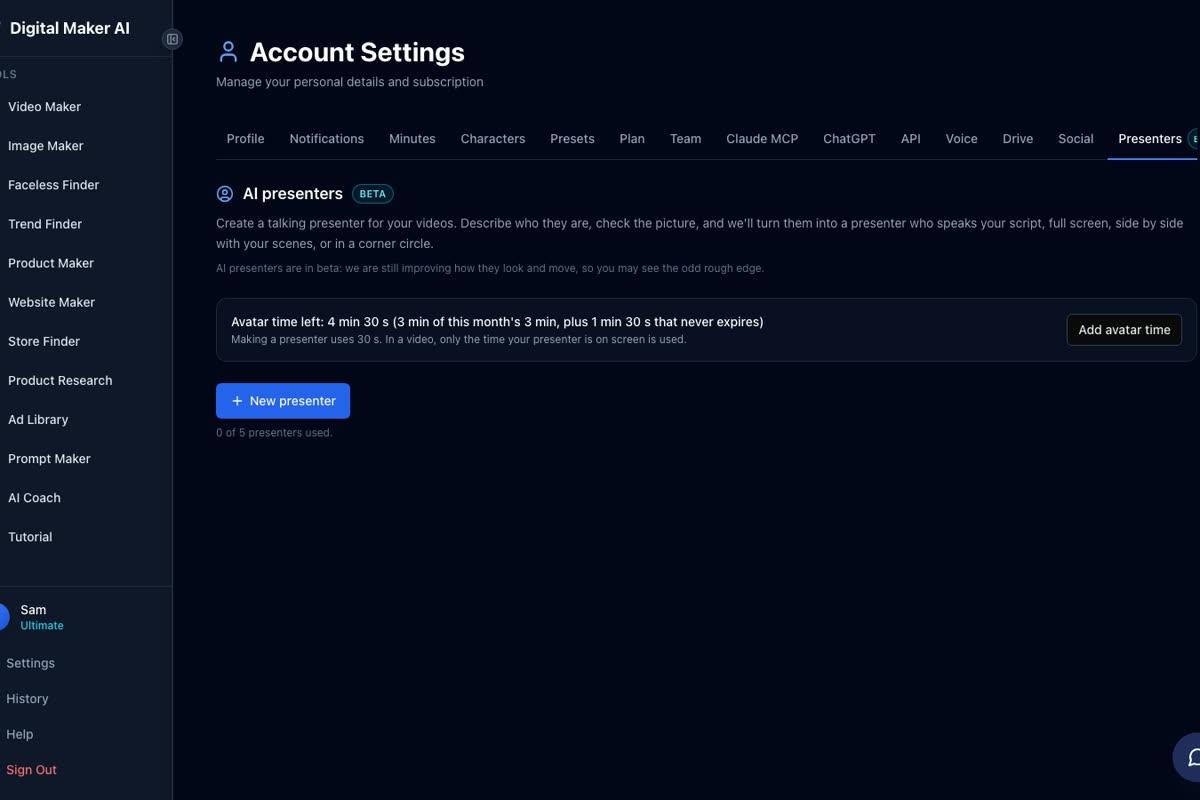
Once you are signed in on a Premium or Ultimate plan, click your account icon in the top right corner and open Account Settings. Select the Presenters tab. This is where all your AI presenters live, where you can see how much avatar time you have remaining, and where you add more time if you need it.
Step 2: Create Your Amish-Style AI Presenter
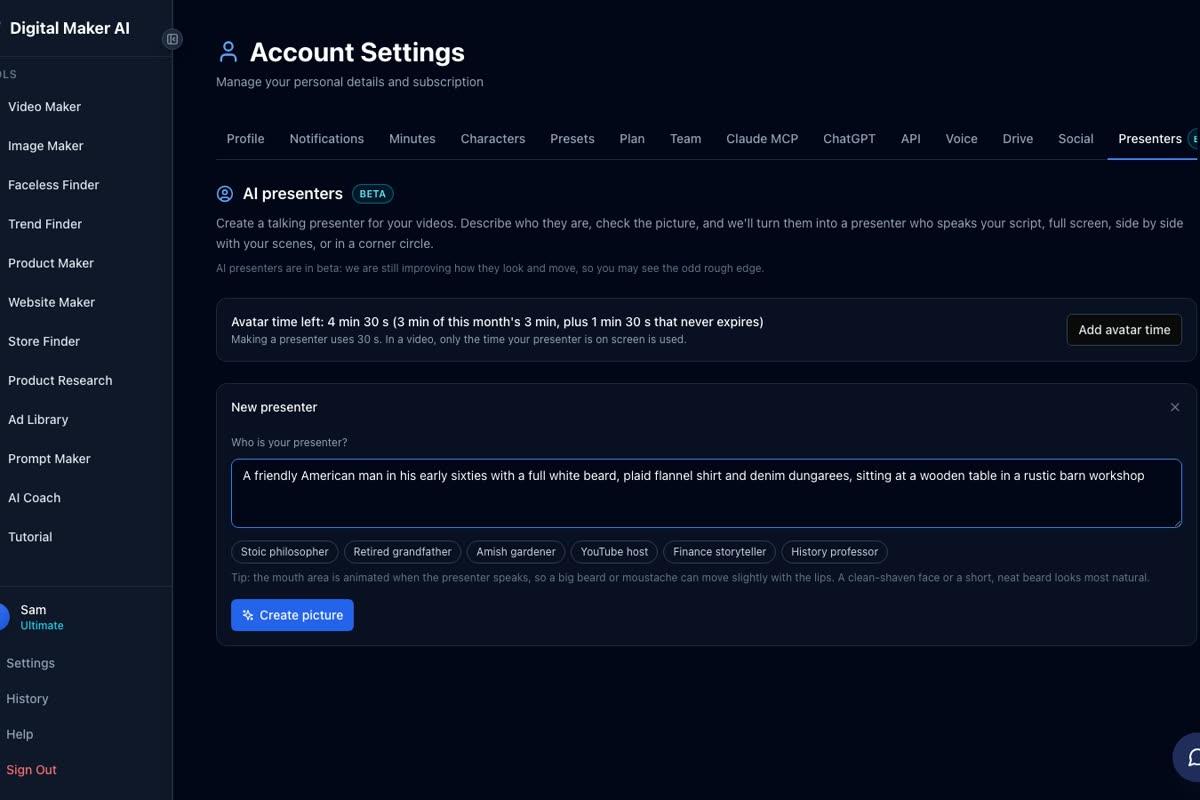
Click New presenter. A form appears with a text box asking who your presenter is. Write a description in one or two sentences. For an Amish homesteading channel, something like: "A bearded man in his sixties in a plaid shirt and denim dungarees, sitting at a wooden workbench in a barn workshop with hand tools on the wall behind him." The form also shows quick-pick options including "Amish gardener" and "Retired grandfather" if you want a starting point to edit from.
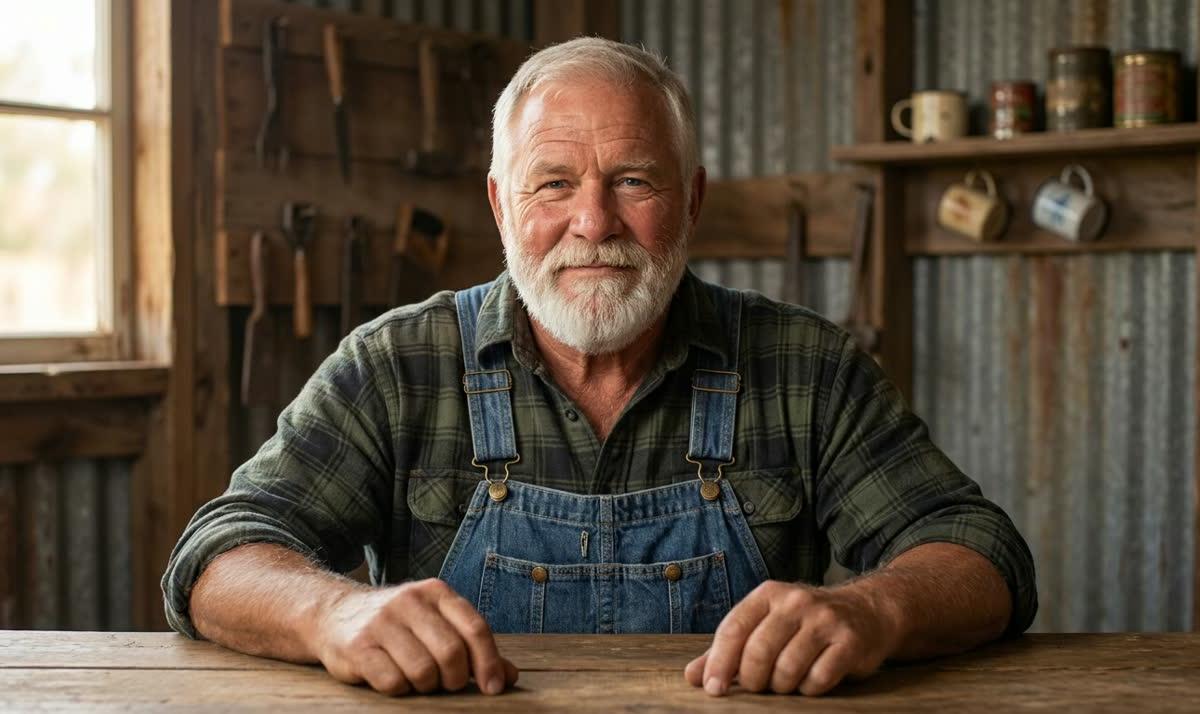
Press Create picture and the AI generates a photoreal portrait. Check that it matches your vision: the beard, the shirt, the workshop setting. If it does, press Save and the presenter is added to your account. Creating a presenter uses 30 seconds of avatar time, which is a one-off cost for that character. You can build several presenters and reuse each one across as many videos as you like.
Step 3: Start a Long-Form Multi Scene Video
Go back to the main dashboard and open the Video Maker. Select Long-Form Faceless Video and on the format screen choose Multi Scene. AI Presenters work with landscape Multi Scene videos only: they are not available on Single Scene, Whiteboard, Shorts or non-English formats.
Work through the topic, style and voice steps as normal. For an Amish homesteading channel, the Realistic or Everyday Visuals style suits the warm, grounded look of the niche. Pick a calm, measured male voice to match the persona. When you reach the presenter step, select the character you just saved (Cedric, in this example) from your presenter library.
Step 4: Choose Your Three Layout Options
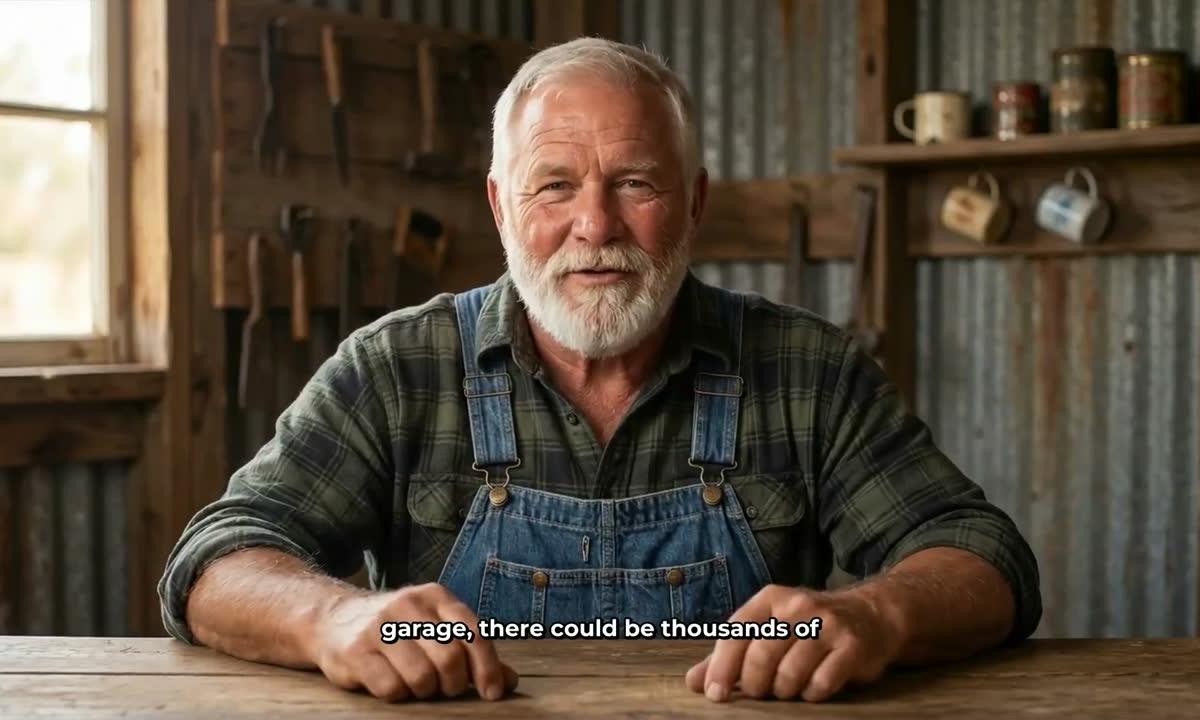
With the presenter selected, you will see three layout options. You can tick one, two or all three, and the video will rotate through whichever you choose.
Full screen puts the presenter front and centre, filling the entire frame while the narration plays. This works well for introductions, summaries and any moment where you want the character to feel like they are speaking directly to the viewer.
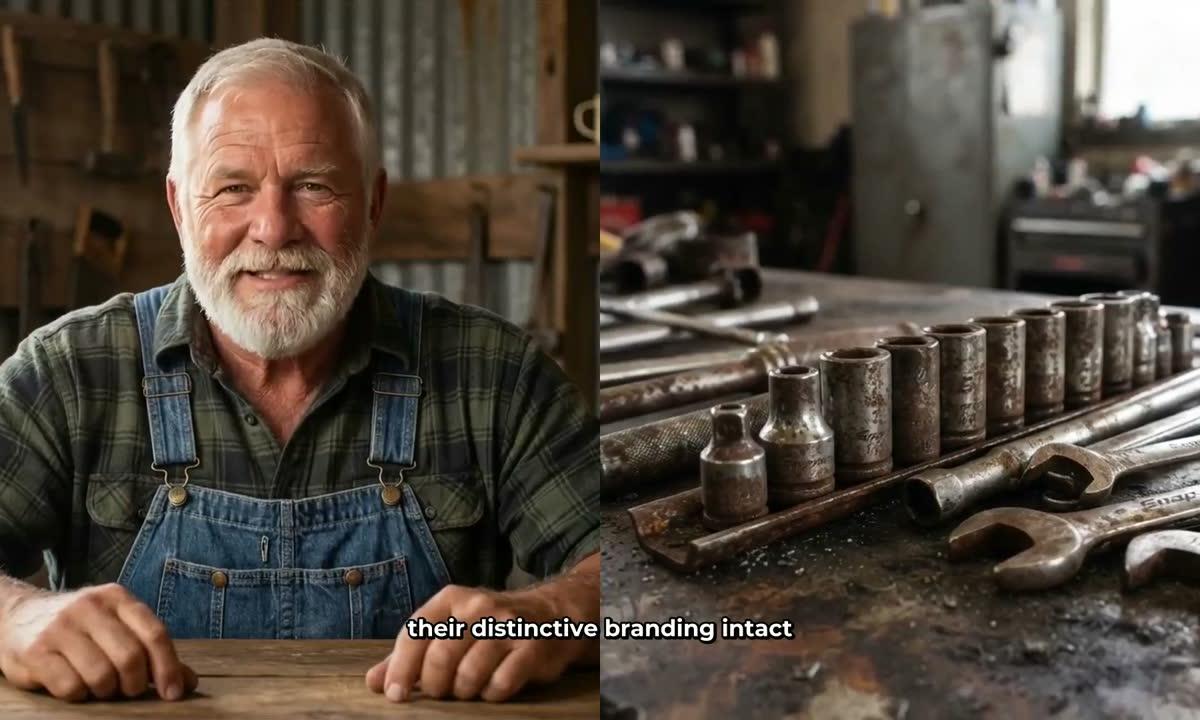
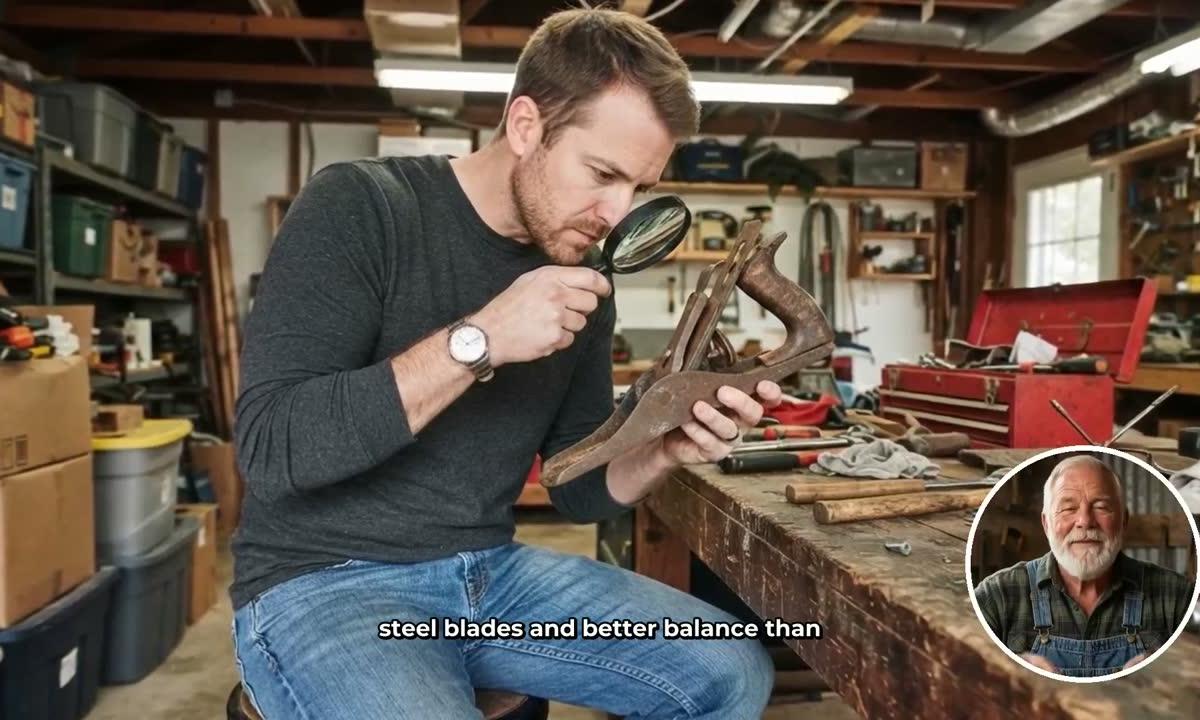
Split screen places the presenter on the left half of the frame and the scene image on the right. This is ideal for instructional content where you want both the character and the visual context visible at the same time, such as a barn workshop tip where the tool being discussed appears on the right.
Corner circle keeps the full scene image visible while the presenter appears in a small round window in the corner of the frame. This lets the scenery carry the visual weight of the video while the character stays present, which feels natural for garden or outdoor content.
Step 5: Set Screen Time, Markers and Generate
A slider lets you control how much of the total video the presenter is on screen, from as little as 5 percent up to the full video. Timeline markers let you pin where the presenter appears: for example, at the start to introduce the topic, in the middle to reinforce a key point, and at the end to close out. The rest of the video plays as normal AI-generated scene images with narration and captions.
When everything looks right, move to the review screen, confirm the settings and press Generate Video. The AI writes the script, generates a scene image for every scene, adds narration and captions, and returns a finished MP4 ready to upload to YouTube.
Understanding Avatar Time
AI Presenters run on avatar time, which is counted in seconds and kept separate from your regular video minutes. Both Premium and Ultimate plans start with 1 minute 30 seconds of avatar time. Ultimate also receives 3 minutes of fresh avatar time every month. Creating a new presenter costs 30 seconds. A video only uses the seconds the presenter is actually visible on screen, so if your presenter appears for 90 seconds across a 10-minute video, that is 90 seconds drawn from your avatar time balance. Avatar Packs let you add more time as a one-off purchase: see digitalmaker.ai/pricing for current pack options. AI Presenters are currently in Beta and are available on Premium and Ultimate plans only.
Tips for Building an Amish Homesteading Channel That Grows
The channels at the top of the Faceless Finder share a few habits worth copying:
- Pick one tight persona and stick to it. Elias Yoder is always the same character. Consistency builds recognition faster than variety.
- Upload frequently. Daily or near-daily uploads are common across the top performers. The AI presenter format makes this achievable because there is no filming, no editing suite and no need to book a studio.
- Focus on search-driven topics. Frugal living, natural remedies, food preservation, garden hacks and simple repairs all have steady year-round search volume. Use the Faceless Finder to spot which topics the existing channels cover most often, then find the gaps.
- Keep videos practical and specific. "5 ways to preserve tomatoes without a canner" outperforms "Amish food tips" every time. Specific titles rank better and hold viewers longer.
- Use the presenter sparingly at first. Start with the corner circle layout for 10 to 20 percent of the video to introduce the character without using up avatar time too quickly while you find your rhythm.
If you are curious how this formula plays out in other niches, the guide on creating an AI avatar like Bertha Cooks shows the same steps applied to a Mexican cooking channel with even higher estimated revenue figures.
Plan Details and Next Steps
AI Presenters are available on Premium and Ultimate plans. Video minutes and avatar time are both plan-dependent, so check digitalmaker.ai/pricing for the current breakdown of minutes, avatar time, animated scenes and everything else included at each level. The Free plan lets you try the core long-form video maker before committing to a paid plan, though presenters require Premium or Ultimate.
Remember that all subscriber counts and revenue figures in this article are Digital Maker AI Faceless Finder estimates based on recent views and typical ad rates for the niche. They are not the channels' real earnings and should be treated as rough indicators of potential, not guarantees.
The Elias Yoder AI avatar channel format proves that a well-chosen persona, a tight niche and consistent uploads can build a substantial YouTube audience without ever putting a real face on camera. If you want to learn more about the wider faceless video strategy before you start, the free Digital Maker AI course covers the full process from niche selection to your first upload.
Alex Stevens: Alex Stevens writes for the Digital Maker AI team about faceless YouTube channels, AI presenters and AI video tools.