AI Avatar Channel Ideas for Bible Talk and Faith Videos
By Alex Stevens

The ai avatar youtube channel ideas bible talk space is quietly becoming one of the most promising corners of faceless content on YouTube. Faith audiences are loyal, consistent and deeply engaged, and a growing number of creators are tapping that audience without ever appearing on camera, using AI-generated host characters to deliver scripture reflections, devotional stories and faith-based life advice every single day. This guide breaks down what is working, gives you eight specific channel ideas to run with, and shows you exactly how to build your own AI presenter faith channel using Digital Maker AI.
Real AI Avatar Bible and Faith Channels Already Earning
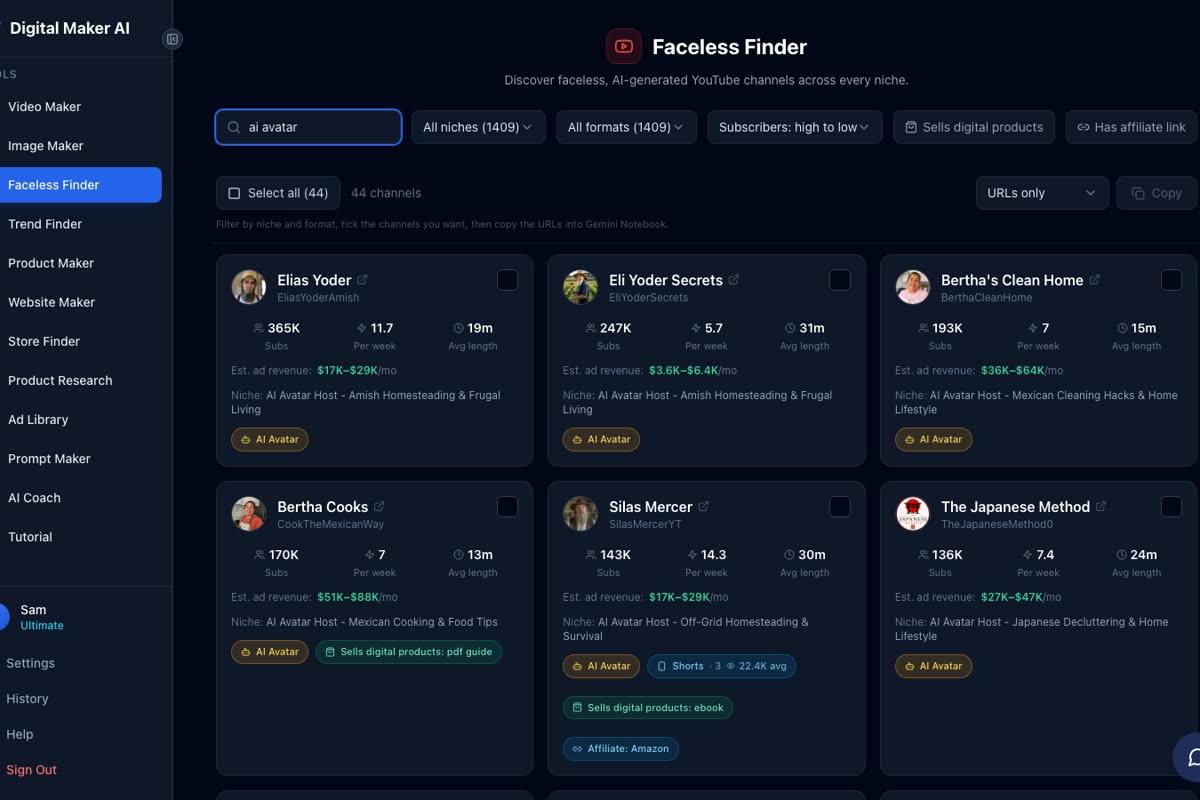
Before building your own channel, it helps to see what is already working. The Faceless Finder inside Digital Maker AI tracks confirmed faceless YouTube channels and includes a growing list of AI avatar channels, meaning channels fronted by a generated host character rather than a real person. All subscriber counts and revenue figures below are Digital Maker AI Faceless Finder estimates, not verified earnings from the channels themselves.
Bertha's Bible Talk is the standout example in the faith niche. With 29,000 subscribers and an estimated 625,949 views a month, the Finder puts its estimated ad revenue at $5,000 to $8,800 a month. That is a meaningful income from a channel with just 24 videos and around three uploads a week, which tells you the audience retention and ad rates in this niche are strong.
The broader devotional and values audience is even larger. Elias Yoder, an AI avatar channel in the Amish homesteading space, has reached 365,000 subscribers with an estimated $17,000 to $29,000 a month in ad revenue. Silas Mercer, focused on off-grid homesteading, sits at 143,000 subscribers with a matching estimated range of $17,000 to $29,000 a month. And Mama Pearline, a Southern soul food nostalgia channel, has 20,100 subscribers and an estimated $4,000 to $7,000 a month. None of these are strictly Bible channels, but they share the same warm, values-driven audience that responds to faith content.
What these channels have in common is a tight formula: a strong, recognisable AI host character (a grandmother, a farmer, a homesteader), a consistent niche, frequent uploads and practical content that viewers return to daily. No real person ever appears on camera.
8 AI Avatar YouTube Channel Ideas for Bible Talk and Faith Content
The faith niche is broad enough to support many distinct sub-channels. Here are eight ideas with real audience demand, each suited to an AI avatar host with a clear persona.
- Daily Scripture Reflections. A short video every morning, three to five minutes, unpacking one verse. The host reads the verse, gives historical context, and closes with a practical thought for the day. This format rewards daily uploads and builds strong subscriber habits.
- Bible Story Retellings. Long-form narrative videos that retell Old and New Testament stories with vivid scene imagery, a warm storytelling voice and a reflective closing. Think of it as an audio Bible brought to life visually, ideal for the Realistic visual style.
- Faith and Homesteading. A natural extension of the Elias Yoder model, combining scripture with practical homestead skills. Each video opens with a verse tied to the topic, for example a Proverb about diligence before a video on preserving food. This crossover niche attracts both faith and homesteading audiences.
- End-Times Q&A. One question per video, answered with scripture references and calm, measured commentary. This sub-niche has a highly engaged audience and strong search volume around Revelation, prophecy and current events.
- Bible Verses for Anxiety and Hard Times. Short, emotionally supportive videos built around a theme: fear, grief, loneliness, financial stress. Each video gathers five to seven relevant verses and explains them gently. This format performs well in search and on suggested video feeds.
- Sunday Sermon Summaries. A weekly round-up that distils a classic sermon or a well-known theological topic into a ten-minute explainer. The AI host acts as a friendly guide, not a preacher, making dense theology accessible to a general audience.
- Christian Nostalgia Recipes Tied to Scripture. Following the Mama Pearline model, each video pairs a traditional recipe (cornbread, apple butter, a Sunday roast) with a scripture passage about hospitality, harvest or sharing. The Minimalist visual style works well here, keeping the food imagery clean and warm.
- Appalachian Bible Stories. A regional storytelling channel where the AI host shares faith stories, parables and local legends rooted in Appalachian Christian culture. The host persona could be an elderly mountain woman in a rocking chair by a fire, giving the channel an immediately distinctive feel.
For a deeper look at how similar AI avatar channel ideas are structured in adjacent niches, the article on AI avatar channel ideas for garage and car repair videos walks through the same formula applied to a completely different audience.
How to Create Your AI Presenter Faith Channel Step by Step
AI Presenters are available on Premium and Ultimate plans and are currently in Beta. The feature launched in October 2026. Here is how to go from a blank account to a finished faith video with a talking AI host.
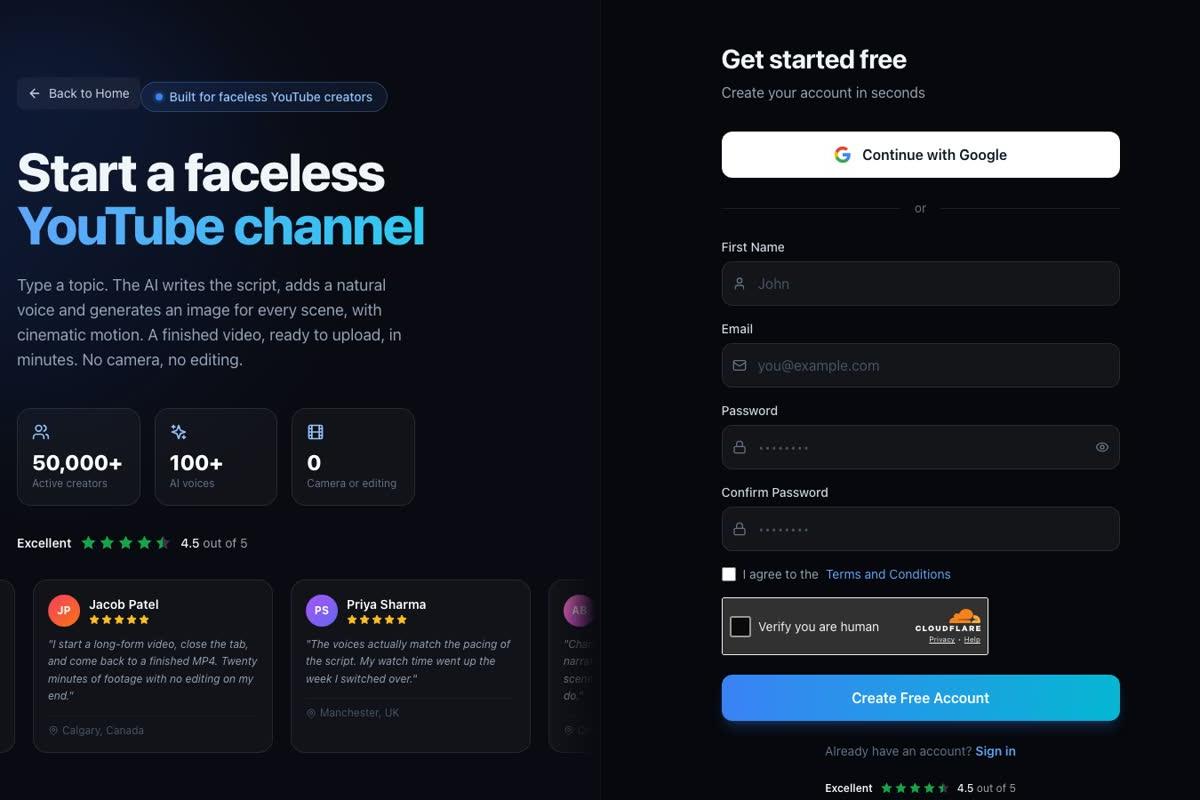
Step 1: Sign up and choose your plan. Head to digitalmaker.ai/faceless and create a free account. To use AI Presenters you will need to be on a Premium or Ultimate plan. Visit digitalmaker.ai/pricing for current plan details.
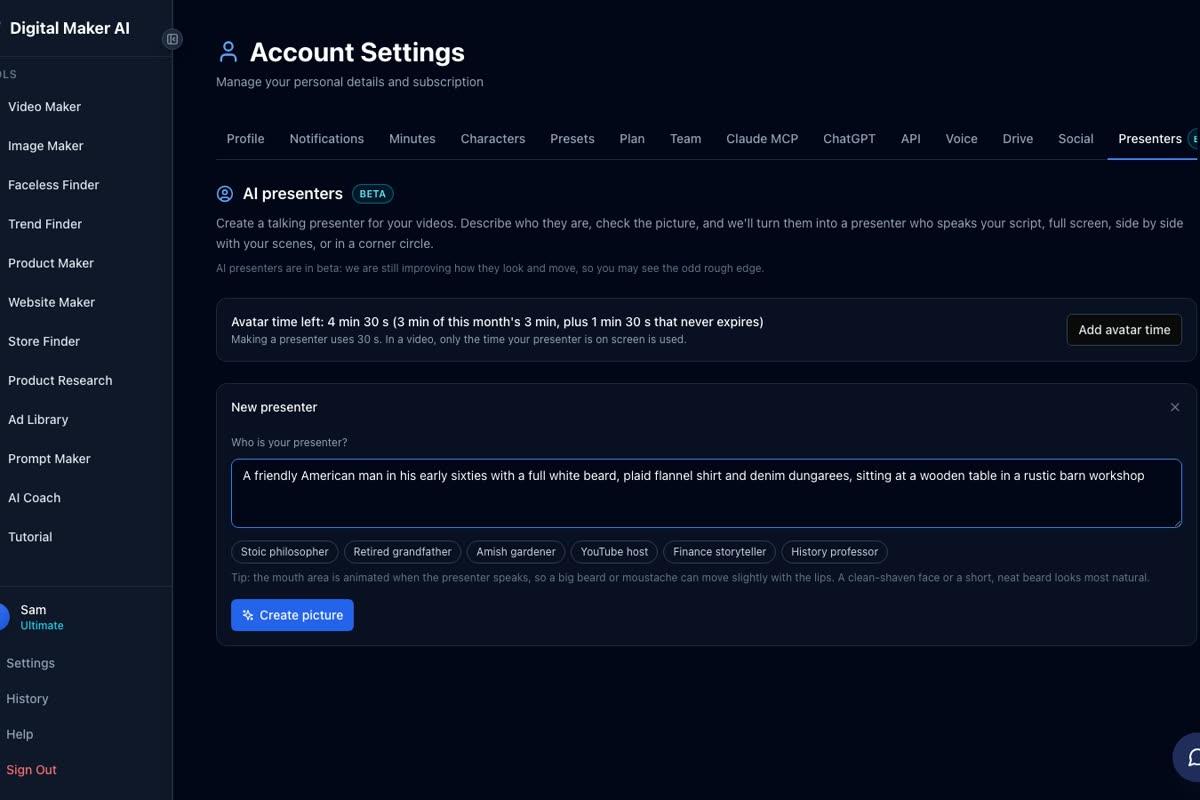
Step 2: Create your presenter. Once signed in, open Account Settings and click the Presenters tab. You will see your available avatar time and a New Presenter button. Click it to open the New Presenter form. In the description box, write a sentence or two describing your host and their setting. For a faith channel, something like: "A warm, grey-haired woman in her seventies in a cosy reading room, a Bible open on her lap, soft lamplight behind her, speaking gently and with conviction." Press Create Picture and the AI generates a photoreal image of your presenter. Check it, adjust the description if needed, and save. You can create several presenters and reuse them across as many videos as you like.
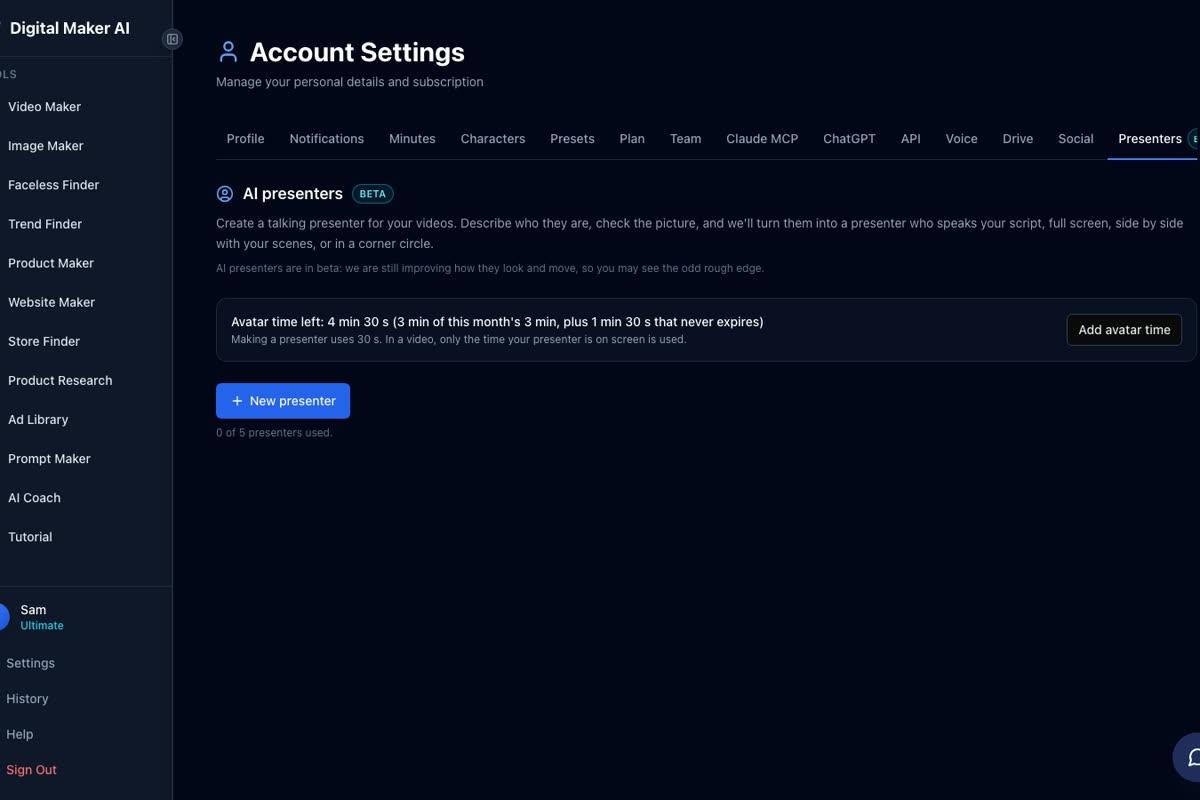
A note on avatar time. Presenters run on avatar time, which is counted in seconds and is separate from your video minutes. Creating a presenter uses 30 seconds of avatar time. When you add the presenter to a video, only the seconds they actually appear on screen are counted. Premium and Ultimate plans both start with 1 minute 30 seconds of avatar time, and Ultimate also receives 3 minutes of avatar time every month. If you need more, Avatar Packs let you add time as a one-off purchase without it expiring while you are subscribed. See digitalmaker.ai/pricing for pack options.
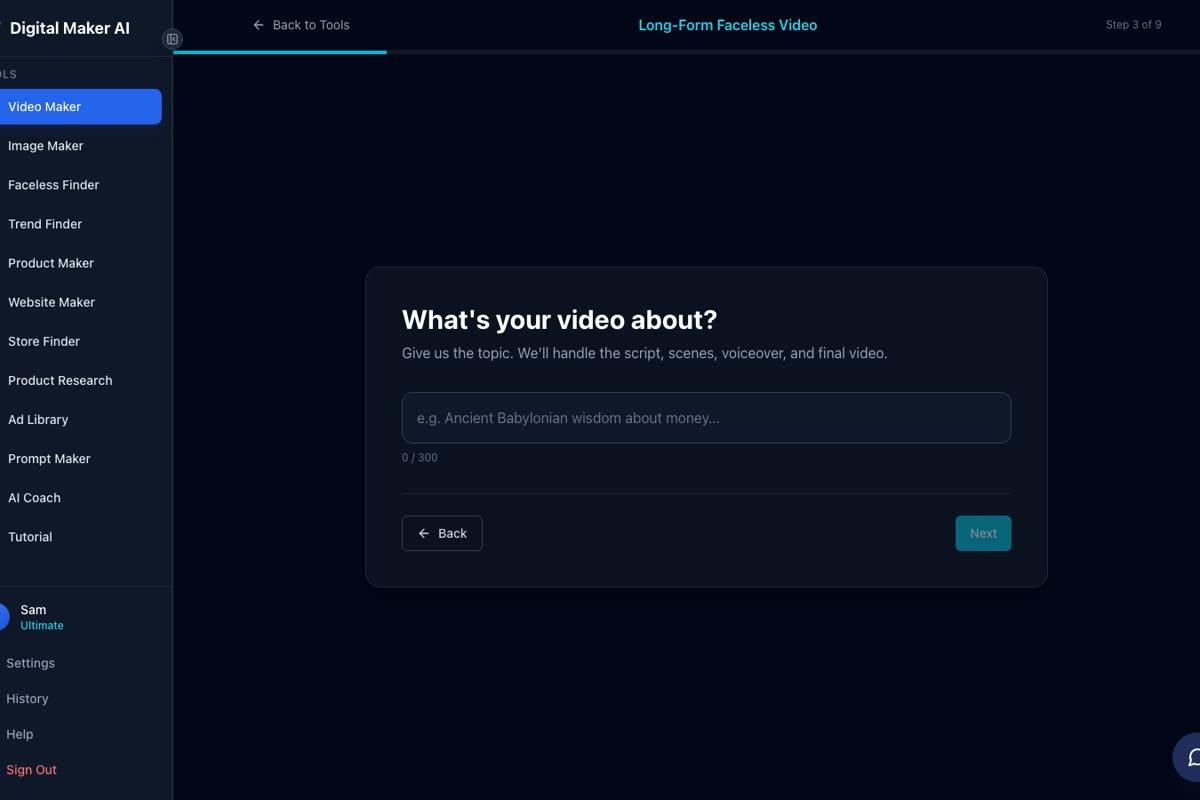
Step 3: Start a long-form video and enter your topic. From the dashboard, open the Video Maker and choose Long-Form Faceless Video, then select Multi Scene format. At step 3 you will be asked what the video is about. Type your scripture topic in one line, for example: "Psalm 23 and finding peace in uncertain times." The AI writes the full script, generates a unique scene image for every scene, adds narration and captions, and returns a finished MP4.
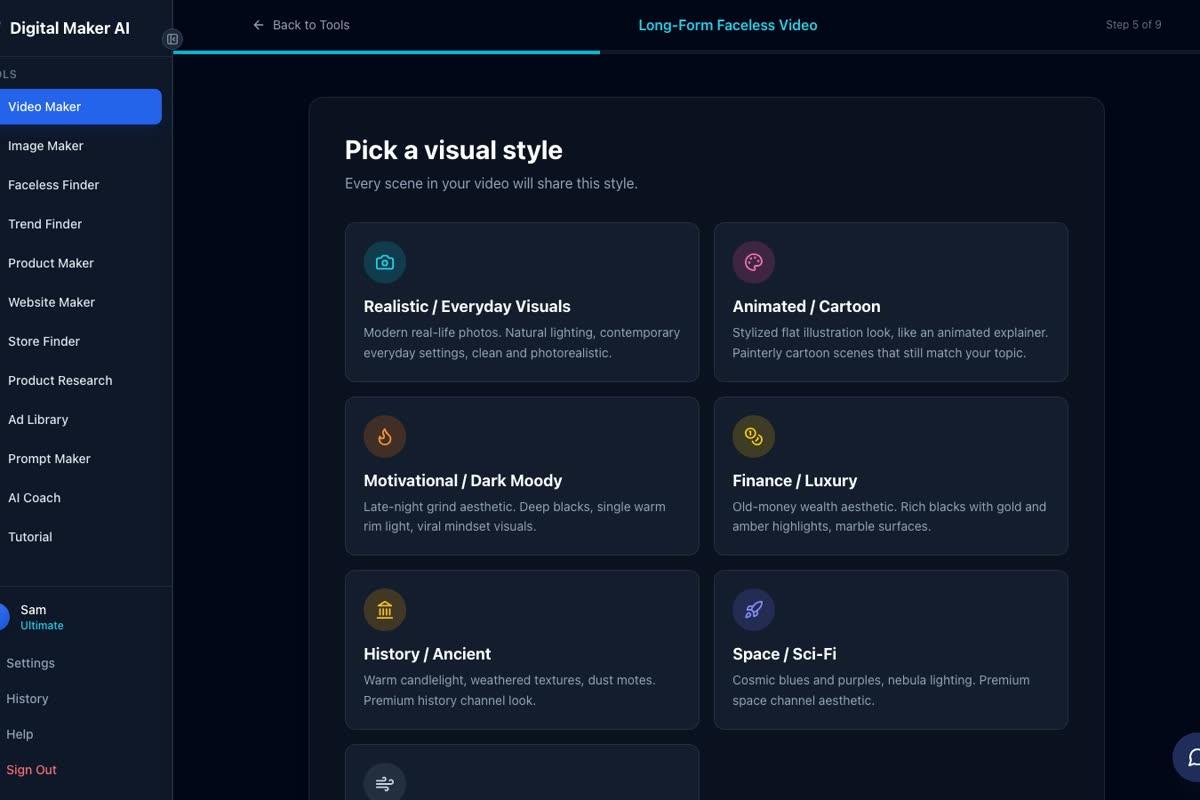
Step 4: Choose your visual style. At step 5 you pick a visual style that applies to every scene. For faith and Bible content, Realistic works well for story-driven or devotional videos, giving you warm, photorealistic scenes of landscapes, interiors and people. Minimalist is a strong choice for verse-focused or anxiety-relief videos, keeping the visuals clean and uncluttered so the words carry the weight. The History or Ancient style suits Old Testament stories particularly well.
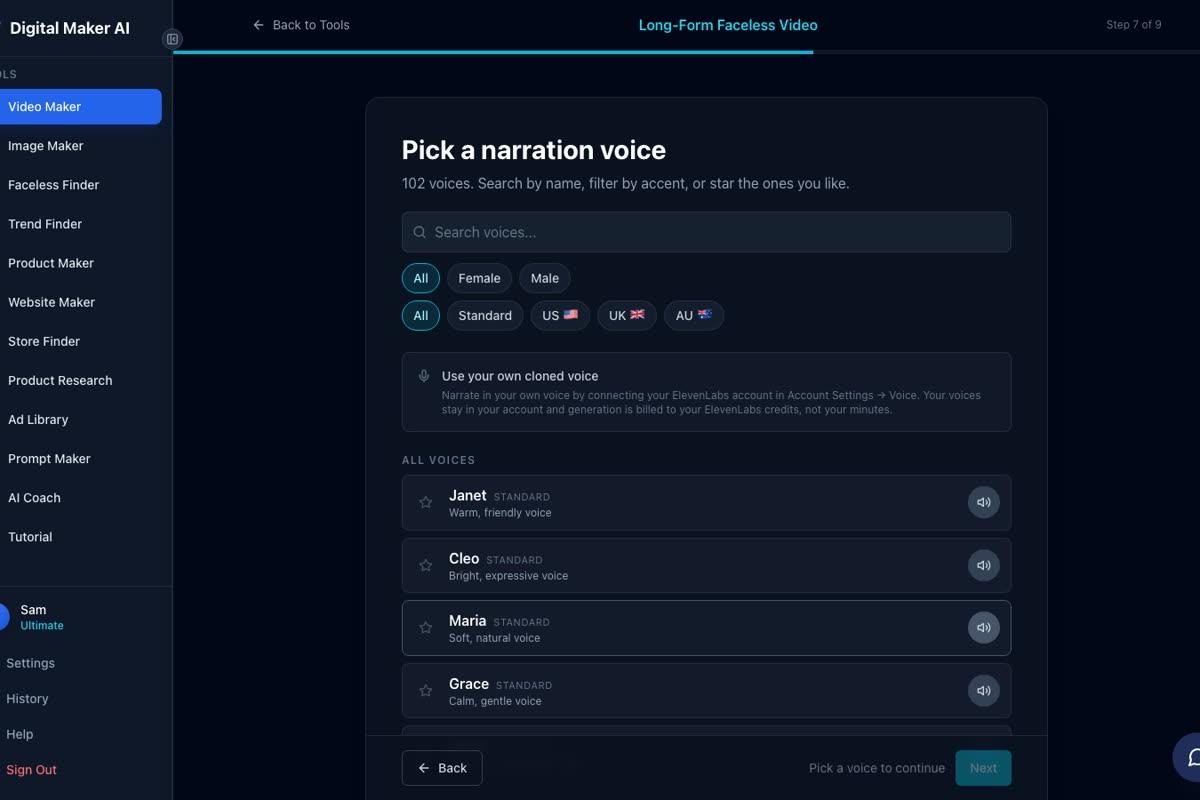
Step 5: Pick a voice and set the pace. At step 7, choose from over 100 narration voices. For a faith channel, a calm female voice with a warm US or Southern accent tends to match the tone of devotional content well. Premium and Ultimate users can also connect their own cloned ElevenLabs voice for a fully consistent presenter voice across every video.
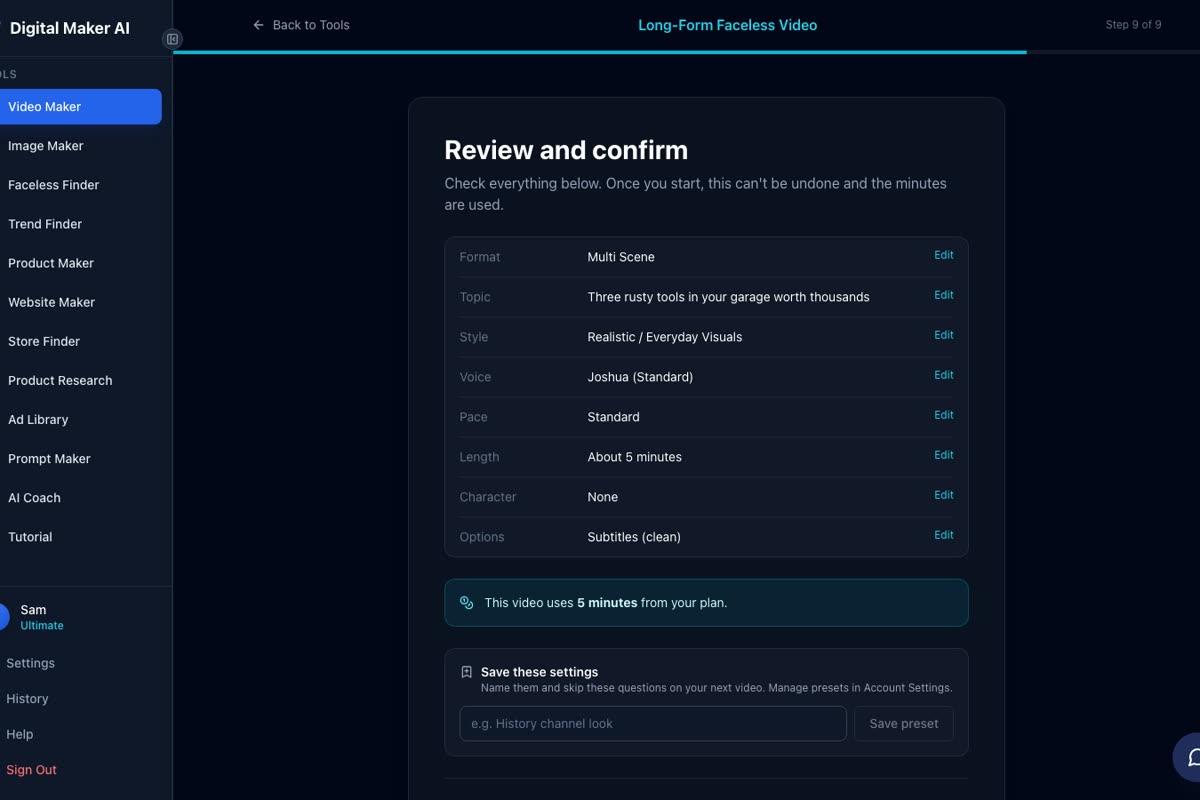
Step 6: Review and generate. Step 9 shows a full summary of your choices, the number of minutes the video will use from your plan, and a Generate Video button. Check everything looks right, then press Generate. Your finished MP4 is usually ready within a few minutes.
Choosing the Right Layout for Your Faith Videos
When you add an AI presenter to a Multi Scene video, you choose one or more of three layouts. The video rotates through whichever layouts you tick, and a slider lets you set how much of the total video time the presenter appears on screen.
Full screen puts the presenter front and centre for the entire frame, with captions along the bottom. This works best for opening and closing segments, scripture readings where you want the host's face to carry the emotion, and any moment where a direct, personal connection with the viewer matters most. Think of it as the equivalent of a preacher looking directly at the congregation.
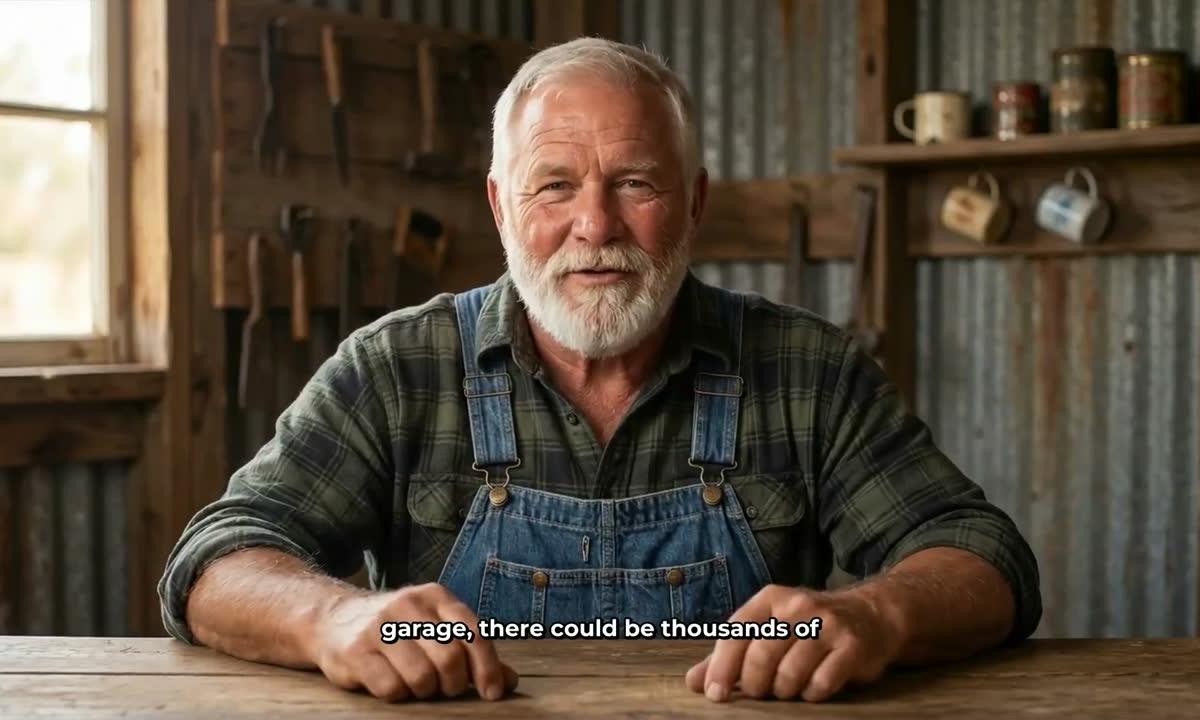
Split screen places the presenter on the left half of the frame and the scene image on the right. This is ideal for Bible story retellings and sermon summaries where the visual context adds meaning, for example the host on the left while a scene of ancient Jerusalem or a sun-drenched field fills the right side. It keeps the human connection while giving the viewer something to look at alongside the host.
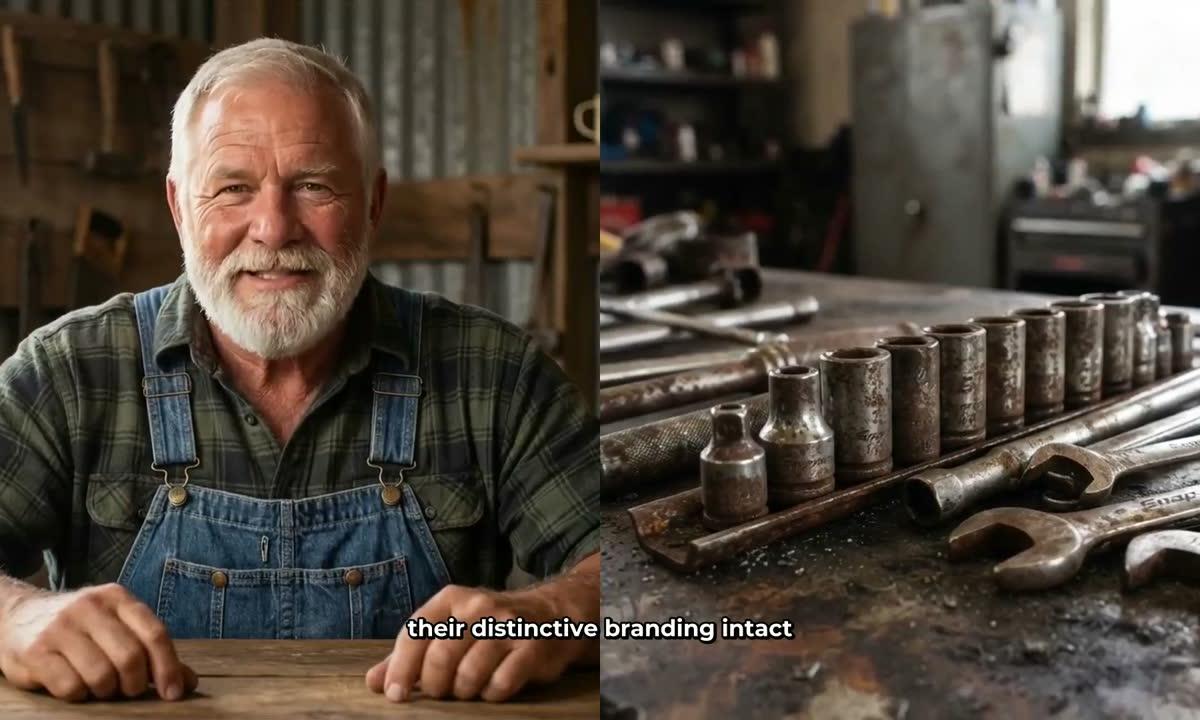
Corner circle fills the whole frame with the scene image and places the presenter in a small round window in the corner. This is the most subtle layout and works well for devotional videos about nature, homesteading or the beauty of creation, where you want the scenery to breathe while the host narrates gently from the corner. It also suits longer videos where you want the presenter to feel present without dominating every frame.

Tips for Growing an AI Avatar Bible Talk Channel
The channels that perform best in this space follow a few consistent habits. First, they upload on a schedule, often daily or five times a week, which trains the algorithm and builds subscriber habits. Second, they keep their host character consistent across every video: the same face, the same setting, the same warm tone. Third, they title videos around specific searches rather than broad themes. "Bible verses for when you feel alone" will outperform "Faith encouragement" every time because it matches what people are actually typing.
For a deeper look at how the AI avatar channel model works in practice, the guide on how Silas Mercer style AI avatar channels work and what they earn is worth reading alongside this one. The underlying structure is the same whether the niche is homesteading or scripture.
It is also worth exploring the Faceless Finder inside Digital Maker AI regularly. Typing "AI avatar" into its search box filters the list to channels fronted by AI presenters, and you can sort by niche to spot gaps. The Bible talk niche currently has very few dedicated channels relative to its audience size, which is exactly the kind of gap that rewards early movers.
AI Presenters are available on Premium and Ultimate plans. The feature is currently in Beta, launched in October 2026. For full plan details and to see which plan suits your upload schedule and video length needs, visit digitalmaker.ai/pricing.
Ready to start? The free course at digitalmaker.ai/free-course walks through the entire faceless channel process from your first video to your first upload, and it is a practical place to begin before you commit to a niche or a plan.
Alex Stevens: Alex Stevens writes for the Digital Maker AI team about faceless YouTube channels, AI presenters and AI video tools.