How to Make a Faceless YouTube Video About a Podcast Episode
By Alex Stevens
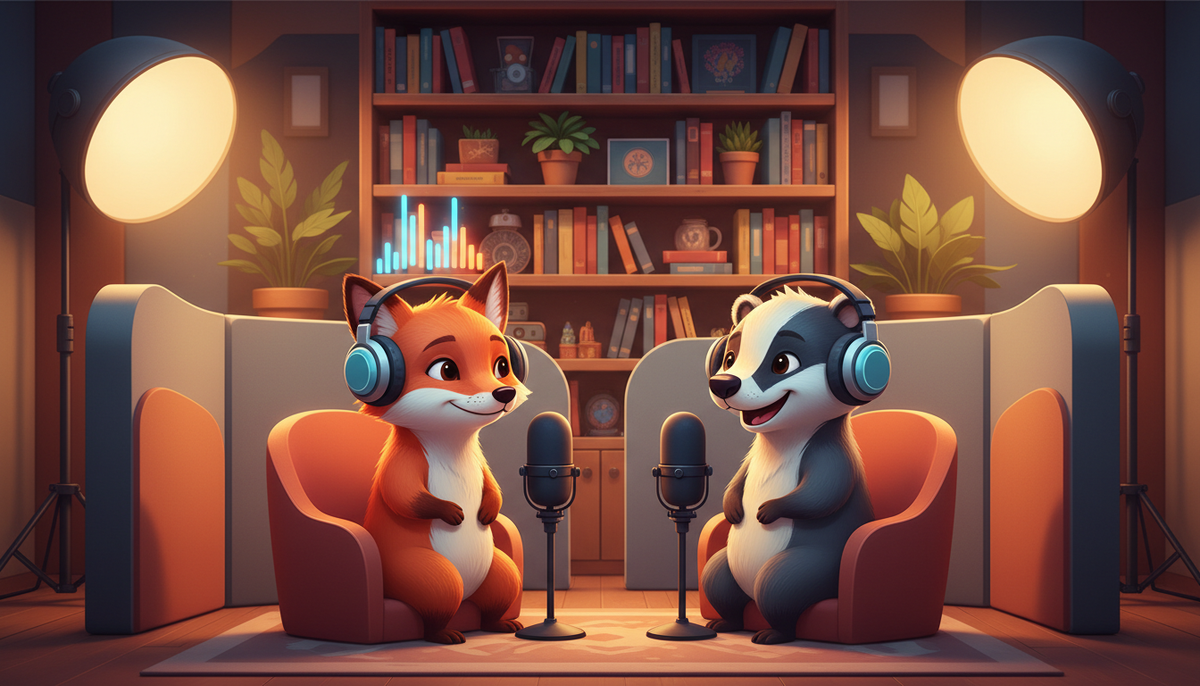
By the end of this guide you will have a finished, ready-to-upload YouTube video built from your podcast content, without recording yourself on camera, without editing software, and without any technical experience. You will see exactly how to turn a podcast into a YouTube video with AI using the Digital Maker AI Animated Podcast maker, one step at a time. The whole process takes a few minutes of your time and the AI does the rest.
Why Putting Your Podcast on YouTube Makes Sense
YouTube is the second largest search engine in the world. If your podcast episode answers a question, there are people on YouTube searching for that exact answer right now. The problem is that most podcasters either skip YouTube entirely or spend hours trying to edit a video version themselves.
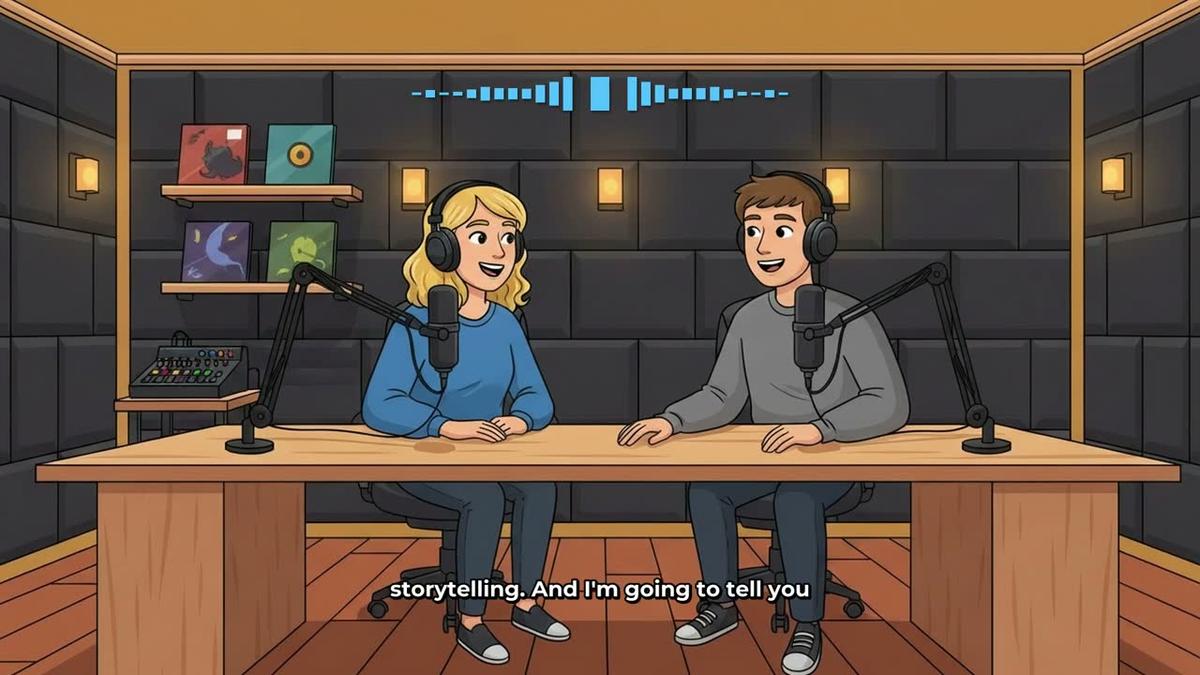
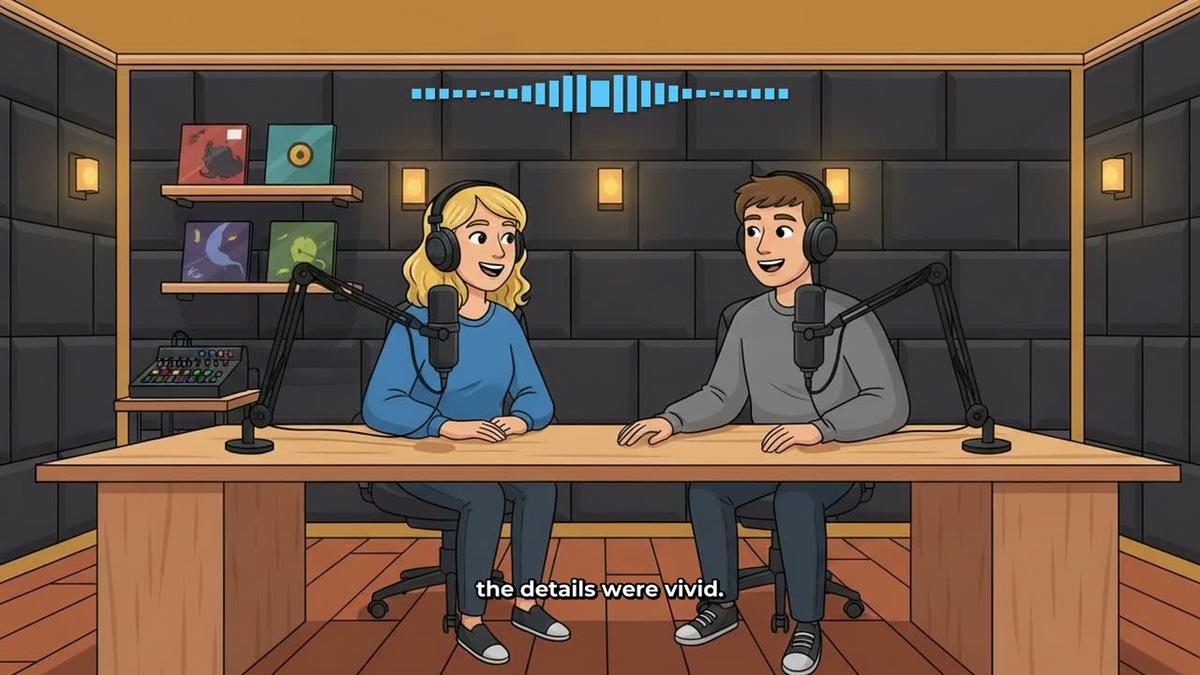
Learning how to turn a podcast into a YouTube video with AI removes that barrier completely. Instead of a static waveform or a talking head, you get two animated cartoon hosts sitting in a studio, speaking in two different voices, with captions and animated sound bars that follow whoever is talking. It looks polished, it holds attention, and you do not need to appear on screen at all.
The AI animated podcast generator handles the script, the animation, the voices and the captions in one go. Here is how to use it, step by step.
Step 1: Name Your Show
Open the Video Maker from the left sidebar after signing in, scroll down to the Animated Podcast card, and press it to get started. The very first screen asks which show this episode belongs to.
Type a name for your show and press Add. That is all you need to do here. The reason this step matters is that your show is saved permanently. Every new episode you make will automatically pull in the same two hosts, the same voices and the same studio background. You set things up once and never repeat the work.
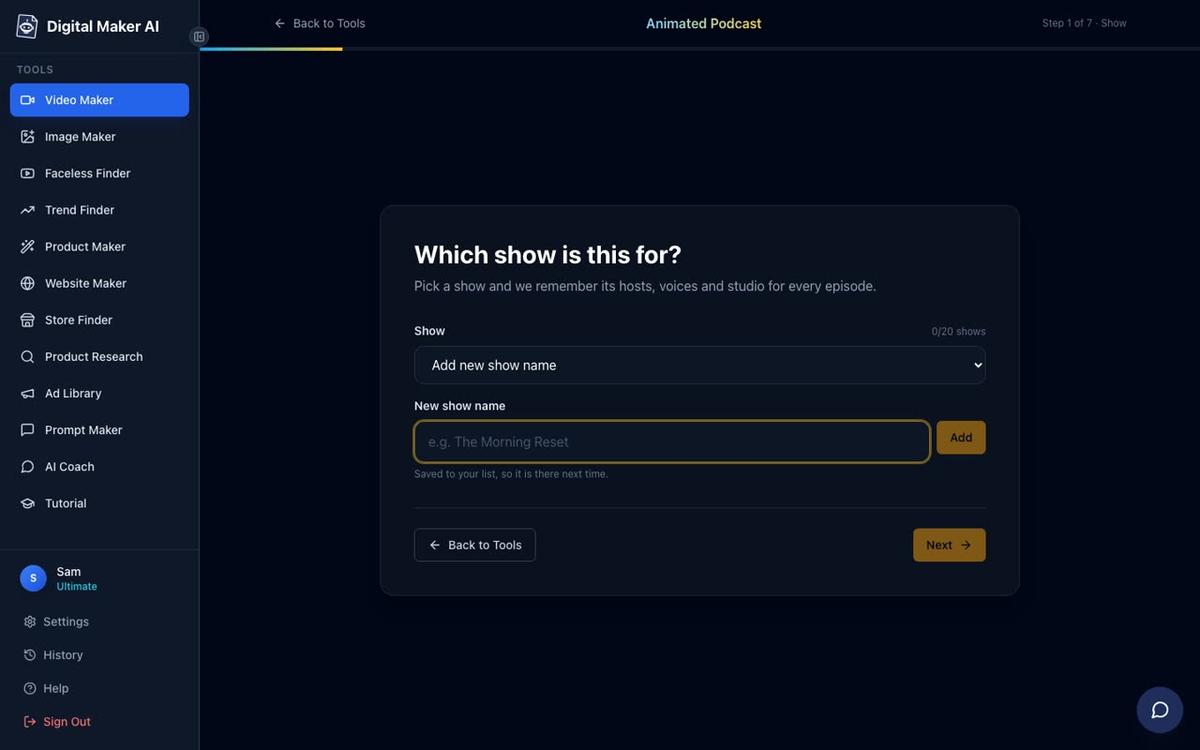
Tip: Give your show a name that describes the niche, not just a personal name. Something like "The Side Hustle Breakdown" or "Deep Space Weekly" tells a new listener exactly what to expect.
Step 2: Type the Episode Topic
Next, you describe what this episode is about. You have up to 400 characters, so you can be specific. Think of it as a brief for your two hosts. For example: "We break down the five biggest money mistakes people make in their twenties, why they happen and what to do instead."
You do not need to write a script. The AI reads your topic description and writes the full conversation between the two hosts. If you already have a podcast episode and know exactly what was covered, just summarise the key points here.
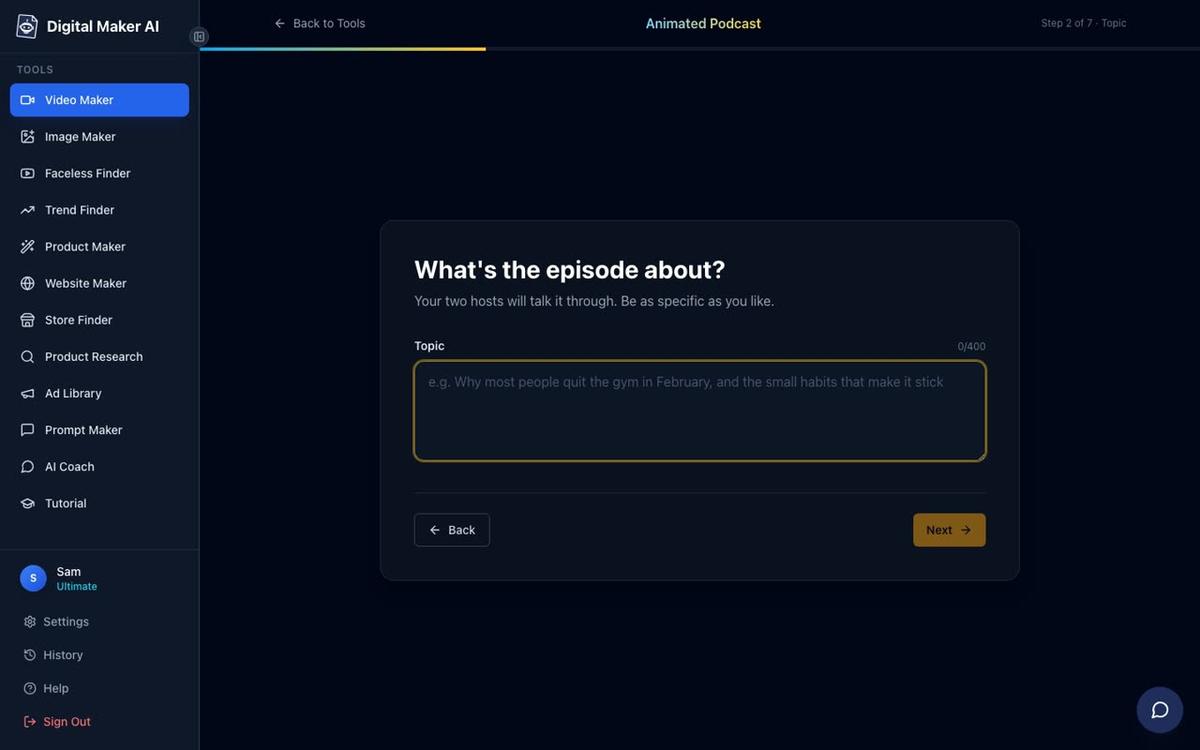
Tip: The more specific your topic, the better the conversation. Vague topics like "money tips" produce generic results. Specific ones like "why the 50/30/20 budget rule fails for low income earners" give the AI something real to work with.
Step 3: Set the Length and Tone
This step has two parts. First, use the length slider to set how long the episode should be. Free accounts can make episodes up to 8 minutes. Premium accounts can go up to 30 minutes, and Ultimate accounts up to 60 minutes. Note that Pro does not include the Animated Podcast feature.
Second, pick a tone from the cards on screen. The options are Friendly chat, Explainer, Debate, Comedy and Storytelling. Each one changes how the two hosts interact. Debate puts them on opposite sides of an argument. Explainer has one host teaching the other. Friendly chat is relaxed and conversational, which works well for most topics.
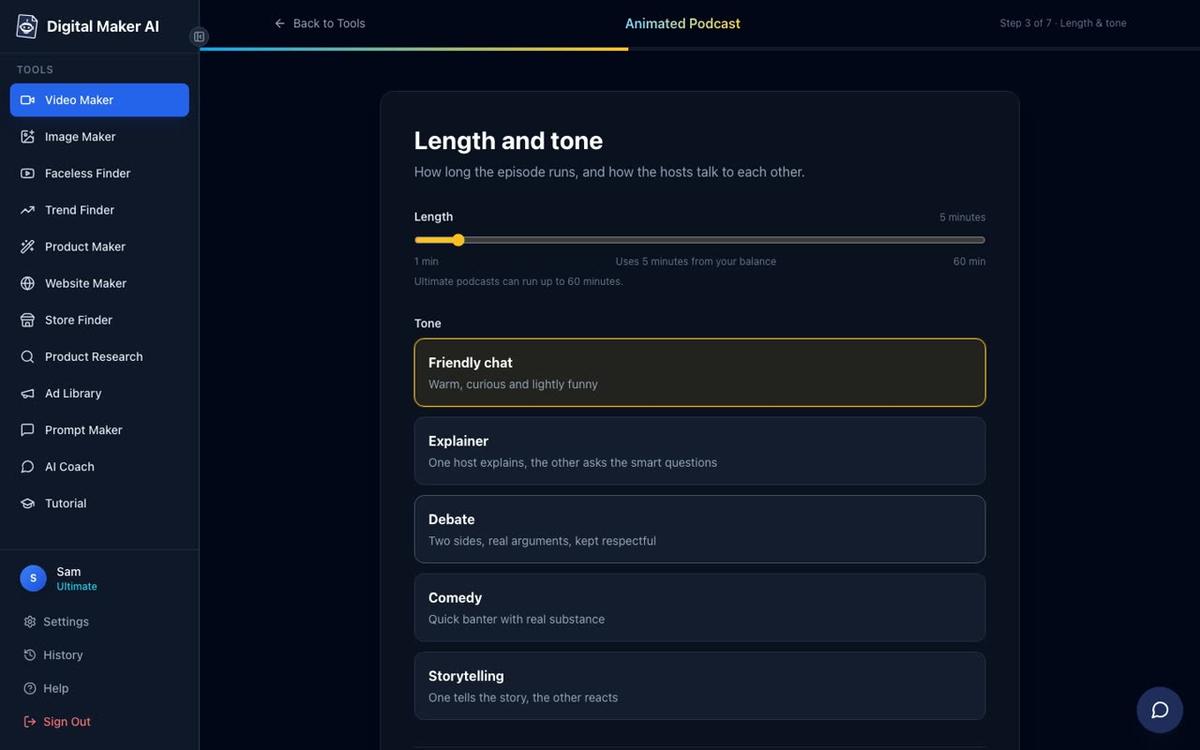
Tip: If you are repurposing a real podcast episode, match the tone to the original. A comedy episode deserves the Comedy setting. A detailed how-to episode works better as Explainer.
Step 4: Describe Your Two Hosts
This is where your show gets its identity. You have a Left seat host and a Right seat host. For each one, you choose whether they are a woman or a man, give them a name, and describe how they look.
The look description can be as simple as "a woman in her thirties with curly red hair and a green jacket" or as detailed as you like. The AI draws them as 2D cartoon characters based on your description. Alternatively, you can upload a photo and the AI will use it as the reference.
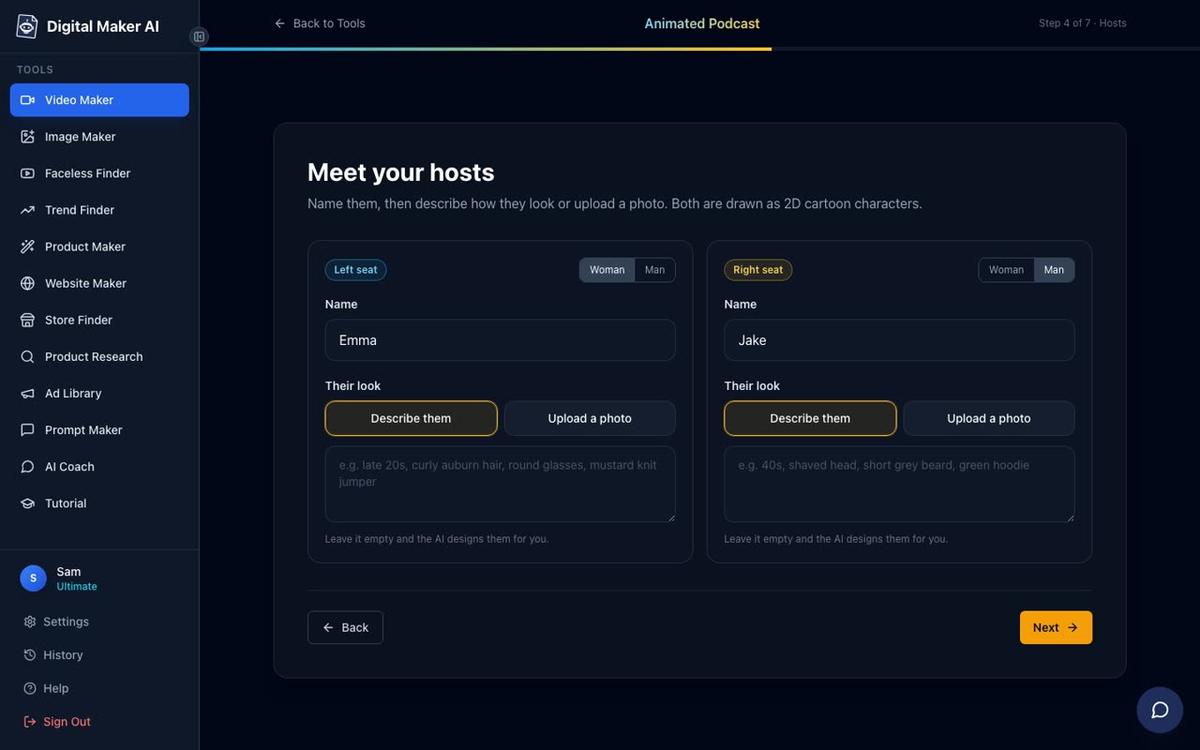
Tip: Give your hosts names and looks that fit your niche. A finance podcast might have a sharp-suited host and a more casual co-host. A history podcast might lean into period-appropriate styling. This is your brand, so make it memorable.
Step 5: Pick a Voice for Each Host
Now give each host a voice. You will see a list of voice cards with names like Janet, Cleo, Joshua and Rory, each with a short description. You can filter by Female, Male and accent to narrow things down quickly. Pick a different voice for each host so the listener can tell them apart without looking at the screen.
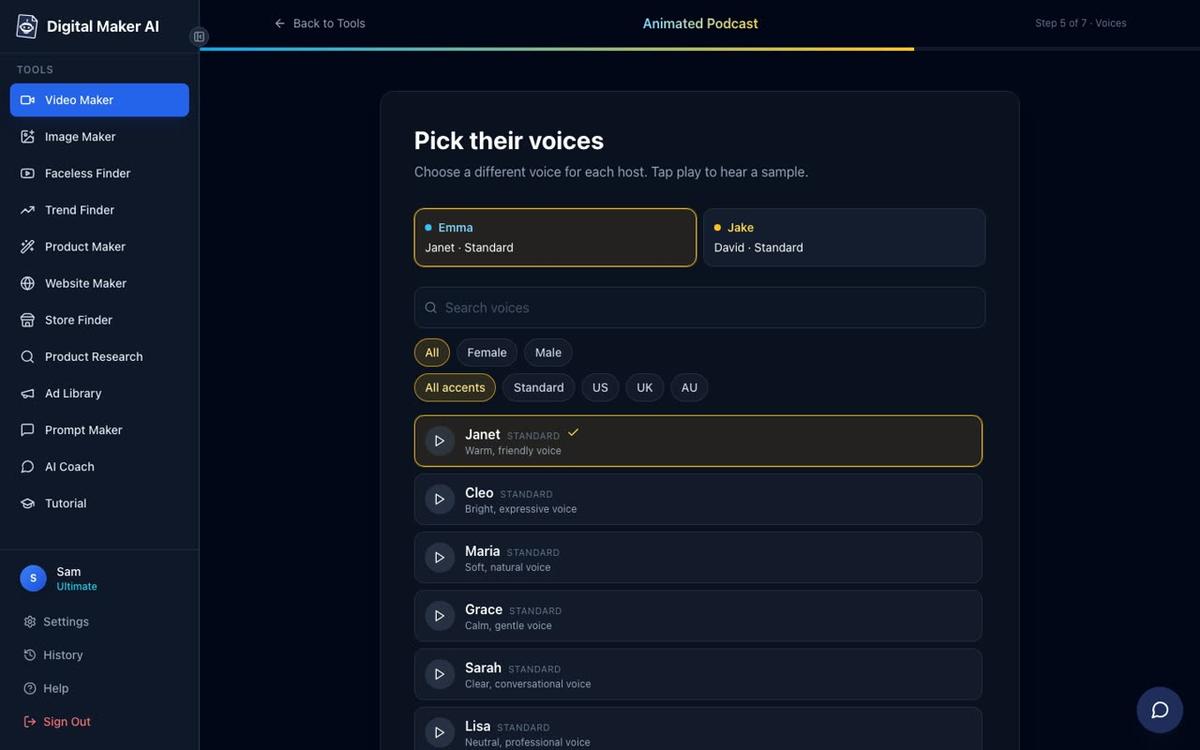
Tip: Think about contrast. A calm, measured voice paired with a brighter, faster voice creates natural energy in the conversation. Matching two very similar voices makes it harder for listeners to follow who is saying what.
Step 6: Choose a Studio Background
The studio is the room your two cartoon hosts sit in. You can pick from ready-made options like Cosy studio, Bright studio, Living room, Home office, City loft, Kitchen table, Garden patio, Gaming den, News desk and Library study. If none of those fit, type a description of your own room and the AI will build it. You can also upload a finished image if you have a specific background in mind.
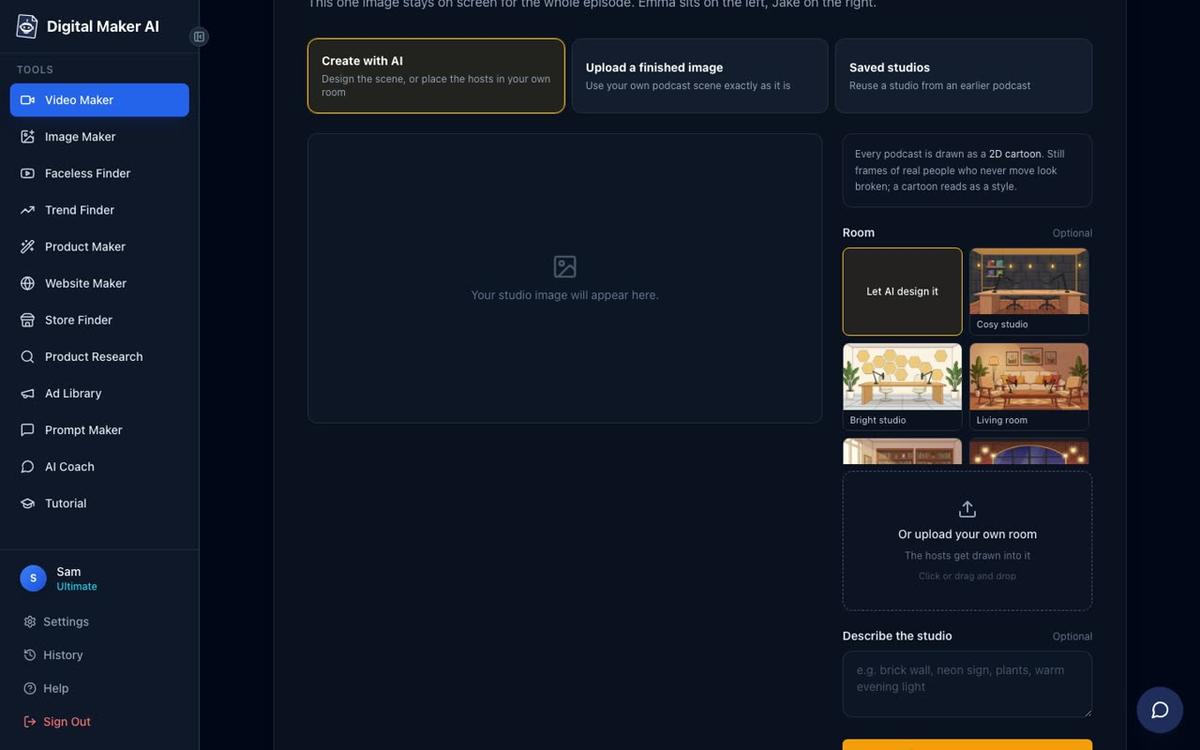
Tip: The studio becomes part of your show's visual brand. Pick one that matches the mood of your content and stick with it across episodes. Because your show settings are saved, you will not need to choose it again.
Step 7: Generate and Watch It Come Together
Review your choices and press Generate. The AI writes the full conversation between your two hosts, draws them into the studio, records both voices, adds captions and places animated sound bars above whoever is speaking at any moment. The result is a landscape video ready to upload to YouTube.
For longer episodes, the AI works in sections. A 30 to 60 minute episode can take between 45 and 90 minutes to build. You do not need to wait at your screen: Digital Maker AI sends you an email when the video is ready.
How to Post Straight to YouTube When You Are Done
Once the video is ready, Premium and Ultimate users can post it directly to YouTube without downloading it first. Press the Post to socials button on the finished video, connect your YouTube account once in Account Settings, and either post it immediately or schedule it for a specific time. You can also post to TikTok and Instagram from the same button. Find out more about posting finished videos to YouTube, TikTok and Instagram straight from your account.
Free and Pro users download the MP4 and upload it to YouTube themselves, which takes about two minutes.
Making Your Next Episode Even Faster
Here is where the show-saving feature pays off. When you come back to make episode two, you skip steps 4, 5 and 6 entirely. Your hosts are already there, their voices are set, and the studio is saved. You only need to type the new episode topic, set the length and tone, and hit Generate. The whole setup time shrinks to under a minute.
This is one of the biggest advantages of building a podcast series rather than one-off videos. Each episode reinforces the same visual brand, and your returning viewers will recognise the hosts immediately.
Common Mistakes to Avoid
- Being too vague with the topic. "Finance tips" will produce a generic episode. "Three reasons people overspend on subscriptions and how to audit them today" gives the AI a focused brief and produces a much sharper conversation.
- Picking the same voice for both hosts. It makes the conversation hard to follow. Always choose voices with clearly different pitches or accents.
- Ignoring the tone setting. Friendly chat works for most topics, but if your episode is genuinely a debate or a story, use the matching tone. It changes the whole feel of the script.
- Starting a new show for every episode. Name your show properly at step 1 and always select it from the dropdown for future episodes. If you accidentally create a new show each time, you lose the saved settings and have to rebuild the hosts and studio from scratch.
- Expecting instant results for long episodes. A 30 to 60 minute episode takes time to generate. Start it, close the tab, and wait for the email. Do not keep refreshing the page.
What to Do Next
If you want to go further with faceless video beyond the podcast format, it is worth exploring what else is possible. You can make long-form faceless videos on any topic, create AI-powered YouTube Shorts to drive traffic to your podcast episodes, or use the AI Coach inside your account to brainstorm episode ideas and write YouTube titles and descriptions. If you are curious about other creators who run faceless channels, the guide on making a cartoon YouTube series with ChatGPT shows another angle on building a consistent animated brand.
The free plan gives you one animated podcast up to 8 minutes, with no card required, so you can test the whole flow before committing to anything. For longer episodes and the ability to post straight to YouTube, check the plans and pricing page to see which tier fits your needs.
The best way to see how to turn a podcast into a YouTube video with AI is simply to make one. Head to the free faceless video course to get a full walkthrough of the platform and start building your channel from the ground up.
Alex Stevens: Alex Stevens writes for the Digital Maker AI team about faceless YouTube channels, AI presenters and AI video tools.