How to Make a Faceless YouTube Video About a Local Business
By Alex Stevens
By the end of this guide you will have a finished, ready-to-upload YouTube video promoting a local business, and you will not have needed a camera, a microphone or any video editing experience. You will learn exactly how to make a faceless YouTube video for a local business using Digital Maker AI, from picking a topic in the first minute to downloading the MP4 at the end. The whole workflow can be tested for free, with no card required.
Step 1: Spot the Opportunity (Most Local Businesses Have No Video at All)
Before you open any tool, it helps to understand why this niche is worth your time. Search YouTube right now for the name of a local bakery, a family plumber or a neighbourhood gym. In most towns you will find nothing, or one shaky phone video from three years ago. That gap is your opportunity.
Because almost no one is making videos for local businesses, the competition on YouTube is close to zero. A well-made three-minute video titled "5 Reasons to Visit [Bakery Name] in [Town]" or "How [Plumber Name] Fixes a Leaking Pipe" can rank on the first page of YouTube search results within days. You can make these videos for your own business, for a client who pays you a fee, or as a side hustle where you approach local businesses and offer to create their first YouTube presence.
Good topic formats that work well for local businesses include:
- "5 reasons to visit [business name]"
- "What to expect on your first visit to [salon name]"
- "How [plumber name] fixes a leaking pipe, step by step"
- "The story behind [restaurant name]"
- "Why locals trust [electrician name] for every job"
Keep the topic specific to the business and the town. Specific titles get found; vague ones do not.
Step 2: Create Your Free Account
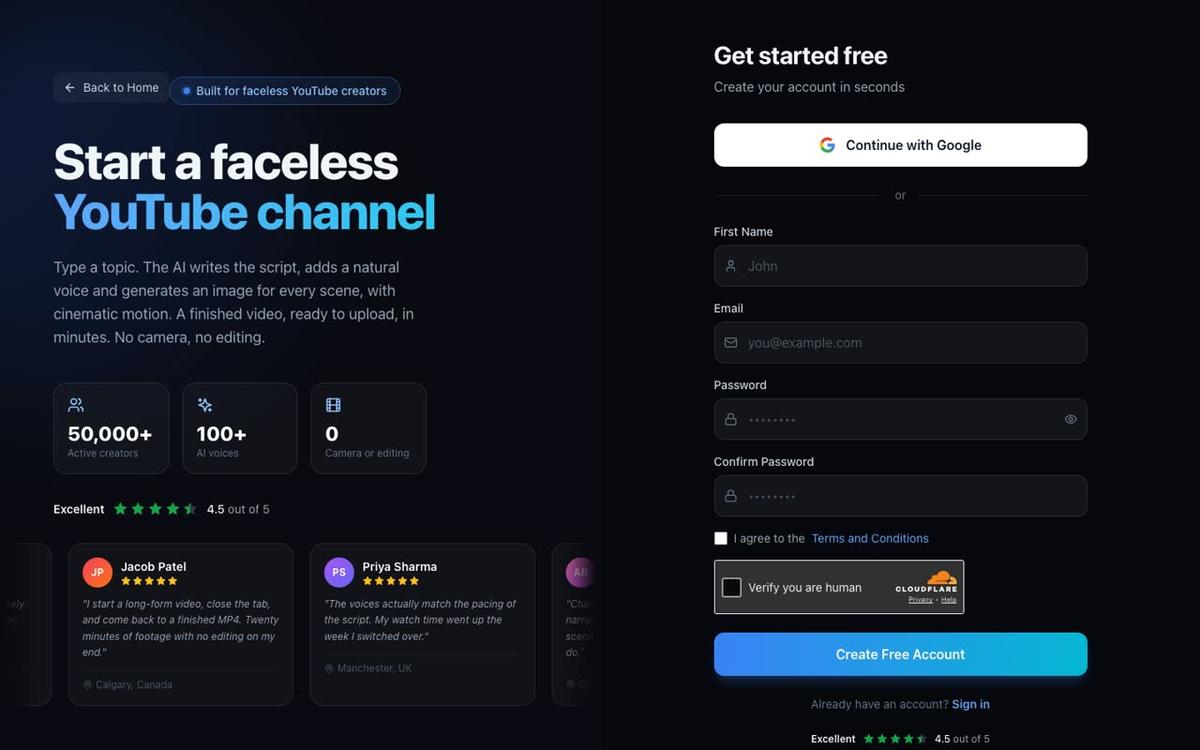
Go to digitalmaker.ai/faceless and create a free account. You can sign up with Google or with an email and password. No credit card is needed at any point on the free plan.
Once you are signed in you will see the dashboard. The free plan gives you five free videos, one of each type. For this guide you will use the long form faceless video, which on the free plan can be up to 8 minutes long. That is more than enough for a local business video.
Step 3: Open the Video Maker and Choose Long Form
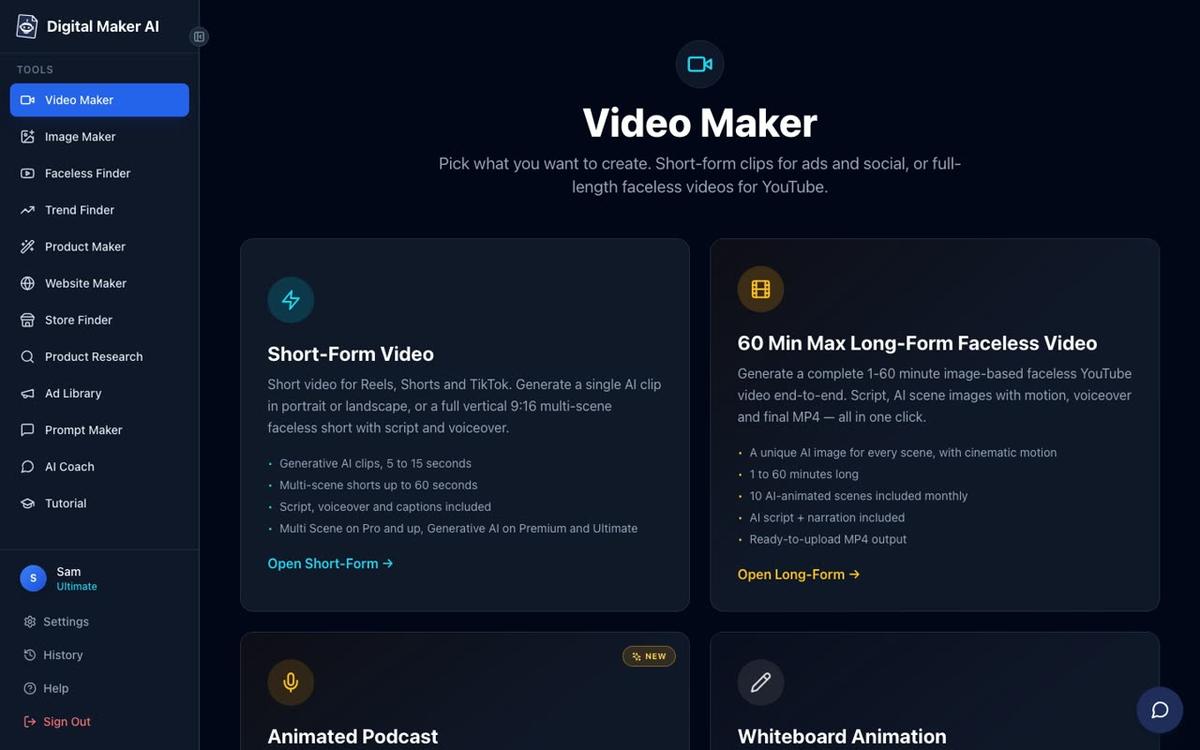
In the left sidebar, press the Video Maker button. This opens the free video screen. You will see cards for Short-Form Video, Long-Form Faceless Video, Animated Podcast and the Drag and Drop Studio. Press the Long-Form Faceless Video card, then press Next at the bottom of the screen.
On the next screen, choose Multi Scene Video as your format. This means every scene in your video gets its own unique AI-generated image, which looks far more professional than a single static background. Press Next.
On step 2 you will be asked how you want to start. Choose Write it for me. The AI will write the full script from your topic. (On paid plans you can also paste your own script if you already have one.)
Step 4: Type Your Topic (This Is the Most Important Step)
Step 3 of the maker asks: What's your video about? This single line is where you tell the AI everything it needs to write a complete script, generate all the scene images and record the narration.
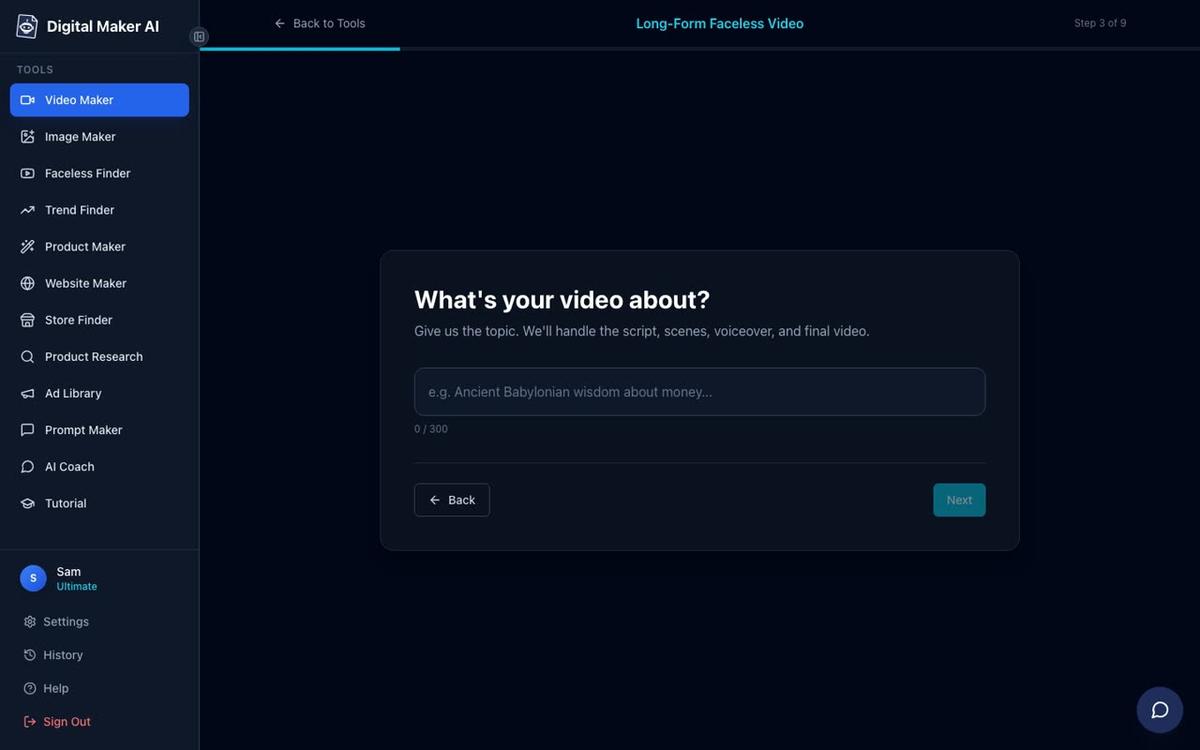
Be as specific as you can. Instead of "a local bakery", write something like: "5 reasons to visit Maple Street Bakery in Bristol: handmade sourdough, custom cakes and a welcoming atmosphere that keeps locals coming back." The more detail you give, the more accurate and useful the script will be. You have 300 characters to work with, which is plenty for a clear brief.
On the free plan, the image library draws from a set of topic areas that include business and side hustles. A video about a local business fits naturally into this category, so the scenes will look relevant and professional even on the free plan.
Step 5: Pick the Realistic Style
Step 5 asks you to choose a visual style. For a local business video, choose Realistic or Everyday Visuals. This style generates photorealistic scene images: a real-looking bakery counter, a plumber at work, a hair salon interior. It looks trustworthy and matches what viewers expect from a business video.
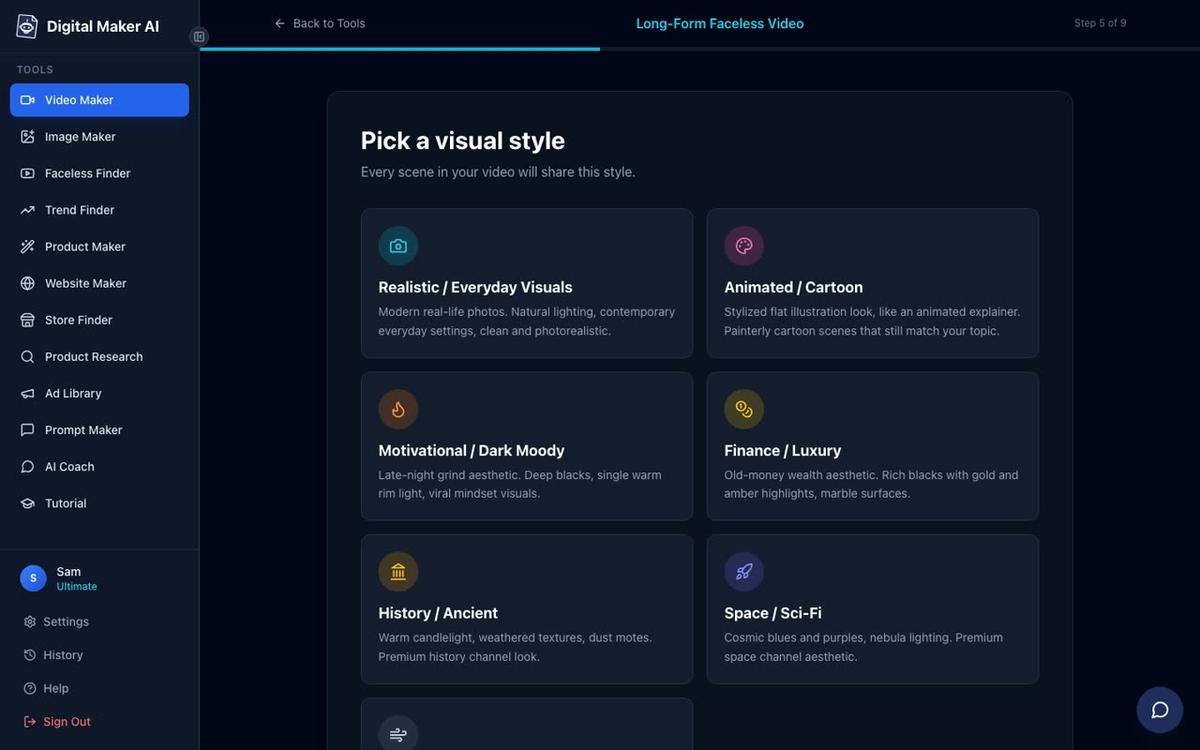
The other styles (Animated or Cartoon, Motivational or Dark Moody, Finance or Luxury, and so on) are better suited to other types of content. Stick with Realistic for anything that is meant to represent a real place and real people.
Step 6: Set the Length to 3 to 5 Minutes
Step 6 is a length slider. For a local business video, aim for 3 to 5 minutes. This is long enough to cover five clear points or walk through a service in detail, but short enough to hold a viewer's attention. The screen will show you how many scenes the video will have and roughly how long it will take to generate.
A 5-minute video typically has around 30 scenes. Each scene is a unique AI-generated still image held on screen while the narration plays, with an optional slow zoom or pan motion effect to keep it visually interesting.
Step 7: Choose a Voice That Suits the Business
Step 7 lets you pick the narration voice. There are more than 100 built-in voices to choose from, with male and female options and US, UK and Australian accents. You can filter and preview each one before you commit.
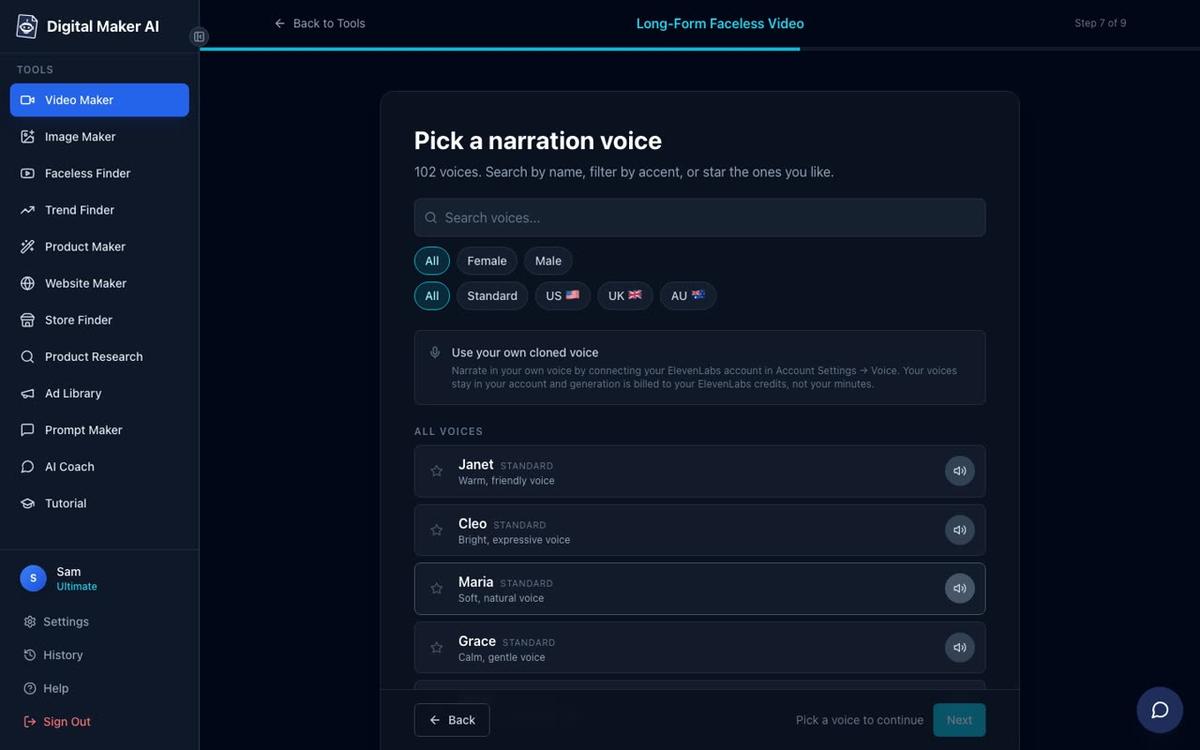
Think about what suits the business. A warm, friendly female voice works well for a family bakery or a children's activity centre. A calm, authoritative male voice suits a law firm or a financial adviser. A bright, energetic voice fits a gym or a sports shop. Take two minutes to preview a few before you decide, because the voice sets the whole tone of the finished video.
On the free plan you have access to the standard voices, which are more than good enough for a polished result. Paid plans unlock Voice Design (describe the voice you want in words) and the ability to connect your own cloned ElevenLabs voice.
Step 8: Review and Generate
Step 9 is the review screen. Before you press Generate, check that everything looks right: the format, topic, style, voice, pace and length. The screen also tells you exactly how many minutes of your plan this video will use. On the free plan your one free long form video is included at no cost.
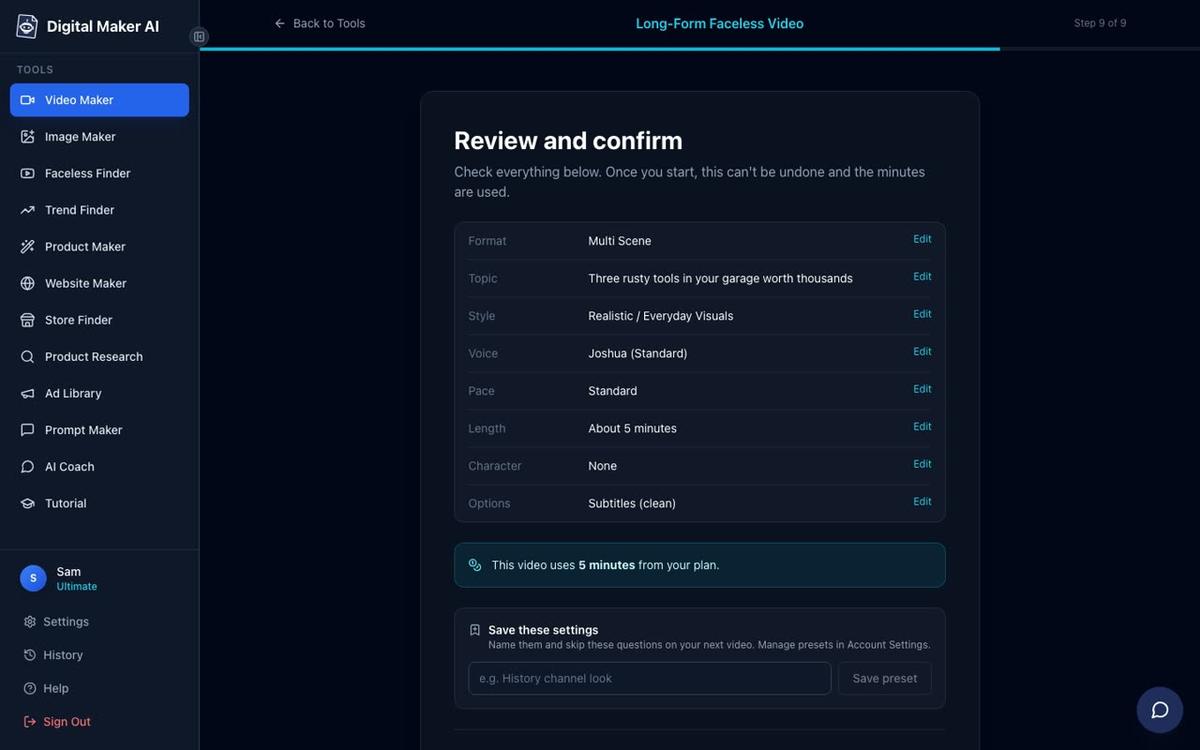
Press Generate Video. The AI will write the full script, generate a unique image for every scene, record the narration and burn in the captions. A 5-minute video typically takes 3 to 6 minutes to build. You do not need to stay on the page while it works.
When it is ready, you can regenerate any scene image you are not happy with (up to 10 free regenerations per video), edit the narration text for any scene, or swap in your own image if you have a photo of the actual business. There is no timeline editor, but these scene-level controls give you plenty of room to personalise the video for the specific business you are promoting.
Step 9: Download the MP4 and Hand It Over
Once the video is finished, press Download to save the MP4 to your device. The free plan includes a small Digital Maker AI watermark on the video. Upgrading to a paid plan removes it.
You can now hand the MP4 directly to the business owner so they can upload it to their own YouTube channel, or you can upload it to a channel you manage on their behalf. Either way, the business gets a professional-looking YouTube video with zero effort on their part.
If you are on a Premium or Ultimate plan, you can skip the download step entirely and post the finished video straight to YouTube from the Post to socials button inside the tool, either immediately or on a schedule you set. Nothing posts automatically; you always press Post yourself. This is especially useful if you are managing YouTube for several local businesses at once. You can find out more about posting directly to YouTube, TikTok and Instagram from Digital Maker AI on the features page.
How to Turn This Into a Side Hustle
The local business video niche is genuinely underserved. Most small businesses know they should be on YouTube but have no idea how to start, no time to learn and no budget for a videographer. That is where you come in.
A simple offer might look like this: you create a 3 to 5 minute YouTube video about their business, optimised with a keyword-rich title and description, for a flat fee. You deliver the MP4 and either post it for them or show them how. Because the tool handles the script, the visuals, the voiceover and the captions, you can produce a finished video in under 30 minutes once you know the workflow.
Start by making one free video for a business you already know, such as a friend's shop or your own employer. Use that as a sample to show other businesses what is possible. The free plan lets you test the entire workflow, including the topic, style, voice and length choices, before you spend anything.
As your client list grows, a paid plan gives you more video minutes per month, longer videos and the ability to post directly to YouTube on their behalf. See the Digital Maker AI pricing page for a full comparison of what each plan includes.
Common Mistakes to Avoid When Making a Faceless YouTube Video for a Local Business
- Too vague a topic. "A video about my bakery" gives the AI very little to work with. "5 reasons locals choose Maple Street Bakery over supermarket bread" gives it a clear angle, a structure and a hook.
- Wrong visual style. Choosing Animated or Cartoon for a professional service like a solicitor or a dentist can undermine trust. Use Realistic for any business where credibility matters.
- Ignoring the voice preview. The voice is the personality of the video. Always listen to a 10-second preview before you confirm your choice.
- Forgetting the title and description. The video is only half the work. When you or the business owner uploads it to YouTube, write a title that includes the business name and the town. That is how local customers find it.
- Making it too long. Three to five minutes is the sweet spot for a local business video. Longer videos work well for tutorials and documentaries, but for a "reasons to visit" style video, keep it tight.
What to Do Next
Once you have made your first local business video, the next step is to build a small portfolio. Make two or three videos for different types of business (a food business, a trade, a service) so that potential clients can see the range of what is possible. If you want to see how other creators are building faceless YouTube channels in specific niches, the Faceless Finder inside Digital Maker AI shows confirmed faceless channels by niche, including subscriber counts, upload frequency and estimated monthly ad revenue.
You might also find it useful to read about how to make a faceless video to promote a product or service you sell, which covers a lot of the same principles with a slightly different angle. The workflow is identical; only the topic changes.
If you want to go deeper into the craft of building a faceless YouTube channel from scratch, the free Digital Maker AI course walks you through everything from choosing a niche to growing an audience, and it costs nothing to access.
Alex Stevens: Alex Stevens writes for the Digital Maker AI team about faceless YouTube channels, AI presenters and AI video tools.