How to Make an Animated Podcast With Two AI Hosts
By Alex Roberts
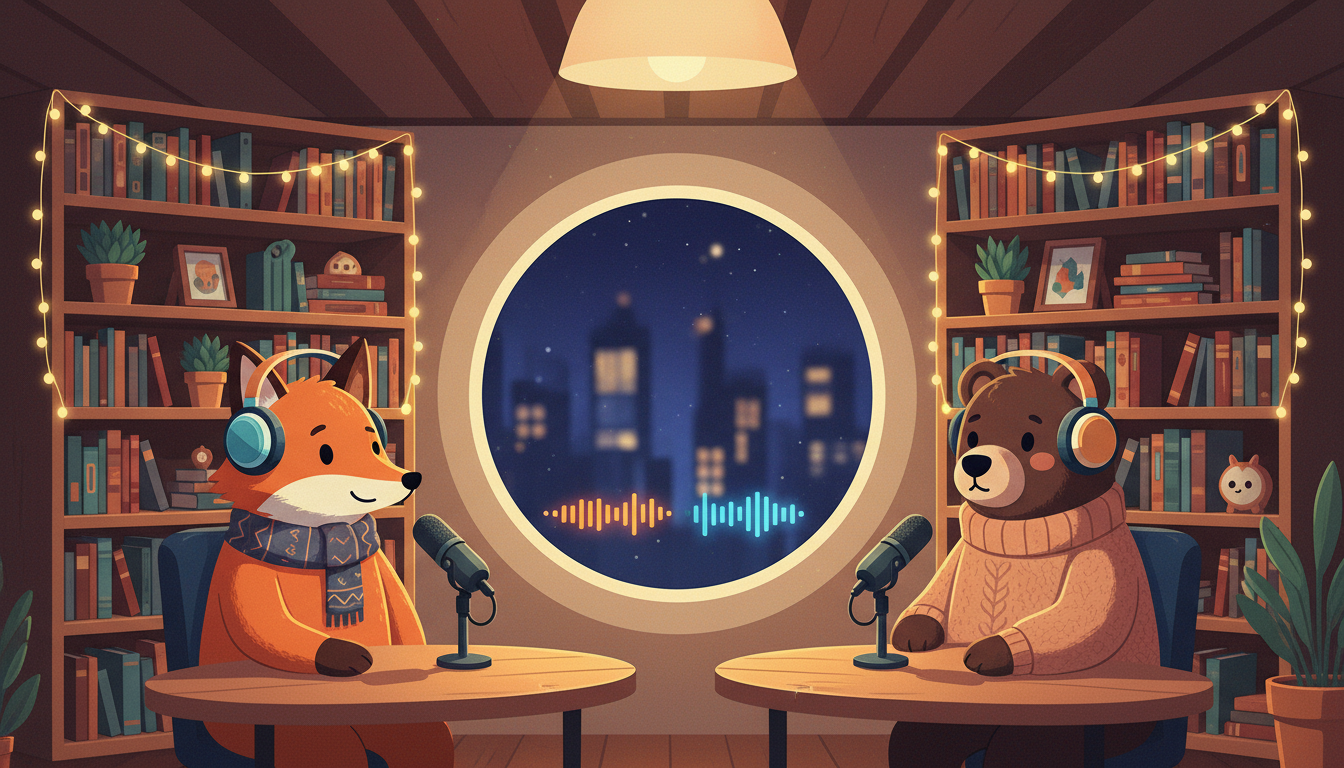
By the end of this guide you will have a finished animated podcast video with two AI hosts talking through a topic of your choice, complete with captions and animated sound bars. You do not need a microphone, a camera or any video editing experience. All you need is a free account on Digital Maker AI, an animated podcast generator that handles the script, the voices, the animation and the studio for you.
The whole process takes about ten minutes to set up. Then you press Generate and the platform does the rest. Let's walk through every step.
What is an Animated Podcast Generator and Why Use One?
A traditional podcast is just audio. An animated podcast is a video where two illustrated hosts sit in a studio, speak in different voices, and have animated sound bars that light up above whoever is talking. It looks polished, it works on YouTube, and you never have to appear on camera or record a single word yourself.
An animated podcast generator like the one built into Digital Maker AI writes the conversation, draws the hosts, records both voices and produces a ready-to-upload MP4. You supply the topic and a few choices. The platform supplies everything else.
One more thing worth knowing before you start: the show you create is saved. That means the hosts, their voices and the studio are all remembered. Every future episode you record for that show is ready to go in one click, without repeating the setup.
Step 1: Create Your Show
Sign in to your Digital Maker AI account. If you do not have one yet, head to digitalmaker.ai/faceless and sign up for free. No credit card is needed.
Once you are inside, find the Video Maker in the left sidebar and scroll down to the Animated Podcast section. Click it to open the podcast maker. The first screen asks which show this episode belongs to.
If this is your first podcast, type a name for your show in the New show name box and press Add. Think of the show name as your channel name. It could be something like "The Money Mindset Show" or "Two Guys on Tech". Keep it short and easy to remember.
If you have already made a show before, just pick it from the dropdown and all your saved hosts, voices and studio will load automatically. That is the one-click speed the platform is built around.
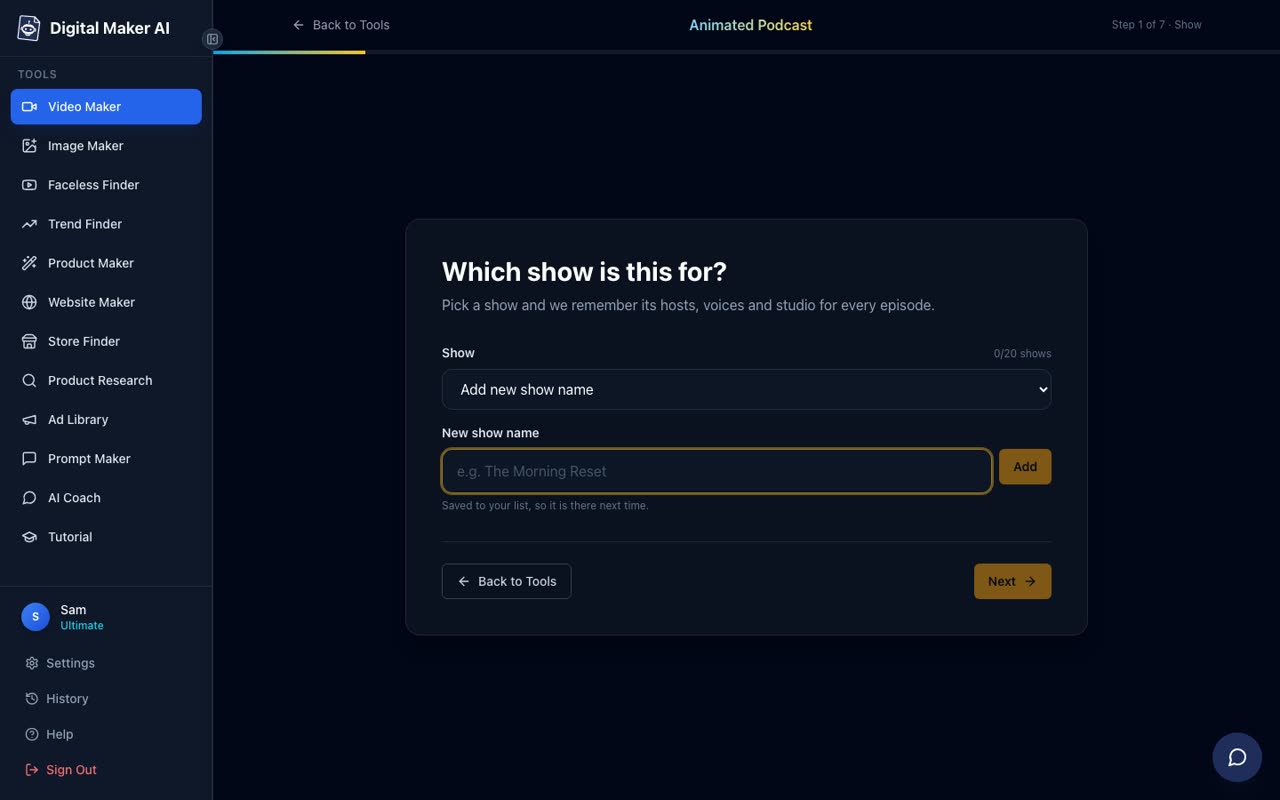
Tip: Choose a show name that reflects the niche you plan to stick with. Because the show saves your settings, you will want to keep the same hosts for every episode in that niche so your audience recognises them.
Step 2: Type the Episode Topic
The next screen asks what this episode is about. You get a topic box with a 400 character limit. Write a sentence or two that tells the AI what the two hosts should discuss.
You do not need to write a script. The platform writes the full conversation for you based on this topic. Be specific rather than vague. "Why most people never save money and three habits that actually help" will produce a much sharper episode than just "saving money".
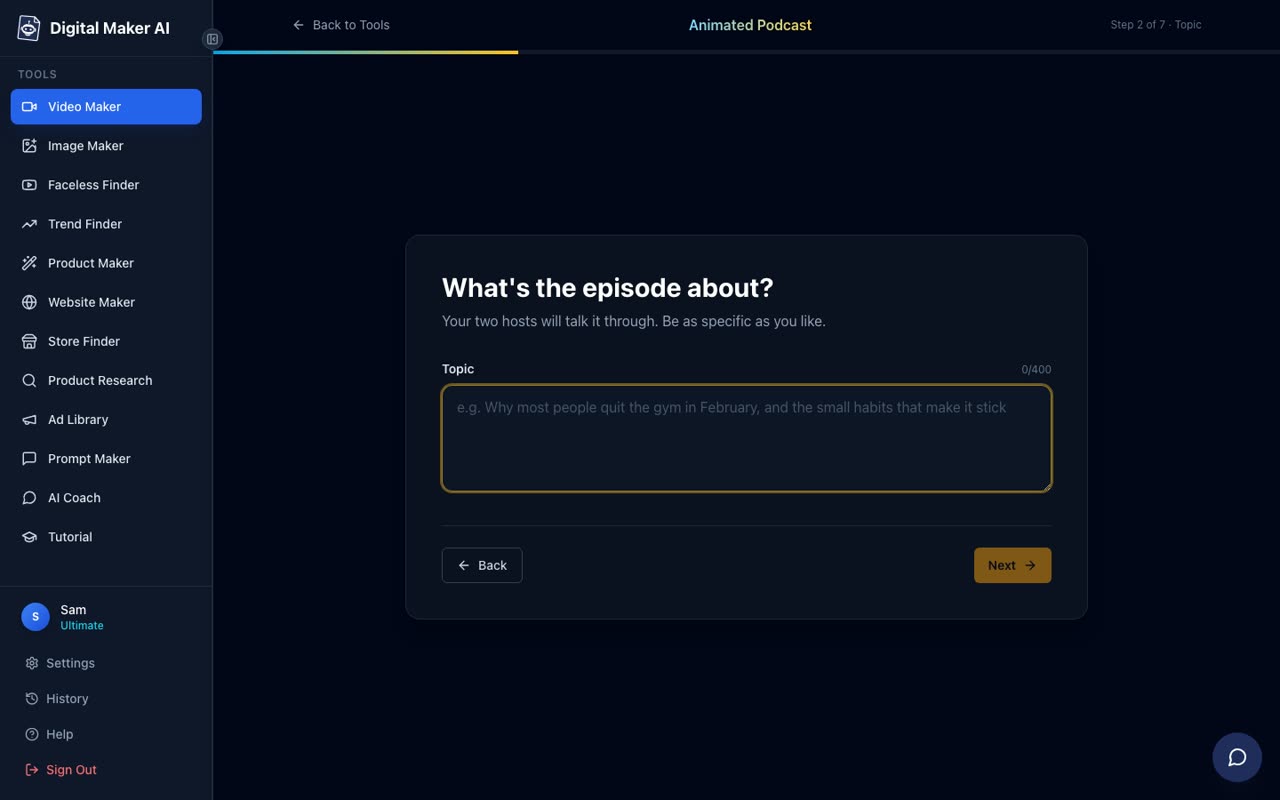
Tip: Think about what your viewer is searching for on YouTube. A topic like "Is the stock market rigged against small investors?" sounds like something people actually type into a search bar, and that makes it easier for your video to be found.
Step 3: Choose the Length and Tone
This is where you shape the feel of the conversation. A length slider lets you set how long the episode runs. On the free plan you can go up to 8 minutes, which is a solid length for a first episode. The episode carries a small Digital Maker AI watermark on the free plan.
Below the slider are five tone cards. Pick the one that fits your show:
- Friendly chat: warm and relaxed, like two friends catching up
- Explainer: clear and educational, one host teaches the other (and the listener)
- Debate: the two hosts take opposite sides and argue their case
- Comedy: light-hearted, with jokes and banter woven through
- Storytelling: narrative-led, the hosts tell a story together
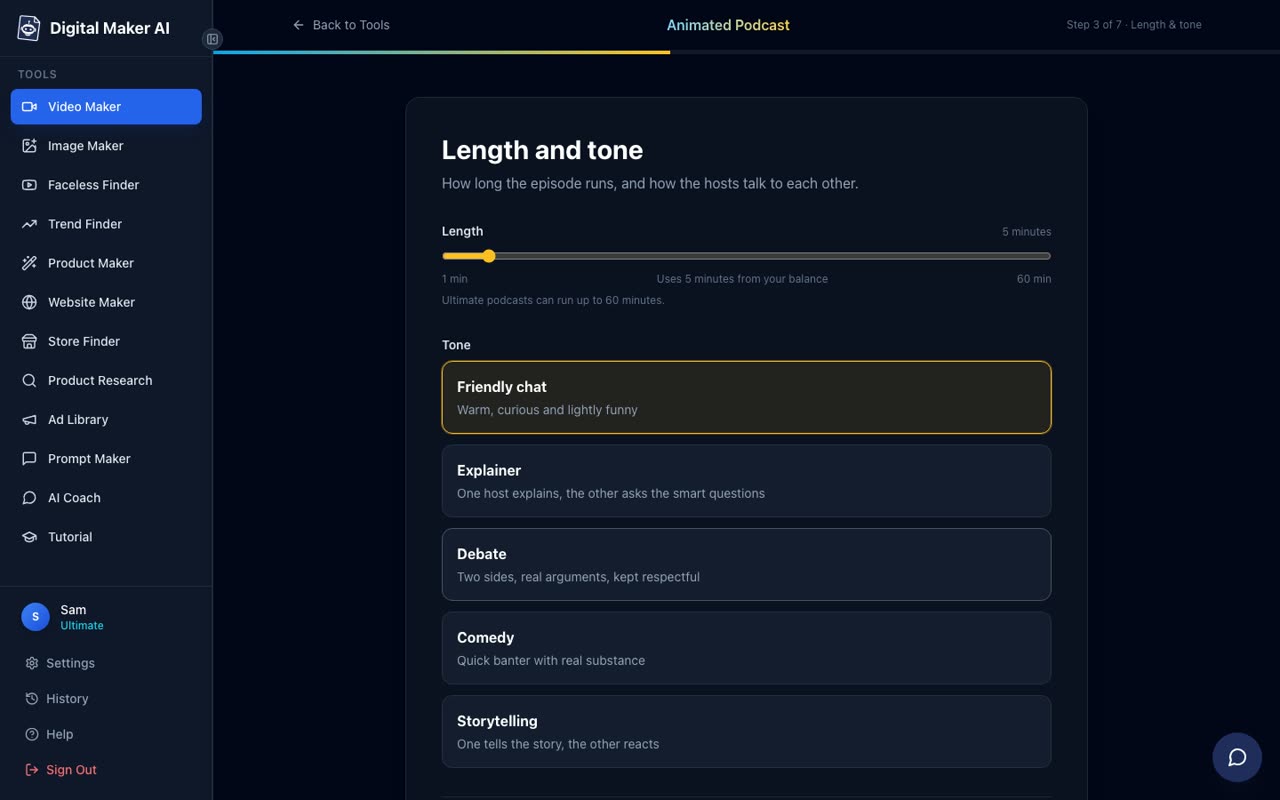
Tip: For a first episode, Friendly chat or Explainer tends to produce the most natural-sounding conversation. Debate works brilliantly for controversial topics where there is a genuine argument on both sides.
Step 4: Design Your Two Hosts
Now the fun part. This screen asks you to build the two people who will run your show. Each host gets a seat: left or right. For each one you choose:
- Gender: Woman or Man
- Name: whatever you want to call them
- Their look: describe them in a sentence, or upload a photo
The description does not need to be long. Something like "a woman in her thirties with curly red hair and a yellow blazer" is enough for the AI to draw a cartoon version of that person and place them in the studio. You can also upload a photo of a real person or an illustration if you already have a look in mind.
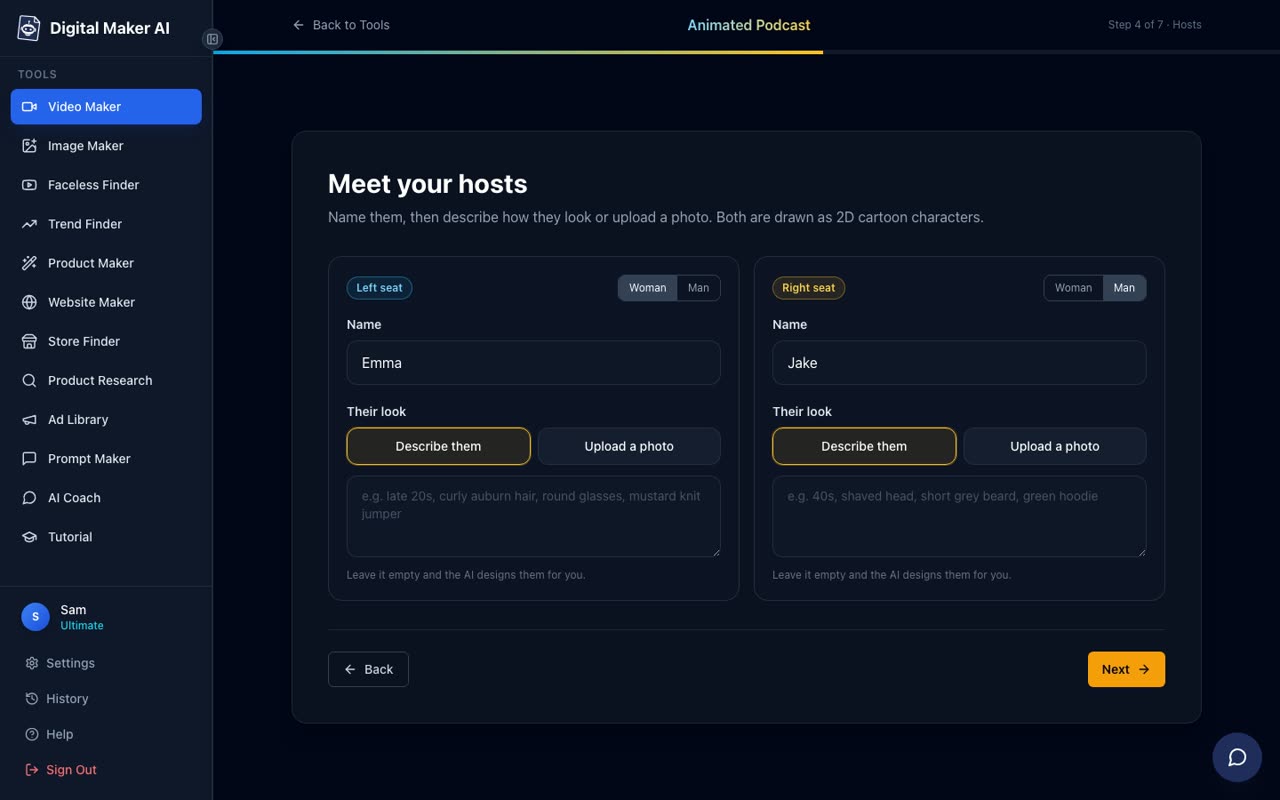
Tip: Give your hosts names that fit the show's tone. A finance show might have a Marcus and a Diana. A comedy show might have a Dave and a Priya. Viewers remember characters, and because the show is saved, these same two faces will appear in every future episode.
Step 5: Pick Their Voices
Each host needs a different voice so the listener can tell them apart. The voice picker shows a list of voice cards with names, short descriptions and filters for Female, Male and accent. Click the play button on any card to hear a sample before you choose.
Assign one voice to the left seat host and a different voice to the right seat host. The contrast between the two voices is what makes the conversation easy to follow. A deep male voice paired with a bright female voice, for example, is immediately clear even without looking at the screen.
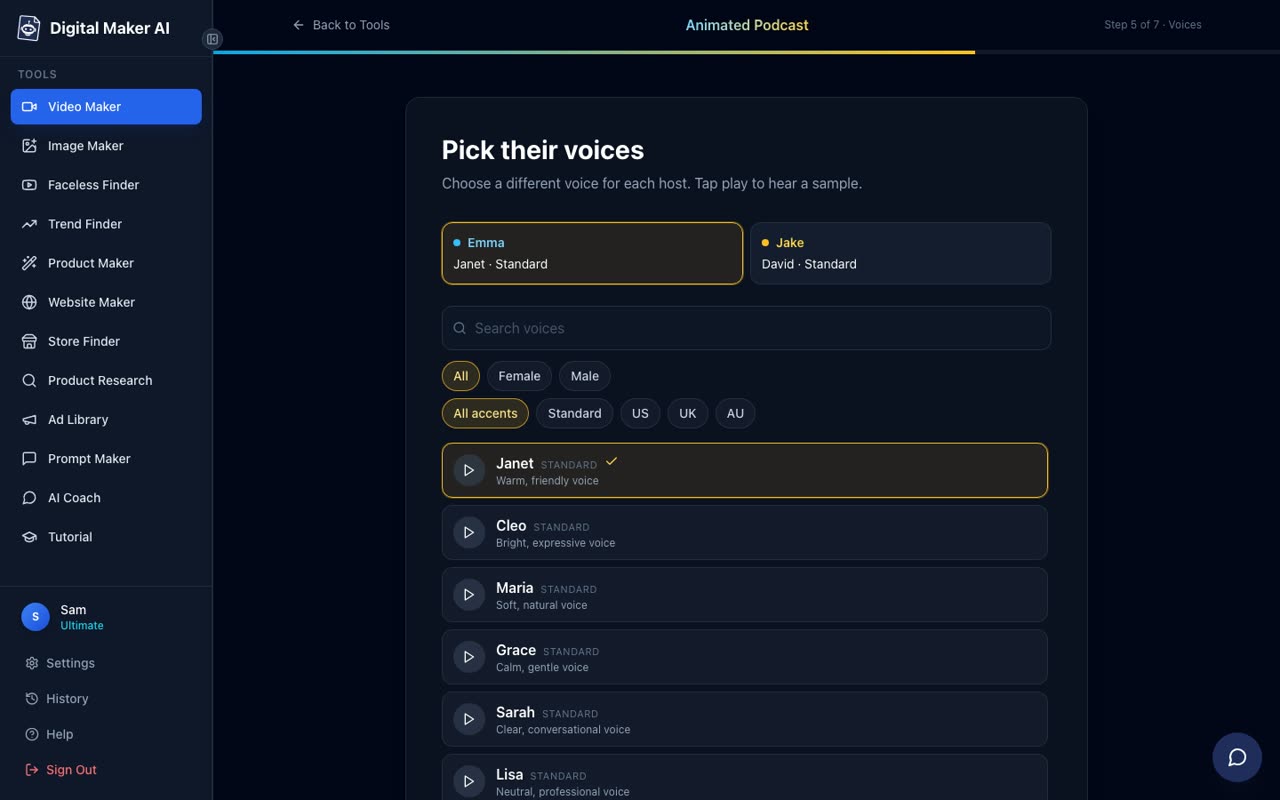
Tip: Try to match the voice energy to the tone you picked in step 3. A Comedy episode benefits from voices that sound a little warmer and faster. A Debate episode works better with voices that sound measured and confident.
Step 6: Choose a Studio Background
The studio is the room your two hosts sit in. The platform gives you several ready-made options including a Cosy studio, Bright studio, Living room, Home office, City loft, Kitchen table, Garden patio, Gaming den, News desk and Library study. You can also describe your own room in a text box, or upload a finished image if you already have a background you love.
Pick something that fits the show's subject. A finance podcast feels right in a City loft or Home office. A lifestyle show feels at home in a Living room or Kitchen table. A gaming podcast obviously belongs in the Gaming den.
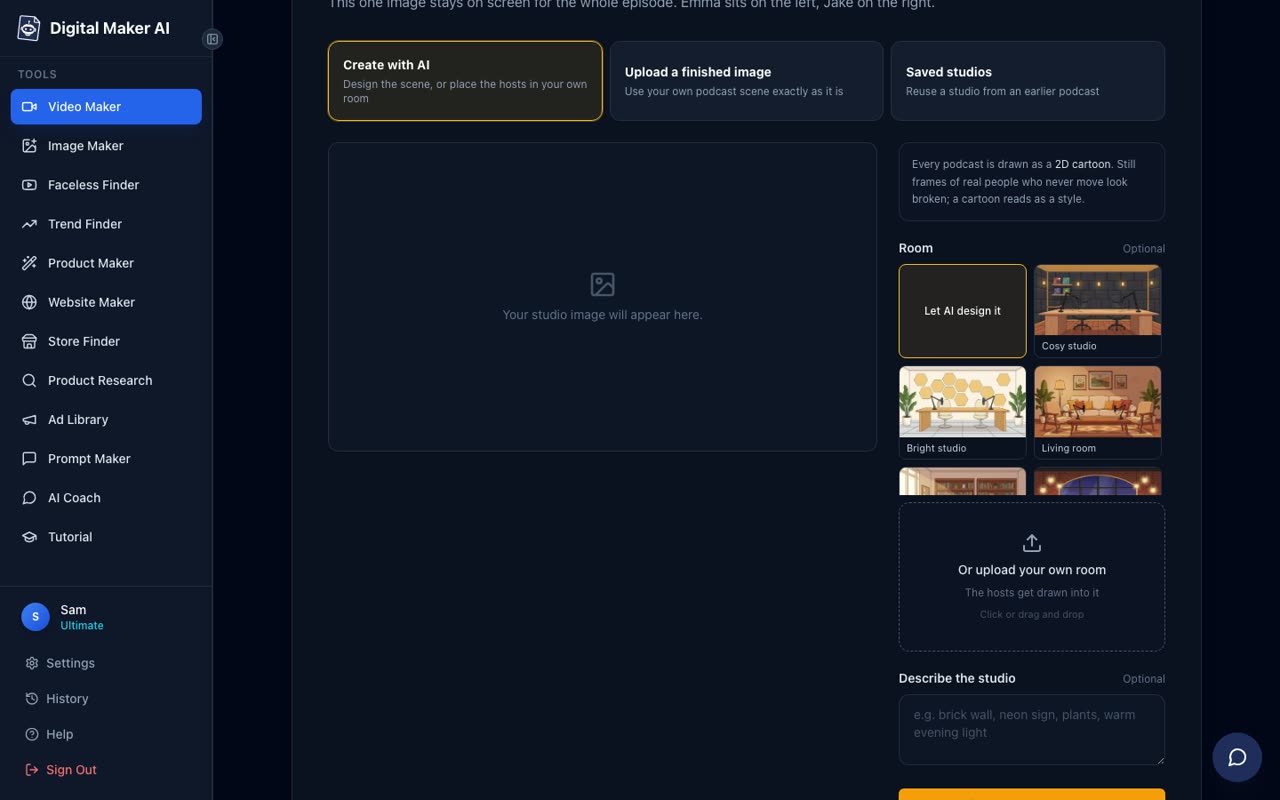
Tip: The studio is saved with the show. So choose one you are happy to see in every episode. If you want a completely unique look, use the describe your own room box to give the AI something specific to work from.
Step 7: Generate the Episode
You have now made every decision the platform needs. Press Generate and the animated podcast generator gets to work. It writes the full conversation, records both voices, draws the hosts into the studio, adds animated sound bars above whoever is speaking and burns captions along the bottom.
For a short episode of up to 8 minutes the video usually arrives in a few minutes. Longer episodes on paid plans are written and recorded in sections, so a 30 to 60 minute episode can take 45 to 90 minutes to build. The platform sends you an email when it is ready so you do not need to sit and wait.
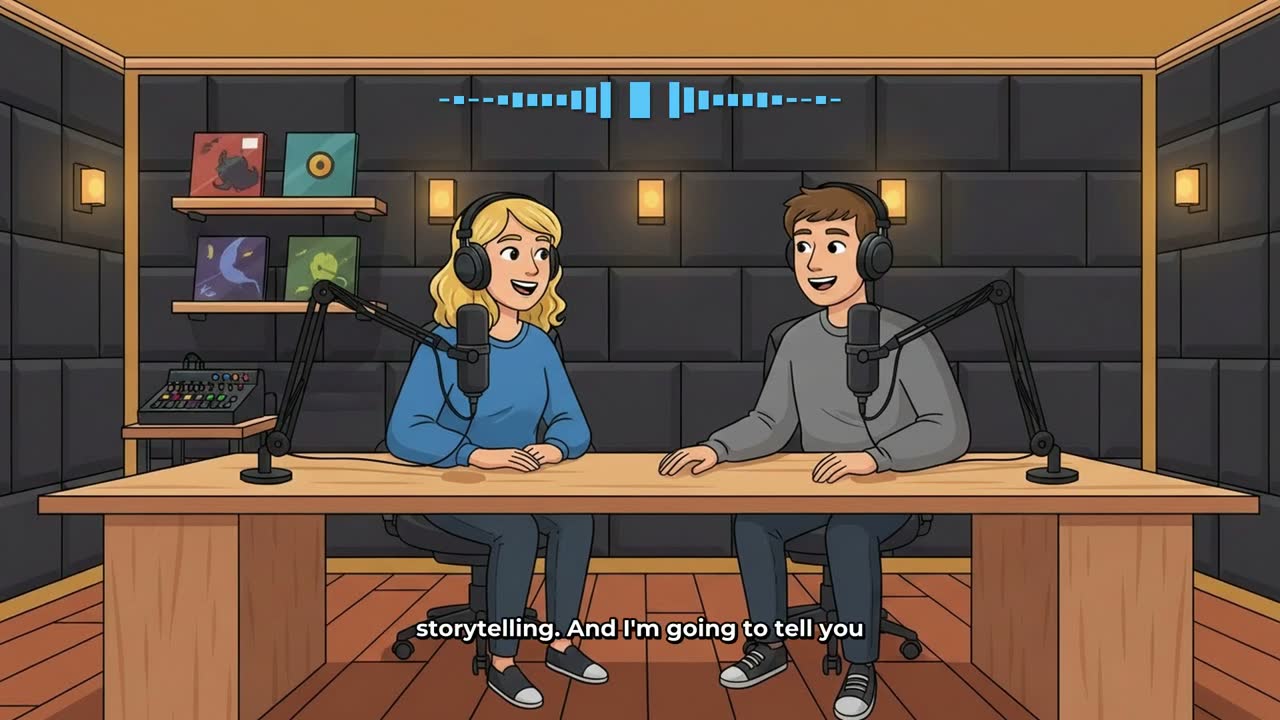
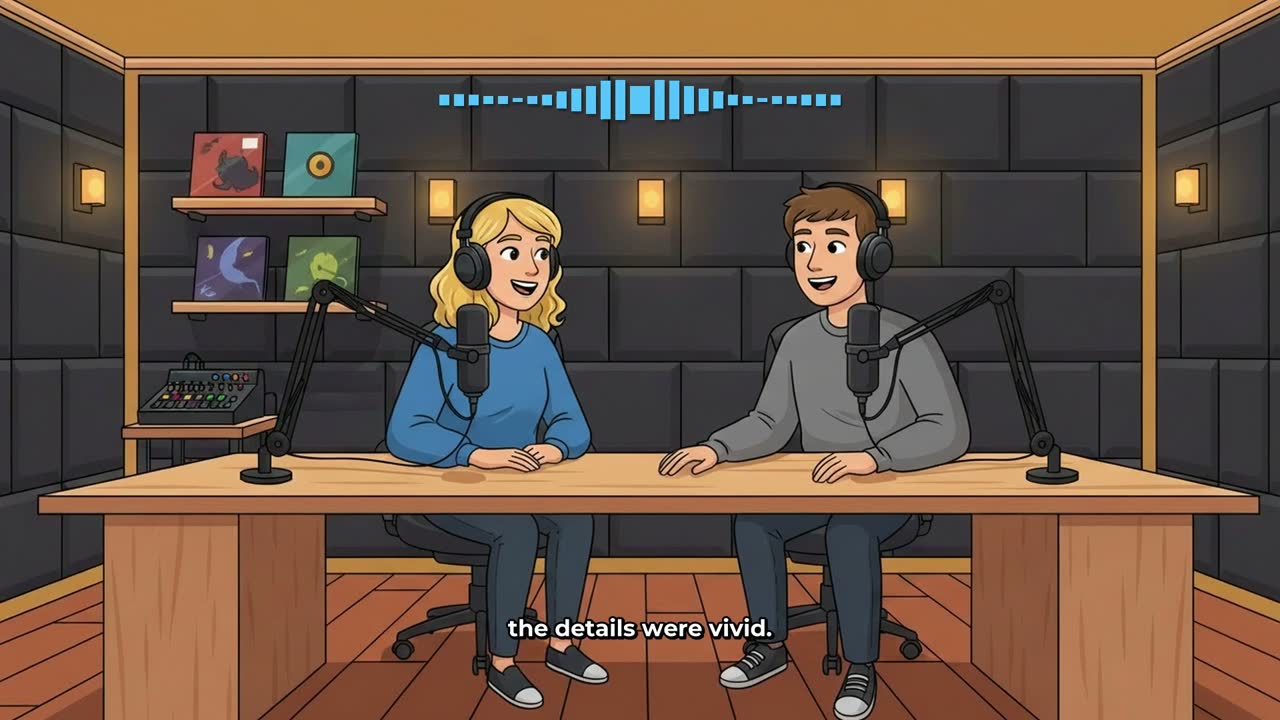
When the video is ready, download the MP4 and upload it to YouTube. Free plan videos carry a small watermark. Upgrading later removes it from that video too.
The Biggest Advantage: Every Future Episode is Faster
Here is what makes this animated podcast generator genuinely useful for building a channel over time. Because the show saves your hosts, voices and studio, you never have to repeat steps 4, 5 and 6 again. For your second episode you simply select the show, type a new topic, pick a length and tone, and press Generate. The same two hosts appear in the same studio with the same voices, every time.
That consistency is exactly what a loyal audience looks for. They come back because they recognise the show. And because the setup is already done, you can publish new episodes regularly without spending hours on production.
What the Free Plan Includes
The free plan gives you one animated podcast up to 8 minutes, with no credit card required. The video carries a small Digital Maker AI watermark. That is enough to make a complete first episode, see how the hosts look and sound, and decide whether you want to take the show further.
If you want longer episodes, the platform's paid plans unlock more. You can see what each plan includes at digitalmaker.ai/pricing. The Animated Podcast feature is not included on the Pro plan, so check the plan details before upgrading if podcasting is your main goal.
Common Mistakes to Avoid With Your First Animated Podcast
- A topic that is too broad. "Technology" will produce a vague conversation. "Why most people are addicted to their phone and how to break the habit" will produce a focused, engaging one.
- Matching voices that sound too similar. If both hosts have the same accent and pitch, the listener cannot tell who is speaking. Use the voice filters to find a contrast.
- Picking the wrong tone for the topic. A Debate tone on a topic where there is no real disagreement sounds forced. Match the tone to the subject honestly.
- Choosing a studio that does not fit the niche. A Gaming den background on a personal finance podcast sends a mixed signal to viewers. Keep the visual and the subject aligned.
- Forgetting to save the show name. If you skip step 1 and do not create a named show, the hosts and studio will not be saved for next time. Always name the show first.
What to Do After Your First Episode
Once you have downloaded your first episode and uploaded it to YouTube, the next step is consistency. Plan a series of episodes on related topics and record them one by one. Because the show is saved, each new episode takes only a few minutes to set up.
If you want to learn more about building a faceless YouTube channel from scratch, the free course at Digital Maker AI covers the full strategy: how to pick a niche, how to name your channel, how to write topics that get found, and how to grow an audience without ever appearing on camera. It is a good next step once your first episode is live.
You might also find it useful to read about the best AI video generators for beginners if you want to compare your options before committing to a workflow. But for a beginner who wants a complete animated podcast with two AI hosts and no technical skills required, the seven steps above are all you need to get started today.
Alex Roberts: Alex Roberts writes for the Digital Maker AI team about faceless YouTube channels, AI presenters and AI video tools.