How to Make a Cartoon YouTube Series With ChatGPT
By Alex Stevens
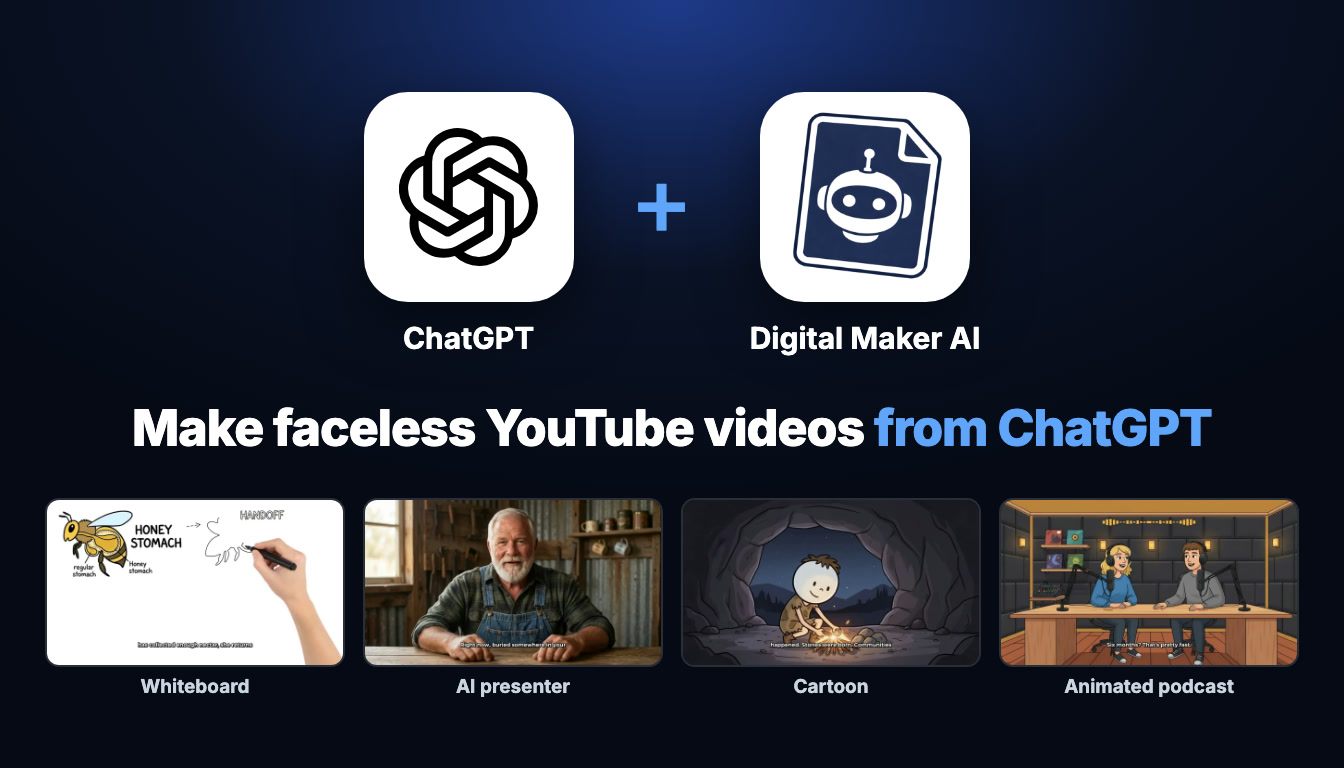
What You Will Be Able to Do
By the end of this guide you will know how to make cartoon YouTube videos with ChatGPT using Digital Maker AI. You will have ChatGPT connected to your Digital Maker AI account, a recurring cartoon character saved and ready to use, and a workflow for producing long-form cartoon episodes, AI presenter videos and vertical Shorts, all by typing a single request. If you want to see how a similar setup works inside Claude, check out the companion post on making a cartoon series by asking Claude.
What the Connection Actually Means
ChatGPT does not make videos on its own. What the connection does is give ChatGPT access to Digital Maker AI's tools through an MCP (Model Context Protocol) server. When you ask ChatGPT to make a cartoon episode, it passes your request to Digital Maker AI, which does all the video work: writing the script, generating every scene image in the Animated or Cartoon style, adding narration and captions, and returning a finished MP4.
Everything happens inside your own Digital Maker AI account. Your plan and your monthly video minutes are what power every video. Finished videos land in your Digital Maker AI library, and you get an email when each one is ready. ChatGPT is the interface you type into; Digital Maker AI is where the video is actually built.
One important thing to understand before you start: making any video through ChatGPT, whether a cartoon long-form video, a Short, a whiteboard animation or an animated podcast, requires a Premium or Ultimate plan on Digital Maker AI. Pro gets you thumbnails, character images and channel research through the connection, but not video creation. Free plan users can explore the five free videos directly on the Digital Maker AI website.
How to Set Up the ChatGPT Connection
The setup takes about five minutes and you only do it once. Here is exactly what to do, step by step.
- Get the ChatGPT desktop app. Go to chatgpt.com/download and install it. You need a paid ChatGPT plan (Plus or above). Plugins only work in the desktop app, not on the ChatGPT website.
- Open Account Settings in Digital Maker AI. Click Settings at the bottom of the left sidebar, then open the ChatGPT tab. Click Create my ChatGPT link. Digital Maker AI generates your personal connection URL and fills it into a ready-made prompt for you.
- Switch ChatGPT to Work mode. In the desktop app, find the toggle at the top of the chat window and switch it from Chat to Work. Start a new chat and choose Plugin Creator.
- Paste the prompt and send it. Copy the prompt from the Digital Maker AI ChatGPT tab and paste it into Plugin Creator. The prompt tells ChatGPT to add a custom MCP server called Digital Maker AI with your link and no authentication, and only to connect it, not build anything new. If ChatGPT says the live connection has not been verified, open the link it gives you and enable it there.
- Confirm Digital Maker AI appears under Plugins, Personal. Check the Plugins section inside Work mode to make sure Digital Maker AI is listed there.
- Tag Digital Maker AI in a new Work chat. Open a fresh Work chat, type @, and click Digital Maker AI so it turns into a blue tag. You are now ready to ask.
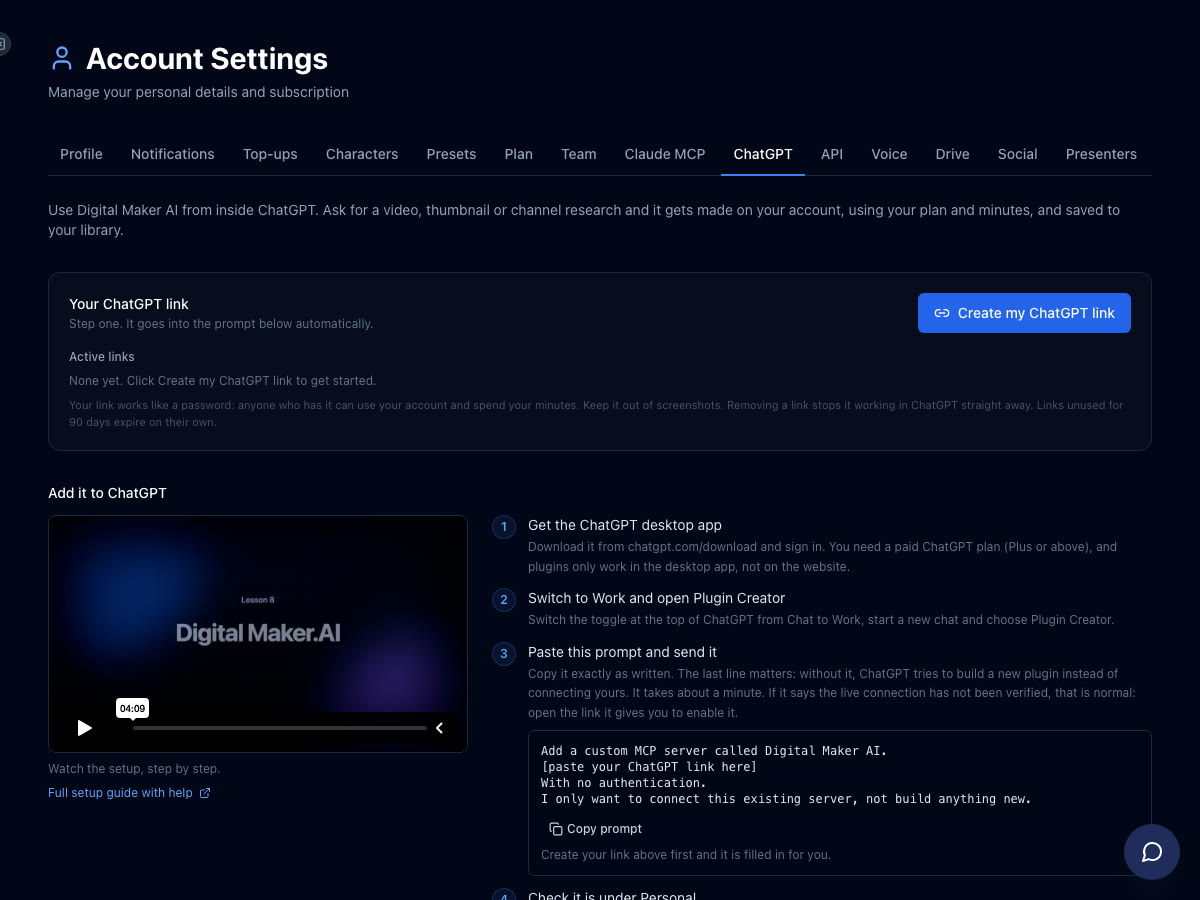
Before ChatGPT starts building anything it will confirm how many minutes the video will use. It will not begin until you say yes. Videos take time to produce, so once you confirm, feel free to close the chat. Digital Maker AI will email you when the video is ready, and the finished file will be waiting in your library.
Format 1: Cartoon-Style Long-Form Videos With a Recurring Character
This is the core of a cartoon YouTube series. When you ask ChatGPT to make cartoon YouTube videos with ChatGPT in long-form, Digital Maker AI uses the Animated or Cartoon visual style to generate a unique illustrated still image for every scene. Each image has the look of hand-drawn cartoon art, with bold outlines, rich colours and a consistent illustrated feel. The narration plays over each scene, with captions burned into the lower third. It is worth being clear: these are beautifully illustrated stills, not frame-by-frame moving animation. The scenes hold on screen while the narration plays, with optional slow zoom or pan motion effects.
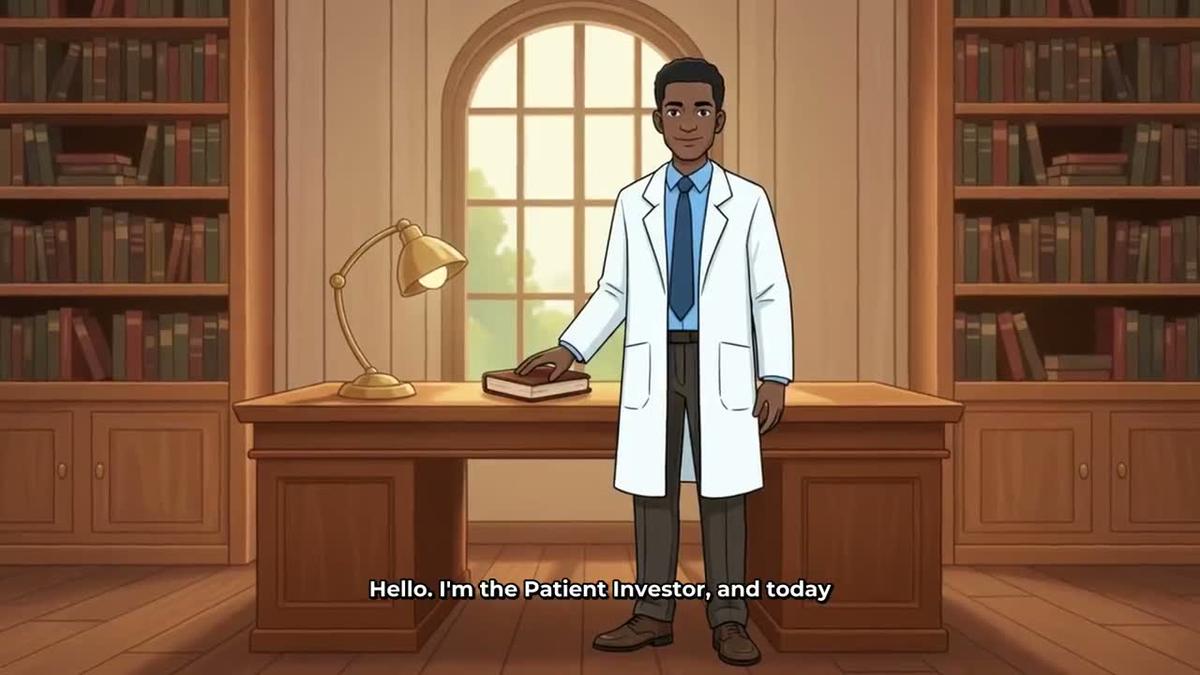
What makes a cartoon series feel like a series is a recurring character. On Premium and Ultimate you can upload or build a character image in Digital Maker AI, save it, and that same character will be drawn into the scenes of every video you make. You can save up to ten characters and reuse them across as many episodes as you like. Visit the consistent AI character video generator page to see how recurring characters work.
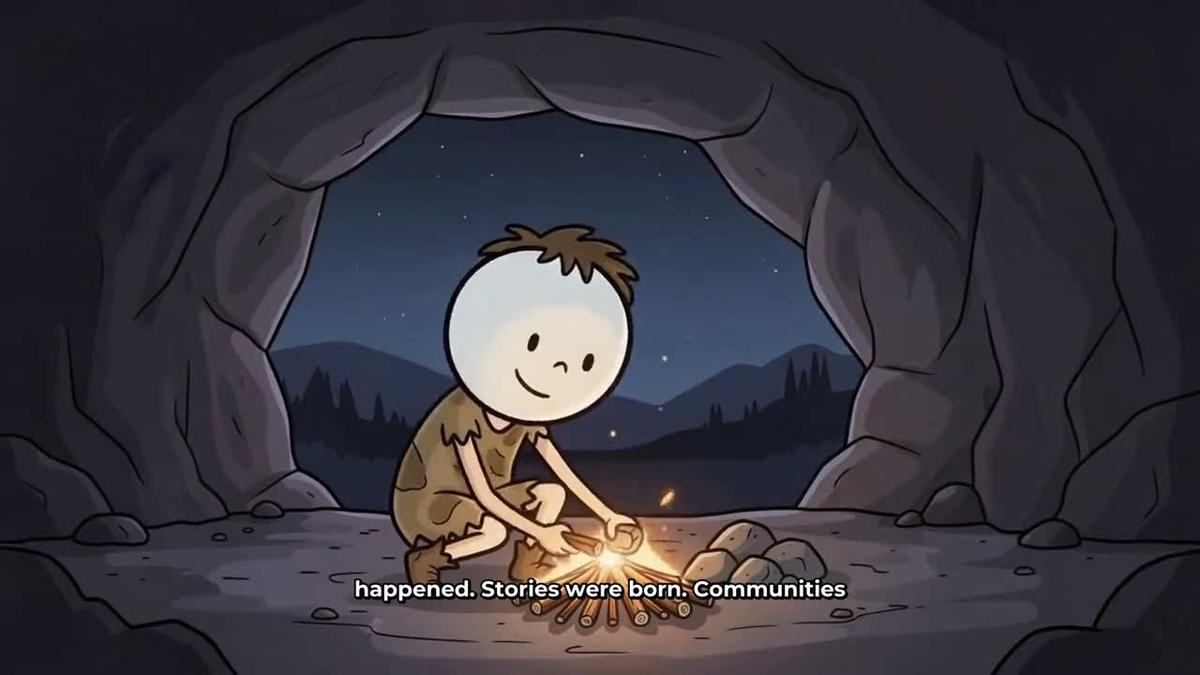
Once your character is saved, you just mention them by name in your ChatGPT request. Here are two real example requests you can adapt:
- "Make a 10-minute cartoon-style video about the history of money. Use my recurring character Professor Coin. Add Bold Pop captions and light background music."
- "Create a new episode about the gold standard using the same character."
ChatGPT passes both requests to Digital Maker AI, which writes the script, generates every scene in the Animated or Cartoon style with Professor Coin drawn in, adds narration, captions and music, and returns a finished MP4. The second request picks up the same character automatically because it is saved in your account.
For longer episodes, your maximum video length depends on your plan. Premium supports videos up to 30 minutes and Ultimate up to 60 minutes. Every minute of video uses one minute from your monthly pool. Check the pricing page for full plan details. You can also explore what the AI cartoon video generator produces to get a feel for the visual style before you build your first episode.
After a video is finished, you can regenerate any scene image (ten free regenerations per video), swap in your own image, or edit the narration text directly in your Digital Maker AI library. There is no timeline editor, but those per-scene controls give you meaningful creative control over the final result.
Format 2: AI Presenter Videos in a Cartoon Channel Context
A cartoon channel does not have to be purely faceless. Digital Maker AI's AI Presenter feature lets you add a talking on-screen host to any long-form Multi Scene video, and you can describe that presenter in a way that fits a cartoon or illustrated world. Presenters are available on Premium and Ultimate plans.
You create a presenter in Account Settings under the Presenters tab. Write a sentence or two describing who they are and their setting, and Digital Maker AI draws a photoreal picture of them. You save it and reuse it across videos. The presenter speaks the same narration voice as the rest of the video, with captions, and you control how much of the video they appear in using a slider and a timeline bar.
There are three layout options you can mix and match: Full screen (the presenter fills the frame), Split screen (presenter on the left, the cartoon scene on the right) and Corner circle (the scene fills the frame with the presenter in a small round window in the corner). The video rotates through whichever layouts you tick.
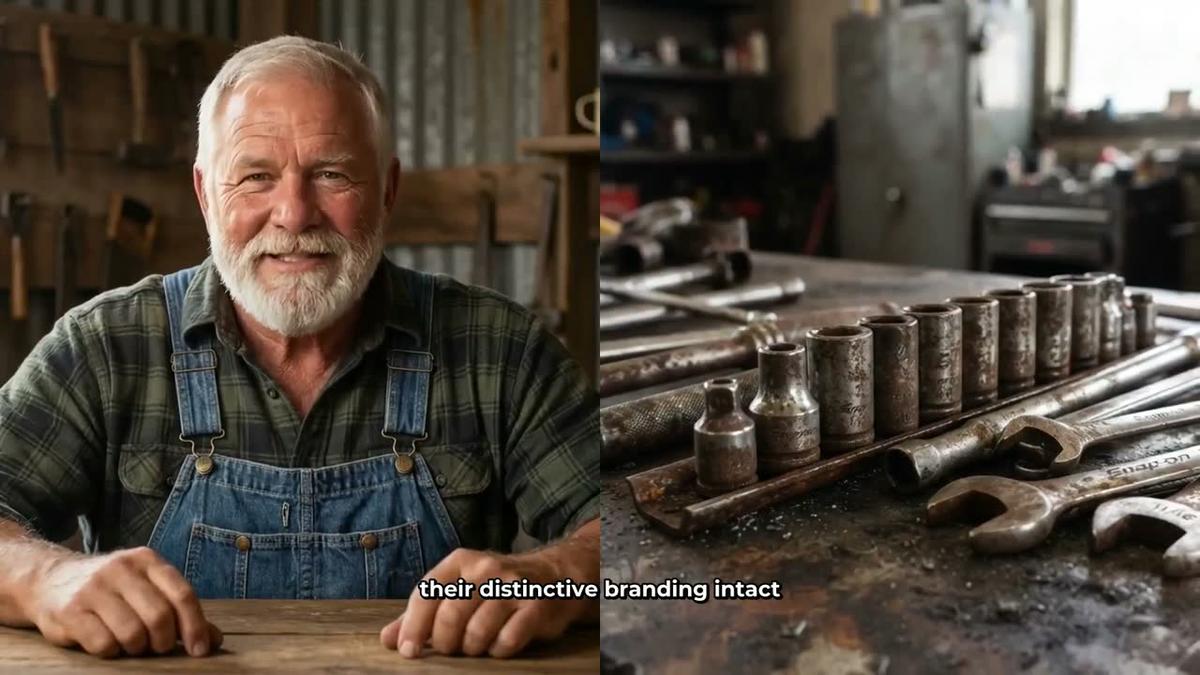
For a cartoon channel, you might describe a presenter like this: "A friendly historian in his fifties with round glasses and a tweed jacket, sitting at a cluttered desk covered in old maps and artefacts, warm lamp light." The result is a photoreal person who feels at home alongside illustrated cartoon scenes. You can also have the presenter drawn into the scene pictures as the recurring character, blending both features in one video.
To add a presenter through ChatGPT, just include it in your request. For example: "Make a 12-minute cartoon-style video about ancient trade routes using my recurring character Professor Coin. Add my presenter in Split screen and Corner circle layouts for the intro and conclusion. Bold Pop captions." ChatGPT will confirm the avatar time and video minutes before starting. Presenter time is counted separately in avatar seconds, which are different from your video minute pool. Avatar Packs let you add more when needed. See the pricing page for details, or visit the AI avatar video generator page to learn more about how presenters work.
Vertical Shorts for Your Cartoon Channel
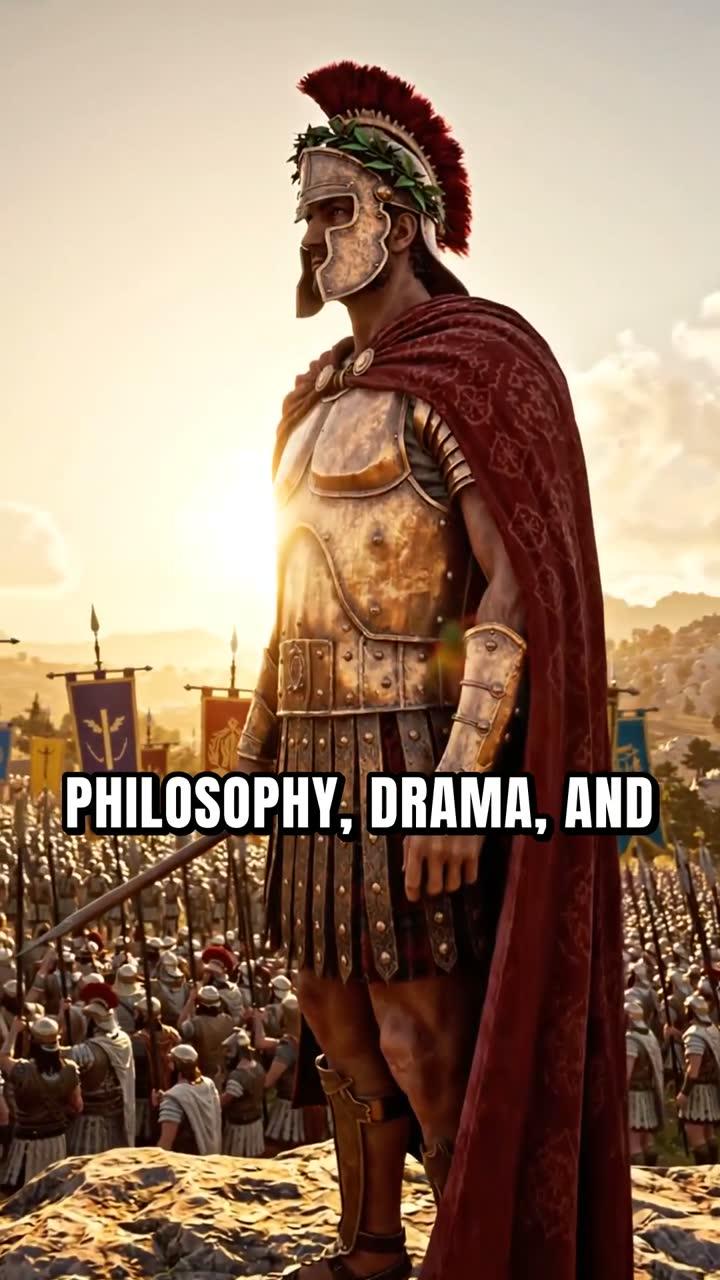
Shorts are a fast way to grow a cartoon channel and they cost a flat one minute from your monthly pool regardless of length. You can make a 15, 30, 45 or 60 second vertical Short in the Animated or Cartoon style, with bold captions, by asking ChatGPT in exactly the same way. Here is a real example request:
- "Make a 45-second cartoon Short about why Rome fell, Animated style, bold captions."
Digital Maker AI produces a vertical 9:16 video with a new illustrated scene every few seconds and narration throughout. It is a great format for testing topics before committing to a full episode, and for feeding the YouTube algorithm between uploads.
Note that AI presenters are not available on Shorts. For Shorts, the Animated or Cartoon visual style with your recurring character is the way to keep them on-brand. You can find more about the Shorts format on the AI YouTube Shorts generator page.
Research, Thumbnails and Posting
ChatGPT connected to Digital Maker AI is not just a video builder. You can use it to research your cartoon niche before you make anything.
Channel research: Ask ChatGPT to search the Faceless Finder for cartoon or animated history channels. It will return channel cards showing subscribers, uploads per week, average video length and estimated monthly ad revenue. This is Digital Maker AI's own rough estimate based on recent views and typical ad rates for the niche, not the channel's actual earnings. It is useful for spotting what length and frequency works in your niche before you commit to a production schedule.
Thumbnails: Ask ChatGPT to generate a thumbnail for your cartoon episode using Image Maker. Describe the character, the scene and the mood, and it returns a ready-to-use image sized for YouTube. Pro, Premium and Ultimate all get thumbnail generation through the connection.
Posting to YouTube: Premium and Ultimate can post finished videos straight to YouTube from the "Post to socials" button in the Digital Maker AI library, now or on a schedule, after connecting the account once in Account Settings. Nothing posts automatically. You press Post, and posts are labelled as AI generated. You can also ask ChatGPT to trigger posting once the video is ready. Free and Pro users download the MP4 and upload it themselves. For more on publishing directly from Digital Maker AI, see the AI video auto publishing page.
Tips for Running a Cartoon Series With ChatGPT
- Name your character clearly. Save your recurring character in Digital Maker AI with a memorable name (Professor Coin, Captain History, The Patient Investor) and use that exact name in every ChatGPT request. Consistency is what makes a series feel like a series.
- Plan episodes in batches. Ask ChatGPT to suggest ten episode ideas for your cartoon channel in one message, then make them one by one. This keeps your content calendar full without extra research time.
- Use Bold Pop or YouTube Yellow captions. These caption styles read well on both landscape videos and Shorts, and they match the bold visual energy of the cartoon style.
- Mix long-form and Shorts. Make a 10-minute episode and then ask for a 45-second Short on the same topic. Two pieces of content, one topic, one session.
- Check your minutes before a long session. Ask ChatGPT "How many video minutes do I have left?" before you start. It will report your remaining pool so you can plan your session without surprises.
- Remember scenes are illustrated stills. The Animated or Cartoon style produces beautiful illustrated images, not moving frame-by-frame animation. If you want real motion in specific scenes, use the Animate Scenes add-on after the video is made (Premium includes 5 animated scenes a month, Ultimate includes 10).
If you want to explore a similar workflow using a different AI assistant, the post on making an animated podcast with ChatGPT shows how the same connection handles a completely different video format. And if you are curious about what other AI apps can do with Digital Maker AI, the full setup guide is at digitalmaker.ai/chatgpt.
The best way to get started is to connect your account, save your first character, and send one request today. Head to the free course for a full walkthrough of Digital Maker AI from the ground up, including how to build your channel strategy around cartoon-style content.
Alex Stevens: Alex Stevens writes for the Digital Maker AI team about faceless YouTube channels, AI presenters and AI video tools.