How to Make an Animated Podcast With AI in 2027
By Alex Stevens
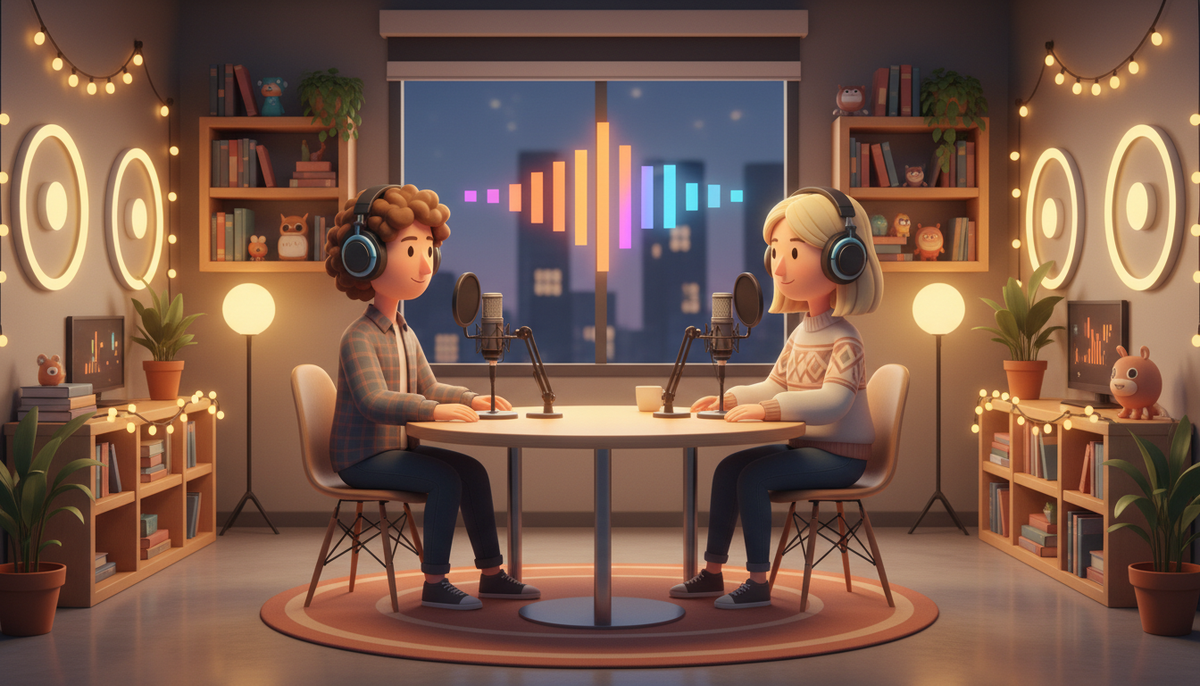
You can make an animated podcast with AI in about ten minutes by typing a topic, naming two hosts, picking their voices and choosing a studio background. Tools like Digital Maker AI (digitalmaker.ai) handle the script, the animation and the captions for you, so there is no recording, no editing software and no design experience needed. The finished file is a landscape MP4 ready to upload to YouTube.
Key takeaways
- An animated podcast is a landscape video with two AI cartoon hosts, two different voices, captions and animated sound bars, all generated from a text topic.
- Digital Maker AI lets you try the Animated Podcast free: one episode up to 8 minutes, no credit card needed, with a small watermark.
- Premium and Ultimate plans unlock episodes up to 30 and 60 minutes respectively. Pro does not include the Animated Podcast.
- Shows are saved, so every new episode automatically reuses the same hosts, voices and studio you set up the first time.
- Long episodes (30 to 60 minutes) are built in sections and can take 45 to 90 minutes to generate; you get an email when the episode is ready.
What is an animated podcast and why make one in 2027?
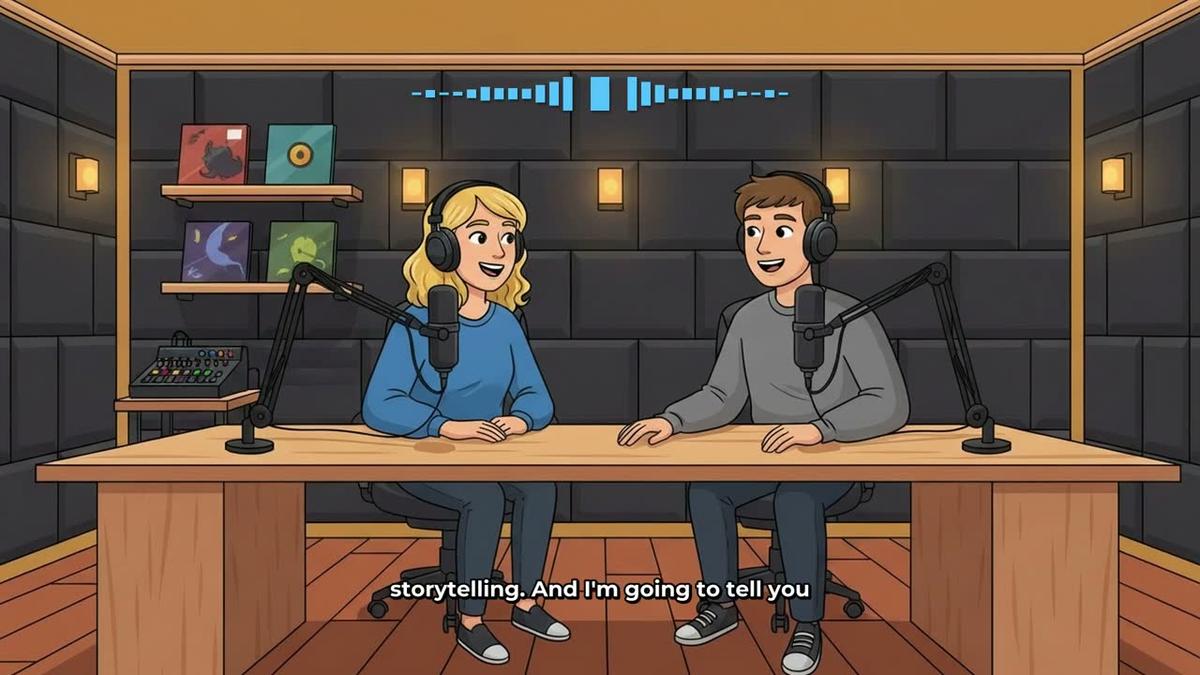
An animated podcast is a video podcast where the hosts are AI-generated cartoon characters rather than real people on camera. Each host has a name, a look and a voice. When one host speaks, animated sound bars rise above them and captions appear along the bottom. The result looks like a proper talk show, but you never need a microphone, a camera or a studio of your own.
In 2027, video podcasts are one of the fastest-growing formats on YouTube. Viewers expect to see something on screen, not just a static cover image. An animated podcast gives you a visual show without the cost of filming, and because the hosts are saved, you can publish new episodes consistently without starting from scratch each time. The animated podcast generator in Digital Maker AI handles the whole workflow in one place.
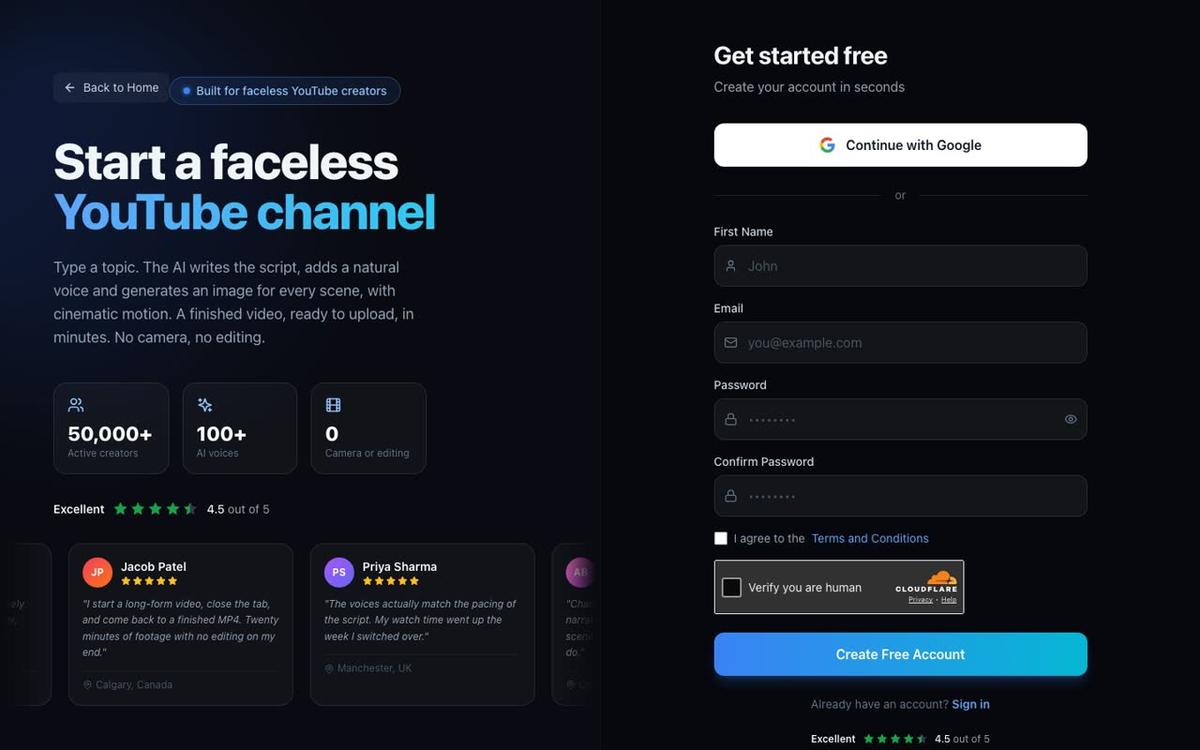
Step 1: Create your free account
Go to digitalmaker.ai/faceless and sign up. You can continue with Google or enter a name, email and password. No credit card is needed. Free accounts get one animated podcast episode up to 8 minutes, along with four other free video types, so you can test the format before committing to a paid plan.
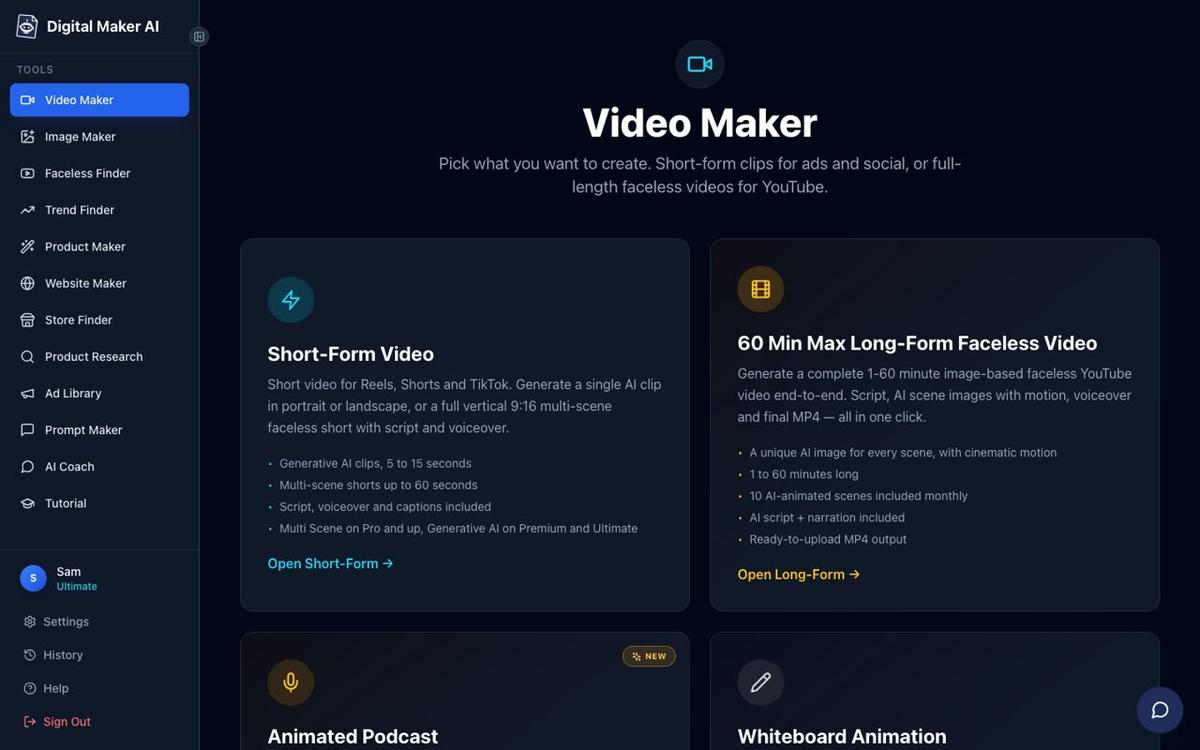
Once you are signed in, look for the Video Maker button in the left sidebar. Click it and then scroll down past the long-form and short-form options to find the Animated Podcast card. Click it, then press Next at the bottom of the screen to begin.
Step 2: Name your show
The first screen asks which show this episode belongs to. Type a new show name in the box and press Add. This is the name of your podcast series, for example "The Side Hustle Lab" or "Space Curious". From the second episode onward, you pick this show from the dropdown and skip straight to the topic, because the hosts, voices and studio are already saved.
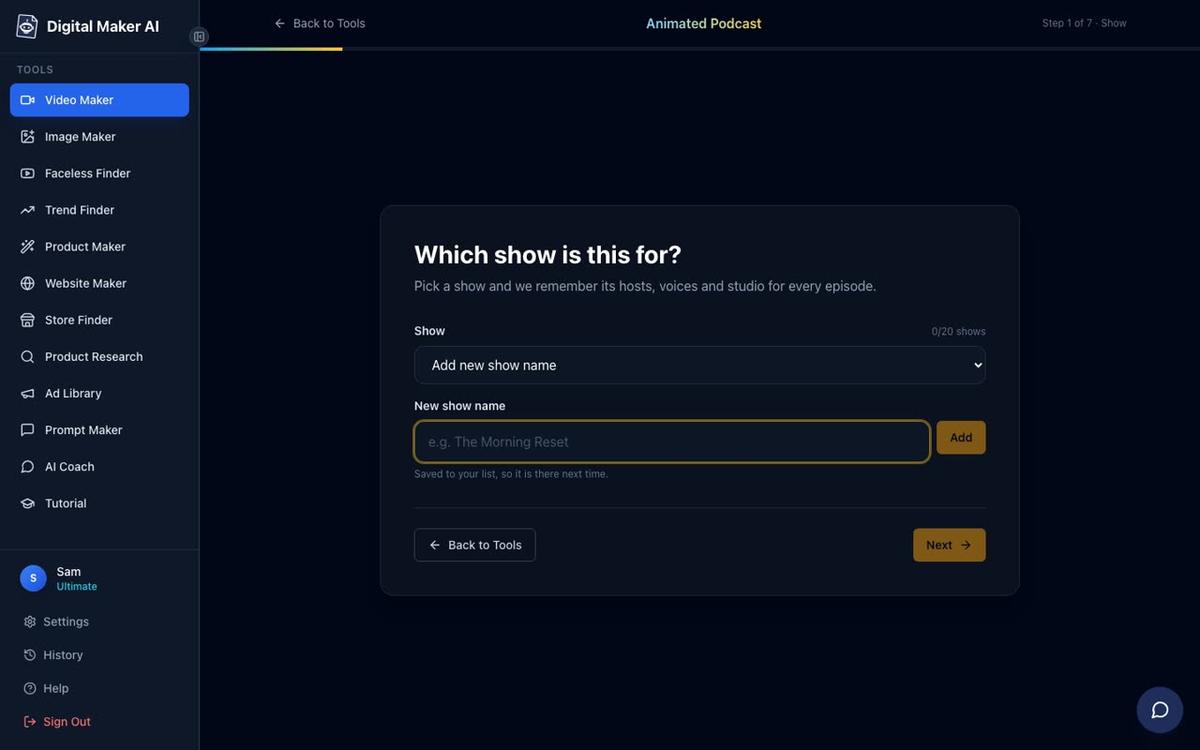
Tip: choose a show name that signals the niche clearly. A viewer browsing YouTube should understand the topic from the name alone, even before they read the episode title.
Step 3: Type the episode topic
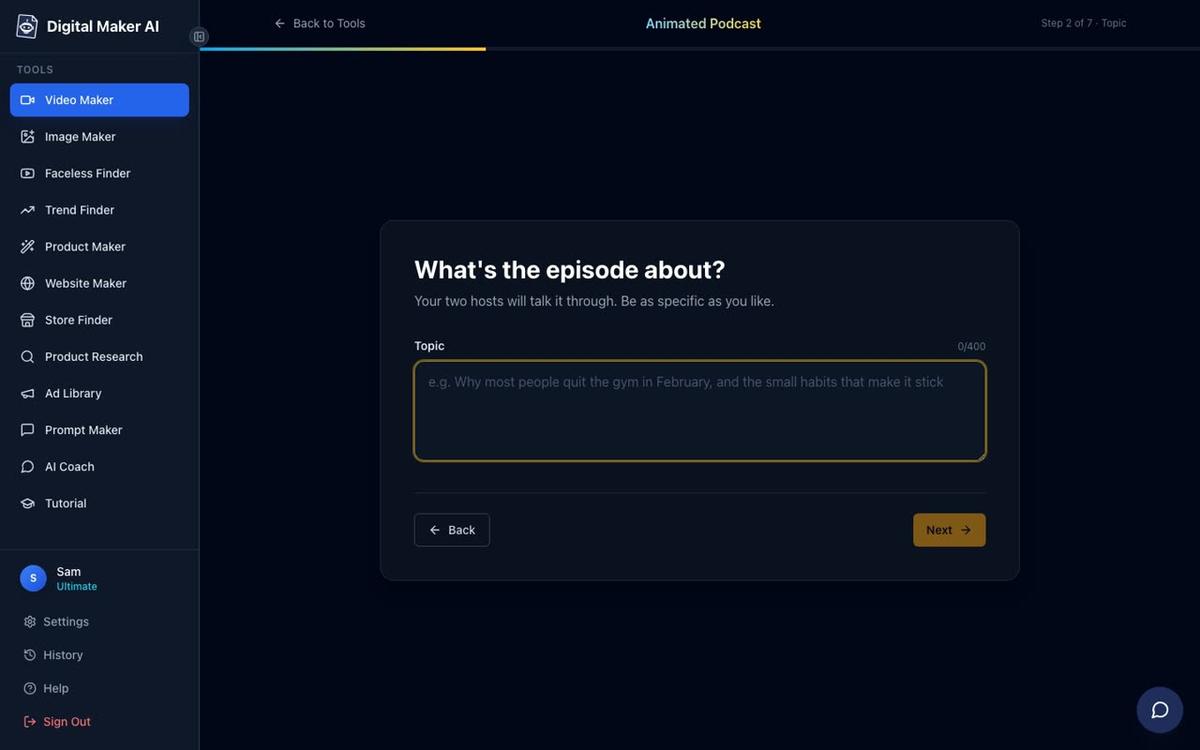
On the next screen, type what this episode is about in the topic box. You have up to 400 characters. Be specific. Instead of "money", try "Why most people never build an emergency fund and what to do about it in 2027". The more detail you give, the more focused the conversation between the two hosts will be.
Step 4: Set the length and tone
Use the length slider to set how long the episode should run. Free accounts can go up to 8 minutes. Premium unlocks episodes up to 30 minutes and Ultimate up to 60 minutes. Then pick a tone from the cards: Friendly chat, Explainer, Debate, Comedy or Storytelling. The tone shapes how the two hosts talk to each other throughout the episode.
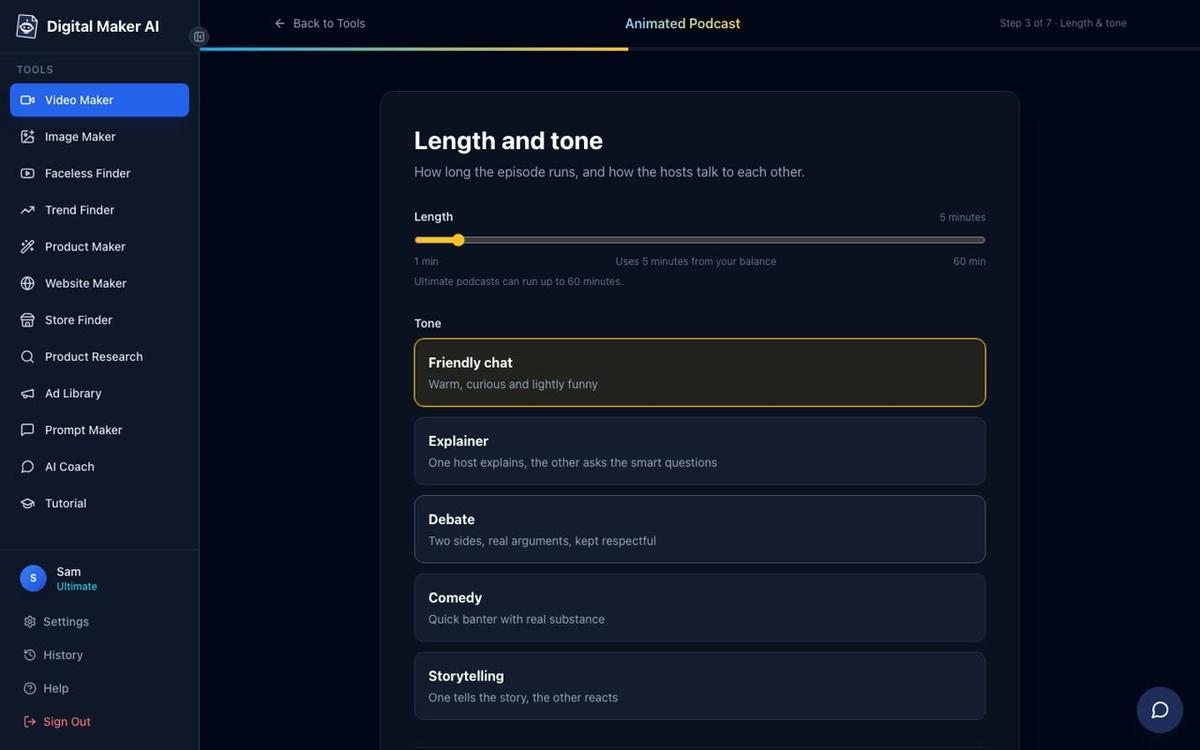
Practical note on length: if you are new to the format, start with 5 to 8 minutes. It is enough to cover a focused topic, and you will see the full flow of the tool before moving to longer episodes.
| Plan | Max episode length | Animated Podcast included? |
|---|---|---|
| Free | 8 minutes (one episode, watermarked) | Yes, one free episode |
| Pro | Not included | No |
| Premium | 30 minutes | Yes |
| Ultimate | 60 minutes | Yes |
See the full plan details at digitalmaker.ai/pricing.
Step 5: Design your two AI hosts
This is where your show gets its identity. On the hosts screen, you set up the left seat and the right seat. For each host you choose whether they are a woman or a man, give them a name and describe how they look. You can also upload a photo if you have a specific look in mind, or let the AI generate a cartoon version from your description.
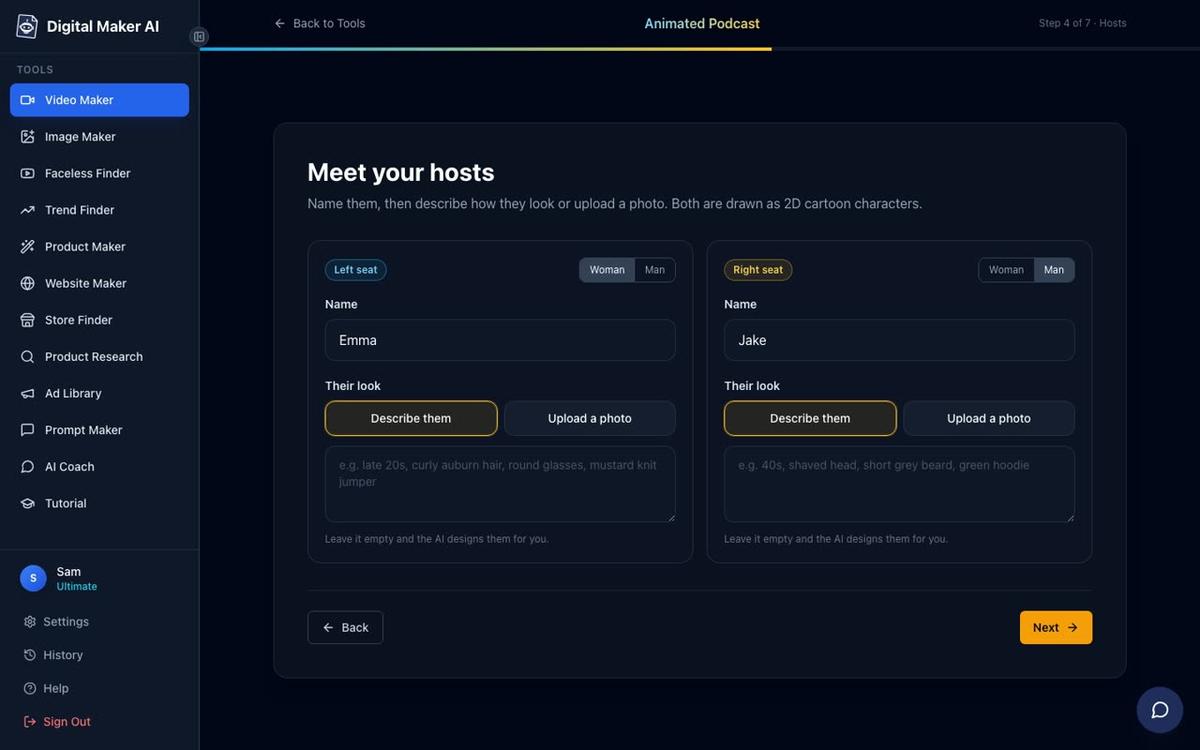
A worked example: if your show is about personal finance, you might set up Maya (left seat, woman, short natural hair, bright blazer, early thirties, warm and confident expression) and Daniel (right seat, man, glasses, casual shirt, mid thirties, relaxed and analytical). Give your hosts enough personality in the description that a viewer could recognise them from episode to episode.
Tip: write the look description the same way you would describe a character to an illustrator. Mention hair, clothing, age range and expression. Avoid vague words like "nice" or "professional" on their own.
Step 6: Give each host a voice
On the voices screen you assign a different voice to each host. The list shows cards for each voice with a short description and filters for Female, Male and accent (US, UK, Australian). Click a card to preview it, then assign it to the left or right host. The Animated Podcast uses the built-in voice library only; no cloned or custom voices are available on this feature.
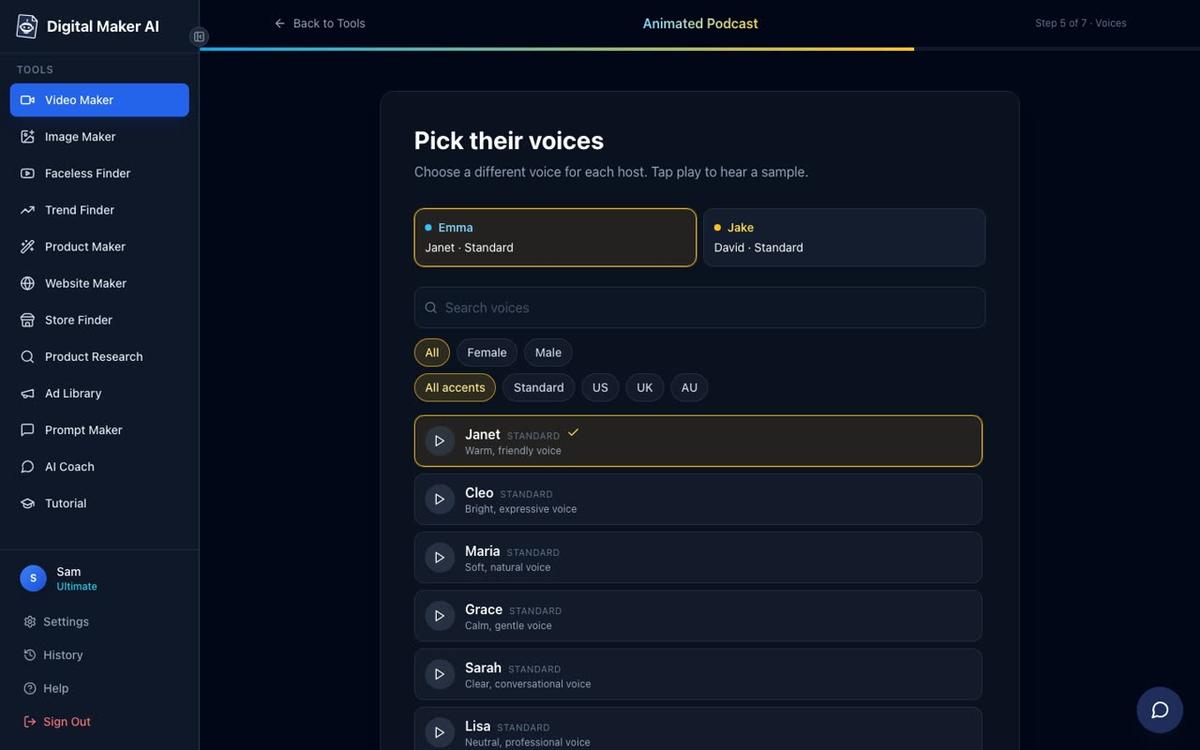
Choose voices that contrast clearly. If both hosts sound similar, viewers will struggle to follow who is speaking. A common pairing is a higher-pitched female US voice for one host and a deeper male UK voice for the other, but any combination works as long as the two are easy to tell apart.
Step 7: Pick a studio
The studio is the background scene behind the two hosts. You can pick from ready-made options such as Cosy studio, Bright studio, Living room, Home office, City loft, Kitchen table, Garden patio, Gaming den, News desk and Library study. You can also describe your own room in a text box, or upload a finished image if you have one. Saved studios appear here from the second episode onward.
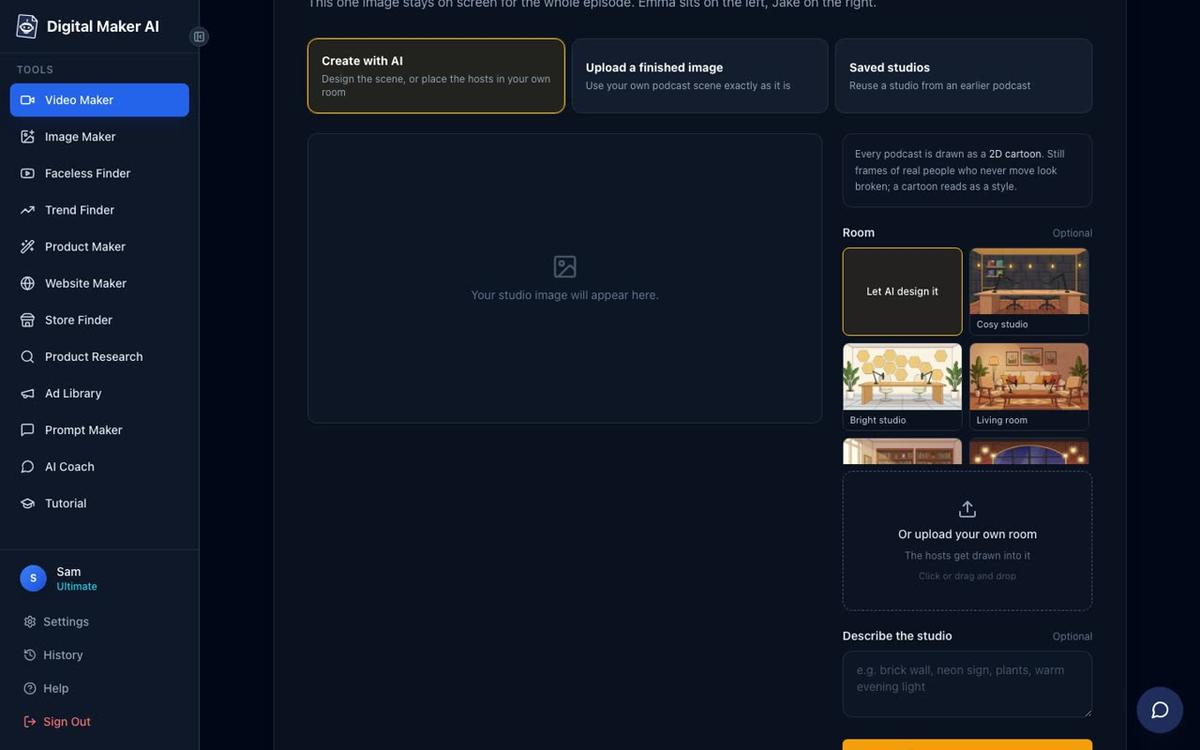
Match the studio to your niche. A finance show fits well in a City loft or Home office. A wellbeing or storytelling show might suit a Cosy studio or Library study. The studio stays consistent across every episode of the same show, which builds visual brand recognition over time.
What the finished animated podcast looks like
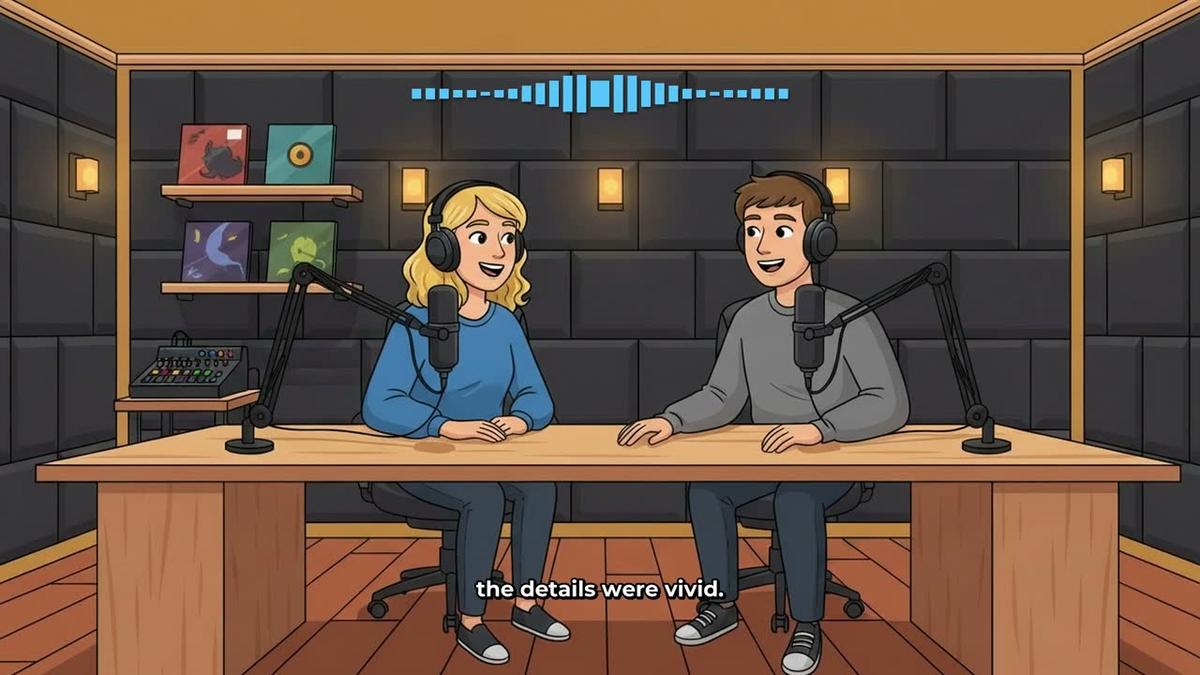
Once you press generate, Digital Maker AI writes the script, records both voices, creates the animated studio scene and assembles the video. The result is a landscape MP4 where the two cartoon hosts sit at microphones. When one host speaks, animated sound bars rise above them and captions appear along the bottom. Then the other host replies, the sound bars shift, and the conversation continues until the episode ends.
For longer episodes (30 to 60 minutes), the video is written and recorded in sections. This means a 30 to 60 minute episode can take 45 to 90 minutes to build. You do not need to wait at the screen: Digital Maker AI sends you an email when the episode is ready to download.
How to make an animated podcast with AI: the complete step list
- Create a free account. Go to digitalmaker.ai/faceless, sign up and open the Video Maker from the left sidebar.
- Name your show. Type a show name and press Add. This saves the show for future episodes.
- Type the episode topic. Be specific. Up to 400 characters. The AI writes the conversation from this.
- Set length and tone. Use the slider for length and pick a tone card (Friendly chat, Explainer, Debate, Comedy or Storytelling).
- Design the two hosts. Name each host, choose woman or man, describe their look or upload a photo.
- Assign voices. Pick a different voice for each host from the built-in library. Preview them before choosing.
- Choose a studio. Pick a ready-made background, describe your own or upload an image.
- Generate and wait. Press generate. Short episodes finish in a few minutes. Long episodes send an email when ready.
- Download and publish. Download the MP4 and upload it to YouTube, or use the Post to socials button on Premium and Ultimate.
Common mistakes to avoid when making your first animated podcast
Choosing voices that sound too similar. If both hosts have the same accent and pitch, the conversation feels flat. Filter by gender and accent to find a clear contrast.
Writing a topic that is too broad. "Health and fitness" will produce a generic conversation. "Why cold showers in the morning improve focus, according to recent research" gives the AI a real angle to work with.
Forgetting to save the show name. If you skip the show name step and go straight to the topic, the hosts and studio will not be saved for the next episode. Always name the show first.
Expecting instant delivery on long episodes. A 30 to 60 minute episode takes 45 to 90 minutes to build. Start the generation, close the tab and wait for the email. Do not refresh repeatedly.
Using the free watermarked episode as a final upload. The free episode is a test. If you plan to publish regularly, check the plan options at digitalmaker.ai/pricing before committing to a show format.
What to do after your first episode
Once you have your first episode, a few things will make the next one faster and better. First, check the captions on playback. If any word is wrong, you can edit the narration text inside the finished video. Second, note which tone worked best for your topic. Debate and Comedy tend to perform well on YouTube because they feel more dynamic than a straight Explainer. Third, plan your next three episode topics before you need them. Consistency matters more than perfection on a new channel.
If you want to explore other faceless video formats alongside your podcast, the guide on the easiest way to start a faceless YouTube channel covers the full range of options available in 2027. You can also use the AI Coach inside your account to generate episode ideas, write hooks and plan your upload schedule by chatting in plain text.
Frequently asked questions
Can I make an animated podcast for free?
Yes. Free accounts get one animated podcast episode up to 8 minutes with no credit card needed. The episode carries a small Digital Maker AI watermark. To make more episodes or go longer than 8 minutes, you need a Premium or Ultimate plan. Pro does not include the Animated Podcast feature.
Do I need a microphone or recording equipment?
No. The Animated Podcast feature generates both voices entirely from AI. You type the topic and the platform writes the script and records both hosts. No microphone, no recording software and no audio editing are required at any point.
Can I use my own voice for one of the hosts?
The Animated Podcast uses the built-in voice library only. Cloned or custom voices are not available on this feature. You choose from the available voices for each host, which include male and female options with US, UK and Australian accents.
How long does it take to generate a 30-minute episode?
Long episodes are built in sections. A 30 to 60 minute episode typically takes 45 to 90 minutes to generate. You will receive an email when the episode is ready, so you do not need to stay on the page while it builds.
Can I change the hosts after the first episode?
The hosts, voices and studio are saved to the show. If you want to update a host's look or voice, you can edit the show settings before generating a new episode. Starting a new show with different hosts is also an option if you want a completely separate series.
Can I post the finished episode directly to YouTube from Digital Maker AI?
Premium and Ultimate users can post finished videos straight to YouTube, TikTok and Instagram using the Post to socials button, either immediately or on a schedule. Free and Pro users download the MP4 and upload it manually. Posts are labelled as AI generated.
Ready to publish your first episode? Start with the free account at digitalmaker.ai/free-course to get a step-by-step walkthrough of the full platform, including the Animated Podcast, so your first episode goes up with confidence.
Alex Stevens: Alex Stevens writes for the Digital Maker AI team about faceless YouTube channels, AI presenters and AI video tools.