How to Make a Whiteboard Animation Video in 2027
By Alex Stevens
To make a whiteboard animation video in 2027, you do not need a camera, a physical whiteboard or any design skills. AI tools can generate a complete whiteboard-style video from a script, with marker-sketch visuals that appear line by line, a narration voice and captions, and return a ready-to-upload MP4 in minutes. Digital Maker AI's whiteboard animation format does exactly that inside its Video Maker.
Key takeaways
- Whiteboard Animation is a format inside the Long-Form Video Maker on Digital Maker AI (digitalmaker.ai), available on Premium and Ultimate plans.
- Videos can run up to 30 minutes on Premium and up to 60 minutes on Ultimate (up to 10 minutes when using a designed or ElevenLabs voice).
- You choose a script source, a style (Story boards or classic), a voice, a hand style and a length, then review and generate.
- After generation, you can edit any scene's narration text, swap a scene image, or regenerate a scene up to 10 times per video at no extra cost.
- Whiteboard Animation is not available on the Free plan. Check current plans at digitalmaker.ai/pricing.
What is a whiteboard animation video?
A whiteboard animation video is a style of explainer video where illustrations appear on screen as if being sketched in real time, usually accompanied by a narration voice. The effect mimics a marker pen creating pictures on a white surface, line by line, as the narrator speaks. It is one of the most effective formats for explaining ideas clearly, because the visuals build alongside the words, keeping viewers focused. In Digital Maker AI, the Whiteboard Animation format generates this effect automatically: the AI creates the scene images, applies the line-by-line reveal, adds the narration and captions, and produces a finished landscape MP4.
What channels suit whiteboard animation videos in 2027?
Whiteboard animation works best for channels that explain things. If your content involves steps, concepts, comparisons or stories, this format holds attention well. Strong fits include:
- Education and explainer channels covering history, science, psychology or philosophy.
- Finance and business channels explaining investing, side hustles or personal finance concepts.
- Health and fitness channels breaking down nutrition, habits or workout principles.
- Motivation and self-improvement channels where a clean, focused visual style reinforces the message.
- Faith and spirituality channels retelling stories or exploring teachings.
The Minimalist or Clean visual style pairs especially well with whiteboard content because it keeps the screen uncluttered. The History or Ancient and Space or Sci-Fi styles also work if your topic suits them. If you want to research what is already working in these niches, the Faceless Finder inside Digital Maker AI lets you browse confirmed faceless channels by topic, showing subscriber counts, upload frequency and estimated monthly ad revenue.
Step 1: Create your account and open the Video Maker
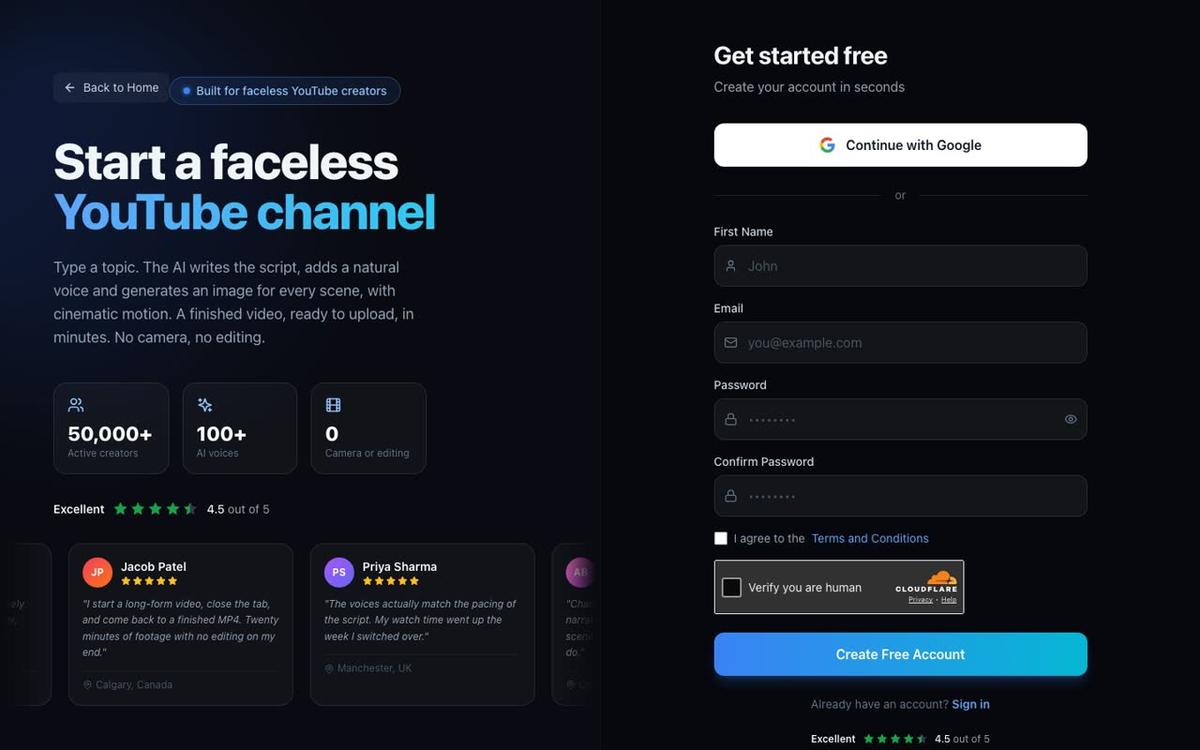
Go to digitalmaker.ai/faceless and create an account. No card is needed to sign up. Once you are signed in, find the Video Maker button in the left sidebar and click it. This opens the video type screen.
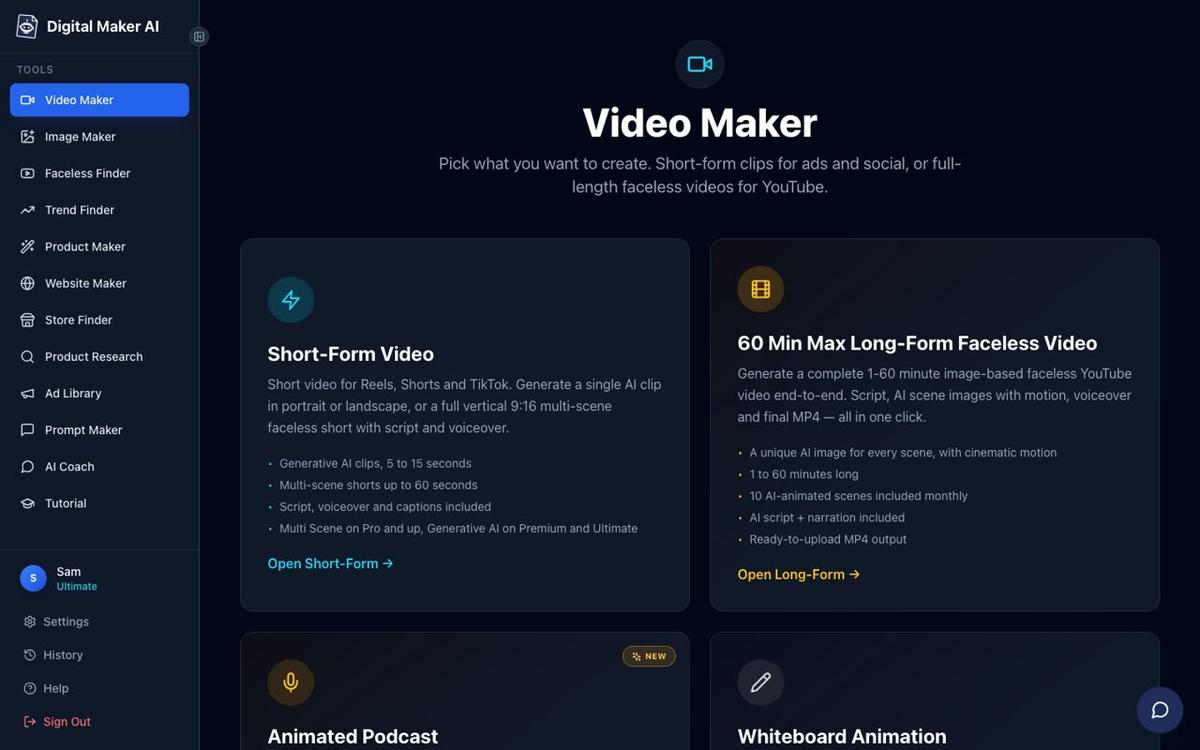
On the Video Maker screen, select Long-Form Faceless Video. This is where the Whiteboard Animation format lives. Note that Whiteboard Animation requires a Premium or Ultimate plan. If you are on the Free plan, you will see the Multi Scene format only. You can upgrade at any time from digitalmaker.ai/pricing.
Step 2: Choose the Whiteboard Animation format
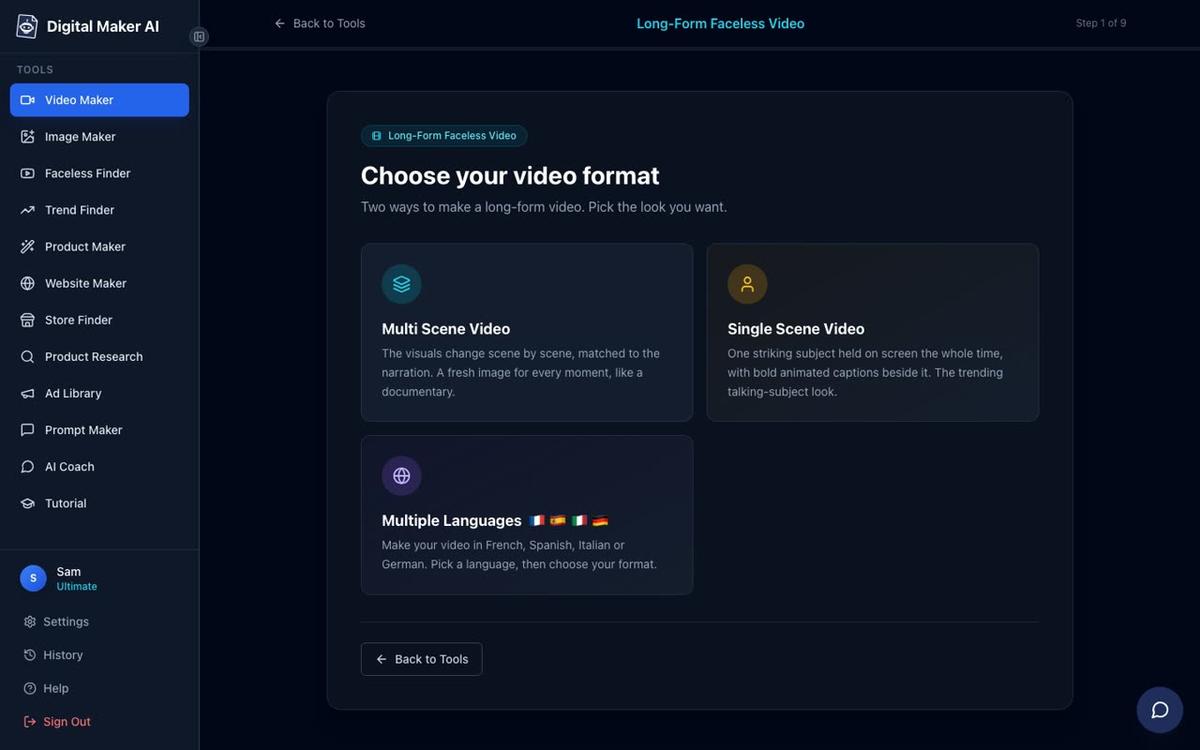
Inside the Long-Form Video Maker, step 1 of 9 asks you to choose your video format. You will see cards for Multi Scene Video, Single Scene Video, Whiteboard Animation and Multiple Languages. Click the Whiteboard Animation card, then press Next.
Tip: Whiteboard Animation has two sub-styles: Story boards and classic. Story boards gives each scene a more illustrated, panel-style look. Classic is the cleaner, more traditional whiteboard feel. Both are available on Premium and Ultimate.
Step 3: Write or paste your script
Step 2 asks how you want to start. You have two options: let the AI write the script from a topic you type, or paste your own script. On paid plans, pasting your own script is available. On the Free plan this option is not available, but Whiteboard Animation itself requires Premium or Ultimate, so you will always have both options here.
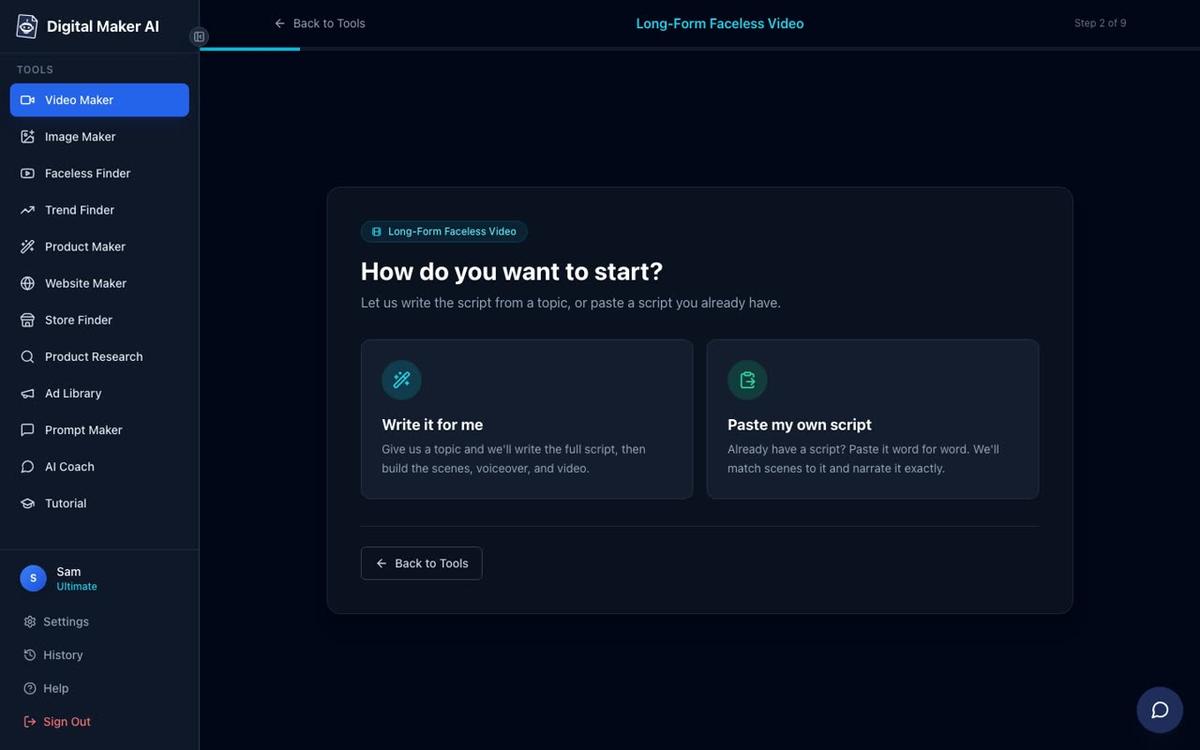
If you choose Write it for me, step 3 gives you a single topic box. Type your topic in one clear sentence, for example: "The five stages of habit formation and why most people quit at stage three." The AI writes the full script, matches a scene image to every scene and adds narration. You do not need to write anything else.
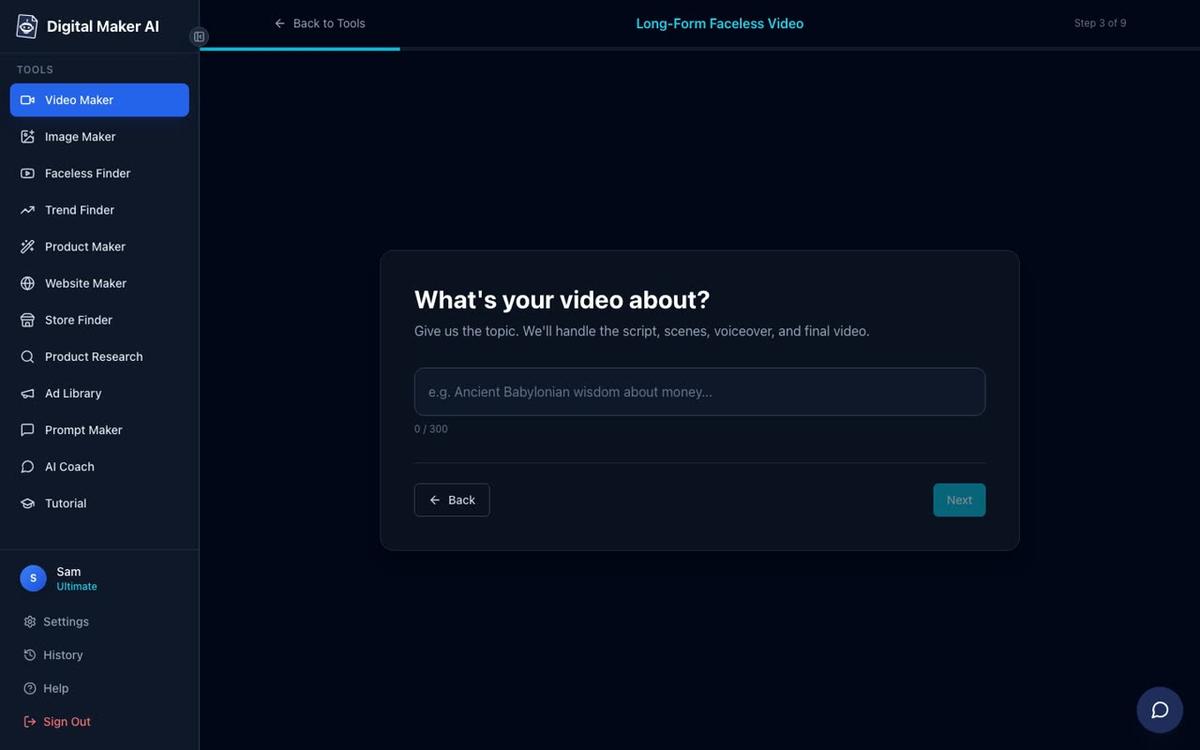
Tip for a better script: Be specific in the topic box. "Ancient Stoic lessons about dealing with failure" will produce a tighter, more useful script than "Stoicism." Specificity helps the AI generate scene images that match the narration closely.
Step 4: Pick your visual style
Step 5 asks you to pick a visual style. For whiteboard animation, the style affects how the AI generates the scene illustrations before the line-by-line reveal is applied. The options are: Realistic or Everyday Visuals, Animated or Cartoon, Motivational or Dark Moody, Finance or Luxury, History or Ancient, Space or Sci-Fi, and Minimalist or Clean.
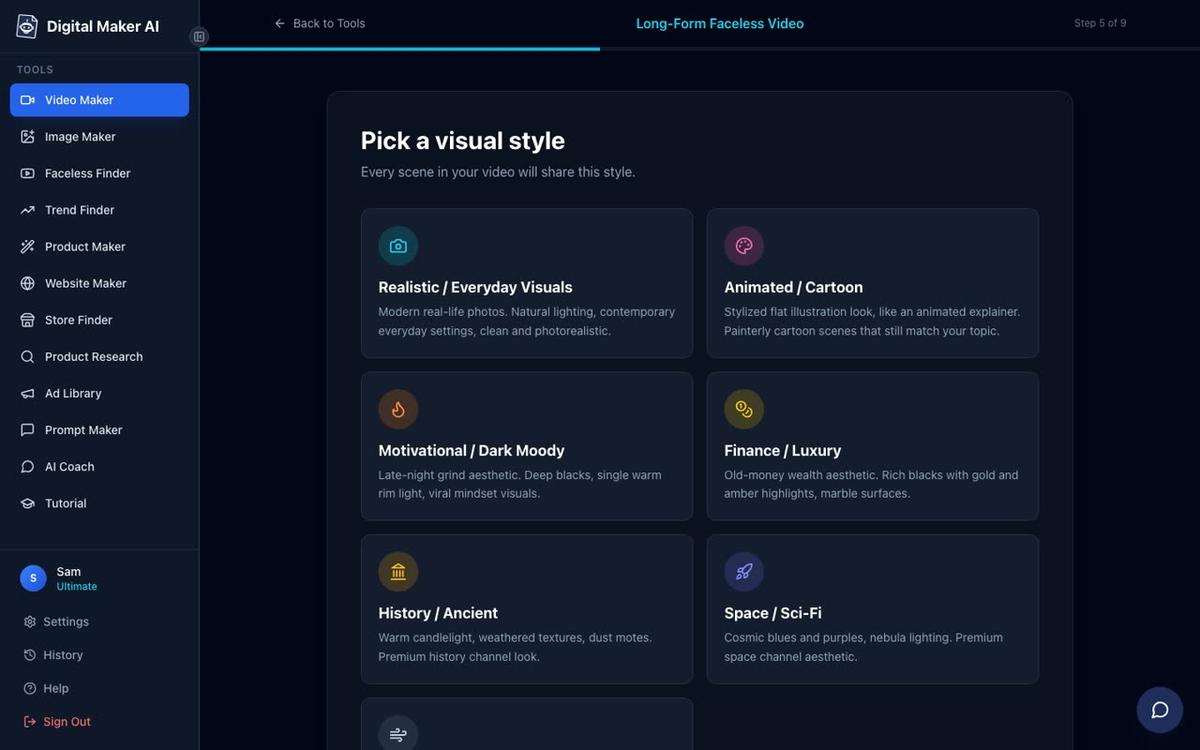
Tip: Minimalist or Clean and Animated or Cartoon both suit whiteboard animation well. The Animated or Cartoon style produces illustrated, cartoon-looking still scenes (not moving animation), which look natural with the whiteboard reveal effect. Avoid Motivational or Dark Moody for whiteboard: the dark tones can make the line-by-line effect harder to see.
Step 5: Set the length
Step 6 is a length slider. Choose how long you want the video to be. The table below shows the limits by plan as of November 2026.
| Plan | Max whiteboard length | With designed or ElevenLabs voice | Monthly video minutes pool |
|---|---|---|---|
| Free | Not available | Not available | 5 free one-off videos |
| Pro | Not available | Not available | 40 minutes |
| Premium | 30 minutes | Up to 10 minutes | 150 minutes |
| Ultimate | 60 minutes | Up to 10 minutes | 300 minutes |
Each minute of video uses one minute from your monthly pool. A 10-minute whiteboard video uses 10 minutes. See current plan details at digitalmaker.ai/pricing.
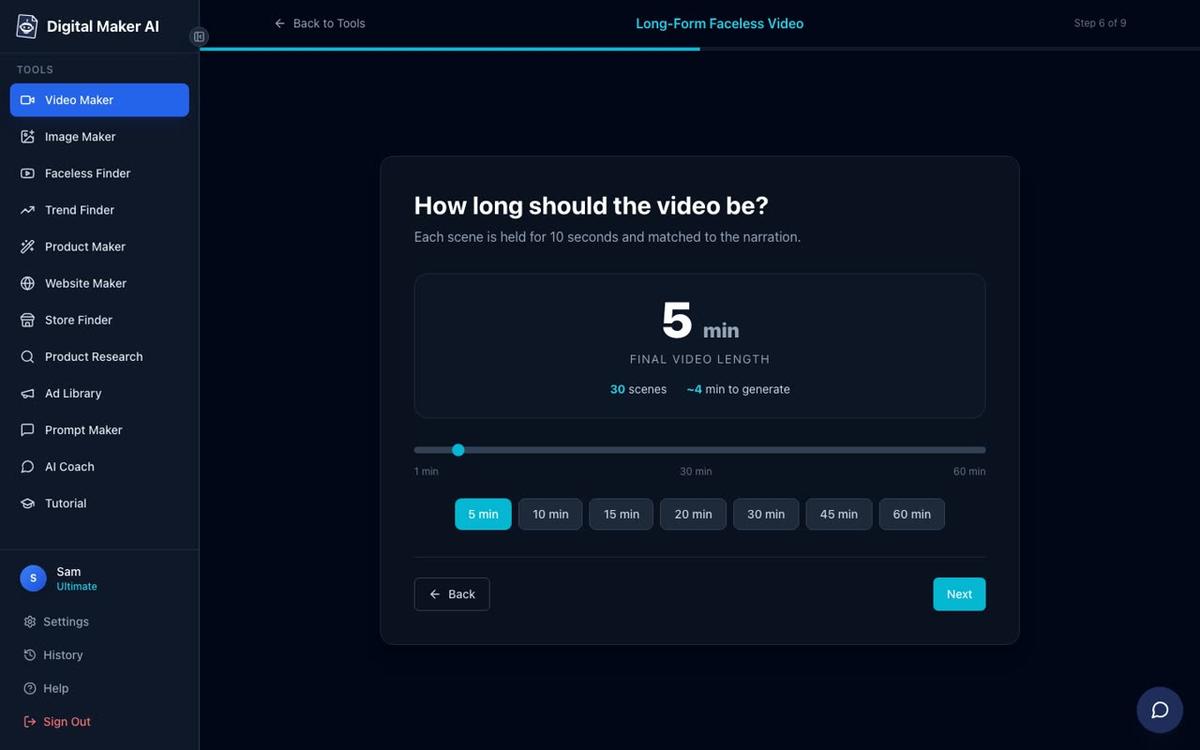
Tip: For a first whiteboard video, 5 to 8 minutes is a good starting length. It is long enough to cover a topic properly and short enough to review and edit quickly before you commit to longer videos.
Step 6: Choose your narration voice
Step 7 shows more than 100 built-in AI narration voices. You can filter by male or female, and by US, UK or Australian accent. Click any voice to hear a sample before you pick it.
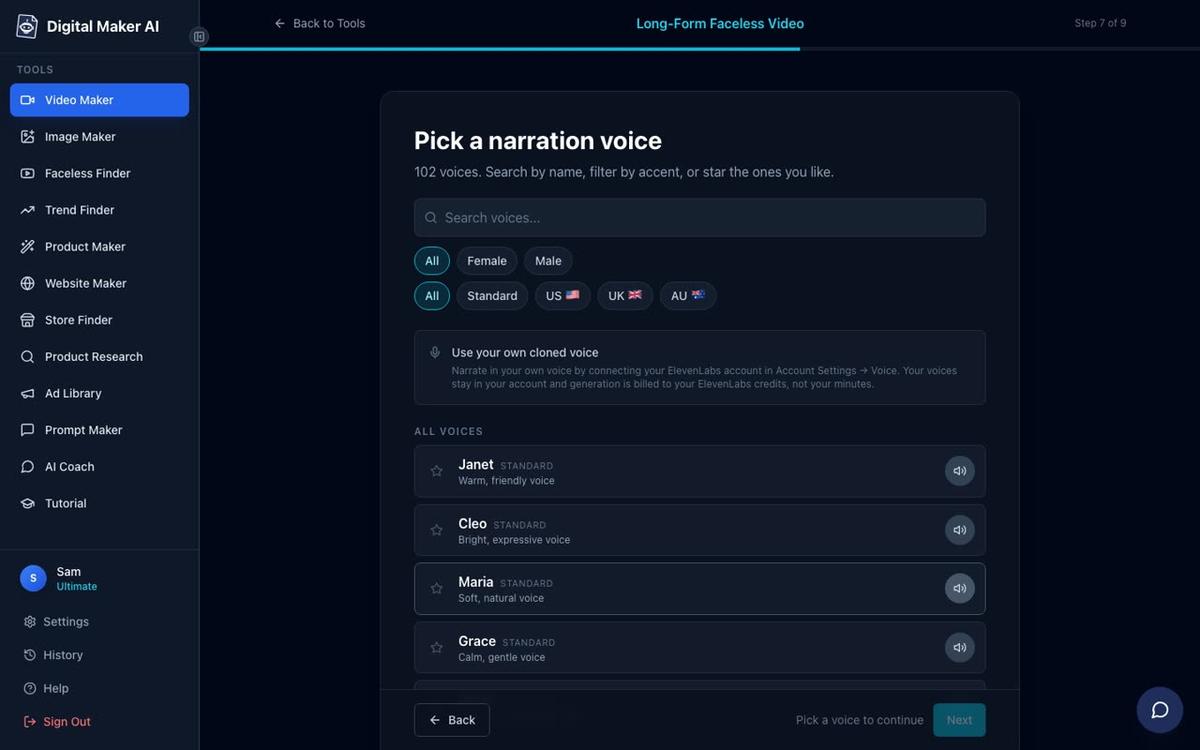
On Premium and Ultimate you can also use Voice Design: describe the voice you want in words, hear three samples and keep the one you like. If you have your own ElevenLabs account, you can connect it in Account Settings and use your cloned voice on English Multi Scene whiteboard videos. Note that when using a designed or ElevenLabs voice, the maximum whiteboard length is 10 minutes on both Premium and Ultimate.
You also choose the optional on-screen hand at this stage. The options are: none, light, brown or dark. This is the hand that appears to be creating the sketches. It is a small detail but it makes the whiteboard effect feel more authentic.
Step 7: Set the pacing and review
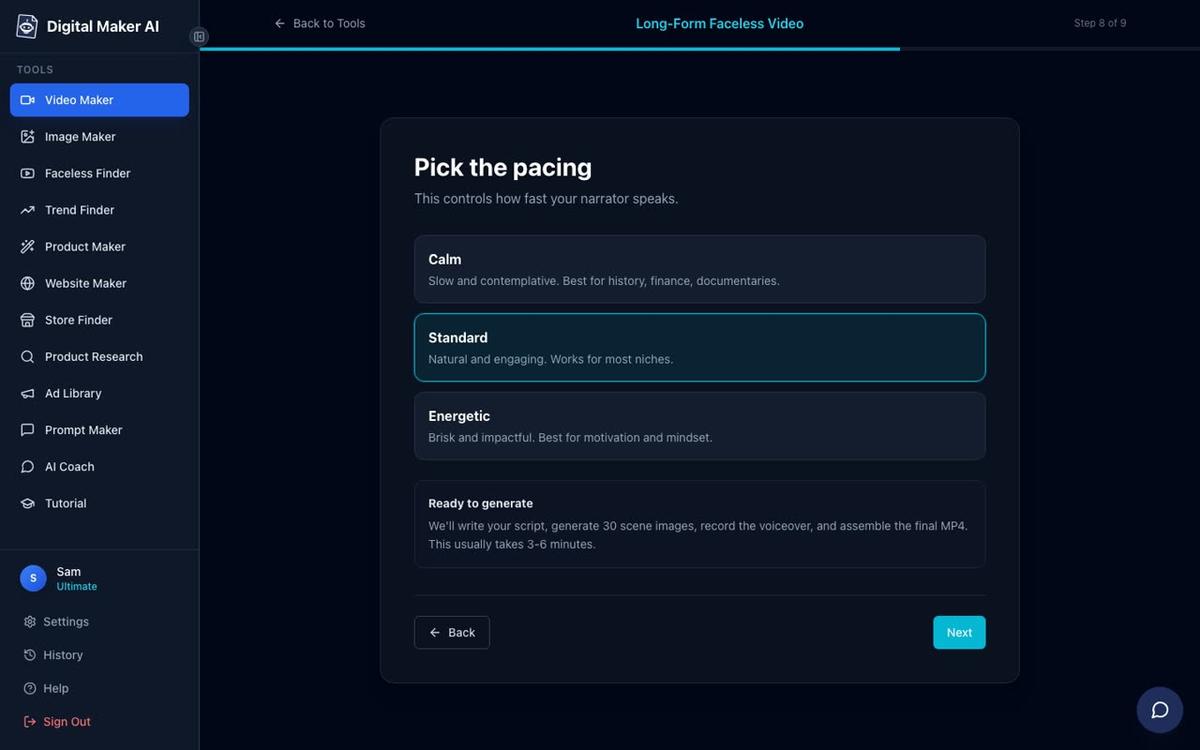
Step 8 asks for the narration pacing: Calm, Standard or Energetic. For whiteboard animation, Standard or Calm usually works best. The visuals appear line by line as the narrator speaks, so a slower pace gives the viewer time to absorb each scene before the next begins.
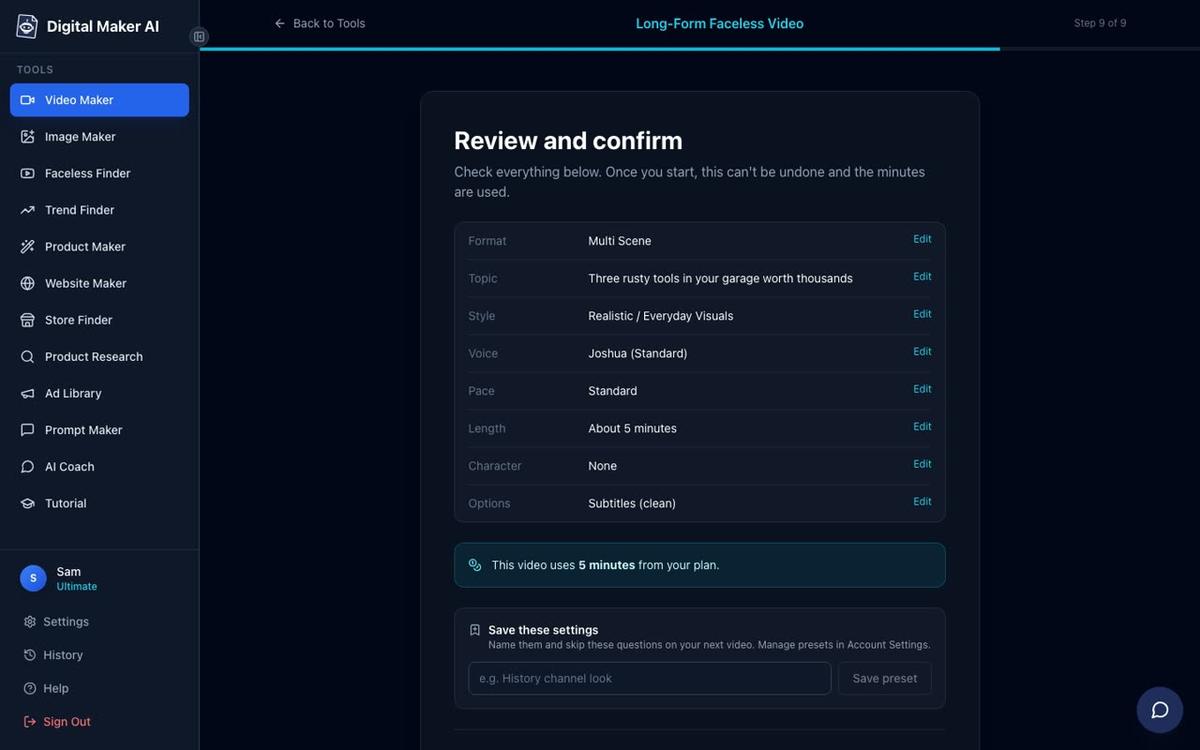
Step 9 is the review screen. It lists every choice you made: format, topic, style, voice, pace, length, captions and the number of minutes the video will use from your plan. Check everything here before you press Generate Video. Once you press it, the minutes are used and the video starts building.
Step 8: Review scenes, edit and download
After the video is generated, you can review every scene before you download. Under each scene you can:
- Regenerate the scene image. Each video includes 10 free regenerations. If a scene image does not match the narration well, press regenerate and the AI creates a new one.
- Swap in your own image. Upload your own picture or a short clip to replace any scene.
- Edit the narration text. Click into the narration for any scene and change the words. The voice re-renders to match.
- Change the voice. You can switch to a different narration voice after the video is made.
There is no timeline editor with manual trimming or transitions. Editing happens scene by scene. Once you are happy with the result, press Download to save the MP4 to your device.
On Premium and Ultimate, you can also post the finished video directly to YouTube, TikTok or Instagram from the Post to socials button, either immediately or scheduled for a later time. Connect your accounts once in Account Settings and posts are labelled as AI generated. If you are on Pro, download the MP4 and upload it yourself. For more on the posting workflow, see the guide to AI video publishing to YouTube, TikTok and Instagram.
Tips for a better whiteboard animation video in 2027
- Keep topics focused. One clear idea per video works better than a broad overview. "Why compound interest works" beats "everything about personal finance."
- Use the Minimalist or Clean style for serious topics. It keeps the frame uncluttered and lets the narration carry the message.
- Check scene images against the narration. After generation, play through the video and note any scenes where the image does not match what the narrator says. Use the free regenerations on those scenes first.
- Choose a calm or standard pace. Whiteboard visuals build line by line. If the narrator speaks too fast, the visual reveal and the words fall out of sync.
- Add background music at a low level. The optional music library is off by default. A quiet instrumental track adds warmth without competing with the narration.
- Note the hand option. If the whiteboard effect looks too digital without it, switch on one of the hand styles. It adds the sense of someone actively creating the content.
- Plan your minutes. A 10-minute whiteboard video uses 10 minutes from your pool. On Premium that is 15 videos a month at that length. Check your pool before generating a long video.
What you cannot do on whiteboard videos
A few things worth knowing before you start. Whiteboard Animation in Digital Maker AI does not support recurring characters or AI presenters. Those features are available on Multi Scene and Single Scene videos but not on the Whiteboard format. There is also no timeline editor, no stock footage library and no green screen option. The format is built specifically for the whiteboard sketch style: AI generated scene images with the line-by-line reveal, narration and captions. If you want a recurring character in your videos, the recurring character feature is available on Multi Scene videos on Premium and Ultimate.
If you are curious about what other faceless YouTube formats look like in practice, the guide to starting a faceless YouTube channel in 2027 covers the full range of options.
Frequently asked questions
Can I make a whiteboard animation video for free with Digital Maker AI?
No. The Whiteboard Animation format requires a Premium or Ultimate plan. Free accounts get five one-off videos across other formats (Multi Scene long form, a Short, drag and drop video, drag and drop movie and animated podcast), but Whiteboard Animation is not included. See current plan options at digitalmaker.ai/pricing.
How long can a whiteboard animation video be?
On Premium, up to 30 minutes. On Ultimate, up to 60 minutes. If you use a designed voice or a cloned ElevenLabs voice, the maximum drops to 10 minutes on both plans. Each minute of video uses one minute from your monthly pool, as of November 2026.
Can I use my own script for a whiteboard animation video?
Yes. On Premium and Ultimate, step 2 of the Video Maker lets you paste your own script instead of letting the AI write one. The AI then generates a scene image for every scene in your script and adds the narration and whiteboard effect.
Does whiteboard animation support multiple languages?
The Multiple Languages format (French, Spanish, Italian and German) is a separate format from Whiteboard Animation. Whiteboard videos are English only. If you need a non-English whiteboard style video, the closest option is a Multi Scene video in one of the supported languages.
What is the difference between Story boards and classic whiteboard styles?
Both are sub-styles of the Whiteboard Animation format. Story boards gives scenes a more illustrated, panel-style composition. Classic is the cleaner, more traditional whiteboard look with simpler scene layouts. Both are available on Premium and Ultimate at the same length limits.
Can I add an AI presenter to a whiteboard animation video?
No. AI presenters are available on landscape Multi Scene long form videos only. They are not available on Whiteboard Animation, Single Scene, Shorts or non-English videos. If you want an AI presenter, start a Multi Scene video and add one from the presenter options inside the Video Maker.
Ready to make your first whiteboard animation video? Start with the free course at digitalmaker.ai/free-course, which walks through every format in Digital Maker AI and shows you how to build a consistent publishing schedule from scratch.
Alex Stevens: Alex Stevens writes for the Digital Maker AI team about faceless YouTube channels, AI presenters and AI video tools.