Claude and Digital Maker AI: Make a Whiteboard Video by Asking
By Alex Stevens
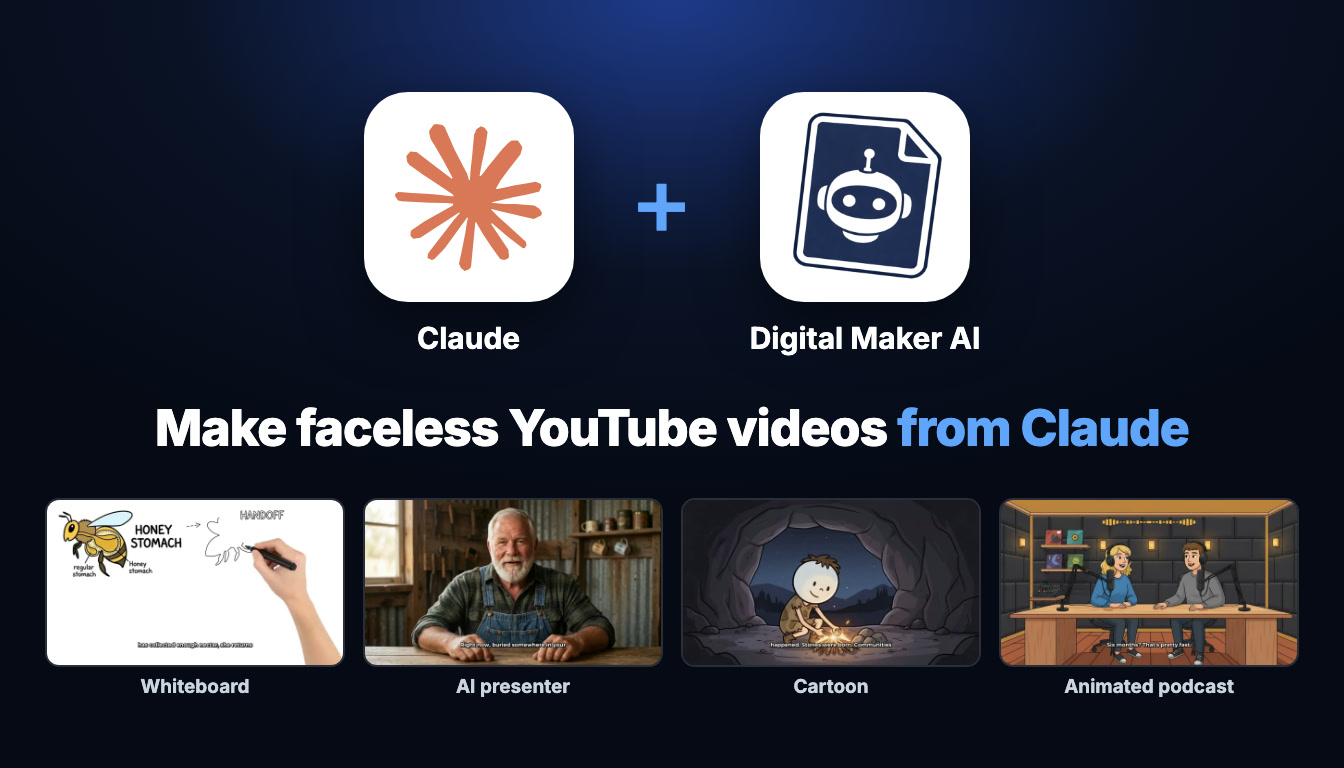
If you have ever wanted to make whiteboard video with Claude, the setup is simpler than you might expect. By connecting Claude to Digital Maker AI through a custom MCP connector, you can type a plain English request into Claude and get back a finished whiteboard animation, complete with hand-drawn sketches, narration and captions, saved straight to your Digital Maker AI library. This guide walks through exactly how to do it, from the one-minute setup to the moment Claude draws your first sketch on screen.
What the Claude and Digital Maker AI Connection Actually Means
Claude is Anthropic's conversational AI assistant. On its own it can write scripts, answer questions and help you plan a channel. What it cannot do by itself is produce a finished video file. The Digital Maker AI MCP connector changes that. MCP stands for Model Context Protocol, a standard that lets Claude call external tools mid-conversation. Once you add Digital Maker AI as a custom connector, Claude gains access to the platform's video-making tools directly from the chat window.
A few things are worth understanding before you start:
- Videos are made on your account. When Claude builds a whiteboard animation, it is using your Digital Maker AI plan and your monthly video minutes, exactly as if you had clicked through the Video Maker yourself.
- Videos are saved to your library. The finished file appears in your Digital Maker AI account. Digital Maker AI also emails you when it is ready, because longer videos take a while to build.
- Claude confirms before spending anything. Claude states the minute cost before it starts and nothing is created until you say yes. You are always in control.
- You need Premium or Ultimate to make any video through Claude. Pro gets thumbnails, images and channel research through the connector. Free accounts can check account details and save to Google Drive, but video creation needs Premium or Ultimate.
The connection URL takes the form digitalmaker.ai/mcp/YOUR_KEY in plain text. You never share that key publicly, and you never need to type it into a video yourself.
How to Set Up the Claude MCP Connector
The whole process takes about a minute. Open your Digital Maker AI account, click Settings at the bottom of the left sidebar to reach Account Settings, then open the Claude MCP tab.
- Click Create a key. Digital Maker AI generates a Name and a URL for you.
- In a Claude chat, click the + button, then choose Connectors, then Add connector, then Custom connector.
- Paste the Name and URL from Digital Maker AI into the connector fields, leave everything else empty, and click Continue.
- Start a new chat and ask Claude to make something, for example: "Make me a 10-minute faceless video about the fall of Rome." Claude will state the minute cost before it does anything.
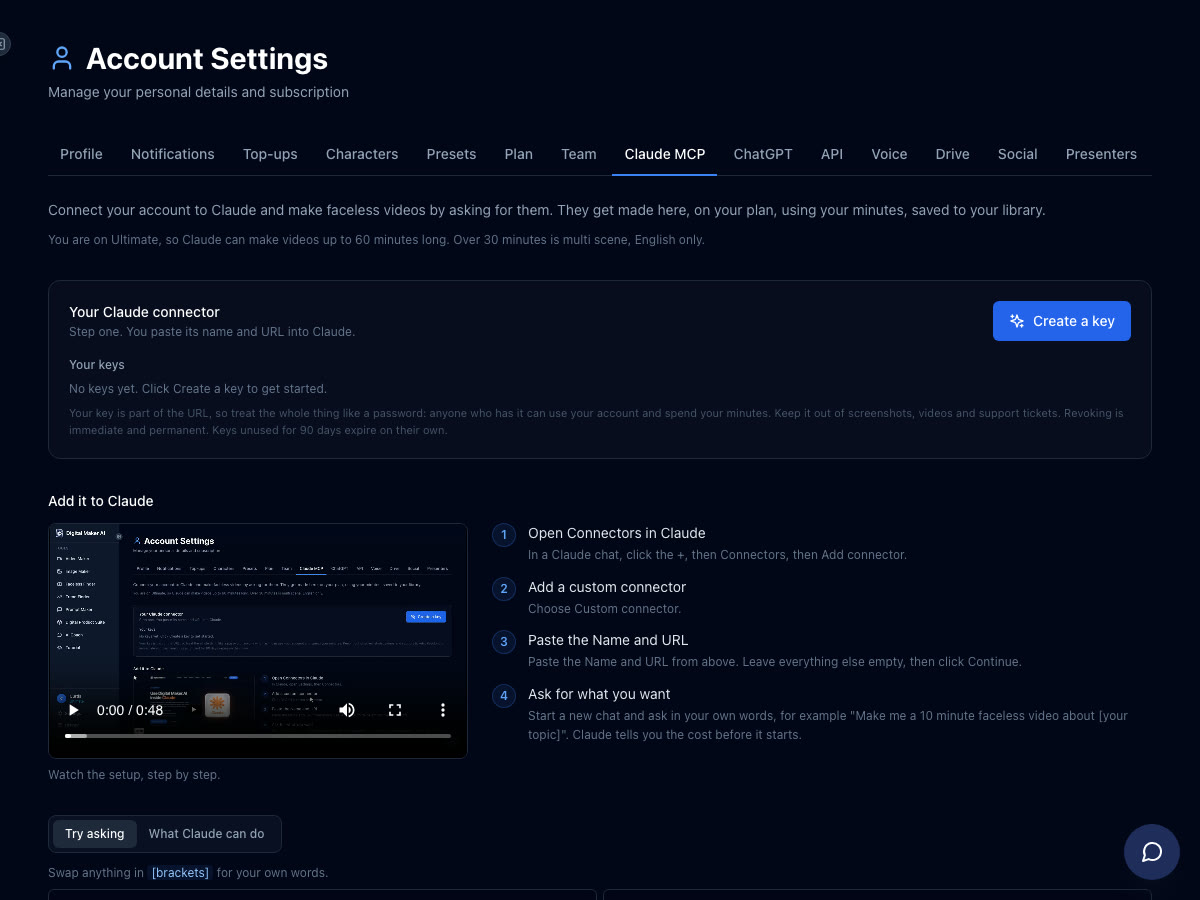
That is it. You are ready to make whiteboard video with Claude, or any other format on your plan, just by asking. For a full overview of what the connector can do, visit the Digital Maker AI Claude setup page.
Whiteboard Animation: What It Is and What Claude Can Make
Whiteboard Animation is a Premium and Ultimate format on Digital Maker AI. Instead of a series of still scene images, the video shows hand-drawn sketches that draw themselves on screen as the narration plays. The effect is the classic explainer-video style that holds attention on YouTube and works especially well for educational topics, finance, science and how-things-work content.
Here is what you can control when you ask Claude to make a whiteboard video:
- Style: Story boards or Classic. Story boards gives a more illustrated, panel-by-panel feel. Classic is the clean black-and-white sketch style most people picture when they hear "whiteboard video".
- Drawing hand: None, light, brown or dark. Pick the hand skin tone that suits your channel, or leave it out entirely for a floating-pen effect.
- Length: Up to 30 minutes on Premium and up to 60 minutes on Ultimate. With a designed voice or an ElevenLabs voice the limit is 10 minutes, and in a second language (French, Spanish, Italian or German) the limit is 10 minutes on Premium and 15 on Ultimate.
- Captions: Six styles to choose from, including Clean, Boxed, Bold Pop and YouTube Yellow, burned into the lower third.
- Narration voice: More than 100 built-in voices. Premium and Ultimate can also use a designed voice or a cloned ElevenLabs voice.
One important note: whiteboard videos cannot include an AI presenter or a recurring character. The format is all about the sketches on screen, so those features are reserved for Multi Scene videos.
Real Example Requests to Make Whiteboard Video With Claude
The best way to understand what Claude can do is to see what real requests look like. You do not need special syntax. Just describe what you want in plain English, as you would to a colleague.
A long-form educational whiteboard:
"Make me a 15-minute whiteboard animation explaining how the stock market works, classic style, brown drawing hand, clean captions."
Claude reads that, checks your plan, and shows you the minute cost (15 minutes from your monthly pool) before it does anything. You confirm, and Digital Maker AI builds the video: AI-written script, sketches that draw themselves on screen as the narration plays, and clean captions in the lower third. When it is ready, a link appears in the chat and the video is waiting in your library.
A whiteboard Short:
"Make a 30-second whiteboard Short on why people procrastinate."
Shorts cost a flat one minute from your pool regardless of their length. Claude confirms that cost, you say yes, and you get a vertical 9:16 whiteboard Short with bold captions, ready for YouTube Shorts, TikTok or Instagram Reels. You can read more about making vertical content at the AI YouTube Shorts generator page.
A topic-specific deep dive:
"Make a 20-minute whiteboard video about the history of ancient Egypt, Story boards style, dark drawing hand, no captions, background music."
Claude lists the cost (20 minutes), you confirm, and the video is built. Because you asked for Story boards style, each section has an illustrated, panel-by-panel feel rather than a plain white background. The dark drawing hand adds a visual contrast that suits the earthy subject matter.
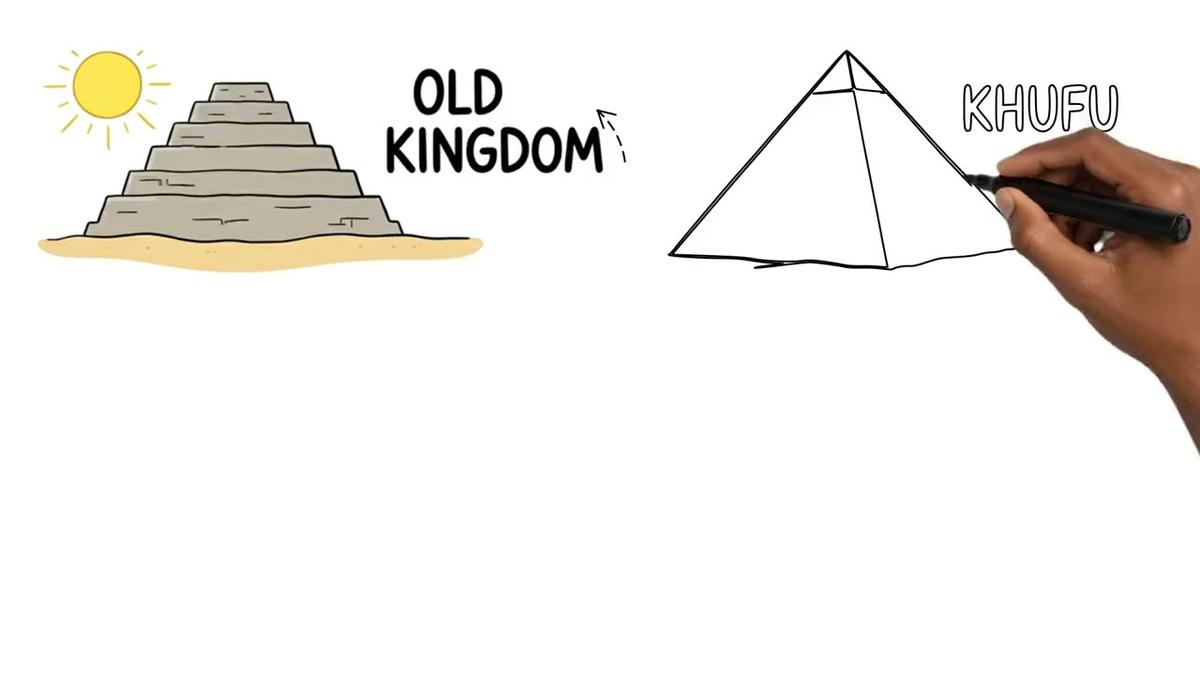
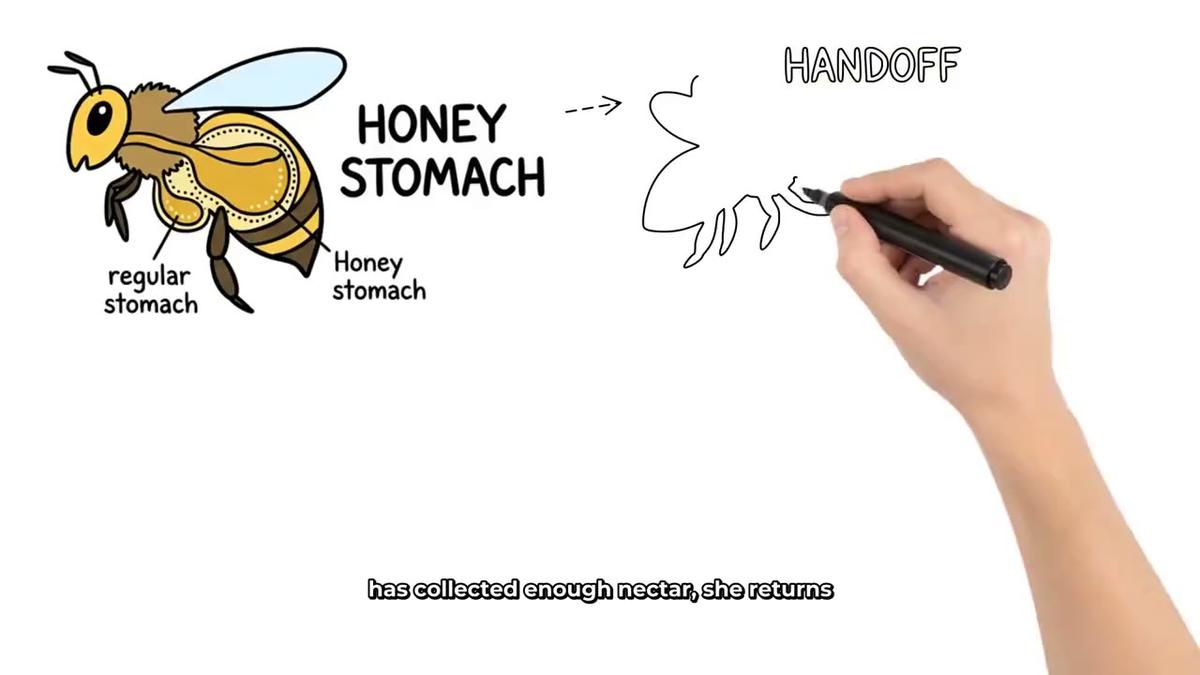
The sketches draw themselves on screen as the narration plays, giving viewers the satisfying visual rhythm that makes whiteboard content so watchable. Here is another finished example, this time from a Story Boards video about how bees make honey:
What Claude Returns and How Confirmation Works
When you ask Claude to make a whiteboard video, it does not just start building. It first states the minute cost clearly. For a 15-minute whiteboard, that is 15 minutes from your monthly pool. For a 30-second Short, it is 1 minute. Nothing is created until you confirm.
This matters because video minutes are not refunded once a video is made. The confirmation step means you can adjust your request before committing. If Claude tells you the cost is 15 minutes and your plan only has 10 left, you can ask for a shorter video instead.
Once you confirm, Digital Maker AI builds the video in the background. Longer videos, especially those over 10 minutes, take time to produce. Digital Maker AI emails you when the video is ready. The finished video then appears as a link in the Claude chat and is also waiting in your Digital Maker AI library, where you can regenerate individual scene images, swap in your own image, or edit the narration text before downloading.
Research, Thumbnails and Posting Through Claude
Making whiteboard videos is only part of what the connector can do. Once Claude is connected, you can also:
- Research channels (Pro and above): ask Claude to look up faceless channels in your niche. It can pull real channel data including subscribers, uploads per week, average video length and estimated ad revenue. If you want to see which channels use a whiteboard or stickman style, that is a search you can run in the Faceless Finder on the website.
- Generate thumbnails and images (Pro and above): ask Claude to make a YouTube thumbnail for your whiteboard video, describe the style you want, and it creates one using your Digital Maker AI image credits.
- Post to YouTube, TikTok or Instagram (Premium and Ultimate): once a video is in your library, ask Claude to post it to a connected social account now or at a scheduled time. Nothing posts automatically; you always confirm before it goes live.
- Check your minutes: ask Claude how many minutes you have left on your plan before committing to a long video.
- Save to Google Drive: ask Claude to save a finished video to your connected Drive folder.
If you prefer to work inside your Digital Maker AI account without switching to Claude, the AI Coach does the same things in a built-in chat, with no setup required. Expert mode on Premium and Ultimate can make videos, Shorts, thumbnails and more directly in the chat.
Tips for Getting Great Whiteboard Videos From Claude
- Be specific about style and hand. "Classic style, light drawing hand, clean captions" gives Claude everything it needs to set the options correctly. Vague requests still work, but specific ones give you exactly what you pictured.
- Mention your topic clearly. Whiteboard animation works best for explanatory content. Topics like "how compound interest works", "the water cycle explained" or "why the Roman Empire fell" are ideal. The AI writes the script around your topic.
- Ask for the length you actually need. Premium supports up to 30 minutes per video and 150 minutes a month. Ultimate supports up to 60 minutes per video and 300 minutes a month. Check your remaining minutes before asking for a long video.
- Use background music for longer videos. A subtle music track keeps a 20-minute whiteboard video from feeling flat. Just add "background music" to your request and Claude will apply it.
- Paste your own script if you want exact words. On paid plans you can include a script in your request. Tell Claude "use this script:" and paste it in. The AI will use your words rather than writing its own.
- Remember whiteboard cannot include a presenter. If your idea involves a talking head or a recurring character, choose Multi Scene instead and ask Claude to add an AI presenter or character to that video.
Which Plan Do You Need?
Whiteboard Animation is a Premium and Ultimate format. You cannot make whiteboard videos on the Free or Pro plan, through Claude or on the website. Pro gets thumbnails, images, characters and channel research through the connector, but video creation of any kind needs Premium or Ultimate.
The Free plan lets you try Digital Maker AI with five free videos (one of each type) on the website, which is a good way to see the quality before upgrading. For full details on what each plan includes and the current pricing, visit digitalmaker.ai/pricing.
If you are already on Premium or Ultimate and want to see everything the whiteboard format can produce, the AI whiteboard animation generator page has more examples and a direct link to get started.
Ready to go further with Claude and faceless video? The guide to making faceless YouTube Shorts with Claude covers the Short format in the same depth as this article covers whiteboard, and is worth reading alongside this one if you plan to run both long-form and short-form content from the same Claude chat.
The fastest way to get your first whiteboard video made is to connect Claude today and ask it to make one. If you want a broader foundation for building a faceless channel, the free faceless YouTube course covers niche selection, scripting, publishing and growth, and it is free to start right now.
Alex Stevens: Alex Stevens writes for the Digital Maker AI team about faceless YouTube channels, AI presenters and AI video tools.