How to Start a Faceless YouTube Channel in 2027
By Alex Stevens

By the end of this guide you will have chosen a niche, made your first faceless YouTube video and uploaded it to your channel. You will also know exactly what it takes to get paid. This is a full walkthrough on how to start a faceless YouTube channel in 2027, written for complete beginners who have never made an AI video before.
Step 1: Understand What a Faceless Channel Is (and Why 2027 Is a Good Time to Start)
A faceless YouTube channel is one where the creator never appears on camera. Instead, videos use AI-generated scene images, a narration voice, and captions to tell a story or share information. No filming. No editing suite. No microphone setup on your desk.
In 2027 the tools to do this are faster and cheaper than they have ever been. Audiences are comfortable with AI-narrated content, and some of the highest-earning channels on YouTube have never shown a human face. The opportunity is real, but it takes consistent work to reach monetisation. More on that in a moment.
Step 2: Pick a Niche Using Real Channel Data
The biggest mistake beginners make is picking a niche based on what they like rather than what already works. Before you commit, look at what is actually earning money for other faceless channels.
Digital Maker AI includes a tool called the Faceless Finder, which is open to every signed-in account including the free one. It shows a searchable list of confirmed faceless YouTube channels with their subscriber count, how many videos they upload a week, their average video length, and an estimated monthly ad revenue based on recent views and typical ad rates for the niche. The estimate is Digital Maker AI's own rough figure, not the channel's real earnings, but it gives you a useful sense of which niches are active and growing.
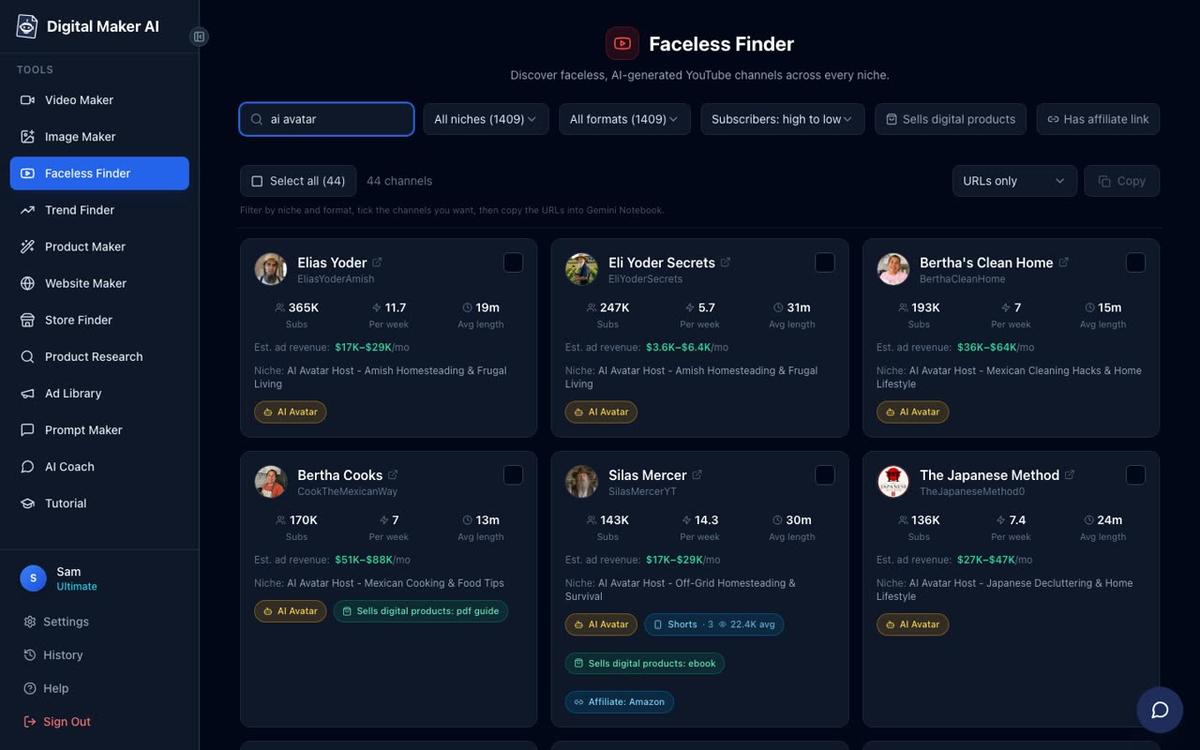
Type a topic in the search box, for example "psychology", "true crime" or "space", and you will see real channels in that niche with their numbers. You can also type "AI avatar" to filter for channels that use an AI presenter rather than scene images. Look for niches where multiple channels are uploading at least two or three videos a week and showing healthy estimated revenue. That tells you there is an audience and advertisers are willing to spend money there.
Practical tip: Pick one niche, not three. A channel about stoicism, a channel about the deep sea and a channel about true crime are three different channels. Start with one, build a small library of videos, and only branch out once you have a rhythm.
Strong niches for faceless channels going into 2027 include personal finance, history, psychology, health and fitness, space, and true crime. All of these have large audiences and consistent advertiser demand.
Step 3: Create Your Free Account and Explore the Dashboard
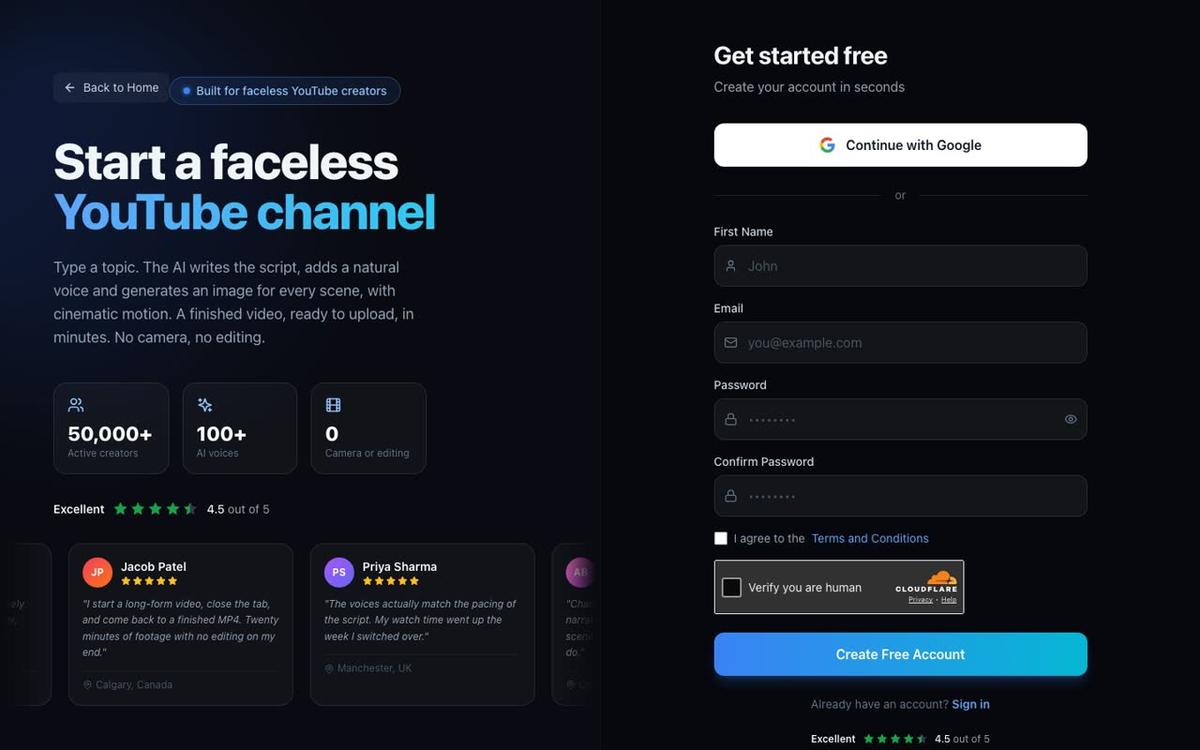
Go to digitalmaker.ai/faceless and create a free account. No credit card is needed. The Free plan gives you five free videos to try, one of each type, so you can make your first real video before spending anything.
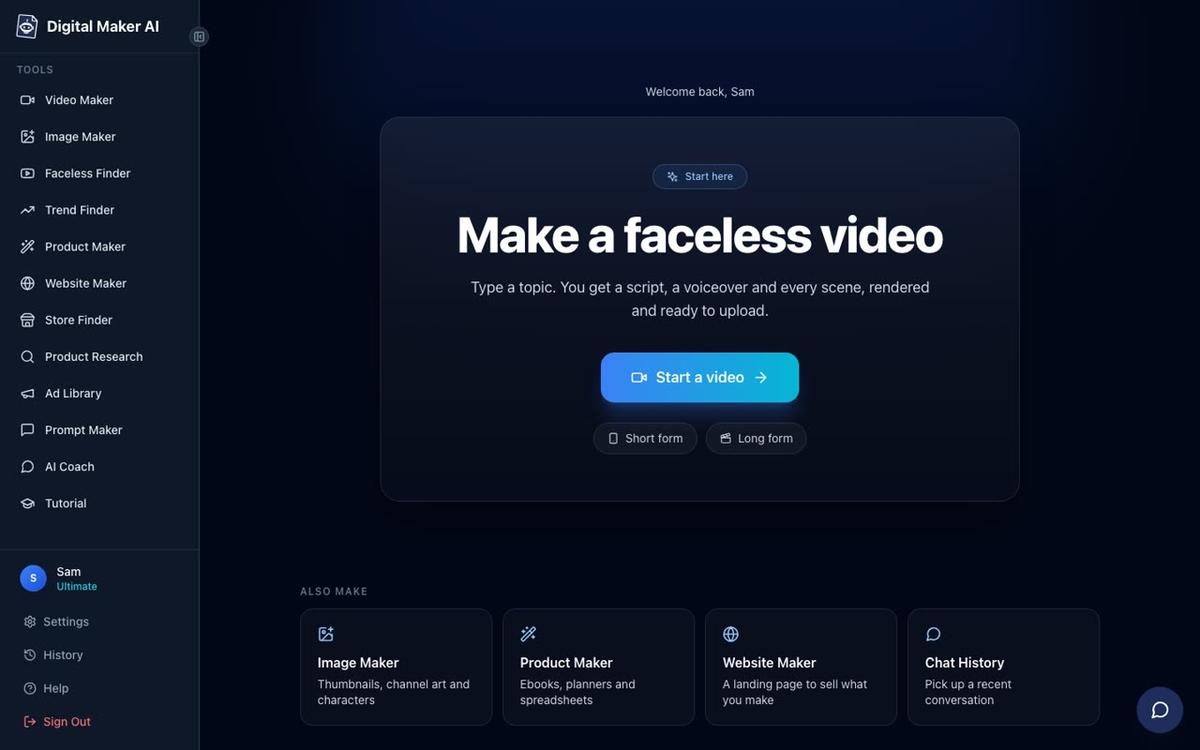
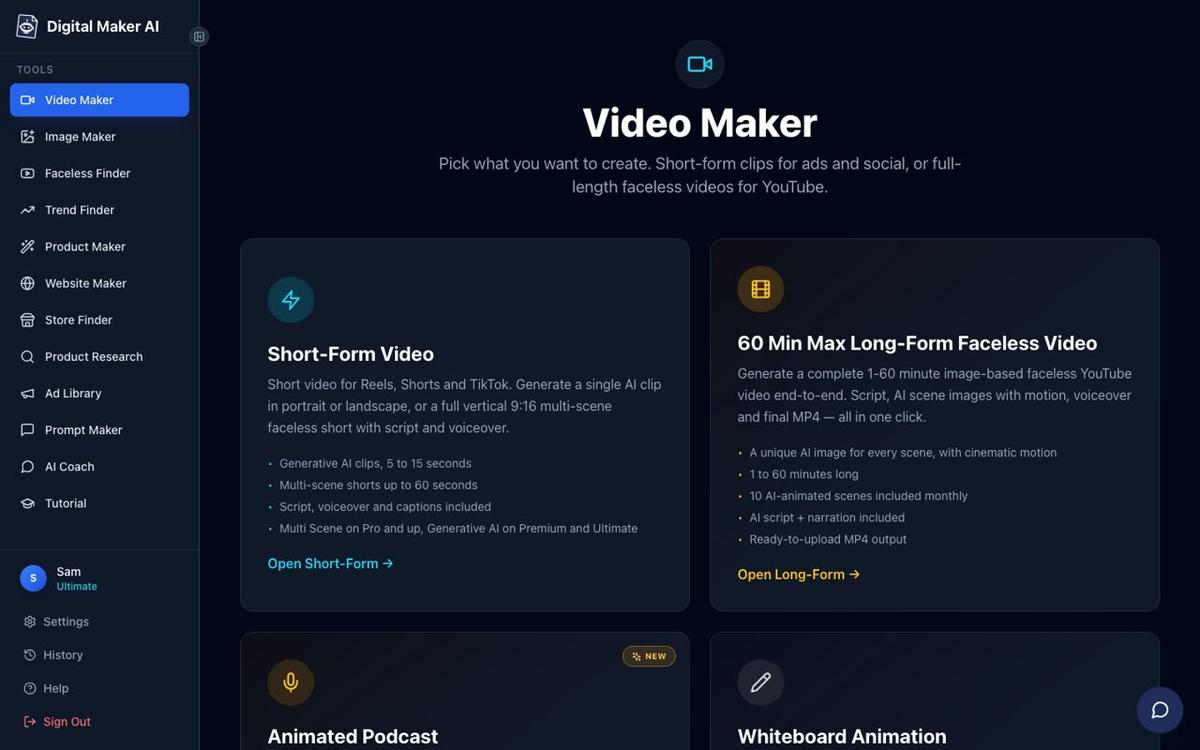
Once you are signed in you will see the dashboard. The left sidebar has the Video Maker, Image Maker, Faceless Finder, and other tools. To make your first video, click Video Maker in the sidebar. This opens the free video screen where you pick the type of video you want to make, then press Next at the bottom.
Step 4: Make Your First Video in the Video Maker
This is the core of the whole process. The Long-Form Faceless Video maker walks you through nine steps and returns a finished MP4 you can upload straight to YouTube. Here is what each step looks like.
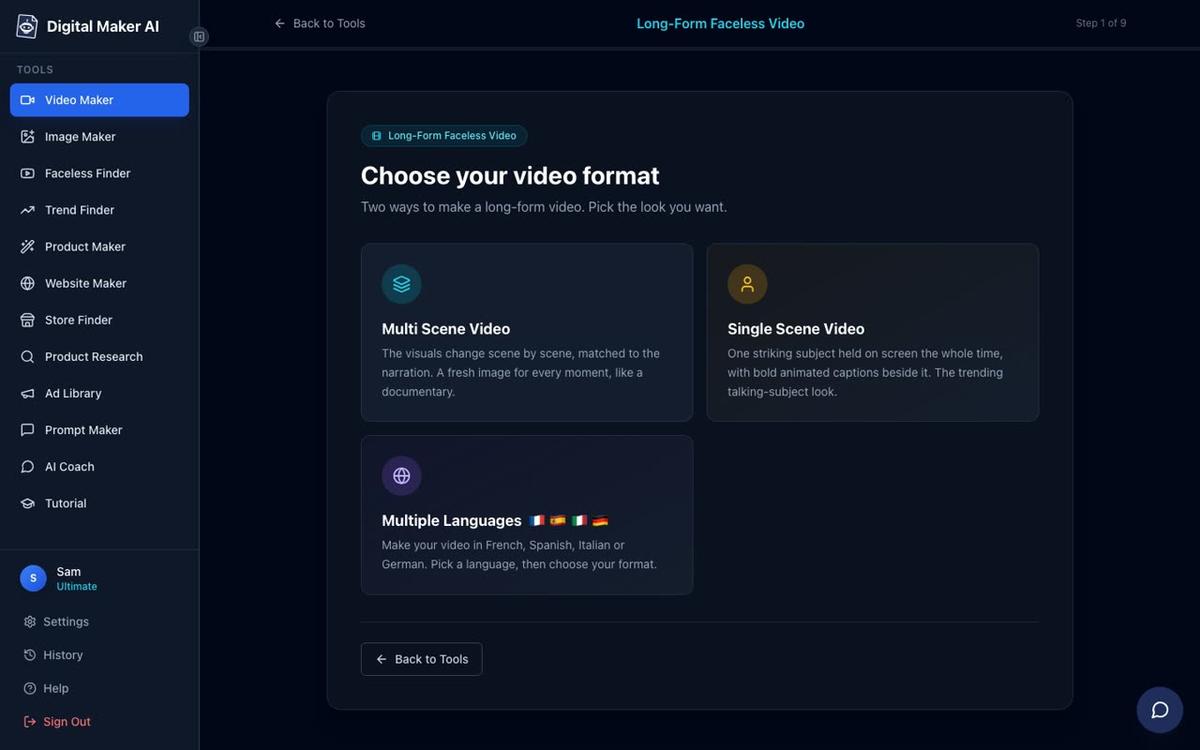
Format (Step 1): Choose Multi Scene Video. This is the standard format where every scene gets a unique AI-generated still image while the narration plays. It is the best starting point for a new channel and works on every plan including Free.
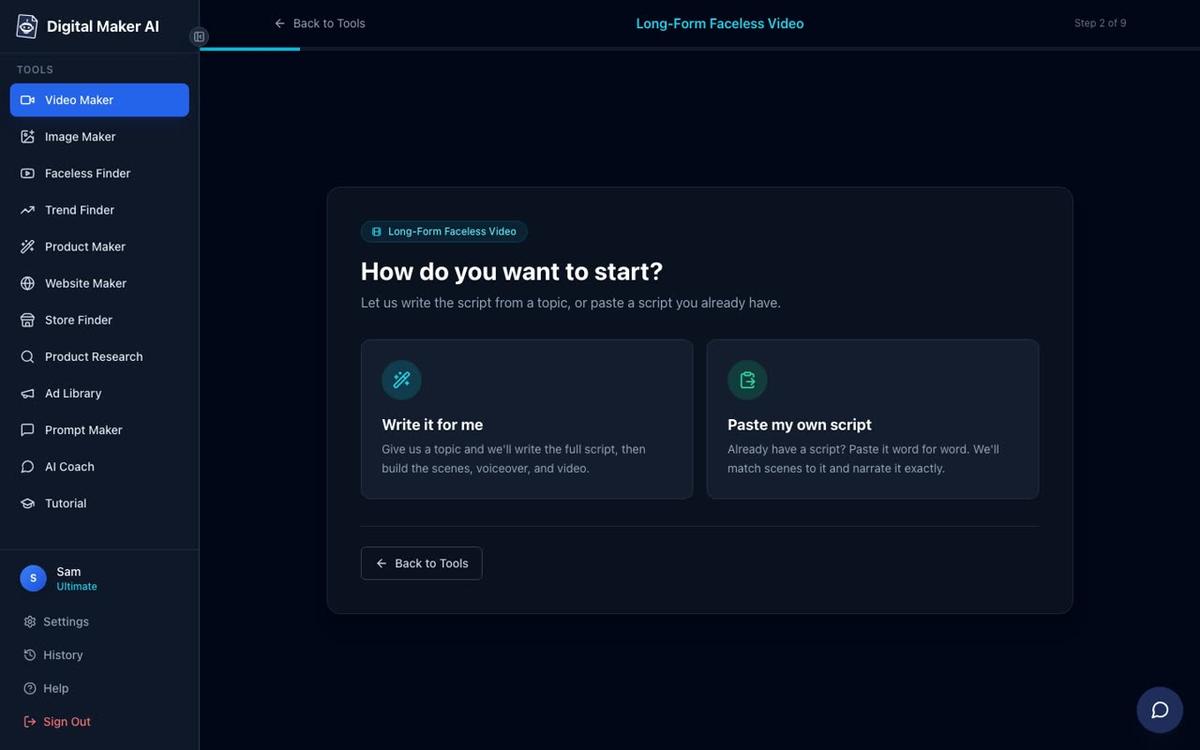
Script (Step 2): On the Free plan, the AI writes the script for you from a topic you type. Paid plans also let you paste your own script if you prefer to write it yourself.
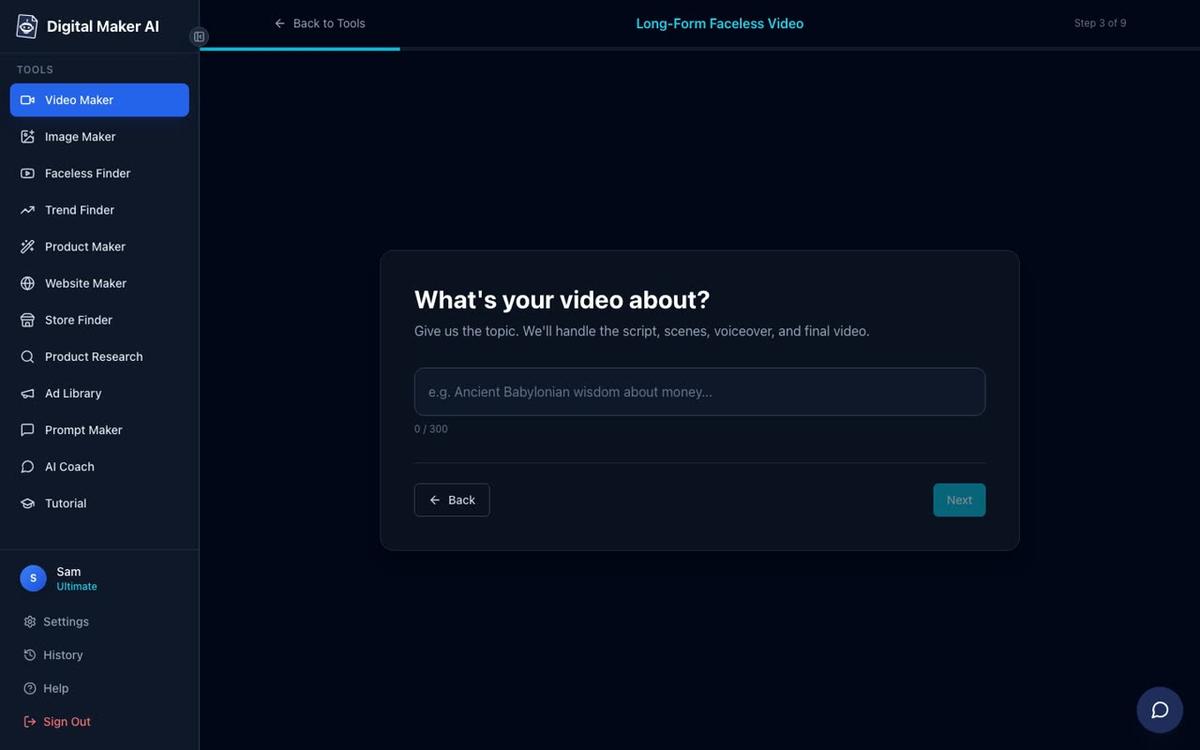
Topic (Step 3): Type your topic in one line. For example: "5 psychological tricks that make people trust you instantly" or "The strangest unsolved mysteries from ancient Rome". On the Free plan, the AI builds the video from a ready-made image library in set topic areas such as psychology, history, true crime, space, health and fitness, and personal finance. Paid plans generate every scene image fresh, on any topic you choose.
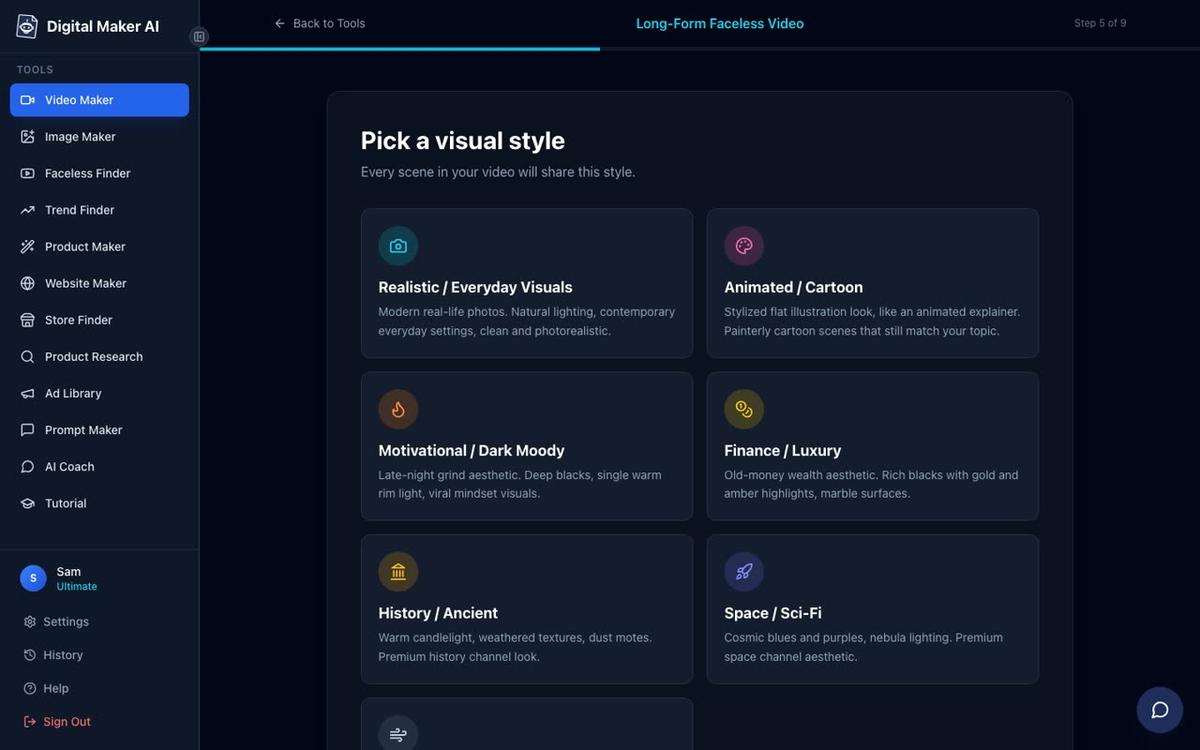
Visual style (Step 5): Pick one style and every scene in the video shares it. Realistic or Everyday Visuals works well for most niches. History or Ancient is a strong choice for historical topics. Finance or Luxury suits personal finance channels. On the Free plan you can choose between Realistic and Animated or Cartoon.
Length (Step 6): For your first video, aim for five to eight minutes. That is long enough to hold a viewer's attention and accumulate watch hours, but short enough to generate quickly. The Free plan allows up to eight minutes per long form video.
Voice (Step 7): There are more than 100 built-in narration voices with male and female options and US, UK and Australian accents. Listen to a few samples and pick one that fits the tone of your niche. A calm, measured voice works well for history and psychology. A warmer, faster voice suits motivation or personal finance.
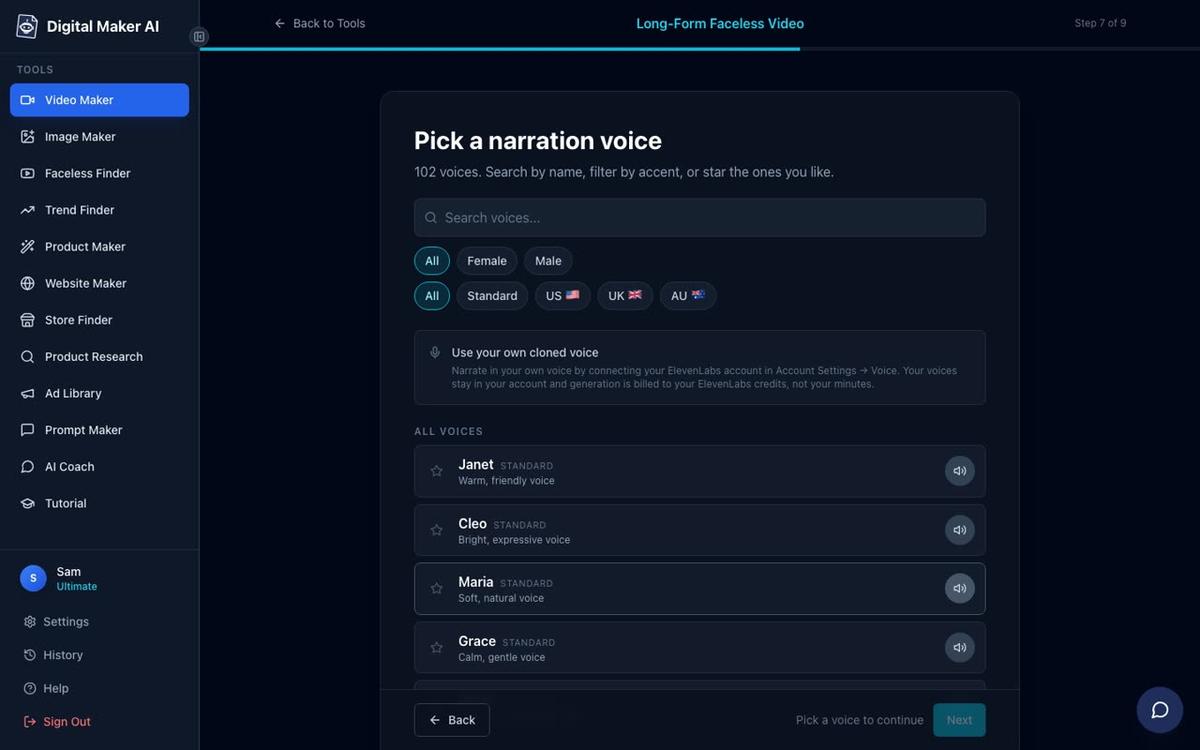
Pacing (Step 8): Standard pacing is the right choice for most topics. Calm works well for meditation or sleep content. Energetic suits motivation or finance.
Review and generate (Step 9): The final screen shows every setting you chose, tells you how many minutes the video will use from your plan, and has a single Generate Video button. Check everything looks right, then press it. A five minute video typically takes three to six minutes to build.
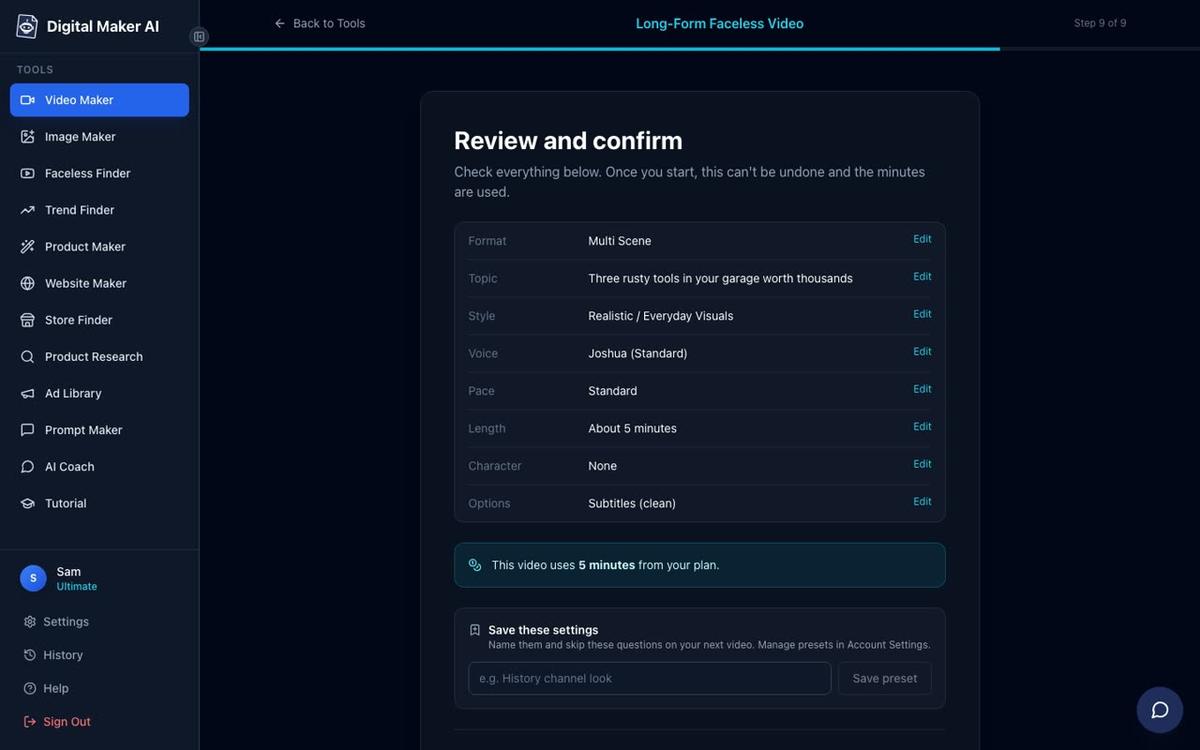
When the video is ready you can regenerate any scene image you are not happy with (up to 10 free regenerations per video), edit the narration text for a scene, or swap in your own image. There is no timeline editor, but these scene-level tweaks cover most of what beginners need to fix.
Note on the Free plan watermark: Free long form videos carry a small Digital Maker AI watermark. Upgrading to a paid plan removes it from that video. Commercial usage rights are included on every plan, including Free, so you can monetise the channel either way. See digitalmaker.ai/pricing for the plan options.
Step 5: Make a Thumbnail
A thumbnail is the first thing a viewer sees before they decide whether to click. On YouTube it matters as much as the title. The Image Maker tool in Digital Maker AI generates YouTube thumbnails, channel banners and other images. Type a description of what you want, pick a style, and get a finished image you can download and upload to YouTube when you publish the video.
Practical tip: Keep thumbnails simple. One clear subject, a bold colour in the background, and a short three to five word phrase that creates curiosity. Look at the thumbnails of the top channels in the Faceless Finder for your niche and notice what they have in common.
Step 6: Set Up Your YouTube Channel and Upload
If you do not have a YouTube channel yet, go to youtube.com and create one. Give it a name that fits your niche and keep it simple. You do not need a logo or a channel trailer to start. You can add those later once you know your niche is working.
When you upload your first video, fill in every field YouTube gives you: title, description, tags, category, and thumbnail. Write a description of at least 150 words that explains what the video covers. This helps YouTube understand the topic and show it to the right people.
On paid plans (Premium and Ultimate), you can connect your YouTube account in Account Settings and post finished videos straight from Digital Maker AI using the Post to socials button. Nothing posts automatically. You press Post when you are ready, and the video is labelled as AI generated. On the Free and Pro plans, download the MP4 and upload it to YouTube yourself.
Step 7: Know the Real Path to Monetisation
This is where most guides are vague. Here is the honest version.
To join the YouTube Partner Program and earn ad revenue, you need to reach one of two thresholds:
- Long form path: 1,000 subscribers and 4,000 watch hours in the last 12 months.
- Shorts path: 1,000 subscribers and 10 million Shorts views in the last 90 days.
For most beginners starting a long form faceless channel, the long form path is more realistic. Watch hours build up as your library grows. A channel with 20 videos averaging six minutes each only needs about 2,000 views per video to hit 4,000 watch hours. That is achievable within six to twelve months of consistent uploading, but it is not instant.
The fastest way to build watch hours is to publish consistently, pick topics with search demand, and make videos long enough to hold viewers. Five to ten minute videos on specific, searchable questions ("why did the Roman Empire really fall", "what is the 10x rule and does it work") tend to perform better than vague topic titles in the early months.
If you want to explore the Shorts path, the Short-Form Video maker in Digital Maker AI produces vertical 9:16 Shorts in 15, 30, 45 or 60 second lengths with bold captions and AI narration. Shorts can grow a channel quickly, but 10 million views is a high bar for a new channel. Most beginners are better off using Shorts to complement their long form content rather than as the main strategy.
Step 8: Build a Simple Weekly Routine
Consistency beats volume. Two good videos a week is better than seven rushed ones. Here is a realistic weekly routine for someone starting out:
- Monday: Open the Faceless Finder and pick the topic for this week's video. Look at what similar channels posted recently and find a gap or a fresh angle.
- Tuesday: Make the video in the Video Maker. Type the topic, pick the format, style, voice and length, press Generate Video, then review the scenes and fix anything that looks off.
- Wednesday: Make the thumbnail in the Image Maker. Write the title, description and tags.
- Thursday: Upload and publish. Reply to any comments from your previous video.
- Friday: Review your analytics. Which video got the most watch time? What did viewers drop off? Use that to inform next week's topic.
Once you are on a paid plan and have a rhythm, the AI Coach inside Digital Maker AI can help you generate video ideas, write hooks, and check titles. You can also read more about how to make a faceless YouTube video about a true story if you want to explore the true crime and mystery niche in more depth.
Common Mistakes to Avoid When Starting a Faceless Channel in 2027
Switching niches too early. Most channels need at least 20 to 30 videos before the algorithm starts to understand what the channel is about. If one video does not perform, that is normal. Switching niches after five videos is the fastest way to reset your progress.
Ignoring titles and thumbnails. The video itself only matters if someone clicks on it. Spend as much time on the title and thumbnail as you do on the video.
Making every video too short. Short videos are easier to make but they build watch hours slowly. Aim for five to eight minutes minimum on long form videos, especially early on when your library is small.
Waiting for perfect. The Free plan gives you five free videos to experiment with. Use all five. Your fifth video will be noticeably better than your first, and that is the point.
Skipping the description. YouTube uses the video description to understand the topic and rank it in search. A blank or one line description is a missed opportunity every time.
What to Do Next
You now have the full path: niche research with real channel data, a first video made in the Video Maker, a thumbnail, an upload, and a weekly routine to keep the channel growing. The tools are ready. The only thing left is to start.
If you want a step-by-step walkthrough of the channel setup process, including choosing a channel name, creating a profile picture and banner, and planning your first ten video ideas, the free course at digitalmaker.ai/free-course covers all of it in detail.
Alex Stevens: Alex Stevens writes for the Digital Maker AI team about faceless YouTube channels, AI presenters and AI video tools.