How to Make a Whiteboard Explainer Video With AI
By Alex Stevens

By the end of this guide you will have a finished whiteboard explainer video saved to your computer as an MP4, ready to upload to YouTube. You will learn how to make a whiteboard explainer video with AI without drawing a single thing yourself, without hiring a voiceover artist, and without any video editing experience. The whole process takes about ten minutes of your time.
Why Whiteboard Style Works So Well for Teaching
Whiteboard videos hold attention because they feel like someone is explaining something directly to you. The sketches appear on screen one by one, which naturally guides the viewer's eye and slows the pace down to something easy to follow. That makes the style a strong fit for tutorials, how-to guides, step-by-step processes, numbered lists and any topic where you want the viewer to understand something rather than just watch something.
Channels that do well with whiteboard content tend to cover topics like personal finance basics, productivity systems, health and fitness habits, study techniques and business concepts. If your topic has steps, stages or a clear beginning and end, whiteboard animation is likely to suit it well.
What You Need Before You Start
You need a free account on Digital Maker AI and a topic in mind. That is all. The AI writes the script, generates every sketch, records the narration and assembles the MP4 for you. You do not need a microphone, a drawing tablet or any design software.
One important note on plans: the Whiteboard Animation format is available on the Premium and Ultimate plans. If you are on the Free plan you can still sign in and explore the platform, but you will need to upgrade to use this particular format. You can compare what each plan includes at digitalmaker.ai/pricing.
Step 1: Choose a Topic That Suits the Format
Before you open the app, spend two minutes on your topic. Whiteboard animation works best when the content has a clear structure. Good examples include:
- Processes: "How the immune system fights a virus", "How compound interest works", "How a bill becomes a law"
- Numbered lists: "5 habits of highly productive people", "7 common money mistakes to avoid"
- Explainers: "What is inflation and why does it matter?", "The difference between a Roth IRA and a traditional IRA"
- How-to guides: "How to start a morning routine", "How to write a cold email that gets replies"
Avoid topics that rely heavily on showing real footage, faces or moving scenes. Whiteboard is a sketch-based format, and it shines when ideas can be illustrated with simple drawings rather than photographs.
Write your topic down as one clear sentence. You will paste it into the app in a moment.
Step 2: Open the Video Maker and Pick Your Format
Sign in to your account and click Video Maker in the left sidebar. You will see cards for the different video types available on your plan.
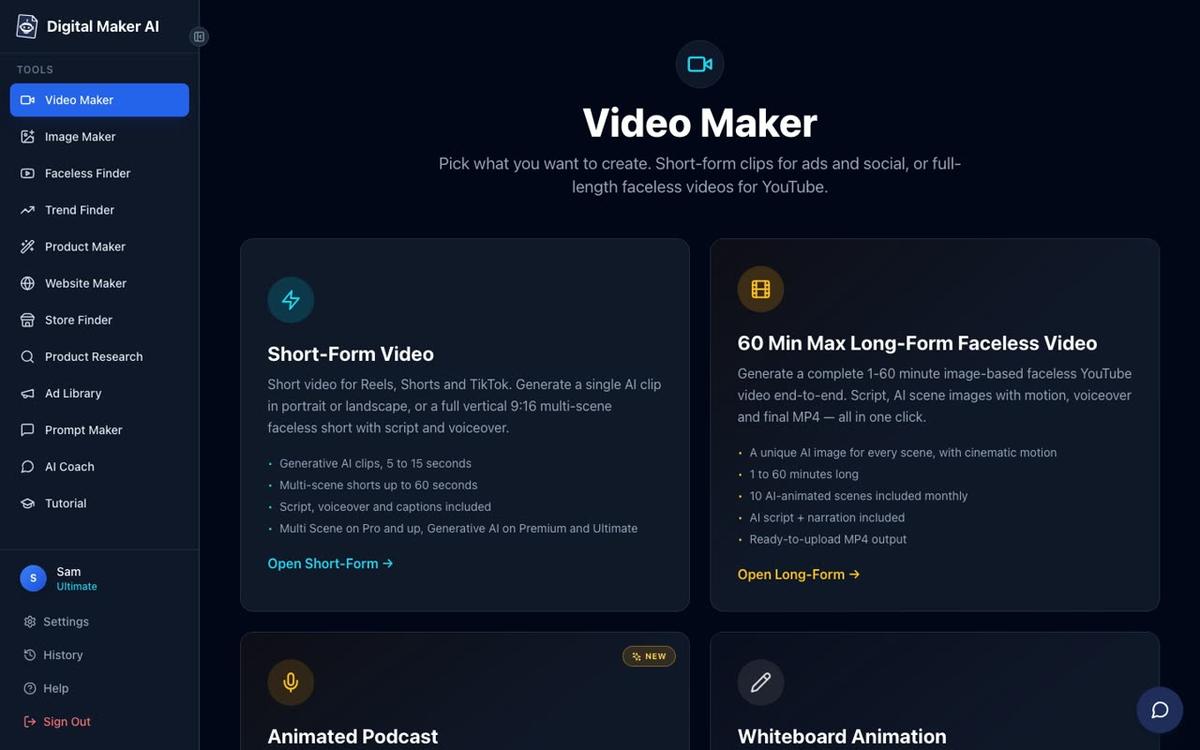
Click into the Long-Form Faceless Video option. On the first step you will see format cards. Look for the Whiteboard Animation card and select it. This is the format that produces hand-drawn sketch videos where each illustration draws itself onto the screen as the narration plays.
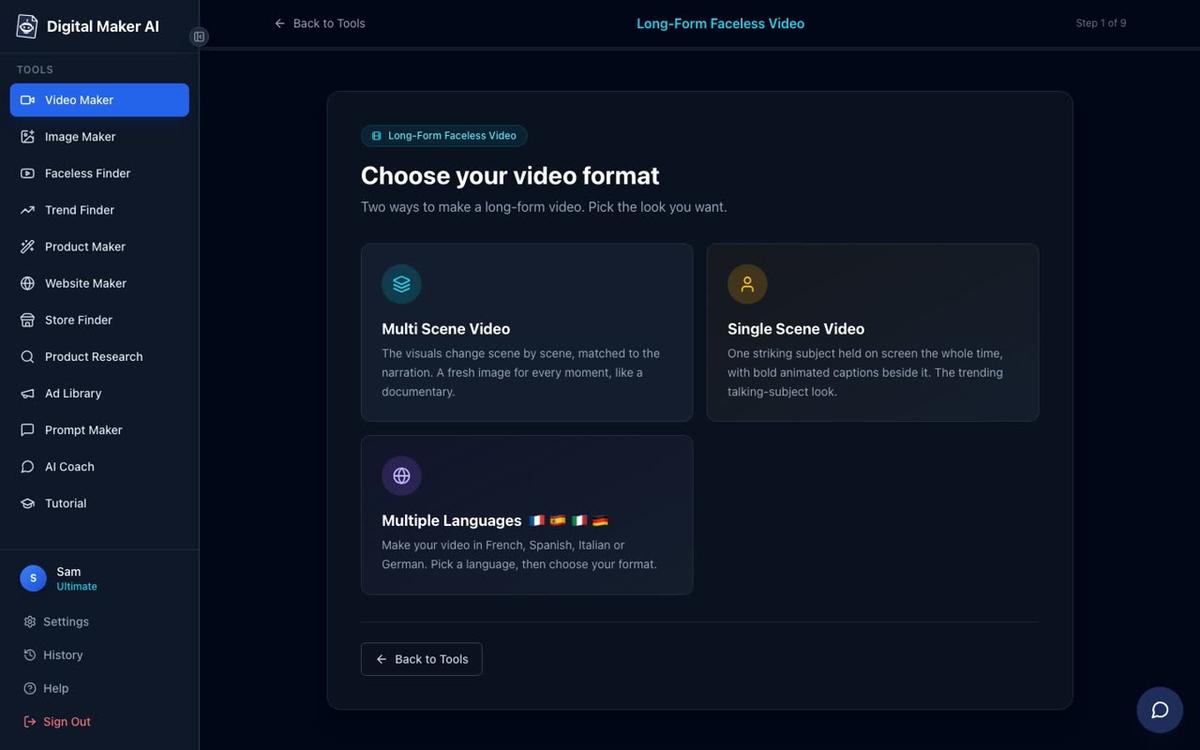
A quick note on what is not available in the Whiteboard format: you cannot add a recurring character, an AI presenter or animated scenes. Those features work with the Multi Scene format. Whiteboard is its own self-contained style built specifically for sketch-based explainer content. If you want to learn about recurring characters, the guide on how to use a recurring character in your faceless videos covers that path in detail.
Step 3: Let the AI Write the Script (or Paste Your Own)
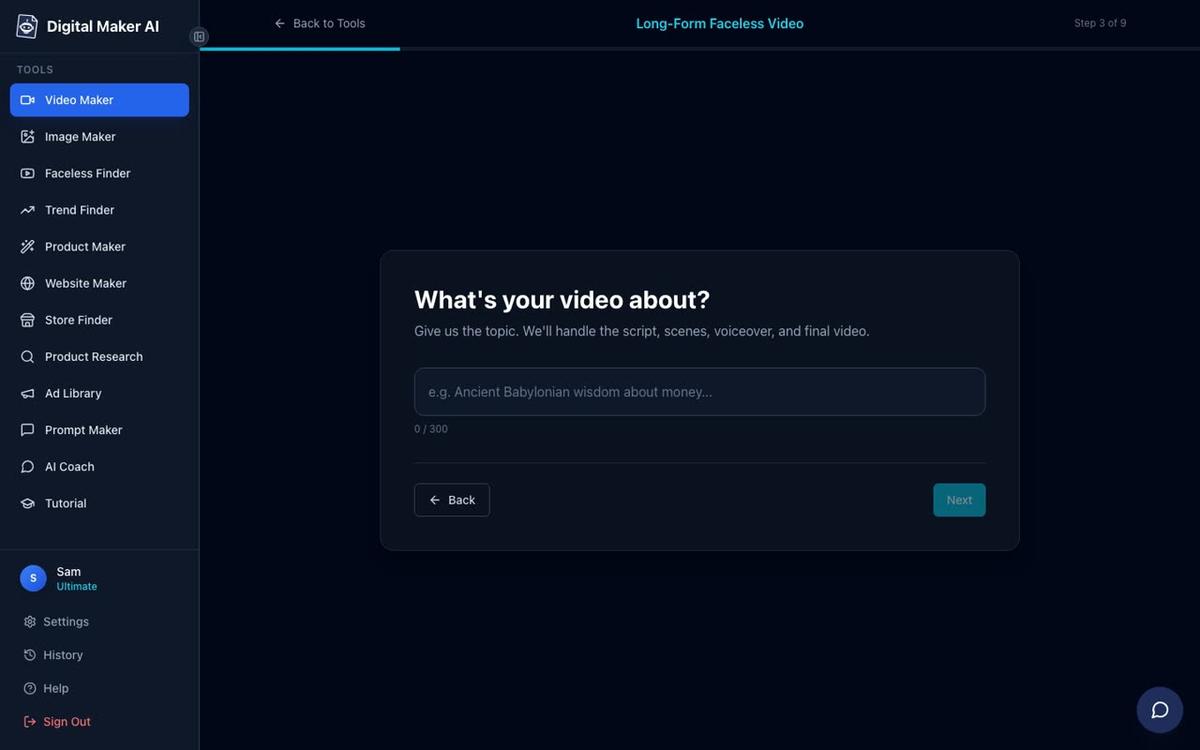
On the next screen you choose how to create the script. Select Write it for me and the AI will generate a full script from your topic. On paid plans you can also paste your own script if you have already written one.
Then type your topic into the topic box. Keep it to one clear sentence, around 10 to 20 words. The more specific you are, the better the script will be. "5 ways to save money on groceries" will produce a tighter, more useful video than just "saving money".
Step 4: Choose Your Visual Style
Even within the Whiteboard format you can pick a visual style that shapes how the sketches look. The style step gives you options like Minimalist or Clean, Animated or Cartoon, and others. For a classic whiteboard feel, Minimalist or Clean is a natural choice. For a slightly more illustrated look, try Animated or Cartoon.
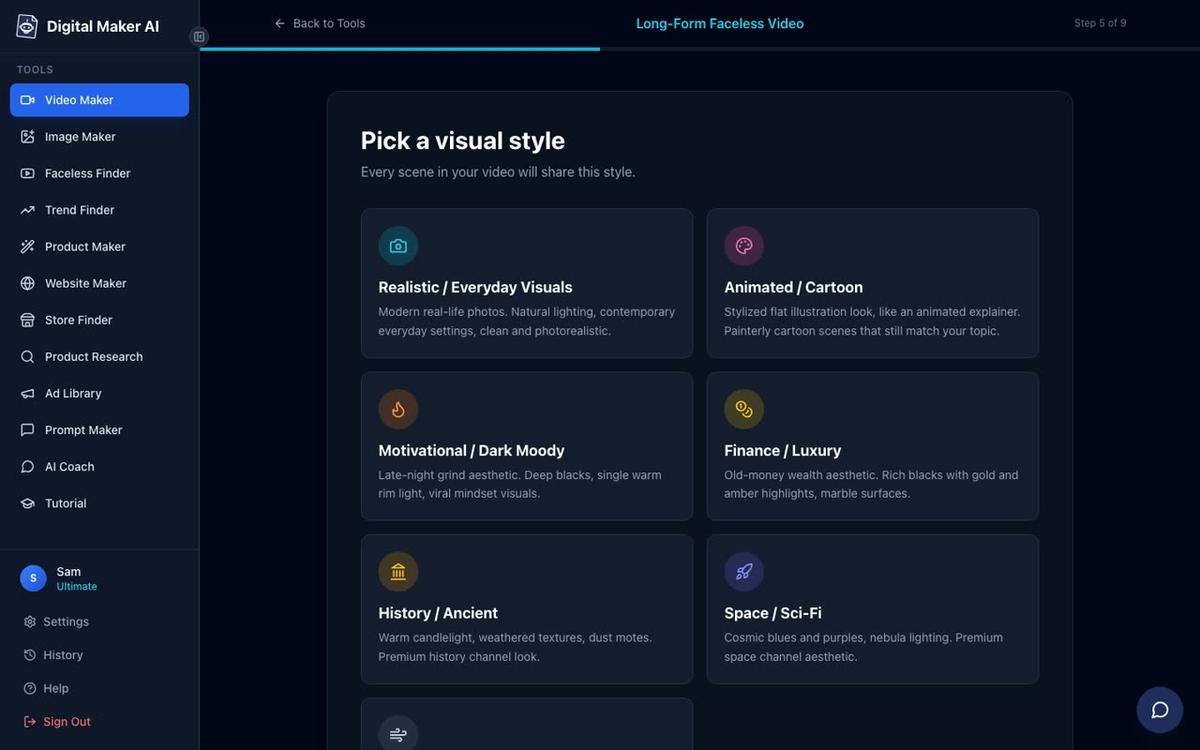
Every sketch in the video will follow the style you pick here, so the finished video looks consistent from start to finish.
Step 5: Set the Length
Choose how long you want the video to be. The maximum length for Whiteboard Animation depends on your plan. On Premium you can go up to 10 minutes. On Ultimate you can go up to 60 minutes in the classic style, or up to 15 minutes in the Storyboards style.
For your first whiteboard video, a length of 3 to 5 minutes is a good starting point. It is long enough to cover a topic properly and short enough to hold a viewer's attention all the way through.
Step 6: Pick a Narration Voice
Digital Maker AI includes more than 100 built-in AI narration voices covering male and female options with US, UK and Australian accents. You can preview each voice before choosing. Pick one that feels right for your topic: a calm, measured voice suits finance or health content, while a warmer, more conversational voice works well for motivational or productivity topics.
On Premium and Ultimate you can also design your own voice from a written description using the Voice Design feature, or connect your own cloned ElevenLabs voice through Account Settings if you have an ElevenLabs account.
Step 7: Choose Your Drawing Hand
This is one of the details that makes whiteboard videos feel authentic. You can choose whether a hand appears on screen as the sketches draw themselves in. The options are:
- None: the sketches draw themselves without a visible hand
- Light: a light-skinned hand draws each sketch
- Brown: a brown-skinned hand draws each sketch
- Dark: a dark-skinned hand draws each sketch
Pick whichever feels right for your channel. The hand option is a small detail, but it adds a human quality to the video that viewers tend to respond well to.
Step 8: Review and Generate
The final screen shows a summary of all your choices: the format, topic, style, voice, pace and length. It also tells you how many minutes from your plan the video will use. Check everything looks right, then press Generate Video.
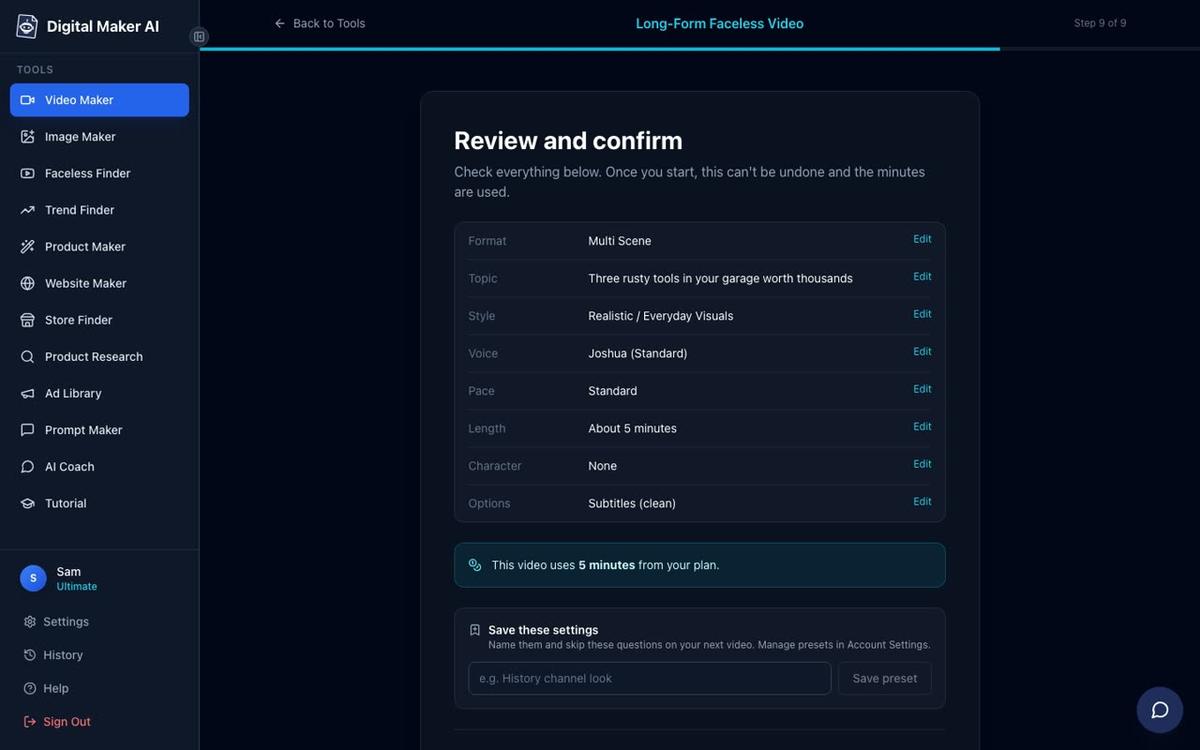
The AI will write the script, generate a sketch image for every scene, record the narration and assemble the final MP4. A 5-minute video typically takes around 3 to 6 minutes to build. You will get an email when it is ready, so you do not need to sit and watch a progress bar.
Step 9: Download Your Finished MP4
When the video is ready, open it in your account. You can watch it through from start to finish before you do anything else. If a particular scene does not look quite right, you can regenerate that scene image (each video includes 10 free regenerations), swap in your own image, or edit the narration text for any scene. There is no timeline editor, but these per-scene controls give you a useful amount of flexibility.
When you are happy with the result, click the download button to save the MP4 to your computer. Premium and Ultimate accounts can also post directly to YouTube, TikTok or Instagram from the Post to socials button, or save to Google Drive.
For more on the AI whiteboard animation generator and everything it can do, the product page covers the full feature set.
Common Mistakes to Avoid
A few things trip up first-time whiteboard video makers. Here is what to watch for:
- Topics that are too broad. "Personal finance" is a category, not a topic. "How to build a 3-month emergency fund from scratch" is a topic. The narrower your brief, the more focused and useful the video will be.
- Expecting moving animation. Whiteboard Animation produces sketches that draw themselves on screen. The scenes are still images that animate in. This is not a cartoon with moving characters. If you want moving scenes, the Animated Scenes add-on is available on the Multi Scene format, not on Whiteboard.
- Choosing a topic that needs real footage. If your topic requires showing a real place, a real person or a physical demonstration, whiteboard is not the right format. It is built for concepts, processes and ideas that can be communicated through illustration and narration.
- Making the video too long too soon. Start with 3 to 5 minutes for your first video. Once you have the process down, you can scale up to longer formats.
- Skipping the review screen. The review screen at step 9 shows you exactly what the video will contain and how many minutes it will use from your plan. Always check it before pressing Generate.
The Best Topics for Whiteboard Explainer Videos
If you are building a channel around whiteboard content, the topics that tend to perform best share a few qualities: they explain something that a lot of people want to understand but find confusing, they have a clear structure that can be broken into steps or stages, and they do not require the viewer to see a real-world demonstration.
Strong niche areas include personal finance (budgeting, investing, debt), psychology (cognitive biases, habits, mental models), health and fitness (how the body works, nutrition basics, sleep science), history (how events unfolded, why civilisations rose and fell) and business and productivity (frameworks, systems, strategies). These are all areas where a clear, well-narrated sketch video can genuinely teach someone something in under ten minutes.
If you are not sure which direction to take your channel, the guide to getting your first 1,000 YouTube subscribers with AI videos has practical advice on picking a niche and building an audience from zero.
What to Do Next
Once your first whiteboard video is live, the next step is to build a consistent publishing rhythm. Aim for one video a week on the same topic area. Over time, YouTube's algorithm will understand what your channel is about and start recommending it to the right viewers. Whiteboard explainer content has a long shelf life because it covers evergreen topics: a video explaining how compound interest works will still be useful in five years.
You can also explore other formats on the platform. The Multi Scene format lets you add a recurring character or an AI presenter to your videos, which can help build a recognisable identity for your channel. The Animated Podcast format is worth exploring if you want to publish longer, more conversational content alongside your explainer videos.
Ready to make your first video? The free course at Digital Maker AI walks you through the whole platform from scratch, including tips on scripting, choosing topics and growing a faceless channel, all in one place.
Alex Stevens: Alex Stevens writes for the Digital Maker AI team about faceless YouTube channels, AI presenters and AI video tools.