How to Make a Faceless Video About a Recipe or Meal
By Alex Stevens
By the end of this guide you will have a complete, ready-to-upload cooking video on your hard drive, and you will not have switched on a camera once. You will learn how to make a cooking faceless YouTube video from scratch using AI, covering everything from picking a food niche to downloading the finished MP4. No voiceover experience, no video editing software and no on-screen presence needed.
Step 1: Pick Your Food Niche Angle
The cooking space on YouTube is huge, which means the smartest move is to go narrow. A channel called "Recipes" will struggle to grow. A channel called "5-Ingredient Budget Dinners" has a clear promise that viewers can act on straight away. Before you commit to a topic, spend five minutes in the Faceless Finder inside Digital Maker AI.
The Faceless Finder is a searchable list of confirmed faceless YouTube channels. It is open to every signed-in account, including the free one. You can search by niche or by channel name, and each result shows subscribers, uploads per week, average video length and an estimated monthly ad revenue. That last number is Digital Maker AI's own rough figure based on recent views and typical ad rates, not the channel's real earnings, but it gives you a useful sense of whether a niche attracts advertisers.
Some strong angles to check in the Finder:
- Budget meals and cheap eats (high search volume, loyal audience)
- One-pot dinners (practical, easy to script, every scene has a clear action)
- 5-ingredient recipes (the constraint makes the channel memorable)
- Meal prep for the week (weekly viewers who come back every Sunday)
- Slow cooker and air fryer recipes (appliance-specific channels perform well)
Type your shortlisted niche into the Finder and look at the results. If you see several channels already doing well, that is a sign of demand, not a reason to avoid it. Look at the average video length and upload frequency so you know what pace you are competing at.
Step 2: Create a Free Account and Open the Video Maker
Go to digitalmaker.ai/faceless and create a free account. No credit card is needed. The free plan gives you five free videos, one of each type, as a one-off. One of those is a long-form faceless video up to 8 minutes, which is a perfectly good length for a recipe video.
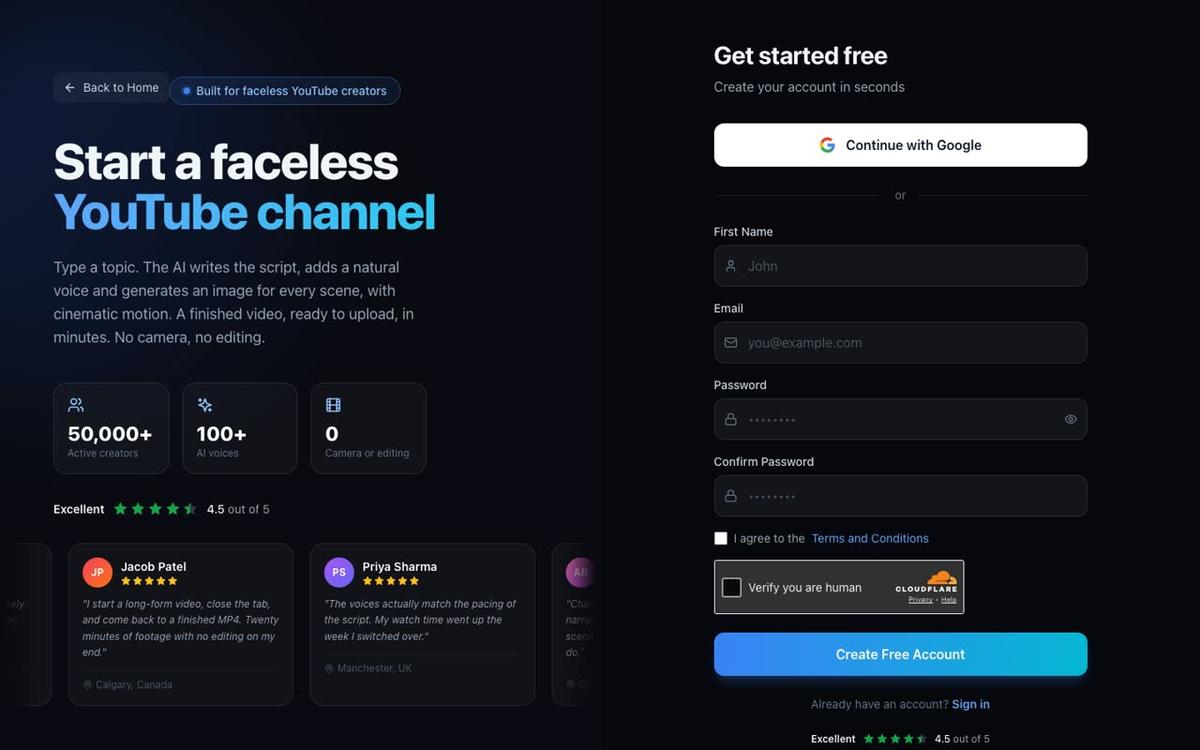
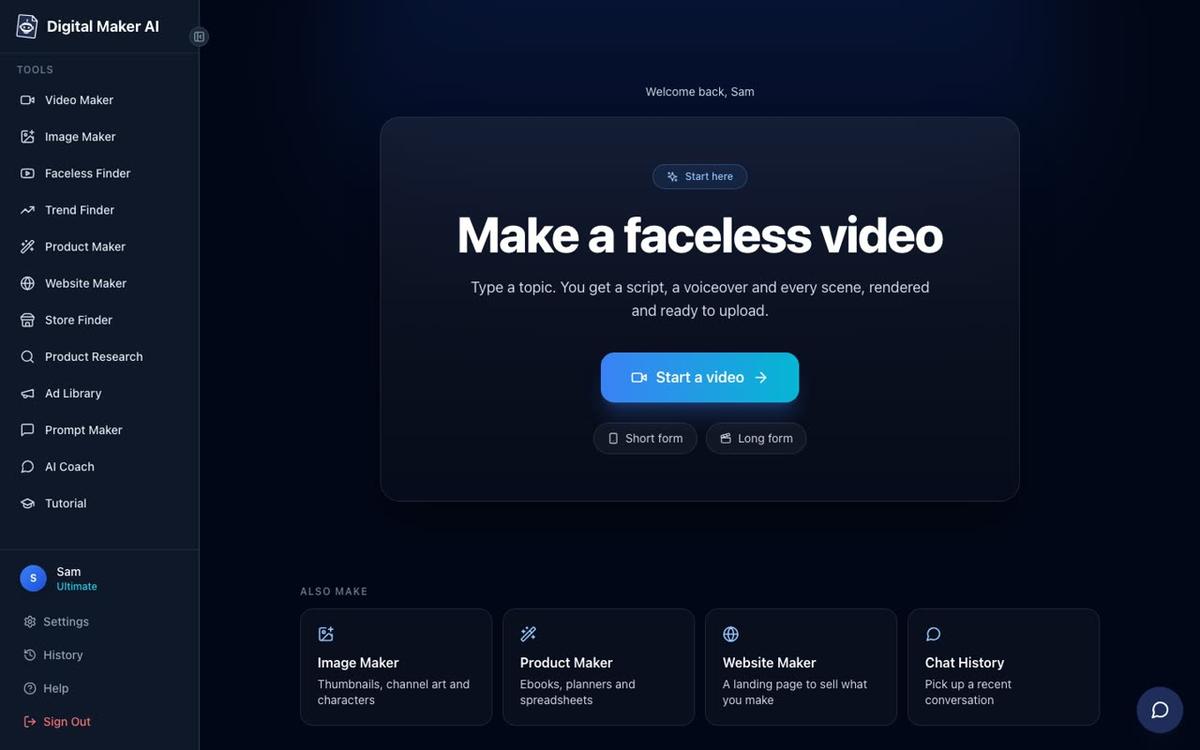
After signing in, look at the left sidebar and press the Video Maker button. This opens the free video screen. You will see cards for Short-Form and Long-Form video. For a recipe guide, choose Long-Form and press Next at the bottom of the screen.
Step 3: Write or Generate Your Recipe Script
At step 2 of the long-form maker you will see two options: Write it for me and Paste my own script. On the free plan, the AI writes the script for you from a topic you type in. Pasting your own script is available on paid plans.
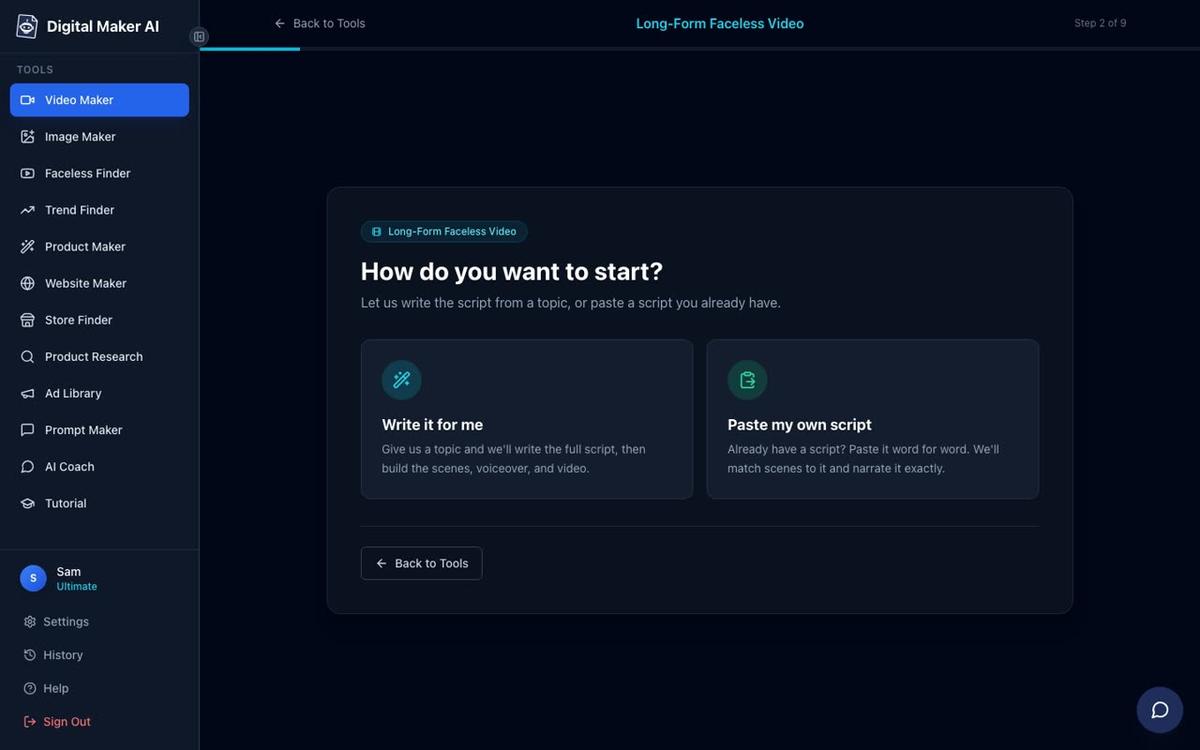
If you are on the free plan and letting the AI write it, the key is to give it a specific, detailed topic at step 3. Do not type "pasta recipe". Instead try something like: "A beginner-friendly one-pot creamy tomato pasta using five ingredients, with tips on getting the sauce right and how to make it vegan." The more detail you give, the better the script will match what you actually want to say.
If you are writing the script yourself before you start, structure it like this:
- Hook (first 30 seconds): State the problem or promise. "This pasta takes 15 minutes and costs under two dollars a serving."
- Ingredients list: Read through each ingredient with a quick note on why it matters or what to substitute.
- Step-by-step method: One scene per action. Chop the onion. Heat the oil. Add the garlic. Keep sentences short so the narration stays clear.
- Tips and variations: This is where viewers feel they got something extra. Add a tip for batch cooking, a swap for dietary needs, or a storage note.
- Call to action: Ask them to subscribe or try the recipe and leave a comment.
A good recipe video runs between 8 and 12 minutes. That length gives you enough time to cover ingredients, method and tips without losing viewers halfway through. On the free plan you can go up to 8 minutes, which is plenty for a focused single-dish video. Paid plans allow longer videos if you want to cover multiple dishes or add a deeper cooking lesson.
Step 4: Choose Your Visual Style
At step 5 of the long-form maker you pick a visual style. Every scene in the video will share this style, so the whole video looks consistent.
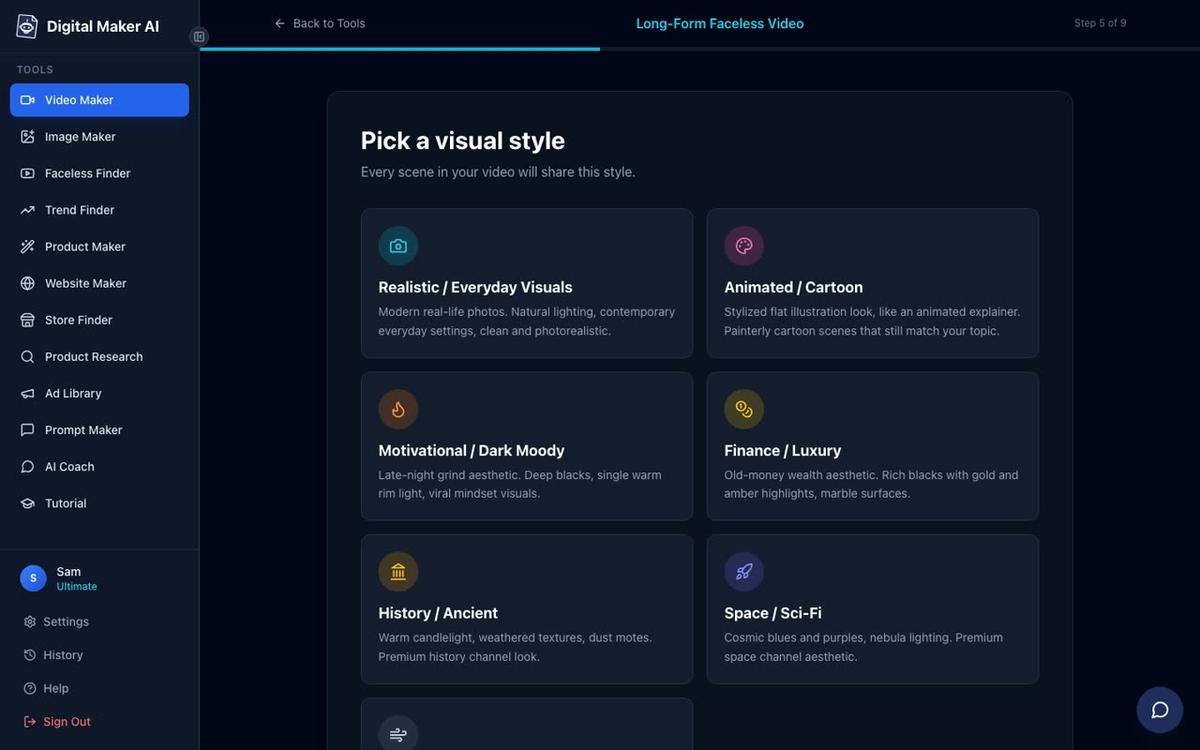
For cooking content, two styles work especially well:
- Realistic or Everyday Visuals: The AI generates photorealistic images of food, kitchens and ingredients. This looks closest to a traditional cooking channel and works well for budget meals, family dinners and everyday recipes.
- Animated or Cartoon: The AI generates illustrated, cartoon-style still scenes. This is a great fit for children's cooking content, fun recipe channels or anything with a playful brand. Note that this style produces illustrated still images, not moving cartoon animation.
On the free plan both Realistic and Animated or Cartoon are available. The free plan uses images from a ready-made library in set topic areas. Health and fitness is one of the available topic areas, which covers a lot of food and nutrition content. Paid plans generate every scene image fresh, on any topic, so you get images that match your exact recipe.
If your cooking channel has a specific visual brand in mind, for example a rustic farmhouse kitchen feel or a clean minimalist food-photography look, the Minimalist or Clean style is also worth considering for a polished, modern result.
Step 5: Pick a Warm, Friendly Narration Voice
The narration voice is what gives your channel its personality, even without a face on screen. At step 7 of the long-form maker you can browse and preview more than 100 built-in AI voices, filtered by gender, accent (US, UK and Australian) and style.
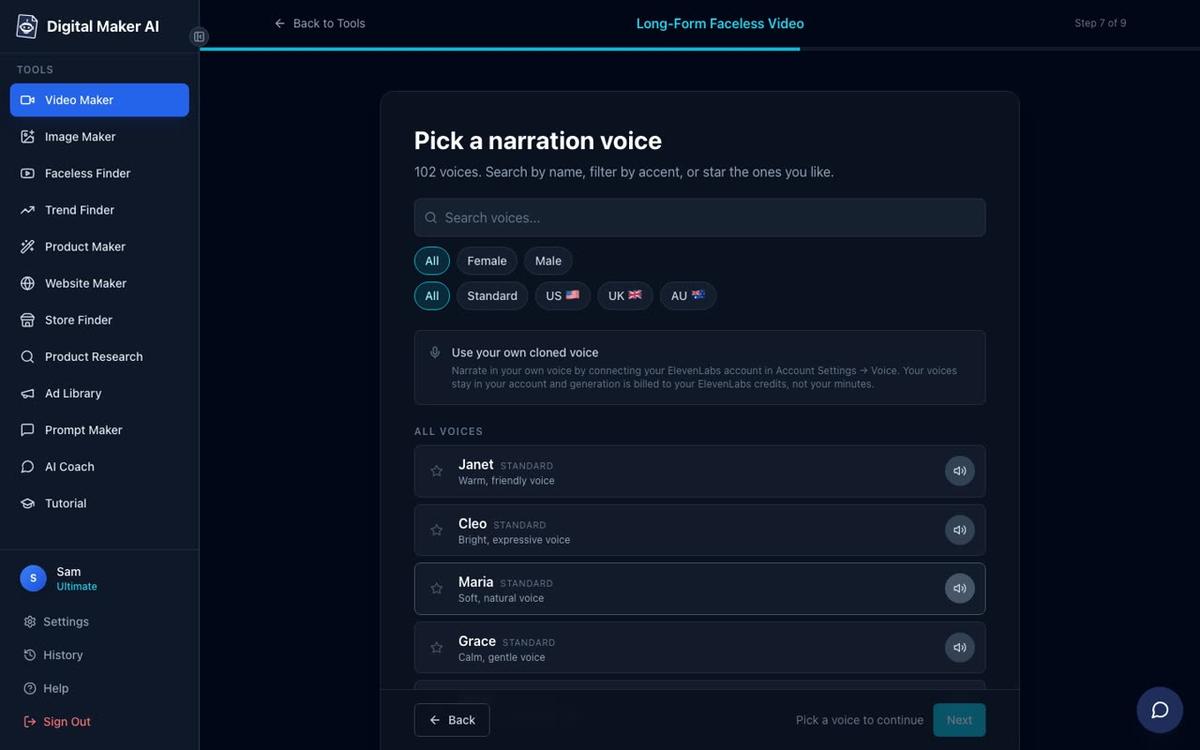
For cooking content, a warm and conversational voice tends to hold attention better than a formal or fast-paced one. Tips for choosing:
- Preview at least five or six voices before deciding. The difference between a voice that feels like a friend in the kitchen and one that sounds like a news reader is significant.
- Match the pace to the content. A slow cooker recipe channel suits a calm, unhurried voice. A quick weeknight dinner channel suits something a little more energetic.
- Pick a voice that fits the audience you want. A US accent may suit a North American recipe channel; a UK accent might feel right for a British baking channel.
- You can also adjust narration pace at step 8, choosing Calm, Standard or Energetic. Standard is a safe starting point for most recipe content.
On paid plans, Premium and Ultimate users can design their own voice from a written description using Voice Design, or connect their own cloned ElevenLabs voice by adding their ElevenLabs key in Account Settings. This is useful if you want a completely unique voice that no other channel shares.
Step 6: Set the Length and Review Before Generating
At step 6 you set the video length with a slider. For recipe content, aim for 8 minutes if you are on the free plan, or 8 to 12 minutes on a paid plan. Each scene is a unique AI-generated still image held on screen while the narration plays, with optional slow zoom or pan motion effects. A 10-minute video will have roughly 60 scenes, each matching a section of the narration.
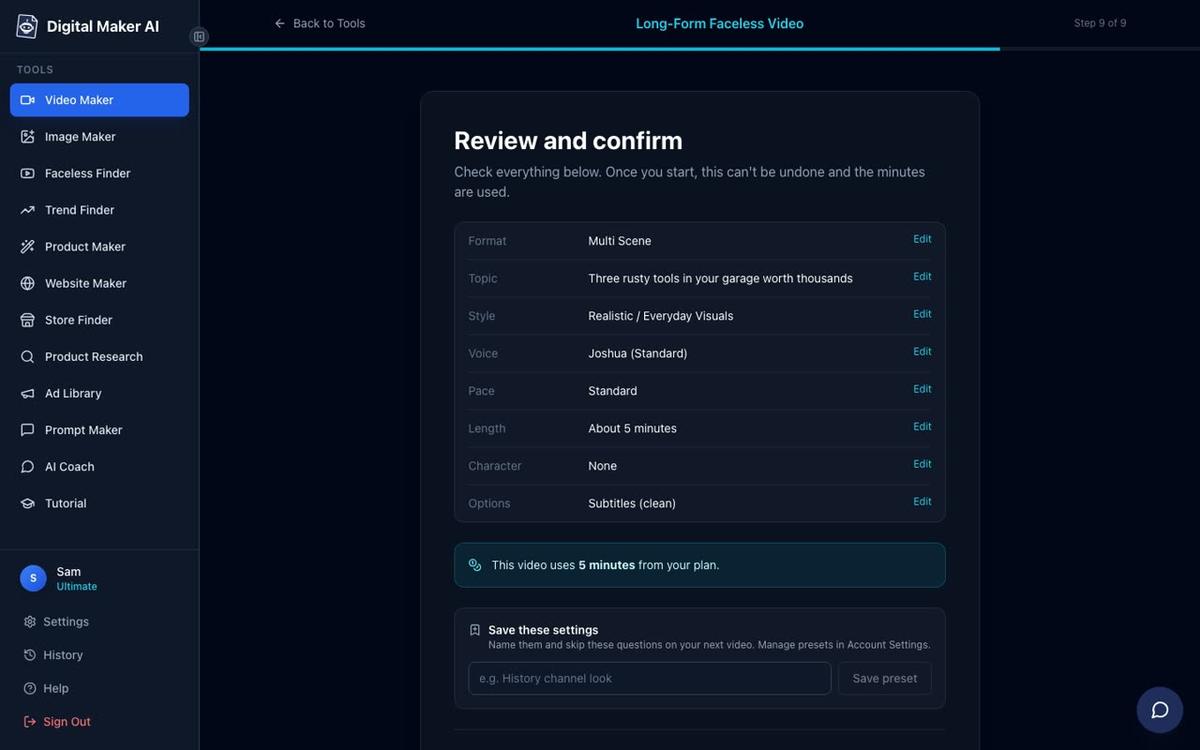
At step 9, the Review and Confirm screen, you see a full summary: format, topic, visual style, voice, pace, length and the number of minutes it will use from your plan. Check everything carefully here before pressing Generate Video. Once you press Generate, the AI writes the script, creates a scene image for every scene, adds narration and captions, and returns a finished MP4. This usually takes 3 to 6 minutes.
Step 7: Edit, Refine and Download
After the video is generated you are not locked in. Digital Maker AI lets you make targeted edits without rebuilding the whole video:
- Regenerate a scene image: If a scene image does not match the recipe step it is illustrating, press regenerate. You get 10 free regenerations per video.
- Swap in your own image: On any scene you can upload your own photo or a short clip. This is useful if you have taken a photo of the finished dish and want it to appear at the end of the video.
- Edit the narration text: If the AI script has a fact wrong or a phrase you want to change, you can edit the text directly and the narration updates.
- Change the voice: Not happy with how the voice sounds on the finished video? You can swap it out without regenerating the whole thing.
When you are happy, press Download to save the MP4 to your computer. Free and Pro plan users download the MP4 and upload it to YouTube themselves. Free plan videos carry a small Digital Maker AI watermark; upgrading later removes it from that video. Premium and Ultimate users can also post straight to YouTube, TikTok and Instagram from the platform using the Post to socials button.
If you want to learn more about making longer, more detailed recipe videos, the AI long-form video generator page covers what is possible on paid plans, including videos up to 60 minutes.
Common Mistakes to Avoid
These are the things that trip up most beginners on their first cooking faceless video:
- Topic too broad: "Easy dinners" is not a topic. "5-ingredient one-pan chicken dinners for busy parents" is. The more specific your topic line, the better the AI script will be.
- Skipping the voice preview: Every voice sounds different on a full narration than it does in a two-second preview. Listen to at least a few before committing.
- Setting the length too short: A 3-minute recipe video rarely ranks on YouTube. Aim for at least 8 minutes so there is room for an ingredient walkthrough, the method and a few tips.
- Ignoring the Faceless Finder: Going in blind on a niche wastes time. Five minutes in the Finder tells you what is already working and what length and frequency the audience expects.
- Uploading without a thumbnail: The video is done but the thumbnail is what gets the click. Use the Image Maker inside Digital Maker AI to create a YouTube thumbnail that matches your video's style before you upload.
What to Do Next
Now you know how to make a cooking faceless YouTube video, the next step is to build a consistent publishing habit. One video a week in a tight niche will outperform three videos a month on a vague topic every time. Use the Faceless Finder to track what similar channels are uploading and how often, and use that as your benchmark.
If you want to go further, consider adding an AI presenter to your cooking channel once you are on a paid plan. A presenter is a talking AI avatar who appears on screen alongside your recipe scenes, giving your channel a recognisable face without you ever being on camera. You can read about how other creators have done this in the guide on creating an AI avatar for YouTube videos.
For a full walkthrough of everything Digital Maker AI can do, including how to make your first video completely free, check out the free course at digitalmaker.ai. It covers the whole platform in short, practical lessons you can follow at your own pace.
Alex Stevens: Alex Stevens writes for the Digital Maker AI team about faceless YouTube channels, AI presenters and AI video tools.