OpenClaw MCP: Run a Faceless YouTube Channel by Asking
By Alex Stevens
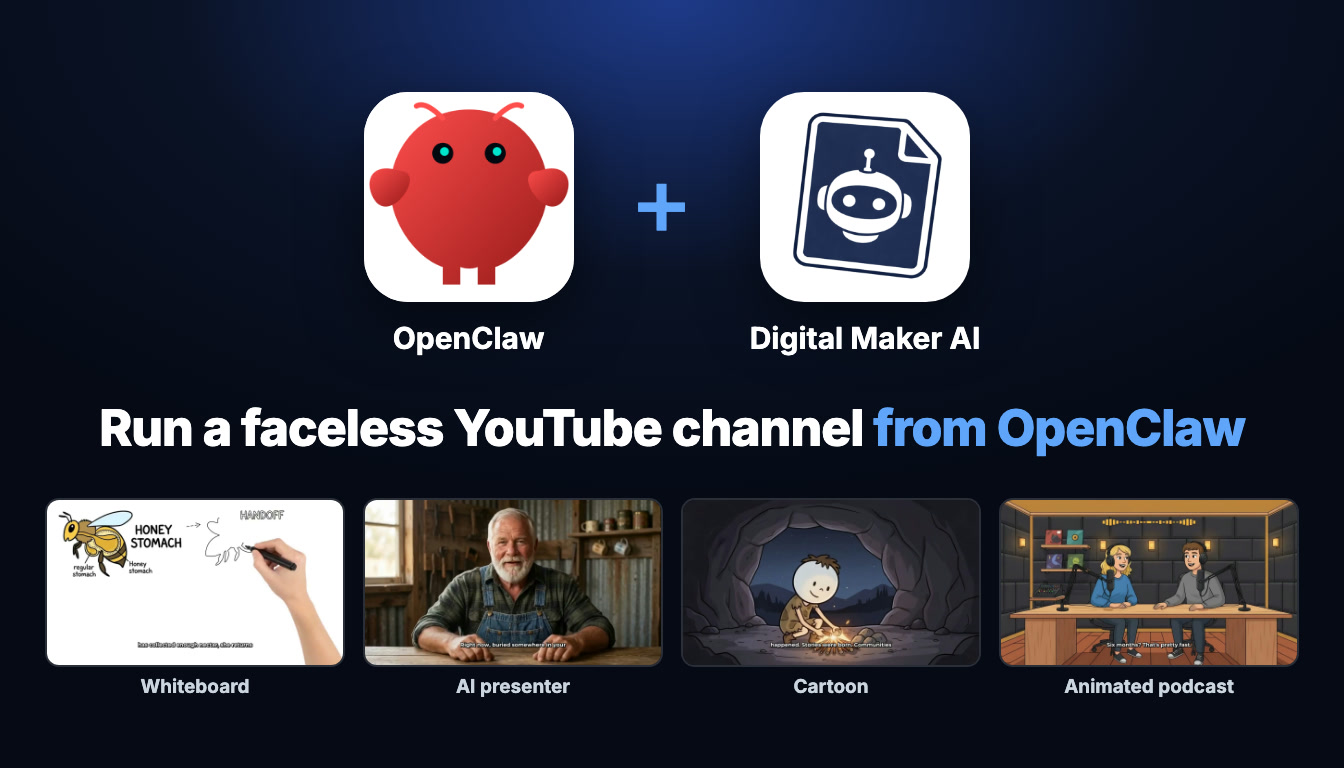
Run Your Whole Faceless Channel by Asking Questions
If you use OpenClaw as your AI agent workspace, you can now run an entire openclaw mcp youtube channel operation without switching between apps. Once you connect Digital Maker AI to OpenClaw through the MCP protocol, you can research niches, write scripts, produce every video format, generate thumbnails and schedule posts to YouTube, TikTok and Instagram, all by typing a request in plain English. This guide walks you through exactly how to do that, from the first connection to a full weekly creator routine.
What Connecting Actually Means
Before you set anything up, it helps to understand what is happening under the hood. OpenClaw reaches Digital Maker AI's tools through the Model Context Protocol (MCP). MCP is an open standard that lets an AI agent call external tools as if they were built in. When you connect Digital Maker AI as an MCP server, OpenClaw gains the ability to trigger the Video Maker, Faceless Finder, Image Maker and posting tools on your behalf.
Every video is made on your own Digital Maker AI account, using your plan and your monthly video minutes, exactly as if you had opened the browser yourself. Nothing is created on OpenClaw's servers. Finished videos land in your Digital Maker AI library, where you can review them, regenerate any scene, edit narration or swap in your own images before posting. OpenClaw confirms the minute cost before it starts any video, and it will never begin one unless you ask directly.
You can read more about the full range of things you can do once connected at digitalmaker.ai/openclaw.
Setting Up the OpenClaw MCP Connection
The setup takes about two minutes and only needs to be done once. Here are the steps:
- In Digital Maker AI, open Account Settings and click the API tab. Under "What are you connecting?" choose OpenClaw and click Create key. The full connection URL is built for you automatically, in the form
digitalmaker.ai/mcp/YOUR_KEY. - In the OpenClaw Control UI, go to Settings, then MCP, and click Add server. Name it Digital Maker AI, choose Streamable HTTP, and paste the connection URL. You do not need to add any headers or set up OAuth.
- Test the connection by asking: "How many video minutes have I got left on Digital Maker AI?" This costs nothing and confirms everything is working.
If you prefer the terminal, run openclaw mcp add digital_maker_ai, paste the URL when prompted, then run openclaw mcp doctor digital_maker_ai --probe to verify.
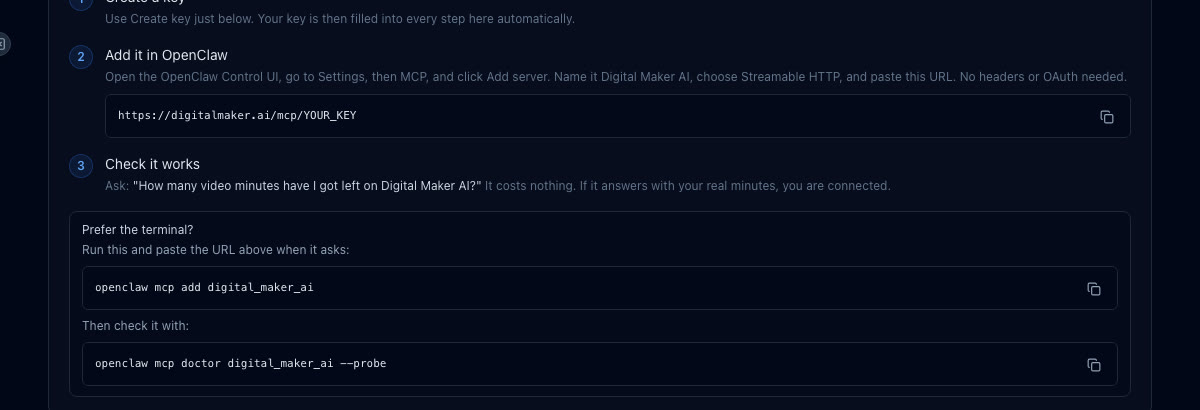
Once the probe returns a success, every tool below is available from OpenClaw's chat interface. Videos, animated podcasts, AI presenter videos and posting require a Premium or Ultimate plan. Channel research, image generation and character creation work on Pro. Checking your minutes works on any plan, including Free.
The Weekly Routine: An OpenClaw MCP YouTube Channel in Practice
Here is how a history channel creator might run their whole week from OpenClaw, using real requests you can adapt to your own niche.
Step 1: Channel Research with Faceless Finder
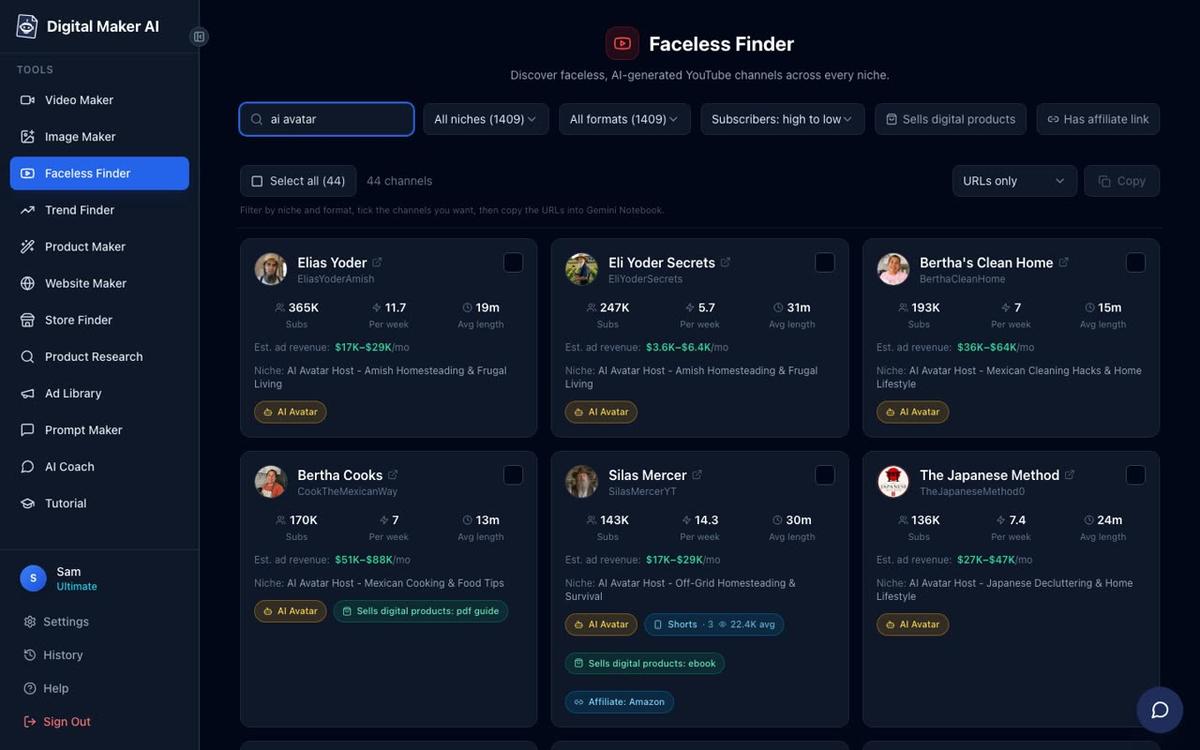
Start by finding out what is already working in your niche. The Faceless Finder is a searchable database of confirmed faceless YouTube channels, showing subscribers, uploads per week, average video length and an estimated monthly ad revenue. Ask OpenClaw:
"Search Faceless Finder for history channels under 50k subscribers and show me their upload frequency and estimated revenue."
OpenClaw returns a list of channels with all of those figures. The revenue numbers are Digital Maker AI's own rough estimates based on recent views and typical ad rates for the niche, not the channels' real earnings, but they give you a useful benchmark for what is possible. You can also search for AI avatar channels specifically by typing "AI avatar" in the search, which filters to channels fronted by an AI generated presenter.
Step 2: Faceless Long-Form Video
With your topic chosen, ask OpenClaw to write the script and produce the video in one go:
"Write a 7-minute script about the fall of Constantinople, then make a Multi Scene History video with Bold Pop captions and a slow zoom motion effect."
OpenClaw tells you the minute cost, waits for your go-ahead, then sends the job to the long-form video maker. Digital Maker AI generates a unique scene image for every scene, adds AI narration in the voice you have set as default, burns in the Bold Pop captions and applies the slow zoom motion to each image. The finished MP4 appears in your library and OpenClaw returns the link. Long-form faceless videos need Pro, Premium or Ultimate.

Step 3: Whiteboard Animation
For a topic that benefits from a more visual, explanatory feel, try the whiteboard format:
"Make a whiteboard animation about how the printing press changed Europe, up to 10 minutes, with a light drawing hand."
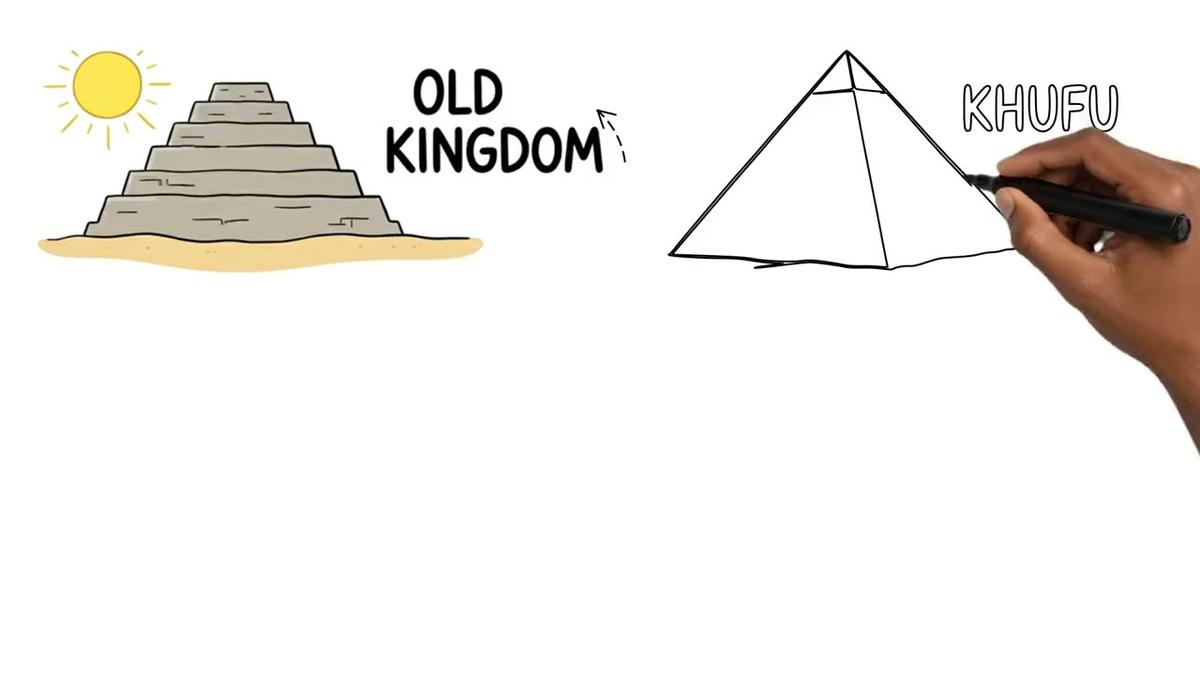
The whiteboard animation maker produces hand-drawn sketches that draw themselves on screen, with your chosen narration voice and captions. You can pick from no hand, a light hand, a brown hand or a dark hand. Whiteboard animations up to 10 minutes need Premium; Ultimate unlocks up to 60 minutes in the classic style. Note that recurring characters and AI presenters are not available on whiteboard videos.
Step 4: AI Presenter Video
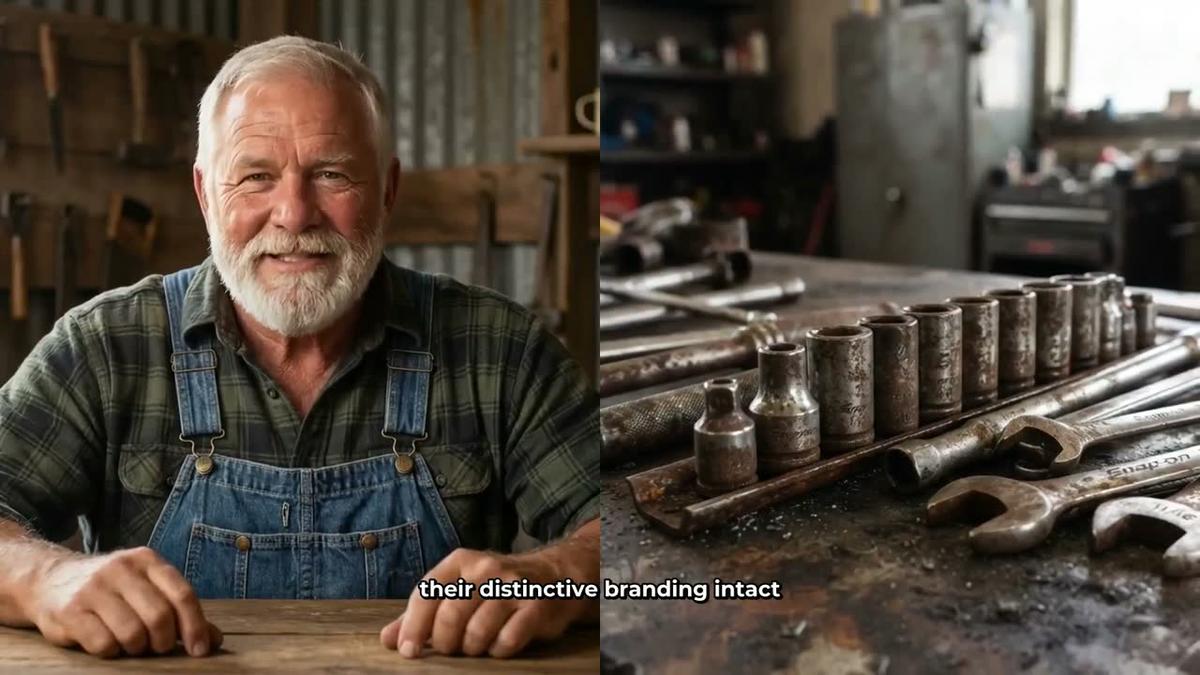
If you want a talking presenter on screen alongside your scenes, create a presenter first in Account Settings under the Presenters tab, describe who they are and their setting in a sentence or two, and the platform draws a photoreal image of them. Then ask OpenClaw:
"Create a Split screen video about Roman engineering with my presenter Marcus on screen for the first two minutes."
The video places Marcus on the left half of the frame with the scene image on the right, for the opening two minutes, then continues as a normal faceless video for the rest. You can also use Full screen or Corner circle layouts, and a slider lets you control exactly how much of the video the presenter appears in. AI presenter videos are available on Premium and Ultimate. The presenter runs on avatar time, which is separate from your video minutes. Avatar Packs let you add more avatar time as a one-off purchase: see digitalmaker.ai/pricing for current options.
Step 5: Cartoon Video with a Recurring Character
For a channel built around a recurring character, upload or build a character image in Digital Maker AI and save them under your account (up to 10 characters). Then ask:
"Make a cartoon-style video starring my character Professor Otto about the invention of the compass."
Professor Otto is drawn into every scene of the video using the Animated or Cartoon visual style, giving your channel a consistent face without ever showing a real person. Recurring characters need Premium or Ultimate and work on Multi Scene videos. You can learn more about building a consistent character at the cartoon video generator page.
Step 6: Animated Podcast Episode
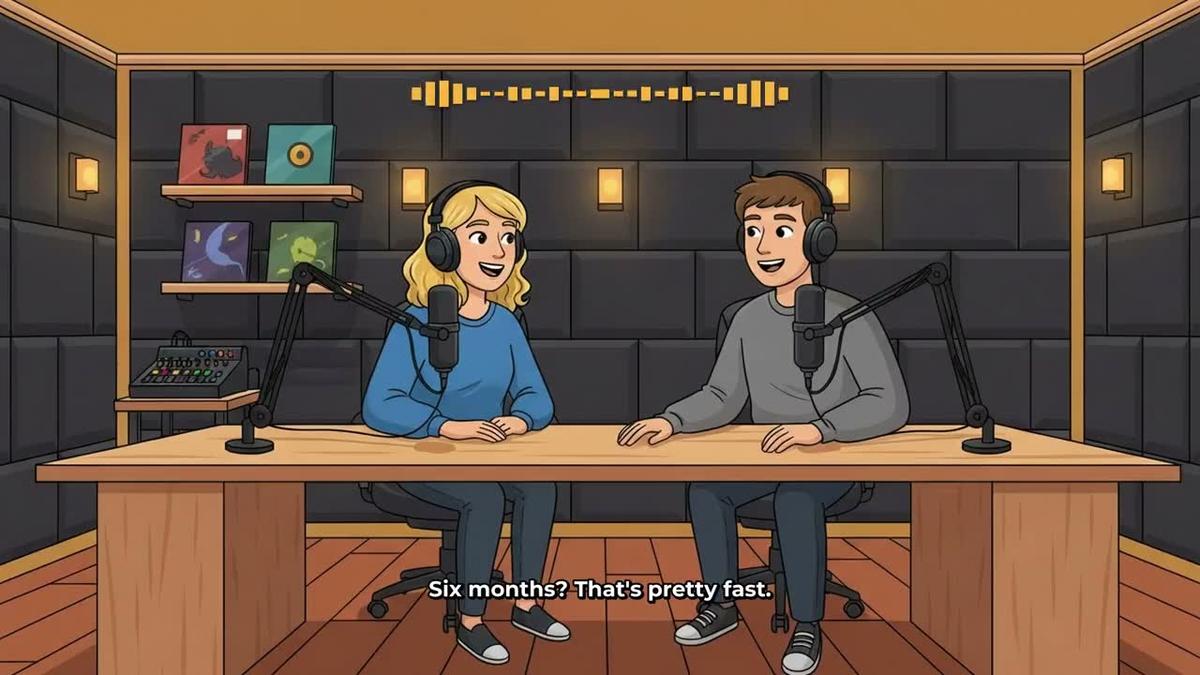
An animated podcast is a great way to fill out your content calendar with longer, more conversational content. Once you have set up a show with two named hosts, their voices and a studio, every new episode reuses the same setup. Ask:
"Record a new episode of The History Lab podcast with hosts Dara and Finn, 20 minutes, on the fall of the Western Roman Empire."
Digital Maker AI writes the dialogue, records both voices, animates the hosts in their studio with sound bars and captions, and returns a finished landscape video. Longer episodes are built and recorded in sections, so a 20-minute episode can take 45 minutes or more to produce. OpenClaw will let you know it is in progress, and you will get an email when it is ready. The animated podcast maker is available on Premium and Ultimate; Pro does not include it.
Step 7: Vertical Short for TikTok and Instagram
Shorts are the fastest way to drive traffic back to your long-form videos. Ask:
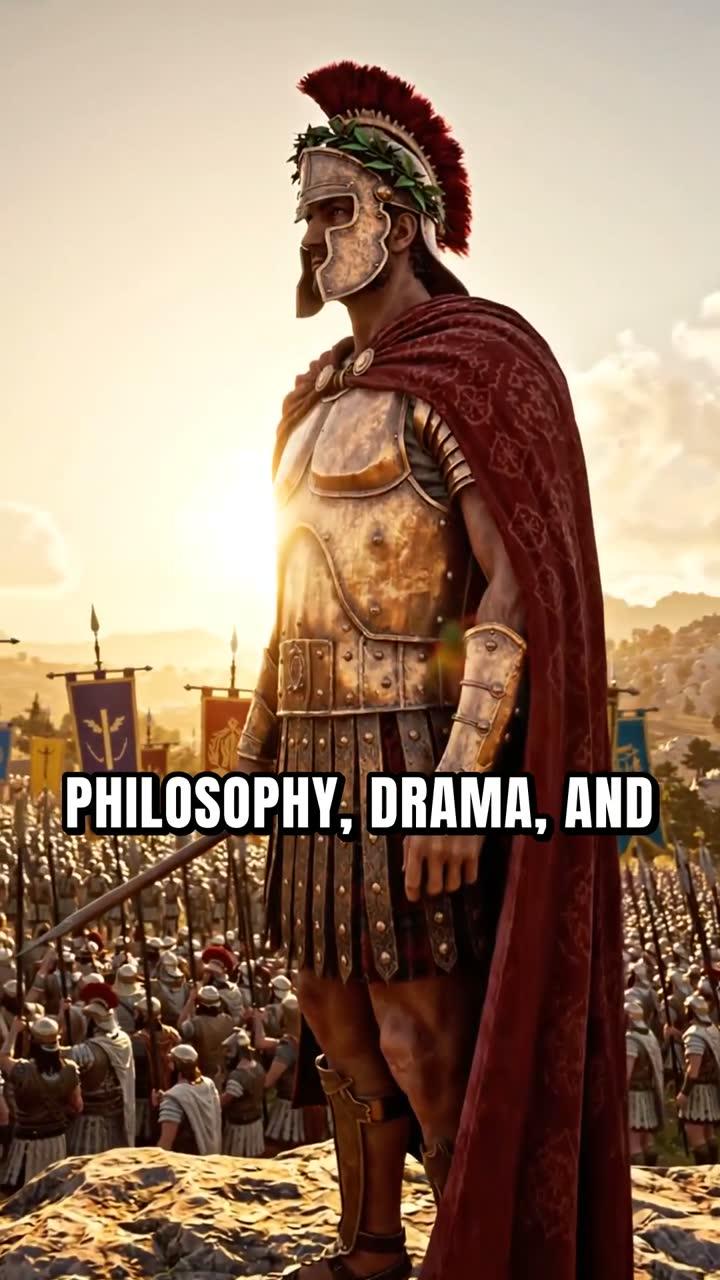
"Make a 30-second vertical Short about the Great Wall of China with Bold Pop captions."
The Short-form video maker produces a 9:16 vertical video with a new scene image every few seconds, narration and bold captions burned in. It costs a flat one minute from your monthly pool, regardless of the Short's actual length. Shorts need Pro, Premium or Ultimate.
Research, Thumbnails and Posting from OpenClaw
Running an openclaw mcp youtube channel is not just about making videos. The same connection handles the surrounding tasks too.
Thumbnails. After your video is made, ask: "Generate a YouTube thumbnail for a video called Why Rome Really Fell, dramatic History style." The Image Maker returns a finished thumbnail image you can download straight from your library. Thumbnail generation works on Pro, Premium and Ultimate.
Scheduled posting. Once you have connected your social accounts once in Account Settings, you can post or schedule from OpenClaw: "Post the Roman engineering video to YouTube now and schedule the Short to Instagram for tomorrow at 9am." Digital Maker AI posts on your instruction, labels the content as AI generated, and nothing goes out automatically without you asking. Posting to YouTube, TikTok and Instagram is available on Premium and Ultimate. The auto publishing tool covers all three platforms from one place.
Checking your balance. At any point, ask "How many video minutes have I got left on Digital Maker AI?" to see exactly what you have available before committing to a longer video. This works on any plan and costs nothing.
Tips for Getting the Most from the Connection
- Be specific in your requests. The more detail you give, the closer the first result will be to what you want. Include the format, visual style, caption style and any motion effects in your initial request.
- Confirm before spending minutes. OpenClaw always tells you the minute cost before starting a video. If the number looks wrong, cancel and rephrase your request.
- Videos take time. A 10-minute history video can take 10 to 20 minutes to produce. A 30-minute podcast episode can take up to 90 minutes. Ask OpenClaw to notify you when it is ready rather than waiting at your desk.
- Review in your library. Every finished video lands in your Digital Maker AI library. You get 10 free scene regenerations per video, and you can swap in your own images, edit the narration text or change the voice before you post.
- Use Faceless Finder before every new series. Checking upload frequency and estimated revenue for channels in your niche takes seconds and can save you from spending minutes on a topic that is already oversaturated.
- Build your presenter and characters once, reuse forever. Presenters and recurring characters are saved to your account. Create them once and reference them by name in every future request.
If you also use Claude or ChatGPT for other parts of your workflow, the same MCP connector works there too. You can read about that in the guide on making YouTube videos inside ChatGPT or Claude. For a comparison of all the agent options, see the post on the best AI video tools that run inside Claude or ChatGPT.
Ready to get started? Visit the free Digital Maker AI course for a step-by-step walkthrough of the platform, from your first video to a full publishing routine, so you hit the ground running the moment your connection is live.
Alex Stevens: Alex Stevens writes for the Digital Maker AI team about faceless YouTube channels, AI presenters and AI video tools.