How to Make Faceless YouTube Videos With Grok and Digital Maker AI
By Alex Stevens
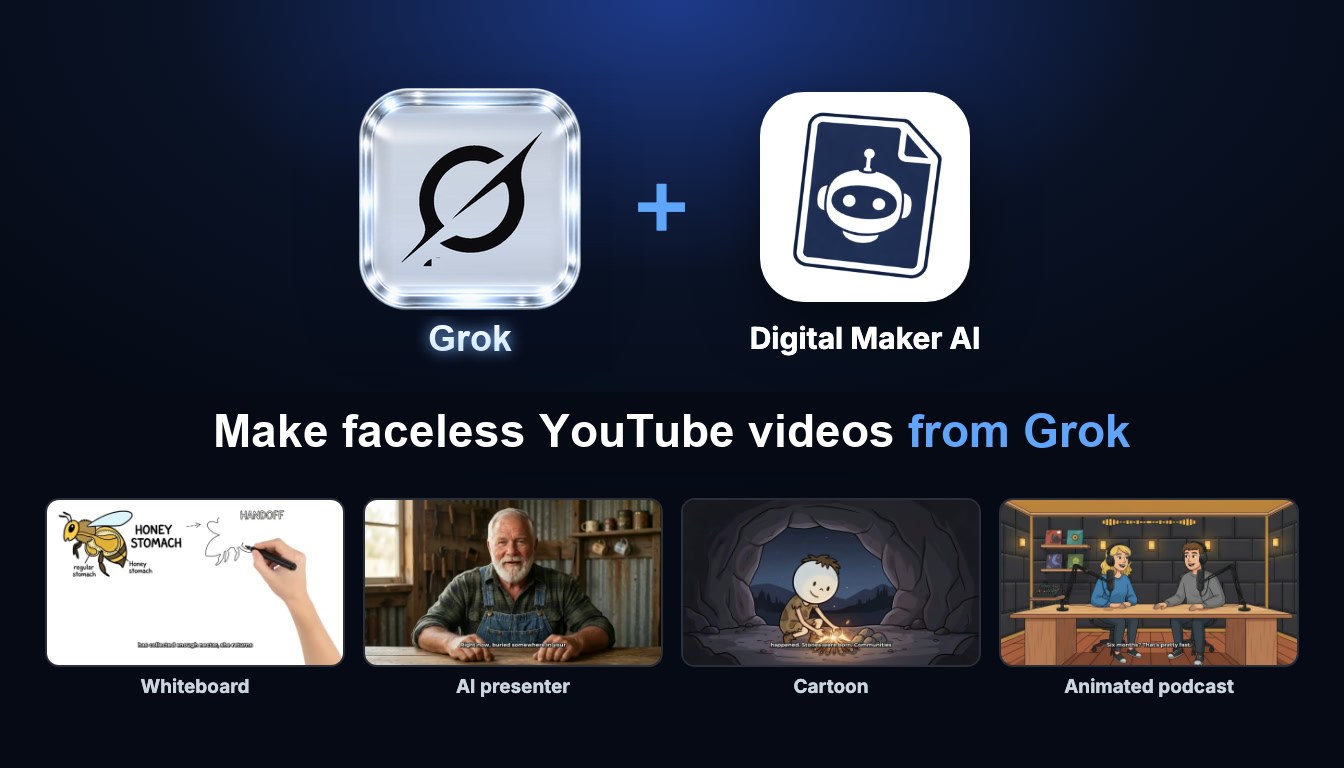
If you have been looking for a faster way to create Grok faceless YouTube videos, the answer is a simple connector between Grok (by xAI) and Digital Maker AI. Once it is set up, you can ask Grok in plain language to make a ten-minute history video, a whiteboard animation, an AI presenter video, a 3D animated film, an animated podcast, a vertical Short, a thumbnail, or to post a finished video straight to YouTube. This guide walks through every step: connecting the two apps, what to ask for each format, and how plans and minutes work.
What Grok Brings to Faceless Video Creation
Grok is xAI's conversational AI, built with real-time knowledge from X (formerly Twitter) and live web search baked in. That means when you ask it about a trending topic, a breaking story, or what people are talking about right now, it draws on up-to-the-minute information rather than a fixed training cutoff. Its answers tend to be plain-spoken and direct, which makes it easy to describe what you want in a video without writing a formal prompt.
On its own, Grok is great for brainstorming video ideas, checking whether a topic is trending, and drafting scripts. Connected to Digital Maker AI, those ideas turn into finished, ready-to-upload MP4 files sitting in your Digital Maker AI library, all without leaving the Grok chat. You get Grok's real-time research ability and Digital Maker AI's video engine working together on your own account.
What Connecting Grok to Digital Maker AI Actually Does
Digital Maker AI supports a set of AI app connectors, and the Grok connector works the same way as the Claude, ChatGPT and Gemini connectors. Once connected, Grok can make long form faceless videos, Shorts, whiteboard animations, cartoon videos with recurring characters, AI presenter videos, 3D animated films, animated podcasts, thumbnails, channel research, trend checks, and post finished videos to YouTube, TikTok and Instagram. It can also report your remaining minutes, save a video to Google Drive, and list what your plan includes.
Everything Grok makes goes through your Digital Maker AI account and uses your normal video minutes (or 3D minutes for 3D films). Grok confirms what it is about to make and the minute cost before anything starts, so you are never surprised by a charge. Finished videos take a little while to build; Digital Maker AI emails you when they are ready, and the video appears as a link in the chat and in your library.
Plan access matters here. Making any video through Grok (long form, Shorts, whiteboard, cartoon, AI presenter, animated podcast, or 3D film) needs a Premium or Ultimate plan on Digital Maker AI. Pro gets thumbnails, images, character creation, and channel and trend research through the connector. A Free account can check the account and save to Google Drive, but the five free videos and the Faceless Finder are used on the website itself. You can find the full plan breakdown at digitalmaker.ai/pricing.
How to Connect Grok to Digital Maker AI: Step-by-Step Setup
The whole setup takes about two minutes. Here is exactly how to do it.
- Open Account Settings in Digital Maker AI. Click Settings at the bottom of the left sidebar after signing in. Go to the AI Connector tab and find the Grok card. Click Set up, then click Create my Grok link. Copy the link immediately. It is shown once and acts like a password, so treat it that way. The connection URL looks like
digitalmaker.ai/mcp/YOUR_KEYin plain text. - Go to grok.com/connectors on a computer. You can also reach this from your Grok profile, then Connectors. Custom connectors are part of Grok's paid plans (SuperGrok and above). On a Grok Business or Enterprise workspace, an admin adds the connector for the whole team.
- Click New Connector, choose Custom, and paste the link as the server URL. No other sign-in is needed. The link itself is the key. Continue, and Grok will list Digital Maker AI's available actions. Confirm to add it.
- Start a new chat in Grok. Make sure Digital Maker AI is switched on under your connectors. Ask something simple first to confirm it is working, for example: "How many video minutes have I got left on Digital Maker AI?" This costs nothing and confirms the connection is live.
Grok may ask you to allow an action the first time it uses it. That is normal behaviour for custom connectors. Allow it and continue. Never paste your connector link into a Grok chat. For a full walkthrough of the connector, visit the Digital Maker AI Grok setup page.
Making a 10-Minute Multi Scene Faceless Video
The core product is the long form faceless video: AI writes the script, generates a unique still image for every scene, adds narration and captions, and returns a finished MP4. A ten-minute video is the maximum on a Pro plan, while Premium goes up to 30 minutes and Ultimate up to 60 minutes through the connector.
Try asking Grok something like: "Make me a 10 minute faceless video about the fall of the Roman Empire, History or Ancient style, UK male narrator, YouTube Yellow captions." Grok will confirm the details and minute cost, then you confirm, and it starts building. The video comes back as a link when it is ready.
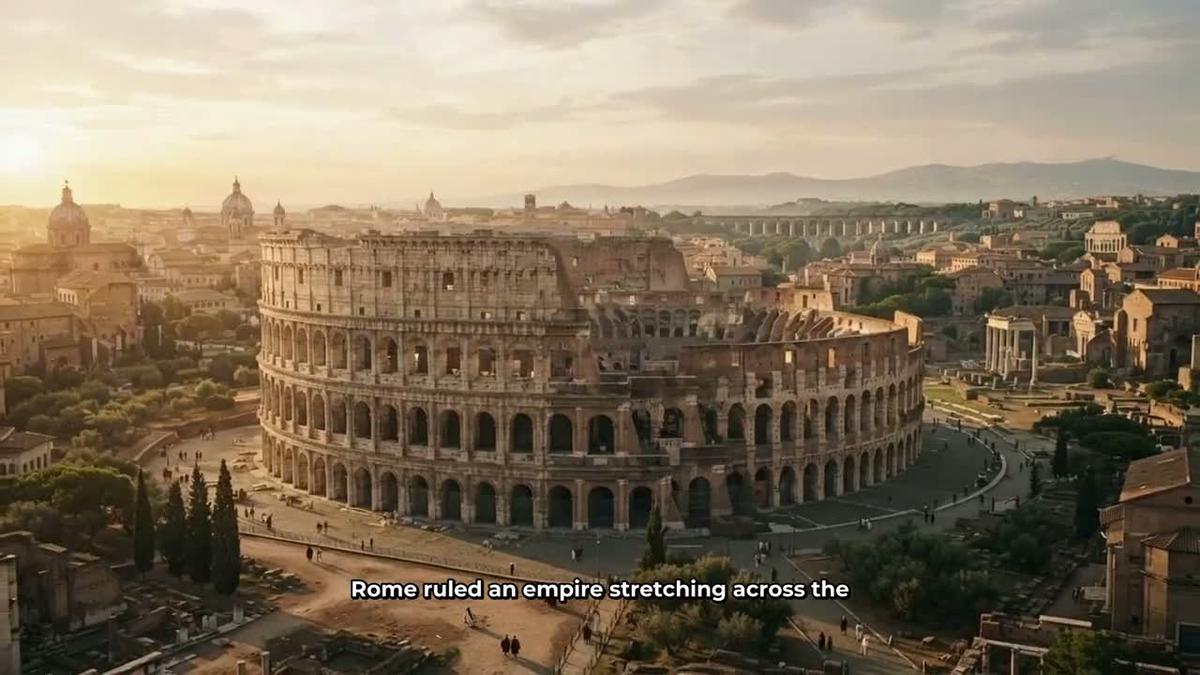
Once the video is in your library you can regenerate any scene image, swap in your own image or a short clip, or edit the narration text, all from the Digital Maker AI editor. There is no timeline editor, but you get ten free scene regenerations per video. For longer videos and more formats, see the long form video generator.
Making a Whiteboard Animation With Grok Faceless YouTube Videos
Whiteboard animations are a separate format where hand-drawn sketches draw themselves on screen as the narration plays. They work well for educational topics, explainers and tutorials. Premium supports whiteboard videos up to 30 minutes and Ultimate up to 60 minutes.
Ask Grok: "Make me a 12 minute whiteboard animation about how the stock market works, Storyboards style, dark drawing hand, female US narrator." Grok confirms the plan, you approve, and it builds the video. You can also ask for a specific whiteboard look: classic or Storyboards, and a choice of drawing hand (none, light, brown or dark).
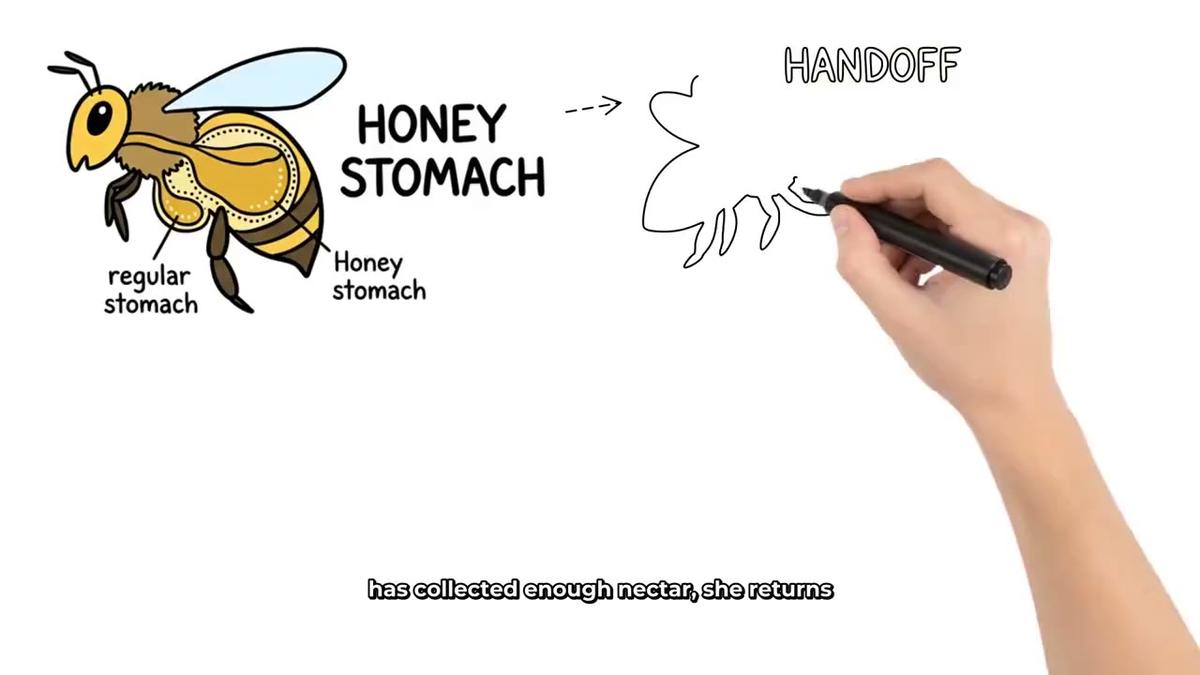
Note that whiteboard videos do not support recurring characters, AI presenters or animated scenes. For more on this format, visit the whiteboard animation generator page.
Making an AI Presenter Video
AI presenter videos place a talking avatar on screen alongside your normal scene images. The presenter is a photoreal AI-generated person you create once in Account Settings under the Presenters tab: describe who they are and their setting in a sentence or two, the AI draws them, and you save them. You can make several and reuse them across videos.
Through Grok you can ask: "Make me a 5 minute faceless video about passive income ideas, with my presenter Cedric, split screen layout, Finance or Luxury style, 30 percent presenter time." The video will rotate between Full screen, Split screen and Corner circle layouts depending on which you pick. The presenter speaks the same narration voice as the rest of the video.
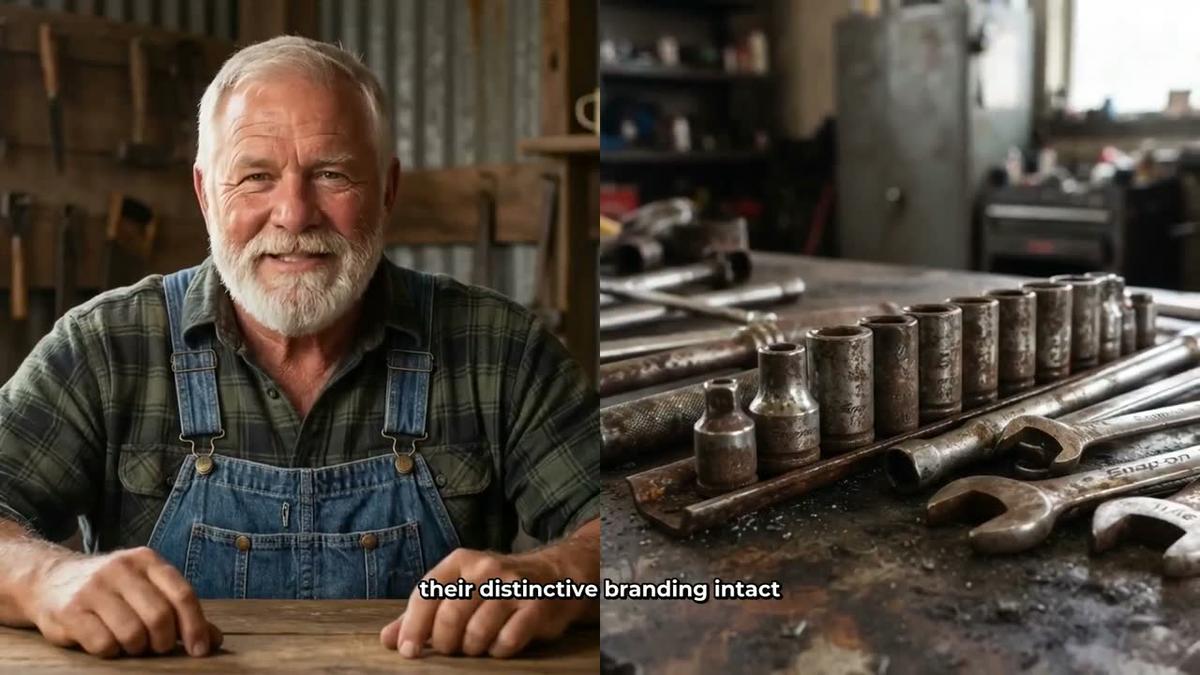
Presenters run on avatar time, counted in seconds and separate from video minutes. Premium starts with 2 minutes of avatar time and Ultimate with 5 minutes, and Ultimate also receives 3 minutes every month. Avatar Packs add more as one-off purchases; see digitalmaker.ai/pricing for details. AI presenter videos need Premium or Ultimate and are for landscape Multi Scene videos. Learn more at the AI avatar video generator page.
Making a Cartoon Video With a Recurring Character
The Animated or Cartoon visual style produces illustrated, cartoon-looking still scenes. Pair it with a recurring character and the same character appears drawn into every scene of the video, giving your channel a consistent look and personality.
Ask Grok: "Make me a 7 minute cartoon video about ancient Greek myths, Animated or Cartoon style, with my recurring character Atlas, male narrator, Bold Pop captions." You can also ask Grok to draw a new character from a description before making the video: "Draw me a cartoon character: a wise old owl in a library, wearing spectacles and a waistcoat. Save him as Professor Hoot." Creating a character through the connector needs at least a Pro plan; using characters in videos needs Premium or Ultimate.
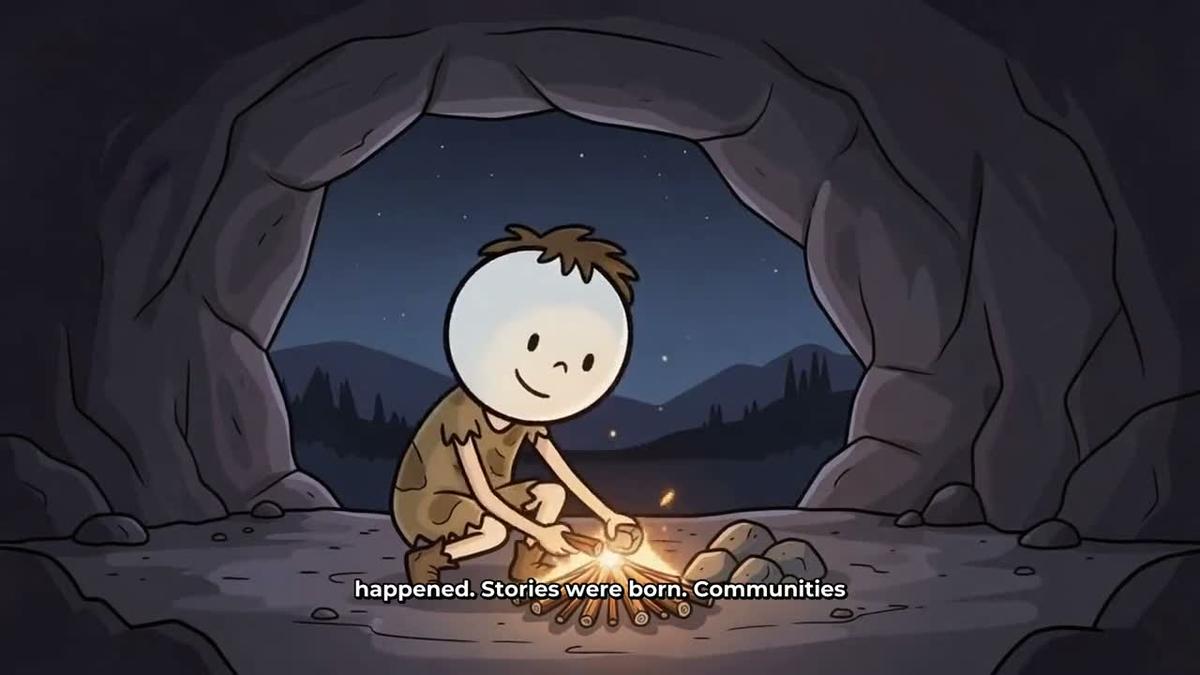
For more on this format, visit the cartoon video generator page.
Making a 3D Animated Story Film
The 3D Animated Movie format produces a fully animated Pixar-style story film: every shot is a moving 3D clip, with narration and captions. You pick from 233 public-domain library stories (fairy tales, fables, Bible stories, myths and legends, classic drama and more) or write your own plot.
Ask Grok: "Make me a 3D animated film of David and Goliath, Epic and faith look, Storyteller narrator, 8 minutes, captions on." Or try: "Make me a 3D animated Cinderella film, Nursery look, female narrator, 6 minutes." Grok will show you the cast and confirm the details before starting.
3D films are paid with 3D minutes, not your regular video minutes. These are bought as 3D Packs and are separate from your monthly pool. Ultimate includes 2 free 3D minutes a month. Pro supports films up to 10 minutes; Premium and Ultimate go up to 30 minutes. Free accounts cannot make 3D films. After the film is ready, any shot can be fixed shot by shot. Find out more at the 3D animated film page.
Making an Animated Podcast With Two Hosts
The animated podcast format puts two AI hosts in an animated studio scene, talking through a topic in two different voices, with captions and animated sound bars. You name and style both hosts, pick their voices and a studio, and every new episode reuses the same setup.
Ask Grok: "Make me a 20 minute animated podcast episode about the psychology of money, conversational tone, hosts Marcus and Priya, jazz studio background." Long episodes are written and recorded in sections, so a 30 to 60 minute episode can take 45 to 90 minutes to build. Digital Maker AI emails you when it is ready.
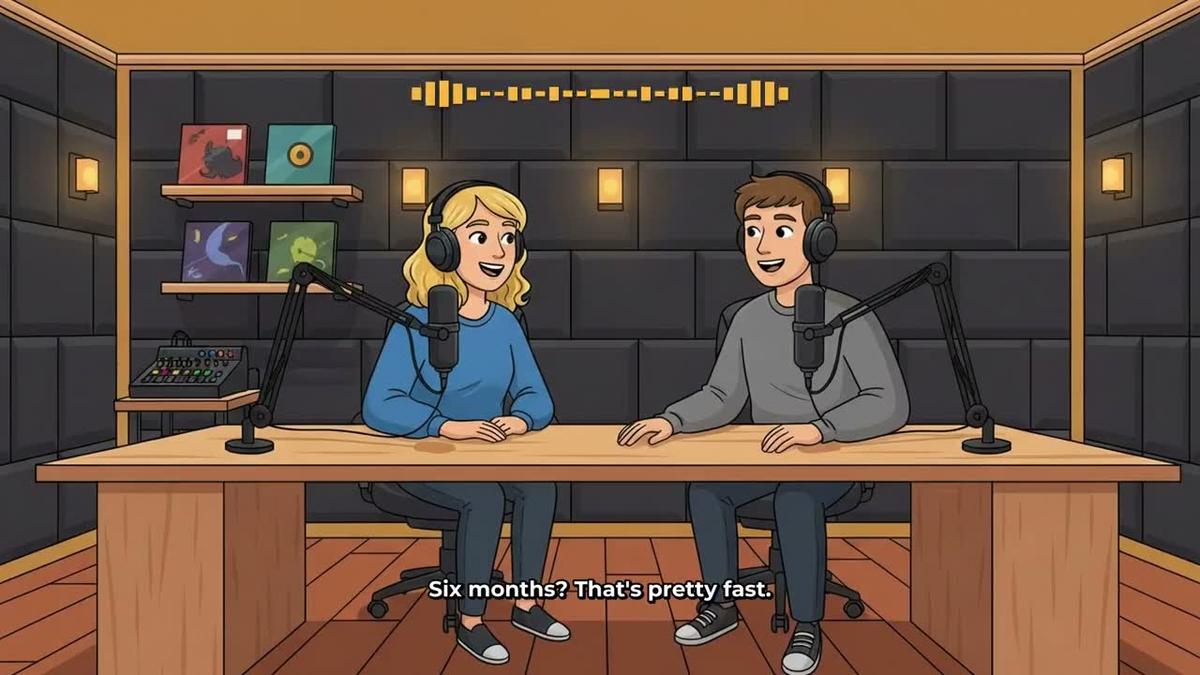
Animated podcasts need Premium or Ultimate. Pro does not include this format. Learn more at the animated podcast generator page.
Making a Vertical Short
For YouTube Shorts, TikTok and Instagram Reels, the Short format produces a vertical 9:16 video of 15, 30, 45 or 60 seconds, with a new scene image every few seconds, narration and bold captions. Each Short costs a flat one minute from your monthly pool.
Ask Grok: "Make me a 30 second Short about the Bermuda Triangle, Space or Sci Fi style, bold captions, fast-paced female narrator." Shorts are available on Pro, Premium and Ultimate through the connector.
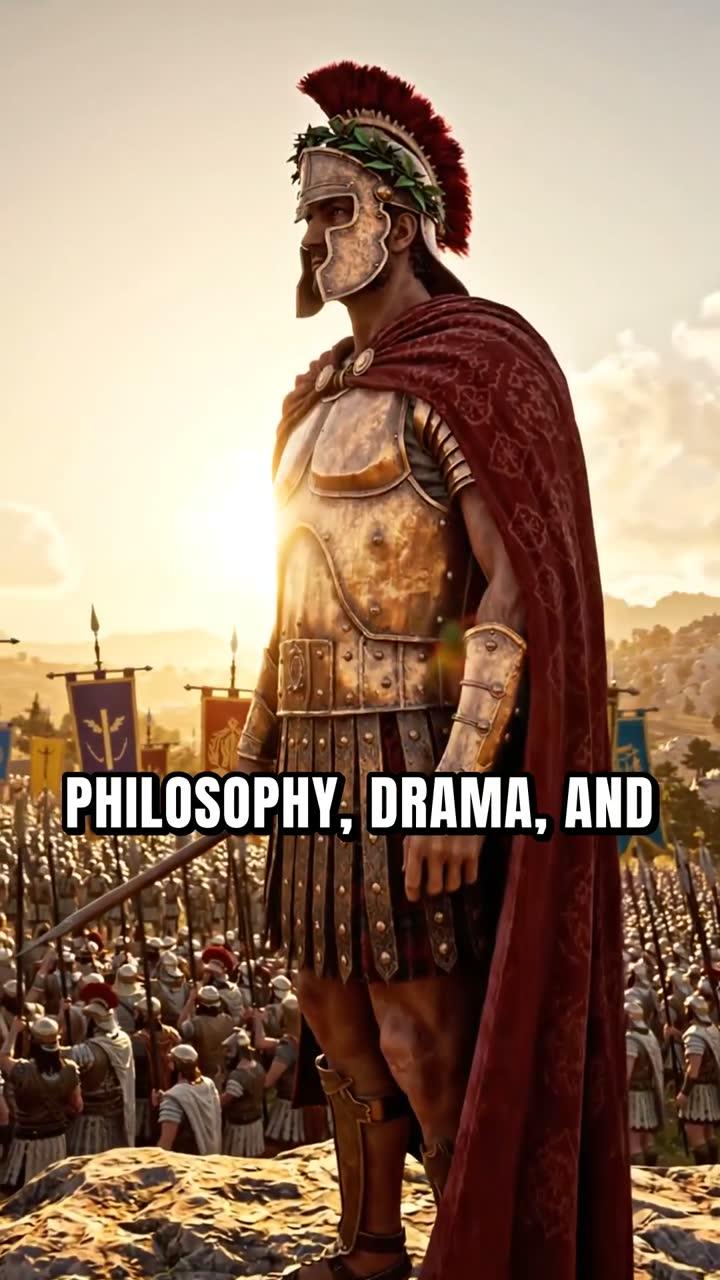
For more on Shorts and vertical video, visit the YouTube Shorts generator page.
Thumbnails, Channel Research, Trend Checks and Posting
Grok's real-time knowledge from X and web search makes it particularly useful for research tasks. Here is what you can ask for beyond video creation.
Thumbnails
Ask Grok: "Make me a YouTube thumbnail for my video about the fall of Rome, Finance or Luxury style, dramatic lighting." Thumbnails are available from Pro and above through the connector.
Faceless Finder Channel Research
Ask Grok: "Search the Faceless Finder for history channels with over 100,000 subscribers." Or: "Show me AI avatar channels in the Faceless Finder." The Faceless Finder shows subscribers, uploads per week, average video length and estimated monthly ad revenue. The revenue figure is Digital Maker AI's own rough estimate from recent views and typical ad rates, not the channel's real earnings. Channels fronted by an AI presenter are marked with an AI Avatar label.
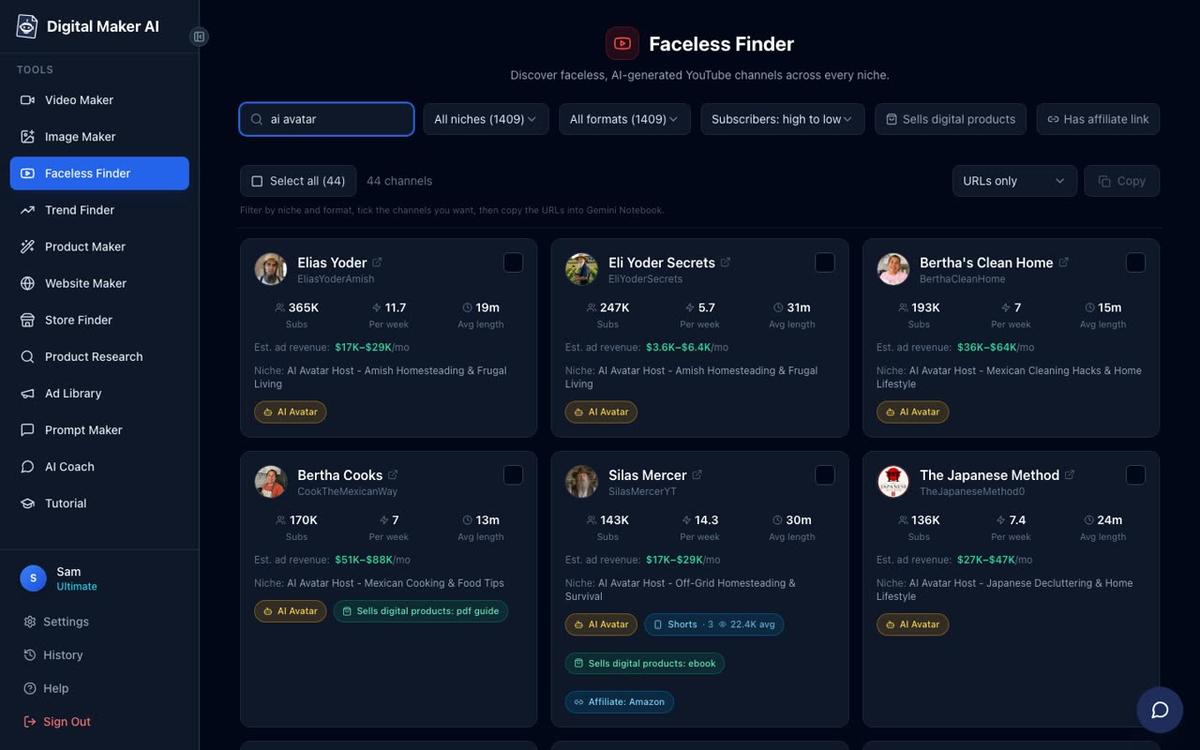
Channel and trend research through the connector needs Pro or above.
Trend Checks
Because Grok has live web search and real-time X data, you can combine a trend check with a video request: "What topics about ancient history are trending on X right now? Then make me a 6 minute faceless video about the most interesting one." Grok will research first, then confirm the video details before building it.
Posting a Finished Video to YouTube
Once a video is ready, ask Grok: "Post my latest Digital Maker AI video to YouTube now with the title 'The Fall of Rome Explained' and this description: [your description]." Or schedule it: "Post it to YouTube on Friday at 9am." Posting to YouTube, TikTok and Instagram from Grok needs Premium or Ultimate. Nothing posts automatically; Grok sends the post when you confirm. Posts are labelled as AI generated. Connect your social accounts once in Account Settings before using this feature. Learn more about posting to YouTube, TikTok and Instagram.
Tips for Getting the Best Results From Grok Faceless YouTube Videos
- Be specific in your requests. The more detail you give (topic, length, style, narrator gender and accent, caption look, music mood), the closer the first result will be to what you want. Grok will ask for missing details if it needs them.
- Use Grok's live search before making a video. Ask what is trending on X in your niche, then feed that into your video request. This is one of the strongest reasons to use Grok rather than a static AI for this workflow.
- Check your minutes before a long video. Ask "How many video minutes do I have left?" before starting anything over 10 minutes. It costs nothing and takes a second.
- Remember 3D minutes are separate. 3D animated films use 3D minutes from a 3D Pack, not your monthly video pool. Check the 3D animation page for details on packs.
- Save your show settings. For animated podcasts, your hosts, voices and studio are saved automatically, so every new episode is one request away.
- Fix scenes after the video is made. Grok can tell you the video is ready and give you the link, but scene regeneration, image swaps and narration edits are done in the Digital Maker AI editor on the website.
- Compare connectors. If you also use Claude or ChatGPT, the same connector works across all of them. See the ChatGPT faceless video guide for a parallel walkthrough.
Ready to Start Making Grok Faceless YouTube Videos?
The combination of Grok's real-time knowledge and Digital Maker AI's video engine covers every format a faceless YouTube channel needs: long form videos, whiteboard animations, AI presenter videos, cartoon series, 3D animated films, animated podcasts and Shorts, all from a plain-language chat. Set up the connector once, and every new video is a single conversation away.
If you are new to faceless channels and want a broader foundation first, the free faceless YouTube course covers channel setup, niche research and your first video from scratch.
Alex Stevens: Alex Stevens writes for the Digital Maker AI team about faceless YouTube channels, AI presenters and AI video tools.