Best Way to Make a 2D Animation Video in 2027
By Alex Stevens
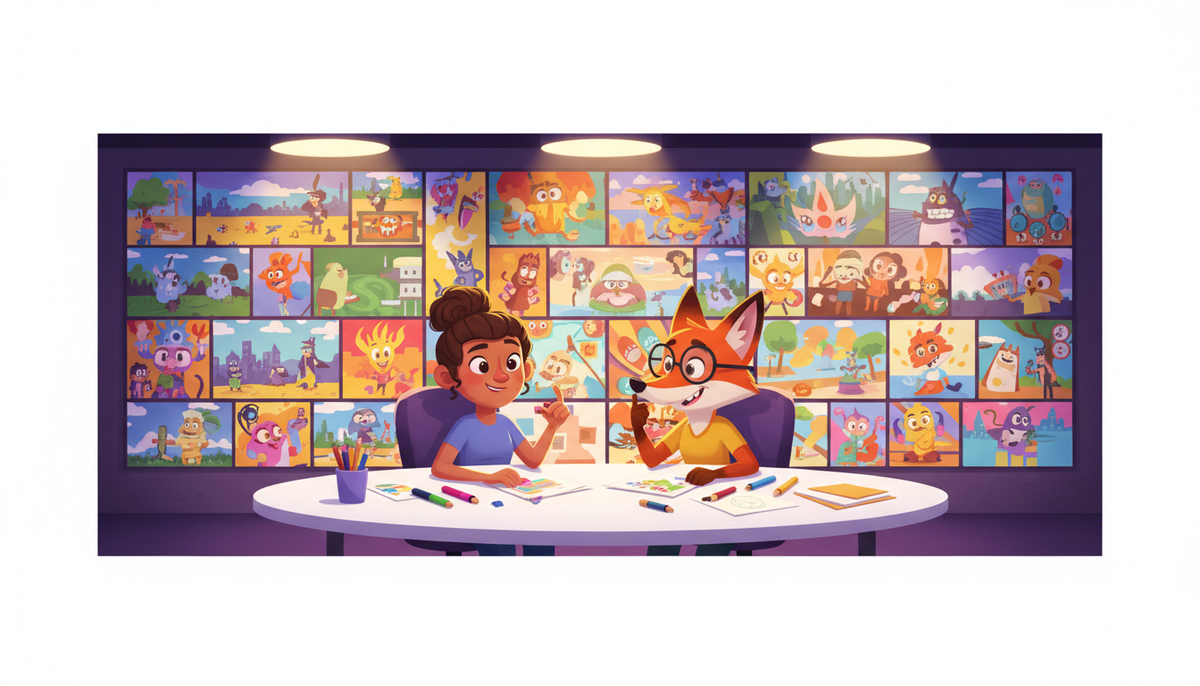
The best way to make a 2D animation video in 2027 is to use an AI video platform that generates illustrated, cartoon-style scenes from a script automatically, so you skip the frame-by-frame work entirely. Digital Maker AI (digitalmaker.ai) is an AI video platform for faceless YouTube videos, AI presenter videos, animated podcasts, 3D animated films and digital products. Its Animated or Cartoon visual style produces illustrated, cartoon-looking still scenes matched to a narration, giving you a complete MP4 ready to upload in minutes.
Key takeaways
- The Animated or Cartoon style in Digital Maker AI generates a unique illustrated scene image for every section of your script, no manual frame work needed.
- You can add a recurring cartoon character (same character across every scene) on Premium and Ultimate plans, as of November 2026.
- Free accounts get one 2D-style long form video up to 8 minutes, with a small watermark, using a ready-made image library.
- Paid plans generate every scene image fresh on any topic, with up to 10 minutes (Pro), 30 minutes (Premium) or 60 minutes (Ultimate) per video.
- The whole process, from typing your topic to downloading a finished MP4, takes around 5 to 10 minutes for a short video.
What does "2D animation video" mean for a YouTube channel?
A 2D animation video is a video where the visuals look like illustrated, flat cartoon artwork rather than live footage or 3D renders. For YouTube, this usually means cartoon-style scenes that match a narration, with captions burned in. It is a popular style for educational channels, storytelling channels and any creator who wants a distinctive look without appearing on camera. In Digital Maker AI, the Animated or Cartoon visual style produces exactly this: each scene is a unique AI-generated illustrated still image held on screen while the narration plays, with optional slow zoom or pan motion effects.
This is different from frame-by-frame animation software. You are not animating characters limb by limb. Instead, the AI generates a new illustrated scene for every section of your script, and the narration carries the story. The result looks like a cartoon explainer or illustrated documentary, which is one of the most watched styles on YouTube right now.
What kind of channel suits the best way to make a 2D animation video?
The Animated or Cartoon style works especially well for channels where the topic is more important than the visuals being photorealistic. Good fits include:
- Educational and explainer channels covering history, psychology, science or personal finance, where illustrated scenes make abstract ideas easier to follow.
- Storytelling and mythology channels where a cartoon look gives the video a timeless, storybook feel.
- Motivational and self-improvement channels where bold, clean illustrated scenes keep the viewer focused on the message.
- Children's content and bedtime story channels where a friendly cartoon style is expected by the audience.
- Faceless channels with a recurring character, for example a fictional financial educator or a cartoon historian who appears in every video.
If you want a consistent character across your videos, take a look at the guide on how to make a cartoon video with a recurring character in 2027 for a deeper look at that workflow.
Step 1: Create your account and open the Video Maker
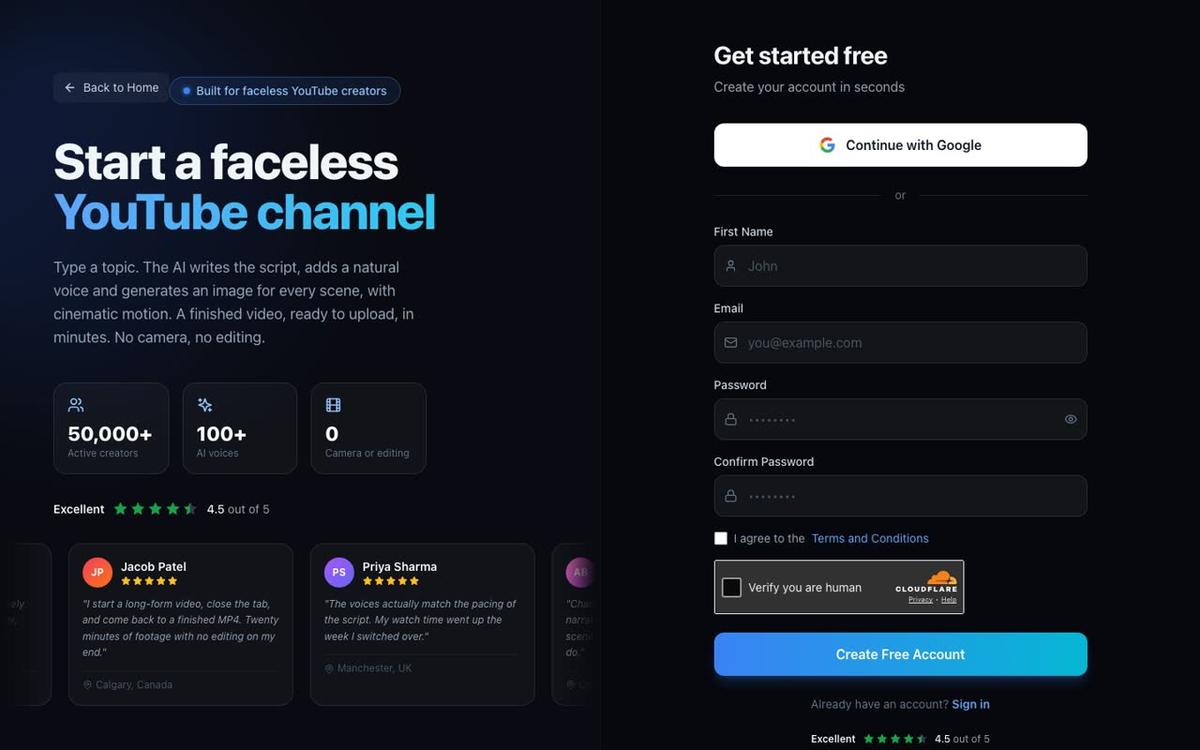
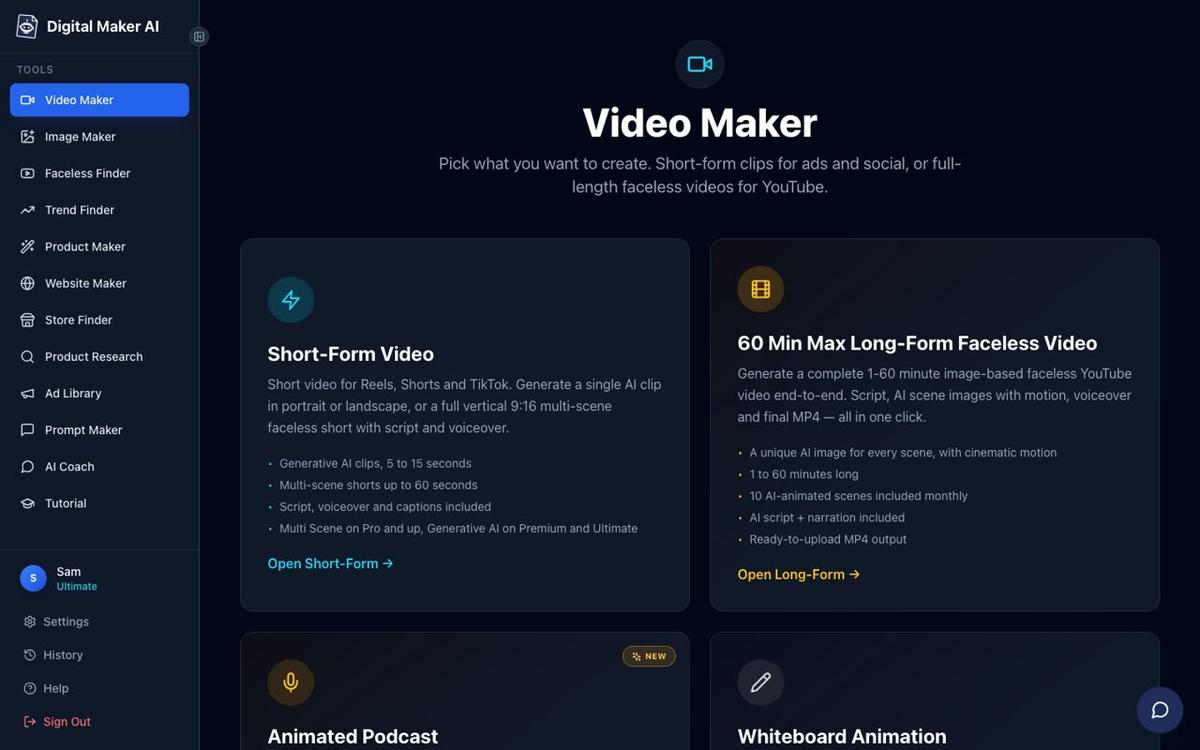
Go to digitalmaker.ai/faceless and create a free account. No card is needed. Once you are signed in, find the Video Maker button in the left sidebar and click it. This opens the video type screen where you choose what kind of video to make.
Select Long-Form Faceless Video and press Next at the bottom of the screen. Free accounts get one long form video up to 8 minutes using a ready-made image library. Paid plans generate every scene image fresh on any topic you type.
Step 2: Choose your format
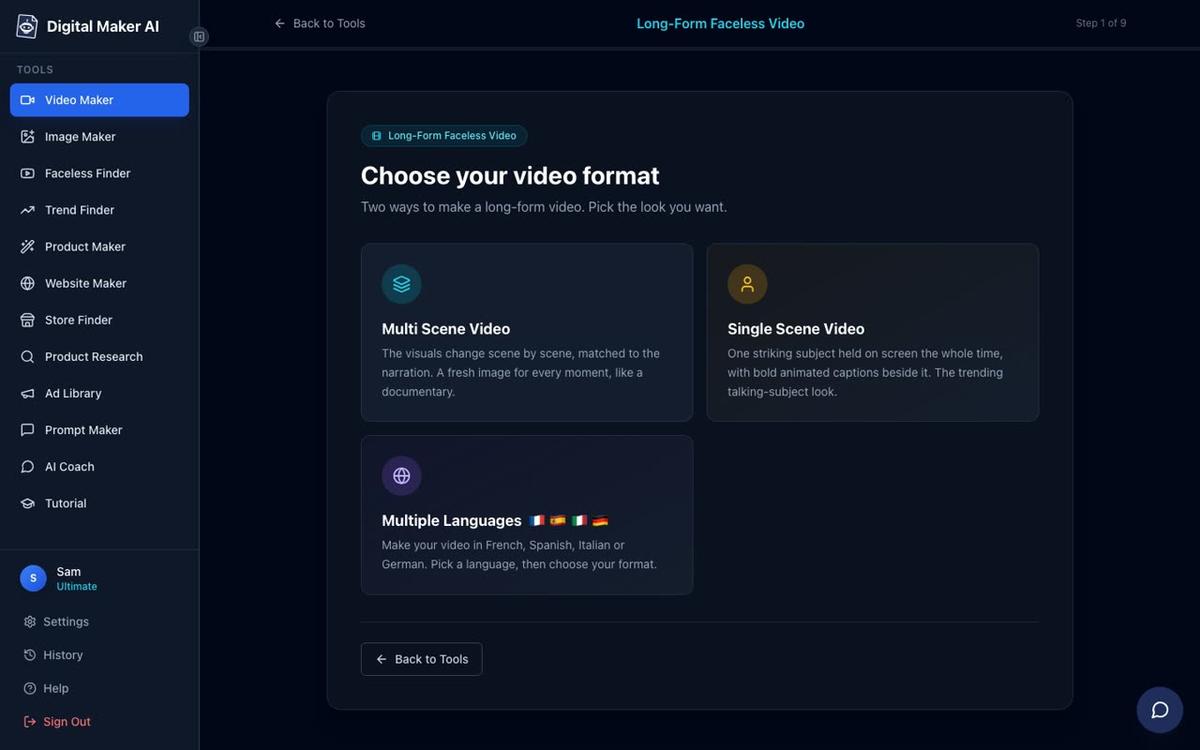
The format step asks which type of long form video you want. For a 2D animation video, choose Multi Scene. This format generates a new illustrated scene image for every section of your script, which is exactly what gives the cartoon style its visual variety. Multi Scene is available on all paid plans and on the Free plan (with library images).
Tip: If you want a whiteboard marker-sketch style instead of full cartoon illustrations, Digital Maker AI also has a Whiteboard Animation format on Premium and Ultimate. But for the richest illustrated cartoon look, Multi Scene with the Animated or Cartoon style is the right choice.
Step 3: Write or paste your script
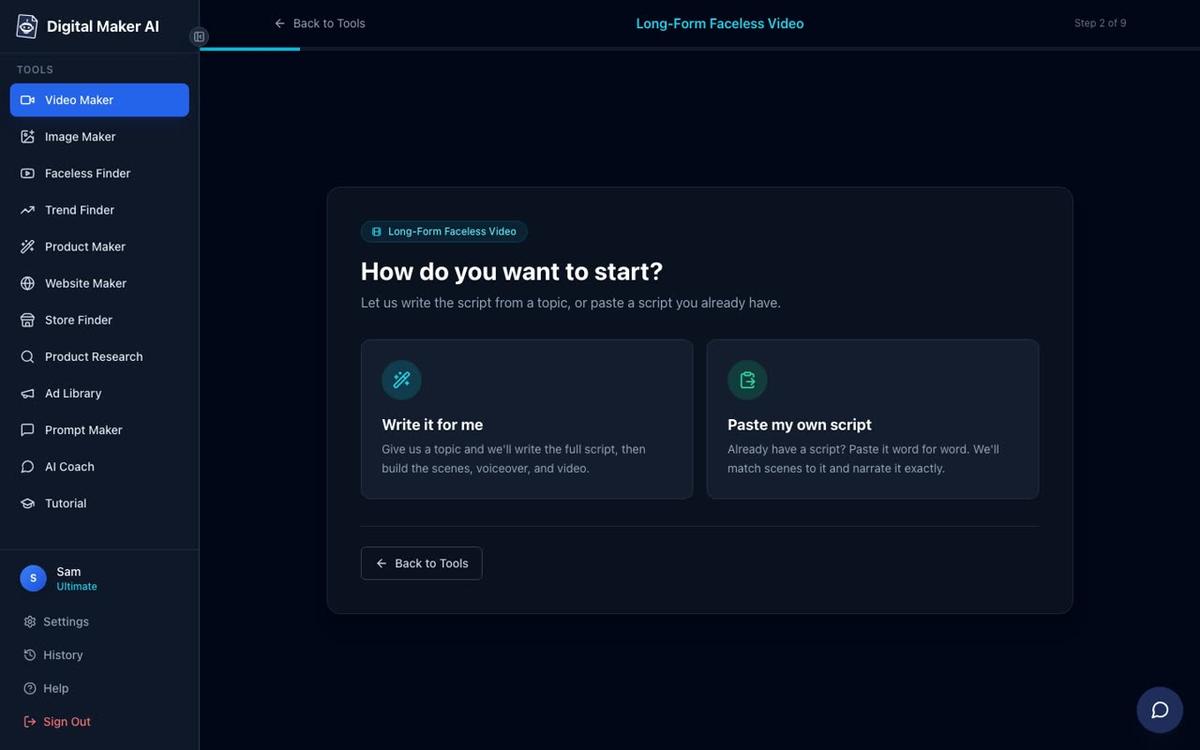
On the next screen, choose how you want to start. Select Write it for me and the AI will write the full script from a topic you type. On paid plans you can also choose Paste my own script if you have already written it. Free accounts use the AI-written option only.
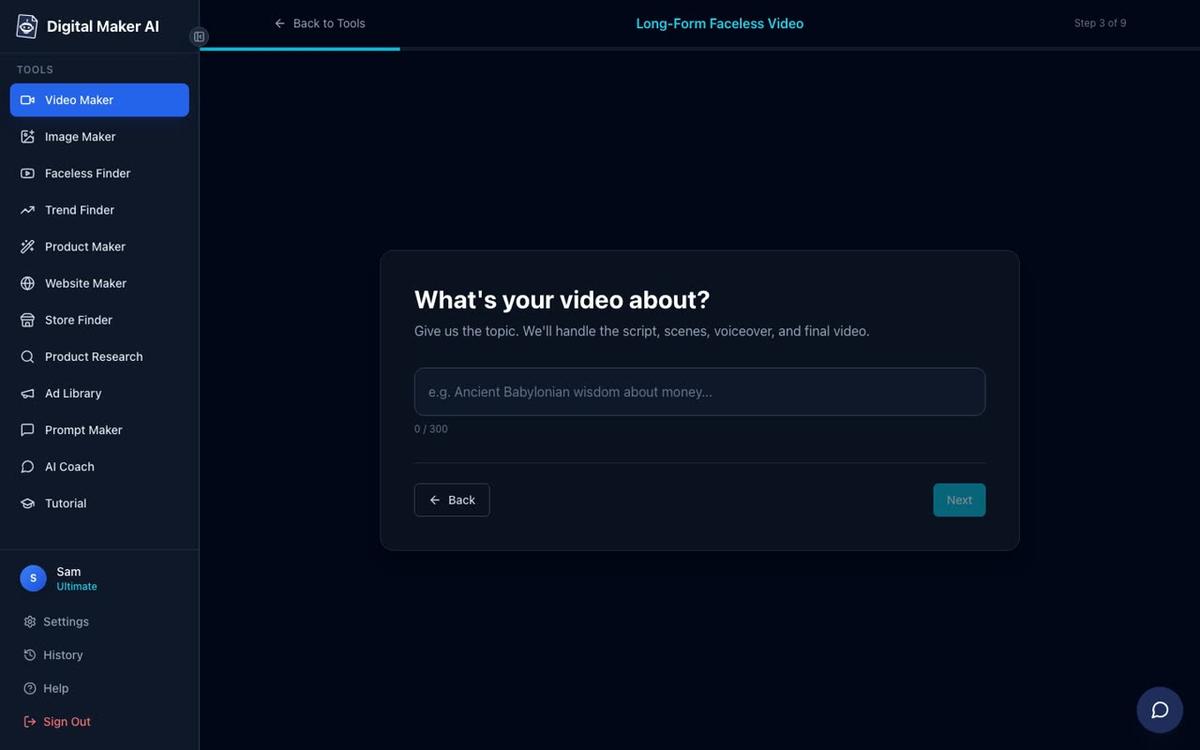
Then type your topic on the next screen. Be specific. Instead of "Greek mythology", try "The story of Icarus and what it teaches about ambition". A focused topic gives the AI a clear direction and produces more consistent illustrated scenes.
Step 4: Pick the Animated or Cartoon visual style
This is the most important step for a 2D animation video. On the style screen, select Animated or Cartoon. This tells Digital Maker AI to generate every scene as an illustrated, cartoon-looking image. The other six styles (Realistic, Motivational, Finance, History, Space, Minimalist) produce different looks, but Animated or Cartoon is the one that gives you that flat, illustrated 2D feel.
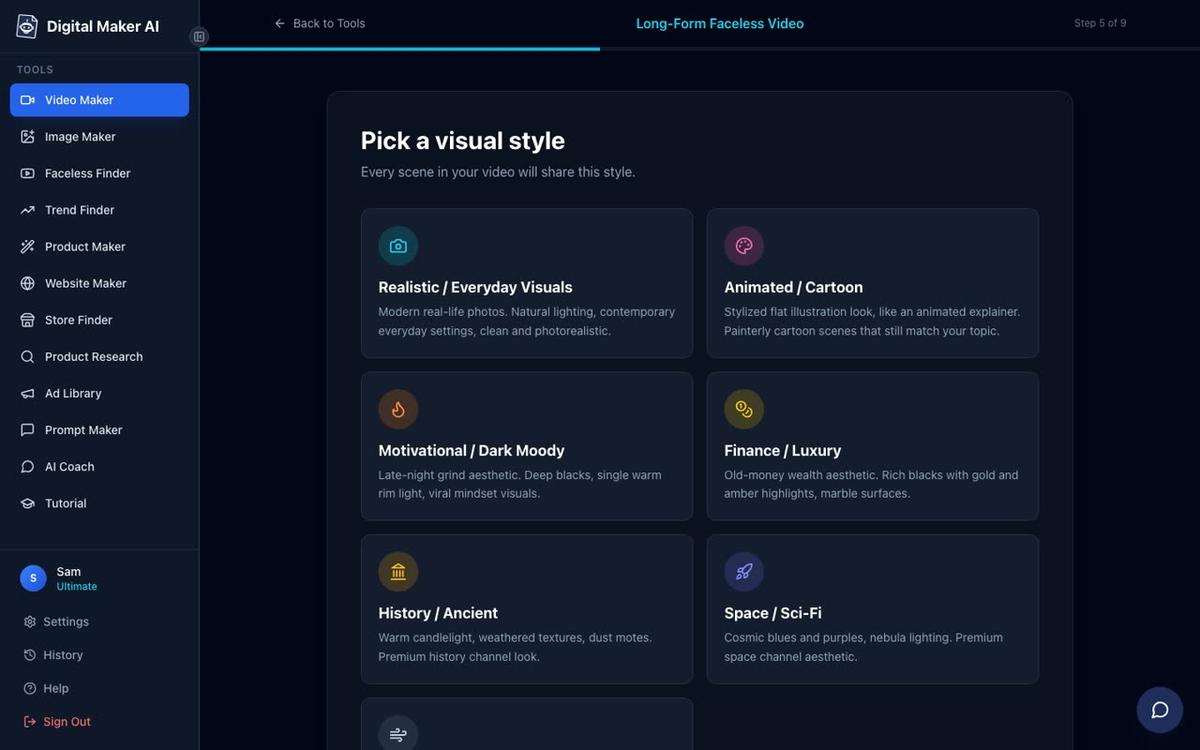
Tip: The Animated or Cartoon style is available on both the Free plan (from the image library) and all paid plans (fresh AI-generated scenes on any topic). On a paid plan, every scene is generated specifically for your script, so a video about "ancient Sparta" will get illustrated scenes of Spartan warriors, not generic library images.
Step 5: Set the length and pick a voice
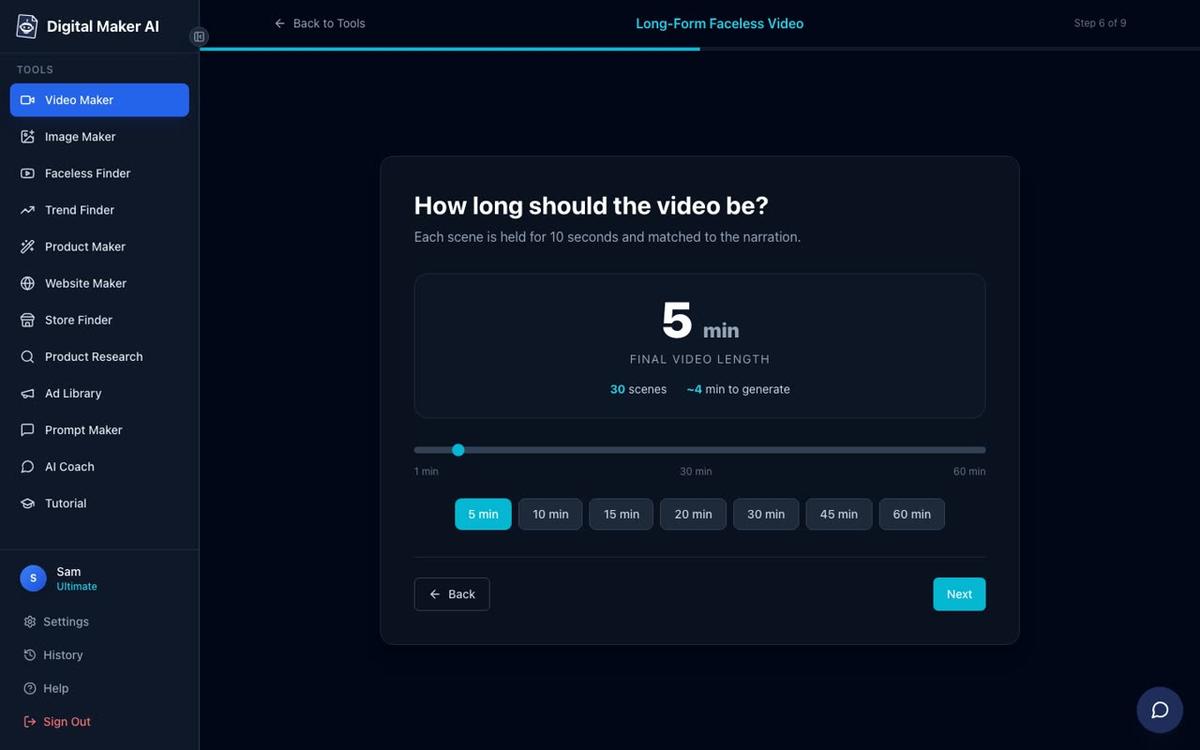
Use the length slider to choose how long your video will be. Each plan has a maximum: Pro up to 10 minutes, Premium up to 30 minutes, Ultimate up to 60 minutes. Free accounts can make one long form video up to 8 minutes. A 5-minute video has around 30 scenes, and generation usually takes 3 to 6 minutes.
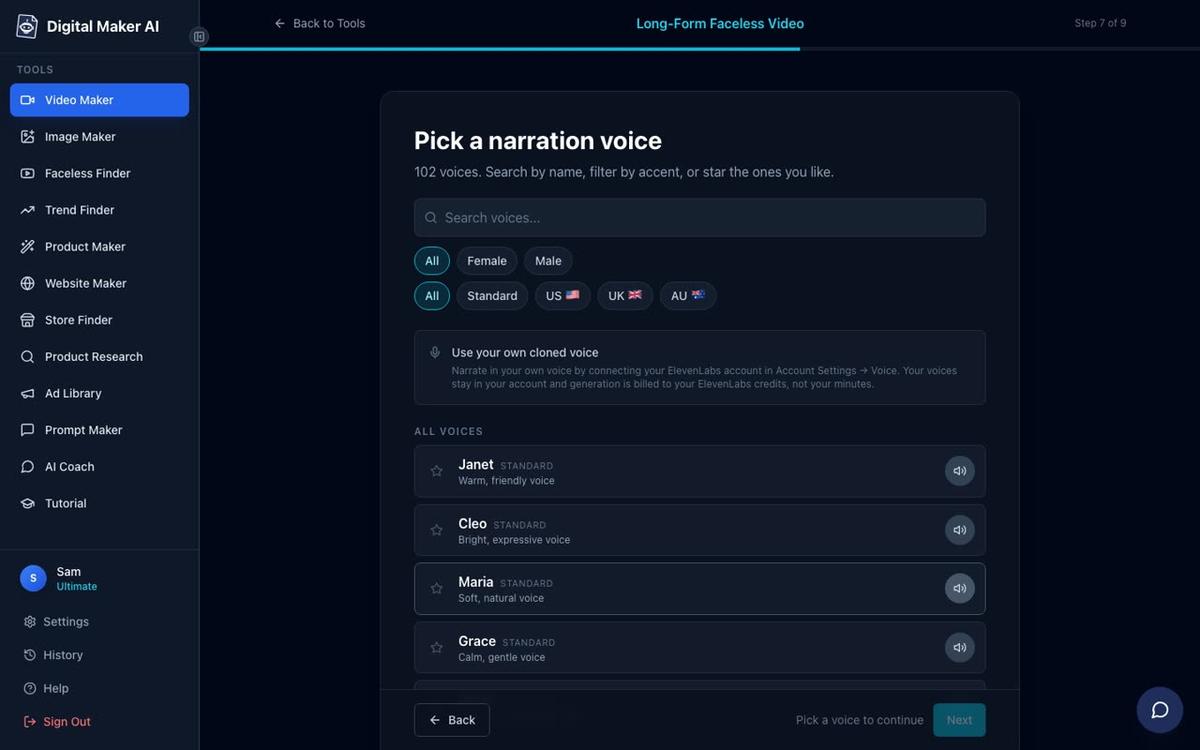
Then pick a narration voice. There are more than 100 built-in AI voices, with male and female options and US, UK and Australian accents. You can filter and preview each one. For a cartoon-style video, a warm, clear voice tends to work better than a very deep or very fast one. Premium and Ultimate users can also design their own custom voice from a written description.
Step 6: Review, confirm and generate
The final step shows a summary of every choice: format, topic, style, voice, pace, length and how many minutes the video will use from your monthly pool. Check everything here before you press Generate. Once you press Generate Video, the platform writes the script (if you chose "Write it for me"), generates a cartoon-style scene image for every scene, records the narration and assembles the final MP4.
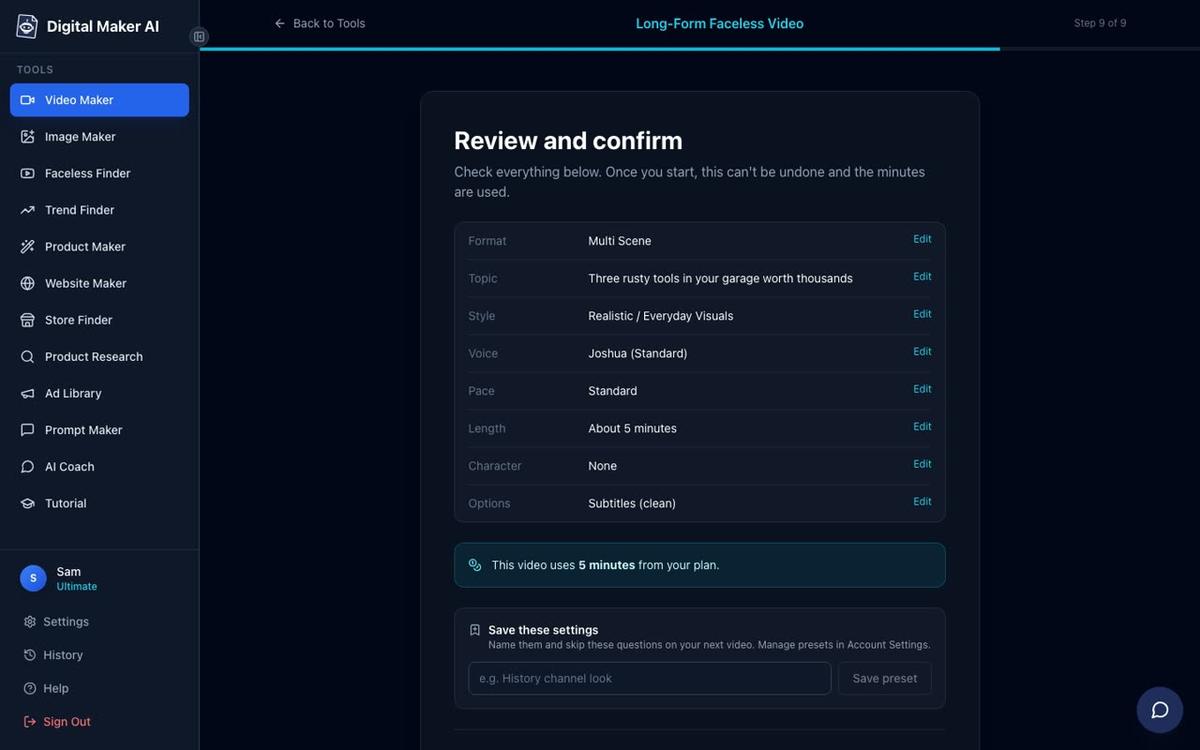
Generation usually takes 3 to 6 minutes for a 5-minute video. You will get an email when it is ready if you navigate away.
Step 7: Edit any scene and download or post
Once the video is ready, you can review every scene. If a cartoon scene image is not quite right, you can regenerate it (10 free regenerations per video), swap in your own image, or edit the narration text for that scene and change the voice. There is no timeline editor, but you have full control over each scene individually.
When you are happy with the result:
- Download the MP4. Every plan can download the finished file. Free and Pro users download and upload to YouTube themselves.
- Post directly to YouTube, TikTok or Instagram. Premium and Ultimate users can press Post to socials and publish now or schedule it, after connecting their accounts once in Account Settings. Posts are labelled as AI-generated. Find out more about posting AI videos to YouTube, TikTok and Instagram from inside the platform.
- Save to Google Drive. Premium and Ultimate users can also save the finished video directly to Google Drive.
How to add a recurring cartoon character to every video
A recurring character is a saved character image that appears in the illustrated scenes of every video you make. This is one of the most effective ways to build a recognisable brand on a cartoon-style YouTube channel. On Premium and Ultimate, you can upload or build a character image, save it (up to 10 characters), and the same character will be added to the scenes of every new video you make.
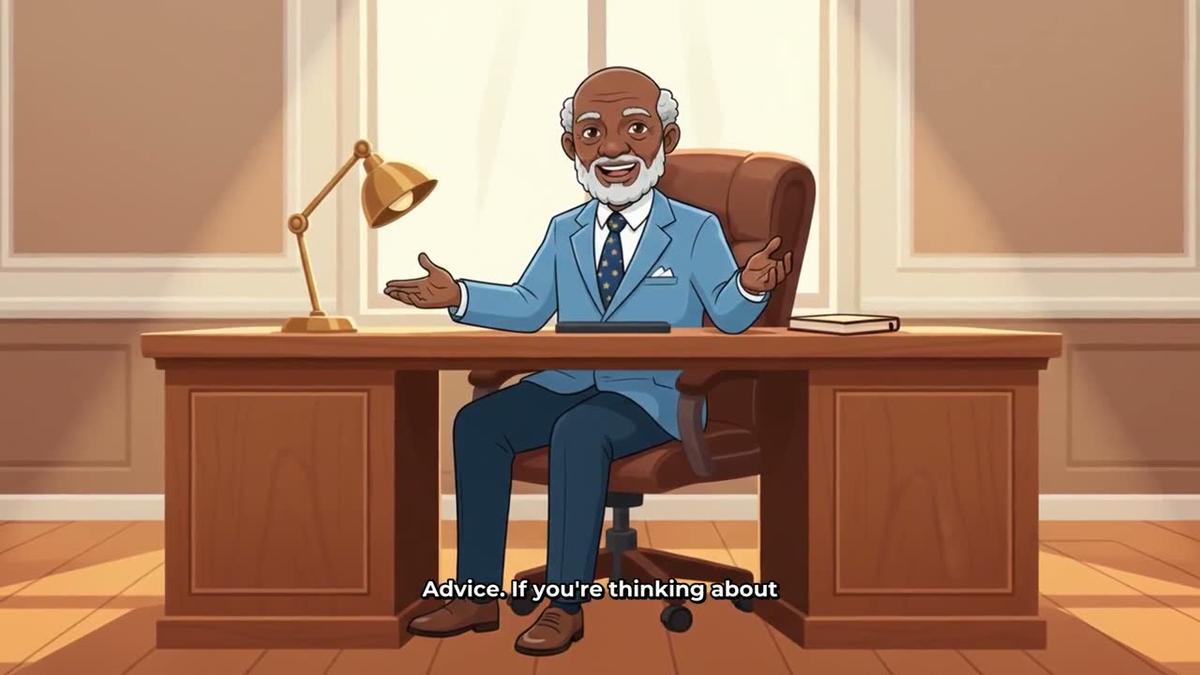
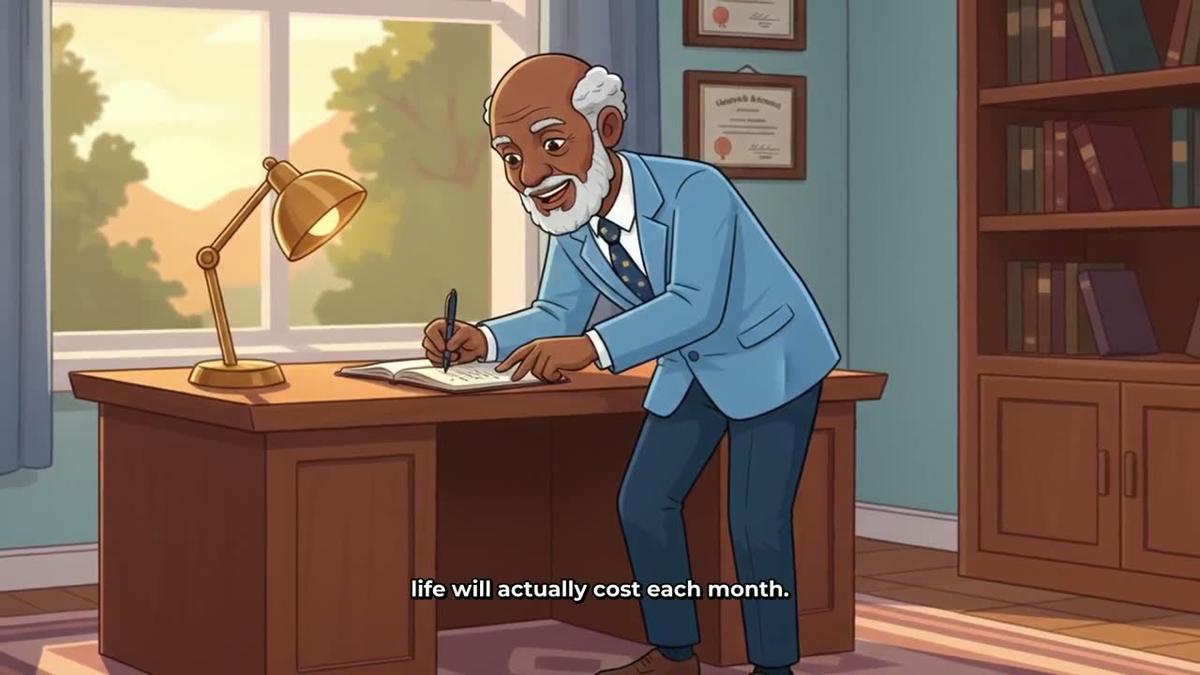
Recurring characters are not available on the Free plan or on Whiteboard Animation videos. See the full guide on consistent AI character videos for more detail on building and saving characters.
Plans and length limits for 2D animation videos in 2027
Here is a quick summary of what each plan includes for the Animated or Cartoon style long form video, as of November 2026. For current pricing, visit digitalmaker.ai/pricing.
| Plan | Max video length | Monthly video minutes | Scene images | Recurring character |
|---|---|---|---|---|
| Free | 8 minutes (one video) | One free video | Library images in set topics | No |
| Pro | 10 minutes | 40 minutes | Fresh AI-generated on any topic | No |
| Premium | 30 minutes | 150 minutes | Fresh AI-generated on any topic | Yes (up to 10) |
| Ultimate | 60 minutes | 300 minutes | Fresh AI-generated on any topic | Yes (up to 10) |
Tips for the best results with a 2D animation video
- Be specific with your topic. The more focused your topic line, the more consistent the illustrated scenes will be. "The fall of the Roman Republic" produces better cartoon scenes than just "Rome".
- Use optional motion effects. The slow zoom and pan effects make the still illustrated scenes feel more dynamic without adding complexity. Turn them on in the settings step.
- Pick a caption style that suits cartoons. Bold Pop or YouTube Yellow captions stand out well against illustrated backgrounds. Clean or Minimal can get lost if the scene is busy.
- Add background music. The optional music library is off by default. A light background track adds a lot of warmth to a cartoon video. Pick a mood rather than a specific track for the best fit.
- Regenerate scenes that miss the mark. Each video gives you 10 free scene regenerations. Use them on any scene where the illustrated image does not match the narration well.
- Build your character before your first video. If you plan to use a recurring character, create and save it in the Image Maker or Account Settings before you start the video. It is easier than going back to add it later.
Common mistakes to avoid
- Choosing a topic that is too broad. A vague topic produces generic illustrated scenes. Narrow it down to one story, one idea or one lesson per video.
- Expecting moving animation. The Animated or Cartoon style generates illustrated still scenes, not moving cartoon characters. The motion comes from the optional slow zoom and pan effects on each scene. If you want real moving footage on specific scenes, the Animate Scenes add-on can turn chosen scenes into short AI motion clips on Premium and Ultimate.
- Skipping the review step. Always check the summary screen before pressing Generate. Changing the style or voice after generation uses more minutes.
- Using a voice that is too fast for cartoons. Cartoon-style videos tend to work best at a calm or standard pace. The Energetic pace can feel rushed when the visuals are illustrated and detailed.
Frequently asked questions
Is the Animated or Cartoon style real moving animation?
No. It generates illustrated, cartoon-looking still images for each scene, held on screen while the narration plays. Optional slow zoom or pan motion effects add movement. For real moving footage on specific scenes, the Animate Scenes add-on is available on Premium and Ultimate plans.
Can I make a 2D animation video for free?
Yes. The Free plan includes one long form video up to 8 minutes in the Animated or Cartoon style, using a ready-made image library in set topic areas. It carries a small watermark. Paid plans generate fresh illustrated scenes on any topic you choose.
How long does it take to generate a cartoon-style video?
A 5-minute video with around 30 illustrated scenes typically takes 3 to 6 minutes to generate. Longer videos take more time. You can navigate away and Digital Maker AI will email you when the video is ready.
Can I use my own script for a 2D animation video?
Yes, on paid plans. Choose "Paste my own script" at step 2 and the platform generates illustrated scenes and narration to match your text. Free accounts use the AI-written script option only.
What topics work best with the Animated or Cartoon style?
History, mythology, psychology, personal finance, motivational storytelling and children's content all perform well. The illustrated style suits any topic where you want the visuals to feel warm, approachable and distinctive rather than photorealistic.
Can I add an AI presenter to a cartoon-style video?
Yes, on Premium and Ultimate. You can add an AI presenter who appears in Full screen, Split screen or Corner circle layouts alongside the illustrated scenes. The presenter is a photoreal talking avatar, not a cartoon figure, but they work alongside the Animated or Cartoon scene images. This feature is not available on Free or Pro plans.
The best way to make a 2D animation video in 2027 is to start with a clear topic, choose the right style and let the AI handle the rest. If you are new to AI video creation, the free course at digitalmaker.ai/free-course walks you through your first video from sign-up to publish, with no experience needed.
Alex Stevens: Alex Stevens writes for the Digital Maker AI team about faceless YouTube channels, AI presenters and AI video tools.