Best Way to Make a Whiteboard Animation Video in 2027
By Alex Stevens
The best way to make a whiteboard animation video in 2027 is to use an AI video platform that handles the script, the marker-style visuals and the voiceover in one workflow. Digital Maker AI (digitalmaker.ai) is an AI video platform for faceless YouTube videos, AI presenter videos, animated podcasts, 3D animated films and digital products. Its Whiteboard Animation format generates marker sketches that appear line by line on screen, with AI narration and captions, and returns a finished MP4 ready to upload. No design software, no recording equipment and no editing timeline are needed.
Key takeaways
- Whiteboard Animation is available on Premium and Ultimate plans (as of November 2026); it is not included on Free or Pro.
- Premium supports whiteboard videos up to 30 minutes; Ultimate supports up to 60 minutes.
- You choose from two whiteboard styles: Story boards and classic, with an optional on-screen hand in none, light, brown or dark.
- You can paste your own script on paid plans, or let the AI write it from a one-line topic.
- After the video is generated, you can regenerate any scene, swap in your own image, or edit the narration text before you download or post.
What is whiteboard animation and why does it work on YouTube?
Whiteboard animation is a video style where illustrations appear on a white background as if someone is creating them in real time, usually with a narration that explains each idea as it appears. The style holds attention because the viewer's eye follows each new element as it is generated on screen. On YouTube it performs well for educational topics, explainer content and step-by-step guides because the format signals clarity and simplicity. Channels in niches like personal finance, psychology, history and business regularly use it to reach audiences who prefer a clean, focused presentation over talking-head footage.
Which plans include Whiteboard Animation in 2027?
Whiteboard Animation is a format inside the Long-Form Faceless Video maker. It is available on Premium and Ultimate plans only. Free and Pro plans do not include it. For full plan details and current pricing, visit digitalmaker.ai/pricing.
| Plan | Whiteboard Animation | Max video length | Monthly video minutes |
|---|---|---|---|
| Free | Not included | N/A | N/A |
| Pro | Not included | N/A | 40 minutes |
| Premium | Yes | 30 minutes (10 min with designed or ElevenLabs voice) | 150 minutes |
| Ultimate | Yes | 60 minutes (10 min with designed or ElevenLabs voice) | 300 minutes |
Note: with a designed voice or a cloned ElevenLabs voice, whiteboard videos are limited to 10 minutes on both Premium and Ultimate. In French, Spanish, Italian or German, the limit is 10 minutes on Premium and 15 minutes on Ultimate (as of November 2026).
Step-by-step: the best way to make whiteboard animation with Digital Maker AI
Step 1: create your account and open the Video Maker
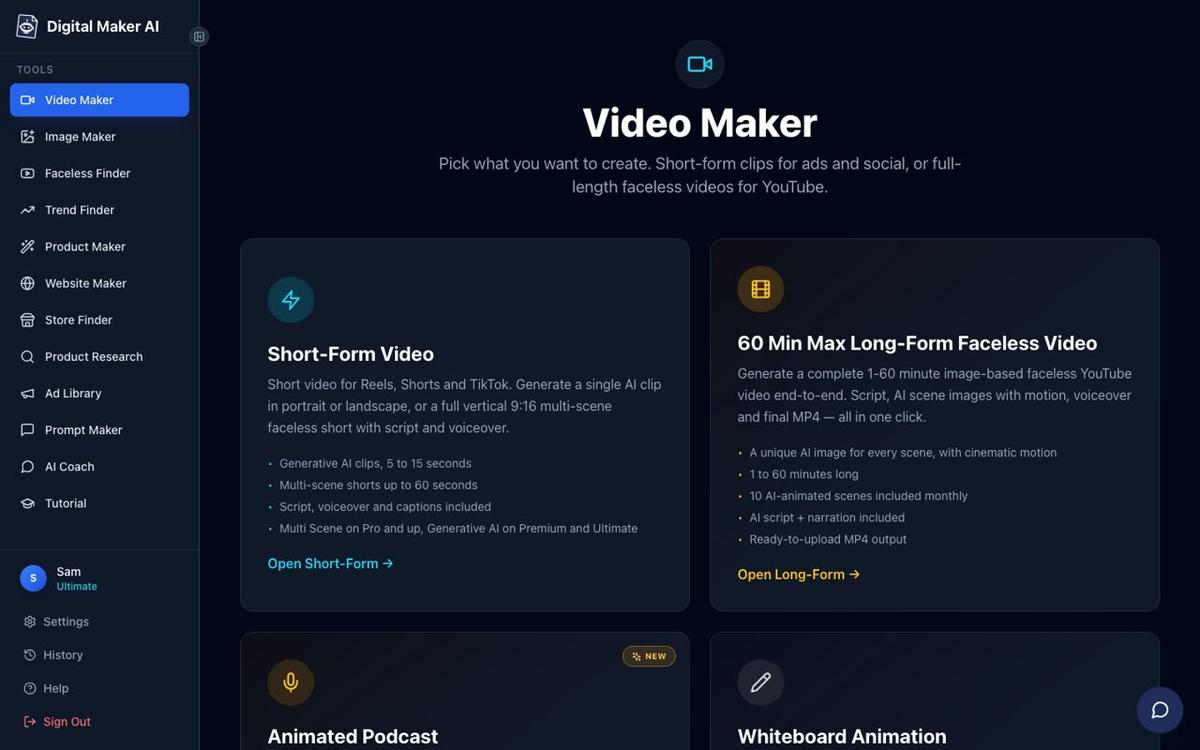
Go to digitalmaker.ai/faceless and create a free account. No card is needed to sign up. Once you are inside the dashboard, click Video Maker in the left sidebar. On the next screen, choose Long-Form Faceless Video.
Step 2: choose the Whiteboard Animation format
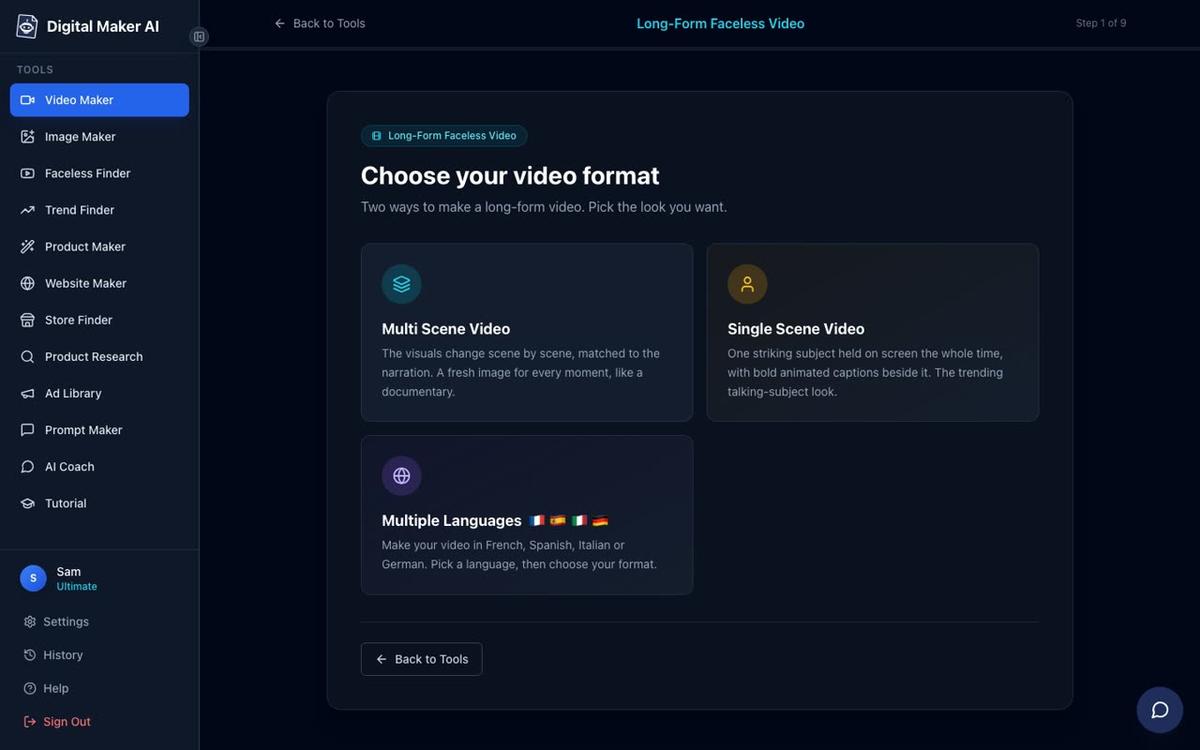
Step 1 of the long-form maker asks you to choose your video format. Select Whiteboard Animation. You will also see Multi Scene and Single Scene on this screen. Whiteboard Animation is the only format that generates marker-style sketches appearing line by line; the others use still scene images. You will then be asked to choose a whiteboard style: Story boards or classic. Both are included on Premium and Ultimate.
Step 3: write or paste your script
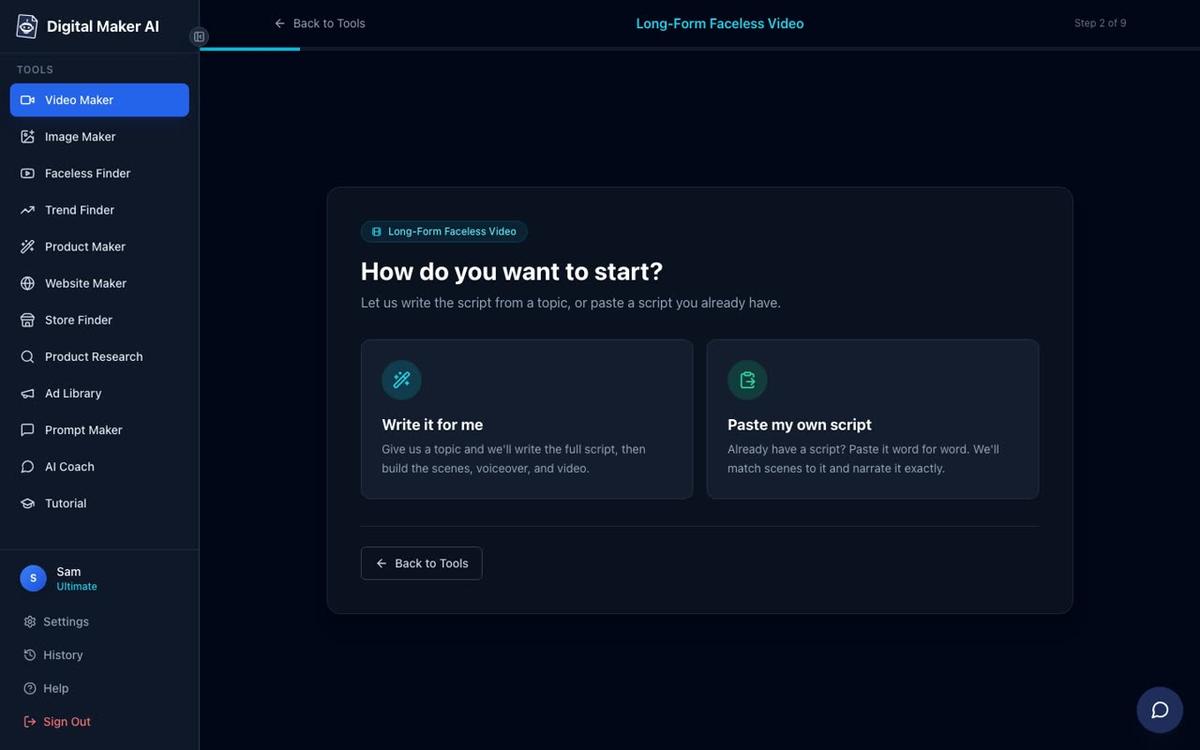
Step 2 asks how you want to start. On paid plans you can either let the AI write the script from a topic you type, or paste your own script directly. If you paste your own script, each paragraph becomes a separate scene with its own sketch. If you let the AI write it, move to step 3 and type your topic in the topic box (up to 300 characters). For example: "The psychology of why people procrastinate and how to stop." The AI handles the full script from that one line.
Tip: if you paste your own script, keep each paragraph to two or three sentences. Shorter paragraphs give each sketch room to build before the narration moves on. Very long paragraphs can crowd the visuals.
Step 4: set the length
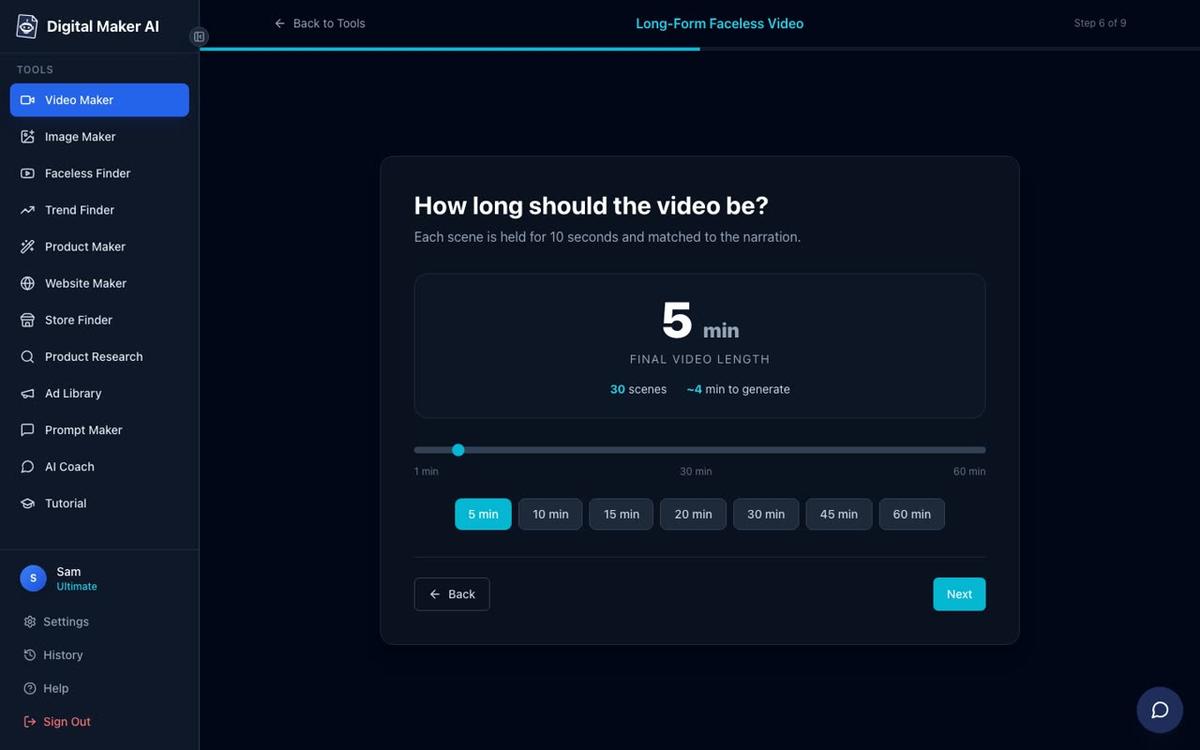
Use the length slider to choose how long the video will be. Quick picks for 5, 10, 15, 20, 30, 45 and 60 minutes are shown. Each minute of video uses one minute from your monthly pool, so a 10-minute whiteboard video costs 10 minutes. Premium users can go up to 30 minutes and Ultimate users up to 60 minutes. For a first whiteboard video, 5 to 10 minutes is a practical starting point: it is long enough to cover a topic properly and short enough to review and adjust quickly.
Step 5: pick a voice and pacing
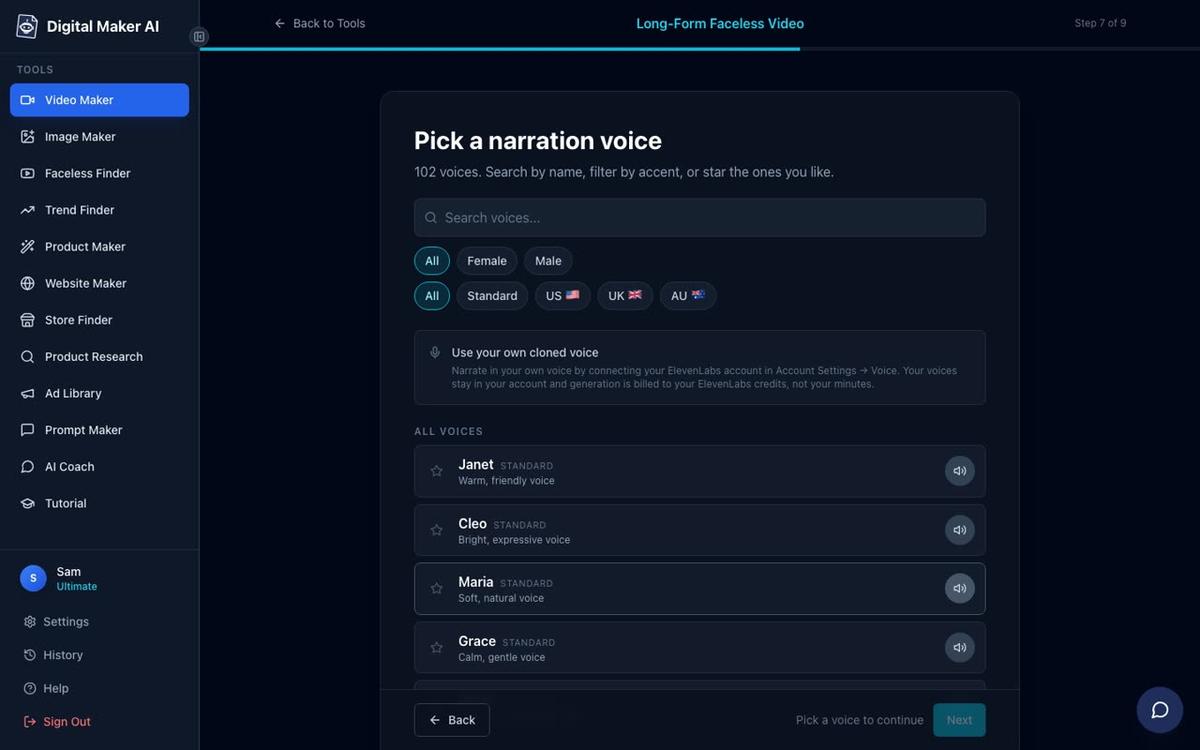
Step 7 of the maker shows over 100 built-in AI narration voices. You can filter by female, male, US, UK or Australian accent, and preview each one before selecting. Step 8 sets the pacing: Calm, Standard or Energetic. For whiteboard animation, a Standard or Calm pace tends to work well because the viewer needs a moment to follow each sketch as it appears. A very fast pace can outrun the visuals.
Tip: Premium and Ultimate users can also use Voice Design to create a custom narrator voice from a written description, paid with Voice Pack minutes. This is useful if you want a consistent voice that feels unique to your channel.
Step 6: choose the on-screen hand and captions
On the whiteboard options screen you can set the on-screen hand to none, light, brown or dark. The hand appears to create the marker sketches as the narration plays. You also choose a caption style from six options: None, Clean, Boxed, YouTube Yellow, Bold Pop or Minimal. Captions are burned into the lower third of the video. For whiteboard content, Clean or Minimal captions tend to complement the white background without cluttering the frame.
Step 7: review and generate
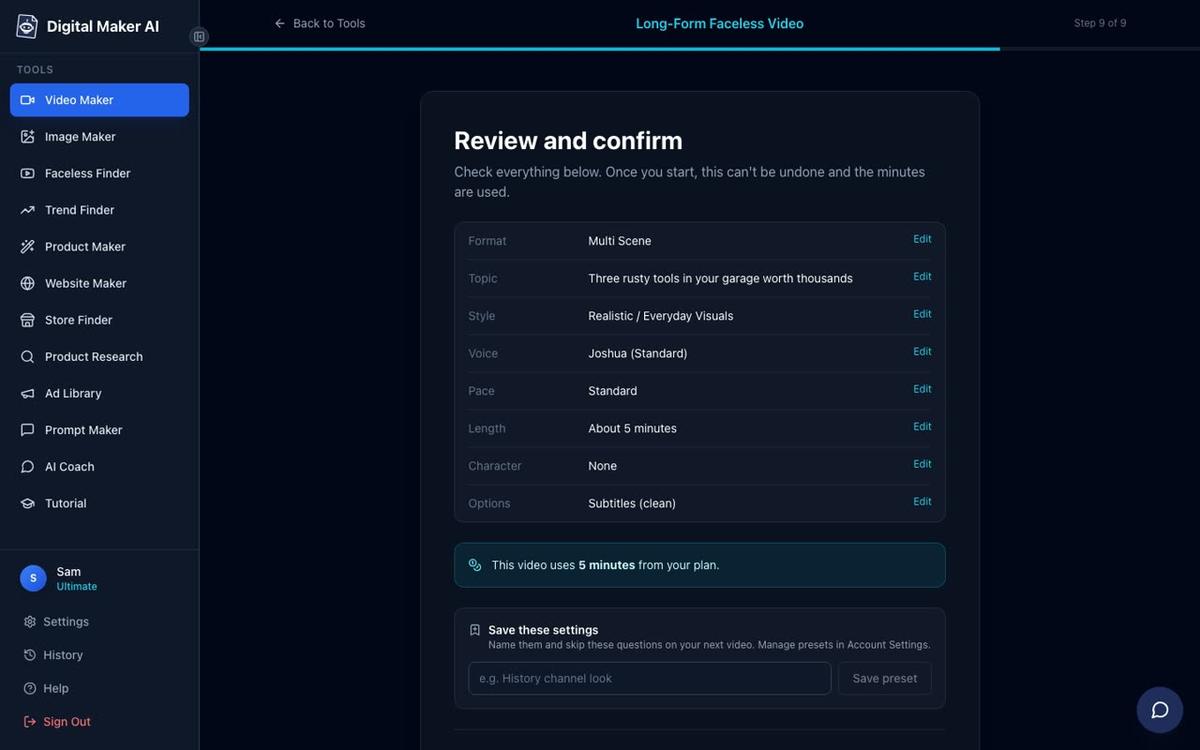
The final screen shows a summary of all your choices: format, topic, style, voice, pace, length and the number of minutes the video will use from your plan. Check everything here before pressing Generate Video. Once you press it, the platform writes the script (if you chose AI script), generates a sketch for every scene, adds the narration and captions, and returns a finished MP4. Generation typically takes a few minutes depending on the length of the video.
Step 8: edit any scene, then download or post
After the video is ready, you can review every scene. Each scene shows the sketch, the narration text and the captions. You have 10 free scene regenerations per video: if a sketch does not match the narration well, regenerate it. You can also swap in your own image or a short clip for any scene, or edit the narration text for a scene without remaking the whole video. There is no timeline editor; changes are made scene by scene.
When you are happy with the result, Premium and Ultimate users can post directly to YouTube, TikTok or Instagram from the Post to socials button, either immediately or on a schedule. Posts are labelled as AI generated. Pro users download the MP4 and upload it themselves. You can also connect Google Drive to save the finished video there (Save to Drive is Premium and Ultimate on long-form videos).
Tip: before posting, watch the full video at 1.5x speed. This catches any scene where the sketch feels mismatched to the narration, so you can regenerate just that scene rather than remaking the whole video.
Tips for the best whiteboard animation results in 2027
- Keep topics concrete. Whiteboard animation works best when each scene illustrates one clear idea. Topics like "5 ways compound interest works" or "the stages of sleep explained" give the AI a clear visual brief for each sketch.
- Use the classic style for simple explainers. The classic whiteboard style suits straightforward educational content. Story boards suits content with a narrative arc, such as a historical event or a case study.
- Match the hand tone to your brand. The on-screen hand is a small detail but it affects how the video feels. A light hand reads as neutral; a brown or dark hand adds representation. None removes the hand entirely for a cleaner look.
- Paste your own script for tighter control. If your topic requires precise facts, figures or a specific structure, paste your own script rather than letting the AI write it. This gives you full control over every sentence before the video is generated.
- Start at 5 minutes. A 5-minute whiteboard video covers roughly 700 to 800 words of narration and gives you around 30 scenes to review. It is a fast way to learn what works before committing to a 20 or 30-minute video.
- Add background music at a low level. The optional music library is off by default. For whiteboard content, a subtle instrumental track at low volume can make the video feel more polished without distracting from the sketches.
What kind of YouTube channel suits whiteboard animation?
Whiteboard animation is a strong fit for channels where the value comes from the explanation itself, not from visuals of a specific place or person. The format signals education and clarity, which makes it well suited to these channel types:
- Personal finance and investing: concepts like compound interest, budgeting or tax work well as step-by-step sketches.
- Psychology and self-improvement: explaining cognitive biases, habit loops or emotional patterns with marker visuals keeps the content accessible.
- History and biography: timelines, maps and event sequences are natural whiteboard subjects.
- Business and entrepreneurship: frameworks, strategies and case studies translate well to the format.
- Science and health: processes like how the immune system works or how sleep cycles function are clear candidates.
Whiteboard animation is not the right fit for channels that rely on atmosphere, cinematic visuals or a strong host personality. For those, Multi Scene with the Realistic or Cinematic style, or an AI presenter video, will usually perform better. You can use the AI whiteboard animation generator page to explore what the format looks like before you start.
What to do if you want to try it before upgrading
The Free plan does not include Whiteboard Animation. Free accounts get five free videos, one of each type, and the free long-form video uses the Multi Scene format with images from a set topic library. To try Whiteboard Animation you need a Premium or Ultimate plan. Visit digitalmaker.ai/pricing to compare what each plan includes as of November 2026. There is no time-limited trial; the Free plan is the way to explore the platform before upgrading.
If you want to plan your first whiteboard channel before you start making videos, the easiest way to start a faceless YouTube channel in 2027 covers niche research, channel setup and your first video strategy in one place.
Frequently asked questions
Can I use my own script for a whiteboard animation video?
Yes. On Premium and Ultimate plans you can paste your own script at step 2 of the long-form maker. Each paragraph becomes a separate scene with its own sketch and narration. The AI-written script option is also available if you prefer to start from a one-line topic.
Does whiteboard animation support languages other than English?
Yes, with length limits. In French, Spanish, Italian or German, whiteboard videos are limited to 10 minutes on Premium and 15 minutes on Ultimate, as of November 2026. The full 30 and 60-minute lengths are available in English only.
Can I add a recurring character or AI presenter to a whiteboard video?
No. Recurring characters and AI presenters are not available on the Whiteboard Animation format. They are available on Multi Scene and Single Scene videos. If a consistent on-screen character is important to your channel, Multi Scene with a recurring character is the right format to use.
How long does it take to generate a whiteboard animation video?
Generation time depends on the length of the video. A 5-minute whiteboard video typically takes a few minutes to build. Longer videos take proportionally more time. The platform sends an email when the video is ready, so you do not need to stay on the page while it generates.
Can I animate the scenes in a whiteboard video?
No. The Animated scenes add-on, which turns chosen scenes into moving AI clips, is not available on Whiteboard Animation. It is available on Multi Scene videos only. The whiteboard sketches appear line by line as part of the format itself, which is the motion effect for this style.
What is the difference between the Story boards and classic whiteboard styles?
Both use marker-style sketches appearing on a white background with an optional on-screen hand. Story boards is better suited to content with a narrative arc, such as a case study or a historical event. Classic is better suited to straightforward explainer content where each scene illustrates one standalone idea.
Ready to make your first whiteboard animation video? Start with the free course at digitalmaker.ai/free-course, which walks you through setting up a faceless YouTube channel from scratch and making your first video, step by step.
Alex Stevens: Alex Stevens writes for the Digital Maker AI team about faceless YouTube channels, AI presenters and AI video tools.