How to Make a Cartoon Video With a Recurring Character in 2027
By Alex Stevens
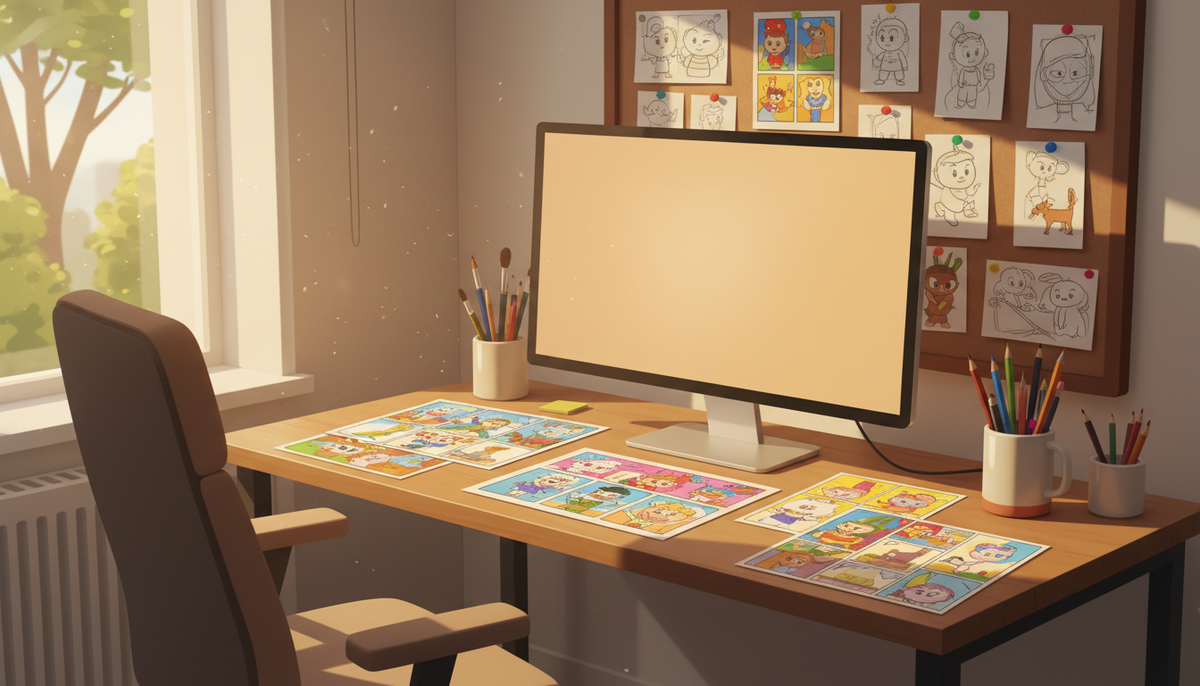
You can make a cartoon video with AI in 2027 without any design skills. Tools like Digital Maker AI (digitalmaker.ai) let you type a topic, pick an Animated or Cartoon style, upload or build a recurring character, and get back a finished landscape MP4 with AI narration and captions, ready to upload to YouTube. The whole process takes under ten minutes once you know the steps.
Key takeaways
- Digital Maker AI's Video Maker produces cartoon-style faceless videos using its Animated or Cartoon visual style, with a new illustrated scene image for every scene.
- Recurring characters (the same character appearing in every scene) are available on Premium and Ultimate plans, as of November 2026.
- Free accounts get one long form video up to 8 minutes with two visual styles including Animated or Cartoon, but without a recurring character or a pasted script.
- Premium allows videos up to 30 minutes; Ultimate allows up to 60 minutes.
- After your video is generated, you can regenerate any scene image, swap in your own image, or edit the narration text before you download.
What kind of channel suits a cartoon video format?
A cartoon-style faceless channel works best when the topic benefits from a warm, illustrated look rather than photorealistic imagery. Think personal finance tips for beginners, children's educational content, mythology and folklore, motivational storytelling, psychology explainers, and business and side hustle advice. The illustrated scenes feel approachable and friendly, which keeps viewers watching longer on topics that might feel dry in a realistic style.
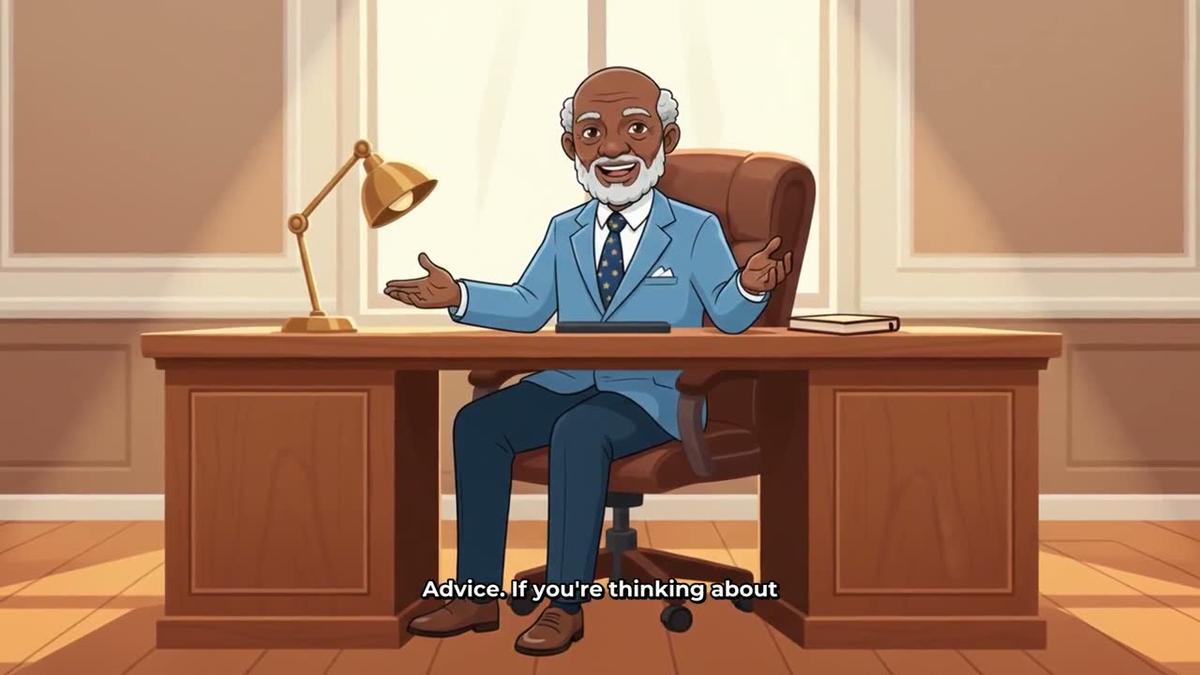
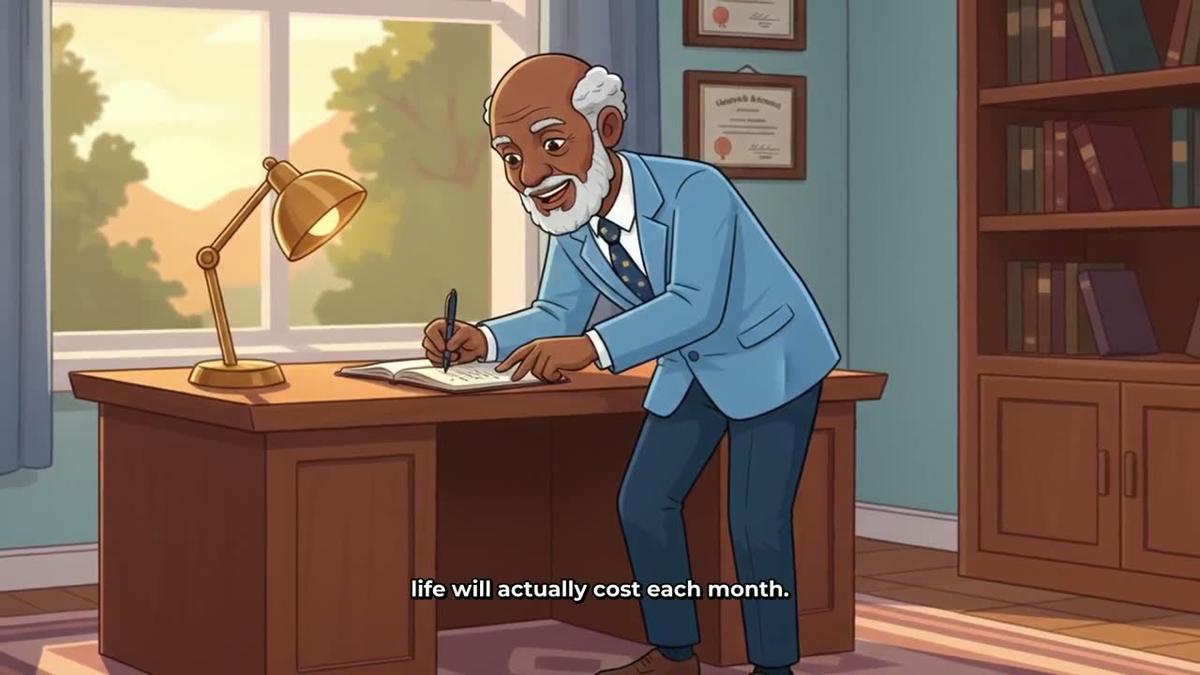
Adding a recurring character takes this further. A consistent character, such as an elderly financial educator who appears at his desk in every video, gives your channel a brand identity without you ever appearing on camera. Viewers start to recognise the character and return for the next episode. This is exactly the kind of channel the recurring character video format is built for.
What plans include cartoon videos with a recurring character?
The Animated or Cartoon visual style is available on every plan, including Free. However, the recurring character feature, which places the same character into every scene of every video, is only available on Premium and Ultimate plans. Free accounts also cannot paste their own script and are limited to English with a library of set topic areas. Paid plans generate every scene image fresh on any topic you choose.
| Plan | Cartoon style | Recurring character | Max video length | Monthly video minutes |
|---|---|---|---|---|
| Free | Yes (library topics only) | No | 8 minutes (one video) | One free video |
| Pro | Yes (any topic) | No | 10 minutes | 40 minutes |
| Premium | Yes (any topic) | Yes (up to 10 saved) | 30 minutes | 150 minutes |
| Ultimate | Yes (any topic) | Yes (up to 10 saved) | 60 minutes | 300 minutes |
See the full plan details at digitalmaker.ai/pricing (as of November 2026).
How to make a cartoon video with AI: step by step for 2027
The steps below follow the Video Maker flow inside Digital Maker AI. If you are on a Free account, follow the same path but note where the paid-only steps appear.
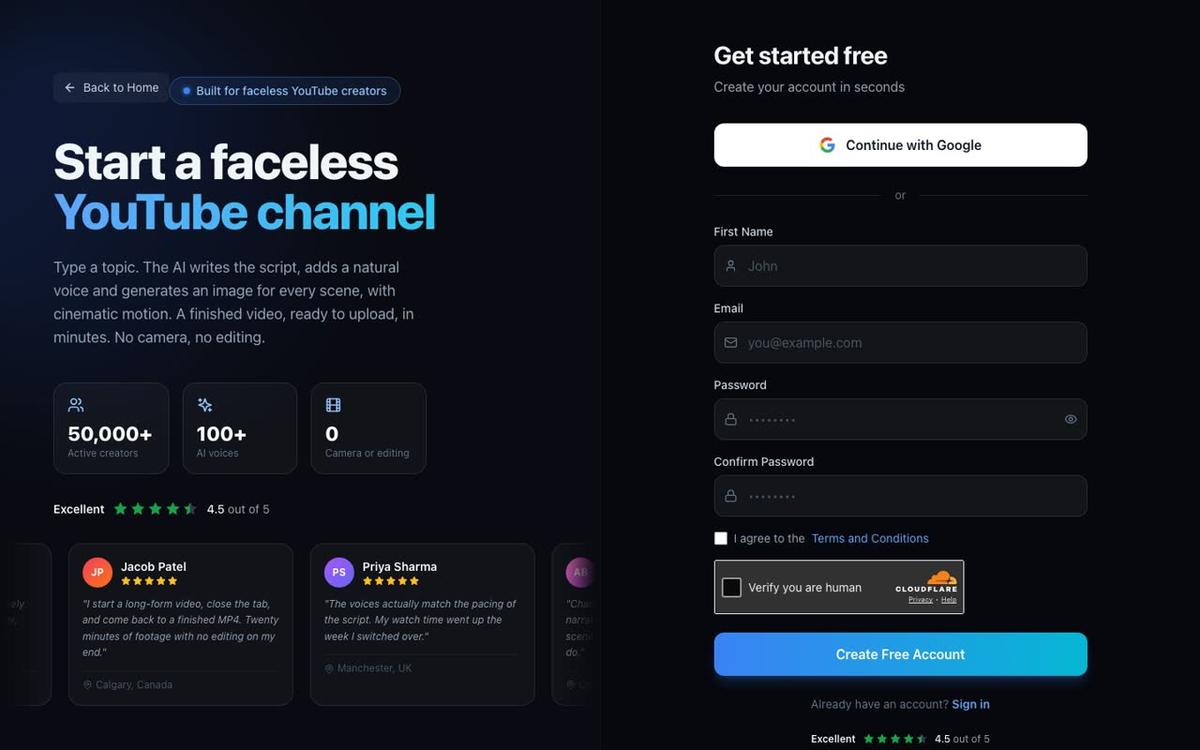
- Create your account. Go to digitalmaker.ai/faceless and sign up with Google or an email and password. No card is needed for a Free account. Once you are in, you will see the dashboard with a Start a video button and the tools menu on the left.
- Build your recurring character (paid plans only). Before you make your first video, go to Account Settings and open the Presenters or Character tab. Upload a character image you already have, or use the Image Maker to generate one. Give the character a name and save it. Digital Maker AI stores up to 10 saved characters on Premium and Ultimate. Once saved, the character will be available to attach to any video you make. Skip this step if you are on Free or Pro.
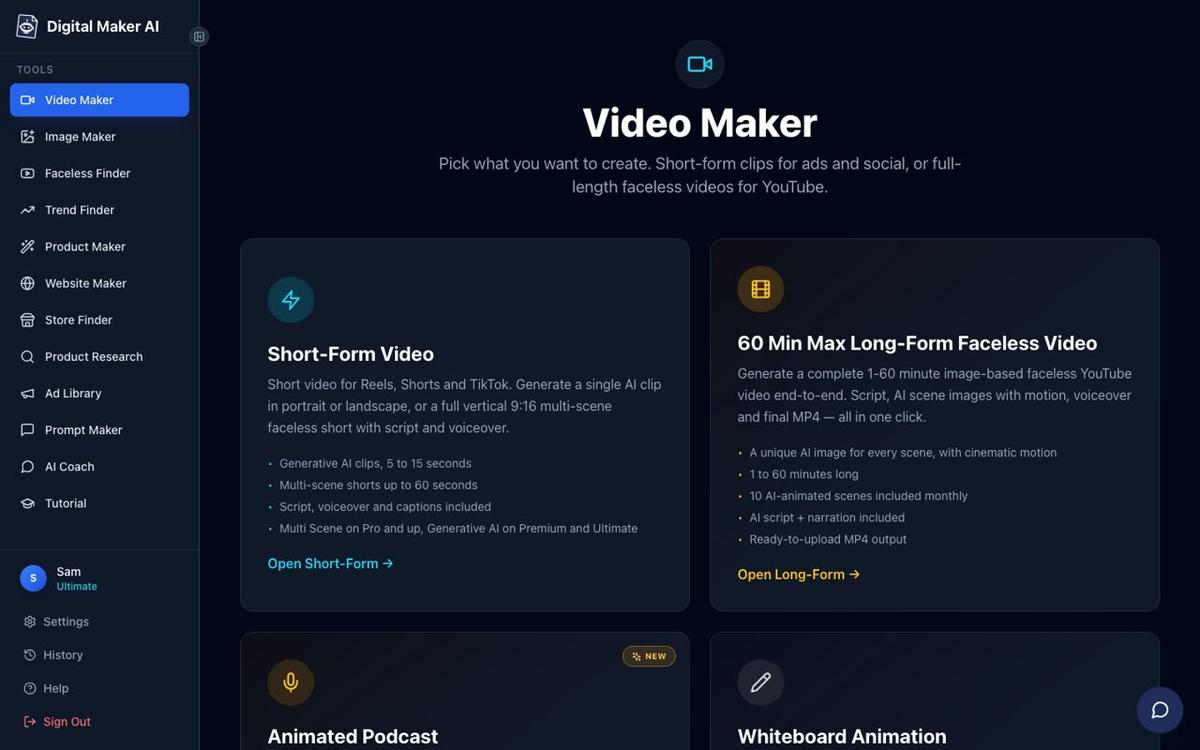
- Open the Video Maker. Click Video Maker in the left sidebar. You will see cards for Short-Form Video, Long-Form Faceless Video, Animated Podcast, and Drag and Drop Studio. For a cartoon YouTube video, choose the Long-Form Faceless Video card.
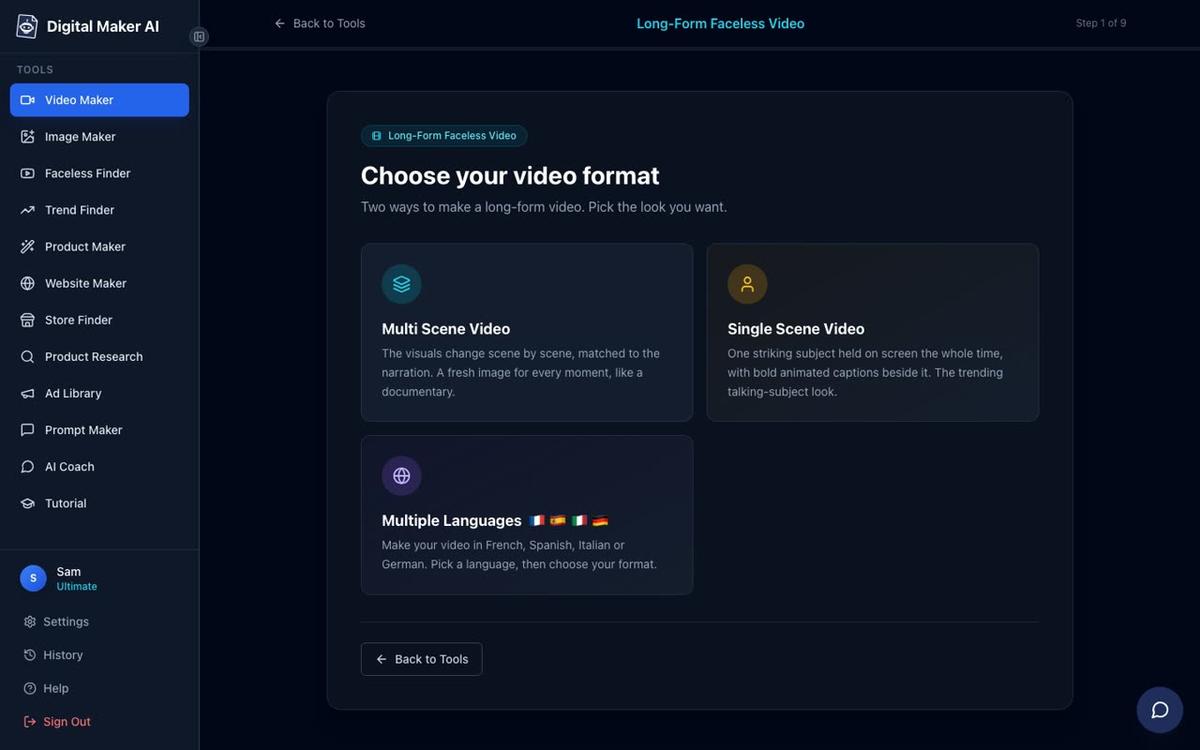
- Choose the Multi Scene format. On step 1 of the maker, select Multi Scene Video. This format generates a new illustrated scene image for every scene in the video, which is what gives a cartoon channel its varied, story-like feel. Multi Scene is available on all paid plans and on the Free account.
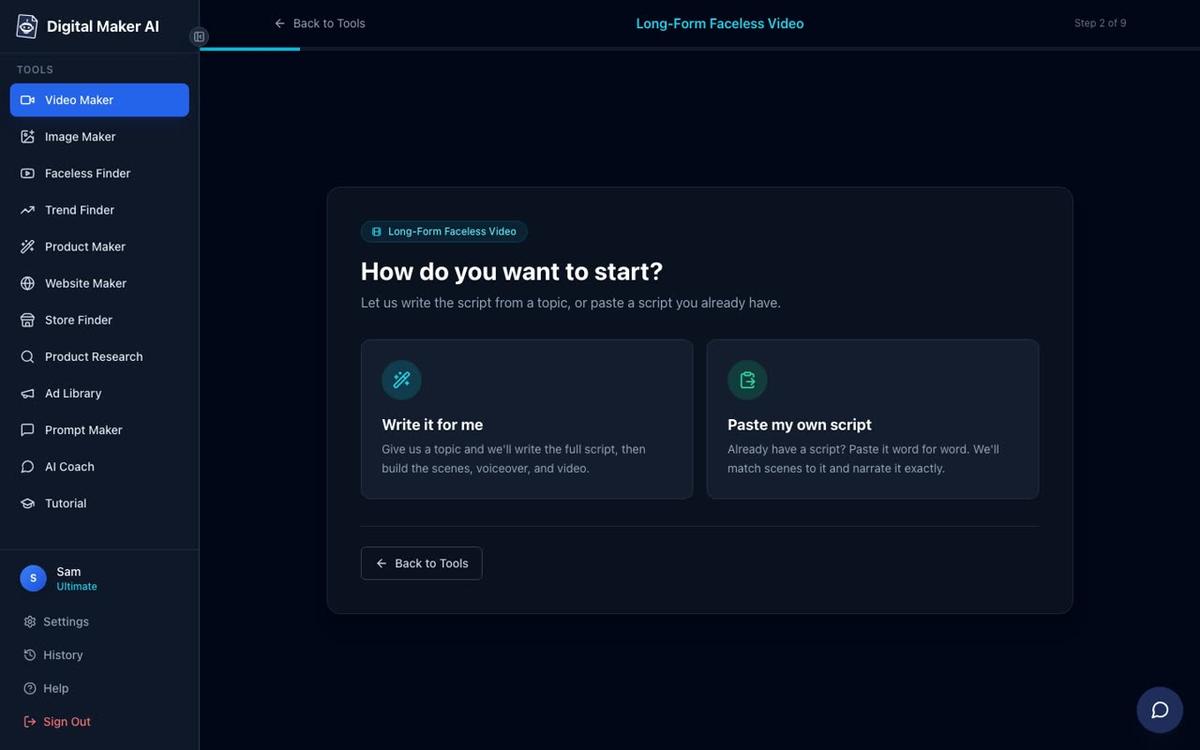
- Write or paste your script. On step 2, choose whether you want the AI to write the script from a topic you type, or whether you want to paste your own script. Free accounts can only use the AI-written option. On paid plans, pasting your own script gives you full control over what is said and lets you plan exactly where the character will appear.
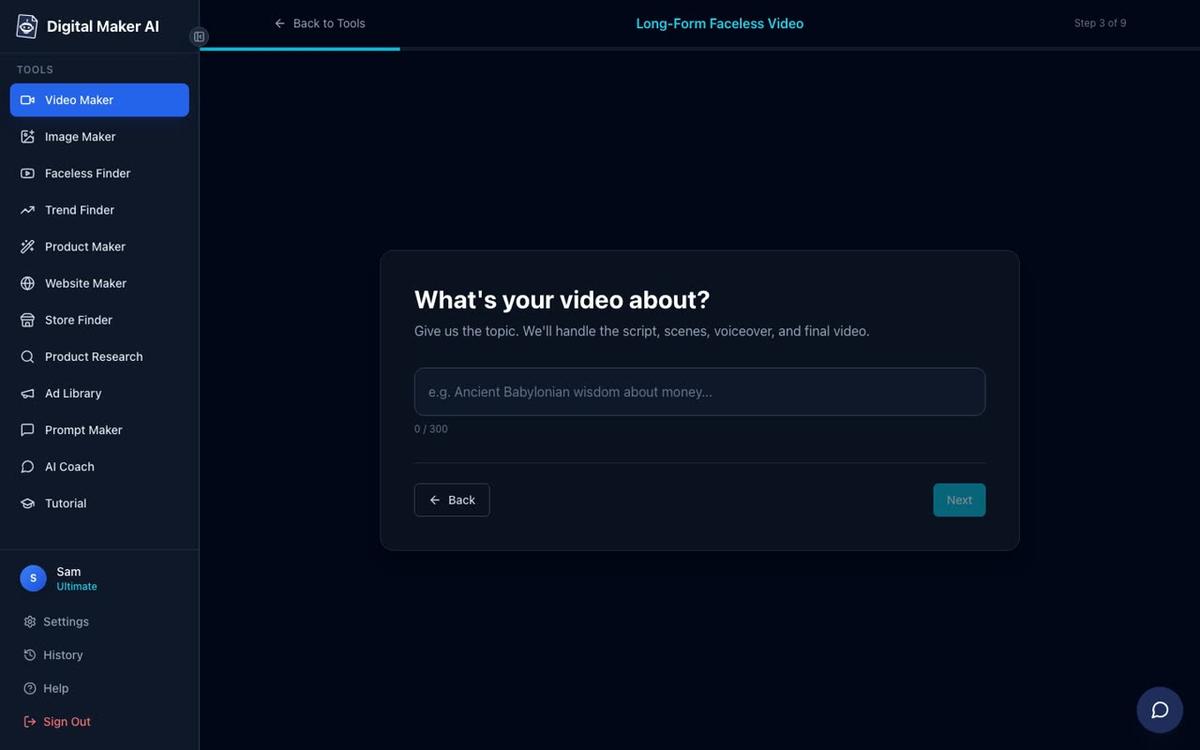
- Type your topic. On step 3, type what the video is about in one line. For example: "5 money habits that changed my life" or "Why the Roman Empire really fell." Keep it specific. The AI uses this to write the full script and generate a matching image prompt for every scene.
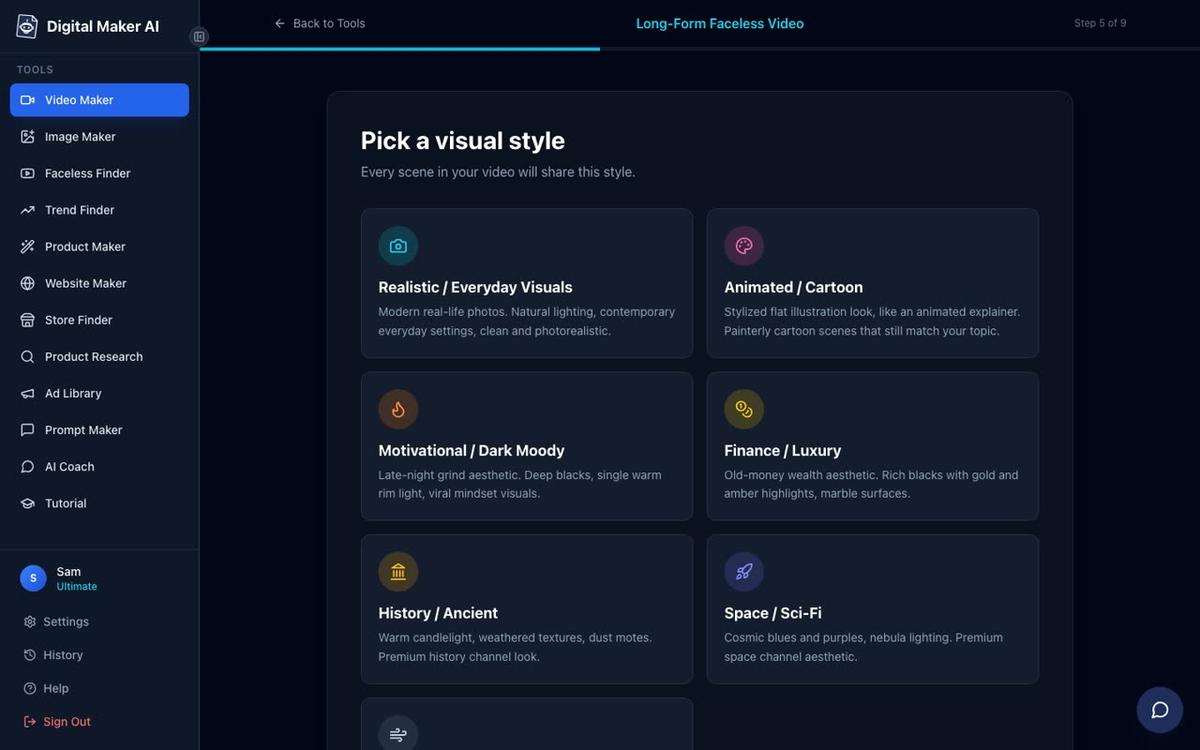
- Pick the Animated or Cartoon visual style. On step 5, select the Animated or Cartoon card. This tells the AI to generate every scene as an illustrated, cartoon-looking still image. The style is consistent across every scene in the video. This is the key step for a cartoon channel. Tip: this style works especially well for finance, motivation, psychology and storytelling topics.
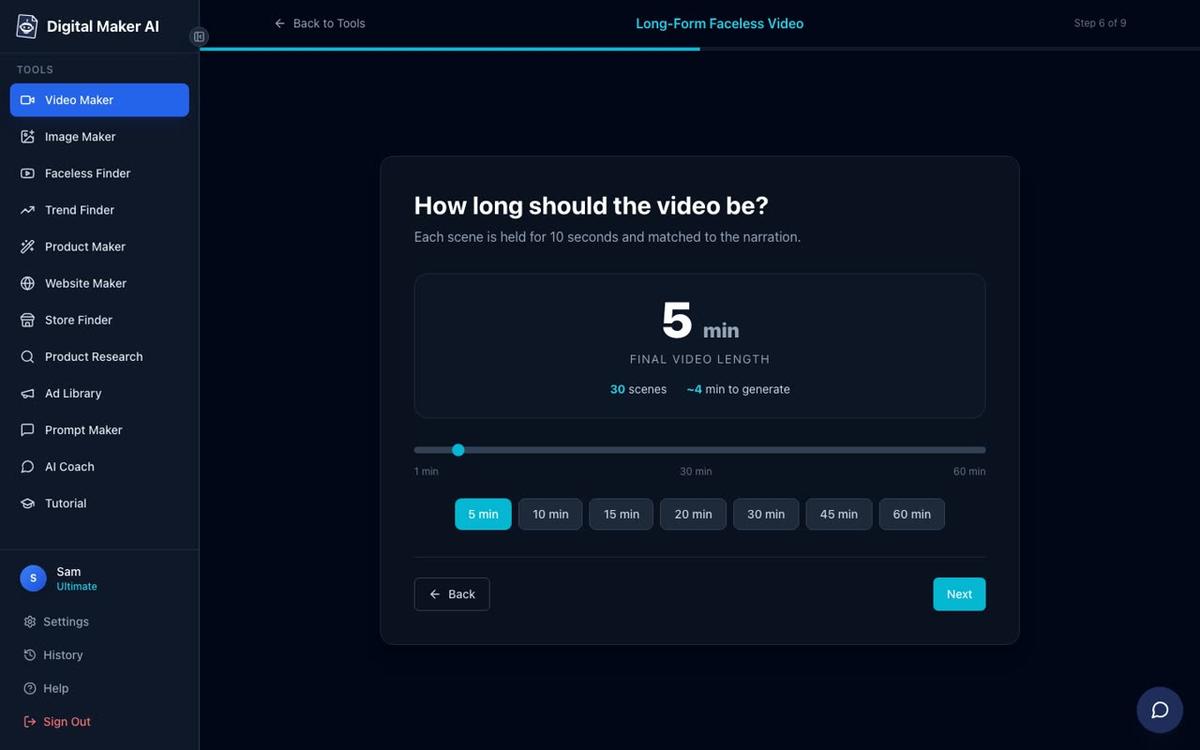
- Set the video length. On step 6, use the slider to pick how long the video should be. Pro allows up to 10 minutes, Premium up to 30 minutes, and Ultimate up to 60 minutes. For a cartoon channel starting out, 5 to 8 minutes is a good length: long enough to earn ad revenue once you join the YouTube Partner Programme, short enough to keep viewers watching to the end.
- Pick a narration voice. On step 7, choose from more than 100 built-in AI voices. Filter by male or female, and by US, UK or Australian accent. Play a preview before you decide. On Premium and Ultimate you can also use Voice Design to describe the narrator you want in words and hear three samples, or connect your own cloned ElevenLabs voice via Account Settings.
- Choose pacing and captions. On step 8, pick Calm, Standard or Energetic for the narration pace. You can also choose a caption style: Clean, Boxed, YouTube Yellow, Bold Pop or Minimal. Captions are burned into the lower third of the video. For a cartoon channel, Bold Pop or YouTube Yellow tend to stand out well against illustrated backgrounds.
- Attach your recurring character. On the review screen (step 9), you will see a Character option. If you saved a character in step 2, select it here. Digital Maker AI adds the same character to the scenes of the video. This is what makes your channel recognisable: the same face in every video, every week. This option only appears on Premium and Ultimate.
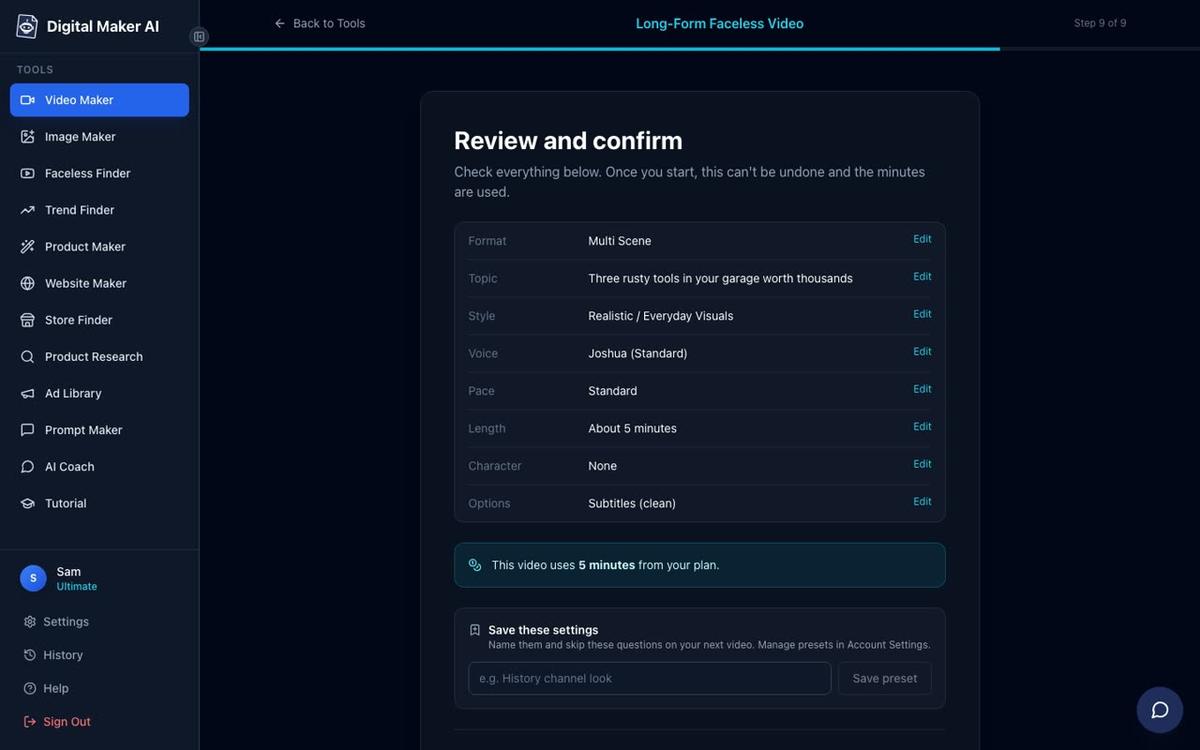
- Review, confirm and generate. Step 9 shows a summary of every setting: format, topic, style, voice, pace, length, character and options. It also shows how many minutes the video will use from your monthly pool. Check everything, then press Generate Video. The AI writes the script (if you chose AI-written), generates a scene image for every scene, records the narration, adds captions and returns a finished MP4. A five minute video typically takes three to six minutes to generate.
- Review scenes and edit before downloading. Once the video is ready, you can review every scene. If a scene image does not look right, regenerate it (each video includes 10 free regenerations). You can also swap any scene for your own image or a short clip, and edit the narration text for any scene. There is no timeline editor, but these per-scene controls are enough to fix anything that needs attention. When you are happy, download the MP4 or, on Premium and Ultimate, post it straight to YouTube from the Post to socials button.
Tips for a better cartoon video with a recurring character
- Keep your character description specific. When you create the character image, a detailed description produces a more consistent result. Instead of "a man in a suit," try "a friendly man in his fifties in a navy suit, round glasses, warm smile, clean white background." The more detail, the easier it is for the AI to match the look in every scene.
- Match the topic to the style. The Animated or Cartoon style looks best on topics that are naturally warm or story-driven: personal finance, motivation, history, psychology, health and fitness. It is less suited to hard news or technical tutorials where a Realistic style would feel more credible.
- Use a consistent voice across all videos. Pick one narration voice and save it as your preset. Viewers associate the voice with your channel just as much as the visual style. On step 4 of the maker, the Reuse your settings card lets you apply the same voice, style and effects from your last video in one click.
- Start at five minutes. A five minute cartoon video uses five minutes from your monthly pool and generates around 30 scenes. That is enough to cover a topic thoroughly, qualify for YouTube ad revenue once you reach the Partner Programme threshold, and still finish generating quickly.
- Use the Faceless Finder for inspiration. The Faceless Finder inside Digital Maker AI lets you search for channels in your niche and see their subscriber count, upload frequency and estimated ad revenue. Search for topics like "finance" or "motivation" to see what cartoon-style channels are already doing well and what video lengths they use.
- Animate one or two scenes per video. Premium includes 5 animated scenes a month and Ultimate includes 10. Under a finished video, the Animate scenes option turns chosen still scenes into real moving AI clips. Use this on your opening scene or a key moment to add visual variety without changing the rest of the video.
Common mistakes to avoid when making cartoon AI videos
- Changing the character between videos. If you regenerate your character image or describe them differently, the look will shift. Save one character image and reuse it every time so your channel stays visually consistent.
- Picking a topic that is too broad. "Money tips" produces a generic script. "Three budgeting rules most people learn too late" gives the AI a specific angle and produces sharper scene images and a tighter narration.
- Ignoring captions. Most YouTube viewers watch with the sound off at least some of the time. Always turn captions on. Bold Pop and YouTube Yellow are the most readable on cartoon backgrounds.
- Uploading without checking every scene. Spend two minutes reviewing the scenes before you download. The AI occasionally generates a scene that does not match the narration. A quick regeneration fixes it and costs nothing extra within the 10 free regenerations per video.
Frequently asked questions
Is the Animated or Cartoon style real moving animation?
No. The Animated or Cartoon style produces illustrated, cartoon-looking still images, one per scene, held on screen while the narration plays. Optional slow zoom or pan motion effects can be added. For real moving clips, the Animate scenes add-on turns individual scenes into short AI-generated motion clips on Premium and Ultimate plans.
Can I use my own character image for the recurring character?
Yes. On Premium and Ultimate you can upload your own character image in Account Settings, save it with a name, and Digital Maker AI will place that same character into the scenes of every video you make. You can save up to 10 characters per account.
Does the Free plan let me try the cartoon style?
Yes. Free accounts can make one long form video up to 8 minutes in the Animated or Cartoon style, choosing from a set library of topic areas including motivation, history, psychology and more. The video carries a small watermark and does not include a recurring character or a pasted script. No card is needed.
How many cartoon videos can I make per month on a paid plan?
It depends on your plan's monthly video minutes and how long each video is. A Pro plan includes 40 minutes a month, so you could make four ten-minute cartoon videos or eight five-minute ones. Premium includes 150 minutes and Ultimate includes 300 minutes, as of November 2026.
Can I post my cartoon video directly to YouTube from Digital Maker AI?
Yes, on Premium and Ultimate. After connecting your YouTube account once in Account Settings, the Post to socials button on a finished video lets you post now or schedule it. Free and Pro accounts download the MP4 and upload it manually. Nothing posts automatically; you always press Post to confirm.
What topics work best for a cartoon channel with a recurring character?
Personal finance, motivation, psychology, history, stoicism and health and fitness all perform well in the cartoon style. These topics suit a friendly illustrated look and have large, loyal YouTube audiences. A consistent character helps viewers build a habit of returning for each new episode.
If you want to go further, the Digital Maker AI free course walks you through building a full faceless channel from scratch, including how to pick a niche, set up your first cartoon video and grow to monetisation in 2027.
Alex Stevens: Alex Stevens writes for the Digital Maker AI team about faceless YouTube channels, AI presenters and AI video tools.