How to Sell a Spreadsheet Template With a Faceless YouTube Channel in 2027
By Alex Stevens

You can sell a spreadsheet template with a faceless YouTube channel by making a useful template, listing it on a platform like Gumroad or Etsy, and then publishing videos that solve the same problem the template fixes. Each video points viewers to the product link. Digital Maker AI (digitalmaker.ai) is an AI video platform for faceless YouTube videos, AI presenter videos, animated podcasts, 3D animated films and digital products. It can build both the spreadsheet template and the videos that sell it, so you can run the whole system in 2027 without ever appearing on camera. This guide covers the exact process, a worked niche example and a 30-day plan to get your first sale.
Key takeaways
- A faceless YouTube channel is a channel where the creator never appears on camera. AI visuals and a voiceover carry every video.
- Digital Maker AI's AI Spreadsheet tool generates spreadsheet templates and trackers you can sell as digital products.
- Gumroad, Etsy, Stan Store and Shopify are the four main platforms for listing a spreadsheet template in 2027.
- One video per week that solves a problem your template also solves is enough to build consistent traffic to your product link.
- The Free plan on Digital Maker AI includes one free long-form faceless video (up to 8 minutes) and commercial usage rights, so you can test the whole workflow before upgrading.
Why does selling a spreadsheet template with a YouTube channel work in 2027?
A spreadsheet template is a low-cost digital product with zero inventory and instant delivery. The buyer pays once, downloads the file and uses it immediately. YouTube works as the traffic engine because people search for solutions to specific problems, for example "how to track my monthly budget" or "freelance invoice tracker", and a video that answers that question can send viewers straight to a product page. The key is that the video and the template solve the same problem. Someone who watches your five-minute video on tracking freelance income already wants the tracker you built. The description link is the natural next step.
A faceless channel removes the biggest barrier most people face: not wanting to be on camera. The videos are built entirely from AI-generated scene images, a voiceover and captions. No filming, no editing timeline, no face required. That makes it realistic to publish consistently, which is what YouTube rewards.
Step 1: Pick a niche where spreadsheet templates sell.
The tightest niches sell the best templates. A generic "budgeting spreadsheet" competes with thousands of free options. A "first-year teacher classroom budget tracker" or a "freelance photographer job-cost calculator" solves a very specific pain for a specific person who is willing to pay for a ready-made solution.
Strong niches for spreadsheet templates in 2027 include personal finance (budget planners, debt payoff trackers, savings goal sheets), small business (invoice trackers, profit and loss sheets, client project trackers), content creators (YouTube analytics trackers, sponsorship deal calculators), health and fitness (meal planners, workout logs, macro trackers) and students (study timetables, assignment deadline planners).
Worked example used throughout this guide: a personal finance channel called "Budget Clarity" targeting people in their 20s and 30s who want to get out of debt. The hero product is a "Debt Payoff Planner" spreadsheet template priced at around nine dollars on Gumroad.
Use Digital Maker AI's Product Research and Competitor Analyzer tool to generate digital product ideas for your niche and see what competitors already sell. This saves hours of manual research before you build anything.
Step 2: Build the spreadsheet template with Digital Maker AI.
Digital Maker AI includes an AI Spreadsheet tool that generates spreadsheets, trackers and templates. You describe what the template needs to do and the tool builds it as a finished downloadable document you can sell. For the "Budget Clarity" example, you would describe a debt payoff planner with columns for creditor name, balance, interest rate, minimum payment, extra payment and projected payoff date, and the AI Spreadsheet tool produces a ready-to-use file.
Once the template is ready, use the Image Maker tool to create a product mockup, a thumbnail-style preview image that shows the spreadsheet on a laptop or tablet. A clean mockup image increases conversions on any product listing page.
If you want to bundle a written guide with the template, the Ebook Writer tool generates ebooks, lead magnets, workbooks and printable planners as finished downloadable documents. A short PDF guide explaining how to use the debt payoff planner adds perceived value and justifies a higher price point.
Step 3: List the template on a store.
You need a place to collect payment and deliver the file. Here are the four main options for 2027:
| Platform | Best for | Fee model | Setup time |
|---|---|---|---|
| Gumroad | Beginners, quick launch | Percentage of each sale | Under 30 minutes |
| Etsy | Built-in search traffic | Listing fee plus transaction fee | 1 to 2 hours |
| Stan Store | Creators with a social following | Monthly subscription | Under 1 hour |
| Shopify | Building a brand store | Monthly subscription plus transaction fee | Half a day |
For a first launch, Gumroad is the fastest path. Create a free account, upload the spreadsheet file and the mockup image, write a short description that names the exact problem the template solves, and set a price. You can be live in under an hour. If you want to build a branded Shopify store later, Digital Maker AI's Website Maker builds a Shopify store theme for your digital products, ready to download and install.
Step 4: Make faceless YouTube videos that solve the same problem your template fixes.
This is where a faceless YouTube channel becomes your sales engine. Every video answers a question your target buyer is already searching for. For "Budget Clarity", good video topics include "How to pay off debt on a low income", "The debt avalanche vs debt snowball method explained" and "How to track every dollar you spend". Each video ends with a mention of the free or paid template in the description.
Digital Maker AI's long-form faceless video maker handles the full production in one flow: the AI writes the script from a topic, generates a unique scene image for every scene, adds AI narration from more than 100 built-in voices and returns a finished MP4 ready to upload. You never record anything yourself.
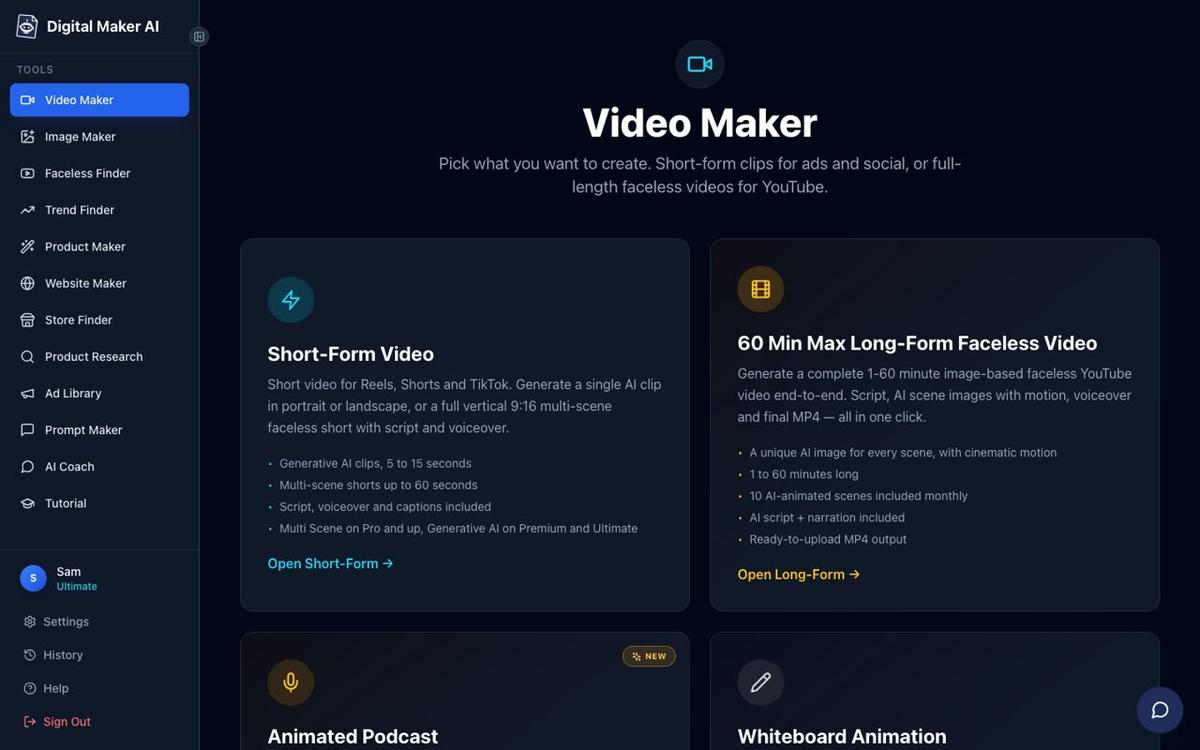
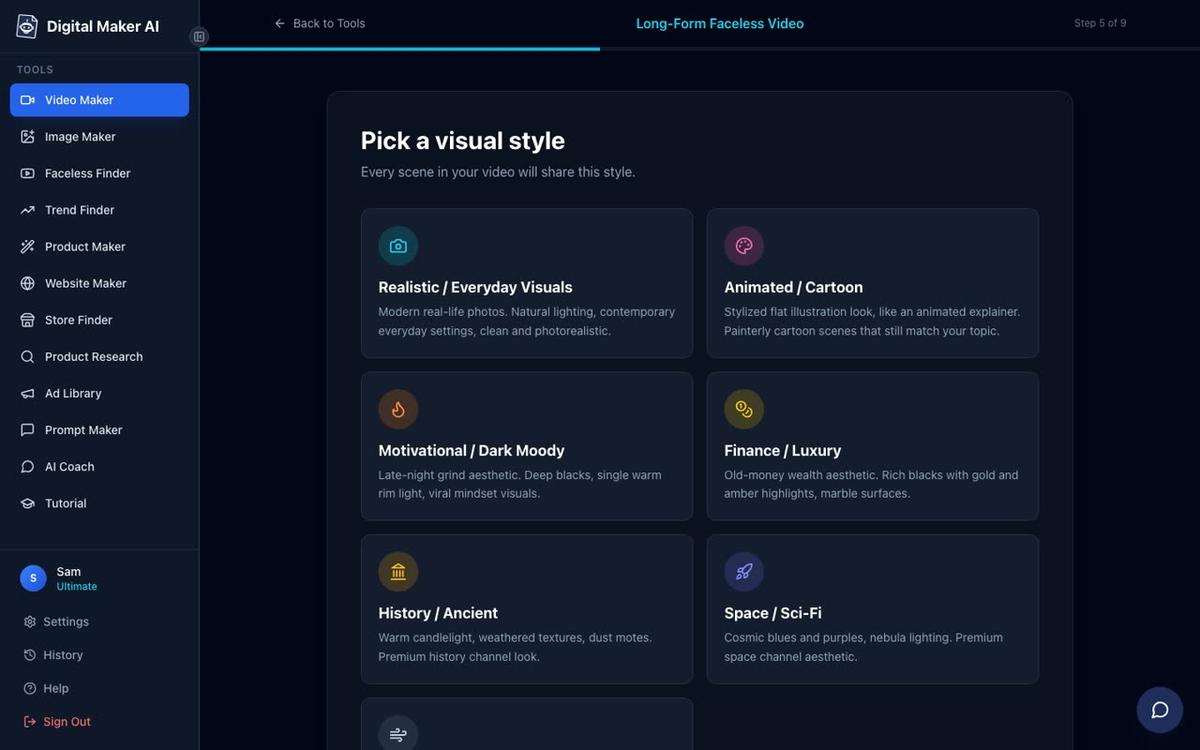
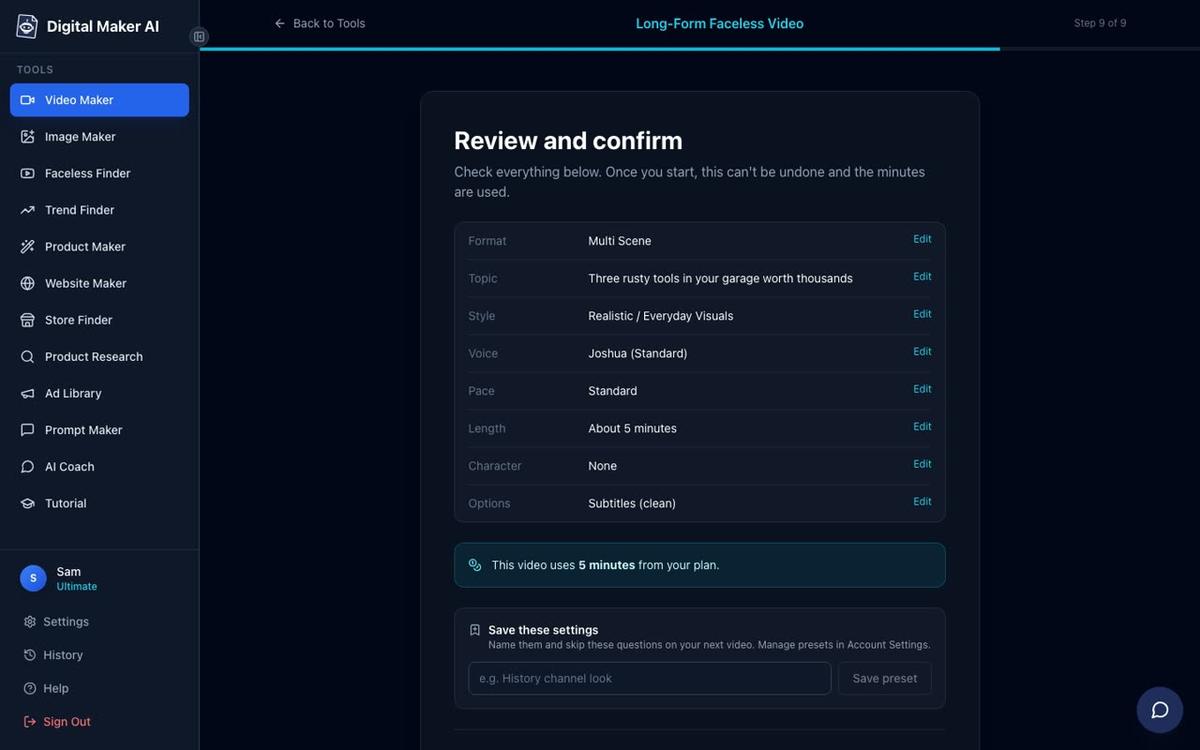
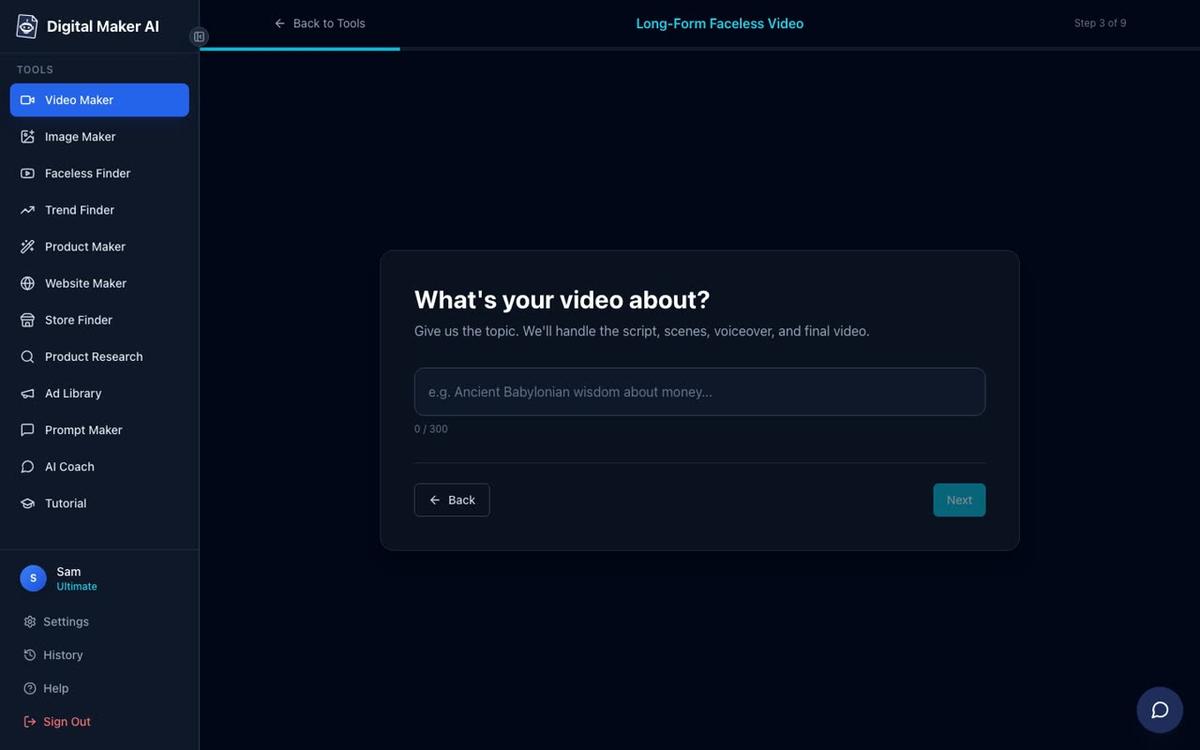
The process inside the long-form video maker takes nine steps. Here is the full flow:
- Choose a format. Select Multi Scene for a new AI-generated image on every scene. This is the standard faceless video format and works on all paid plans.
- Set the script source. On paid plans you can paste your own script. On the Free plan the AI writes from your topic. For a personal finance channel, typing "How to pay off 10,000 dollars of debt in 12 months" is enough to get a complete script.
- Type your topic. Keep it to one clear sentence. The AI uses this to write the script and generate matching scene images.
- Pick a visual style. For a personal finance channel, Finance or Luxury gives a clean, aspirational look. Minimalist or Clean also works well for numbers-focused content.
- Set the length. A five to eight minute video is a good starting point. It is long enough to rank on YouTube search and short enough to hold attention.
- Pick a narration voice. More than 100 voices are available with US, UK and Australian accents. Pick one that matches the tone of your channel and keep it consistent across every video.
- Choose pacing. Standard or Calm suits a finance channel. Energetic suits motivation content.
- Review and generate. Check the settings, see how many minutes the video will use from your plan, then press Generate Video. The finished MP4 is usually ready in three to six minutes.
Step 5: Point every video to your product in three places.
Getting viewers to your product page requires placing the link where they will actually see it. Do all three of the following on every video:
- Video description. Put the product link in the first two lines of the description, above the fold, so viewers see it without expanding the text. Write one sentence that names the problem the template solves, then the link.
- Pinned comment. Pin a comment from your channel that repeats the product link. Many viewers scroll to comments before reading the description. A pinned comment like "Get the free Debt Payoff Planner here: [link]" captures those viewers.
- End screen. YouTube's end screen tool lets you add a clickable link card in the last 20 seconds of the video. Use it to show the product or your channel's most relevant video.
You can also add a short verbal call to action in the narration script itself: "I built a ready-made planner for this, the link is in the description." This works especially well in videos that demonstrate a process the template handles.
How do you use Digital Maker AI's AI Coach to speed up the whole process?
The AI Coach is a chat assistant built into Digital Maker AI that helps with every part of running a faceless channel. You can ask it for video ideas based on your niche, get YouTube titles and descriptions written for you, or ask for a full script. Pro plan users and above get live Trend Finder lookups inside the chat, so you can check whether a topic like "debt snowball method" is growing before you spend time making a video about it. On Premium and Ultimate, the AI Coach's Expert mode can make long-form videos, thumbnails, channel banners and more directly from the chat, without leaving the conversation.
What is a realistic 30-day plan to get your first sale in 2027?
This plan is built around the "Budget Clarity" example but applies to any niche. It assumes you are starting from scratch and publishing one video per week.
- Days 1 to 3: Set up the product. Use Digital Maker AI's AI Spreadsheet tool to build the Debt Payoff Planner. Use Image Maker to create a product mockup. Create a Gumroad account and list the template with a clear title, a problem-focused description and the mockup image. Set the price.
- Days 4 to 7: Create and upload video one. Topic: "How to pay off debt fast using the avalanche method." Use the long-form video maker with the Finance or Luxury visual style and a calm narration voice. Add the Gumroad link to the description, pin a comment and set an end screen. Upload to YouTube with a keyword-rich title and description.
- Days 8 to 14: Create and upload video two. Topic: "How much debt is normal in your 30s?" This broader topic brings in viewers who may not have searched for a planner yet but are aware of their debt. Same product link in the description.
- Days 15 to 21: Create and upload video three. Topic: "I tracked every dollar I spent for 30 days. Here is what happened." A personal-angle title drives curiosity clicks. The video explains the tracking process and the template is the tool you used.
- Days 22 to 30: Create video four and review. Topic: "The exact spreadsheet I use to track my debt payoff." This video is the most direct product demo. Walk through the template's columns in the narration, show the mockup image in the video, and put the link front and centre. After 30 days, check which video drove the most description clicks in YouTube Analytics and make more videos like it in month two.
Common mistakes when you try to sell a spreadsheet template with a YouTube channel
- Making the template too generic. "Budget spreadsheet" competes with free options everywhere. "Single parent grocery budget tracker" or "freelance designer project profit calculator" serves a specific person who will pay for a precise solution.
- Putting the product link too far down the description. YouTube truncates descriptions after two or three lines. If your link is in line eight, most viewers never see it. Put it in line one.
- Making every video a direct sales pitch. Viewers come to YouTube for information, not advertisements. Four out of five videos should be pure value. One in five can be a direct product walkthrough. The ratio keeps subscribers and converts buyers.
- Changing the visual style or voice between videos. Consistency builds a recognisable channel. Pick a visual style and a narration voice in week one and keep them. Digital Maker AI's "Reuse your settings" step makes this easy: it saves your last video's style, voice and effects and applies them with one click.
- Waiting until you have ten videos before listing the product. List the product on day one. Even if your first video gets fifty views, some of those viewers will buy. Every day the product is not listed is a day you leave money on the table.
Frequently asked questions
Do I need to know how to code or use Excel formulas to sell a spreadsheet template?
No. Digital Maker AI's AI Spreadsheet tool generates the template for you from a plain description of what it needs to do. You can review and adjust the output, but you do not need to write a single formula yourself. Most buyers of simple trackers and planners do not need complex macros either.
How many views does a YouTube video need before it sells a digital product?
There is no fixed number, but a tightly targeted video with a clear call to action can convert at one to three percent of views. A video with 500 views in a specific niche can generate five to fifteen sales. Volume matters less than how well the video topic matches the template's purpose.
Can I sell the same spreadsheet template on both Etsy and Gumroad at the same time?
Yes. Selling on multiple platforms is common and there is no rule against it. Etsy brings its own search traffic, while Gumroad is easier to link from YouTube. Many creators list on both and use YouTube to drive traffic to whichever platform converts better for their audience.
What plan do I need on Digital Maker AI to make videos for a personal finance channel?
The Free plan includes one long-form faceless video up to 8 minutes with commercial usage rights, so you can test the workflow at no cost. Paid plans unlock more video minutes per month, longer maximum video lengths, the ability to paste your own script and fresh AI-generated images on any topic. See the full plan details at digitalmaker.ai/pricing.
Does Digital Maker AI own the spreadsheet templates or videos I make with it?
No. Commercial usage rights are included on every plan, including the Free plan. The templates and videos you create are yours to sell, distribute and use in your business without paying royalties or crediting Digital Maker AI.
How long does it take to make a faceless YouTube video with Digital Maker AI?
The nine-step setup takes around five to ten minutes. The AI then generates the script, scene images, narration and finished MP4, which typically takes three to six minutes for a five-minute video. From opening the Video Maker to having a file ready to upload, most videos are done in under twenty minutes.
The fastest way to get started is to sign up for a free account, build your first template with the AI Spreadsheet tool, list it on Gumroad and make your first video today. The free course at Digital Maker AI walks through the full faceless channel setup step by step, from picking a niche to publishing your first video, and it pairs well with the digital product workflow in this guide. For more on growing a channel with AI tools, see the guide on how to make money with a faceless YouTube channel in 2027.
Alex Stevens: Alex Stevens writes for the Digital Maker AI team about faceless YouTube channels, AI presenters and AI video tools.