OpenClaw MCP: Make Whiteboard and Short Videos by Asking
By Alex Stevens
What You Will Be Able to Do
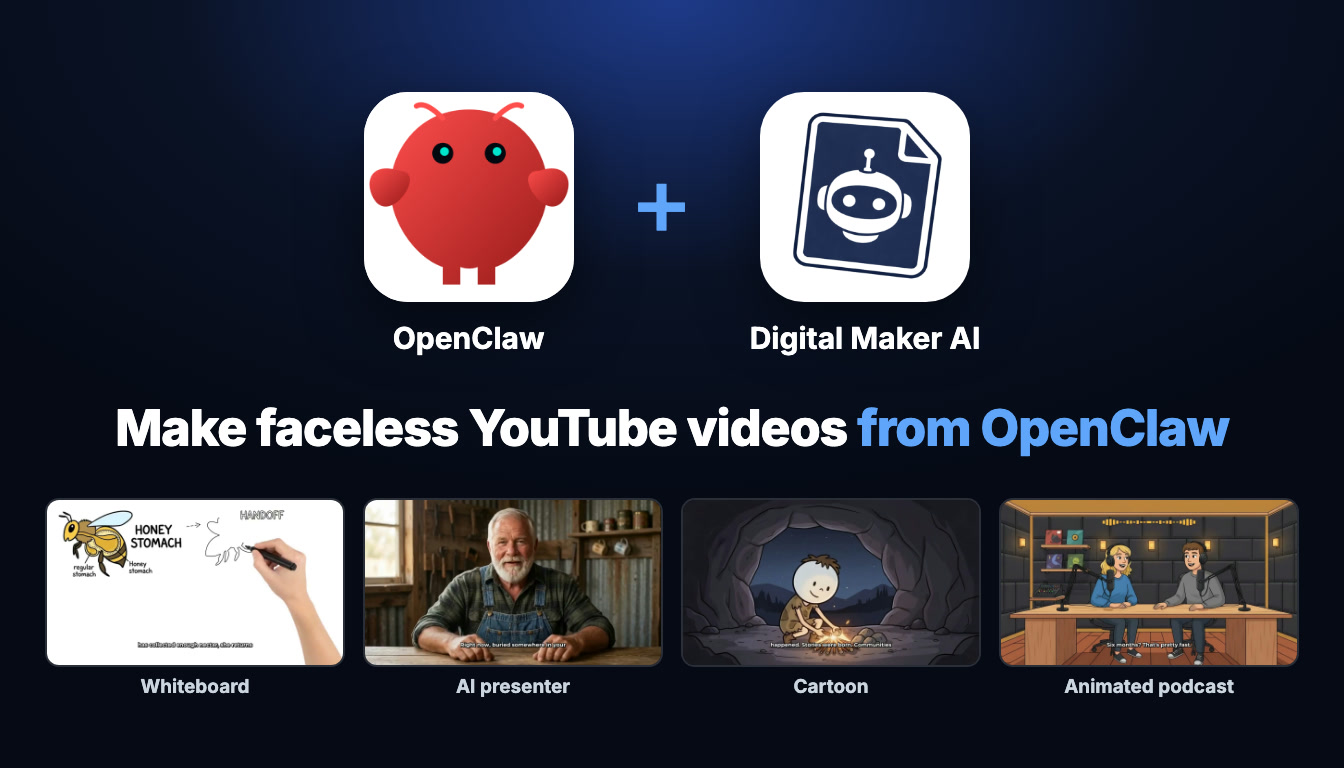
By the end of this guide you will have OpenClaw connected to Digital Maker AI through MCP, and you will be able to type a single sentence and get back a finished whiteboard animation, a vertical Short, a faceless YouTube video, a cartoon, an AI presenter video or an animated podcast. No clicking through menus, no uploading assets, no timeline to drag. You just ask, and the video appears in your Digital Maker AI library ready to download or post.
What the Connection Actually Means
OpenClaw is an AI agent platform that supports the Model Context Protocol, better known as MCP. MCP is a standard way for AI tools to talk to external services. When you connect Digital Maker AI to OpenClaw through MCP, OpenClaw gets access to Digital Maker AI's Video Maker tools directly inside its interface. You do not move to a different app to make the video. You stay in OpenClaw, type what you want, and Digital Maker AI does the work on your account using your own plan and your own monthly video minutes.
Every video is built on your Digital Maker AI account exactly as if you had clicked through the website yourself. That means your plan limits apply, your minutes are used from your normal monthly pool, and every finished video is saved to your Digital Maker AI library. Digital Maker AI also sends you an email when the video is ready, because videos take a few minutes to build. OpenClaw confirms how many minutes a video will cost before it starts and never begins a video unless you ask directly.
Setting Up the OpenClaw MCP Connection
The setup takes about two minutes and you only need to do it once. Here are the exact steps:
- In Digital Maker AI, open Account Settings by clicking Settings at the bottom of the left sidebar.
- Go to the API tab. Under "What are you connecting?" choose OpenClaw and click Create key. The connection URL is built for you automatically. It will look like
digitalmaker.ai/mcp/YOUR_KEYin plain text. Copy it. - In the OpenClaw Control UI, go to Settings, then MCP, and click Add server.
- Name the server Digital Maker AI, choose Streamable HTTP as the transport, and paste the connection URL. No headers or OAuth tokens are needed.
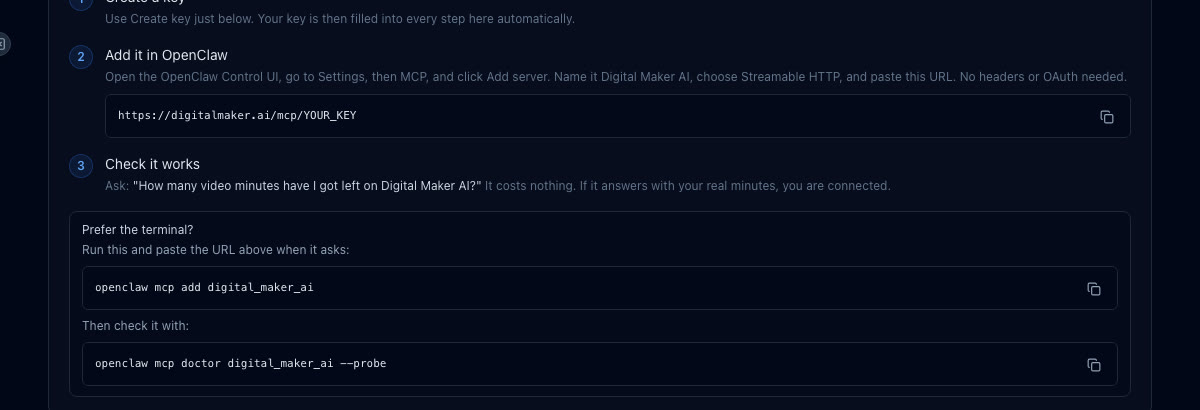
If you prefer the terminal, you can also run openclaw mcp add digital_maker_ai, paste the URL when prompted, then run openclaw mcp doctor digital_maker_ai --probe to confirm the connection is live.
Once it is connected, test it with a free question that costs nothing: "How many video minutes have I got left on Digital Maker AI?" OpenClaw will call the connector and return your remaining minutes. If you get a number back, everything is working.
OpenClaw MCP Whiteboard Video: Go Deep on the Format
Whiteboard animation is one of the most popular formats on YouTube for explainer content, tutorials and science topics. The hand-drawn sketches draw themselves onto a white background as the narration plays, giving the video a clear, engaging feel that works especially well for educational channels. Making an AI whiteboard animation through OpenClaw is as simple as describing what you want.
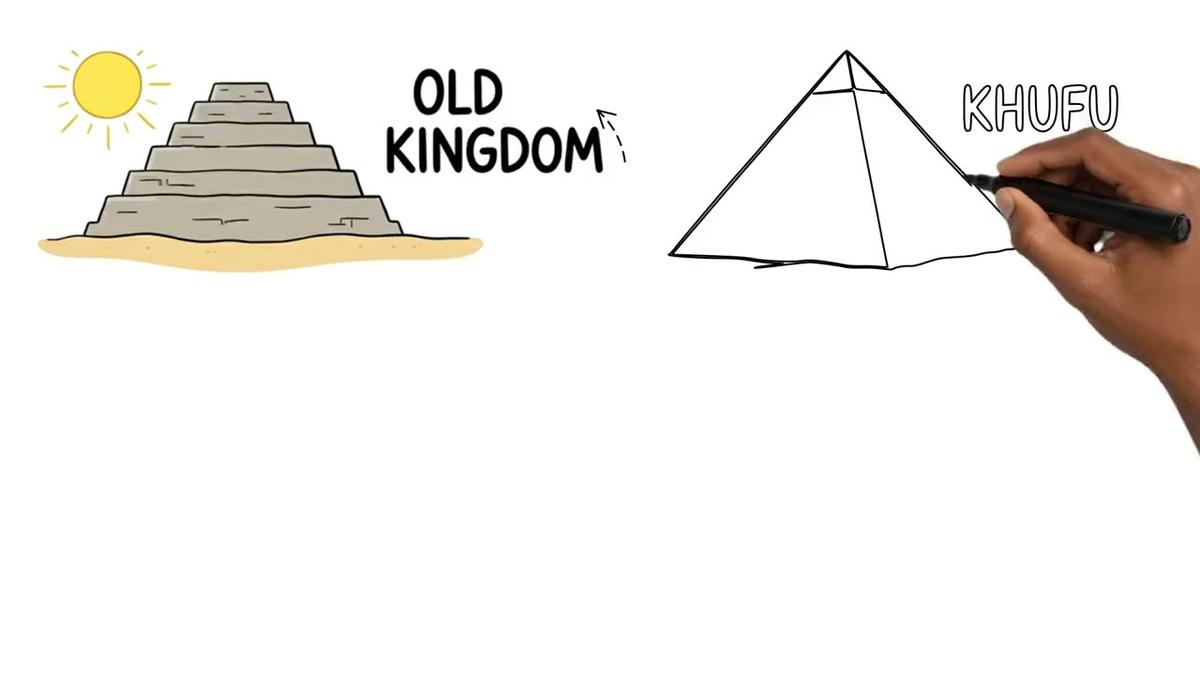
Plan needed: Whiteboard Animation is available on Premium and Ultimate only. It is not available on Free or Pro. If you are on Free or Pro, OpenClaw will let you know before spending any minutes.
Styles: There are two whiteboard styles. The classic style produces a hand-drawn look where sketches build up scene by scene. The Story Boards style adds colour and a more illustrated feel, as you can see in the bees example below.
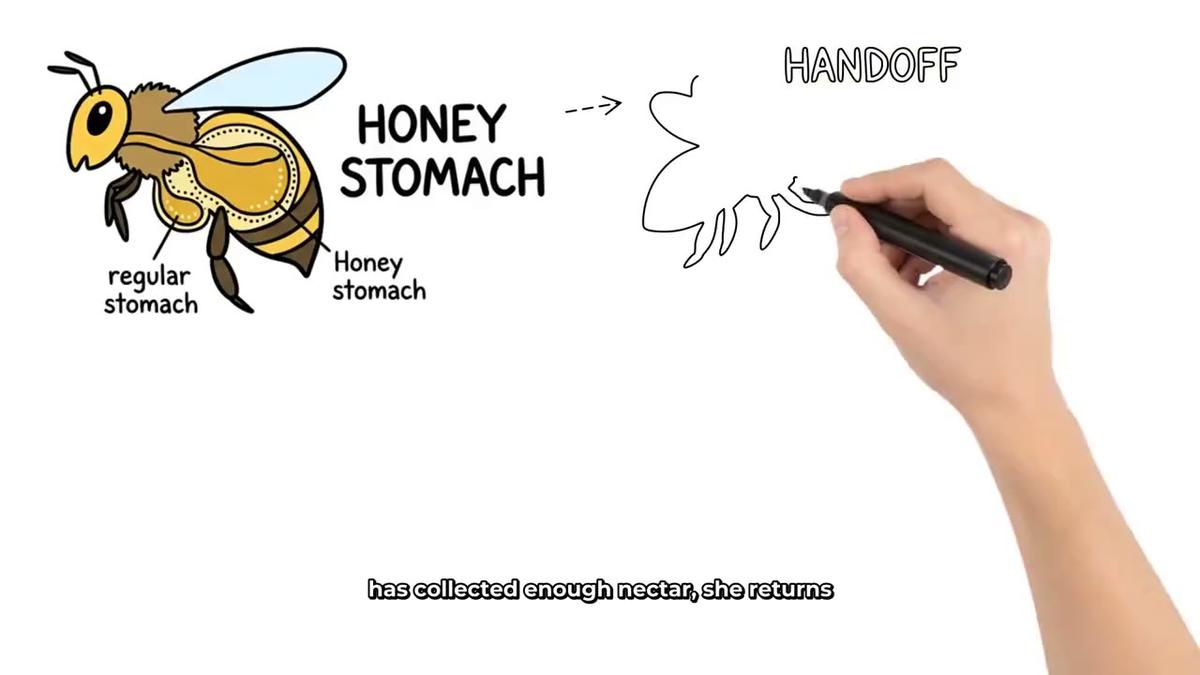
Drawing hand options: You can choose none (no visible hand), light, brown or dark. Just mention your preference in the request.
Length limits: On Premium, whiteboard videos can be up to 10 minutes long. On Ultimate, the classic style goes up to 60 minutes and the Story Boards style goes up to 15 minutes (or up to 10 minutes if you are using a designed voice or an ElevenLabs voice). Every minute of video uses one minute from your monthly pool.
Caption options: You can request any of the six caption styles: None, Clean, Boxed, YouTube Yellow, Bold Pop or Minimal. Bold Pop is popular for whiteboard content because it is easy to read against the white background.
What whiteboard cannot do: There are no recurring characters, no AI presenter and no animated scenes on whiteboard videos. Background music is optional and off by default, so mention it in your request if you want it.
Here are two real example requests you can type directly into OpenClaw:
- "Make a 6-minute whiteboard video about how black holes form, brown drawing hand, Bold Pop captions, no music."
- "Make a whiteboard explainer about the water cycle for a kids science channel, light hand, 4 minutes."
OpenClaw will confirm the minute cost, then kick off the video. Digital Maker AI emails you when it is ready, and the finished MP4 appears in your library.
Making Vertical Shorts Through OpenClaw MCP
Short-form video is the fastest way to grow on YouTube, TikTok and Instagram Reels right now. The AI YouTube Shorts generator inside Digital Maker AI produces vertical 9:16 videos between 15 and 60 seconds, with a new scene image every few seconds, AI narration and bold captions. Through OpenClaw you can spin one up with a single sentence.
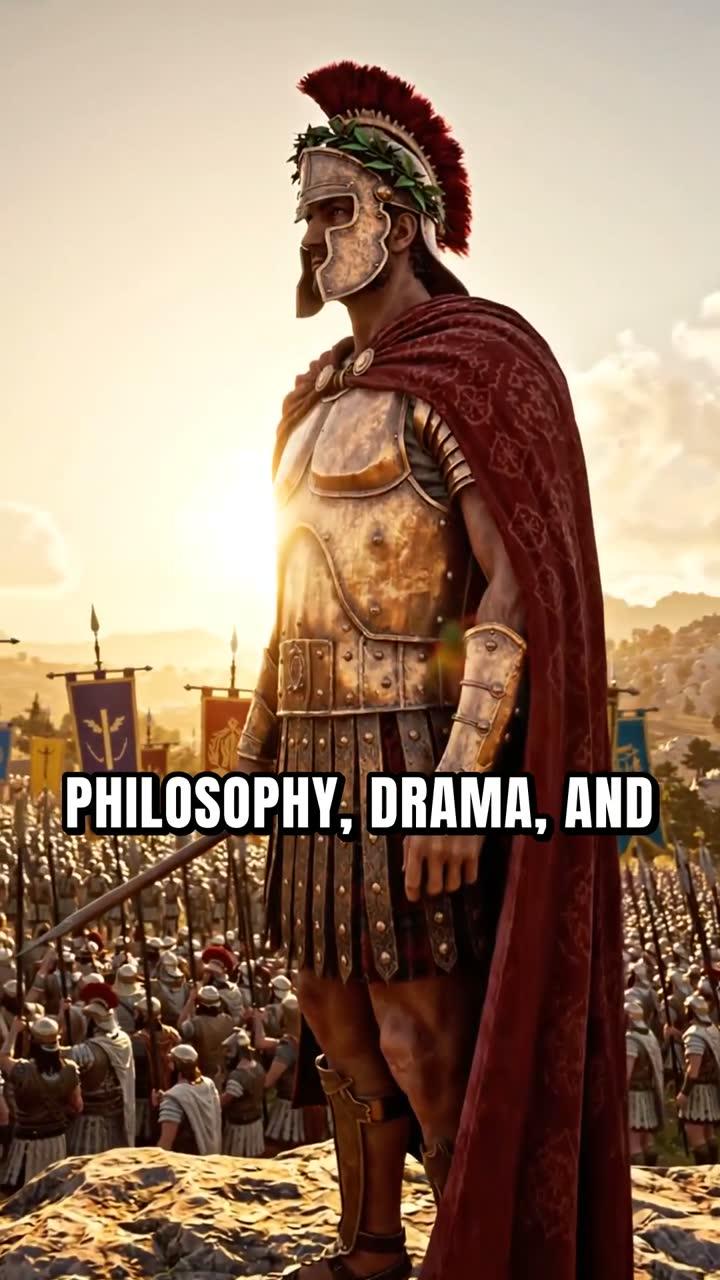
Plan needed: Shorts are available on Pro, Premium and Ultimate. Making a Short through OpenClaw needs Premium or Ultimate (making any video through a connected AI app needs Premium or Ultimate).
Pool cost: Every Short, regardless of whether it is 15 seconds or 60 seconds, costs a flat one minute from your monthly pool. That makes Shorts very efficient if you want to post frequently.
Length options: 15, 30, 45 or 60 seconds. Mention your preferred length in the request.
Visual styles: You can request any of the seven styles: Realistic or Everyday Visuals, Animated or Cartoon, Motivational or Dark Moody, Finance or Luxury, History or Ancient, Space or Sci Fi, or Minimalist or Clean.
Here are two example requests to try:
- "Make a 30-second vertical Short about the tallest mountains, Animated style, Bold Pop captions."
- "Create a 60-second Short about stoicism for my motivation channel."
OpenClaw confirms the cost, builds the Short on your account, and the finished vertical MP4 lands in your library. On Premium and Ultimate you can then post it straight to YouTube, TikTok or Instagram from the "Post to socials" button inside Digital Maker AI, now or on a schedule, without leaving the platform.
Other Video Formats You Can Make by Asking
Whiteboard and Shorts are the headline formats, but the same OpenClaw MCP connection unlocks every other format Digital Maker AI offers. Here is a quick look at what else you can request, all on Premium or Ultimate:
Faceless Long-Form Video
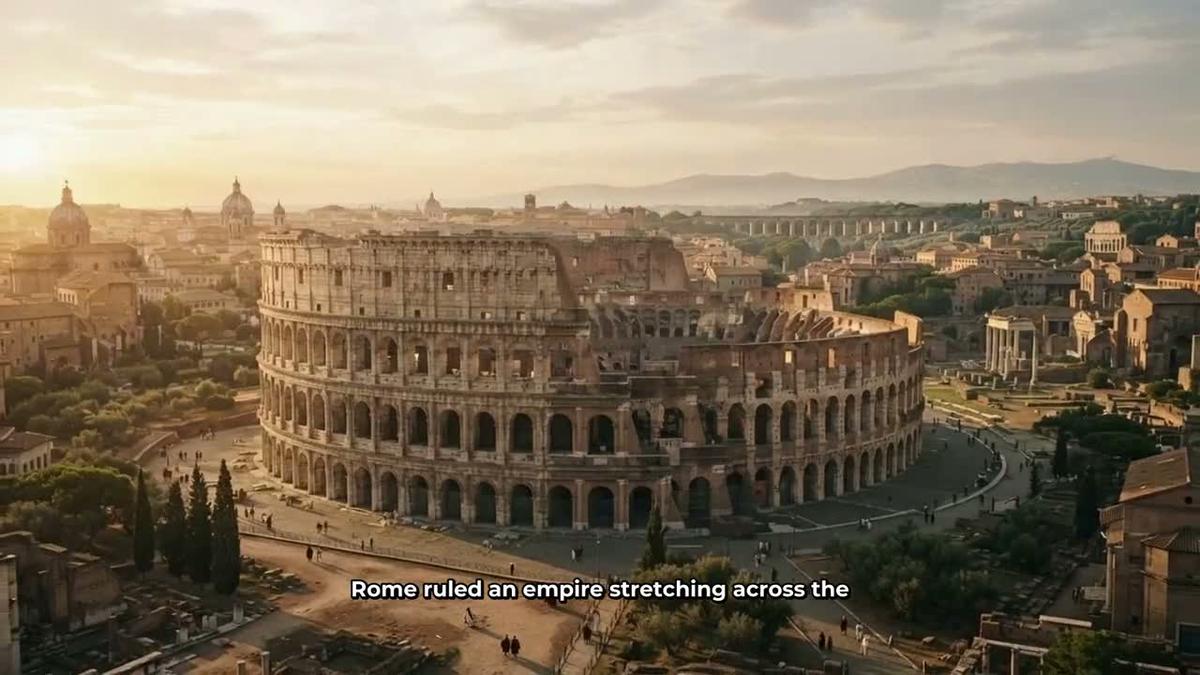
The core product: a complete landscape 16:9 YouTube video with an AI-written script, a unique generated image for every scene, AI narration and captions. On Premium you can make videos up to 30 minutes long through OpenClaw, and on Ultimate up to 60 minutes. Example request:
- "Make a 15-minute faceless YouTube video about the history of the Roman Empire, History style, YouTube Yellow captions, light background music."
AI Avatar Presenter Video
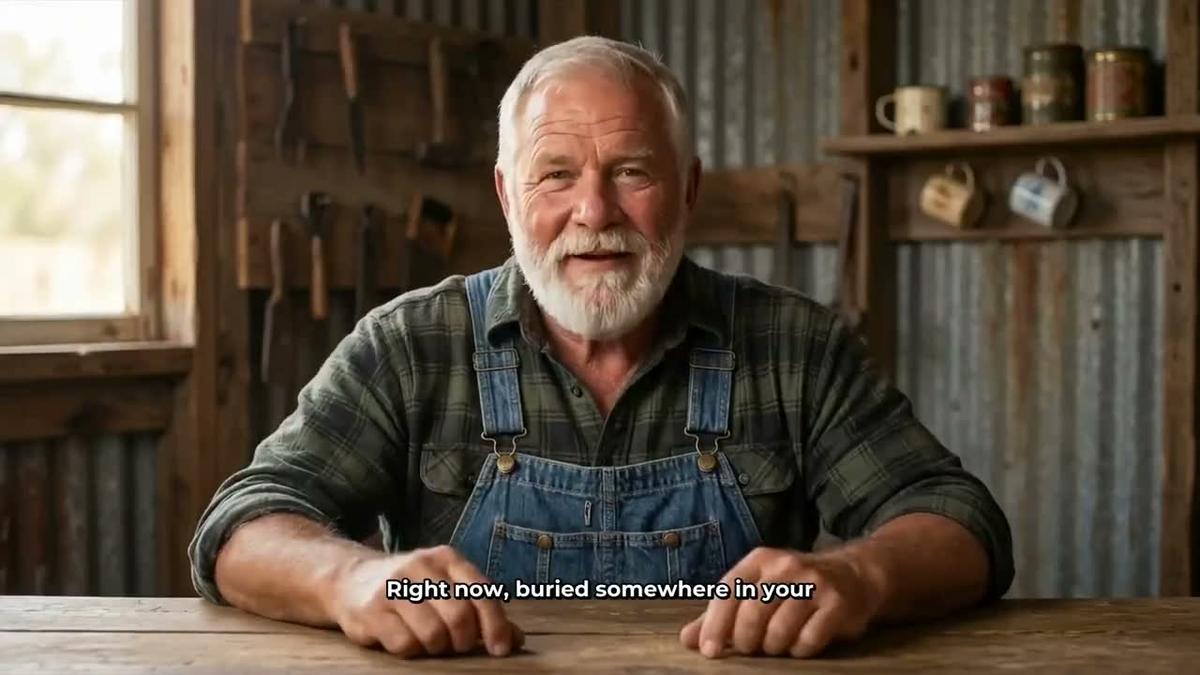
Add a talking AI presenter to a landscape Multi Scene video. The presenter is created once in Account Settings under the Presenters tab, then reused across as many videos as you like. You can place them full screen, split screen alongside the scene, or in a corner circle that floats over the scene. Example request:
- "Make a 10-minute video about personal finance tips with my AI presenter, split screen layout, Bold Pop captions."
Avatar time is counted separately from video minutes. For more on how avatar time works and how to add more, visit the pricing page. You can also read about the full AI avatar video generator on its own page.
Cartoon Video
Use the Animated or Cartoon visual style for illustrated, cartoon-looking scene images. Pair it with a recurring character and the same character appears in every scene of the video. Example request:
- "Make a 5-minute cartoon video about how ancient humans discovered fire, Animated style, use my caveman character."
Animated Podcast
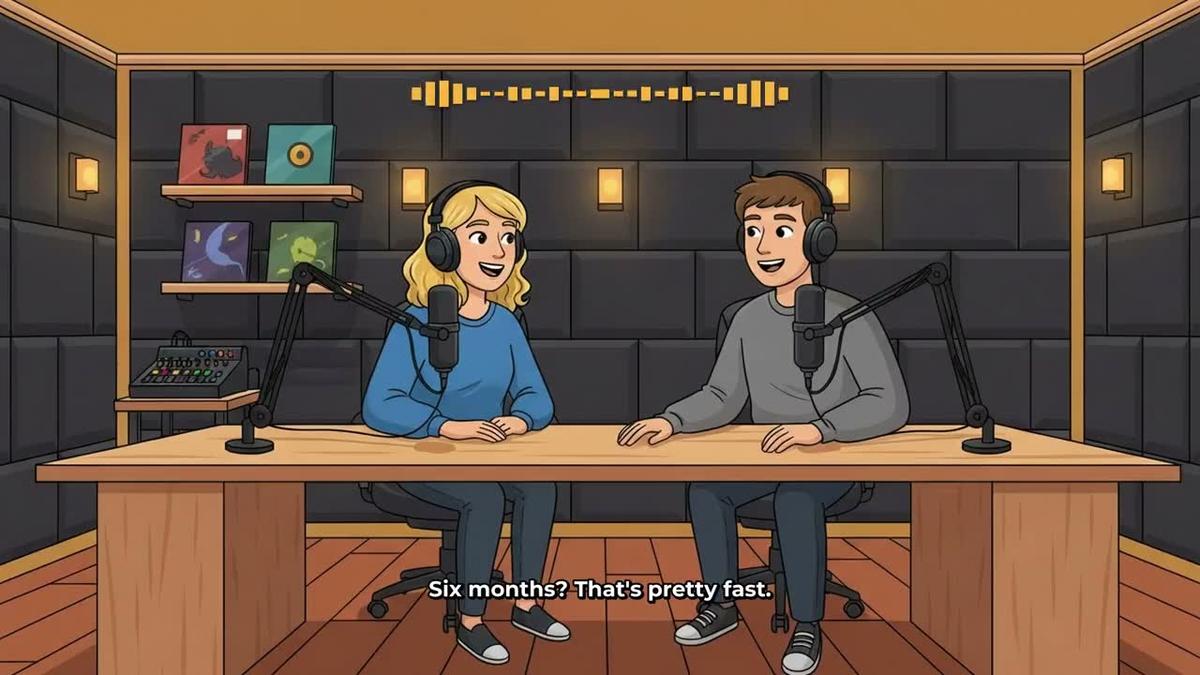
Two AI hosts in an animated studio talk through a topic in two voices, with captions and animated sound bars. Shows are saved so every new episode reuses the same hosts and studio automatically. Example request:
- "Record a new episode of my Tech Minds podcast about the future of AI, 20 minutes, conversational tone."
Research, Thumbnails and Posting Through OpenClaw
Making videos is only part of what the OpenClaw MCP connection can do. You can also ask OpenClaw to research faceless channels in the Faceless Finder, which shows subscribers, uploads per week, average video length and estimated ad revenue for any niche. Pro plan users get this channel research through the connector, along with thumbnail generation and character creation. Posting to YouTube, TikTok and Instagram is available on Premium and Ultimate: ask OpenClaw to post a finished video from your library and it will send it through the "Post to socials" connection, with posts labelled as AI generated. Nothing posts automatically; it only goes when you ask.
If you are interested in how the same MCP approach works with other AI agents, the guide on running a faceless YouTube channel with OpenClaw covers the broader workflow in detail, and the Hermes Agent MCP guide for AI presenter videos shows how the same connector works in a different agent platform.
Tips for Getting the Best Results
- Be specific in your request. Mention the format (whiteboard, Short, faceless), the length, the visual style, the caption style and whether you want music. The more detail you give, the closer the first video will be to what you imagined.
- Check your minutes first. Ask "How many video minutes have I got left on Digital Maker AI?" before starting a long whiteboard video. It costs nothing and takes two seconds.
- Use the email notification. Long videos and whiteboard animations take a few minutes to build. Digital Maker AI sends an email when the video is ready, so you do not need to sit and watch OpenClaw.
- Regenerate scenes you do not like. Once a video is in your library, you can regenerate any scene image (10 free regenerations per video), swap in your own image, or edit the narration text directly in Digital Maker AI. There is no timeline editor, but these tools give you real control over the final result.
- Plan around your pool. On Premium you get 150 minutes a month and on Ultimate 300. Shorts cost a flat one minute each, so they are great for filling out your posting schedule without eating into your long-form budget.
- Whiteboard needs Premium or Ultimate. If you are on Pro and want whiteboard, upgrading is worth it. Check the pricing page to compare what each plan includes.
The OpenClaw MCP whiteboard video workflow is one of the fastest ways to go from an idea to a finished, ready-to-upload explainer video. Whether you are building an educational channel, a science series or a motivation brand, connecting OpenClaw to Digital Maker AI puts the whole production process inside a single conversation. To get started and learn more about what the platform can do, the free Digital Maker AI course walks you through every format and feature step by step.
Alex Stevens: Alex Stevens writes for the Digital Maker AI team about faceless YouTube channels, AI presenters and AI video tools.