Hermes Agent MCP: Make AI Presenter Videos by Asking
By Alex Stevens
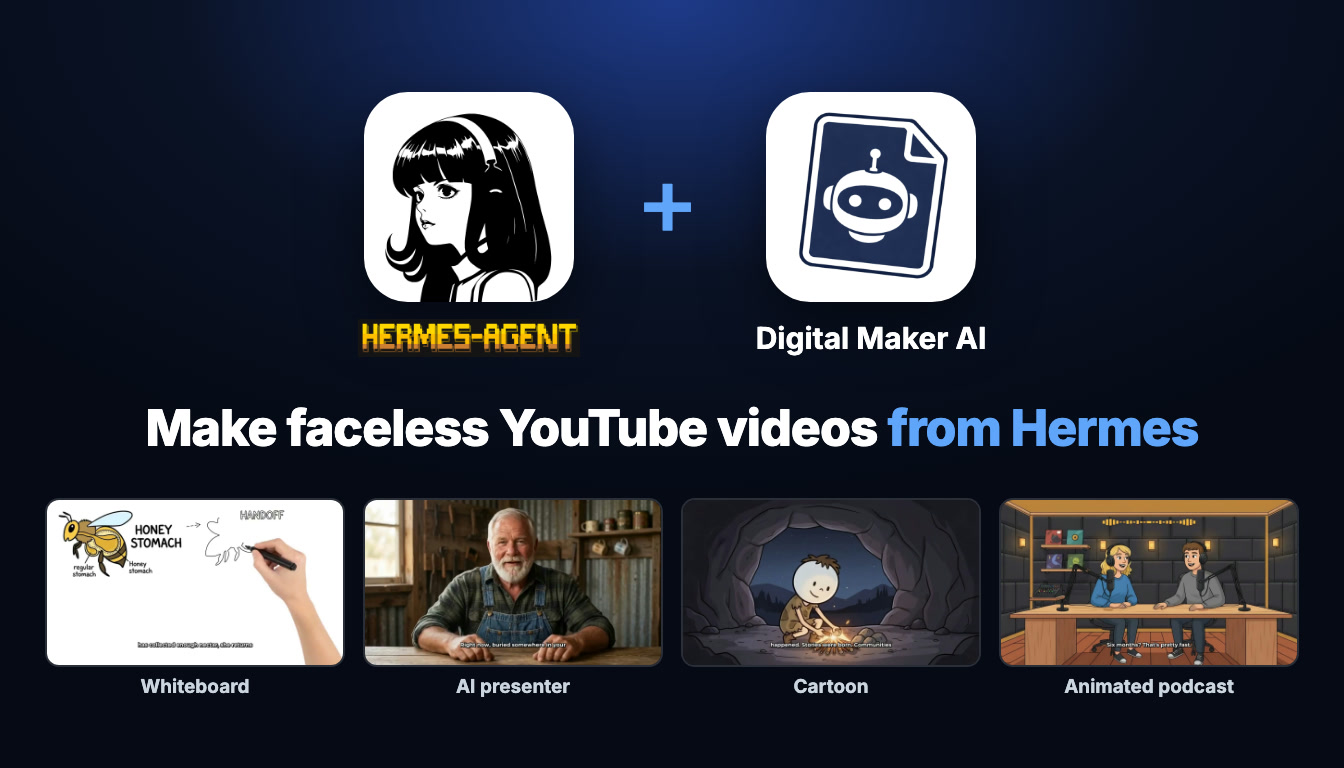
What You Will Be Able to Do After Reading This
By the end of this guide you will have Hermes Agent connected to Digital Maker AI through MCP, and you will be able to type a single sentence on your phone or laptop and get back a finished AI presenter video complete with a photoreal talking avatar, captions and background music. You will also know how to fire off vertical Shorts, whiteboard videos, animated podcasts and more, all without opening a browser. This is the complete guide to making a hermes agent ai presenter video from scratch.
What Connecting Hermes Agent to Digital Maker AI Actually Means
Hermes Agent is an AI assistant that runs on its own server and inside Telegram, letting you give it tasks in plain language from any device. When you connect it to Digital Maker AI, Hermes gains access to a set of tools through the Model Context Protocol (MCP). Those tools cover everything from making a long-form YouTube video to posting it to your social accounts when it is done.
Every video Hermes makes is built on your own Digital Maker AI account, using your own plan and your own monthly video minutes, exactly as if you had clicked through the website yourself. Nothing is stored somewhere else and nothing posts automatically. Finished videos land in your Digital Maker AI library and you get an email when they are ready. Hermes just gives you a conversational shortcut to trigger the whole process.
Because Hermes runs on Telegram, you can ask for a hermes agent ai presenter video from your phone while you are away from your desk, and the video will be waiting in your library when you get back.
Setting Up the Connection in Four Steps
The setup takes about two minutes. Open Digital Maker AI, then click Settings at the bottom of the left sidebar to reach Account Settings. Go to the API tab. Under the "What are you connecting?" selector, choose Hermes Agent and click Create key. The screen fills in a ready-made message for you that contains your unique connection URL (which looks like digitalmaker.ai/mcp/YOUR_KEY in plain text).
- Copy the ready-made message from the API tab.
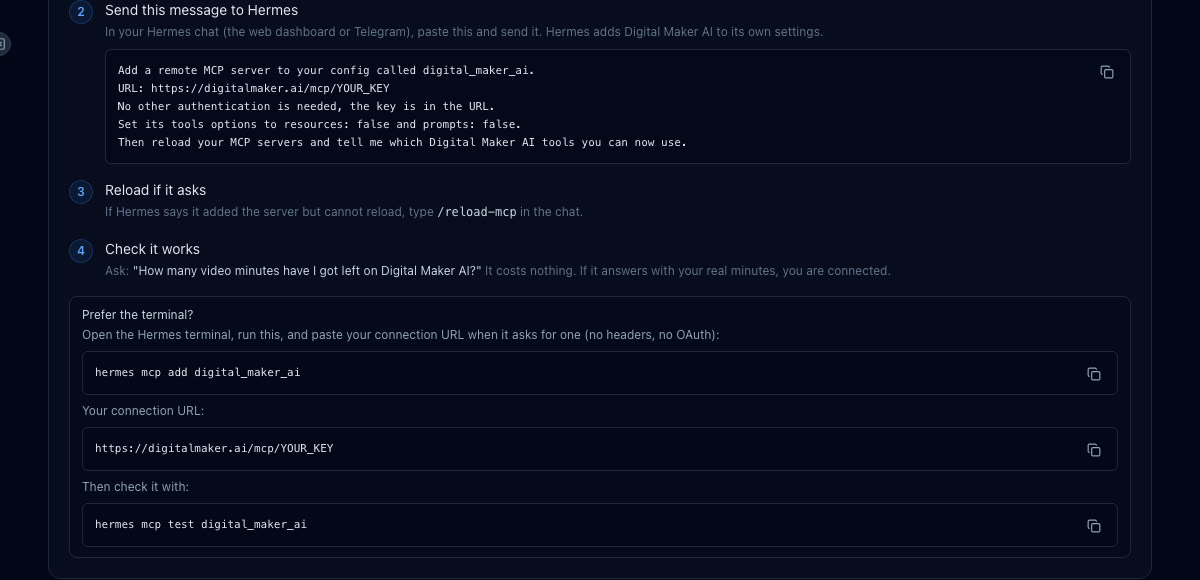
- Open Hermes Agent (its web dashboard or your Telegram chat with it) and paste the message, then send it. The message tells Hermes to add a remote MCP server called digital_maker_ai using your URL, with no extra authentication, and then reload and list the tools.
- If Hermes confirms it added the server but says it cannot reload, type /reload-mcp in the chat and send it.
- Test the connection by asking: "How many video minutes have I got left on Digital Maker AI?" It costs nothing, and a real answer with your remaining minutes means everything is working.
If you prefer the terminal, run hermes mcp add digital_maker_ai, paste your URL when prompted (no headers, no OAuth needed), then run hermes mcp test digital_maker_ai to confirm.
A quick note on plans: making any video through Hermes (long-form, Shorts, whiteboard, AI presenter, animated podcast) needs Premium or Ultimate. Pro gets thumbnails, images, character creation and channel research through the connector. Free accounts can check their account details and save to Google Drive, but the five free videos and the Faceless Finder are used on the website. Everything uses your normal monthly minutes, and Hermes confirms the minute cost before it starts any video.
Going Deep on AI Presenter Videos
The AI Presenters feature is where Hermes really earns its place. Instead of navigating menus to build a presenter and set up a video, you just describe what you want and Hermes handles the rest. Here is how it works under the hood.
Step 1: Create Your Presenter
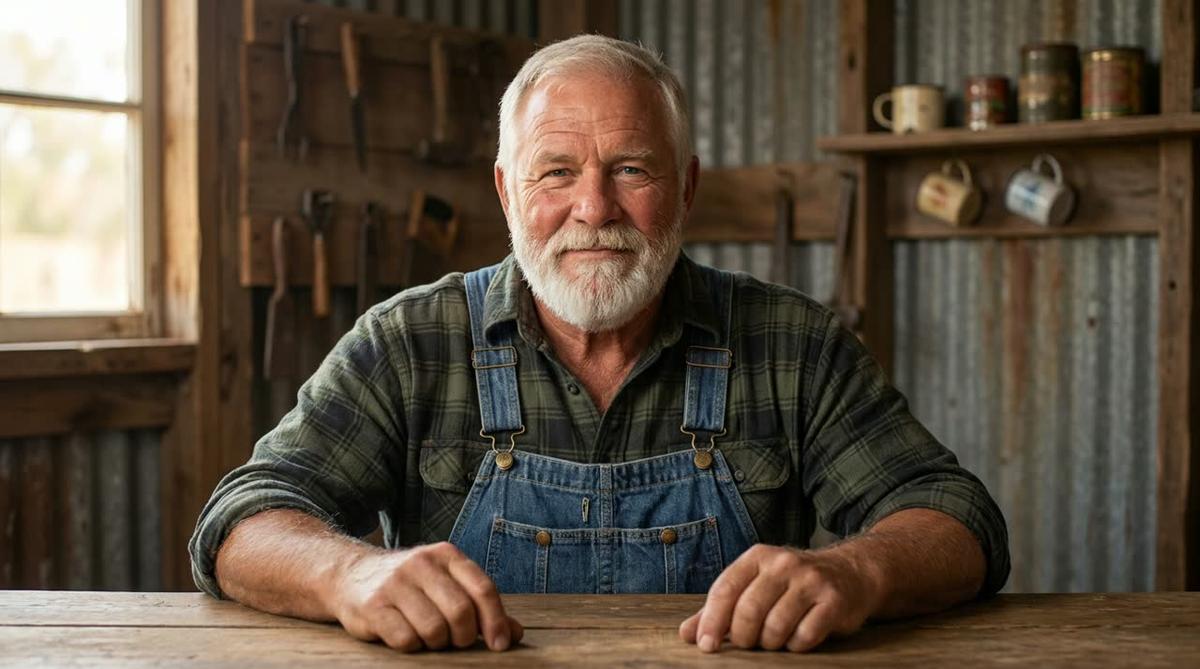
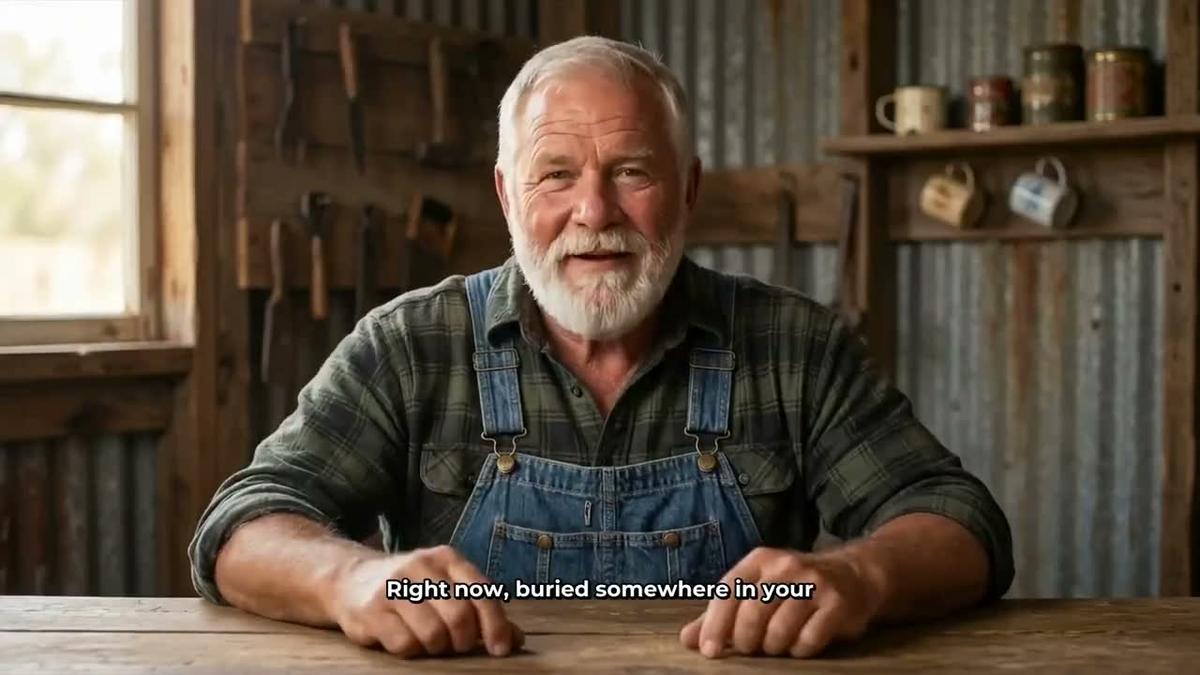
Before your first presenter video, you need a presenter saved to your account. Tell Hermes who you want and it calls Digital Maker AI to draw a photoreal picture of them and save it under your Presenters tab in Account Settings. A description of two sentences is enough. For example:
"Create an AI presenter called Marcus, a retired engineer in his fifties in a workshop setting, wearing a checked shirt and safety glasses pushed up on his forehead."
Digital Maker AI generates a photoreal portrait from that description. You can check it and, if you like it, it is saved and ready to use in any future video. Making a presenter uses 30 seconds of avatar time (a separate pool from your video minutes, explained below).
Step 2: Make the Video
Once your presenter exists, making a full video is one message. A real example:
"Make a 10-minute video about the history of the steam engine using Marcus as the presenter, Split screen layout, History visual style, Bold Pop captions, and add background music."
Hermes confirms the minute cost, you say yes, and Digital Maker AI writes the script, generates a scene image for every scene, adds AI narration with Bold Pop captions, and weaves Marcus in at the ticked layouts. You get an email when it is ready, and the finished MP4 is in your library with a link.
The Three Presenter Layouts
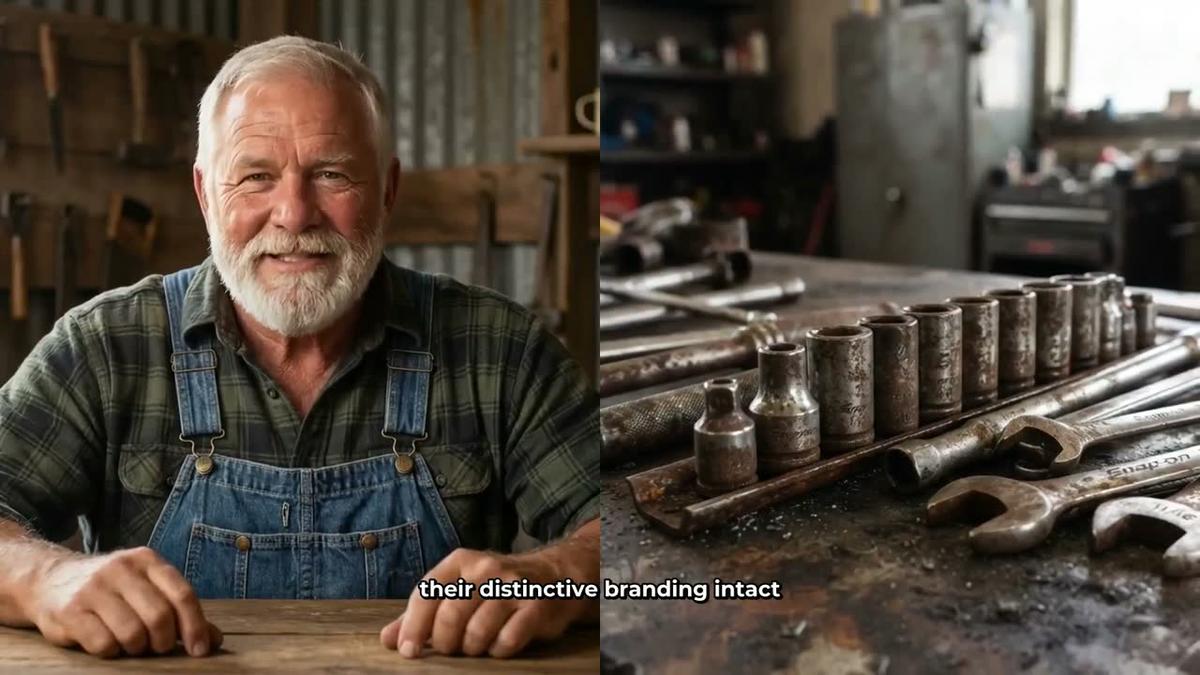
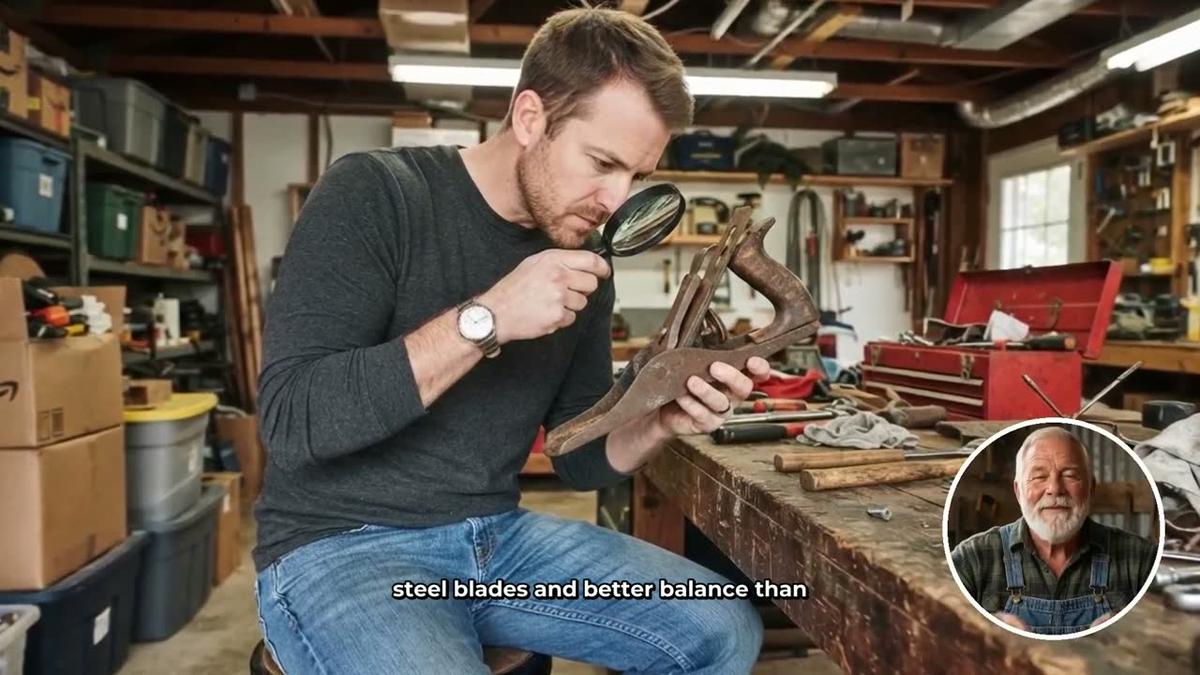
Full screen puts the presenter in front of the camera filling the whole frame, ideal for introductions and conclusions. Split screen places the presenter on the left half of the screen while the scene image sits on the right, keeping the visual content visible the whole time the presenter is talking. Corner circle lets the scene fill the frame while the presenter appears in a small round window in one corner, keeping the atmosphere of the scene intact.
You can tick one layout, two or all three, and the video rotates through whichever you choose. A slider controls how much of the total video the presenter appears on screen, from just 5 percent up to the full length. Timeline markers let you place them at the start, in the middle or at the end, or any combination.
Understanding Avatar Time
Avatar time is a separate pool of seconds, distinct from your video minutes. Creating a presenter costs 30 seconds. A video only uses the avatar seconds the presenter is actually visible on screen, so a 10-minute video where the presenter appears for 2 minutes uses 2 minutes of avatar time and 10 minutes of video minutes.
Premium plans start with 2 minutes of avatar time. Ultimate starts with 5 minutes and receives 3 more every month. Avatar Packs let you add more as one-off purchases that do not expire while you are subscribed. See the pricing page for current pack options. AI Presenters are available on Premium and Ultimate only.
Making Vertical Shorts with Hermes Agent
Shorts are just as easy to trigger through Hermes. A Multi Scene Short is vertical 9:16, between 15 and 60 seconds, and costs a flat one minute from your pool regardless of length. It gets a new AI-generated scene image every few seconds, narration and bold captions. One example request:
"Make a 30-second Short about the history of the steam engine, vertical, Bold Pop captions."
Hermes confirms the cost and queues the build. The finished Short lands in your library as an MP4 ready to post. Note that AI Presenters are for landscape Multi Scene videos, so Shorts use the standard scene-based format without an on-screen presenter. You can find more about the AI YouTube Shorts generator on the Digital Maker AI site.
Every Other Format You Can Trigger by Asking
The same Hermes connection gives you access to every other Digital Maker AI format. Here is a quick reference with an example request for each.
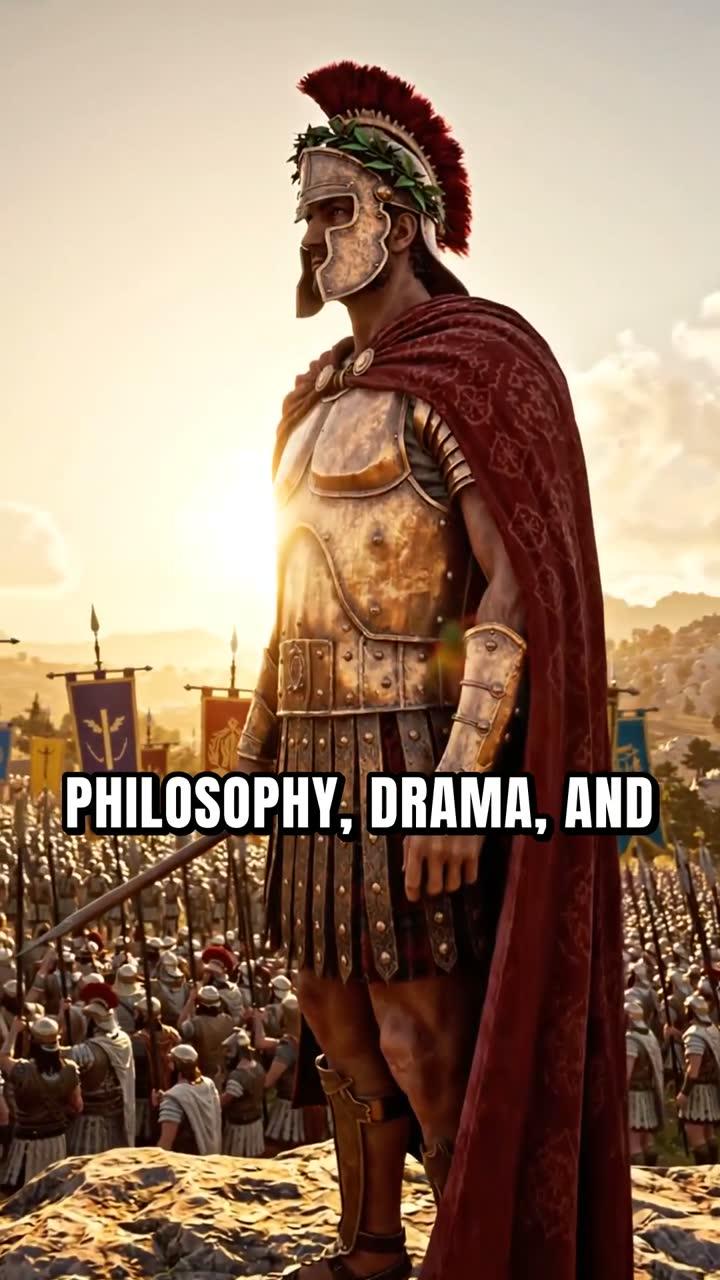
- Faceless long-form video (up to 30 min on Premium, 60 on Ultimate): "Make a 15-minute faceless video about the Roman Empire, History visual style, YouTube Yellow captions."
- Whiteboard animation: "Make a 10-minute whiteboard video explaining how the steam engine changed the industrial revolution, dark drawing hand." Sketches draw themselves on screen as the narration plays. See the AI whiteboard animation generator for more.
- Cartoon video: "Make a 5-minute cartoon video about the history of fire, Animated style, Bold Pop captions."
- Animated podcast: "Record a new episode of The Engineering Hour podcast about the invention of the steam engine, 20 minutes, curious tone." Two AI hosts discuss the topic in a shared animated studio, with sound bars and captions. Learn more at the AI animated podcast generator.
- Thumbnail: "Make a YouTube thumbnail for a video about the history of the steam engine, bold text overlay, dramatic lighting." (Available on Pro and above through Hermes.)
- Channel research: "Show me faceless channels in the history niche with over 50,000 subscribers." (Available on Pro and above.)
- Post to socials: "Post my latest video to YouTube now, title: The Steam Engine That Changed the World, description: [your description]." Posts to YouTube, TikTok and Instagram once you have connected your accounts in Account Settings. Nothing posts without you asking.
For more on automated posting, the AI video auto-publishing page covers how to connect your channels.
Research, Thumbnails and Finding Channels to Study
Beyond video creation, Hermes can help you plan your content strategy through the same connection. Ask it to search the Faceless Finder for channels in your niche, and it will return subscriber counts, uploads per week, average video length and estimated ad revenue for each one. You can also search specifically for AI avatar channels by asking Hermes to filter for them, which is useful if you want to see how other creators are using presenter-style videos in your niche.
Thumbnails and channel banners can be generated through Hermes on Pro and above. Character images can be created through the connector on Pro, though using them inside videos needs Premium or Ultimate. The Image Maker, Ebook Writer and Prompt Maker tools are also accessible through the same MCP connection.
Tips for Getting the Best Results
- Be specific in your presenter description. Mention age, setting, clothing and expression. The more detail you give, the closer the portrait will be to what you imagined.
- Save presenters you like. You can build several and reuse them across videos without spending avatar time again on creation. The 30-second creation cost only applies once per presenter.
- Match your layout to your content. Split screen works well for explainer topics where you want both a face and visuals. Corner circle suits atmospheric history or nature topics where the scene should dominate.
- Check your avatar time before a long video. Ask Hermes: "How much avatar time do I have left?" It costs nothing and saves surprises.
- Use Telegram for on-the-go requests. Because Hermes runs in Telegram, you can queue a video from your phone during a commute and find it in your library when you arrive. Digital Maker AI emails you when it is ready.
- Let Hermes confirm before it spends minutes. Hermes always tells you the cost before starting a video. Say yes to proceed, or ask it to adjust the length or format first.
- Explore related guides. The post on using Hermes to make faceless videos for YouTube automation covers the long-form workflow in depth, and making YouTube videos inside ChatGPT or Claude is worth reading if you use those apps too.
Start Making AI Presenter Videos by Asking
Connecting Hermes Agent to Digital Maker AI turns a multi-step production process into a single typed sentence. You describe a presenter, Hermes builds them, and then every future video with that presenter is one request away, whether you are at your desk or on your phone. The free Digital Maker AI course walks you through the full platform so you can get the most out of every minute on your plan.
Alex Stevens: Alex Stevens writes for the Digital Maker AI team about faceless YouTube channels, AI presenters and AI video tools.