Run a Faceless YouTube Channel From OpenClaw Each Week
By Alex Stevens
What This Guide Covers
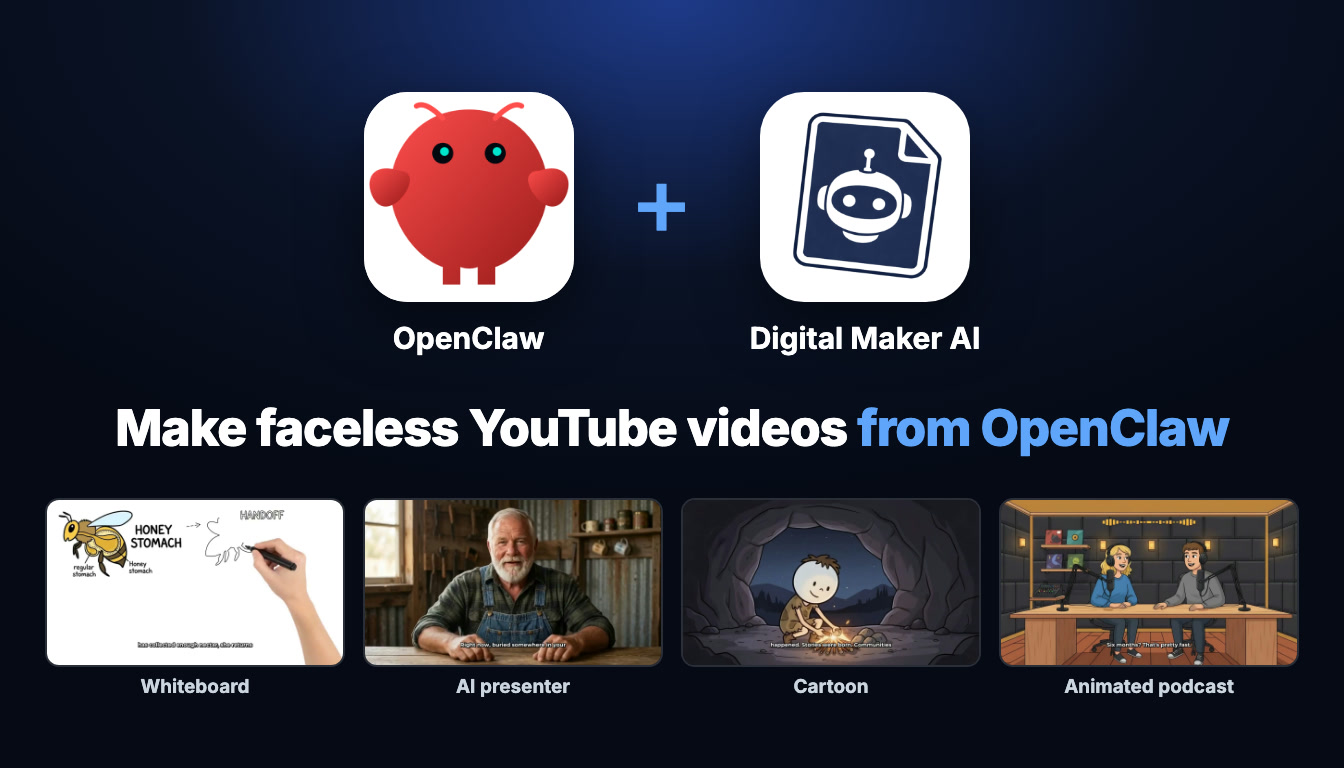
By the end of this article you will have a repeatable openclaw faceless youtube channel weekly routine that lets you run an entire personal finance channel by typing requests into OpenClaw. OpenClaw handles the conversation; Digital Maker AI does the heavy lifting: writing scripts, generating scene images, recording narration, adding captions, and delivering a finished MP4 to your library. Monday to Friday, one typed request at a time.
What Connecting Actually Means
OpenClaw is an AI agent platform that supports the Model Context Protocol (MCP), which is a standard way for AI assistants to reach out and use external tools. When you connect Digital Maker AI to OpenClaw, you are giving OpenClaw access to the Video Maker on your own Digital Maker AI account. Every video that gets made uses your own plan and your own monthly video minutes. Nothing is shared, nothing is pooled. The finished video is saved to your Digital Maker AI library, and you get an email when it is ready.
Think of it this way: OpenClaw is the place where you type. Digital Maker AI is the production studio that builds what you asked for. Before spending any minutes, OpenClaw shows you exactly what it is about to make and what it will cost. Nothing starts until you confirm.
For more on what you can do through the connector, the full overview is at digitalmaker.ai/openclaw.
Setting Up the Connection
Setup takes about two minutes and you only do it once. Here are the steps:
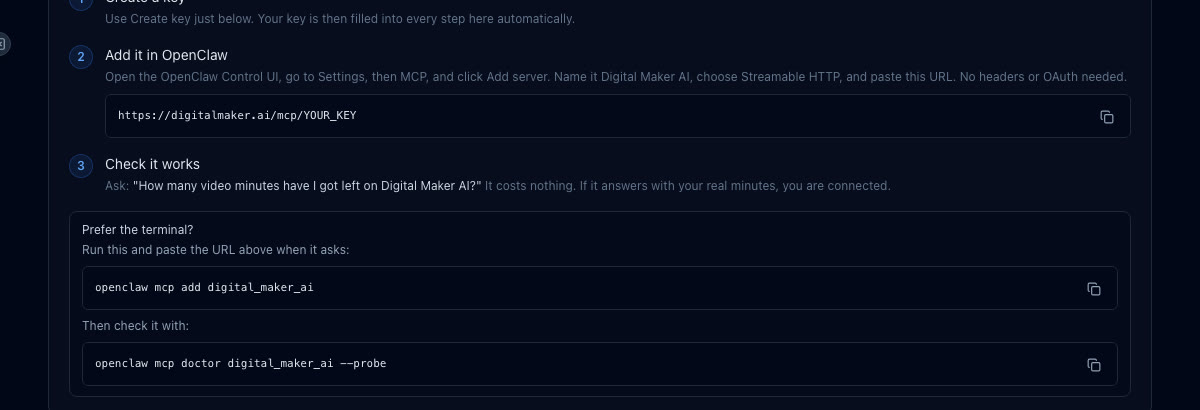
- In Digital Maker AI, open Settings at the bottom of the left sidebar, then go to Account Settings and click the API tab.
- Under "What are you connecting?" choose OpenClaw and click Create key. Your connection URL is built for you automatically. It looks like
digitalmaker.ai/mcp/YOUR_KEYin plain text. - In the OpenClaw Control UI, go to Settings, then MCP, and click Add server.
- Name the server Digital Maker AI, choose Streamable HTTP as the type, and paste the connection URL. No headers or OAuth are needed.
- If you prefer the terminal, run
openclaw mcp add digital_maker_ai, paste the URL when asked, then runopenclaw mcp doctor digital_maker_ai --probeto confirm the link.
To test that everything is working, type this in OpenClaw: "How many video minutes have I got left on Digital Maker AI?" It costs nothing and comes back with your current balance straight away.
A quick note on plans before we go further. Making any video through OpenClaw, whether it is a long-form faceless video, a Short, a whiteboard video or an animated podcast, needs a Premium or Ultimate plan. Pro gets thumbnails, character creation and channel research through the connector. Free accounts can check their balance and save to Google Drive, but the five free videos are used on the Digital Maker AI website. See digitalmaker.ai/pricing for full plan details.
Monday: Channel and Topic Research
Start the week by understanding your niche before you make a single frame of video. OpenClaw can pull live channel data from the Faceless Finder inside your Digital Maker AI account, so your research is grounded in real numbers rather than guesswork.
Try typing this on Monday morning:
"What faceless YouTube channels in the personal finance niche are getting traction right now?"
OpenClaw queries the Faceless Finder and returns a list of confirmed channels with their subscriber counts, upload frequency, average video length and estimated monthly ad revenue. That last figure is Digital Maker AI's own rough estimate based on recent views and typical ad rates for the niche, not the channel's real earnings, but it gives you a useful sense of scale. You can also ask it to show only AI avatar channels by searching for "AI avatar" in the same tool.
Use what you find to decide on this week's topic. For this guide, the example channel is a personal finance channel and the topic is the 50/30/20 budget rule.
Tuesday: Long-Form Faceless Video
Tuesday is production day for your main YouTube upload. This is where the openclaw faceless youtube channel weekly routine really earns its keep: one typed request, and Digital Maker AI writes the script, generates a scene image for every scene, records the narration, adds captions and returns a ready-to-upload MP4.
Type this in OpenClaw:
"Write a 10-minute script about the 50/30/20 budget rule, then make it as a Multi Scene Realistic video with a male UK voice and YouTube Yellow captions."
Before it starts, OpenClaw shows you a card with what it will make, the options you chose and the minute cost. Confirm, and the build begins. Long videos take a while to produce; Digital Maker AI will email you when it is ready, and the finished video appears as a link in OpenClaw and in your library.
On Premium you can make a long-form video up to 30 minutes; on Ultimate up to 60 minutes. The video uses your monthly minute pool at one minute of pool per minute of finished video. If you want to see what a 10-minute long-form video looks like in practice, the long-form video generator page has examples.
Once the video is back, you can regenerate any scene image you are not happy with (10 free regenerations per video), swap in your own image, or tweak the narration text. There is no timeline editor, but those three tools cover most adjustments.
Wednesday: Animated Podcast Episode
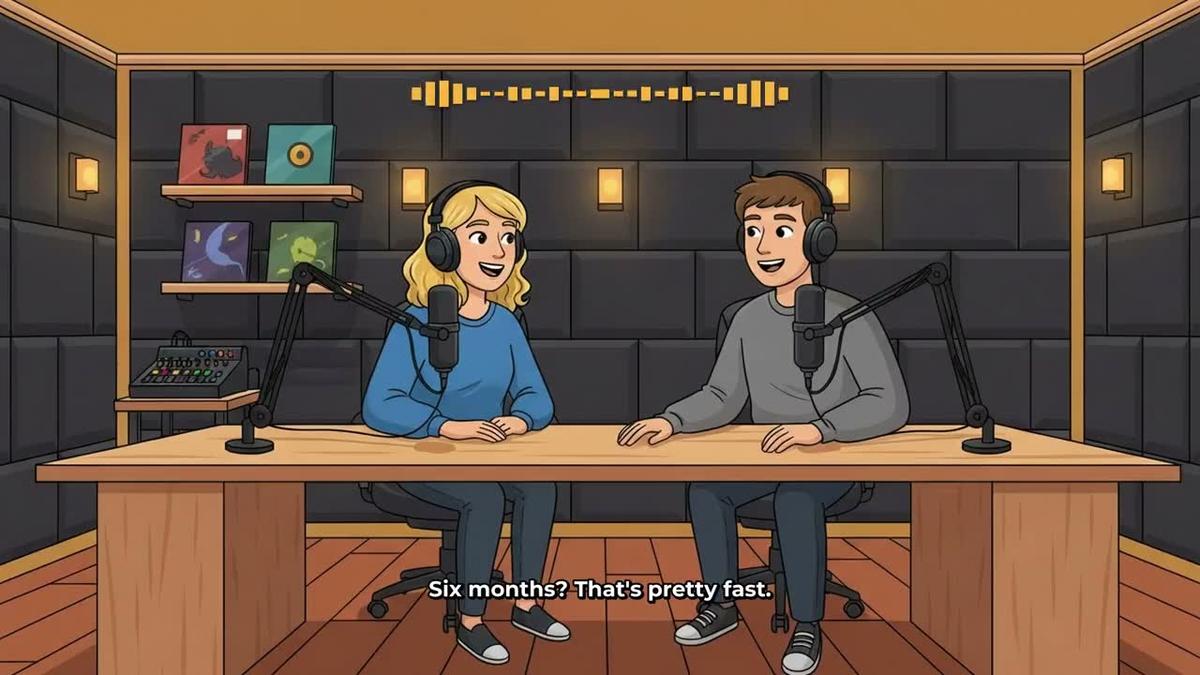
Wednesday is for your podcast episode. An animated podcast gives you two AI hosts in a studio scene, talking through a topic in their own voices, with captions and animated sound bars. It is a different format from the main video and reaches a different part of your audience, particularly people who like a conversational tone.
Type this in OpenClaw:
"Make a 20-minute animated podcast episode called Money Habits with hosts Jordan and Priya discussing why people stay broke."
OpenClaw confirms the minute cost, you approve it, and the build starts. Because long episodes are written and recorded in sections, a 20-minute episode can take 45 minutes or more to produce. Digital Maker AI will email you when it is done. The show is saved in your account, so next week's episode reuses the same hosts, voices and studio without you having to set them up again.
Podcast episodes up to 30 minutes are available on Premium; up to 60 minutes on Ultimate. Pro does not include the animated podcast.
Thursday: A Vertical Short
Thursday is for the Short. Vertical content on YouTube Shorts and TikTok brings in a different audience and can send viewers to your long-form video. The best approach is to pull the strongest single point from Tuesday's video and build a tight 60-second piece around it.
Type this in OpenClaw:
"Make a 60-second Short from the key point about the 50/30/20 rule, bold captions, same style."
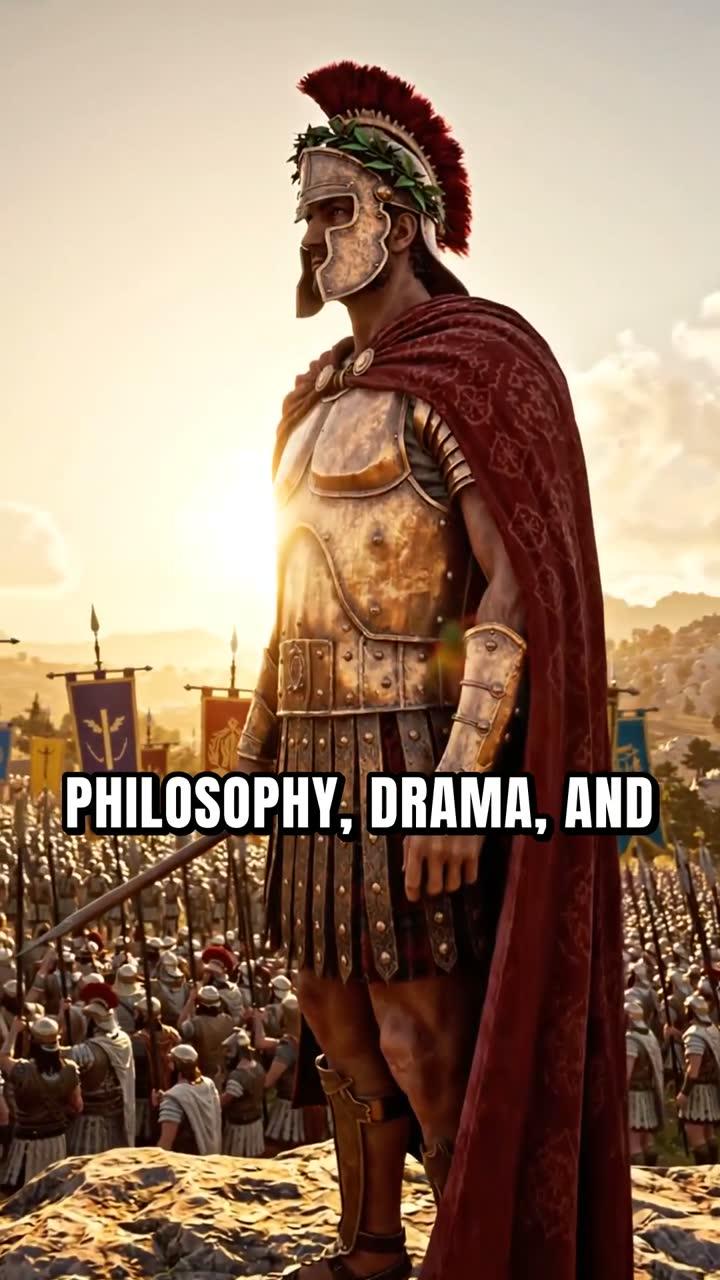
Digital Maker AI produces a vertical 9:16 Multi Scene Short: a new scene image every few seconds, narration, and bold captions burned in. It costs a flat one minute from your pool regardless of the length. OpenClaw confirms before starting, as always.
For more on what a finished Short looks like and what the format can do, see the YouTube Shorts generator page.
Friday: Thumbnail and Posting
Friday is the day you tie everything together. Start with the thumbnail, then schedule the posts.
Type this in OpenClaw:
"Make a YouTube thumbnail for the 50/30/20 video, then post the long-form video to YouTube scheduled for Saturday at 9am and the Short to TikTok now."
OpenClaw handles these as a sequence. First it generates the thumbnail using the Image Maker in your account. Then it queues the long-form video to go live on YouTube at 9am Saturday, and posts the Short to TikTok immediately. Posts are labelled as AI generated. Nothing posts automatically; OpenClaw will ask you to confirm each action before it happens.
Posting to YouTube, TikTok and Instagram through the connector is available on Premium and Ultimate only. You need to connect your social accounts once in Account Settings before the first post. Full details on connecting and scheduling are on the auto-publishing page.
If you are on Pro, you can still make the thumbnail through OpenClaw and then download the MP4s from your library to upload manually.
Research, Thumbnails and Extra Tools
The weekly routine above covers the five core tasks, but OpenClaw can handle several other jobs on your channel as well.
- Niche deep dives: Ask OpenClaw to search the Faceless Finder for channels in any niche, including stickman-style channels, history channels or AI avatar channels. It returns subscribers, upload frequency, average video length and estimated revenue for each one.
- Character creation: Ask OpenClaw to create a recurring character from a description. Pro can create the character; using it inside videos needs Premium or Ultimate.
- Google Drive: Ask OpenClaw to save a finished video to your connected Google Drive. Available on all plans.
- Minute check: Any time you want to know how many minutes you have left, just ask. It costs nothing.
If you are interested in running a similar routine using a different AI agent, the guide on running a faceless channel from your phone with Hermes Agent covers the same idea with a different setup. And if you want to add an AI presenter to your long-form videos, the article on making an AI presenter video with OpenClaw walks through that in detail.
Tips for Keeping the Routine Going
A few practical points that will save you time as you settle into the weekly rhythm.
- Be specific in your requests. The more detail you give OpenClaw, the closer the first result will be to what you want. Include the length, style, voice, caption look and any tone notes in one message.
- Watch your minutes. Ask OpenClaw for your remaining minutes at the start of each week. A typical week using this routine (10-minute long-form video, 20-minute podcast, one Short) uses around 31 minutes from your pool. Premium includes 150 minutes a month, which is comfortable for this schedule.
- Build your show library early. Set up the Jordan and Priya podcast show on your first Wednesday. After that, each new episode reuses the same hosts and studio automatically.
- Regenerate before you post. After the long-form video comes back, open it in your Digital Maker AI library and check each scene. You get 10 free scene regenerations per video, so use them on any image that does not quite fit.
- Batch Monday research. Use Monday's research session to plan two or three weeks ahead, not just one. That way you are never stuck for a topic when Tuesday comes around.
- Videos take time. A 10-minute video typically takes several minutes to build; a 20-minute podcast can take 45 minutes or more. Start the longer jobs early in the day and let Digital Maker AI email you when they are ready, then review them later.
Your OpenClaw Faceless YouTube Channel Weekly Routine at a Glance
Here is the full week summarised so you can keep it somewhere handy.
- Monday: Research ("What faceless YouTube channels in the personal finance niche are getting traction right now?")
- Tuesday: Long-form video ("Write a 10-minute script about the 50/30/20 budget rule, then make it as a Multi Scene Realistic video with a male UK voice and YouTube Yellow captions")
- Wednesday: Animated podcast ("Make a 20-minute animated podcast episode called Money Habits with hosts Jordan and Priya discussing why people stay broke")
- Thursday: Short ("Make a 60-second Short from the key point about the 50/30/20 rule, bold captions, same style")
- Friday: Thumbnail and posting ("Make a YouTube thumbnail for the 50/30/20 video, then post the long-form video to YouTube scheduled for Saturday at 9am and the Short to TikTok now")
That is a complete content week: a long-form YouTube video, an animated podcast episode, a vertical Short and a thumbnail, all built from typed requests in OpenClaw. The only thing you need to add is the topic.
If you are just getting started and want to learn the broader strategy behind running a faceless channel, the Digital Maker AI free course covers niche selection, channel setup and your first video from scratch.
Alex Stevens: Alex Stevens writes for the Digital Maker AI team about faceless YouTube channels, AI presenters and AI video tools.