Run a Faceless YouTube Channel Weekly Routine With Claude
By Alex Stevens
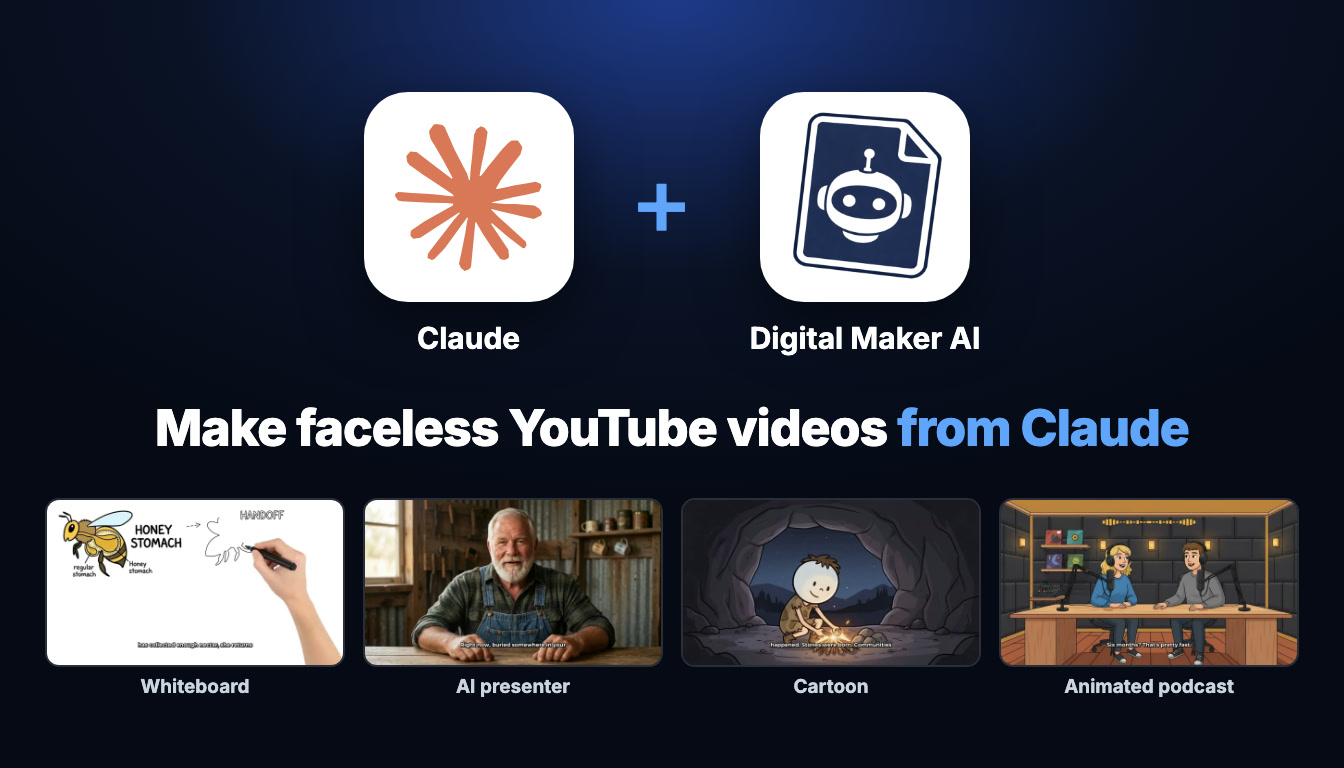
What Claude AI YouTube Channel Automation Actually Means
Claude is an AI assistant made by Anthropic. It can hold a long conversation, write scripts, do research and, once you connect it to the right tools, take actions on your behalf. Digital Maker AI connects to Claude through a standard protocol called MCP, which lets Claude reach into your Digital Maker AI account and make videos, create thumbnails, research niches and post to social media, all from a single chat window. That is what claude ai youtube channel automation looks like in practice: you type a plain English request, Claude does the work using your account, your plan and your monthly video minutes, and the finished video lands in your Digital Maker AI library. Nothing is shared with anyone else. Nothing posts automatically. Claude confirms the minute cost before it touches a single second of your allowance, and it never starts a video unless you ask it to directly.
This guide lays out a repeatable Monday-to-Friday routine you can run entirely from a Claude chat, from niche research on Monday through to posting on Friday, once the five-minute setup is done.
What Connecting Claude to Digital Maker AI Actually Does
When you add Digital Maker AI as a custom connector in Claude, you are giving Claude a set of tools it can call on your behalf. Those tools live inside your Digital Maker AI account. Every video Claude makes is built there, using your plan's video minutes, and saved to your library. Claude does not store the video, does not post it anywhere without you asking, and does not use any minutes until you confirm. Think of it as having a very capable assistant who sits at your Digital Maker AI dashboard and acts only when you give a direct instruction.
Videos take a little while to build, just as they do on the website. Once a video is ready, Digital Maker AI emails you and the finished file appears as a link in the chat and in your library. The whole pipeline, from your typed request to a ready-to-upload MP4, happens inside the tools you already have.
Setup: Claude MCP in About a Minute
You only need to do this once. Open your Digital Maker AI account and go to Settings at the bottom of the left sidebar to reach Account Settings. Click the Claude MCP tab, then click Create a key. You will see a Name and a URL, which together are your personal connector address in the format digitalmaker.ai/mcp/YOUR_KEY.
- In a Claude chat, click the + icon, then choose Connectors.
- Click Add connector, then Custom connector.
- Paste in the Name and the URL from Digital Maker AI. Leave everything else empty and click Continue.
- Start a new chat. You are connected. Ask something simple first, such as "How many video minutes do I have left?" to confirm it is working.
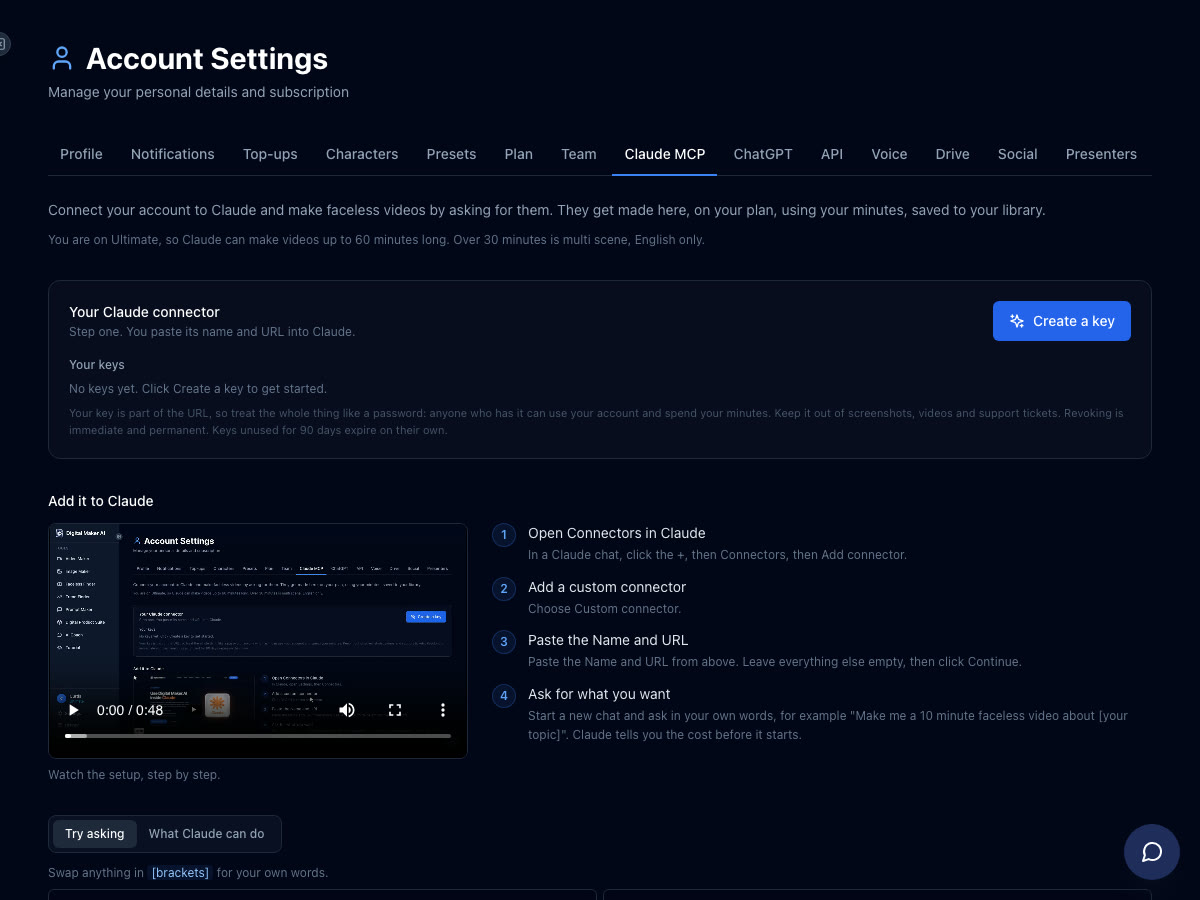
That is everything. From this point on, every step in the routine below happens inside a Claude chat. For a full walkthrough of what Claude can do with Digital Maker AI, visit the Digital Maker AI for Claude page.
Monday: Research Your Niche With the Faceless Finder
Start the week by understanding what is already working in your chosen niche. The Faceless Finder is a searchable list of confirmed faceless YouTube channels, showing each channel's subscriber count, how many videos they upload per week, their average video length and an estimated monthly ad revenue figure. That estimate is Digital Maker AI's own rough calculation based on recent views and typical ad rates for the niche, not the channel's real earnings, but it gives you a useful sense of scale when you are deciding where to focus.
From Claude, try a request like this:
"Search faceless channels in the history niche and show me the top ones by estimated revenue."
Claude will pull up the Faceless Finder results and return the channel cards directly in the chat. You can also search by style. If you want to see channels fronted by an AI presenter, type "AI avatar" in the search to filter to those channels only, each labelled with an AI Avatar tag.
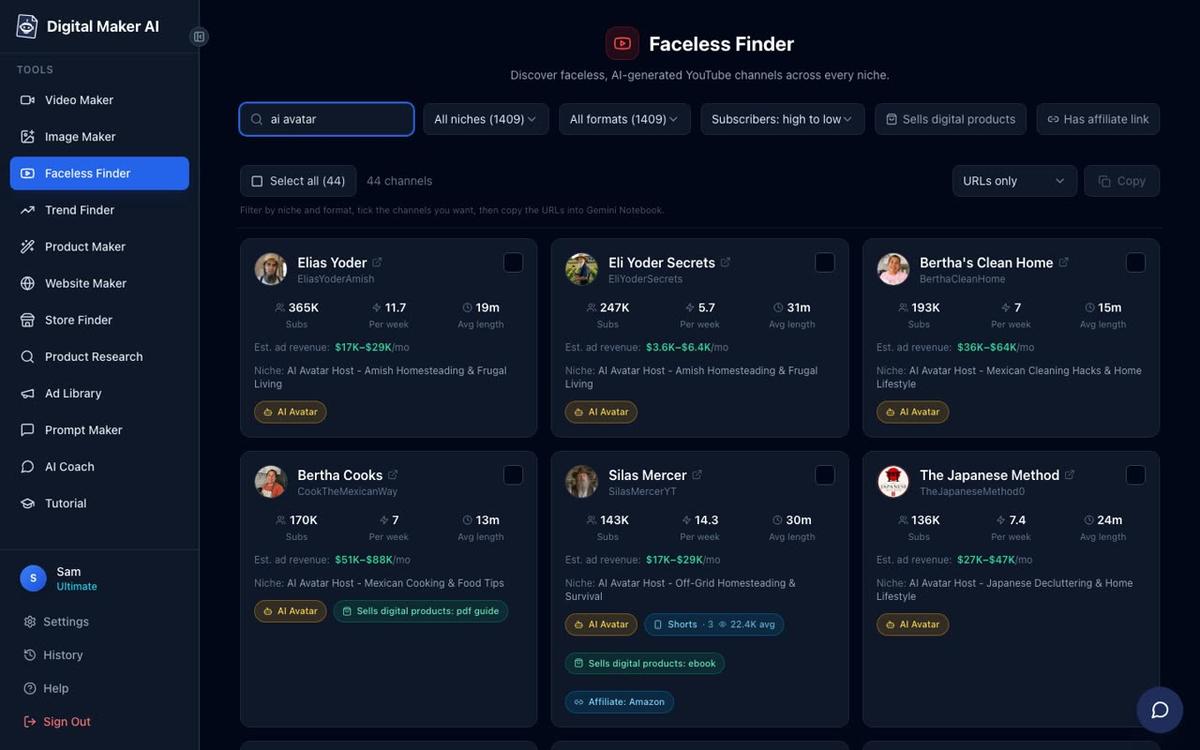
Use Monday's research to pick one video topic for the week. Look at upload frequency and average length in your niche to understand what the audience expects. Channel research through the Claude connector is available on Pro, Premium and Ultimate plans.
Tuesday: Plan Five Topics and Write This Week's Script
Once you know your niche and have a topic in mind, use Claude to plan ahead and write the script in one go. A good request for a history channel might be:
"Based on the history niche research, suggest five video topics that would suit a faceless channel, then write me a 10-minute script about the fall of the Byzantine Empire."
Claude will return a list of topic ideas you can save for future weeks, then draft the full script. Because the script stays in the chat, you can ask Claude to adjust the tone, add more detail to a section or shorten the introduction before you use it in Wednesday's video. On Premium and Ultimate, you can paste a script directly into the video maker, so the script Claude writes here feeds straight into the next step.
Wednesday: Make the Long-Form Video and a Matching Short
This is the core production step. With the script ready in the chat, ask Claude to build the main video and a vertical Short in the same session. A request like this covers both:
"Make a 10-minute faceless video using that script in the History or Ancient style with Bold Pop captions, then make me a 60-second Short on the same topic."
Claude will confirm the minute cost for both before it starts. For a 10-minute video plus a one-minute Short, that uses 11 minutes from your monthly pool. Confirm, and Claude hands the jobs to Digital Maker AI. The long-form video is a landscape 16:9 faceless YouTube video with a unique AI-generated scene image for each scene, AI narration from your chosen voice, and Bold Pop captions burned into the lower third. The Short is a vertical 9:16 clip, 60 seconds, with its own narration and bold captions.
While the videos are building, you can carry on with other tasks. Digital Maker AI will email you when each one is ready, and the links will appear in the chat and in your library.


Making any video through the Claude connector, whether a long-form faceless video, a vertical Short or any other format, requires a Premium or Ultimate plan. Maximum video length through the connector is 30 minutes on Premium and 60 minutes on Ultimate. Everything uses your normal monthly minutes.
Thursday: Generate a Thumbnail and Write the Title and Description
With the video in your library, Thursday is for packaging it. A strong thumbnail and a clear title are what decide whether someone clicks, so treat this step seriously. From Claude:
"Make a thumbnail for the Byzantine video and suggest three title options with a short YouTube description."
Claude uses Digital Maker AI's Image Maker to generate a YouTube thumbnail based on the video topic and style. It will also return three title options you can compare and a description draft you can copy straight into YouTube Studio. Pro, Premium and Ultimate can all generate thumbnails and images through the connector.
Once you have the thumbnail and titles back, pick the one that feels sharpest, check the description includes a natural mention of your channel topic, and save both ready for Friday.
Friday: Post to YouTube and Schedule the Short
The final step is distribution. From Claude:
"Post the Byzantine video to my YouTube channel now and schedule the Short for TikTok tomorrow at 9am."
Claude will trigger the post through Digital Maker AI's social publishing tools. The video goes to YouTube immediately and the Short is queued for TikTok at your chosen time. You can also schedule it for Instagram at the same time if you want to hit all three platforms. Posts are labelled as AI generated. Nothing goes live without you asking for it first.
Posting directly to YouTube, TikTok and Instagram from the connector requires a Premium or Ultimate plan. You connect your accounts once in Account Settings, and from then on Claude can post or schedule any finished video in your library. Free and Pro users download the MP4 and upload it manually. For more on the auto-publishing feature, including how to connect your social accounts, visit that page.
The Full Weekly Routine at a Glance
- Monday: Ask Claude to search the Faceless Finder for your niche and identify the top channels by estimated revenue.
- Tuesday: Ask Claude to plan five video topics and write a full script for this week's video.
- Wednesday: Ask Claude to make the long-form faceless video and a matching vertical Short, confirming the minute cost before it starts.
- Thursday: Ask Claude to generate a thumbnail and return three title options plus a YouTube description.
- Friday: Ask Claude to post the video to YouTube and schedule the Short for TikTok and Instagram.
Tips for Getting the Most From Claude AI YouTube Channel Automation
Keep the context in one chat. If you run Tuesday's script writing and Wednesday's video request in the same chat, Claude already has the script and the topic in context. You do not need to repeat yourself.
Check your minutes on Monday. Ask Claude "How many video minutes do I have left this month?" before you plan the week. That way you know whether you have room for a longer video or whether to keep it short. Claude always states the cost before starting, so you will never be caught out mid-week.
Use the Faceless Finder to set benchmarks, not to copy. The estimated revenue figures are rough guides, not guarantees. Use them to understand which niches attract ad spend and how often the successful channels post, then build your own consistent schedule around that.
Save your topic list. When Claude returns five topic ideas on Tuesday, paste them into a note. Over a month you will build a backlog of 20 ideas and never face a blank screen on Monday morning.
Batch your Shorts. On weeks where you have minutes to spare, ask Claude to make two or three Shorts on different angles of the same topic. Each Short costs a flat one minute of your pool and gives you extra content for TikTok and Instagram without extra research.
If you want to see how the same weekly routine works with other AI agents, the guide on running a faceless YouTube channel with OpenClaw covers the same steps using that connector.
What Plan Do You Need?
The routine above spans several plan levels depending on which steps you want Claude to handle. Here is a plain summary:
- Free: Check your account and save to Google Drive through the connector. The five free videos and the Faceless Finder are used on the Digital Maker AI website directly.
- Pro: Thumbnails and images, creating characters, and channel research through Claude. Videos are made on the website.
- Premium or Ultimate: Everything above, plus making any video format (long-form, Shorts, whiteboard, AI presenter, animated podcast) through Claude, plus posting to YouTube, TikTok and Instagram.
Check the full details at digitalmaker.ai/pricing to find the plan that fits your publishing pace.
The Monday-to-Friday routine is designed to fit around a normal week without turning video creation into a second job. Once the connector is set up, every step from niche research to scheduling a Short is a single typed request. If you are ready to build that habit, the free Digital Maker AI course walks you through the whole platform from scratch so your first week goes smoothly.
Alex Stevens: Alex Stevens writes for the Digital Maker AI team about faceless YouTube channels, AI presenters and AI video tools.