OpenClaw + Digital Maker AI: Make an AI Presenter Video by Asking
By Alex Stevens
What You Will Be Able to Do
By the end of this guide you will know how to connect OpenClaw to Digital Maker AI and ask it, in plain English, to build a complete AI presenter video with a photoreal talking host, a chosen layout, captions and a narration voice. You will also see every other video format you can trigger the same way, so you understand the full toolkit before you go deep on presenters. The target skill is a working openclaw ai presenter video workflow you can use today.
What the Connection Actually Means
OpenClaw is an AI agent platform with its own Control UI and support for MCP (Model Context Protocol) servers. When you add Digital Maker AI as an MCP server inside OpenClaw, the agent gains access to Digital Maker AI's full video toolkit. Every video you ask OpenClaw to make is built on your own Digital Maker AI account, using your own plan and your own monthly video minutes, and saved straight to your Digital Maker AI library. OpenClaw is the interface you type into; Digital Maker AI is the engine doing the work.
Nothing posts automatically. OpenClaw shows you a confirmation card before anything that costs minutes, and nothing happens until you approve it. When a video is ready, Digital Maker AI emails you with a link, and the finished file appears in your library. You can also find it from the OpenClaw chat once the job completes.
The full setup guide and connection page is at digitalmaker.ai/openclaw.
Setting Up the OpenClaw MCP Connection
Setup takes about two minutes and only needs to be done once. Here are the exact steps:
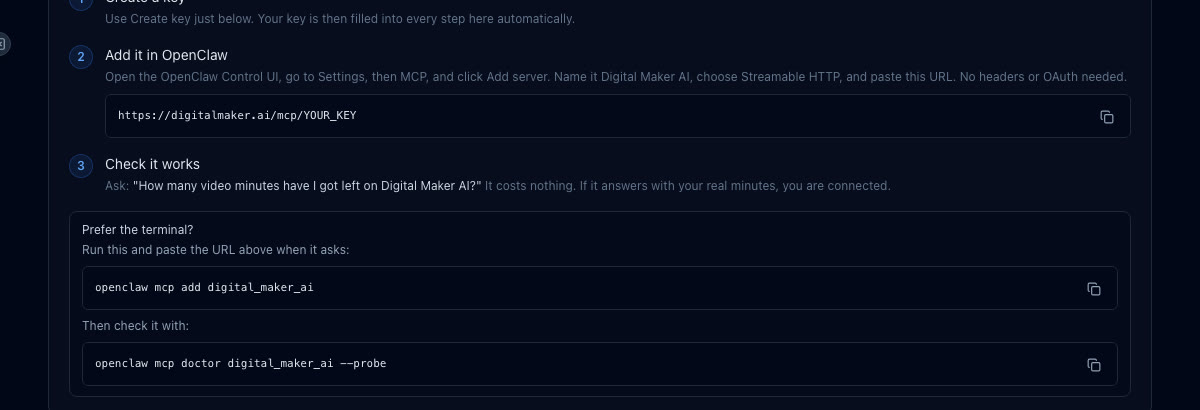
- In Digital Maker AI, open Account Settings from Settings at the bottom of the left sidebar, then go to the API tab. Under "What are you connecting?" choose OpenClaw and click Create key. The full connection URL is built for you automatically, in the format digitalmaker.ai/mcp/YOUR_KEY.
- In the OpenClaw Control UI, go to Settings, then MCP, and click Add server. Name it Digital Maker AI, choose Streamable HTTP as the transport type, and paste the connection URL. No headers or OAuth are needed.
- Test the connection by asking: "How many video minutes have I got left on Digital Maker AI?" This costs nothing and confirms everything is working.
If you prefer the terminal, run openclaw mcp add digital_maker_ai, paste the URL when prompted, then run openclaw mcp doctor digital_maker_ai --probe to verify.
Every Video Format You Can Make Through OpenClaw
Once connected, you can ask OpenClaw to trigger any of the following. Making any video needs a Premium or Ultimate plan. Pro gets thumbnails, character images and channel research. Free accounts can check their account status and save to Google Drive, but the five free videos are used on the Digital Maker AI website directly. See digitalmaker.ai/pricing for plan details.
Here is a quick tour of each format, with a real example request you could type:
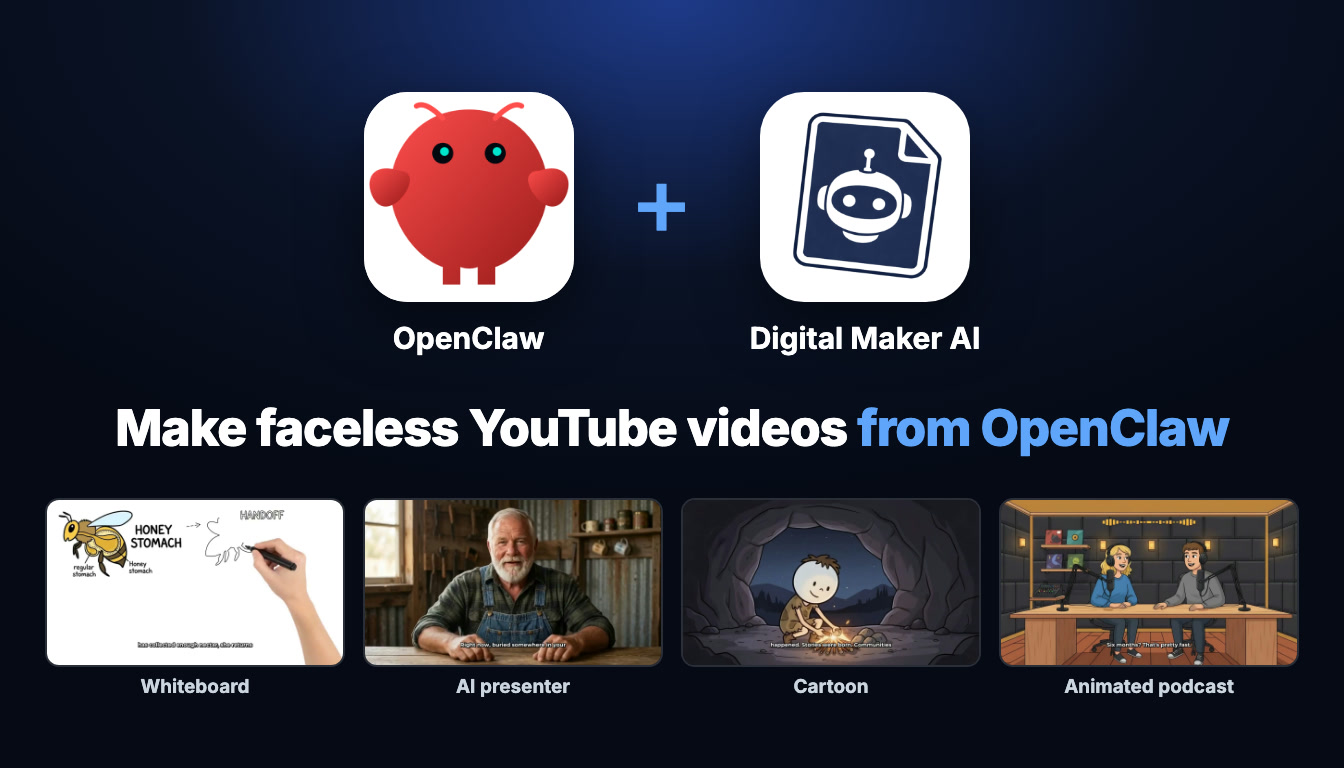
- Faceless long-form video (landscape, YouTube): A complete Multi Scene video with AI-written script, a unique scene image per scene, narration and captions. Example: "Make a 12-minute video about the psychology of money, History style, Bold Pop captions, male UK voice, no music." Maximum length is 30 minutes on Premium and 60 on Ultimate. See the long-form video generator for more.
- Whiteboard animation: Sketches that draw themselves on screen as the narration plays, with an optional drawing hand. Example: "Make a 6-minute whiteboard video explaining how black holes form, dark drawing hand, Clean captions." Premium and Ultimate only. More at the whiteboard animation generator.
- Cartoon video: The Animated or Cartoon visual style produces illustrated, cartoon-look still scenes. Example: "Make a 5-minute cartoon video about ancient Rome for kids, Animated style, Bold Pop captions." Works with a recurring character too. See the cartoon video generator.
- Animated podcast: Two AI hosts in an animated studio talk through a topic in different voices with captions and animated sound bars. Example: "Start a podcast called The Sleep Lab, two hosts called Dr Priya and Marcus, calm tone, episode about why we dream." Pro does not include the animated podcast. See the animated podcast generator.
- Vertical Shorts: A 9:16 Multi Scene Short, 15 to 60 seconds, with bold captions. Costs one flat minute from your pool. Example: "Make a 30-second Short about stoicism, Realistic style, YouTube Yellow captions." More at the Shorts generator.
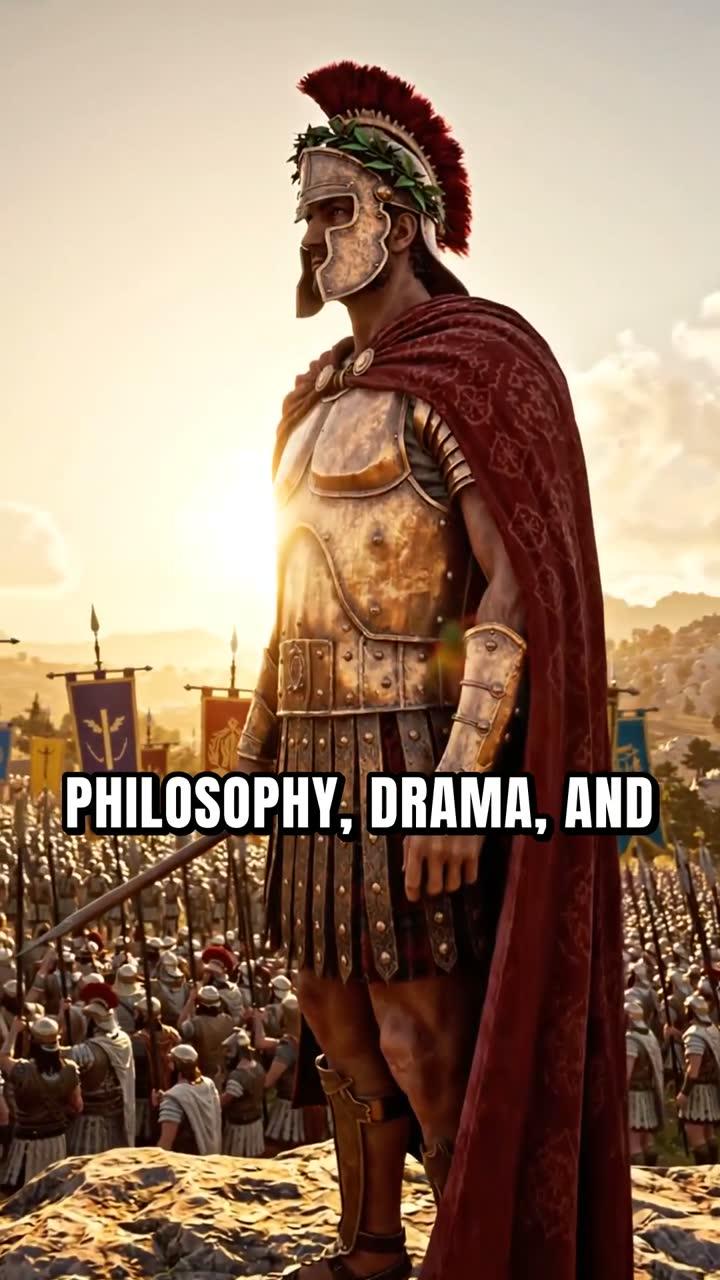
- Thumbnails and channel banners: Ask OpenClaw to generate a YouTube thumbnail or banner from a description. Pro, Premium and Ultimate. Example: "Make a thumbnail for a video called The Dark Side of Ancient Rome, dramatic lighting, red and black, no text."
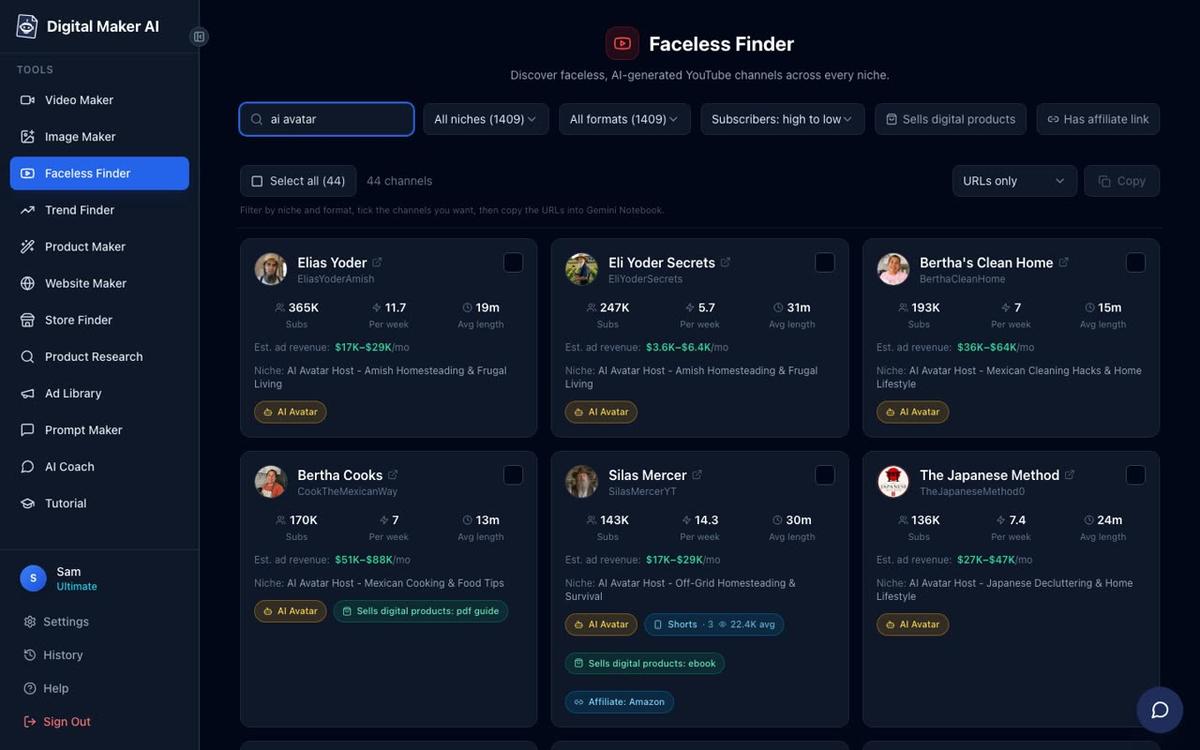
- Channel research: OpenClaw can search the Faceless Finder for real channels by niche, showing subscribers, uploads per week, average video length and estimated ad revenue. Example: "Find me faceless channels about true crime with over 50,000 subscribers." Pro and above.
- Posting to YouTube, TikTok and Instagram: Once you have connected your social accounts in Digital Maker AI Account Settings, OpenClaw can post a finished video now or schedule it. Example: "Post my latest video to YouTube with the title 'The Roman Empire in 10 Minutes', description and tags about ancient history, schedule for tomorrow at 9am." Premium and Ultimate. More at AI video auto-publishing.
Going Deep on the OpenClaw AI Presenter Video
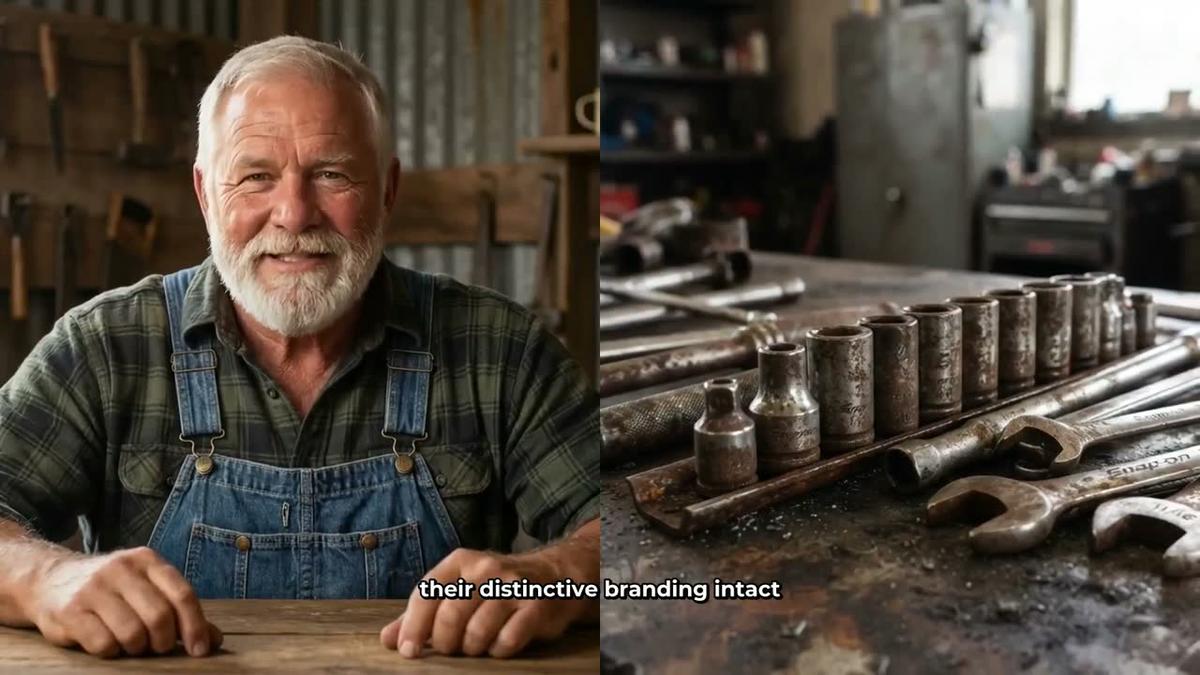
The AI presenter is a photoreal talking character who appears inside a landscape Multi Scene long-form video, speaking the narration on screen. It is a fully launched feature, live since October 2026, and available on Premium and Ultimate plans. Here is how the whole system works, from creating your presenter to getting a finished openclaw ai presenter video back in your library.
Step 1: Create Your Presenter in Account Settings
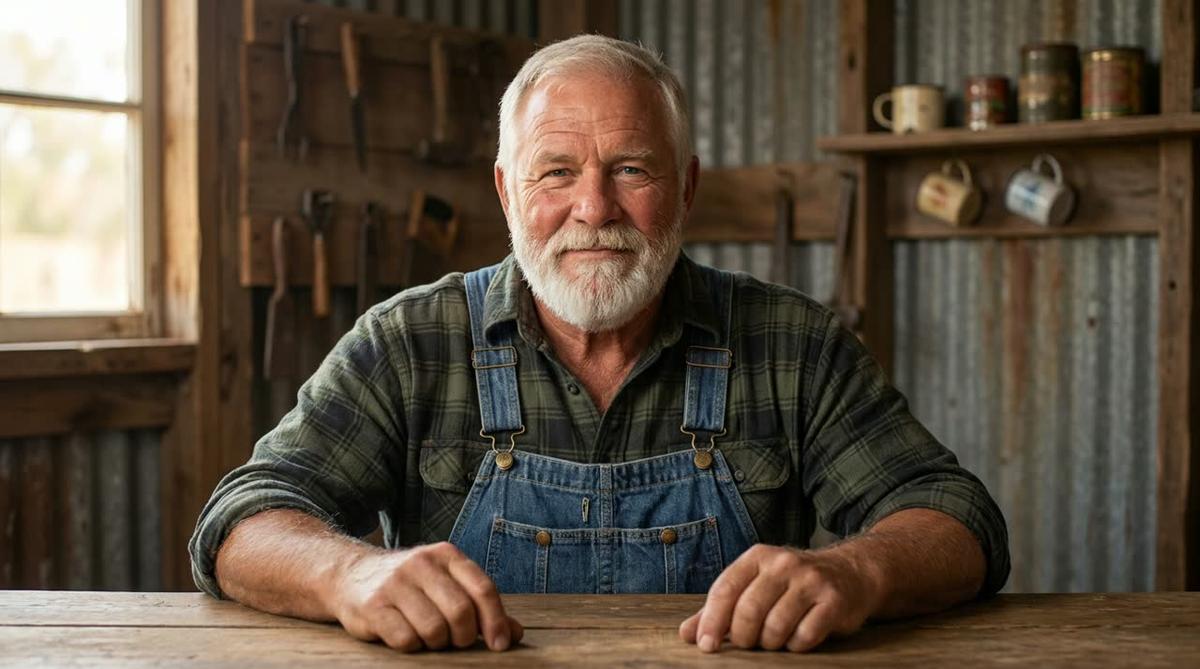
Before you can use a presenter in a video, you need to create one. Go to Account Settings (Settings at the bottom of the left sidebar), then the Presenters tab. Write a sentence or two describing who your presenter is and where they are sitting. Digital Maker AI draws a photoreal picture of them. You review it, and if you are happy, you save it. You can create several presenters and reuse them across as many videos as you like.
You can also ask OpenClaw to draw a new presenter for you directly in the chat. For example:
"Draw me an AI presenter: a retired nurse in her fifties called Margaret, sitting at a kitchen table with houseplants behind her."
OpenClaw will generate the presenter image and save it to your Presenters tab, ready to use. Creating a presenter costs 30 seconds of avatar time (more on that below).
Step 2: Ask OpenClaw to Make the Video
Once your presenter exists, you can reference them by name in any video request. OpenClaw will show you a confirmation card with the length, style, voice, captions and estimated avatar time before anything starts. You press Make it to confirm. Here is a full example request:
"Make a 6-minute video about home remedies for common colds, using Margaret as my presenter in split screen and corner circle layouts, History style, Bold Pop captions."
Digital Maker AI will build the video, rotate through the layouts you specified, apply the narration and captions, and email you when it is ready. The finished video appears in your Digital Maker AI library and OpenClaw returns the link in the chat.
The Three Presenter Layouts
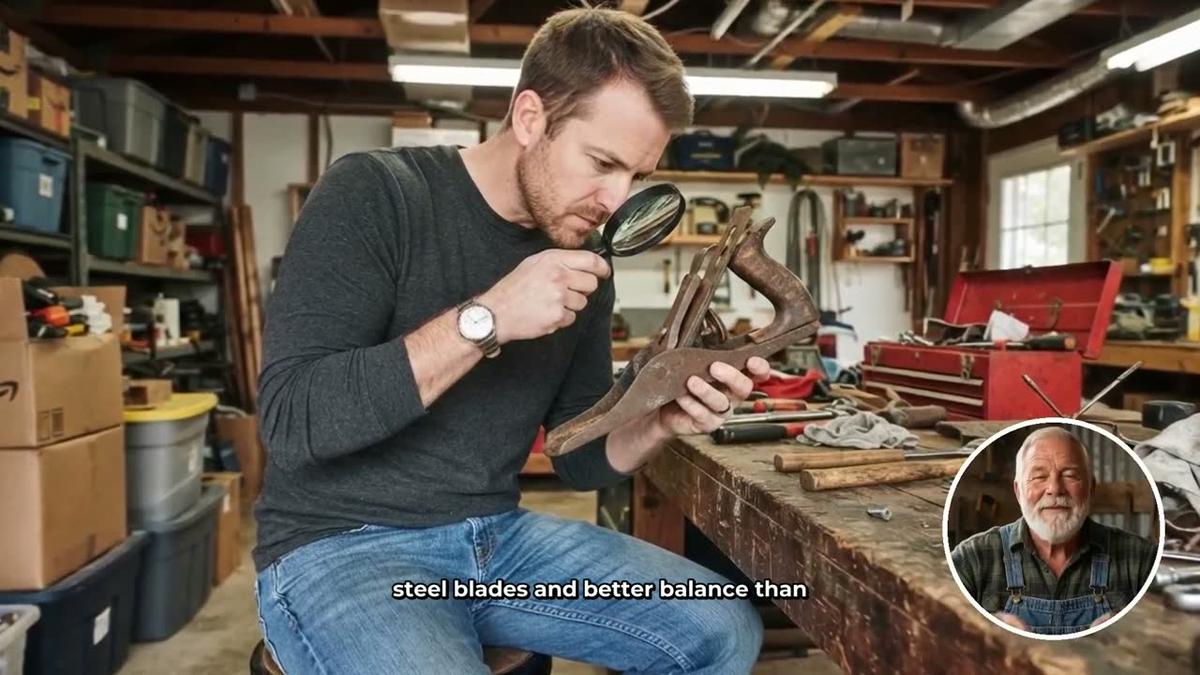
When you make an AI presenter video you can tick one, some or all three layouts. The video rotates through whichever you choose:
- Full screen: The presenter fills the entire frame, like a traditional talking-head video.
- Split screen: The presenter sits on the left half of the frame and the scene image fills the right half. Great for keeping the visual context visible while the presenter speaks.
- Corner circle: The scene fills the full frame and the presenter appears in a round window in the corner, unobtrusive but always present.
A slider in the Video Maker controls how much of the total video the presenter is on screen, from 5 percent up to the whole video. Markers on a timeline bar let you set exactly where the presenter appears, for example at the start and end only, or throughout.
Understanding Avatar Time
Presenters run on avatar time, which is counted in seconds and is completely separate from your video minutes. Your video minutes cover the length of the video; avatar time covers only the seconds the presenter is actually visible on screen. Creating a presenter costs 30 seconds of avatar time. A video only uses the avatar seconds it needs.
Premium plans start with 2 minutes of avatar time and Ultimate plans start with 5 minutes, with Ultimate also receiving 3 additional minutes every month. If you need more, Avatar Packs let you top up as a one-off purchase and pack time does not expire while you are subscribed. See digitalmaker.ai/pricing for pack options, and the full AI avatar video generator page for a complete overview of how presenters work.
A practical tip: ask OpenClaw to check your avatar time before you start a big video. Just type "How much avatar time do I have left on Digital Maker AI?" and it will tell you for free.
Research, Thumbnails and Posting
The openclaw ai presenter video workflow does not have to stop at making the video. Once your presenter video is in the library, you can ask OpenClaw to:
- Research your niche: "Find me AI avatar channels about health and fitness in the Faceless Finder." The Faceless Finder shows subscribers, uploads per week, average video length and estimated ad revenue for every result. Channels fronted by an AI presenter are labelled "AI Avatar".
- Make a thumbnail: "Make a YouTube thumbnail for my cold remedies video, warm kitchen background, no text."
- Post to socials: "Post my cold remedies presenter video to YouTube now, title 'Home Remedies That Actually Work', add a description and tags about natural health." Premium and Ultimate, after connecting accounts once in Account Settings.
Tips for Getting the Best Results
- Be specific about your presenter. The more detail you give when creating them (age, clothing, setting, lighting feel), the more consistent and on-brand they will look across videos.
- Mix layouts deliberately. Split screen works well for explainer sections where the scene adds context. Corner circle works well for storytelling sections where the visuals should breathe. Full screen is powerful for introductions and calls to action.
- Check your avatar time first. Before requesting a long presenter video, ask OpenClaw how much avatar time you have. A 10-minute video with the presenter on screen for half of it uses 5 minutes of avatar time.
- Name your presenter in every request. Once saved, you can always refer to them by name: "Use Margaret as my presenter" or "Use Cedric in corner circle layout."
- Let Digital Maker AI email you. Longer videos take time to build. There is no need to wait in the OpenClaw chat. Go do something else and the email will arrive when it is ready.
- Combine formats in one session. Ask OpenClaw to make the presenter video, then immediately ask it to generate a matching thumbnail and schedule the post. Three tasks, one conversation.
If you also use Hermes Agent, the same presenter workflow is available there too. See the companion guide Hermes Agent MCP: Make AI Presenter Videos by Asking for a side-by-side look. And if you want to explore whiteboard and Short videos through OpenClaw first, the guide OpenClaw MCP: Make Whiteboard and Short Videos by Asking covers those formats in detail.
Ready to get started? The Digital Maker AI free course walks you through building your first faceless channel from scratch, including how to set up your presenter, connect OpenClaw and make your first video end to end.
Alex Stevens: Alex Stevens writes for the Digital Maker AI team about faceless YouTube channels, AI presenters and AI video tools.