How to Make Faceless YouTube Shorts With Claude and Digital Maker AI
By Alex Stevens
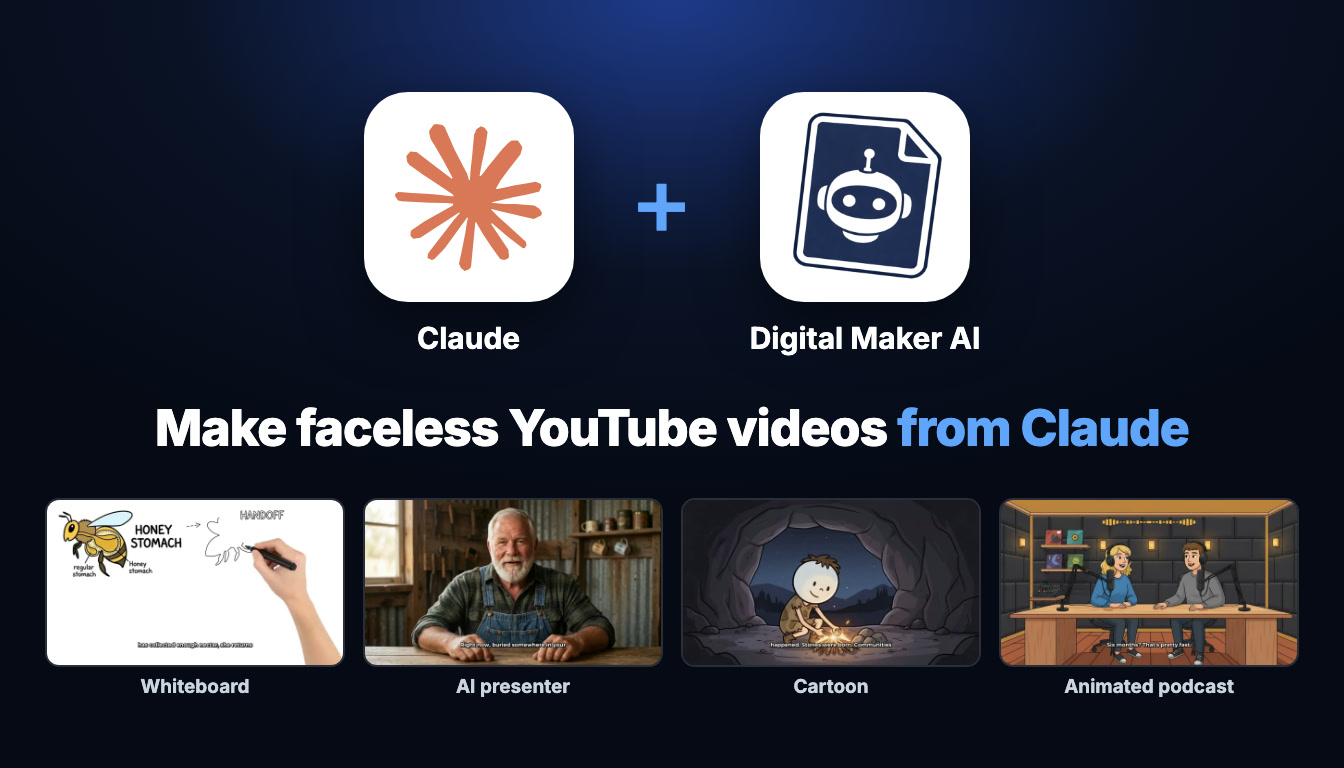
What You Will Be Able to Do
By the end of this guide you will know how to make YouTube Shorts with Claude AI and Digital Maker AI. That means opening Claude, typing a one-line topic, and getting back a finished vertical 9:16 Short with AI narration, bold captions and a fresh scene image every few seconds, all sitting in your Digital Maker AI library ready to download or post. You will also know how to ask Claude to build a thumbnail straight after, and how to use the Faceless Finder to pick the right niche before you film a single frame.
What "Claude Meets Digital Maker AI" Actually Means
Claude is Anthropic's conversational AI, known for following detailed instructions and thinking through multi-step tasks. On its own it can write scripts and brainstorm ideas, but it cannot produce a finished video. That changes when you connect it to Digital Maker AI through a custom MCP connector.
MCP (Model Context Protocol) is an open standard that lets Claude call external tools in real time. Once you add Digital Maker AI as a custom connector, Claude gains access to the full video-making pipeline: it can create a Short, build a thumbnail, check your remaining minutes, research faceless channels with the Faceless Finder, and more. Every video is made on your own Digital Maker AI account using your own plan minutes, and every finished Short lands in your Digital Maker AI library exactly as if you had built it through the website. Nothing is separate or siloed.
One important detail: Claude confirms the minute cost before it starts anything, and it never begins a video unless you ask it to directly. You stay in control of every spend.
Making any video through Claude (Shorts, long form, whiteboard, animated podcast or AI presenter) needs a Premium or Ultimate plan on Digital Maker AI. Pro gets thumbnails, images, character creation and channel research through the connector. Free accounts use the five free videos and the Faceless Finder on the website itself. When you are ready to check plans, see the pricing page.
The One-Minute Claude Setup
You only need to do this once. Open your Digital Maker AI account and go to Settings at the bottom of the left sidebar, then open Account Settings. Click the Claude MCP tab. You will see a Create a key button: click it and Digital Maker AI gives you a Name and a URL. Your connection URL will look like digitalmaker.ai/mcp/YOUR_KEY in plain text, so keep it private.
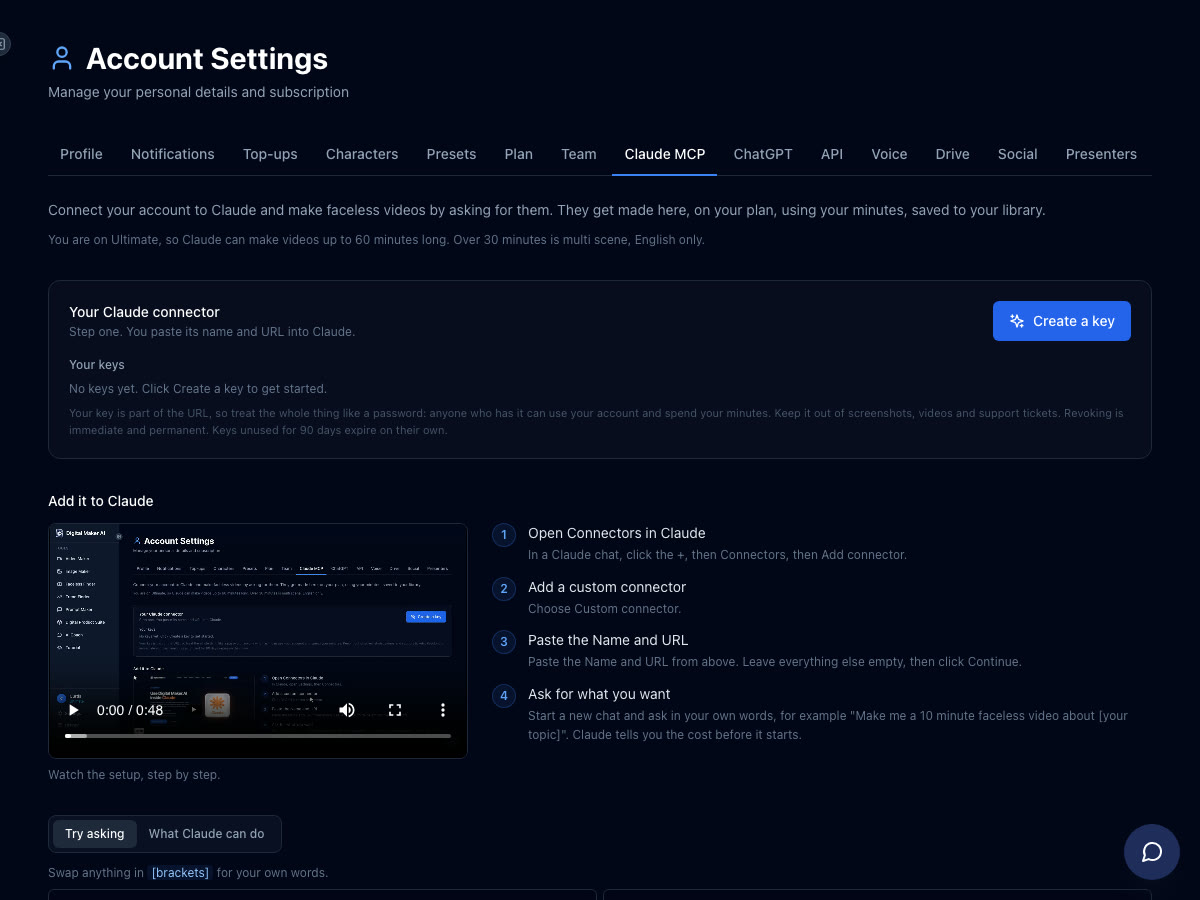
Now switch to Claude. In any Claude chat, click the + icon, then choose Connectors, then Add connector, then Custom connector. Paste in the Name and URL from Digital Maker AI, leave everything else empty, and click Continue. Start a new chat and you are ready. The whole process takes about a minute.
Once connected, Claude can list the tools available on your plan, check your remaining minutes, and make videos. You do not need to memorise any commands: just talk to it the same way you would talk to a knowledgeable assistant.
How to Make YouTube Shorts With Claude AI: the Vertical Short Format
The format you want is the Multi Scene Short. It is vertical 9:16, built for YouTube Shorts, TikTok and Instagram Reels. You choose a length of 15, 30, 45 or 60 seconds. Digital Maker AI generates a fresh scene image every few seconds, adds AI narration and burns bold captions into the frame. The whole thing costs a flat one minute from your monthly pool, regardless of which length you pick. You can see what the finished result looks like below.

To make a Short, just describe what you want. Claude will show you the options (length, visual style, voice, captions, music) and the minute cost before anything is built. Press confirm, and Claude gets to work. The video takes a little while to render: Digital Maker AI will email you when it is ready, and the finished MP4 will be waiting in your library.
Here are some example requests you can quote almost word for word:
- "Make me a 30-second Short about the three biggest mistakes new investors make, cartoon style, bold captions."
- "Give me five Short ideas for a Roman history channel, then make the best one as a 45-second vertical video."
- "Create a 60-second Short about the psychology of procrastination, realistic style, female voice."
- "Make a 15-second Short about deep sea creatures, space style visuals, no music."
Claude will interpret the topic, pick a script length to match, confirm the cost (one minute of your pool) and then build the Short. If you ask for ideas first, as in the Roman history example, Claude lists them and waits. It only starts building when you confirm which one you want made. You are never surprised by a spend.
The visual styles available include Realistic, Animated or Cartoon, History or Ancient, Space or Sci Fi, Finance or Luxury, Motivational or Dark Moody, and Minimalist or Clean. Mentioning a style in your request, such as "cartoon style" or "history visuals", is all you need. Claude passes it through to Digital Maker AI automatically. For a dedicated look at the AI YouTube Shorts generator, the feature page has more detail on what each style produces.
Ask for a Thumbnail Next
Once your Short is done, you can ask Claude to make a matching thumbnail in the same conversation. Something like:
- "Now make a thumbnail for that Short with bold text."
- "Create a YouTube thumbnail for the investor mistakes Short, dark background, bold yellow title text."
Claude calls the Image Maker inside Digital Maker AI and returns a thumbnail sized image. Pro, Premium and Ultimate accounts can all generate thumbnails through the connector. The thumbnail uses one image credit from your account, not a video minute. You can download it straight from your library and drop it onto your YouTube upload.
This one-two workflow, Short then thumbnail in the same chat, means you can go from a blank page to a fully dressed YouTube Short in a single Claude conversation without opening a second tab.
Research Your Niche First With the Faceless Finder
Before you commit to a topic, it is worth knowing whether a faceless channel already exists in that space and how it is performing. The Faceless Finder inside Digital Maker AI is a searchable list of confirmed faceless YouTube channels, showing subscribers, uploads per week, average video length and an estimated monthly ad revenue figure for each one. The revenue figure is Digital Maker AI's own rough estimate based on recent views and typical ad rates for the niche, not the channel's real earnings.
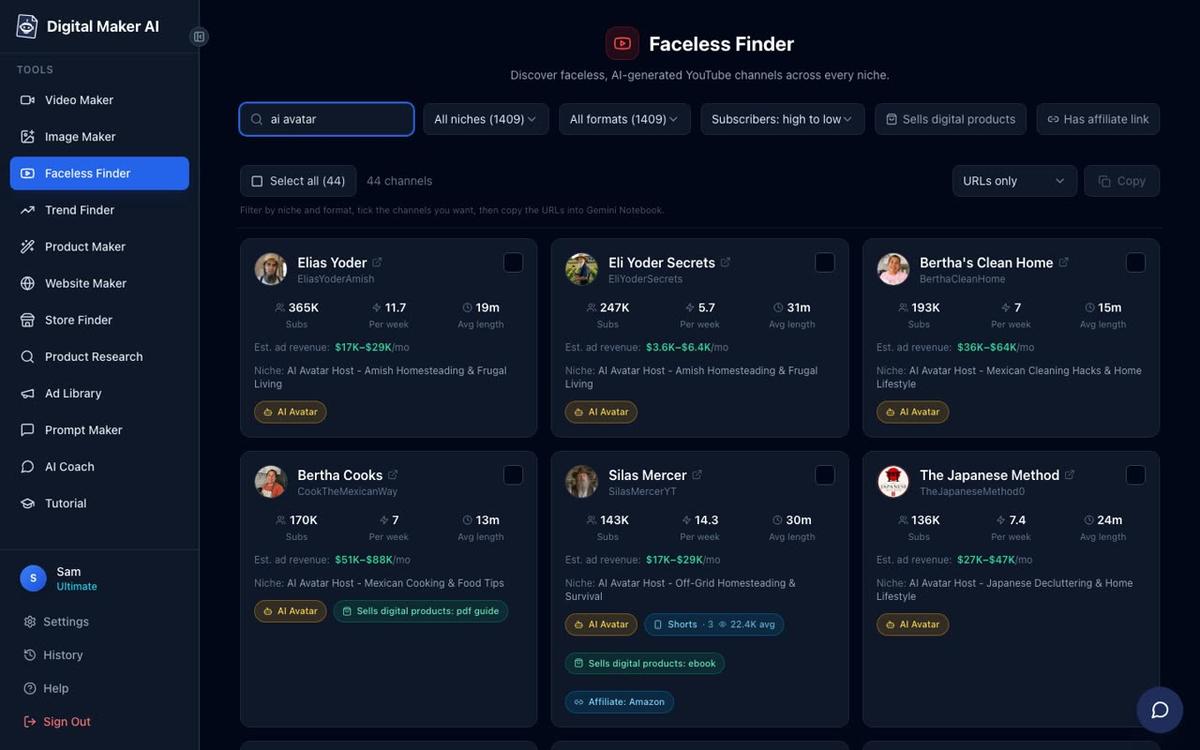
Through the Claude connector, Pro accounts and above can ask Claude to pull Faceless Finder data directly inside the chat. Try something like:
- "Search the Faceless Finder for history channels and show me the top five by subscribers."
- "Are there any AI avatar channels in the finance niche? Show me their upload frequency."
Claude returns real channel cards with their numbers. You can use that data to decide on a niche, match an upload cadence that works for the space, or spot a gap where Short-form content is thin. Then stay in the same chat and ask Claude to make your first Short on that topic. The whole research-to-video loop happens without leaving Claude.
If you prefer to browse the Faceless Finder on the website, it is open to every signed-in account including Free. Typing "AI avatar" in the search box filters it to channels fronted by an AI generated presenter, which is useful if you are considering that route for your own channel.
Tips for Getting the Best Shorts From Claude
- Be specific about length and style in your first message. Claude will ask if you leave them out, but including them upfront saves a round trip. "30-second Short, cartoon style, bold captions" is all you need alongside the topic.
- Ask for ideas before committing. Asking Claude for five Short ideas and then picking the best one is faster than starting over after a video you did not love. Claude only spends a minute when you say make it.
- Match your visual style to the niche. Finance and investing tends to look sharp with Finance or Luxury visuals. History channels pop with History or Ancient. Psychology and motivation suit Dark Moody. Telling Claude the niche often leads it to suggest the right style automatically.
- Follow up with a thumbnail request in the same chat. Claude keeps context across the conversation, so "now make a thumbnail for that" is enough. No need to describe the topic again.
- Check your minutes before a session. Ask Claude "how many minutes do I have left?" and it will report your remaining pool. Each Short costs one flat minute, so you know exactly how many you can make in one sitting.
- Download from your library. When the email arrives saying your video is ready, open your Digital Maker AI library to find the MP4. Premium and Ultimate accounts can also post directly to YouTube, TikTok and Instagram from the Post to socials button without downloading first.
What Else You Can Make Through the Same Connector
The Claude connector is not limited to Shorts. Once it is set up, you can use the same chat to make longer faceless videos (up to 30 minutes on Premium and 60 on Ultimate), whiteboard animations where hand-drawn sketches appear on screen as the narration plays, animated podcasts with two AI hosts talking through a topic in a studio scene, and videos with an AI presenter talking to camera inside a landscape video. All of them use the same connection you set up in one minute, and all of them draw from your normal Digital Maker AI minutes pool.
If you want to explore what the connector can do before committing to a plan, the Digital Maker AI connector page for Claude has a full overview of every action available and which plan unlocks each one.
For those who prefer to stay inside Digital Maker AI rather than switching to Claude, the built-in AI Coach on Premium and Ultimate does the same things in a chat that lives right in your account sidebar, with nothing to install. It is worth knowing about if you ever want to make a Short without leaving the platform.
If you are curious about how the same MCP approach works with other AI tools, the post Run a Faceless YouTube Channel Weekly Routine With Claude shows how to use the connector for a full channel workflow beyond just Shorts.
Start Making Shorts Today
The ability to make YouTube Shorts with Claude AI comes down to a one-minute setup and a single sentence. Connect Digital Maker AI to Claude through the Claude MCP tab in Account Settings, describe the Short you want, confirm the cost, and let Digital Maker AI build it while you move on with your day. Add a thumbnail request at the end and you have everything you need for a YouTube upload. If you are new to faceless video and want a structured starting point, the free faceless channel course walks you through picking a niche, setting up your channel and making your first videos from scratch.
Alex Stevens: Alex Stevens writes for the Digital Maker AI team about faceless YouTube channels, AI presenters and AI video tools.