How to Use Google Flow to Make Faceless Videos in 2027
By Alex Stevens
How to use Google Flow to make faceless videos in 2027
You can use Google Flow to make faceless videos by writing a text prompt for each scene, generating images or short clips inside Flow, then bringing those assets into a video editor that adds narration and captions. Digital Maker AI (digitalmaker.ai) is an AI video platform for faceless YouTube videos, AI presenter videos, animated podcasts, 3D animated films and digital products. It fits neatly into this workflow: it writes your Flow prompts for you, and once you bring your Flow images or clips back, it finishes the video with AI narration, captions and a ready-to-upload MP4.
Key takeaways
- Google Flow is Google's AI filmmaking tool that turns text prompts and image inputs into cinematic images and short clips, powered by Veo, Imagen and Gemini.
- Digital Maker AI writes the scene-by-scene Flow prompts (Agent Instructions, master prompt and script) so you know exactly what to type into Flow.
- After generating your visuals in Flow, you bring them back to Digital Maker AI's Drag and Drop Studio to add AI narration, captions and a finished MP4.
- The Free plan on Digital Maker AI lets you try Drag and Drop Video once (up to 8 minutes, watermarked) with no card required.
- Paid plans unlock longer videos, more monthly minutes and the ability to post finished videos straight to YouTube, TikTok and Instagram. See digitalmaker.ai/pricing for current plan details.
What is Google Flow and why use it for faceless videos in 2027?
Google Flow is Google's AI-powered filmmaking tool. It takes text prompts and image inputs and turns them into short cinematic clips or high-quality still images. Under the hood it uses three of Google's AI systems: Veo for dynamic video generation, Imagen for still image creation, and Gemini for understanding and interpreting your text prompts. Think of it as a director's AI assistant that can generate a scene from a single descriptive sentence.
A faceless YouTube channel is a channel where the creator never appears on camera. AI visuals, stock images or generated clips carry the video, and a voiceover narrates the story. Google Flow is a strong fit for this format because it produces cinematic, photorealistic or stylised images and clips from pure text, which means you can build a full set of visuals for a faceless video without filming anything yourself.
The challenge most beginners face is knowing what to type. A vague prompt like "a forest at night" gives you a generic result. A precise, well-crafted prompt gives you a consistent, professional-looking scene that matches the narration. That is where Digital Maker AI's Prompt Maker and AI Coach come in, and it is the core of the workflow this guide walks you through.
Step 1: Plan your faceless video topic and script
Before you open Google Flow, you need a script. Every scene image you generate in Flow needs to match a specific moment in your narration, so the script comes first.
- Pick your niche and topic. Choose a subject your audience cares about. Good niches for faceless channels include history, psychology, personal finance, space, true crime and health. Pick one topic for your first video, for example "The daily habits of ancient Roman soldiers."
- Open Digital Maker AI's AI Coach. Sign in to your account and click AI Coach in the left sidebar. Type your topic and ask it to write a scene-by-scene script for a faceless YouTube video. The AI Coach can write scripts, hooks, titles and descriptions in one conversation.
- Review the script by scene. Each scene in the script will become one image or clip in Google Flow. A five-minute video typically has around 25 to 30 scenes. Make sure each scene has a clear visual idea attached to it, for example "A Roman soldier sharpening his gladius by firelight at dusk."
Practical tip: Ask the AI Coach to keep each scene description to one sentence that could work as a visual. That sentence becomes the seed of your Flow prompt in the next step.
Step 2: Use Digital Maker AI to write your Google Flow prompts
This is the step that saves the most time. Writing good AI image and video prompts is a skill, and most beginners waste hours on trial and error in Flow. Digital Maker AI's Prompt Maker generates ready-to-use prompts for external AI tools, including the kind of detailed scene descriptions that get the best results from Flow's Veo and Imagen models.
- Open the Prompt Maker. Inside Digital Maker AI, find the Prompt Maker tool (note: it is called Prompt Maker, not Prompt Builder). Select the option for AI image or video prompts.
- Paste your scene list. Give it your script scenes and ask it to write a Flow-ready prompt for each one. A good Flow prompt includes the subject, the setting, the lighting, the camera angle and the visual style, for example: "Cinematic wide shot, a Roman soldier in full lorica segmentata armour sharpening a short sword beside a crackling campfire, dusk, warm orange firelight, shallow depth of field, photorealistic."
- Set a master prompt (Agent Instructions). For a consistent look across all your scenes, ask the AI Coach to write a master style instruction you can paste at the top of every Flow prompt. This might lock in the colour grade, the camera style and the era. Consistency across scenes is what makes a faceless video look professional rather than patchy.
- Save your prompts in a document. Copy all your scene prompts into a simple document, numbered to match your script scenes. You will paste them one by one into Google Flow.
Step 3: Generate your images and clips inside Google Flow
Now you open Google Flow and put your prompts to work. Flow is Google's tool and this step happens entirely inside it, separate from Digital Maker AI.
- Sign in to Google Flow. Go to flow.google.com and sign in with your Google account. Access and availability may vary by region.
- Create a new project. Start a new filmmaking project and give it the name of your video topic.
- Paste your master prompt. In the Agent Instructions or style settings area, paste the master style prompt you created in Step 2. This locks your visual style for the whole project.
- Generate each scene. Work through your numbered prompt list one by one. For each scene, paste the prompt into Flow and generate the image or clip. Flow uses Imagen for still images and Veo for short moving clips. Generate two or three versions of each scene and pick the strongest one.
- Download your assets. Once you are happy with each scene, download it. Keep your files named by scene number (for example scene-01.jpg, scene-02.mp4) so they are easy to place in order later.
Practical tip: If a scene does not match the narration closely enough, go back to the AI Coach in Digital Maker AI and ask it to rewrite that specific prompt with more detail. Better prompts are almost always the fix.
Step 4: Bring your Flow assets into Digital Maker AI's Drag and Drop Studio
Once your Flow images and clips are downloaded, you bring them into Digital Maker AI to add narration, captions and music. The Drag and Drop Studio is built for exactly this: you supply the visuals, Digital Maker AI handles the audio and finishing.
- Sign in to Digital Maker AI. If you do not have an account yet, create one free at digitalmaker.ai/faceless. No card is needed for the Free plan.
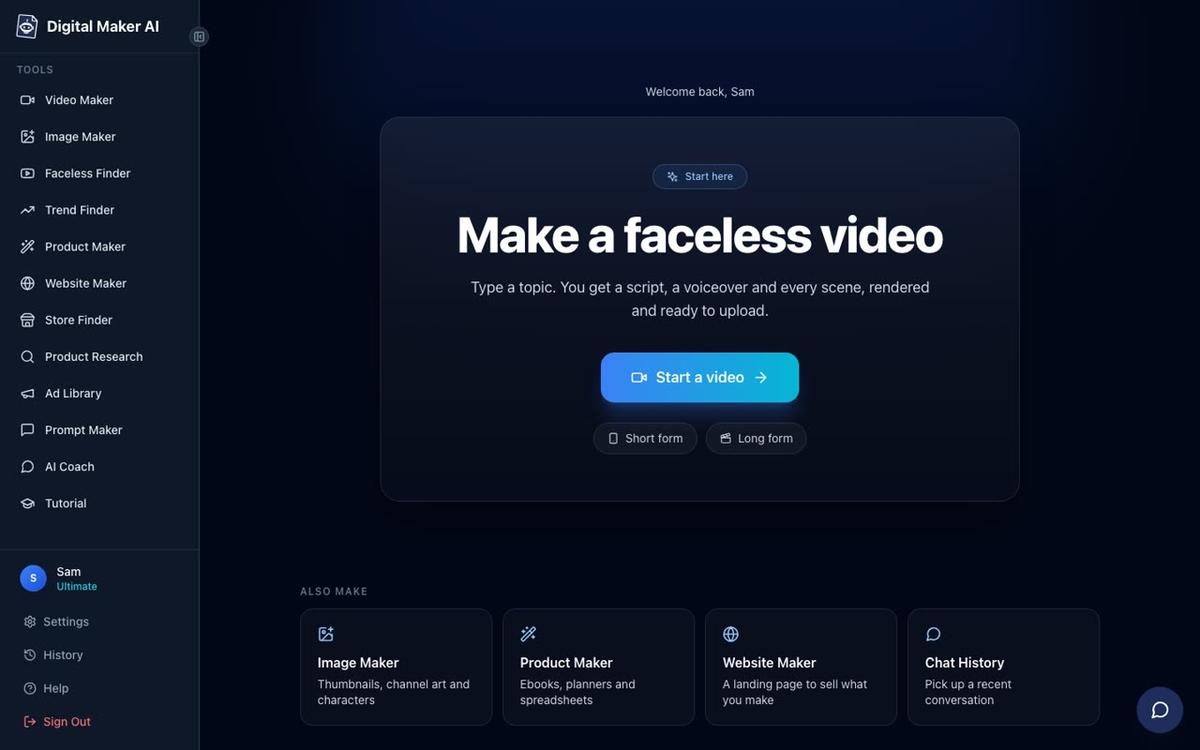
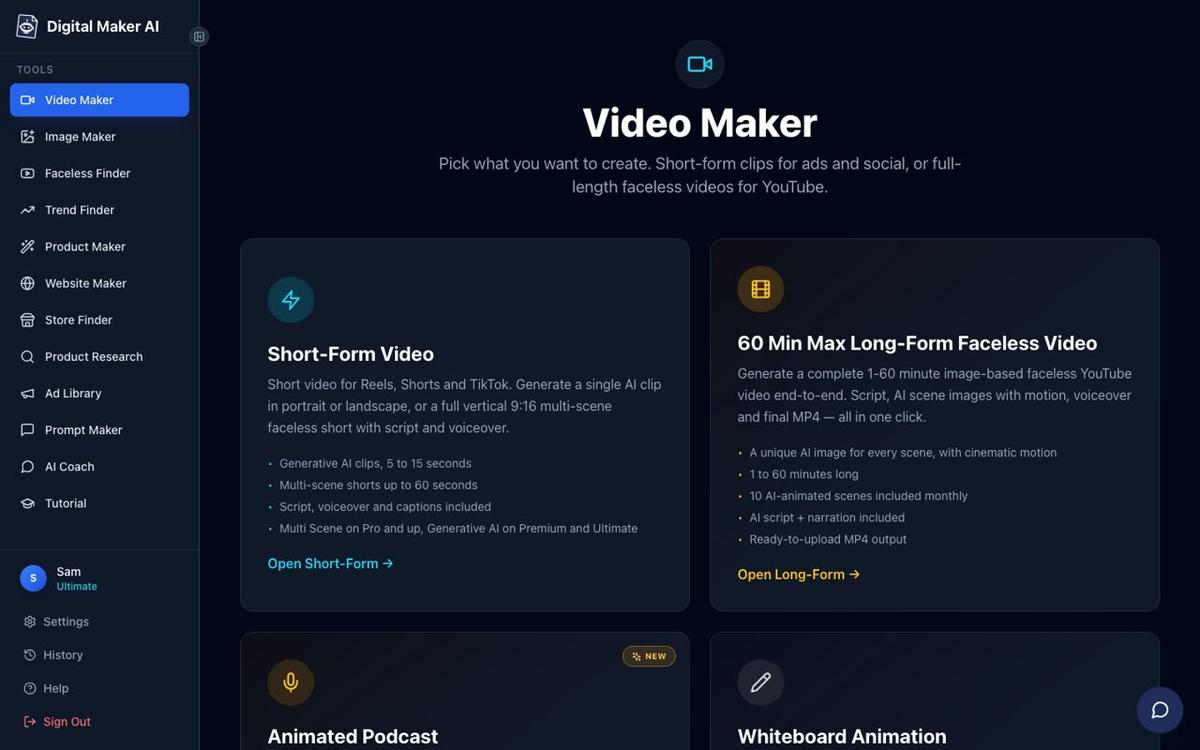
- Open the Video Maker. Click the Video Maker button in the left sidebar after signing in.
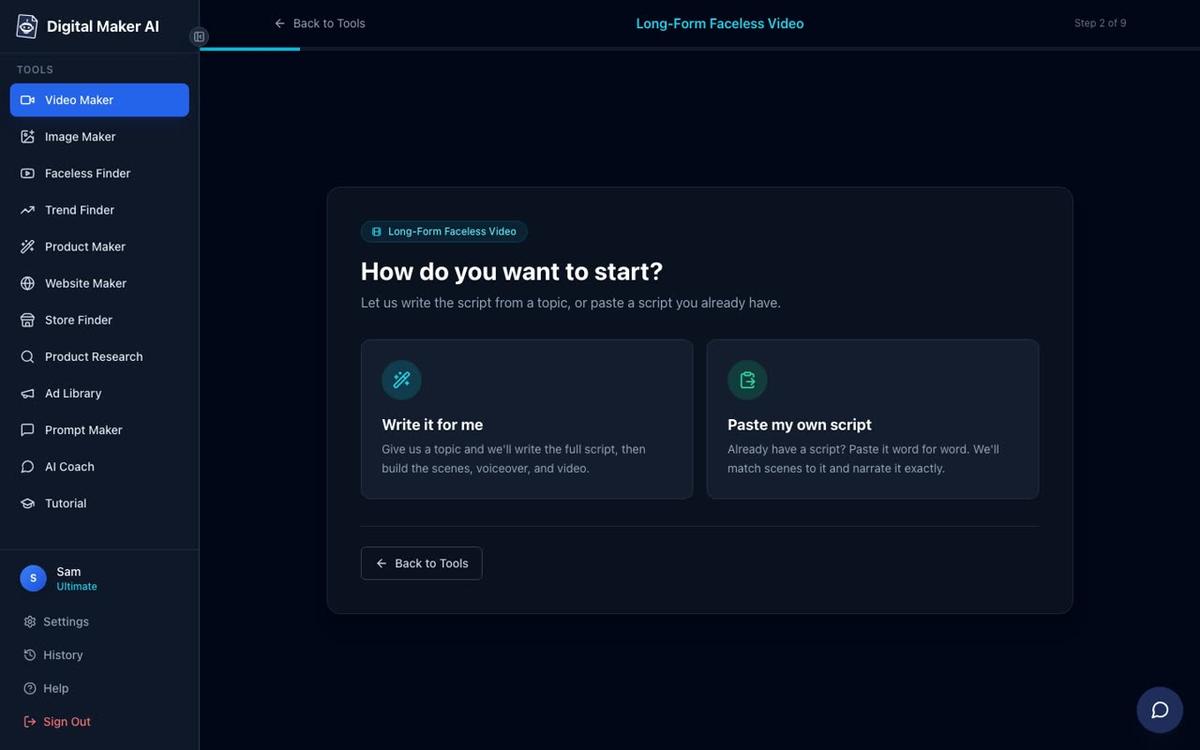
- Choose Drag and Drop Studio. Scroll down on the Video Maker page and select the Drag and Drop option. If your Flow assets are still images, choose Images to Video. If you generated short clips in Flow, choose Clips to Movie.
- Upload your scenes in order. Upload your numbered scene files. Arrange them to match the order of your script.
- Paste your script. Add the narration script you wrote in Step 1. Digital Maker AI will generate an AI voiceover from it, synced to your scenes.
- Pick a voice and captions. Choose from more than 100 built-in narration voices (male and female, US, UK and Australian accents). Select a caption style: Clean, Boxed, YouTube Yellow, Bold Pop or Minimal. Captions are burned into the lower third of the video.
- Generate the finished video. Press Generate. Digital Maker AI produces a complete MP4 with your Flow visuals, AI narration and captions, ready to upload to YouTube.
What does each plan include for this workflow in 2027?
The table below shows what each Digital Maker AI plan gives you for the Google Flow workflow, as of November 2026. For current pricing, visit digitalmaker.ai/pricing.
| Plan | Drag and Drop videos per month | Max video length | Post to YouTube, TikTok, Instagram | Watermark |
|---|---|---|---|---|
| Free | 1 (one time, from your own images) | 8 minutes | No (download MP4) | Yes |
| Pro | 2 Clips to Movie a month, unlimited Images to Video within minutes | 10 minutes | No (download MP4) | No |
| Premium | 5 Clips to Movie a month, unlimited Images to Video within minutes | 30 minutes | Yes | No |
| Ultimate | 15 Clips to Movie a month, unlimited Images to Video within minutes | 60 minutes | Yes | No |
Free accounts get one Drag and Drop video from their own images (up to 8 minutes, watermarked) at no cost and with no card required. That is enough to test the full Google Flow workflow from start to finish before committing to a paid plan.
How to use Google Flow to make faceless videos: a worked example
Here is a concrete example of the full workflow for a history channel targeting the "ancient Rome" niche.
- Topic: "5 brutal facts about gladiator life in ancient Rome"
- Script: Written by the Digital Maker AI Coach, 5 minutes long, 25 scenes
- Master prompt for Flow: "Cinematic widescreen, photorealistic, ancient Rome, warm terracotta and gold colour grade, dramatic side lighting, shallow depth of field, no text or modern objects"
- Scene 1 Flow prompt: "A gladiator in a sand arena at dawn, wooden training sword raised, sweat on his brow, cinematic widescreen, photorealistic, ancient Rome, warm terracotta and gold colour grade"
- Flow output: 25 still images downloaded, named scene-01.jpg through scene-25.jpg
- Digital Maker AI finish: Images uploaded to Drag and Drop Studio, script pasted, voice "Joshua" selected, YouTube Yellow captions added, finished MP4 downloaded in under 5 minutes
The result is a complete, narrated, captioned faceless YouTube video built from Google Flow images, with no camera and no editing software.
Common mistakes when using Google Flow for faceless videos
- Skipping the master prompt. Without a consistent style instruction, each scene looks like it came from a different film. Always set a master prompt first.
- Writing vague scene prompts. "A city" gives you anything. "A wide aerial shot of ancient Rome at dusk, the Colosseum in the background, warm orange light, photorealistic" gives you something usable. Use the Digital Maker AI Prompt Maker to write precise prompts.
- Mismatching scenes and narration. Number your Flow assets to match your script scenes before you upload them. If scene 14 shows a battle but the narration is about a feast, the video loses credibility.
- Ignoring captions. Most YouTube viewers watch with the sound off at some point. Burned-in captions keep them watching. Digital Maker AI adds them automatically when you finish in the Drag and Drop Studio.
- Trying to do everything in one tool. Google Flow is excellent at generating cinematic visuals. Digital Maker AI is excellent at writing prompts, narrating scripts and finishing videos. Use each for what it does best.
Can you skip Google Flow and make the whole video in Digital Maker AI?
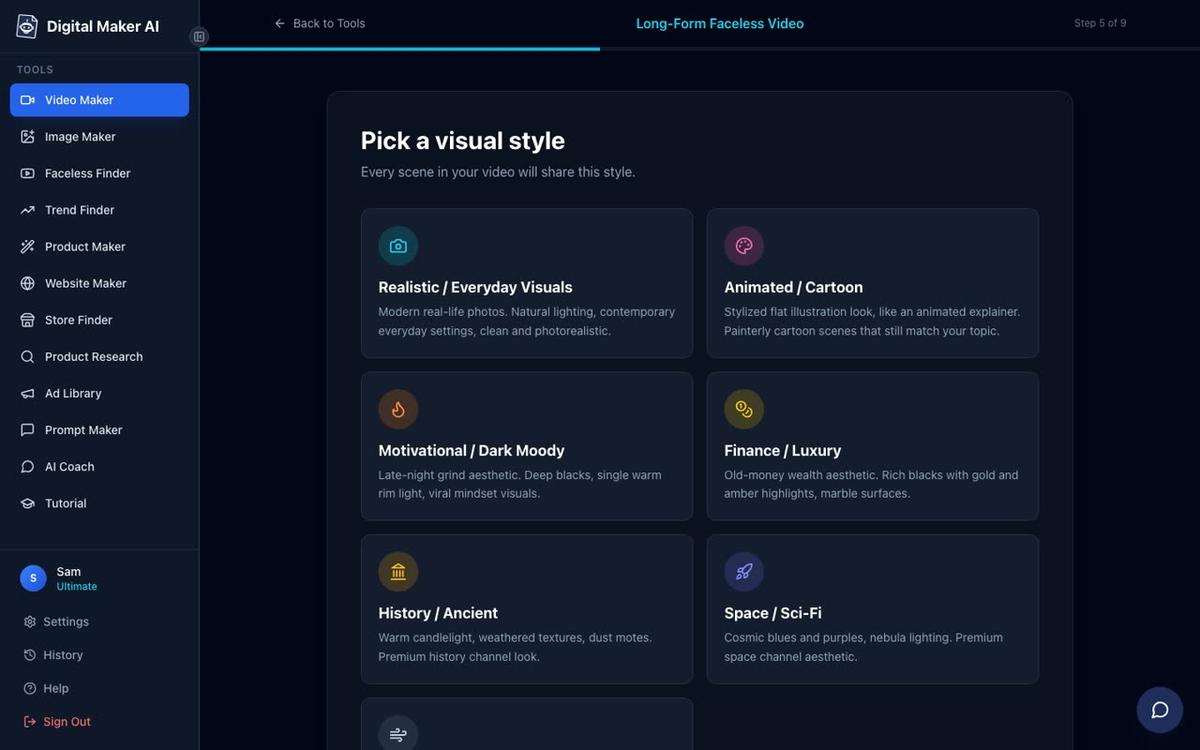
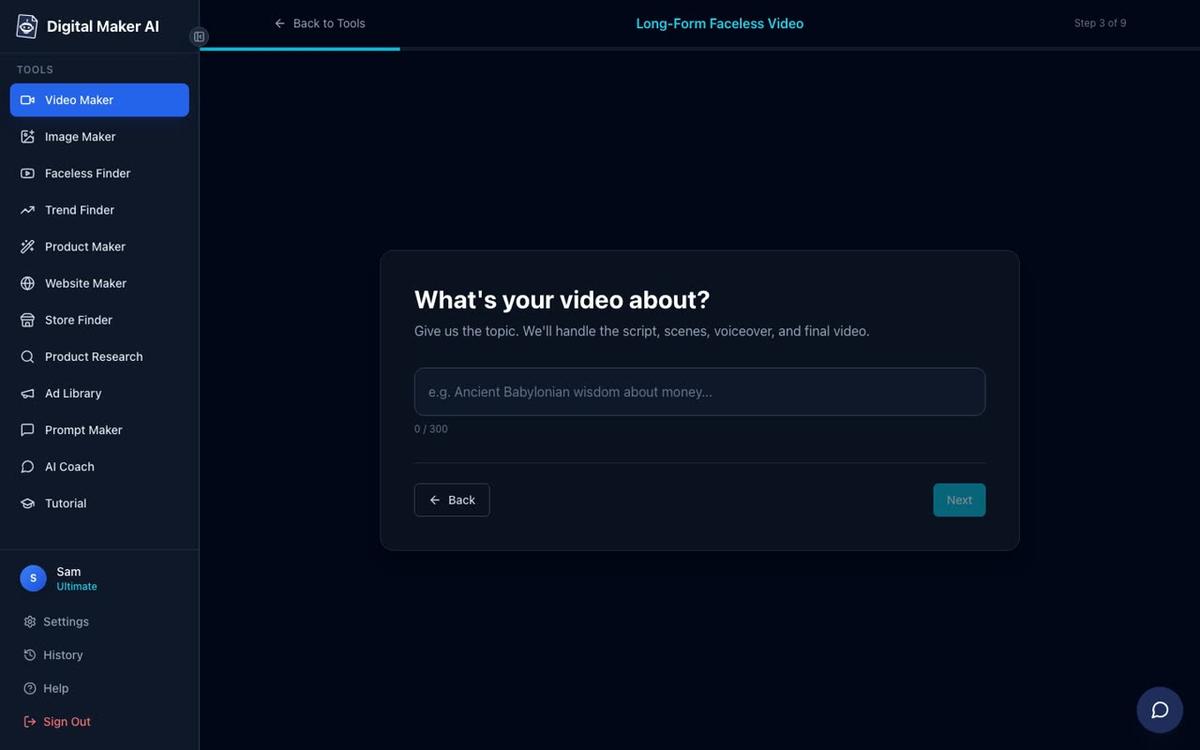
Yes. If you want to skip the Google Flow step entirely, Digital Maker AI's Long Form Faceless Video maker generates a scene image for every scene of your video automatically, adds narration and captions, and returns a finished MP4 in one workflow. You type the topic, pick a visual style (Realistic, Animated, History, Finance and more), choose a voice and length, and press Generate.
The Google Flow workflow is best when you want the specific cinematic quality that Veo and Imagen produce, or when you want more control over each individual scene image before the narration is added. For a faster end-to-end workflow without leaving Digital Maker AI, the long form faceless video maker handles everything in one place.
You can also combine both approaches: use Digital Maker AI's built-in video maker for most scenes, then swap in a Flow-generated image for any scene that needs a more specific or cinematic look. After a video is generated, you can replace any scene image with your own upload, including a Flow asset, at no extra cost (each video includes 10 free scene regenerations).
If you are new to faceless channels and want a broader view of how to start, the guide on the best way to start a faceless YouTube channel for beginners in 2027 covers niche selection, channel setup and your first video in detail.
Frequently asked questions
Is Google Flow free to use?
Google Flow's availability and pricing depend on your Google account type and region. Check flow.google.com for current access details. Digital Maker AI has its own Free plan that lets you try the Drag and Drop Video workflow once with no card needed, using your own images or Flow assets.
Do I need video editing skills to finish a video from Google Flow?
No. Digital Maker AI's Drag and Drop Studio handles the editing: you upload your images or clips in order, paste the script, pick a voice and captions, and press Generate. There is no timeline editor or manual trimming required. The output is a finished MP4.
Can I use Google Flow clips (not just images) in Digital Maker AI?
Yes. If you generate short moving clips in Google Flow using Veo, you can upload them to Digital Maker AI's Drag and Drop Studio using the Clips to Movie option. Digital Maker AI cuts them together with captions and narration into a finished video.
What visual styles work best in Google Flow for faceless YouTube videos?
Photorealistic and cinematic styles tend to perform best on YouTube for history, true crime and documentary niches. For finance or motivation channels, a dark moody or luxury look works well. Define your style in the master prompt and apply it to every scene for a consistent result.
Can I post the finished video to YouTube directly from Digital Maker AI?
Premium and Ultimate plan users can connect their YouTube, TikTok and Instagram accounts once in Account Settings, then post a finished video on a schedule or immediately from the Post to socials button. Nothing posts automatically. Free and Pro users download the MP4 and upload it themselves.
How is Digital Maker AI different from Google Flow?
Google Flow is a visual generation tool: it creates images and clips from prompts. Digital Maker AI is a complete video production platform: it writes your prompts, scripts and narration, generates or accepts your visuals, adds voiceover and captions, and delivers a finished YouTube-ready MP4. They work best together.
Ready to try the workflow? Start by creating a free Digital Maker AI account, let the AI Coach write your script and Flow prompts, generate your scenes in Google Flow, then bring them back to finish the video. The free course at digitalmaker.ai/free-course walks you through every step of building a faceless channel from scratch, including how to choose a niche, set up your channel and make your first video.
Alex Stevens: Alex Stevens writes for the Digital Maker AI team about faceless YouTube channels, AI presenters and AI video tools.