How to Use Google Flow to Make AI Movies in 2027
By Alex Stevens
To use Google Flow to make AI movies in 2027, you write a scene-by-scene prompt for each shot, generate the clips or images inside Google Flow, then bring everything into a finishing tool to add narration, captions and music. Digital Maker AI (digitalmaker.ai) is an AI video platform for faceless YouTube videos, AI presenter videos, animated podcasts, 3D animated films and digital products. Its Flow feature writes every prompt you need for Google Flow, including the Agent Instructions, the master prompt and a full scene-by-scene script, so you spend your time generating rather than guessing what to type. Once your clips or images are ready, you bring them back into Digital Maker AI's Drag and Drop Studio to get a finished, narrated MP4 with captions.
Key takeaways
- Google Flow is Google's AI filmmaking tool: it generates video clips and images from text prompts, scene by scene.
- Digital Maker AI's Flow feature writes the Agent Instructions, master prompt and full scene script so you know exactly what to paste into Google Flow.
- You generate the visuals in Google Flow, then bring them back to Digital Maker AI's Drag and Drop Studio to add narration, captions and music.
- The Drag and Drop Studio is available on all paid plans; see digitalmaker.ai/pricing for current plan details as of November 2026.
- This workflow suits faceless YouTube videos, short social ads and cinematic scene-by-scene storytelling.
What is Google Flow and why does it matter for AI movies in 2027?
Google Flow is Google's AI filmmaking tool, built on Veo (Google's video generation model) and Imagen (its image generation model). You give it a prompt, and it generates a short video clip or a still image for that scene. String several scenes together and you have the raw footage for an AI movie. In 2027, the quality of these clips has improved enough that faceless YouTube channels, short-form ads and cinematic storytelling projects are all being built this way.
The challenge is not generating the clips: it is knowing what to prompt. Google Flow responds best to precise, structured instructions. A vague prompt like "a forest at night" produces a generic result. A structured prompt that names the camera angle, lighting mood, subject movement and visual style produces a usable cinematic shot. Writing those prompts from scratch, scene by scene, for a five-minute video takes hours. That is the problem Digital Maker AI's Flow feature solves.
How does Digital Maker AI's Flow feature work?
Digital Maker AI's Flow feature is a prompt-writing tool built specifically for Google Flow. You give it your video topic, the style you want (cinematic, documentary, fantasy, and so on), and the number of scenes. It then produces three things you copy straight into Google Flow:
- Agent Instructions: a system-level instruction block that tells Google Flow's agent the overall visual rules for your project, such as colour grade, camera style and mood.
- Master prompt: a single reference prompt that establishes the world, the lighting and the visual language for every scene.
- Scene-by-scene script: one detailed prompt per scene, each one consistent with the master prompt, with camera direction, subject action and atmosphere written in.
You paste the Agent Instructions once at the start of your Google Flow session. You use the master prompt to set up your project. Then you work through each scene prompt one at a time, generating the clip or image for that scene. Because every prompt shares the same visual language, the scenes feel like they belong to the same film rather than a random collection of generated clips.
Digital Maker AI writes the prompts. Google Flow generates the visuals. You own the creative direction. That is the full division of work.
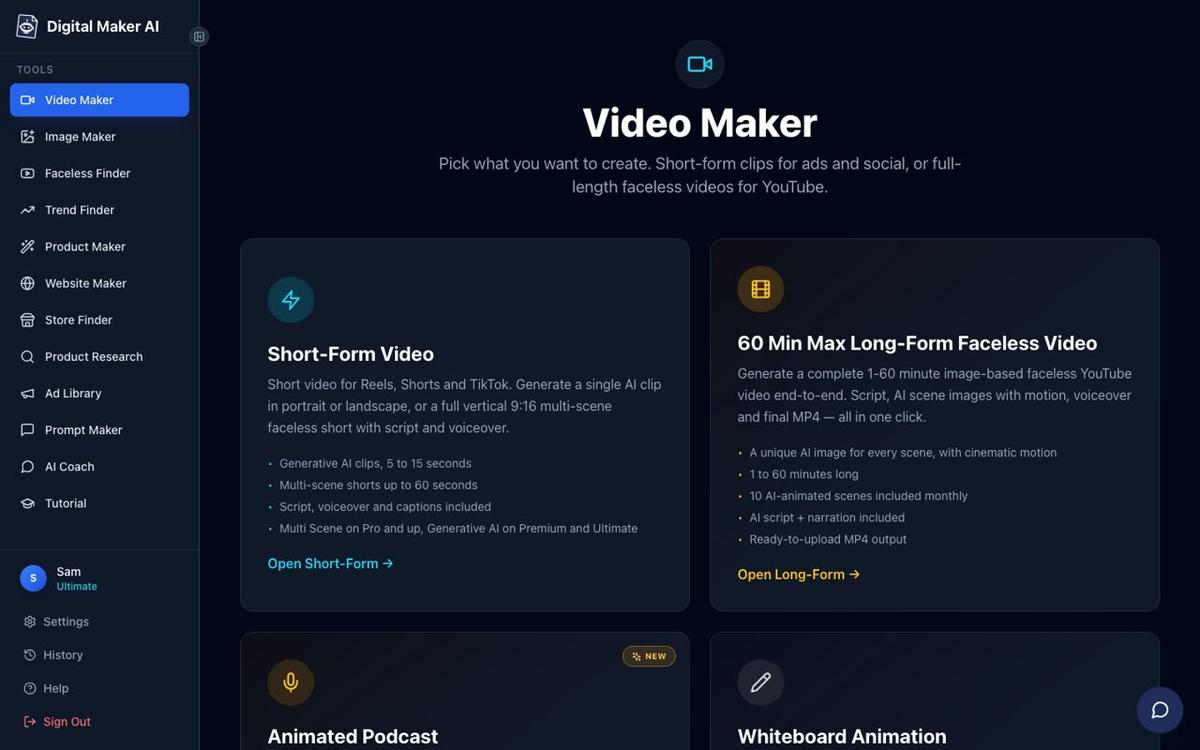
Step-by-step: how to use Google Flow to make AI movies in 2027
- Create your Digital Maker AI account. Go to digitalmaker.ai/faceless and sign up. You can start on the free plan with no card needed. For the full Flow workflow you will need the Drag and Drop Studio, which is available on paid plans.
- Open the Flow feature. After signing in, find the Flow tool in your account. Enter your video topic, the visual style you want (for example "cinematic documentary about deep sea creatures" or "dark moody finance channel intro"), and the number of scenes your video needs.
- Copy your Agent Instructions. Digital Maker AI generates the Agent Instructions block first. Copy this and paste it into the system or agent instructions field at the start of your Google Flow session. This sets the visual rules for everything that follows.
- Paste the master prompt into Google Flow. The master prompt establishes your project's world: the lighting style, colour palette, camera language and overall mood. Paste it as your first generation in Google Flow to anchor the visual style.
- Work through each scene prompt. Digital Maker AI gives you one prompt per scene. Paste each one into Google Flow in order. For each scene, Google Flow generates a short video clip or a still image. Download or save each output as you go.
- Review and regenerate any scenes that need fixing. Google Flow lets you adjust prompts and regenerate individual scenes. If a clip does not match the style or the action is wrong, refine the prompt (Digital Maker AI's scene prompt is a strong starting point, but you can add or change details) and generate again.
- Bring your clips or images into Digital Maker AI's Drag and Drop Studio. Once you have all your scenes, open the Drag and Drop Studio in Digital Maker AI. Use Clips to Movie if you have video clips, or Images to Video if you generated still images in Google Flow. Upload your files and your script.
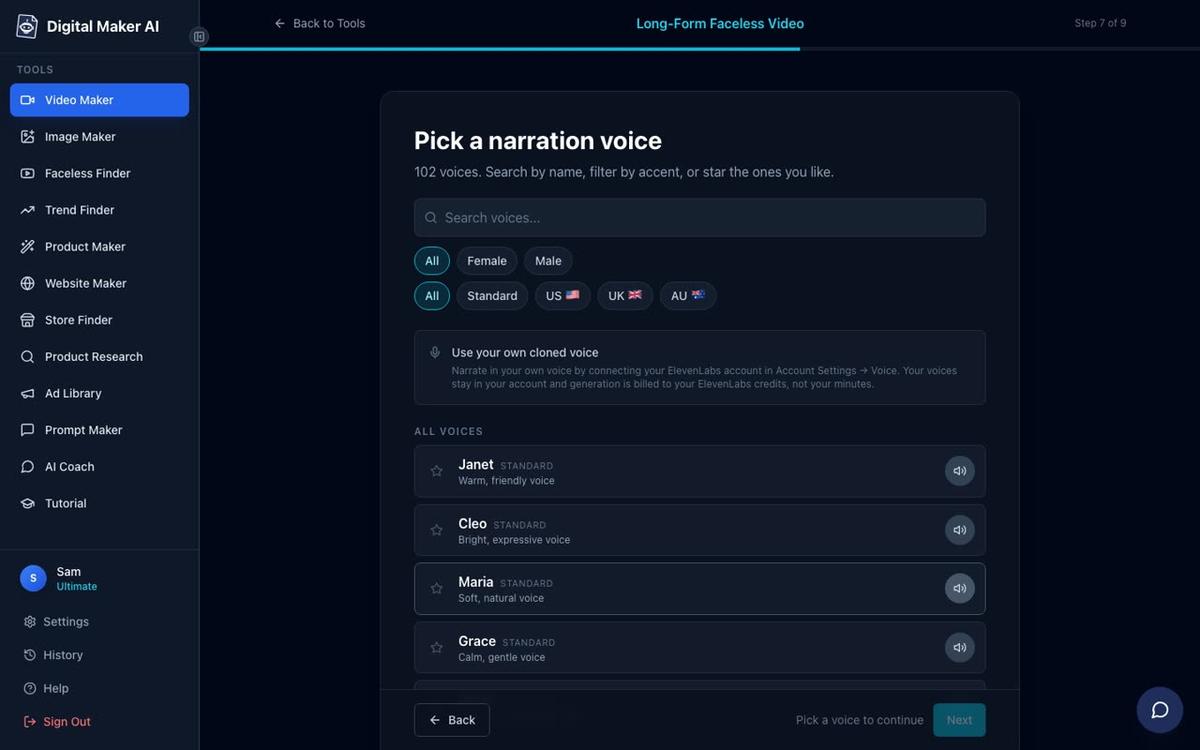
- Add narration, captions and music. Digital Maker AI adds AI narration from its library of more than 100 voices, burns captions into the lower third in your chosen style, and optionally adds a background music track. You choose the voice, the caption look and the music mood.
- Download or post your finished video. Digital Maker AI returns a ready-to-upload MP4. Premium and Ultimate plan holders can post straight to YouTube, TikTok or Instagram from the Post to socials button. Free and Pro plan holders download the MP4 and upload it themselves.
What kinds of AI movies work best with the Google Flow and Digital Maker AI workflow?
The combination works for any project where the visuals come from Google Flow and the narration, captions and final edit come from Digital Maker AI. Here are the formats that suit it best:
| Video type | Google Flow output | Digital Maker AI step | Best for |
|---|---|---|---|
| Faceless YouTube video | Scene-by-scene clips or images | Clips to Movie or Images to Video | History, science, finance, motivation channels |
| Cinematic short film | Cinematic clips, consistent style | Clips to Movie with narration | Storytelling, documentary-style content |
| Social media ad | Short punchy clips (5 to 15 seconds each) | Clips to UGC Ad (9:16 with hook text) | Product or brand promotion on TikTok and Instagram |
| Landscape scene images | Still images from Imagen prompts | Images to Video with narration and motion | Channels that prefer still scenes with zoom or pan effects |
For faceless YouTube channels, the Images to Video path inside the Drag and Drop Studio is particularly efficient. Google Flow's Imagen model generates high-quality stills from the scene prompts Digital Maker AI writes. You upload those images, paste your script, pick a voice and get a complete narrated video. This is the same end result as the long-form faceless video workflow, but with your own Google Flow images in place of the platform's built-in image generation.
A worked example: a five-minute history channel video
Here is a real example of how the workflow runs from start to finish. The niche is ancient history. The video idea is "The Last Days of Pompeii: What Really Happened in 79 AD".
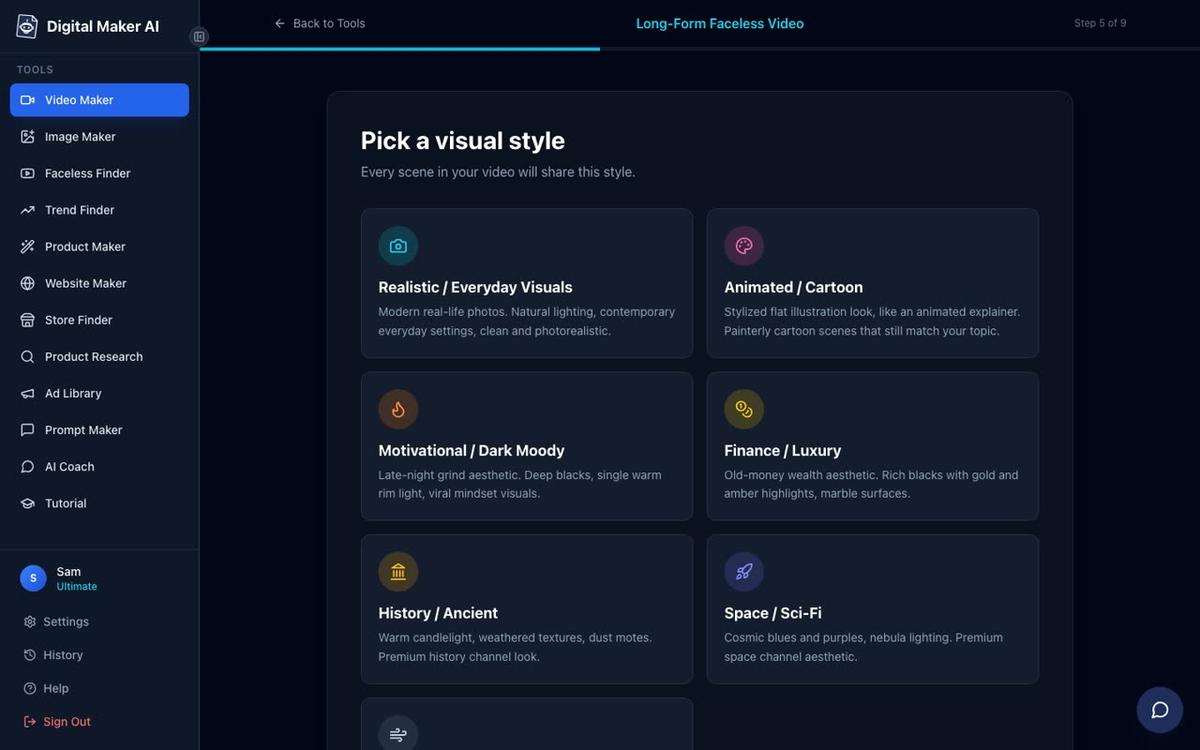
- Enter the topic in Flow. Type the topic, select "History or Ancient" as the visual style and set 20 scenes (roughly one scene per 15 seconds of a five-minute video).
- Copy the Agent Instructions. Digital Maker AI produces an instruction block that tells Google Flow to use a warm, dusty colour grade, low-angle dramatic camera work and a Roman-era visual language throughout.
- Generate scenes in Google Flow. Work through the 20 scene prompts. Each one describes a specific moment: the morning market in Pompeii, Vesuvius with the first plume of smoke, citizens fleeing through ash-covered streets, and so on. Because the master prompt anchors the style, all 20 clips share the same visual world.
- Upload to Clips to Movie. Bring all 20 clips into the Drag and Drop Studio, paste the narration script (Digital Maker AI's Flow feature also outputs this), pick a deep male UK voice, choose "YouTube Yellow" captions and add a cinematic music track.
- Download and upload to YouTube. The finished MP4 is ready in minutes. On a Premium or Ultimate plan you can post it straight from Digital Maker AI to your YouTube channel.
The result is a five-minute cinematic history video with consistent visuals, professional narration and burned-in captions. No camera, no editing software and no prompt-writing experience needed.
Common mistakes to avoid when using Google Flow for AI movies
- Skipping the Agent Instructions. Pasting individual scene prompts without the Agent Instructions first means each clip is generated in a visual vacuum. The instructions are what keep the style consistent across all your scenes.
- Changing the visual style mid-project. If you decide to switch from a warm cinematic grade to a cold blue tone halfway through, your clips will not match. Commit to the master prompt's style and generate all scenes before making any changes.
- Generating clips before you have a script. The scene prompts Digital Maker AI writes are tied to the narration script. If you generate clips first and write the script later, the visuals may not match what the narrator says. Write the script first, then generate.
- Ignoring the Drag and Drop Studio's caption options. Captions are not optional for YouTube in 2027. Choose a caption style that matches your channel's look: "YouTube Yellow" for high-energy content, "Minimal" for cinematic or documentary work, "Boxed" for clarity on busy backgrounds.
- Expecting perfection from every clip. AI-generated video clips are not perfect. Plan to regenerate two or three scenes per project. Google Flow lets you re-prompt individual scenes, and Digital Maker AI's Drag and Drop Studio lets you swap in a replacement clip for any scene after the fact.
Can you add an AI presenter to a Google Flow video?
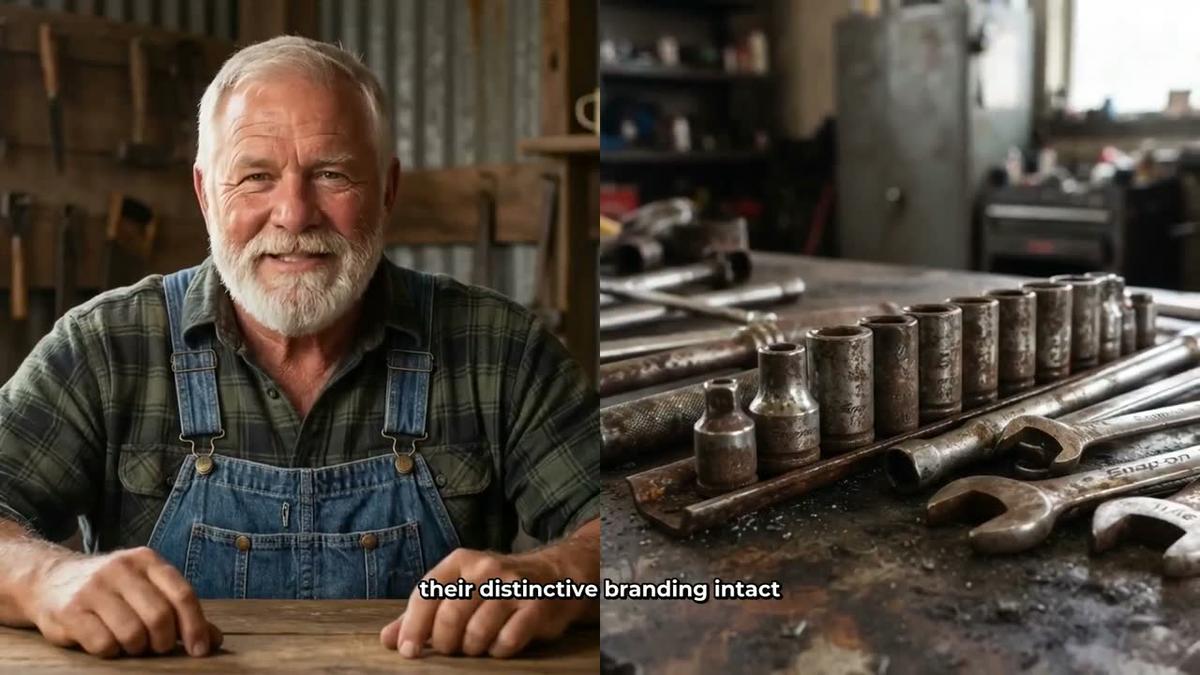
Yes, if you are on Premium or Ultimate. After bringing your Google Flow clips into the Drag and Drop Studio and getting your finished video, you can add an AI presenter to the long-form video. You create a presenter in Account Settings under the Presenters tab: describe who they are in a sentence or two, the AI generates a photoreal image of them, and you save it. In the Video Maker you pick the presenter and choose one or more layouts: Full screen (the presenter fills the frame), Split screen (presenter on the left, the scene on the right) or Corner circle (the scene with the presenter in a small round window). A slider sets how much of the video the presenter appears on screen.
Presenters use avatar time, which is counted in seconds and separate from video minutes. Premium plans start with 2 minutes of avatar time and Ultimate with 5 minutes, plus 3 minutes added every month on Ultimate. Avatar Packs add more time as one-off purchases: see digitalmaker.ai/pricing for current pack options as of November 2026.
Adding a presenter to a Google Flow video is a strong move for channels that want a consistent on-screen personality without ever appearing on camera themselves. The presenter speaks the same narration as the rest of the video, with captions, so the whole thing feels cohesive.
Frequently asked questions
Is Google Flow free to use?
Google Flow is available through Google Labs and access has been rolling out progressively. Some tiers and generation volumes may require a Google One AI Premium subscription. Check Google's own site for the current access and pricing details, as these change regularly.
Do I need any video editing experience to use this workflow?
No. Digital Maker AI's Drag and Drop Studio has no timeline editor. You upload your clips or images, paste your script, pick a voice and caption style, and the platform assembles the finished MP4. The most technical step is pasting prompts into Google Flow.
Can I use Google Flow images instead of clips for this workflow?
Yes. Google Flow can generate still images using Imagen. Digital Maker AI's Images to Video path in the Drag and Drop Studio accepts your own images, adds narration, captions and optional slow zoom or pan motion effects, and returns a finished video. This is a good option if you prefer still scenes over moving clips.
What is the difference between using Digital Maker AI's own image generation and using Google Flow images?
Digital Maker AI's built-in long-form video maker generates a unique scene image for every scene automatically, in one workflow, without leaving the platform. The Google Flow path gives you more control over the visual style and the specific look of each scene, but requires more steps: generating in Google Flow, downloading the files, then uploading them to the Drag and Drop Studio.
Can I use this workflow to make videos for YouTube monetisation?
Commercial usage rights are included on every Digital Maker AI plan, including the free plan. You own the finished video and can upload it to a monetised YouTube channel. Whether AI-generated content qualifies for the YouTube Partner Programme depends on YouTube's own policies, which you should check directly.
Can I make a short-form vertical video with Google Flow clips in Digital Maker AI?
The Drag and Drop Studio's Clips to UGC Ad option produces a 9:16 vertical ad with captions, hook text and an end card from your own clips, which works well with Google Flow clips. For a standard vertical Short, Digital Maker AI's built-in Short-Form Video maker generates its own visuals from a one-line topic, which is faster if you do not need custom Google Flow visuals.
Ready to start? The best way to see how the workflow fits your channel is to try it. The free course at digitalmaker.ai/free-course walks you through building your first faceless video from scratch, including how to use the Drag and Drop Studio with your own images and clips. You can also read the companion guide How to Make AI Movies in 2027 for a broader look at the tools available this year.
Alex Stevens: Alex Stevens writes for the Digital Maker AI team about faceless YouTube channels, AI presenters and AI video tools.