Best Way to Start a Faceless YouTube Channel for Beginners in 2027
By Alex Stevens
The best way to start a faceless YouTube channel for beginners in 2027 is to pick one niche, make your first video with an AI video tool, and publish consistently before worrying about anything else. You never need to appear on camera. Digital Maker AI (digitalmaker.ai) is an AI video platform for faceless YouTube videos, AI presenter videos, animated podcasts, 3D animated films and digital products. Its free plan lets you make your first five videos with no card required, so you can test the full process before spending anything.
Key takeaways
- A faceless YouTube channel is a channel where the creator never appears on camera: AI visuals and a voiceover carry every video.
- You need 1,000 subscribers and 4,000 watch hours (or 10 million Shorts views in 90 days) to join the YouTube Partner Programme and earn ad revenue.
- Digital Maker AI's free plan gives you five free videos, one of each type, with no credit card needed, as of November 2026.
- The Faceless Finder tool shows real channel subscriber counts, upload frequency and estimated monthly ad revenue so you can validate a niche before you start.
- Most beginners reach monetisation between 6 and 18 months, depending on niche, upload frequency and video length.
Step 1: Pick a niche using real channel data
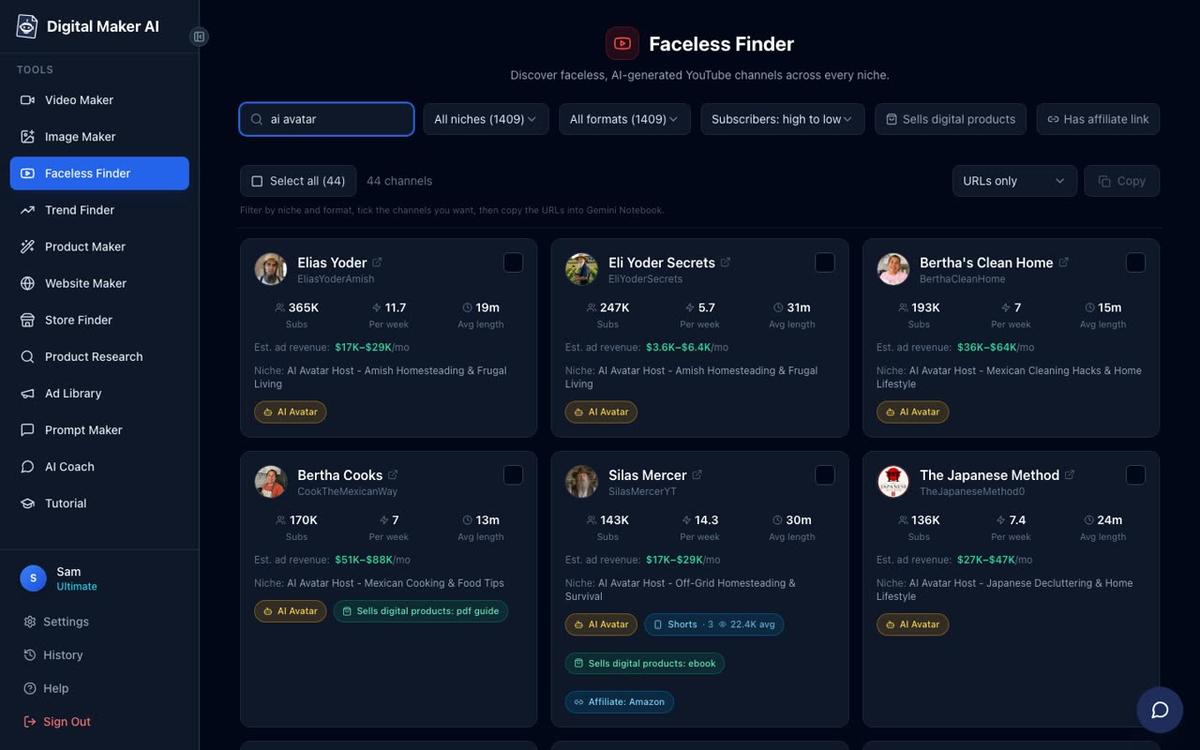
Your niche is the single topic your channel covers. Picking the wrong one wastes months, so check what is already working before you commit. The Faceless Finder inside Digital Maker AI is a searchable list of confirmed faceless YouTube channels, open to every signed-in account including free users. Each channel card shows subscriber count, uploads per week, average video length and an estimated monthly ad revenue based on recent views and typical ad rates for that niche.
To use it, sign in, open Faceless Finder from the left sidebar and search by niche keyword. Try "psychology", "stoicism", "true crime" or "personal finance" and look for channels with under 100,000 subscribers that still earn a meaningful estimated revenue. That gap is your opportunity: the niche has an audience but is not yet dominated by huge accounts. The Faceless Finder also labels AI avatar channels with an "AI Avatar" badge, so you can search "AI avatar" to see exactly what a presenter-led faceless channel looks like and how it performs.
A worked example: searching "stoicism" might surface a channel with 28,000 subscribers, three uploads a week and an estimated $1,200 a month. That tells you the niche converts viewers into watch time, and that a new channel posting consistently has room to grow. Write down three niches that interest you, check each one in the Faceless Finder, then pick the one with the best balance of audience size and manageable competition.
Practical tip: stick to one niche for your first 20 videos. YouTube's algorithm needs a clear signal about who your channel is for before it recommends you to new viewers.
Step 2: Create your free account and understand the free plan
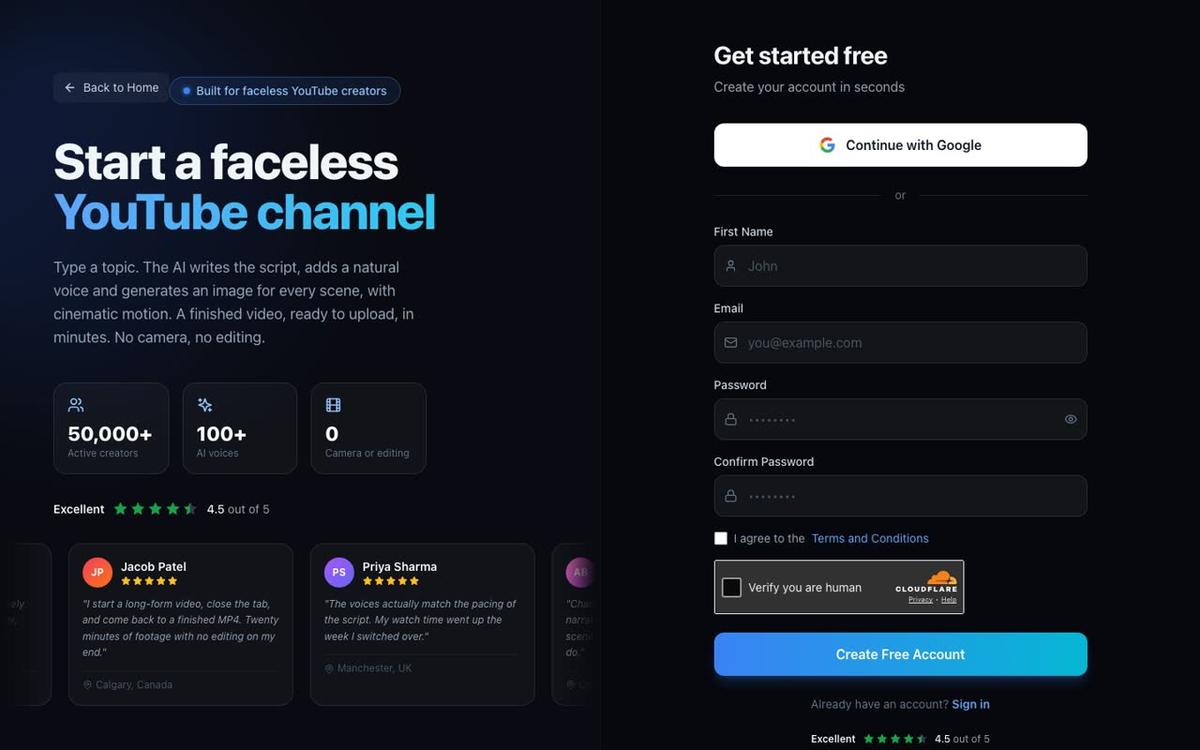
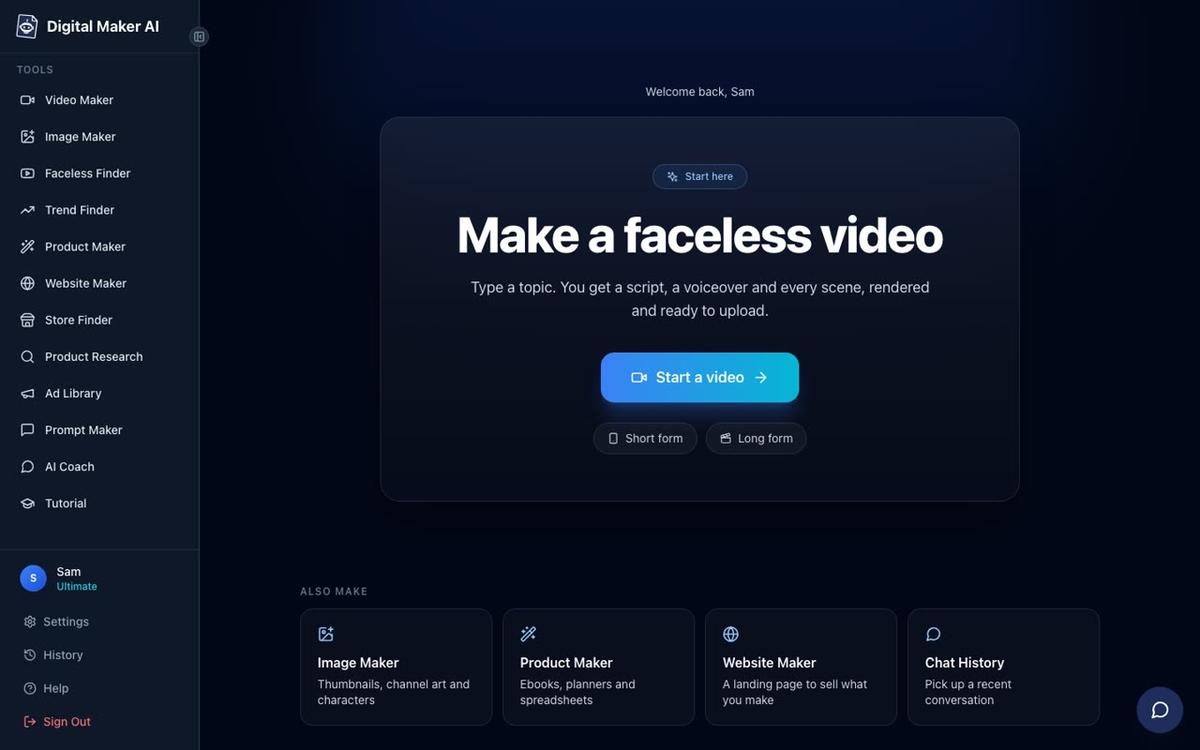
Go to digitalmaker.ai/faceless, press "Get started free" and sign up with Google or an email and password. No card is needed. Once inside, you will see the dashboard with a "Start a video" button and the tools menu on the left.
The free plan gives you five free videos, one of each type, once: one long-form faceless video (up to 8 minutes), one vertical Short (15 to 60 seconds), one drag-and-drop video from your own images (up to 8 minutes), one drag-and-drop movie from your own clips (up to 8 minutes) and one animated podcast (up to 8 minutes). Free videos use a ready-made image library in set topic areas including money, stoicism, true crime, history, psychology, space and health. Free videos carry a small Digital Maker AI watermark. Commercial usage rights are included on every plan, including free.
Step 3: Write (or generate) your first script
A good faceless video script follows a simple structure: a hook in the first 15 seconds that makes the viewer want to stay, three to five main points with one concrete detail each, and a short call to action at the end. For a 5-minute video you need roughly 700 to 800 words of narration.
On the free plan, the AI writes the script for you from a topic you type in one line. On paid plans you can also paste your own script. Either way, the script becomes the narration and drives the scene images, so the clearer your topic line, the better the result. A good topic line is specific: "5 Stoic habits that eliminate anxiety" works better than "stoicism tips".
If you want help before you even open the Video Maker, the AI Coach inside Digital Maker AI can suggest video ideas, write hooks, generate YouTube titles and descriptions, and give you a step-by-step "Start a channel" guide, all from the chat interface in the left sidebar.
Step 4: Make your first video in the Video Maker
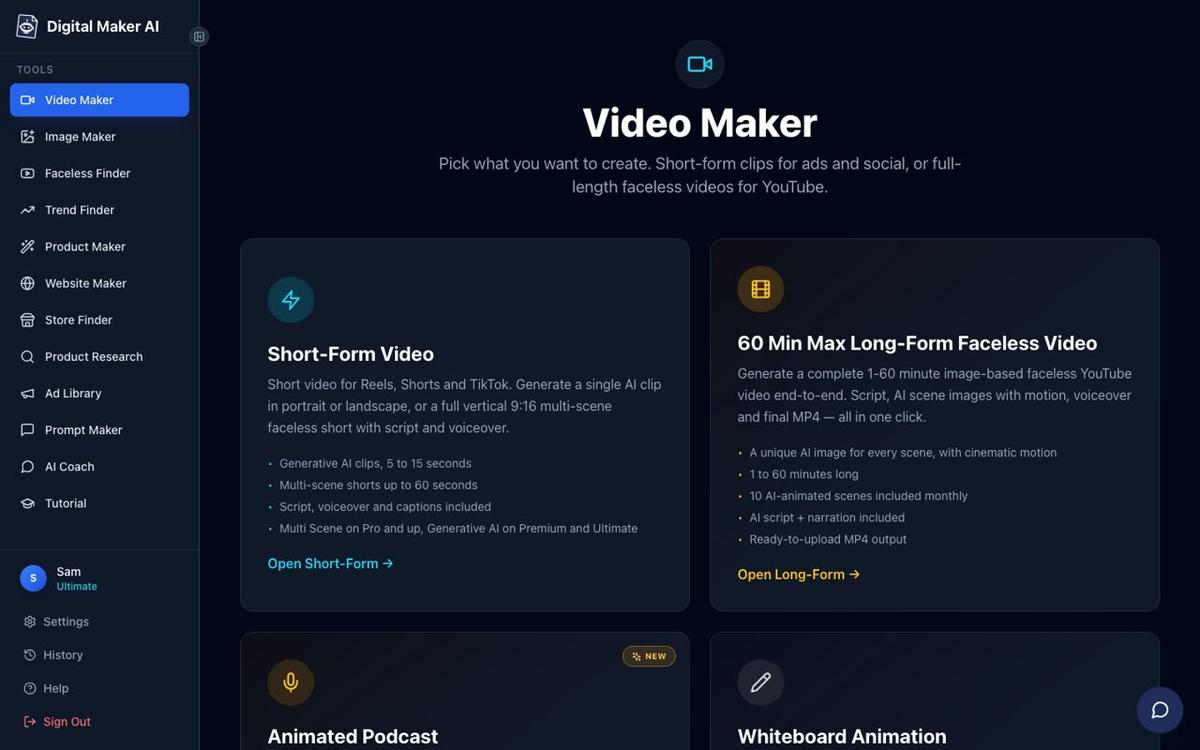
Click "Video Maker" in the left sidebar, then press the free video button to open the free video screen. Choose "Long-Form Faceless Video" and press Next at the bottom of the screen. The maker walks you through nine steps.
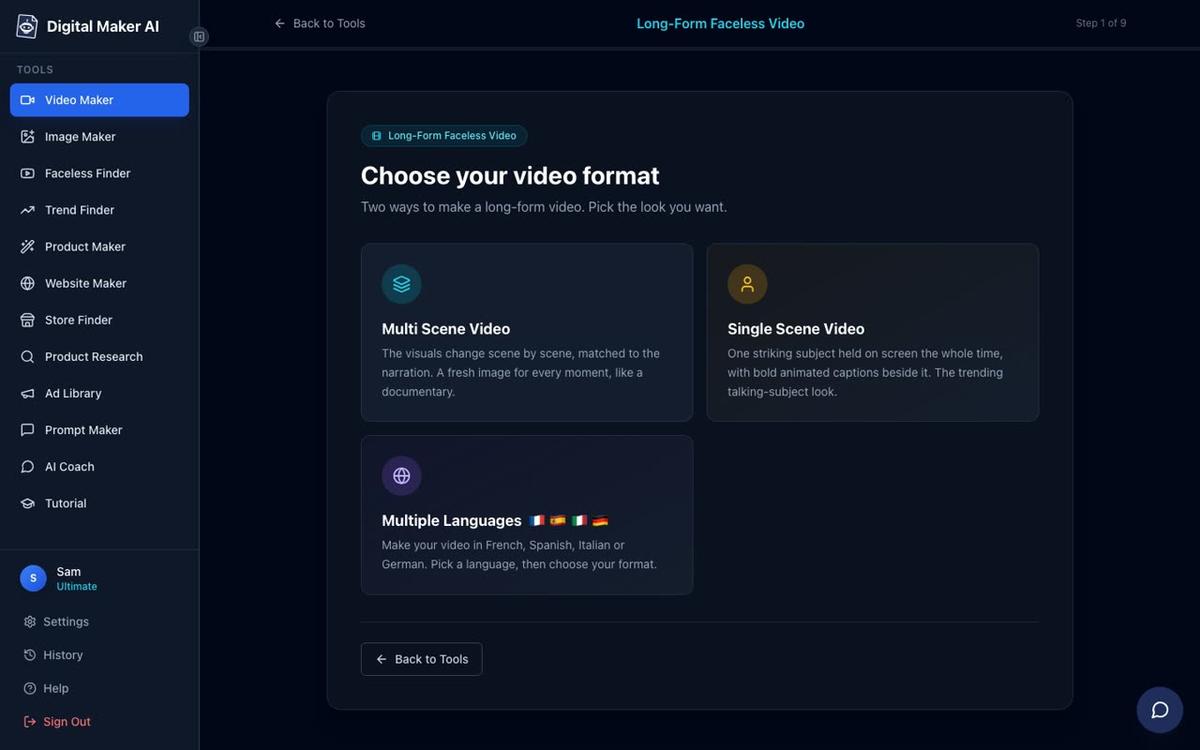
- Choose your format. On the free plan, select Multi Scene (a new AI image for every scene). Single Scene and Whiteboard Animation are on Premium and Ultimate.
- Choose how to start. Pick "Write it for me" and the AI generates the script from your topic. Pasting your own script is a paid feature.
- Type your topic. Keep it to one clear sentence, up to 300 characters. Example: "Ancient Babylonian wisdom about money".
- Reuse or choose settings. On your first video, choose settings for this video. From your second video onward you can reuse the voice, style and effects from last time.
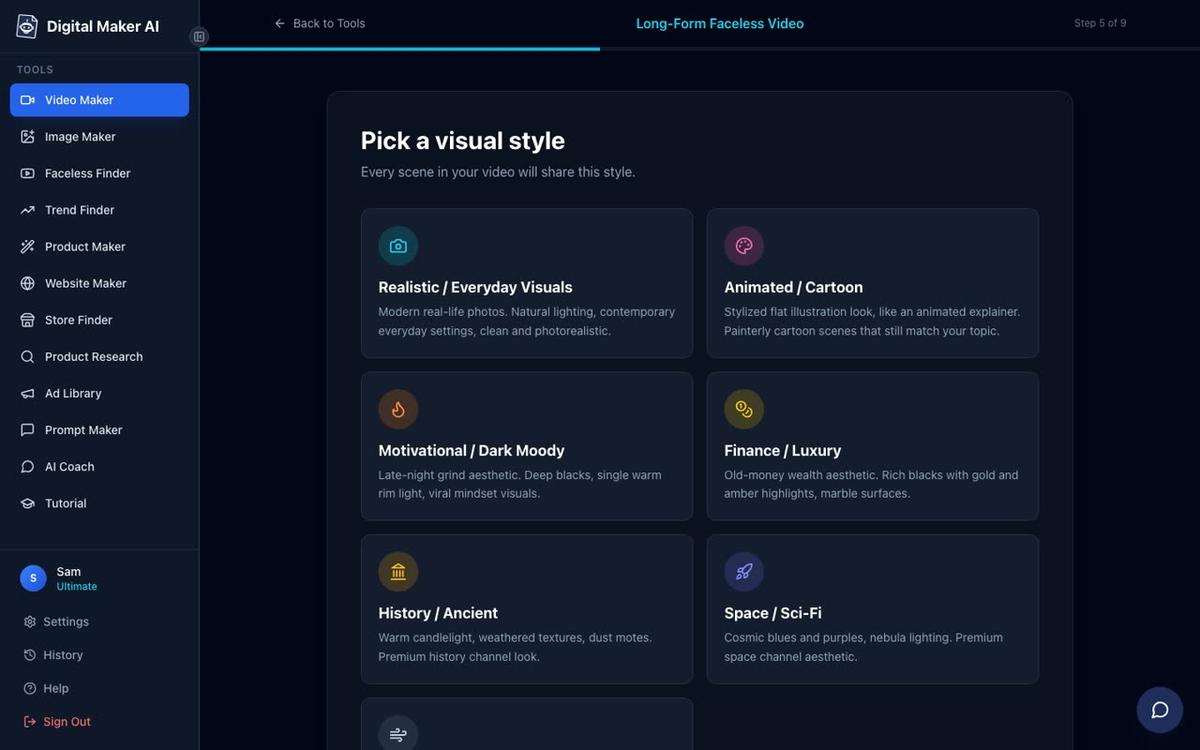
- Pick a visual style. Free users can choose Realistic or Everyday Visuals, or Animated or Cartoon. Paid plans unlock five more styles.
- Set the length. The free long-form video goes up to 8 minutes. A 5-minute video generates roughly 30 scenes.
- Pick a narration voice. More than 100 built-in voices with male and female options and US, UK and Australian accents. Free users get standard voices.
- Choose the pacing. Calm, Standard or Energetic controls how fast the narrator speaks.
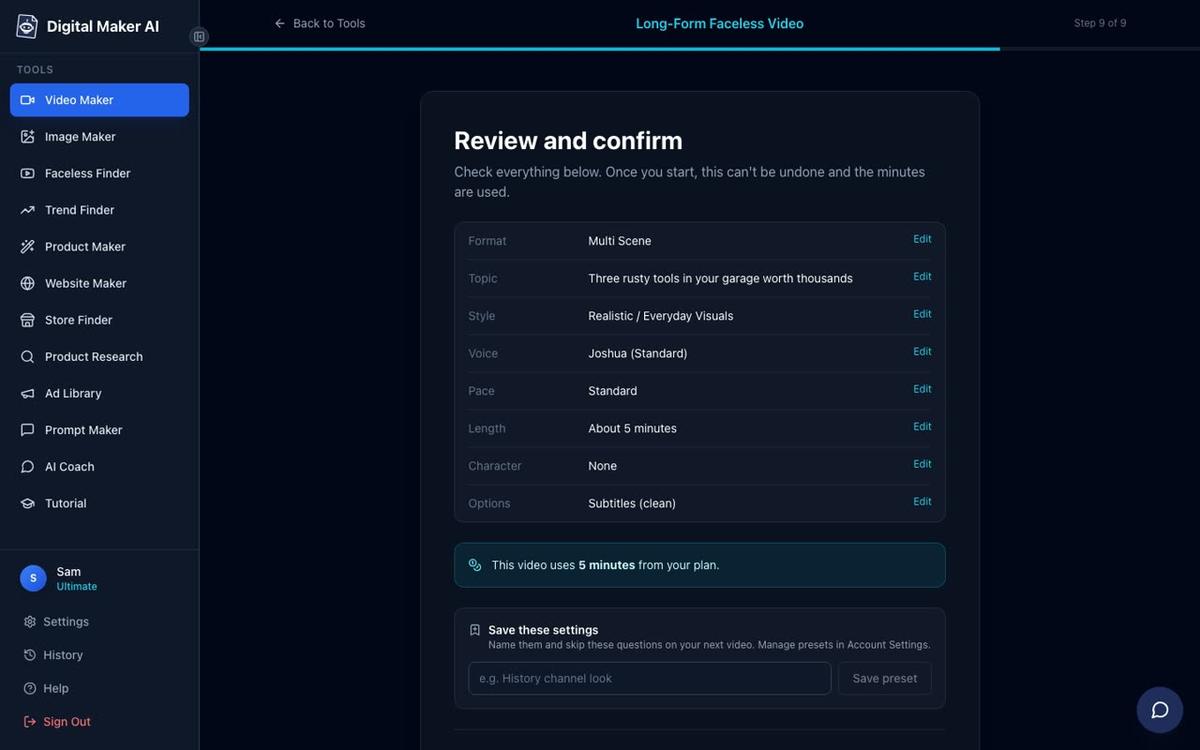
- Review and confirm. Check the format, topic, style, voice, length and options. On paid plans you will also see how many minutes the video uses from your monthly pool. Press Generate Video.
Generation usually takes 3 to 6 minutes for a 5-minute video. The result is a ready-to-upload MP4 with AI narration, captions burned into the lower third and a unique scene image for every scene. After the video is ready you can regenerate any scene image (10 free regenerations per video), swap in your own image, or edit the narration text before downloading.
On paid plans, long-form videos can run up to 10 minutes on Pro, 30 minutes on Premium and 60 minutes on Ultimate, with fresh AI-generated images on any topic rather than the set library.
Step 5: Make a thumbnail with Image Maker
YouTube thumbnails drive click-through rate, which is one of the strongest signals the algorithm uses. A good beginner thumbnail has one clear subject, bold readable text and high contrast. In Digital Maker AI, open Image Maker from the left sidebar and choose the YouTube thumbnail option. Type a description of what you want, pick a style and generate. You can regenerate until you have one that matches your video topic.
Practical tip: use the same font style and colour scheme on every thumbnail so your channel looks consistent in search results. Viewers start to recognise the style before they even read the title.
Step 6: Upload, write the description and publish
Download your MP4 and thumbnail, then go to YouTube Studio and upload. Fill in every field before publishing.
| Field | What to include | Why it matters |
|---|---|---|
| Title | Main keyword in the first 60 characters | Search ranking and click-through rate |
| Description | 150 word summary, keyword in first two lines, chapters with timestamps | Search indexing and viewer retention |
| Tags | 5 to 10 specific tags matching the topic | Helps YouTube categorise the video |
| Thumbnail | Custom image, not the auto-generated frame | Click-through rate |
| Category | Match to the niche (Education, Entertainment, etc.) | Audience targeting |
| End screen | Link to one other video and a subscribe button | Watch time and subscriber growth |
On Premium and Ultimate plans you can connect your YouTube account once in Account Settings and post directly from Digital Maker AI using the "Post to socials" button, either immediately or on a schedule. Nothing posts automatically: you press Post and the video goes live, labelled as AI generated. Free and Pro users download the MP4 and upload it themselves.
How long does it take to reach monetisation on a faceless channel in 2027?
To join the YouTube Partner Programme (YPP) and earn ad revenue you need 1,000 subscribers and 4,000 watch hours in the past 12 months, or 10 million Shorts views in the past 90 days. These are the official thresholds as of November 2026. There is no shortcut: YouTube counts only genuine views from real accounts.
Realistically, most beginners who post one or two videos a week in a focused niche reach the long-form threshold in 6 to 18 months. Channels that post daily Shorts alongside long-form videos sometimes reach the Shorts threshold faster, but watch-hour monetisation tends to pay more per view in most niches. The Faceless Finder's estimated revenue figures give you a realistic ceiling: if the top channel in your niche earns an estimated $800 a month, a new channel with a tenth of the subscribers might earn $80, which is a useful anchor for setting expectations.
For a deeper look at building a full channel strategy, see How to Start a Faceless YouTube Channel in 2027 and How to Start YouTube Automation in 2027 on the Digital Maker AI blog.
A simple weekly routine for your first 90 days
Consistency matters more than perfection in the first three months. Here is a realistic routine that fits around a day job.
- Monday: research. Spend 20 minutes in the Faceless Finder looking at what performed well in your niche last week. Note the video titles and lengths of the top-performing uploads.
- Tuesday: topic and script. Pick one topic for your long-form video. Type a clear one-sentence topic into the Video Maker or use the AI Coach to get a hook, title and outline first.
- Wednesday: generate the video. Run the Video Maker, review the output, regenerate any scenes that do not look right, and download the MP4.
- Thursday: thumbnail and metadata. Make the thumbnail in Image Maker. Write the title, description and tags. Schedule the upload for the next morning in YouTube Studio.
- Friday: Short. Make one vertical Short on the same topic (15 to 60 seconds, one minute from your pool on paid plans) and post it the same day. Shorts bring in new viewers who may then watch the long-form video.
- Weekend: review. Check the analytics from the previous week's video. Which retention point did viewers drop off? Use that to improve the next script.
Common mistakes beginners make on faceless channels
- Switching niches too early. Most channels see slow growth for the first 10 to 15 videos. That is normal. Switching niche resets your audience signal with the algorithm.
- Ignoring the first 30 seconds. YouTube measures audience retention from the first frame. A weak hook loses viewers before the first scene change. Spend extra time on the opening line of your script.
- Uploading without a custom thumbnail. The auto-generated frame is almost never the best choice. A custom thumbnail takes 10 minutes and can double your click-through rate.
- Expecting monetisation in month one. The 1,000 subscriber and 4,000 watch-hour thresholds take time. Treat the first three months as practice, not income.
- Making every video a different length. Pick one format (for example 5 to 8 minutes) and stick to it. Consistent length helps YouTube understand who your audience is and when to recommend your videos.
Frequently asked questions
Do I need to buy a paid plan to start a faceless YouTube channel with Digital Maker AI?
No. The free plan gives you five videos, one of each type, with no credit card needed. Free long-form videos use a library of images in set topic areas and go up to 8 minutes. Paid plans unlock fresh AI-generated images on any topic, longer videos and more monthly video minutes. See digitalmaker.ai/pricing for plan details.
What is the best niche for a faceless YouTube channel in 2027?
There is no single best niche, but psychology, stoicism, personal finance, true crime and history consistently show strong estimated ad revenue in the Faceless Finder. The best niche for you combines a topic you can research easily, an audience already watching faceless content and a gap in the market below 100,000 subscribers.
How many videos should I make before monetising?
You cannot monetise until you hit 1,000 subscribers and 4,000 watch hours (or 10 million Shorts views in 90 days). Most channels need 30 to 60 videos to reach those thresholds, though niche, video length and posting frequency all affect the timeline significantly.
Can I use an AI presenter on my faceless channel?
Yes. Digital Maker AI's AI presenter feature lets Premium and Ultimate users create a photoreal on-screen presenter from a text description. The presenter appears in full screen, split screen or a corner circle layout in long-form Multi Scene videos. You control how much of the video they appear in using a slider and a timeline bar.
Will YouTube penalise AI-generated faceless videos?
YouTube requires creators to disclose AI-generated content that could mislead viewers, particularly realistic depictions of real people or events. Clearly labelling your videos as AI-assisted and avoiding misleading claims keeps you within the platform's guidelines. Digital Maker AI labels posts as AI generated when you post directly to YouTube from the platform.
What is the difference between a faceless video and YouTube automation?
A faceless video is any video where the creator does not appear on camera. YouTube automation usually refers to outsourcing or automating the entire production process, from scripting to editing, so the channel runs with minimal hands-on work. AI tools like Digital Maker AI make it possible for a single person to automate most of the production without a team.
The best way to start a faceless YouTube channel for beginners is to take one step at a time: pick a niche with real data, make your first video today, and publish before you feel ready. Everything else improves with practice. The free course at digitalmaker.ai/free-course walks you through the full channel setup process, from choosing a name and profile picture to your first upload, and it costs nothing to start.
Alex Stevens: Alex Stevens writes for the Digital Maker AI team about faceless YouTube channels, AI presenters and AI video tools.