How to Start YouTube Automation Using Autopilot AI in 2027
By Alex Stevens
You can start YouTube automation using AI by connecting your channel to a tool that picks topics, writes scripts, generates videos and posts them on a schedule, without you recording anything. Digital Maker AI (digitalmaker.ai) is an AI video platform for faceless YouTube videos, AI presenter videos, animated podcasts, 3D animated films and digital products. Its Autopilot feature, available on Premium and Ultimate plans, handles that entire process for you in 2027.
Key takeaways
- Autopilot is set up once from the left sidebar and then runs your YouTube channel on a schedule you choose.
- You receive an email before each video posts so you can review it, change the title or thumbnail, or skip it entirely.
- Autopilot posts at most 2 videos a day to your channel.
- Premium includes 2 Autopilot videos a month and Ultimate includes 5, each up to 10 minutes, using your plan's video minutes.
- YouTube still expects original, useful content: automation handles production, but your niche and topic choices still matter.
What is YouTube automation and why does it matter in 2027?
YouTube automation is the practice of running a YouTube channel where AI handles the research, scripting, video production and posting, so you are not tied to a camera or an editing timeline. A faceless YouTube channel is a channel where the creator never appears on camera; AI visuals and a voiceover carry the video. In 2027, with AI video tools mature enough to produce watchable, narrated videos from a single topic line, automation has become a realistic starting point for solo creators who want to build a channel around a niche without spending hours on each upload.
That said, automation is not a shortcut around quality. YouTube's algorithm rewards content that genuinely helps or entertains viewers. Autopilot handles the production work; choosing a focused niche and useful topics is still your job, and it is the most important decision you will make.
How to start YouTube automation using AI: the complete setup
The steps below walk you through everything from creating your account to watching your first automated video go live. You will need a Premium or Ultimate plan on Digital Maker AI and a YouTube channel connected to your Google account.
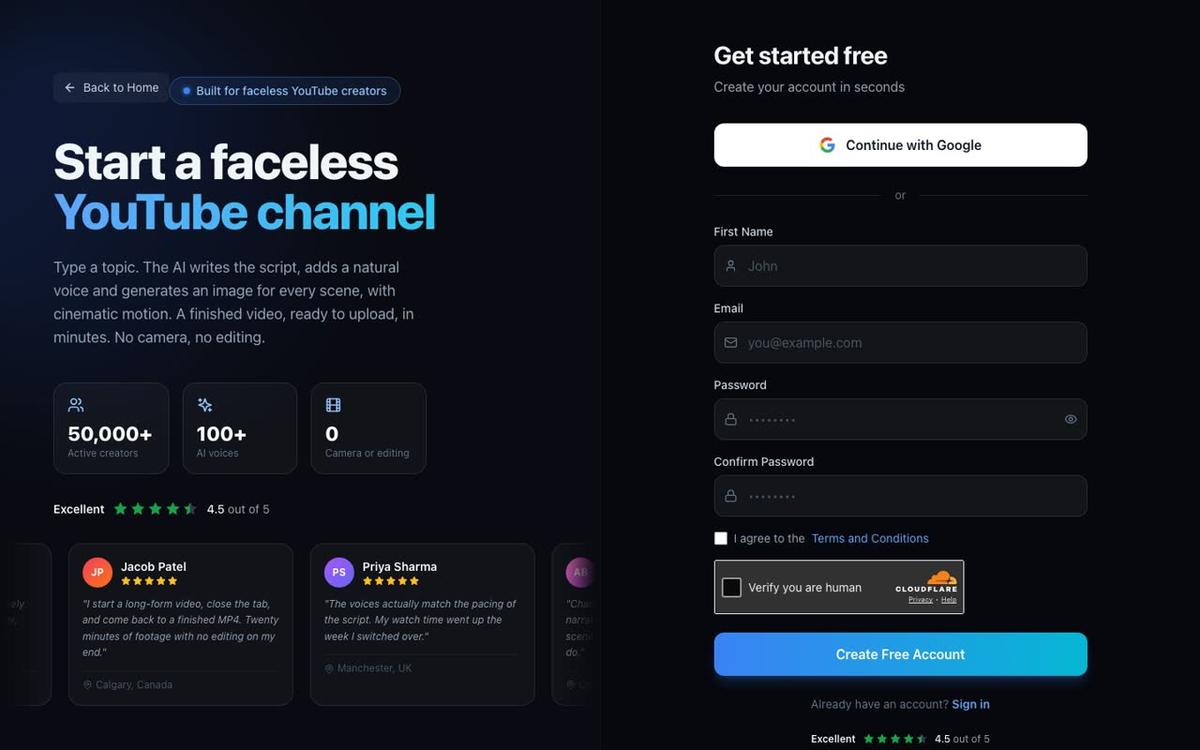
- Create your Digital Maker AI account. Go to digitalmaker.ai/faceless and sign up with Google or an email and password. No credit card is needed to create an account. Once you are in, you will land on the main dashboard.
- Choose a plan. Autopilot is available on Premium and Ultimate. Premium includes 2 Autopilot videos a month and Ultimate includes 5. Visit digitalmaker.ai/pricing to compare what each plan includes and pick the one that fits your goals. If you want to try the platform first, the Free plan gives you five free videos of different types with no card required.
- Connect your YouTube channel. In Account Settings, connect your YouTube account. You do this once and Autopilot uses it for every scheduled post. Posts are automatically labelled as AI generated, which meets YouTube's disclosure requirements.
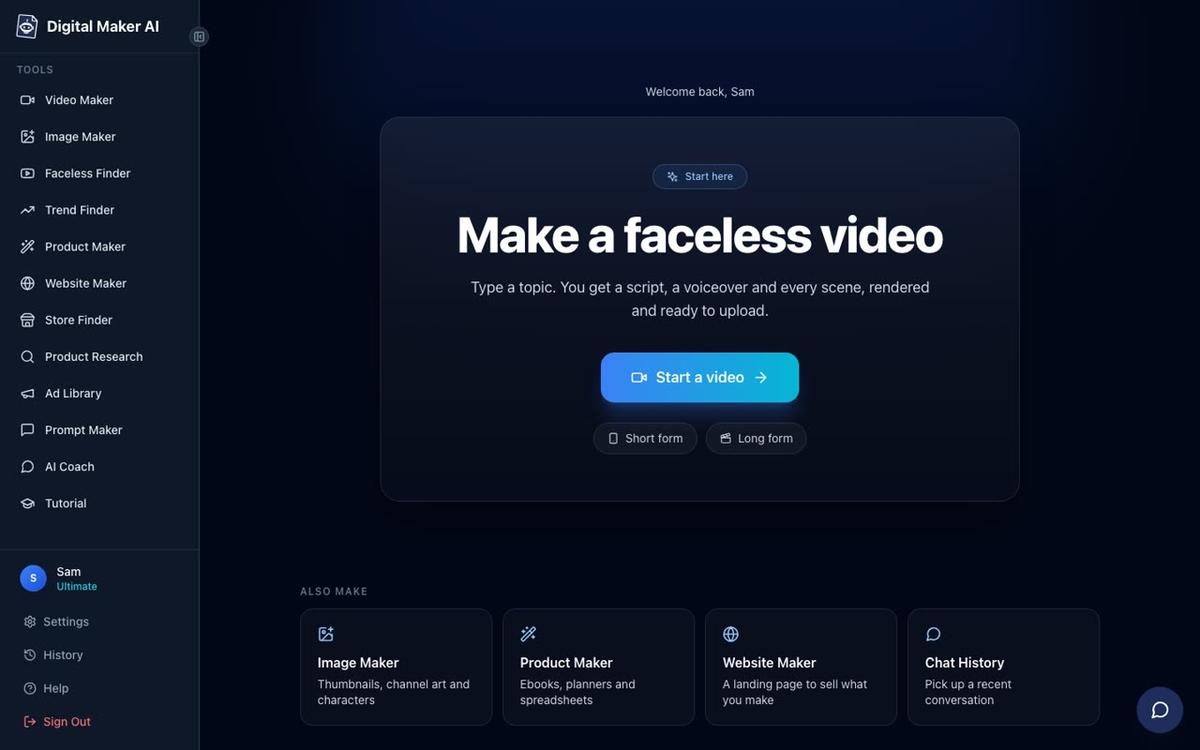
- Open Autopilot from the left sidebar. After signing in, click Autopilot in the left sidebar. This is the dedicated section for YouTube automation inside Digital Maker AI. Everything from here on is a one-time setup that Autopilot then runs on its own.
- Pick your topics. Autopilot gives you three ways to fill your topic queue. You can let Autopilot find topics people are already searching for in your niche, pull fresh ideas from a channel you admire, or paste your own list. You can add up to 30 videos at a time. This is where your niche knowledge pays off: specific, searchable topics perform better than broad ones. For example, if your channel is about personal finance, "how to save money on groceries in 2027" is a stronger topic than "saving money tips".
- Set your posting schedule. Choose the days of the week and the times you want videos to go out. Autopilot posts at most 2 videos a day, so even an ambitious schedule stays within a sustainable pace for your channel.
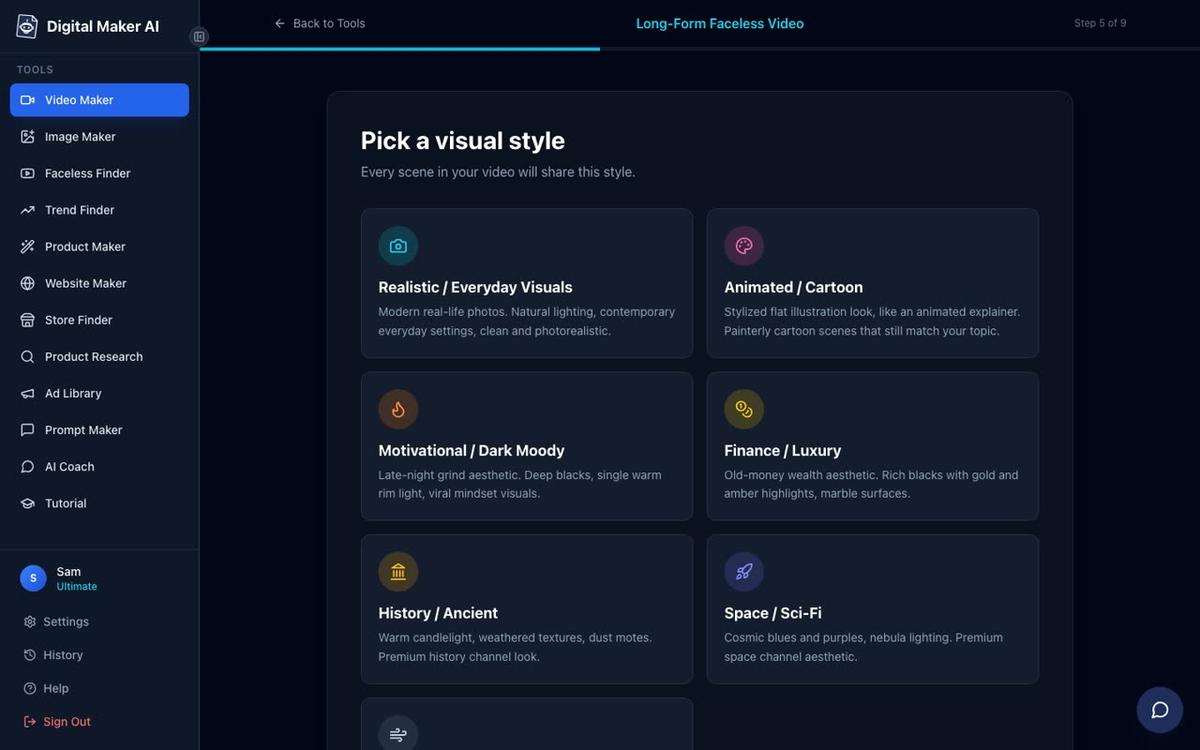
- Choose your video type and style. This is where you lock in the look of your channel. Autopilot supports every video type available in the Video Maker: Multi Scene, Whiteboard, Single Scene, AI Avatar and Animated Podcast. You also set the visual style, narration voice, recurring character (if you have one saved) and background music. These settings apply to every video Autopilot makes, so your channel has a consistent look from day one.
- Review each video before it posts. About a day before each scheduled post time, Autopilot makes the video, writes the YouTube title and description, and creates a thumbnail in your locked-in style. It then sends you an email. You can open the video and watch it, change the title or thumbnail, skip that video entirely, or simply do nothing and let it post by itself at the scheduled time. You are always in control of what goes live.
- Autopilot posts to your YouTube channel. At the scheduled time, Autopilot uploads the video to your YouTube channel with the title, description and thumbnail already filled in. You can pause the whole schedule at any time from the Autopilot section in the sidebar.
What does Autopilot include on each plan?
The table below shows what is included on each plan that supports YouTube automation with Autopilot. Each Autopilot video uses minutes from your plan's monthly video pool, so the number of videos you can make each month depends on both your Autopilot allocation and your available minutes. If you need more videos or longer ones, Autopilot minute packs are available as a top-up.
| Plan | Autopilot videos per month | Max video length | Monthly video minutes | Auto post to YouTube |
|---|---|---|---|---|
| Free | Not included | N/A | N/A | No |
| Pro | Not included | N/A | 40 minutes | No |
| Premium | 2 a month | Up to 10 minutes each | 150 minutes | Yes |
| Ultimate | 5 a month | Up to 10 minutes each | 300 minutes | Yes |
See digitalmaker.ai/pricing for full plan details and current pricing. If you want to post more than your monthly Autopilot allocation allows, you can top up with Autopilot minute packs, with an optional auto top-up so the schedule never stalls.
What video types can Autopilot make?
Autopilot uses the same video engine as the Video Maker, so the quality and options are identical to what you would get building a video manually. Here is a quick overview of the types you can set as your channel's default format.
- Multi Scene: A new AI generated scene image for every section of the script, with narration and captions. This is the most versatile format and works for almost any niche.
- Single Scene: One held subject with bold animated captions. Good for motivational or quote-style channels. Premium and Ultimate.
- Whiteboard: Marker-style sketches that appear line by line as the narration plays. Works well for educational and explainer channels. See the AI whiteboard animation generator for more on this format. Premium and Ultimate.
- AI Avatar: A talking AI presenter speaks the script on screen inside the video, in Full screen, Split screen or Corner circle layouts. Premium and Ultimate. The presenter is created once in Account Settings and reused across every Autopilot video.
- Animated Podcast: Two AI hosts in an animated studio discuss the topic in two voices, with captions and sound bars. Good for commentary and discussion-style channels. See the AI animated podcast generator for more detail.

Who is Autopilot for?
Autopilot suits anyone who wants to run a faceless YouTube channel consistently without spending hours producing each video. It is especially useful for:
- Creators who already have a niche but lack the time to produce videos every week.
- People testing multiple channel ideas who want to post regularly on each without multiplying their workload.
- Beginners in 2027 who want to learn how to start YouTube automation using AI without needing video editing skills.
- Existing channel owners who want to maintain a consistent upload schedule during busy periods.
It is not a magic growth tool. Autopilot handles production and posting; building an audience still depends on choosing topics people actually search for, maintaining a consistent style and giving viewers a reason to come back. YouTube's guidelines still apply: the platform expects content that is original and genuinely useful to viewers, even when that content is AI generated.
A worked example: a personal finance channel in 2027
Say you want to start a personal finance channel aimed at people in their twenties. Here is how Autopilot would run it week to week.
In the Autopilot setup you choose the Finance or Luxury visual style, a calm US male voice, and the Multi Scene format. You paste a list of 20 topics: things like "how to build an emergency fund on a low salary", "what is a Roth IRA and should you open one in 2027" and "five money mistakes people make in their first job". You set Autopilot to post every Tuesday and Thursday at 10am.
Each Monday and Wednesday, Autopilot makes the next video: it writes the script, generates a scene image for every section, adds the narration and captions, writes the YouTube title and description, and creates a thumbnail. It emails you a link. You spend five minutes watching it. If the script is strong, you do nothing and it posts itself the next morning. If you want to tweak the title, you change it in the email review and save. That is the entire weekly workload for two uploads.
When your 20 topics run out, you go back to Autopilot and add 20 more. The schedule never stops unless you pause it.
Common mistakes to avoid when starting YouTube automation
- Picking topics that are too broad. "Money tips" will not rank. "How to negotiate a pay rise in a recession" is specific, searchable and useful.
- Ignoring the review email. Autopilot gives you a window to check every video before it posts. Use it, especially in the first few weeks, to make sure the style and tone match your channel.
- Expecting results in a week. YouTube channels typically take three to six months of consistent posting before the algorithm begins to surface them. Autopilot makes consistency easy; patience is still required.
- Setting the schedule faster than your topic list. If you set two posts a day but only have ten topics, you will run out in five days. Keep your topic queue topped up.
- Skipping the style lock-in step. If you change your visual style halfway through, your channel looks inconsistent to new viewers. Decide on a style before you start and stick with it.
What to do after your first video posts
Once Autopilot has posted your first video, the main job is to watch the YouTube Studio analytics after a week or two. Look at which topics get the most impressions and which hold viewers the longest. Use those signals to guide the next batch of topics you add to Autopilot. You can also use the guide to getting monetized on YouTube with a faceless channel to understand what subscriber and watch-hour thresholds you are working toward for the YouTube Partner Programme (the programme that lets you earn ad revenue from your channel).
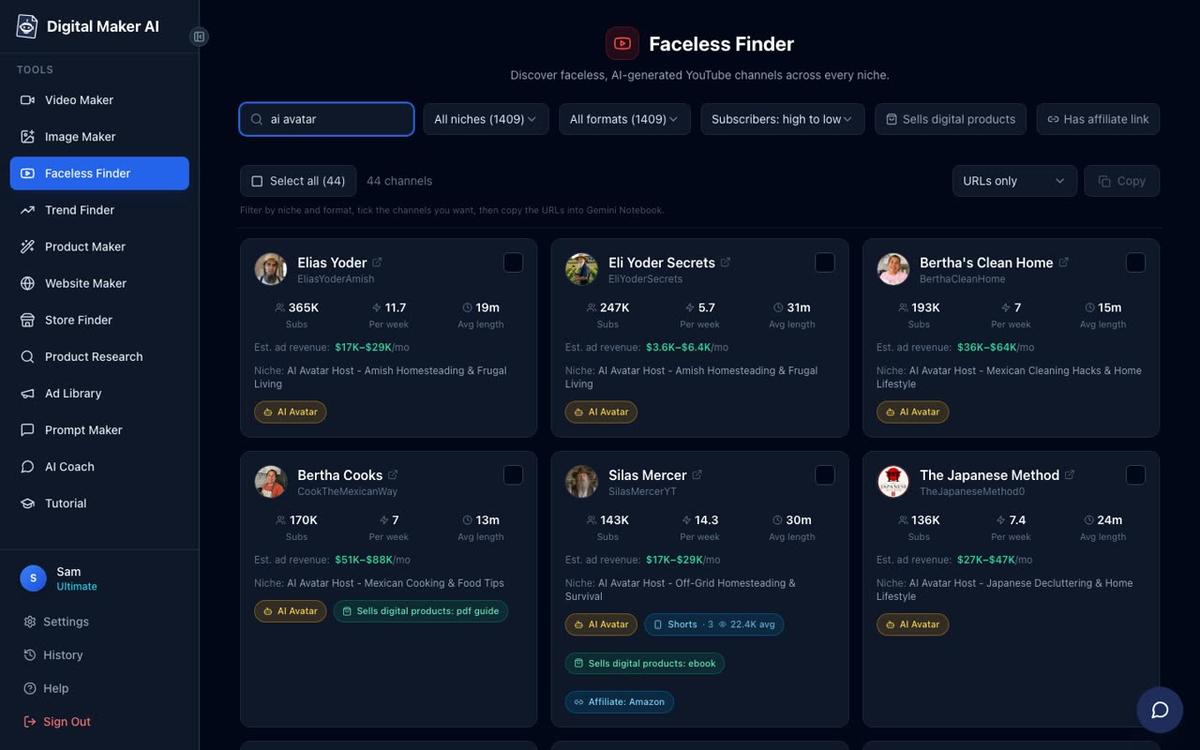
If you want to research what other automated channels are doing, the Faceless Finder inside Digital Maker AI lets you browse confirmed faceless and AI avatar channels by niche, showing subscribers, uploads per week, average video length and an estimated monthly ad revenue figure based on recent views and typical ad rates. Type "AI avatar" in the search box to filter to channels fronted by an AI presenter.
Frequently asked questions
Do I need any video editing skills to use Autopilot?
No. Autopilot writes the script, generates every scene image, adds narration and captions, creates the thumbnail and posts the video. The only decisions you make are your niche, topics, posting schedule and visual style. No editing software or technical skills are needed.
Can I check a video before it posts to my channel?
Yes. Autopilot emails you when each video is ready, roughly a day before its scheduled post time. You can watch the video, change the title or thumbnail, skip it, or do nothing and let it post automatically at the scheduled time.
How many videos a day can Autopilot post?
Autopilot posts at most 2 videos a day to your YouTube channel, regardless of your plan or schedule settings. This keeps your upload pace within a range that feels natural to the algorithm and to viewers.
What happens when I run out of Autopilot videos for the month?
When you use your monthly Autopilot allocation (2 on Premium, 5 on Ultimate), Autopilot pauses until the next billing month or until you top up with Autopilot minute packs. You can also set auto top-up so the schedule never stops. See digitalmaker.ai/pricing for pack options.
Does Autopilot work with any YouTube channel niche?
Yes. You supply the topics, so the niche is entirely your choice. Popular niches for faceless automated channels include personal finance, history, psychology, true crime, health and motivation, but Autopilot will make videos on any topic you give it.
Is AI generated content allowed on YouTube in 2027?
Yes, provided it meets YouTube's content policies and is disclosed. Digital Maker AI labels posts as AI generated automatically when posting through Autopilot. YouTube expects content to be original and genuinely useful to viewers, whether it is human made or AI assisted.
Ready to put your channel on autopilot? Start with the free Digital Maker AI course to learn how to pick a niche, plan your first batch of topics and set up your channel before you run your first Autopilot schedule.
Alex Stevens: Alex Stevens writes for the Digital Maker AI team about faceless YouTube channels, AI presenters and AI video tools.