How to Start YouTube Automation in 2027
By Alex Stevens
To start YouTube automation in 2027, pick a niche, use an AI tool to write the script, generate scene images and add a voiceover, then schedule the finished video to post. Digital Maker AI (digitalmaker.ai) is an AI video platform for faceless YouTube videos, AI presenter videos, animated podcasts, 3D animated films and digital products, and it covers every step of that process in one place. This guide walks you through exactly how to do it, from niche research to your first upload, so you know how to start YouTube automation in 2027 with a clear plan and no guesswork.
Key takeaways
- YouTube automation in 2027 means a faceless channel where AI handles script, visuals and voice, and posting can be scheduled to YouTube, TikTok and Instagram.
- YouTube rewards original, valuable videos. Mass-produced, low-effort uploads are penalised, not promoted.
- The Faceless Finder tool inside Digital Maker AI lets you browse real faceless channels by niche, see upload frequency and view estimated monthly ad revenue before you commit to a topic.
- The Video Maker produces a complete landscape MP4: AI script, a unique generated image per scene, narration and captions, ready to upload.
- Premium and Ultimate plans can post finished videos straight to YouTube, TikTok and Instagram on a schedule from the "Post to socials" button. See all plan details at digitalmaker.ai/pricing.
What does YouTube automation actually mean in 2027?
YouTube automation is a faceless YouTube channel where the creator never appears on camera. AI or generated visuals and a voiceover carry the video. The "automation" part means AI writes the script, generates the visuals, records the narration and, on some platforms, schedules the post, so the creator's main job is choosing the topic and checking the finished video before it goes live.
That is the honest version. The hype version promises passive income from channels that post themselves with zero human involvement. That is not how YouTube works in 2027. YouTube's algorithm rewards watch time, originality and genuine value to the viewer. A channel that pumps out dozens of low-effort, reused or thin videos will be suppressed, not rewarded. The automation handles production. You still need to choose smart topics, maintain a consistent posting schedule and make videos people actually want to watch.
A realistic first-year goal for a well-run faceless channel is to build a library of 30 to 50 solid videos in a focused niche, reach the YouTube Partner Programme threshold (1,000 subscribers and 4,000 watch-hours), and start earning ad revenue. That takes months, not days, but AI tools make the production side genuinely fast.
Step 1: Find your niche with the Faceless Finder
Before you make a single video, spend time on niche research. A niche is the specific topic your channel covers, for example ancient history, personal finance or sleep psychology. The tighter your niche, the faster YouTube understands who to show your videos to.
The Faceless Finder inside Digital Maker AI is a searchable list of real, confirmed faceless YouTube channels. Every signed-in account, including the free plan, can use it. Search by topic or channel name and each result shows the subscriber count, uploads per week, average video length and an estimated monthly ad revenue figure. That estimate is Digital Maker AI's own rough calculation from recent views and typical ad rates for the niche, not the channel's real earnings, but it is useful for comparing niches side by side.
The Faceless Finder also labels AI avatar channels (channels fronted by an AI-generated presenter) with an "AI Avatar" tag. Type "AI avatar" in the search box to filter to those channels only and see how they are performing.
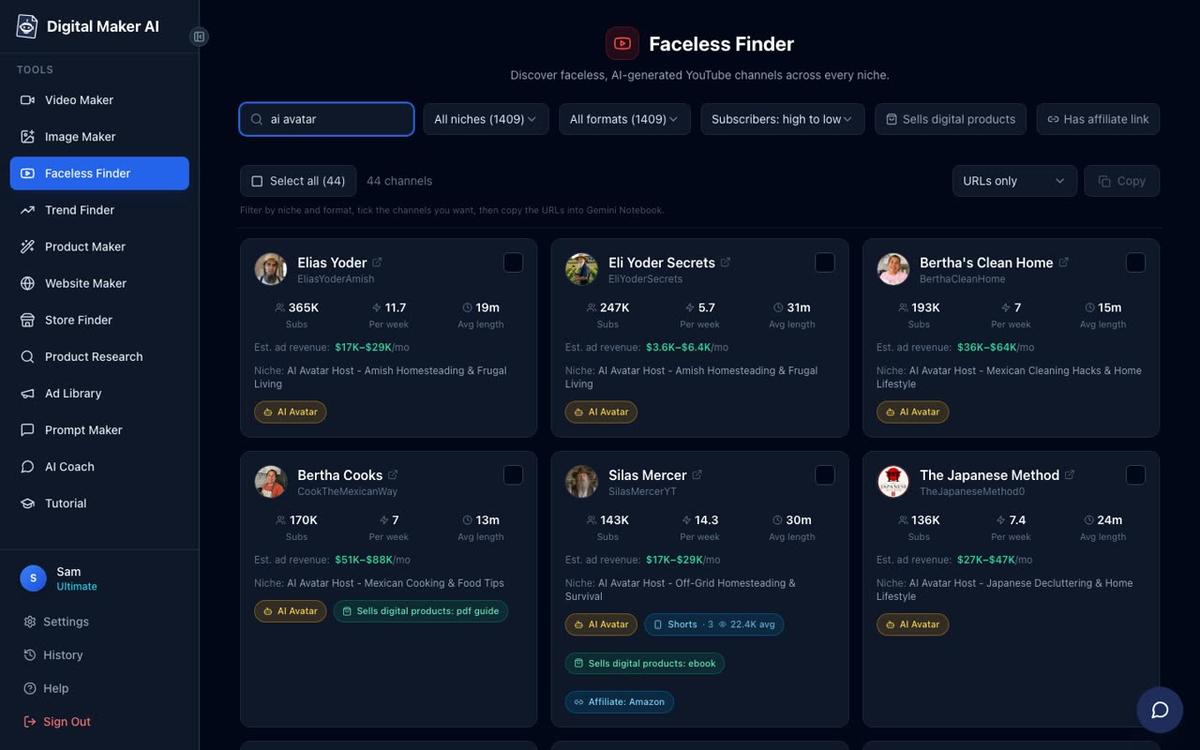
Practical tip: Look for niches where multiple channels are posting two or more videos a week and earning estimated revenue above a level you find interesting. That tells you the niche has an audience and advertisers are spending there. Avoid niches where every result has under 10,000 subscribers and uploads once a month, because growth will be slow.
Step 2: Create your free account and open the Video Maker
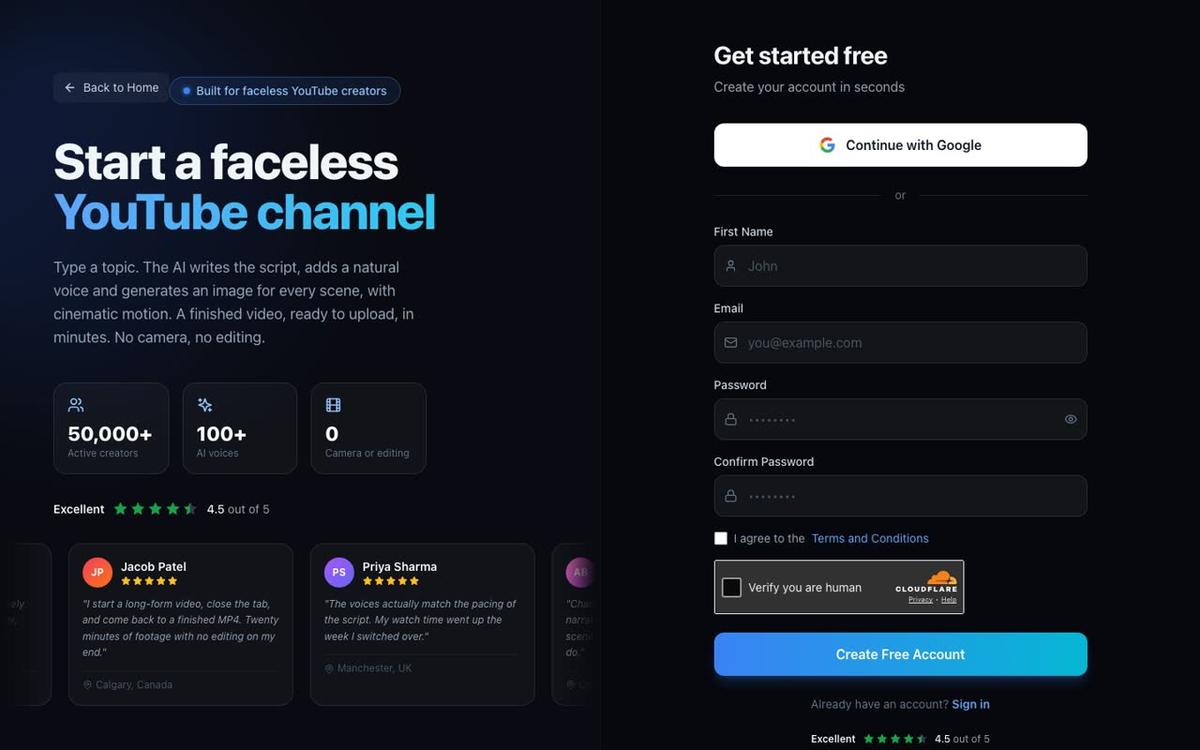
Go to digitalmaker.ai/faceless, press Get started free and sign up with Google or an email and password. No card is needed for the free plan.
Once you are signed in, click Video Maker in the left sidebar. This opens the free video screen where you choose the type of video you want to make and press Next at the bottom of the screen.
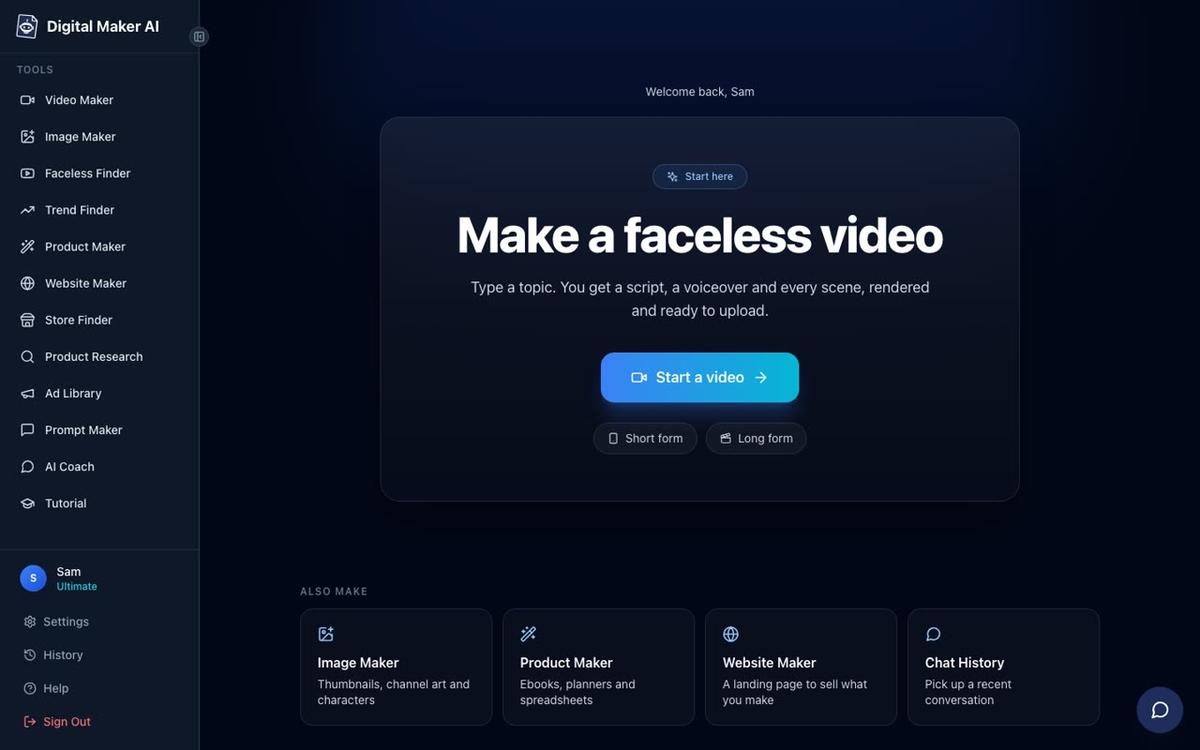
Free accounts get five free videos, one of each type, once: one long form faceless video (up to 8 minutes), one vertical Short (15 to 60 seconds), one drag and drop video from your own images (up to 8 minutes), one drag and drop movie from your own clips (up to 8 minutes) and one animated podcast (up to 8 minutes). Free videos carry a small Digital Maker AI watermark. Commercial usage rights are included on every plan, including Free.
Step 3: Build your first faceless video in 2027 with the Video Maker
The long form faceless video is the core product. It produces a complete landscape 16:9 MP4 from end to end: the AI writes the script, generates a unique image for every scene, adds narration and captions, and returns a file ready to upload to YouTube. Here is the step-by-step flow inside the Video Maker.
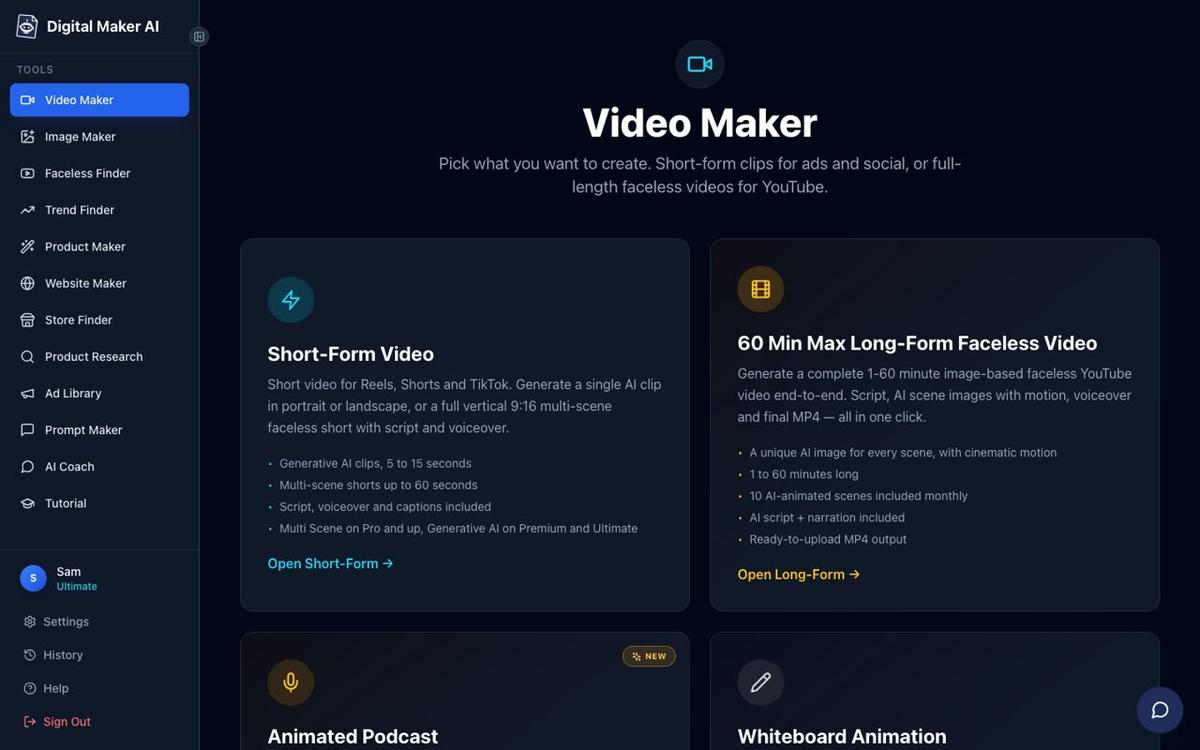
- Choose your format. Select Multi Scene Video (a new AI-generated image for every scene). On paid plans you can also choose Single Scene or Multiple Languages (French, Spanish, Italian, German on Premium and Ultimate).
- Choose how to start the script. On the free plan the AI writes the script for you from a topic. On paid plans you can also paste your own script.
- Type your topic. One line is enough. For example: "Ancient Babylonian wisdom about money" or "The psychology behind why people procrastinate." The AI writes the full script from that prompt.
- Pick a visual style. Seven options: Realistic or Everyday Visuals, Animated or Cartoon, Motivational or Dark Moody, Finance or Luxury, History or Ancient, Space or Sci-Fi, and Minimalist or Clean. The free plan offers Realistic and Animated or Cartoon. Every scene in the video shares the style you pick.
- Set the length. Free long form videos can be up to 8 minutes. Paid plans go longer depending on your plan.
- Pick a narration voice. More than 100 built-in AI voices are available, with male and female options and US, UK and Australian accents. The free plan uses standard voices. On paid plans you can adjust the pace and, on Premium and Ultimate, design your own voice from a written description or connect your own cloned ElevenLabs voice.
- Choose captions and pacing. Six caption looks are available: None, Clean, Boxed, YouTube Yellow, Bold Pop and Minimal. Captions are burned into the lower third of the video.
- Review and generate. A summary screen shows your choices and how many minutes the video will use from your plan. Press Generate Video and the platform writes the script, generates every scene image, records the narration and returns the finished MP4, usually in 3 to 6 minutes.
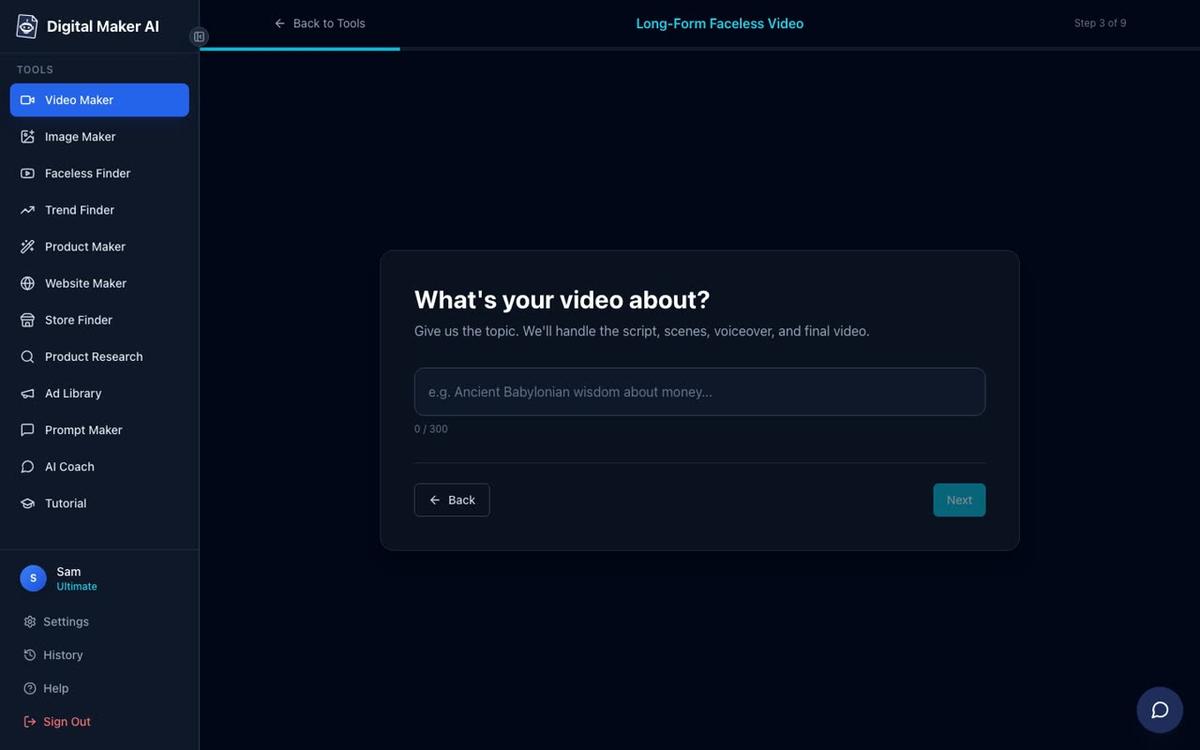
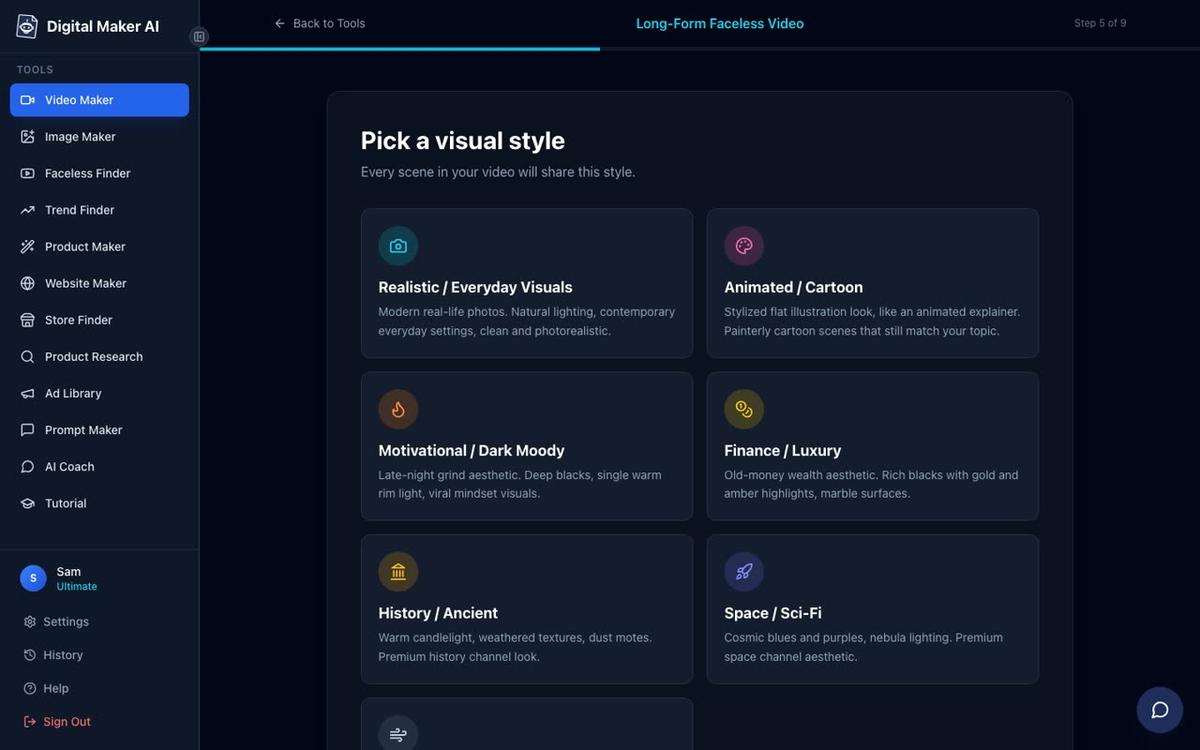
After the video is ready you can regenerate any scene image (10 free regenerations per video), swap in your own image or a short clip, or edit the narration text. There is no manual timeline editor, which keeps the process fast.
What formats and plan limits should you know about for 2027?
Here is a quick reference for the main video formats and what each plan supports, as of November 2026. For the latest pricing visit digitalmaker.ai/pricing.
| Plan | Monthly video minutes | Max video length | Animated Podcast | AI Presenter | Post to socials |
|---|---|---|---|---|---|
| Free | 5 one-off free videos | 8 minutes | Up to 8 min (watermarked) | No | Download only |
| Pro | 40 minutes | 10 minutes | Not included | No | Download only |
| Premium | 150 minutes | 30 minutes | Up to 30 minutes | Yes | Yes, with schedule |
| Ultimate | 300 minutes | 60 minutes | Up to 60 minutes | Yes | Yes, with schedule |
Step 4: Add an AI presenter to your channel (optional but powerful)
One of the biggest trends in faceless YouTube in 2027 is the AI presenter video: a photoreal talking avatar who speaks the script on screen, inside a landscape Multi Scene video. This is available on Premium and Ultimate plans.
To create a presenter, go to Account Settings and open the Presenters tab. Describe who the presenter is and their setting in one or two sentences. The AI generates a photoreal picture of them. Check it, save it, and it is ready to use across every video you make.
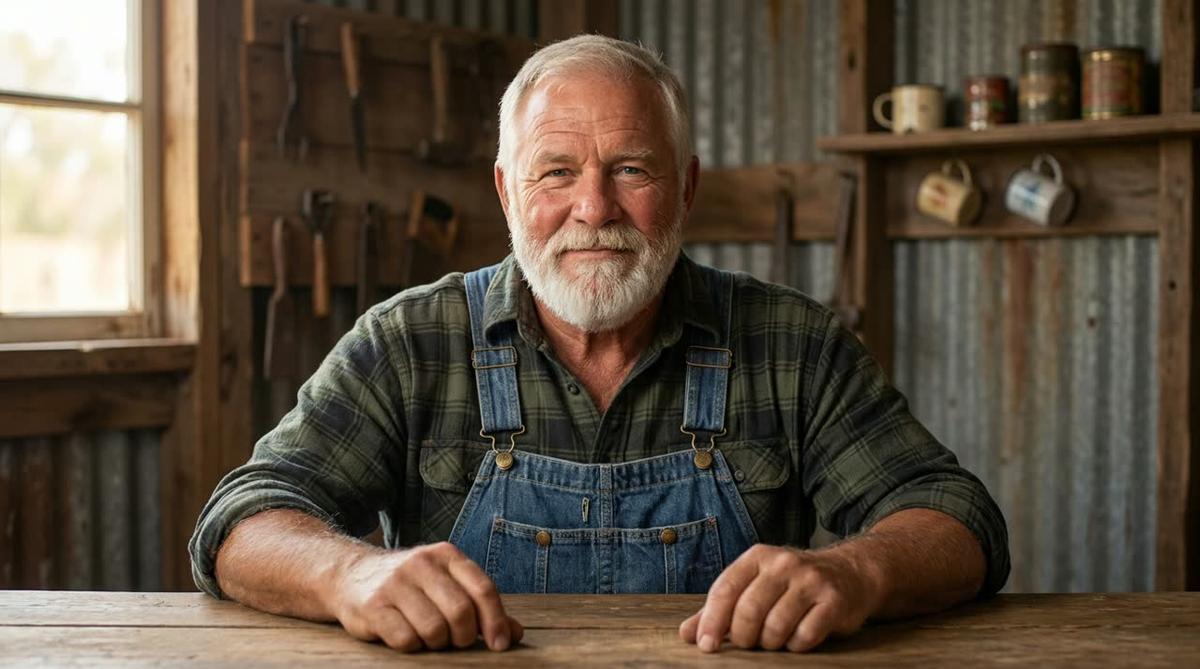
In the Video Maker you pick the presenter and choose one or more layouts: Full screen (the presenter fills the frame), Split screen (presenter on the left, the scene on the right) or Corner circle (the scene with the presenter in a small round window in the corner). A slider sets how much of the video the presenter appears, and markers on a timeline bar set exactly where they show up, for example at the start and end, or throughout the whole video.

Presenters run on avatar time, counted in seconds and separate from your video minutes. Premium starts with 2 minutes of avatar time and Ultimate with 5 minutes, with Ultimate also receiving 3 minutes every month. Avatar Packs let you add more time as a one-off purchase. See the options at digitalmaker.ai/pricing.
Step 5: Schedule posts to YouTube, TikTok and Instagram
Once your video is finished, Premium and Ultimate users can post it straight to YouTube, TikTok and Instagram from the "Post to socials" button. Connect your accounts once in Account Settings and then choose to post now or set a date and time. Nothing posts automatically. You press Post, and posts are labelled as AI generated. Free and Pro users download the MP4 and upload it themselves.
For a full walkthrough of the posting workflow, see the guide to posting AI videos to YouTube, TikTok and Instagram.
Consistent posting matters more than volume. Two well-made videos a week will outperform five rushed ones every time. Use the scheduling feature to batch your production sessions and keep a steady calendar without being online every day.
What is the first-week plan for YouTube automation in 2027?
Here is a concrete first-week schedule for someone starting from zero.
- Day 1: Research your niche. Sign in to Digital Maker AI, open the Faceless Finder and search three topic areas you are interested in. Note which ones have active channels with strong estimated revenue.
- Day 2: Make your free test video. Use the free long form video to make an 8-minute video on your chosen topic. Pick a visual style and voice that fits the niche. Watch the finished video and note what you would change.
- Day 3: Set up your YouTube channel. Create a channel, write a short description, upload a banner (the Image Maker inside Digital Maker AI can generate one) and add your channel art.
- Day 4: Upload your first video. Write a title that includes a keyword people actually search for. Write a description with two or three relevant paragraphs. Add tags.
- Day 5 and 6: Plan your first month of content. Use the AI Coach inside Digital Maker AI to generate 20 video ideas for your niche. Pick the 8 strongest and schedule two per week for the next four weeks.
- Day 7: Upgrade if you are ready. If the free video confirmed the niche is right for you, upgrade to a paid plan so you can make longer videos, remove the watermark and access the full image library on any topic. Check digitalmaker.ai/pricing for current plan details.
Common mistakes to avoid with YouTube automation in 2027
These are the errors that kill channels before they get started.
- Reusing content from other channels. YouTube detects duplicate content. If your video is a near copy of something that already exists, it will not rank. Every script should be original, even if the topic is popular.
- Mass-producing low-effort uploads. Posting 20 thin three-minute videos in a week will not grow a channel. YouTube's algorithm measures watch time and engagement. A viewer who clicks away in 30 seconds tells the algorithm your video is not worth promoting.
- Ignoring the thumbnail. The thumbnail is the first thing a viewer sees. Use the Image Maker to generate a YouTube thumbnail that is clear, bold and relevant to the topic.
- Switching niches too early. Most channels take 3 to 6 months to gain traction. Pick a niche, commit to it for at least 20 videos, and look at watch time and click-through rate data before changing direction.
- Treating automation as zero effort. AI handles production. You still need to review every video, write a strong title and description, and choose topics your audience genuinely wants. The creator's judgment is what separates a growing channel from a stagnant one.
Frequently asked questions
Can I start YouTube automation for free in 2027?
Yes. Digital Maker AI's free plan gives you five free videos with no card required, including one long form faceless video up to 8 minutes. Free videos carry a small watermark and use a library of images in set topic areas. Upgrading removes the watermark and unlocks any topic and longer videos.
How long does it take to make a faceless YouTube video with AI?
From typing your topic to a finished MP4 is usually 3 to 6 minutes for a 5-minute video. Longer videos take proportionally more time. A 30-minute video typically generates in 15 to 25 minutes. You can start the next one while the first is building.
Does YouTube penalise AI-generated videos in 2027?
YouTube does not penalise videos for being AI-generated. It penalises videos that are low quality, repetitive or provide no value to viewers, regardless of how they were made. Original, well-structured AI videos perform well. Thin, reused content performs poorly whether it is AI-made or not.
What niches work best for YouTube automation in 2027?
Niches with high advertiser demand and strong viewer interest include personal finance, health and fitness, psychology, history, true crime and space. Use the Faceless Finder inside Digital Maker AI to check real channel performance data before committing to a niche.
Can I post to TikTok and Instagram as well as YouTube from Digital Maker AI?
Yes, on Premium and Ultimate plans. Connect your accounts once in Account Settings and use the "Post to socials" button after a video is finished to post now or on a schedule to YouTube, TikTok and Instagram. Free and Pro users download the MP4 and post manually.
Do I need to appear on camera for a YouTube automation channel?
No. A faceless YouTube channel uses AI-generated visuals, a voiceover and captions instead of a presenter on camera. If you want a consistent on-screen face without filming yourself, the AI presenter feature on Premium and Ultimate plans creates a photoreal talking avatar who speaks the script in your videos.
The fastest way to go from idea to your first published video is to follow the steps above and use the tools as they are built. If you want to learn more about building a faceless channel from scratch, the free course at digitalmaker.ai/free-course covers niche research, channel setup and your first 30 videos in detail.
Alex Stevens: Alex Stevens writes for the Digital Maker AI team about faceless YouTube channels, AI presenters and AI video tools.