How to Make a YouTube Short With AI in Under 10 Minutes
By Alex Stevens
What You Will Have by the End of This Guide
By the time you finish reading this, you will know exactly how to make YouTube Shorts with AI, from picking a topic to downloading a finished vertical MP4, without recording anything yourself, writing a script or touching a video editor. The whole process takes under ten minutes. If you are on the Free plan, your first Short is completely free and no card is needed.
Step 1: Create Your Free Account
Digital Maker AI lets you sign up for free with a Google account or an email address and password. No credit card is asked for at any point during sign-up. Once you are in, you have five free videos waiting for you, one of each type, and one of those is a vertical Short.
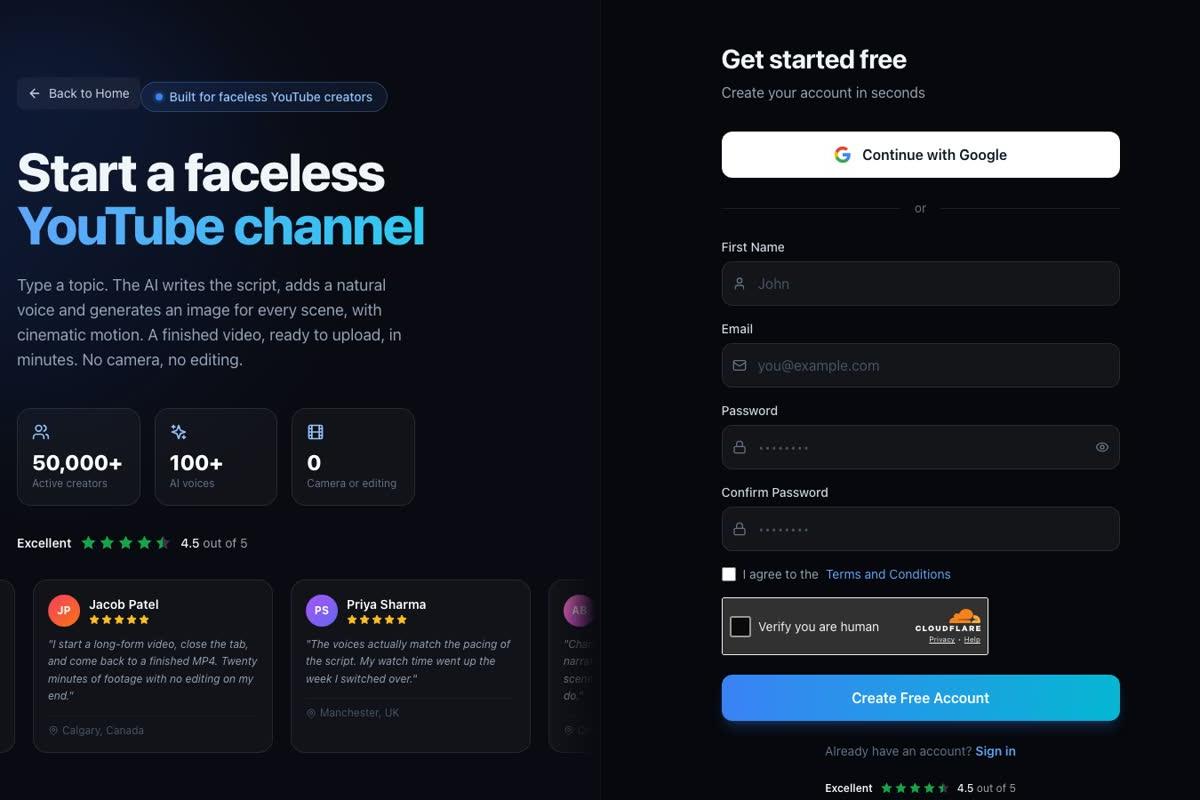
Tip: Use Continue with Google if you already have a Google account. It is the fastest way in and you will not need to verify an email address.
Step 2: Go to the Dashboard and Choose Short Form
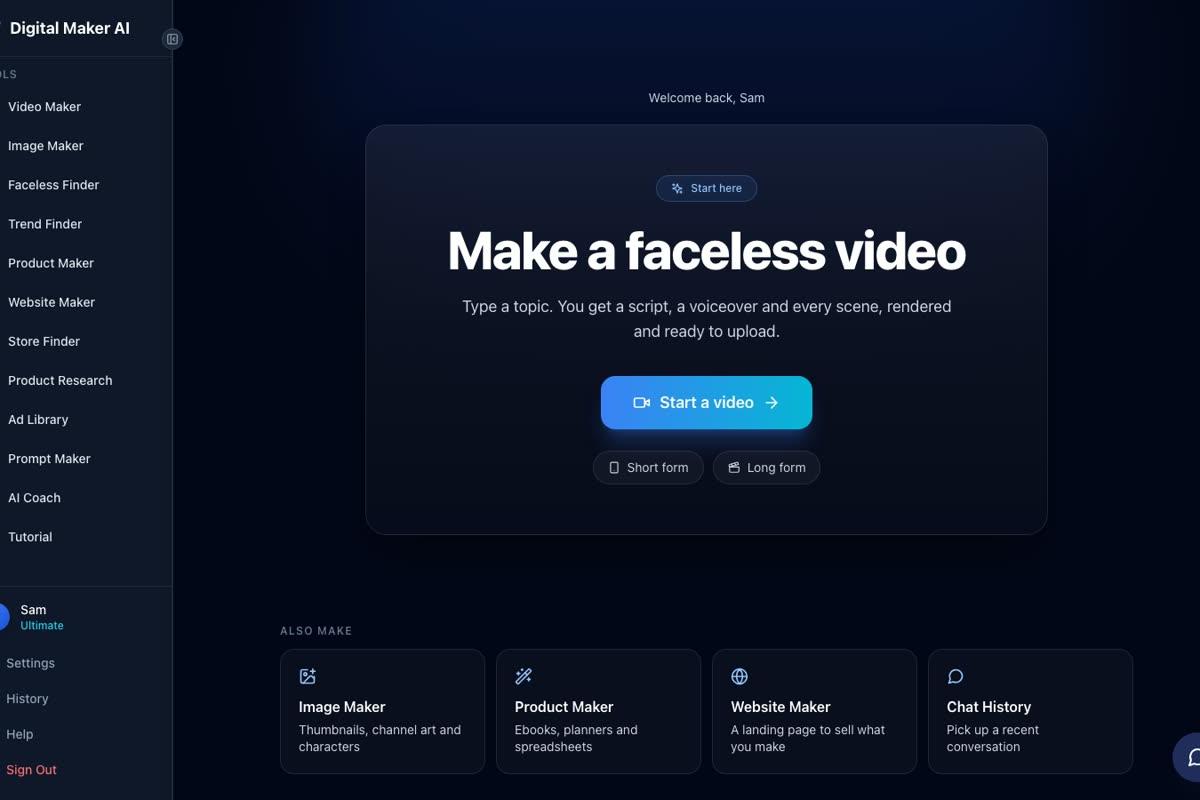
After signing in you land on the main dashboard. You will see a panel called Make a faceless video with two choices: Short form and Long form. Click Short form, then press the Start a video button. Alternatively, click Video Maker in the left sidebar to reach the same place.
Step 3: Pick the Short-Form Video Card
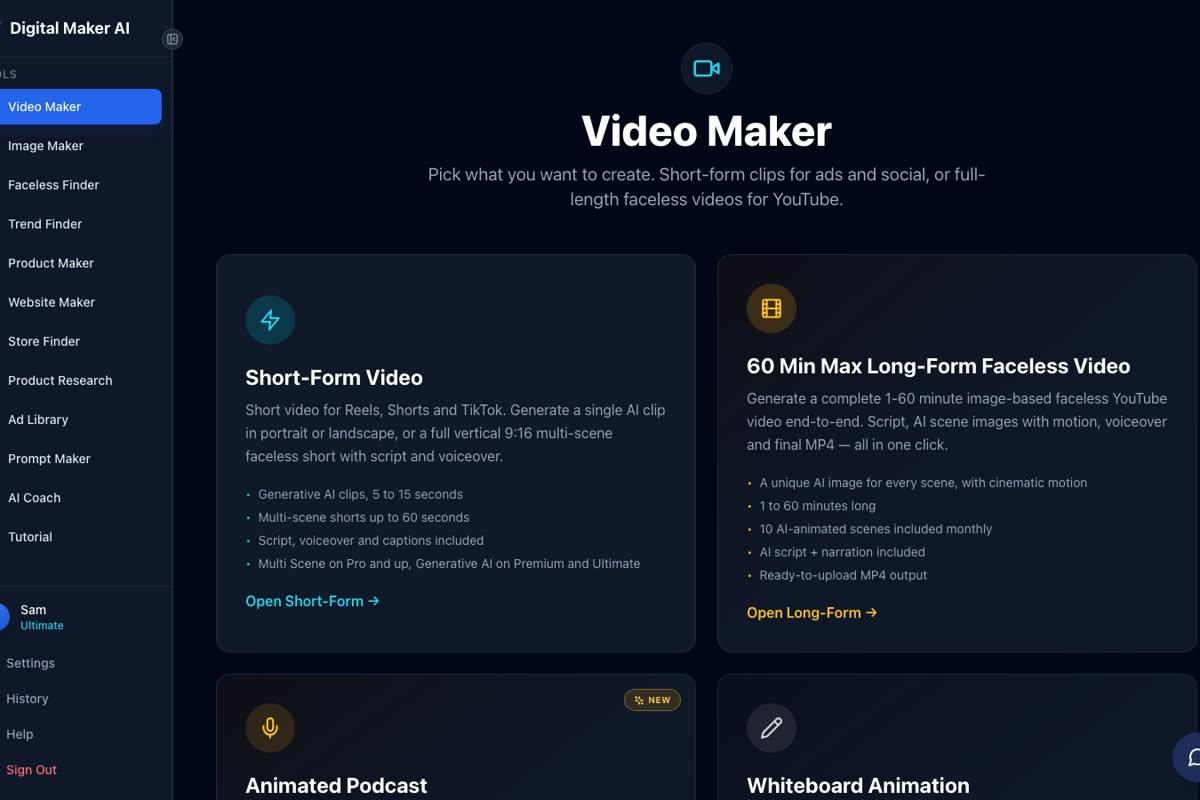
The Video Maker screen shows a set of cards for each video type. Click the card labelled Short-Form Video. This is the one that covers both the multi-scene Short (the one you want for your first video) and Generative AI clips. Press Next at the bottom of the screen to move on.
Step 4: Choose Your Topic
On the Free plan, your Short is built from a ready-made image library organised into set topic areas. These are the topics available to free users:
- Money and personal finance
- Business and side hustles
- Motivation
- Stoicism
- Law of attraction
- History
- Ancient Egypt
- The Roman Empire
- True crime and mysteries
- Psychology
- Space
- The deep sea
- Health and fitness
- Faith
Pick the one that matches what you want to make. You then type a one-line topic inside that area, for example "Three facts about Roman gladiators" or "A morning habit that changes everything." The AI reads that line and writes the entire script for you. On paid plans, you can enter any topic at all and the AI generates fresh images for every scene, not just library images.
Tip: The more specific your topic line, the better the script. "Why Julius Caesar was betrayed" will produce a sharper Short than just "Julius Caesar."
Step 5: Set the Format to Vertical 9:16
YouTube Shorts must be vertical. The Short-Form Video maker defaults to the vertical 9:16 format, which is the correct ratio for Shorts, TikTok and Instagram Reels. Make sure 9:16 is selected before moving on. This is the only format that qualifies as a Short on YouTube.
Step 6: Choose Your Length
You can set your Short to 15, 30, 45 or 60 seconds. For your very first Short, 30 seconds is a good choice. It is long enough to say something interesting and short enough to hold a viewer's attention all the way through. Each Short costs a flat one minute from your monthly video pool, regardless of whether you pick 15 or 60 seconds.
Tip: YouTube counts any vertical video under 60 seconds as a Short, so all four length options qualify.
Step 7: Pick a Visual Style
On the Free plan, two visual styles are available:
- Realistic: photorealistic scene images that look like real photographs.
- Animated or Cartoon: illustrated, cartoon-looking still scenes. Note that this means stylised still images, not moving cartoon animation.
Paid plans unlock five additional styles, including Motivational or Dark Moody, Finance or Luxury, History or Ancient, Space or Sci-Fi, and Minimalist or Clean. For a topic like the Roman Empire, the Realistic style tends to look striking with bold captions over it.
Step 8: Pick a Voice
The Free plan gives you a choice of standard male and female AI narration voices. Listen to the preview clips and pick the one that fits your topic. A calm, measured voice works well for history and true crime. An upbeat voice suits motivation and fitness topics. On paid plans you can also adjust the pace of the narration, from calm to energetic.
Step 9: Generate and Download Your Short
Press Generate. The AI writes the script, pulls scene images from the library, records the narration in your chosen voice and burns bold captions into the vertical frame. The whole build usually takes two to four minutes. When it is ready you will see a preview player with your finished Short.
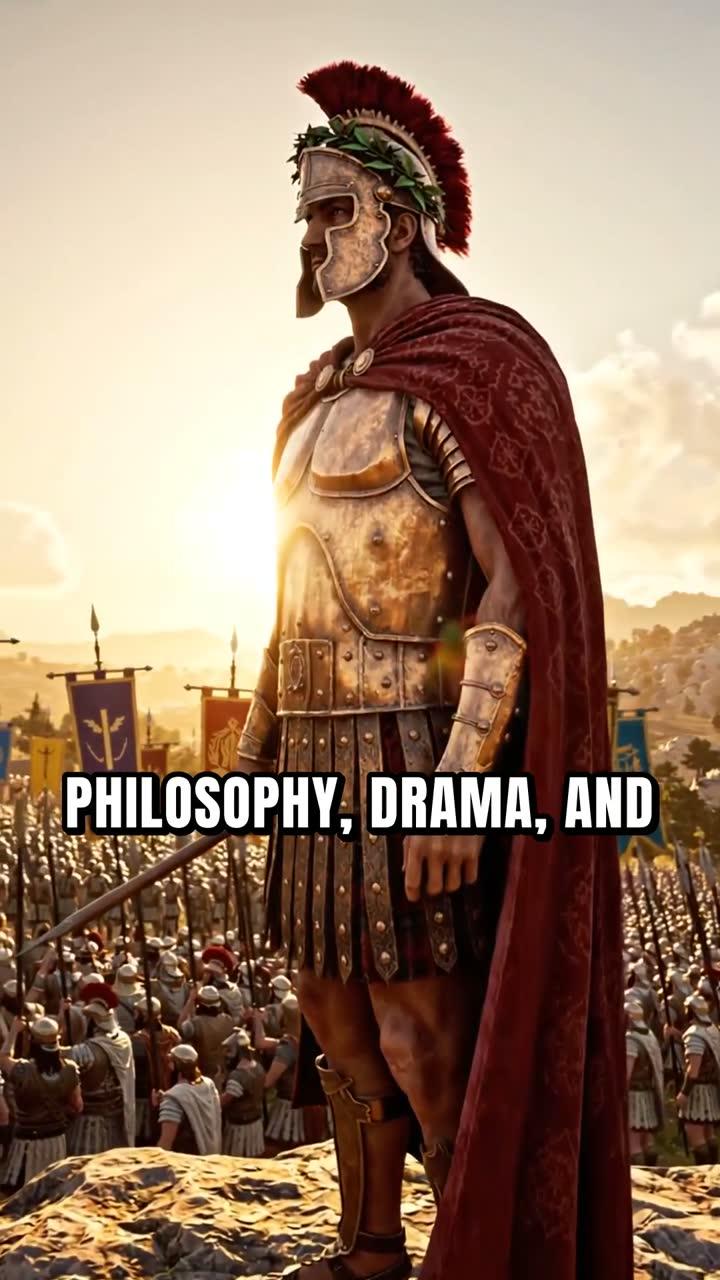
Press Download to save the MP4 to your device. Free plan Shorts include a small Digital Maker AI watermark in the corner. If you upgrade to a paid plan later, the watermark is removed from that video when you download it again.
Tip: Watch your Short once before uploading it anywhere. If one scene image does not look right, you can regenerate that scene (each video comes with 10 free regenerations) or swap in your own image.
How to Post Your Short to YouTube, TikTok and Instagram
Once you have your MP4, uploading it is straightforward on any platform:
- YouTube: go to youtube.com, press the camera icon at the top, choose Upload video, select your MP4 and set the title, description and tags. YouTube will automatically recognise it as a Short because it is vertical and under 60 seconds.
- TikTok: open the TikTok app or tiktok.com, press the plus button, select your MP4 and add a caption.
- Instagram Reels: open Instagram, press the plus button, choose Reel, select your MP4 and add a caption.
If you are on the Premium or Ultimate plan, you do not have to leave the app to post. After connecting your YouTube, TikTok and Instagram accounts once in Account Settings, you can press Post to socials on any finished video and post it immediately or schedule it for a specific date and time. Nothing posts automatically; you always press Post yourself. Free and Pro users download the MP4 and upload it to each platform manually.
Commercial usage rights are included on every plan, including Free, so you can monetise your Shorts from day one without any extra licence.
What the Free Plan Includes (and What Needs a Paid Plan)
It is worth being clear about what you get for free and what requires an upgrade, so there are no surprises:
- Free: one vertical Short (15 to 60 seconds), built from library images in the set topic areas listed above, English only, two visual styles, standard voices, small watermark, no card needed.
- Paid plans (Pro, Premium, Ultimate): any topic, fresh AI-generated images for every scene, all seven visual styles, adjustable narration pace, no watermark, and a monthly pool of video minutes so you can make as many Shorts as your pool allows. See the full breakdown at digitalmaker.ai/pricing.
The free Short is a genuine finished video you can upload and publish, not a preview or a demo. It is a great way to see exactly what the tool produces before deciding whether to upgrade.
Common Mistakes to Avoid
Here are the things that trip up most beginners when they first learn how to make YouTube Shorts with AI:
- Choosing a topic that is too broad. "History" is a category, not a topic. "The real reason Rome fell" is a topic. Specific topics produce sharper scripts and more relevant scene images.
- Forgetting to check the format. If you accidentally leave it on 16:9 landscape, YouTube will not count it as a Short. Always confirm 9:16 is selected.
- Uploading without watching it first. Two minutes of checking saves you from publishing a Short with a scene that does not match the narration. Use the free regenerations if anything looks off.
- Posting with no title or description. YouTube uses the title and description to recommend your Short to viewers. Write a clear, specific title and add a few relevant words in the description.
- Expecting one Short to go viral. Consistency matters more than any single video. The creators who grow on Shorts post regularly. Making one Short a day takes under ten minutes with AI, so there is no reason to slow down.
What to Do Next
Once you have made your first Short, here are a few natural next steps:
- Try a different topic area to find the niche that feels right for your channel.
- Use the Faceless Finder inside the app to search for faceless channels in your niche and see what topics are already working for other creators.
- When you are ready to go further, the best AI video generators for beginners guide on the blog compares the main tools side by side so you can see how they stack up.
- If you want to build a full faceless YouTube channel with longer videos as well as Shorts, the faceless video maker handles landscape long-form videos end to end using the same AI workflow.
Ready to make your first Short? Head to the free course at digitalmaker.ai/free-course to see the full walkthrough, including how to pick topics that get views, how to write titles that get clicks, and how to build a posting schedule that actually sticks.
Alex Stevens: Alex Stevens writes for the Digital Maker AI team about faceless YouTube channels, AI presenters and AI video tools.