How to Make a YouTube Short With AI From a Blog Post
By Alex Stevens
By the end of this guide, you will have turned a single paragraph from a blog post into a finished, vertical YouTube Short, ready to upload. You will do it without a camera, without writing a script from scratch, and without any video editing experience. If you already have a blog, you already have everything you need to know how to make a YouTube Short from a blog post today.
Why a Short Is the Best First Video You Can Make
Most people who want to start a faceless YouTube channel get stuck before they even begin. They think they need a full script, a polished ten-minute video, and a recording setup. A Short cuts all of that out. It is 30 to 60 seconds long, vertical on a phone screen, and built around one idea. There is no camera involved. You are not writing a script from scratch. You are taking one strong point you already made in a blog post and letting AI turn it into a video.
That is the lowest-risk way to publish your first video. If it does not perform perfectly, you have lost nothing. If it does well, you have a repeatable system for turning every blog post you ever write into a Short.
Step 1: Pick One Strong Point From Your Blog Post and Write Two or Three Sentences
Open any blog post you have written. Do not try to summarise the whole thing. Instead, look for the one sentence that made you want to write the post in the first place. It might be a surprising fact, a counterintuitive tip, or a bold claim you back up in the post. That one idea is your Short.
Once you have found it, write two or three sentences around it. Think of it as a micro-script: the hook, the point, and a one-line payoff. Here is an example. Say your blog post is about productivity and one paragraph says that most people waste their first hour of the day on email. Your two or three sentences might be:
- "Most people waste the first hour of their day on email, and it is costing them their best thinking."
- "Your brain is sharpest in the first 90 minutes after you wake up. Email can wait."
- "Protect your first hour and you will get more done before lunch than most people do all day."
That is your entire input. You do not need more. Keep it tight, keep it direct, and make the first sentence something a viewer would stop scrolling for.
Tip: If you are struggling to condense a longer paragraph into two or three punchy sentences, the AI Coach inside Digital Maker AI can help. Open it from the left sidebar, paste your paragraph, and ask it to write a tight Short script from it. It takes about 30 seconds and gives you something you can paste straight into the next step.
Step 2: Open Video Maker, Choose Short-Form Video, and Generate Your Short
This is where the AI does the heavy lifting. Sign in to your Digital Maker AI account, or create a free one at digitalmaker.ai/faceless if you have not already. No card is needed. The Free plan gives you one vertical Short to try, and the whole process takes a few minutes.
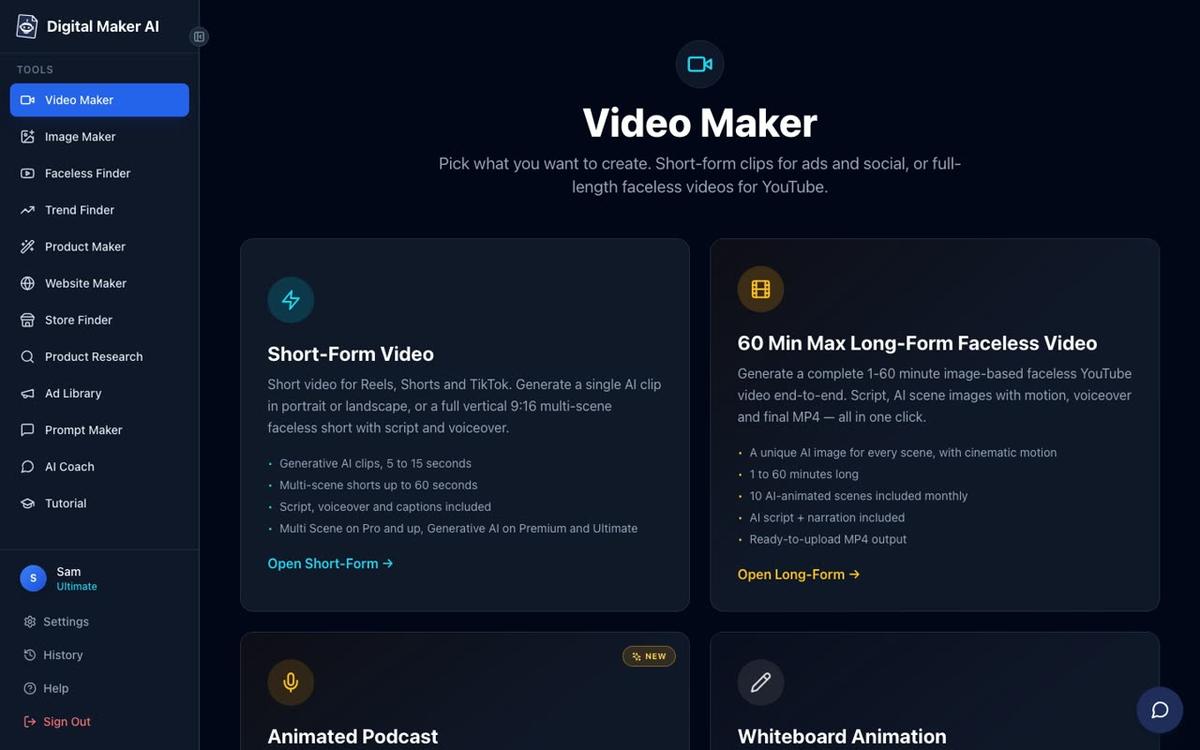
Once you are signed in, click Video Maker in the left sidebar. You will see the choice cards. Click Short-Form Video, then press Next at the bottom of the screen. On the next screen, choose Multi Scene Short. This is the vertical 9:16 format that generates a new scene image every few seconds with narration and bold captions, which is exactly what you want for a YouTube Short.
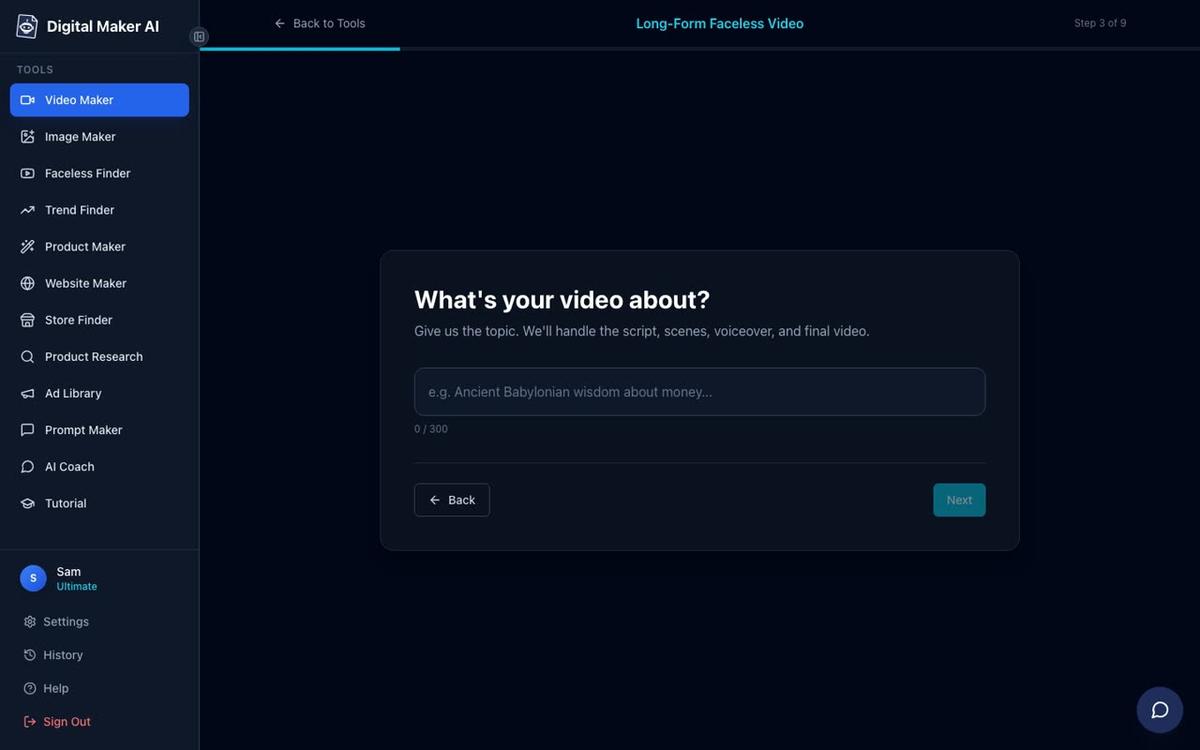
Now you will see the topic box. This is where you paste your two or three sentences from Step 1. Keep them exactly as you wrote them. The AI will use them as the basis for the script and generate matching scene images around them.
Next, pick a length. For a first Short, 30 or 45 seconds is a good target. Then choose a visual style. If your blog is about business, finance or self-improvement, the Finance or Luxury or Realistic or Everyday Visuals style tends to work well. If your topic is more creative or educational, try Animated or Cartoon for a warmer look. Finally, pick a voice from the list. There are more than 100 to choose from, with male and female options and US, UK and Australian accents. Press play on a few to find one that suits your topic, then hit Generate.
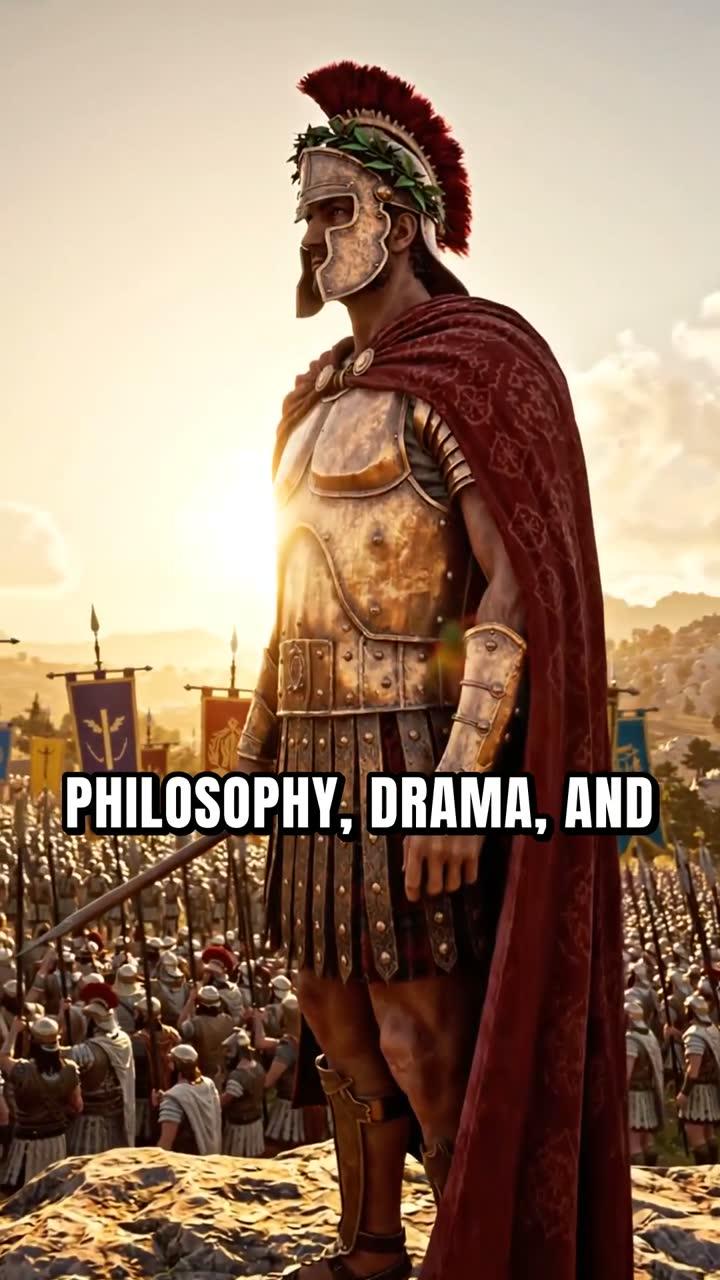
The AI will write the narration from your sentences, generate a scene image for each moment in the Short, add the voice, and burn in bold captions. You will have a finished vertical MP4 in a couple of minutes.
Free plan note: On the Free plan, scene images come from a ready-made library in set topic areas such as business and side hustles, motivation, history, psychology, health and fitness, and more. Paid plans generate every scene image fresh for any topic. The Free Short also carries a small watermark. You can upgrade later and it is removed. Either way, commercial usage rights are included on every plan.
Step 3: Review the Captions, Swap a Scene If Needed, Then Download or Post
When your Short is ready, watch it through once before you download it. There are two things to check.
Check the captions. The captions are burned into the lower third of the frame in bold text. Read along as the video plays. If a word is cut off or a sentence runs a little long, you can click into the narration text for that scene and edit it. The voice will update to match.
Check the scene images. Each scene is a still image held on screen while the narration plays. If one image does not quite fit the point being made, you can regenerate it. Every video comes with 10 free regenerations, so you have plenty to work with. You can also swap in your own image for any scene if you have one that fits better.
Once you are happy, you have two options for getting it out into the world.
- Download the MP4 and upload it yourself to YouTube, TikTok or Instagram. This works on every plan including Free.
- Post to socials directly from the app using the Post to socials button. This is available on Premium and Ultimate plans. You connect your YouTube, TikTok and Instagram accounts once in Account Settings, then post now or schedule it for later. Nothing goes out automatically. It only posts when you press Post.
That is it. You have just turned a blog paragraph into a published Short. The whole process, from picking your sentences to downloading the video, takes under ten minutes once you have done it once.
If you want to see what the AI YouTube Shorts generator can do beyond a single Short, including building a repeatable content system from your blog archive, the steps below are worth reading before you close this tab.
Common Mistakes to Avoid
These are the things that trip up most first-time Short makers, and all of them are easy to fix.
- Trying to fit the whole blog post into one Short. A Short is not a summary. It is one idea, delivered fast. Pick one point and leave the rest for another video.
- Making the opening sentence too soft. The first caption a viewer reads decides whether they keep watching. Start with the most interesting or surprising thing you have to say, not with context or background.
- Choosing a visual style that does not match the topic. A Space or Sci-Fi style on a personal finance Short will confuse viewers. Match the mood of the images to the mood of the content.
- Skipping the caption check. Captions are often the first thing a viewer reads on a Short because many people watch without sound. One awkward line of text can break the flow. Give it 30 seconds.
- Waiting until the Short is perfect. The first one does not need to be perfect. It needs to exist. Publish it, see how it performs, and use what you learn on the next one.
What to Do Next: Turn Your Blog Archive Into a Short Series
Once you have made your first Short, the system becomes very fast. Every blog post you have ever written contains at least two or three Short-worthy points. A post about sleep habits has a Short about the one habit that matters most. A post about saving money has a Short about the single biggest mistake people make. A post about running a business has a Short about the thing nobody tells you in the first year.
Work through your archive one post at a time. Pick the strongest point, write two or three sentences, generate the Short, post it. Over a few weeks you will have a library of Shorts pointing back to your blog, each one reaching a new audience on YouTube, TikTok and Instagram.
If you want to go further and turn a full blog post into a longer faceless YouTube video, the same platform handles that too. The long-form faceless video maker works in exactly the same way: give it a topic or paste your own script, pick a style and voice, and get a finished landscape MP4 up to 60 minutes long depending on your plan. You can also explore how to make faceless YouTube Shorts with Claude and Digital Maker AI if you prefer to work from inside your AI assistant.
The AI Coach is also worth bookmarking. If you get stuck turning a dense blog paragraph into a punchy Short script, open it from the left sidebar, paste the paragraph, and ask it to rewrite it as a 30-second Short hook. It is faster than staring at a blank page, and the result is usually something you can use straight away. You can read more about what the AI Coach can do, including making full videos and Shorts directly from the chat on Premium and Ultimate plans.
Ready to make your first Short? Start for free, no card needed, and see your blog post on a phone screen in under ten minutes. When you are ready to go further, visit the free course at Digital Maker AI for a step-by-step walkthrough of building a full faceless channel around your content.
Alex Stevens: Alex Stevens writes for the Digital Maker AI team about faceless YouTube channels, AI presenters and AI video tools.