How to Make a Faceless Video in Spanish French or German
By Alex Stevens

By the end of this guide you will have made your first faceless YouTube video in Spanish, French, German or Italian using AI. You do not need to speak the language, hire a translator or record a single word of audio. Digital Maker AI handles the script, the translation, the narration and the finished MP4 for you. If you have been wondering how to make a faceless YouTube video in another language, this walkthrough covers every step from sign-up to download.
Why Non-English Faceless Channels Are Worth Your Attention
YouTube's fastest-growing audiences are not in English-speaking countries. Spanish is the first or second language of more than 500 million people. French is spoken across Europe, Africa and Canada. German audiences are among the highest-earning for advertisers on the platform. Yet the number of faceless AI channels serving those viewers is a fraction of what exists in English. That gap is an opportunity.
Competition in a non-English niche is often far lower. A stoicism channel in Spanish, a history channel in French or a personal finance channel in German can reach the top of search results far faster than the equivalent English channel would. You do not need to live in those countries or speak those languages fluently. The AI does the heavy lifting.
Learning how to make a faceless YouTube video in another language is now a beginner-level task. Here is exactly how to do it.
Step 1: Create Your Free Account
Go to digitalmaker.ai/faceless and sign up. You can continue with Google or fill in your name, email and password. No credit card is needed. Once you are inside, look at the left sidebar and press Video Maker.
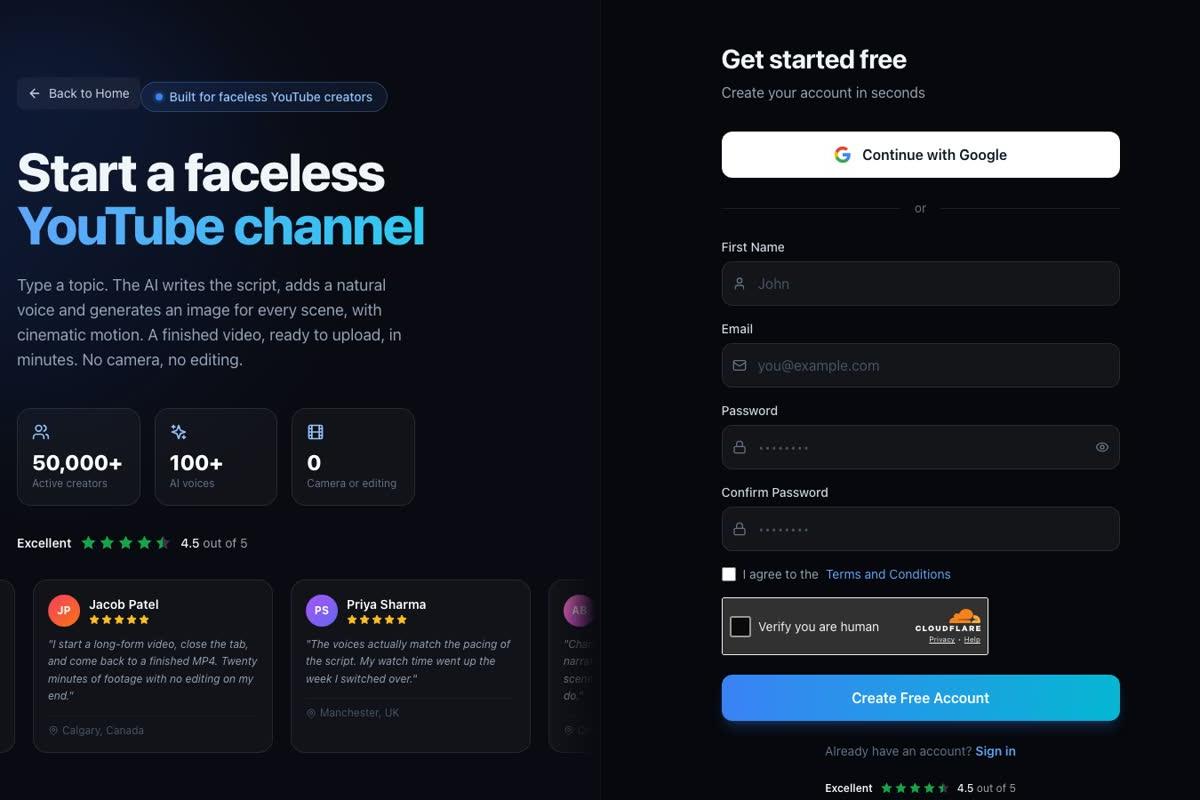
A quick note on the Free plan before we go further. Free accounts get one long-form faceless video, one Short, one animated podcast and two drag-and-drop videos, each made once. Free videos are English only and use a library of ready-made images in set topic areas. If you want to try the tool before committing to a paid plan, that is a perfectly good place to start. The Multiple Languages format covered in this guide requires a Premium or Ultimate plan, so free users can explore the tool and upgrade when they are ready.
Step 2: Open the Long-Form Video Maker
Inside the Video Maker you will see cards for Short-Form Video, Long-Form Faceless Video and other tools. Press the Long-Form Faceless Video card. This takes you into a nine-step builder that walks you through every choice one at a time.
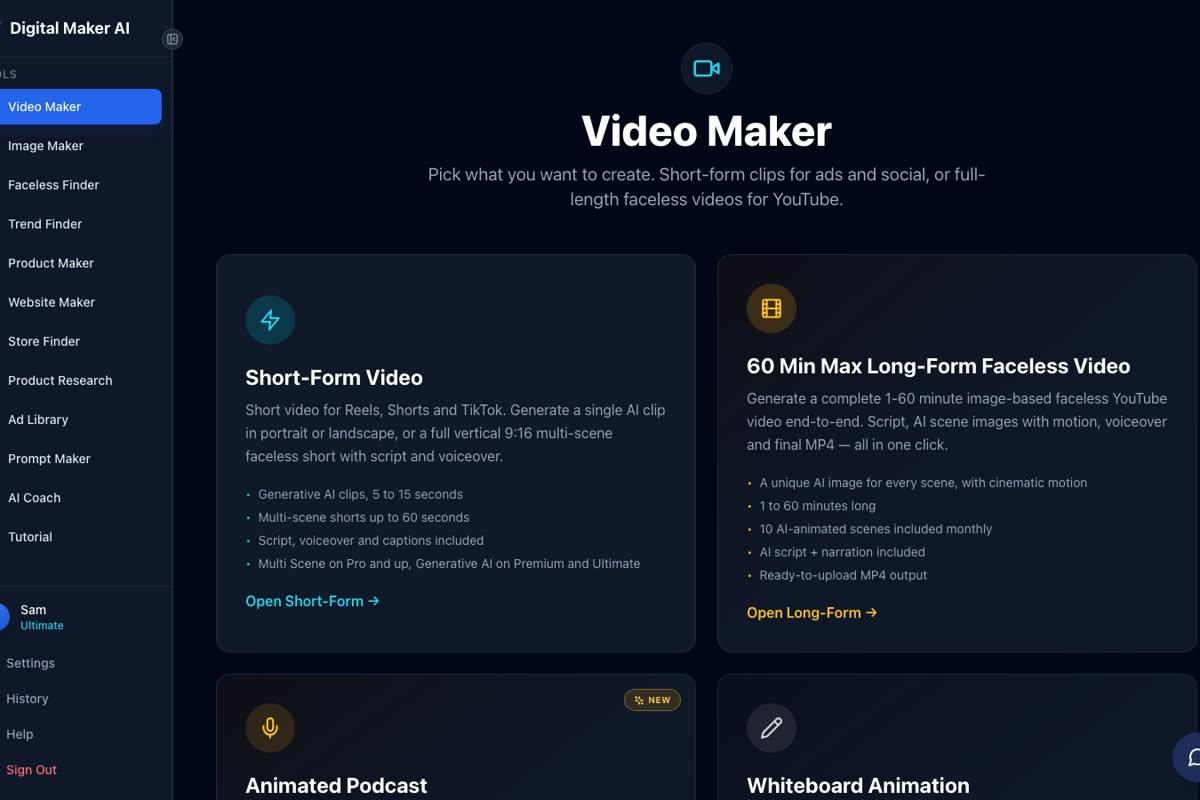
Step 3: Choose the Multiple Languages Format
Step 1 of 9 asks you to pick a format. You will see cards for Multi Scene Video, Single Scene Video and Multiple Languages. Press Multiple Languages. This is the format that produces a fully translated, narrated video in French, Spanish, Italian or German. It uses the Multi Scene approach, meaning the AI generates a fresh image for every scene in the video.
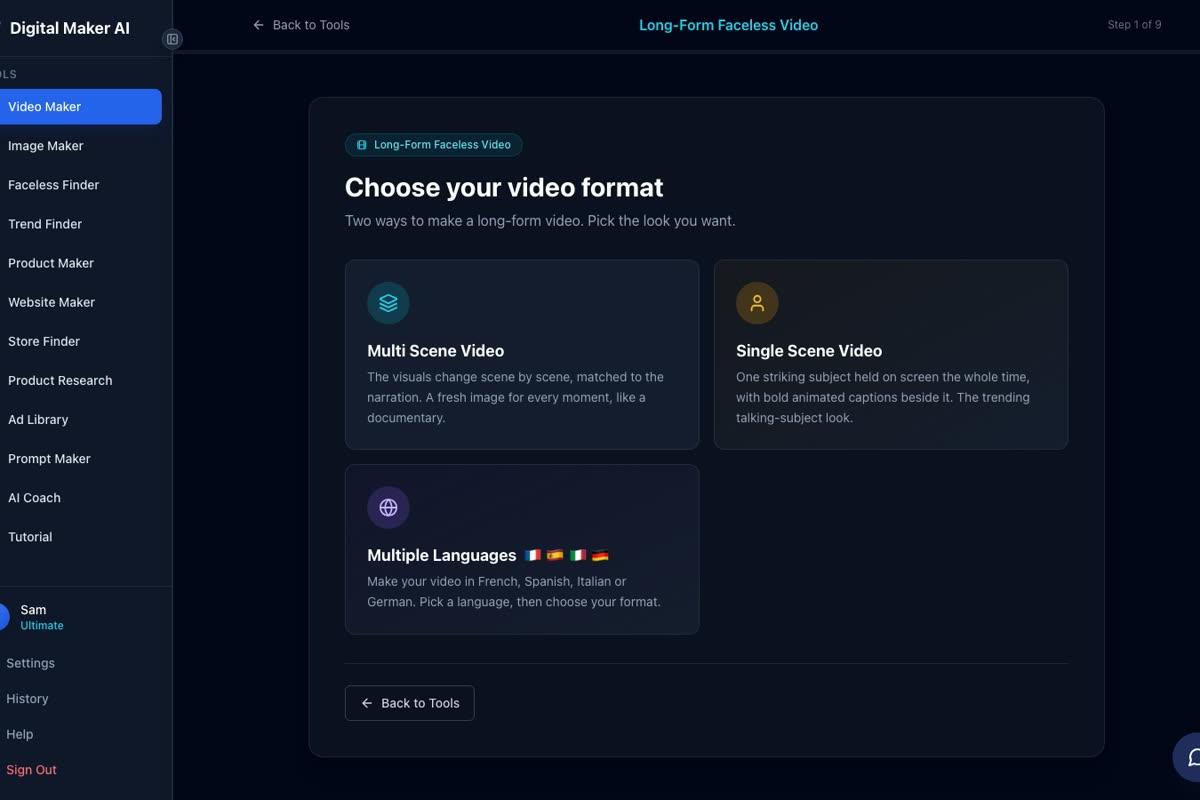
After selecting Multiple Languages, you will be asked to pick your target language from the four available options. Choose the one that matches the audience you want to reach. The AI will write the script in English internally, translate it into your chosen language and record the narration in that language. You never need to touch the translated text yourself.
Tip: If you are unsure which language to start with, Spanish tends to have the broadest global reach, while German audiences often attract strong advertiser rates. Pick the one where you have the clearest niche idea.
Step 4: Enter Your Topic in English
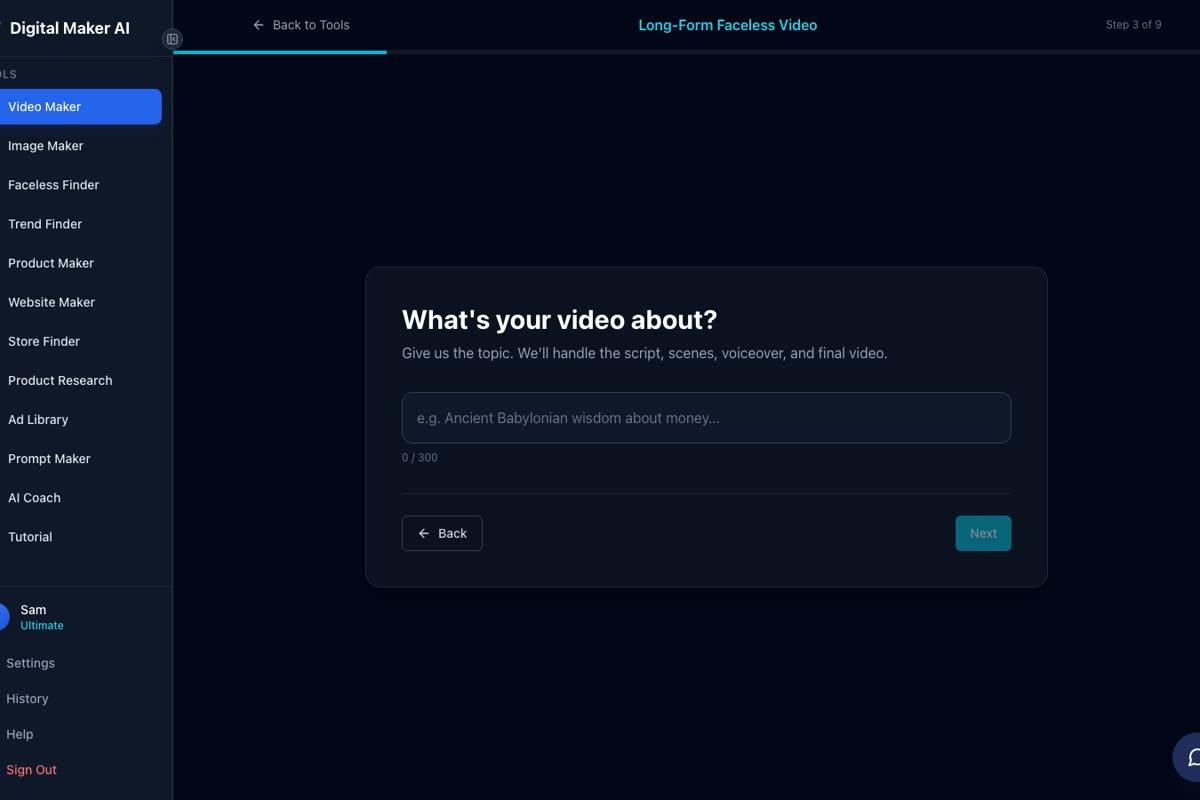
Step 3 of 9 asks what your video is about. Type your topic in English, in one line. You do not write in the target language. The AI takes your English prompt, writes a full script, translates it and records the narration. A 300-character topic box is all you need to fill in.
Good topic examples for non-English channels:
- Spanish: "The stoic philosophy of Marcus Aurelius and how to apply it to modern life"
- French: "The rise and fall of the Roman Empire: key moments that changed history"
- German: "Five personal finance habits that wealthy people follow every day"
- Italian: "Ancient wisdom from the Greek philosophers and what it means today"
Keep the topic specific. "Stoicism" is too broad. "Three stoic habits that reduce anxiety" gives the AI something to build a clear script around.
Step 5: Pick a Visual Style
Step 5 of 9 shows seven visual style cards. Every scene image in the video will share the style you choose. The options are:
- Realistic or Everyday Visuals
- Animated or Cartoon (illustrated, cartoon-looking still scenes, not moving animation)
- Motivational or Dark Moody
- Finance or Luxury
- History or Ancient
- Space or Sci-Fi
- Minimalist or Clean
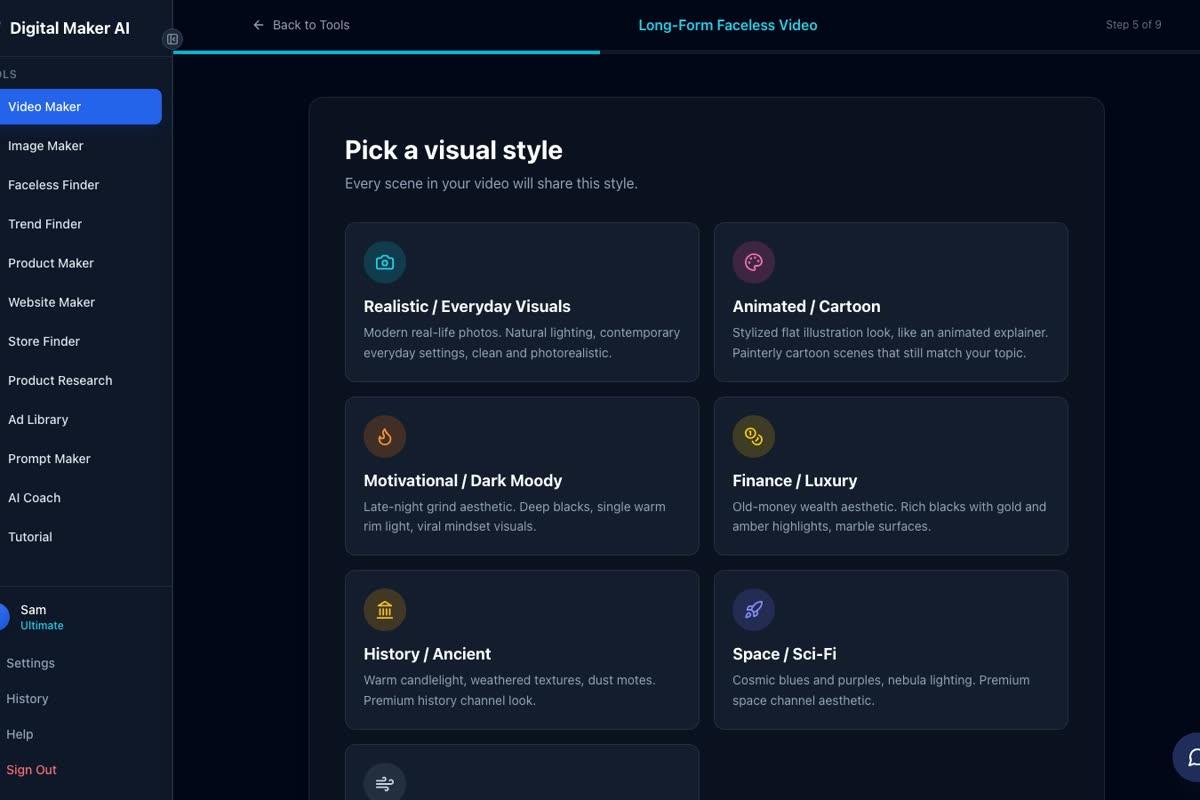
For a stoicism channel in Spanish, Motivational or Dark Moody tends to look striking. For a history channel in French, History or Ancient is the obvious fit. For a personal finance channel in German, Finance or Luxury gives the content a polished, authoritative feel.
Step 6: Set the Length and Choose a Voice
Step 6 asks how long the video should be. A slider lets you choose from a few minutes up to the maximum your plan allows. Premium users can go up to 30 minutes per video, and Ultimate users up to 60 minutes. Each minute of video uses one minute from your monthly pool.
Step 7 lets you pick a narration voice. There are over 100 voices with filters for gender and accent. For a Spanish video, look for voices with a Latin American or Castilian Spanish accent. For French, pick a French-accented voice. The voice will deliver the translated narration in the target language, so the accent match matters for how natural it sounds to native listeners.
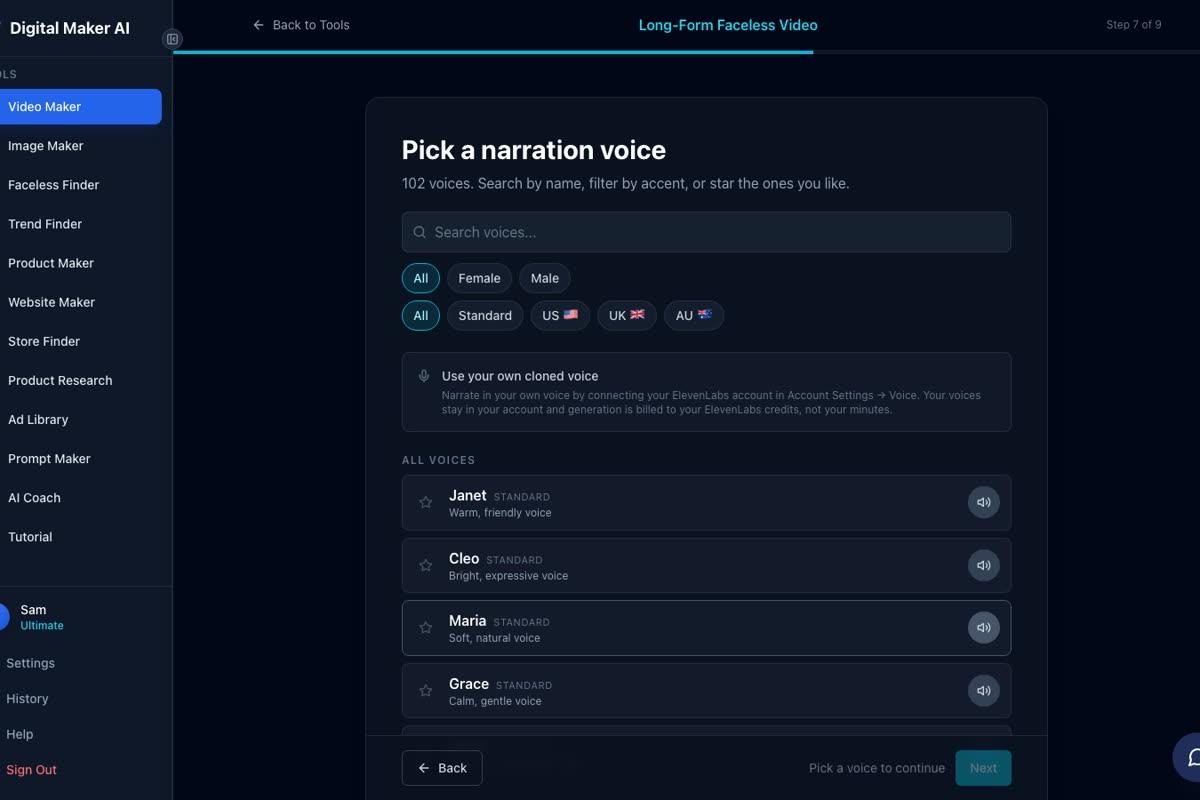
Tip: Preview a few voices before committing. A voice that sounds natural in English may not carry the same warmth in French or German. Take an extra minute here and your finished video will feel more authentic to the target audience.
Step 7: Review and Generate
Step 9 of 9 is the review screen. It lists every choice you have made: the format (Multiple Languages), the language, the topic, the visual style, the voice, the pace and the length. It also shows exactly how many minutes the video will use from your monthly pool. Check everything looks right, then press Generate Video.
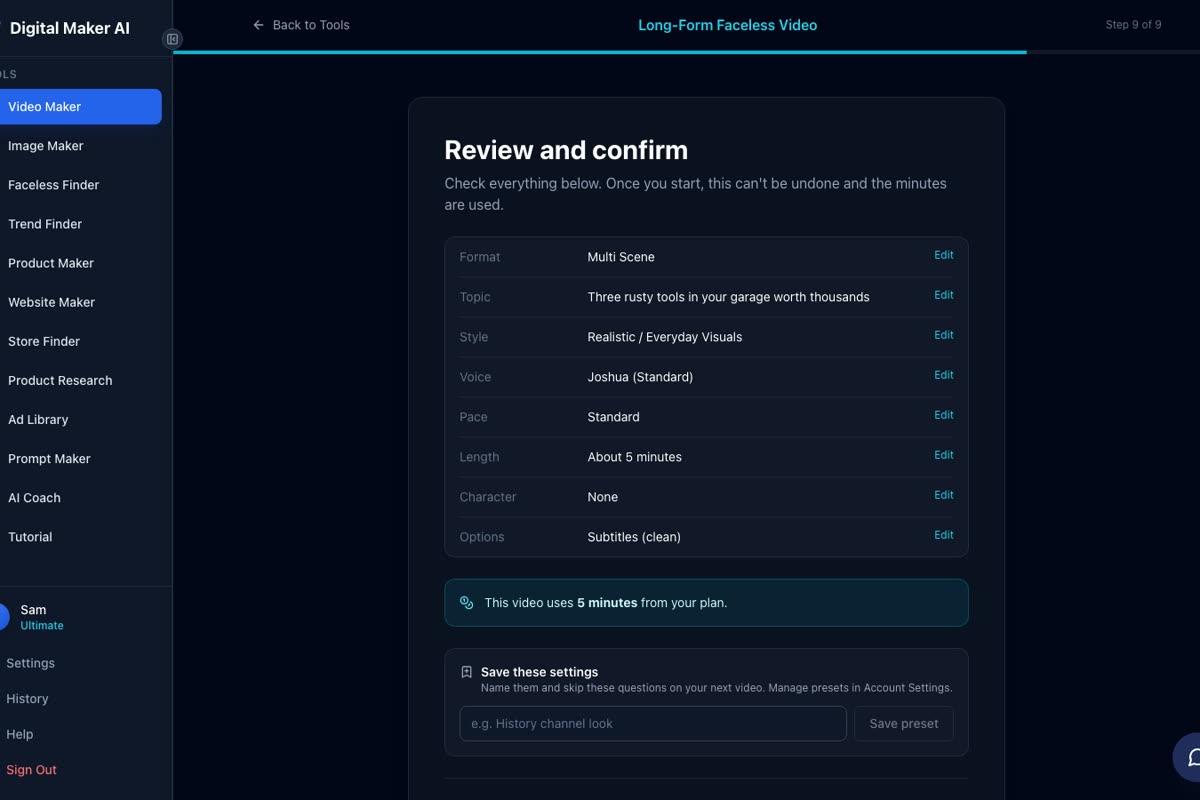
The AI writes the script, translates it, generates a unique scene image for every scene, records the narration in your chosen language, adds captions and assembles the final MP4. A five-minute video typically takes three to six minutes to build. When it is ready, you download the MP4 and upload it to your YouTube channel. Premium and Ultimate users can also post directly to YouTube, TikTok and Instagram from the platform using the Post to socials button.
After the video is made, you can regenerate any scene image you are not happy with (up to ten free regenerations per video), swap in your own image, or edit the narration text. There is no timeline editor, but these tools give you enough control to fine-tune the result before publishing.
Three Niche Ideas That Work Well in Each Language
If you are not sure where to start, these niches tend to perform well in each language and face noticeably less competition than their English equivalents.
Spanish
- Stoicism and ancient philosophy applied to modern life
- True crime and mysteries from Latin American history
- Psychology and self-improvement habits
French
- European and ancient history (Rome, Egypt, medieval France)
- Space exploration and science
- Motivation and personal development
German
- Personal finance, investing and money habits
- Health, fitness and longevity
- Business and side hustles
Italian
- Ancient history and archaeology
- Law of attraction and mindset
- Health and wellness
You can use the Faceless Finder inside your account to research channels in any niche, see how many subscribers they have, how often they upload and an estimated monthly ad revenue. This is a fast way to validate a niche before you commit to a channel.
Common Mistakes to Avoid
- Typing the topic in the target language. Enter your topic in English. The AI handles translation. Typing in French or Spanish can confuse the output.
- Picking a voice that does not match the language. A British English voice will not narrate a Spanish video naturally. Use the accent filters on the voice screen to find the right match.
- Choosing a topic that is too broad. "History" produces a generic script. "The fall of the Western Roman Empire in five key moments" gives the AI a clear direction and produces a more focused, watchable video.
- Skipping the review screen. Step 9 shows the minute cost before you commit. Check it so you are not surprised by the usage on your plan.
- Expecting moving footage. Each scene is a still AI-generated image held on screen while the narration plays. Optional slow zoom or pan motion effects add a cinematic feel, but the scenes themselves are not animated video clips. If you want real moving footage, the Animated Scenes add-on lets you convert selected scenes into short AI-generated clips after the video is made.
What to Do Next
Commercial usage rights are included on every plan, including Free. Every video you make in Multiple Languages mode is yours to publish, monetise and keep. There are no extra licencing fees for non-English content.
If you are not yet on a paid plan, the Free plan is a good way to explore the tool. Make an English video first to get comfortable with the nine-step flow, then upgrade to Premium or Ultimate when you are ready to launch your non-English channel. You can see a full breakdown of what each plan includes at digitalmaker.ai/pricing.
Once you have your first video live, consistency matters more than perfection. A channel that publishes one video a week in German personal finance will outgrow one that publishes sporadically in a crowded English niche. The tools are ready. The audiences are waiting. The competition is low. That combination does not last forever.
For a deeper look at building a faceless channel from scratch, the free Digital Maker AI course walks you through channel strategy, niche research and video publishing from the very beginning. It is free to access and a good next step after your first non-English video is done.
Alex Stevens: Alex Stevens writes for the Digital Maker AI team about faceless YouTube channels, AI presenters and AI video tools.