How to Make an AI Video in Spanish, French or Italian
By Alex Stevens
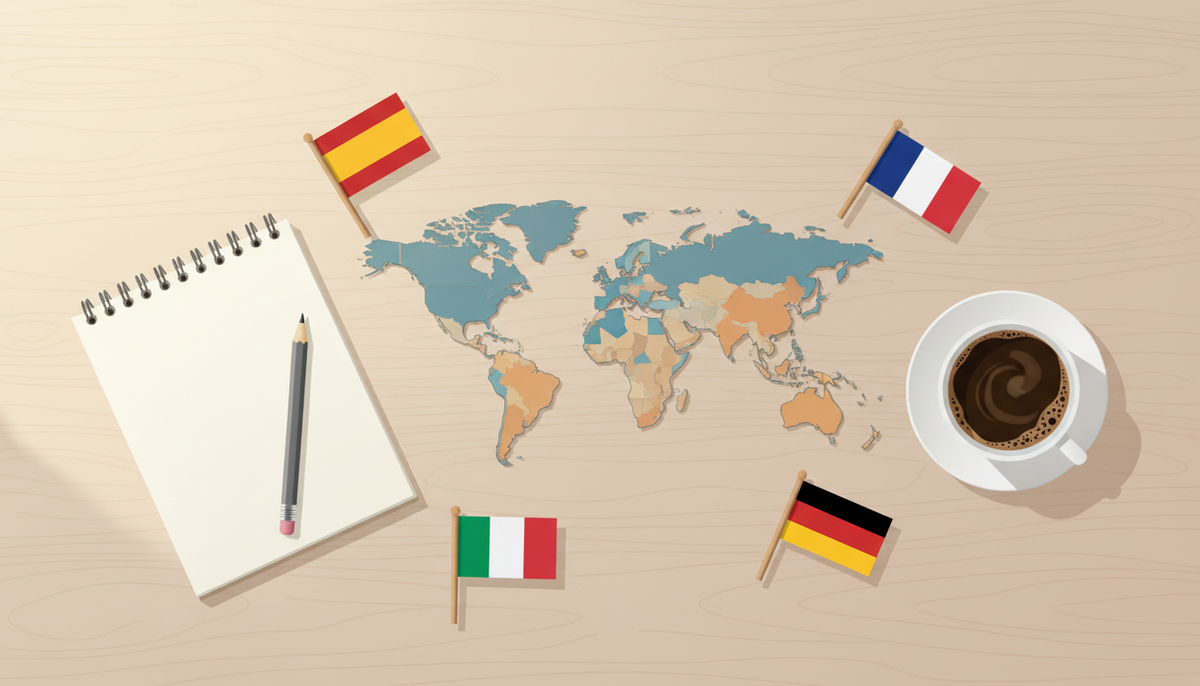
By the end of this guide you will know exactly how to make a YouTube video in another language with AI, from choosing a niche to pressing Generate and downloading a finished MP4. No camera, no microphone and no knowledge of the target language is needed. Digital Maker AI writes the script, generates every scene image and records the narration, all in the language you pick.
Why Non-English YouTube Channels Can Earn Well
English is the most crowded language on YouTube. Spanish, French, Italian and German channels often face far less competition in popular niches, which means a channel with a smaller subscriber base can still rank well and attract steady views. Advertisers in those markets pay competitive rates, so ad revenue per thousand views can be surprisingly strong.
Think about the niches that work well. Spanish-language personal finance content draws a huge audience across Latin America and Spain. French cooking channels tap into a passionate community in France, Belgium, Canada and beyond. Italian history is a natural fit given how much of Western history runs through Rome, Florence and Venice. German science and technology content attracts a highly engaged audience willing to watch longer videos. Any of these can be built as a completely faceless channel, with no presenter on screen and no native speaker required.
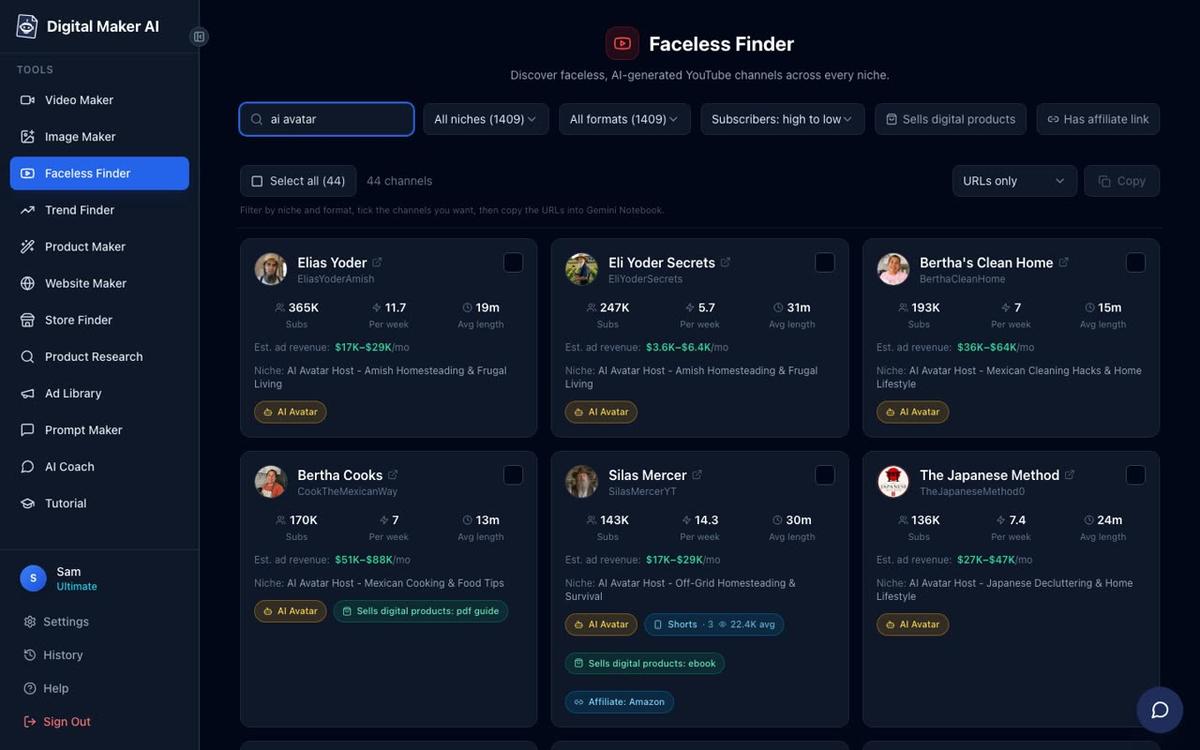
If you want to see what is already working, the Faceless Finder inside Digital Maker AI lists confirmed faceless YouTube channels with their subscriber counts, upload frequency, average video length and an estimated monthly ad revenue. You can search by niche or language to spot gaps worth targeting before you make your first video.
What You Need Before You Start
The Multiple Languages format is available on the Premium and Ultimate plans. It uses the Multi Scene format, which means every scene gets its own freshly generated AI image. If you are on the Free or Pro plan you can still explore the dashboard and the Faceless Finder, but you will need to upgrade to access this feature. Visit digitalmaker.ai/pricing to compare plans.
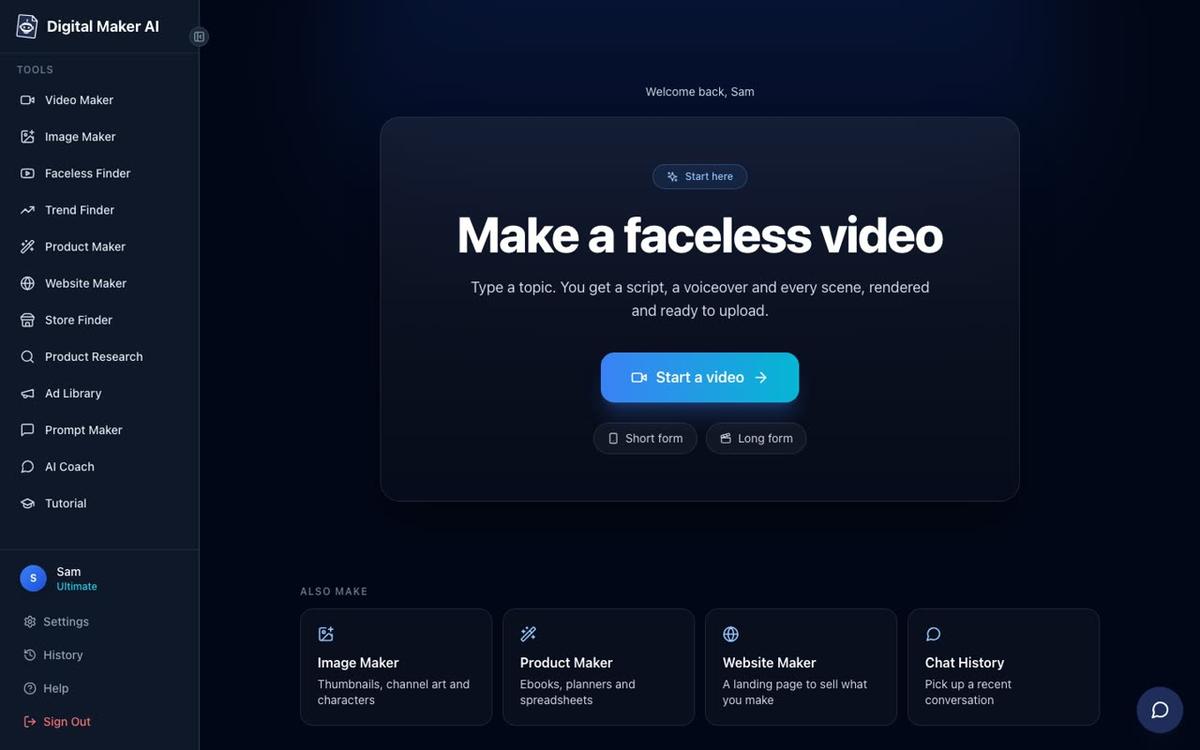
Once your account is ready, sign in and you will land on the dashboard. The Video Maker button in the left sidebar takes you straight into the video creation flow.
Step 1: Choose the Multiple Languages Format
After opening the Video Maker and selecting Long-Form, the first screen asks you to choose a format. You will see cards for Multi Scene Video, Single Scene Video and Multiple Languages. Click the Multiple Languages card. This tells the platform that the entire video, script, narration and captions, will be produced in a language other than English.
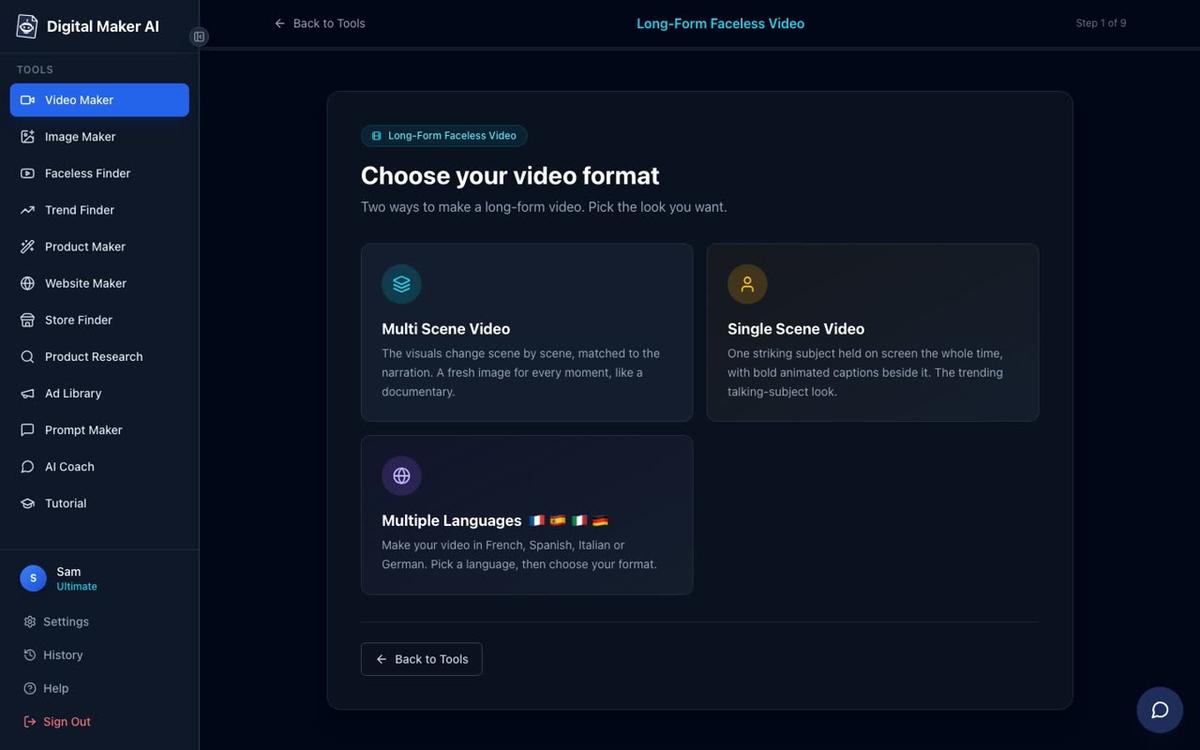
Once you select Multiple Languages, a language picker appears. Choose from Spanish, French, Italian or German. The AI will write every word of the script in that language and record the narration in a matching native-sounding voice. You do not need to translate anything yourself.
Step 2: How to Make a YouTube Video in Another Language With AI: Enter Your Topic
The next screen asks what your video is about. Type a single clear topic into the box. Keep it specific rather than broad. Instead of "French cooking," try "How to make a classic French onion soup at home." Instead of "Spanish finance," try "Five habits of wealthy people in Spain." A focused topic gives the AI enough direction to write a tight, engaging script.
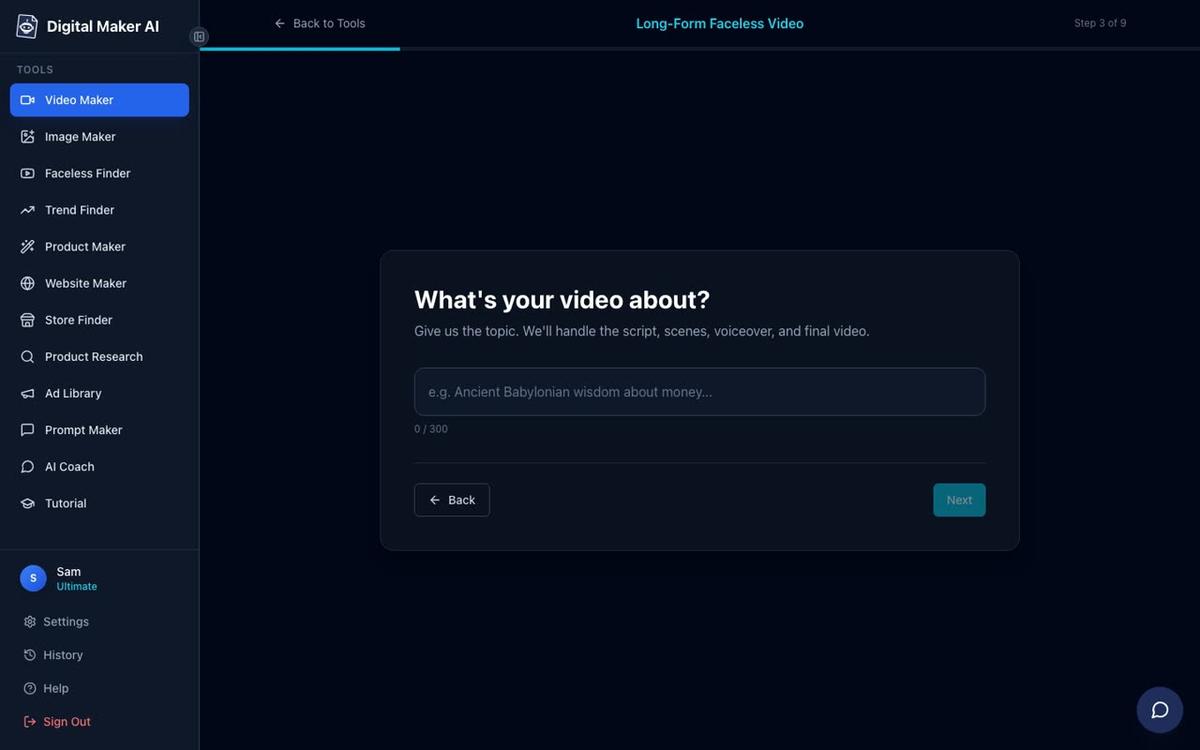
Practical tip: if you are not sure what topics work in your chosen language, use the Faceless Finder first. Search for channels in that niche and look at which videos get the most views. That tells you what the audience already watches, and you can build your topic around a proven angle.
Step 3: Pick a Visual Style
Next you choose how the video looks. There are seven visual styles to pick from: Realistic or Everyday Visuals, Animated or Cartoon, Motivational or Dark Moody, Finance or Luxury, History or Ancient, Space or Sci-Fi, and Minimalist or Clean. Every scene image in the video will share the style you choose.
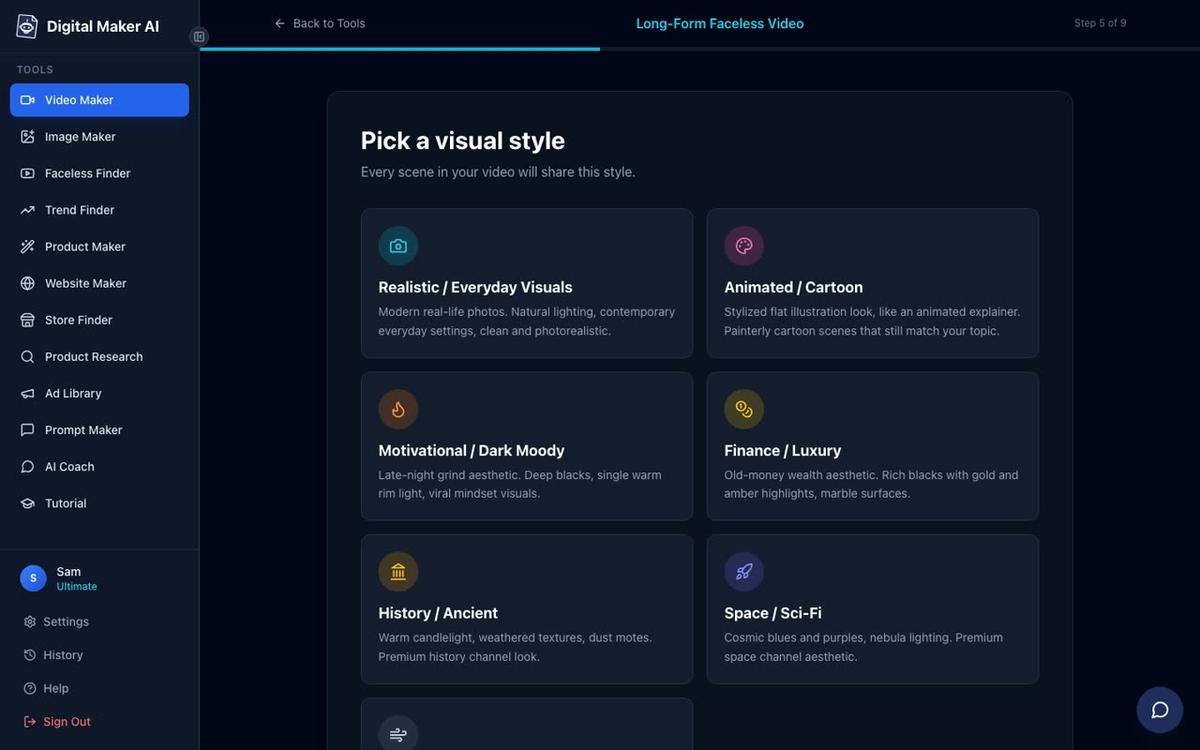
Match the style to the niche. A Spanish personal finance channel works well with Finance or Luxury visuals: clean, aspirational imagery that feels authoritative. A French cooking channel suits Realistic or Everyday Visuals, with warm kitchen scenes. Italian history is a natural fit for History or Ancient, which generates imagery that looks like classical paintings and stone architecture. German science content can work well with Minimalist or Clean for a precise, modern feel.
Step 4: Choose a Voice
This is where the Multiple Languages format really stands out. When you reach the voice selection screen you will see voices filtered for the language you chose earlier. Pick one that fits the tone of your channel. A calm, measured voice suits history and finance. A warmer, friendlier voice works well for cooking and lifestyle content.
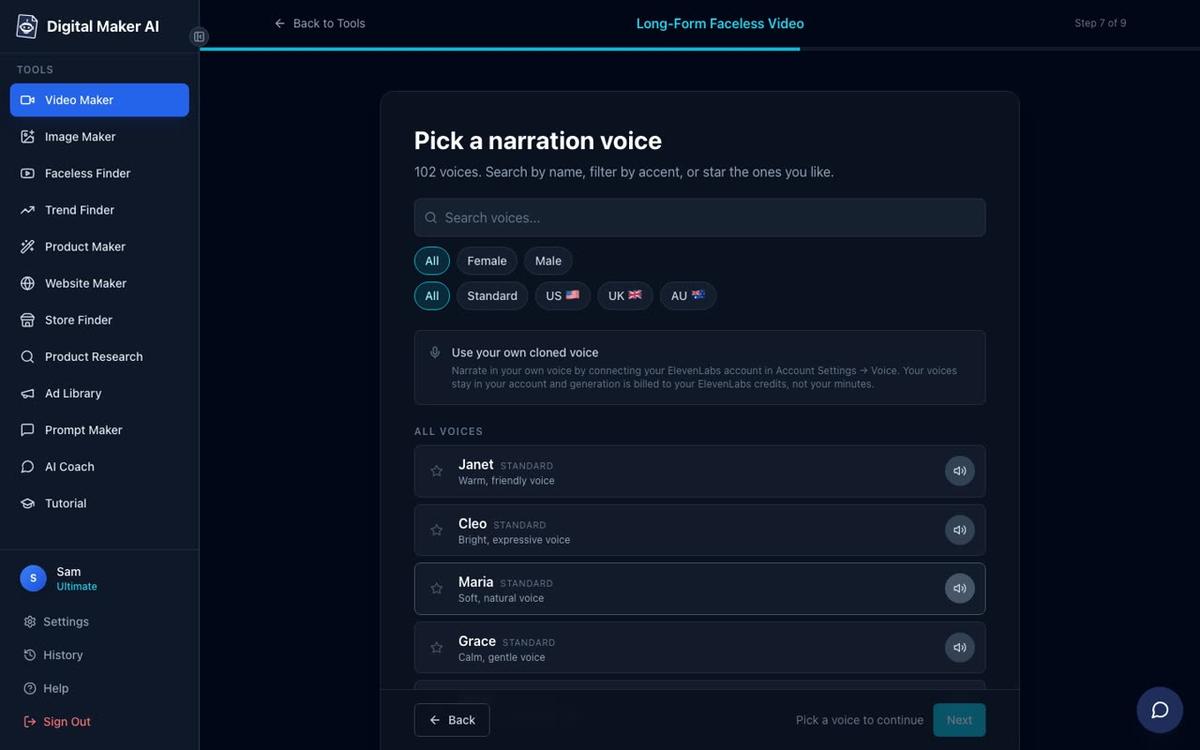
Practical tip: listen to at least three or four voices before deciding. A voice that sounds natural and unhurried tends to keep viewers watching longer, which matters a lot for YouTube's algorithm. You can also adjust the pacing at the next step, so if a voice sounds slightly fast, choose Calm pacing to slow it down.
Step 5: Set the Length and Generate
Use the length slider to set how long the video should be. On the Premium plan, Multiple Languages videos can be up to 10 minutes long. On the Ultimate plan, that limit rises to 15 minutes. For a new channel, a five to eight minute video is a good starting length: long enough to hold attention and qualify for mid-roll ads, short enough to keep the production time down while you are finding your footing.
After setting the length, choose your pacing (Calm, Standard or Energetic), check the summary screen to confirm the topic, style, voice and minutes the video will use, then press Generate Video. The platform writes the script in your chosen language, generates a unique AI image for every scene, records the narration and assembles the finished MP4. The whole process typically takes three to six minutes for a five minute video.
Once the video is ready you can regenerate any scene image you are not happy with (up to ten free regenerations per video), edit the narration text for any scene, or swap in your own image. Premium and Ultimate users can also post the finished video straight to YouTube from the platform, or download the MP4 and upload it manually.
How to Make a YouTube Video in Another Language With AI: Picking the Right Niche
Choosing the right combination of language and niche is the most important decision you will make. Here are four combinations that tend to work well for faceless channels.
- Spanish finance: Topics like saving, investing, passive income and debt are searched heavily across Latin America and Spain. The audience is large and growing, and ad rates in financial content are strong. A simple channel covering one money habit per video can build quickly.
- French cooking: Recipe explanation videos, technique breakdowns and ingredient guides are consistently popular in French. The History or Ancient style can also work well for videos about the origins of classic dishes.
- Italian history: The Roman Empire, the Renaissance, the Medici family, ancient trade routes: there is almost no limit to the topics available. Italian-language history channels attract loyal audiences who watch long videos, which is ideal for ad revenue.
- German science and technology: German-speaking audiences tend to engage deeply with educational content. Topics like space exploration, engineering breakthroughs and psychology perform well and attract premium advertisers.
If you want more ideas, the guide to starting a single-topic faceless YouTube channel walks through how to narrow a broad subject into a consistent, searchable channel concept. That approach works just as well in Spanish or French as it does in English.
Common Mistakes to Avoid
A few things trip up beginners when they first try making videos in another language with AI. Watch out for these.
- Topics that are too broad: "Italian history" is a category, not a topic. "How Julius Caesar crossed the Rubicon and changed Rome forever" is a topic. The more specific your input, the tighter and more watchable the script will be.
- Ignoring the voice preview: Every voice sounds slightly different. Spend a moment listening before you commit. The voice is the personality of your channel, and it is worth getting right from the start.
- Choosing a style that clashes with the niche: Space or Sci-Fi visuals on a French cooking video will confuse viewers. Match the visual style to what the audience expects to see.
- Making the first video too long: A fifteen minute video uses more of your monthly minutes and takes longer to generate. Start with five to eight minutes, see how the output looks, and scale up once you are confident in the settings.
- Not using the Faceless Finder first: Spending five minutes in the Faceless Finder before you choose a niche can save you weeks of effort. Search for channels in your target language and look at what is already growing. You want a niche with proven demand and room for a new voice.
What to Do Next
Once your first video is done, the fastest way to build a channel is consistency. Aim for one video a week in the same niche, using the same visual style and the same voice. Viewers who find one video and like the format will come back for the next one. Over time, a library of ten or twenty videos in a focused niche starts to compound: older videos keep getting views while new ones bring in fresh subscribers.
You can also explore the long form video generator for tips on getting the most out of longer videos as your channel grows. And if you are curious about adding an on-screen presenter to your English-language videos later, the AI presenter video feature is worth exploring once you are comfortable with the basic flow.
The Faceless Finder is your ongoing research tool. Check it regularly for new channels entering your niche, and pay attention to which video lengths and topics are performing well. The estimated ad revenue figures give you a realistic sense of what a channel in your niche can earn once it builds an audience.
Ready to make your first video in Spanish, French, Italian or German? The free course at Digital Maker AI covers the full channel-building process from zero, including how to choose a niche, set up your channel and keep a consistent upload schedule. It is a good place to start if you want the complete picture before you dive in.
Alex Stevens: Alex Stevens writes for the Digital Maker AI team about faceless YouTube channels, AI presenters and AI video tools.