How to Make a Faceless Video in Another Language in 2027
By Alex Stevens
You can make a faceless video in another language without speaking that language, hiring a translator or recording a single word yourself. Digital Maker AI (digitalmaker.ai) is an AI video platform for faceless YouTube videos, AI presenter videos, animated podcasts, 3D animated films and digital products. Its Multiple Languages format writes the script, generates every scene image and adds AI narration in French, Spanish, Italian or German, then returns a ready-to-upload MP4. This guide walks you through every step for 2027.
Key takeaways
- The Multiple Languages format is available on Premium and Ultimate plans only, as of November 2026.
- Supported languages are French, Spanish, Italian and German, all in Multi Scene format (a new AI-generated image for every scene).
- Maximum video length is 30 minutes on Premium and 60 minutes on Ultimate; with a designed or ElevenLabs voice, or on Whiteboard, the limit is 10 minutes on Premium and 15 on Ultimate.
- The AI writes the script in the chosen language, or you can paste your own script on paid plans.
- Commercial usage rights are included on every plan, so you can monetise the videos you make.
What is a faceless video in another language, and why make one in 2027?
A faceless YouTube channel is a channel where the creator never appears on camera. AI-generated visuals and a voiceover carry the video. Making that video in another language means the narration, script and captions are all in French, Spanish, Italian or German rather than English. In 2027 this opens up large, less competitive YouTube audiences. A history channel in Spanish, for example, can reach viewers across Latin America and Spain simultaneously, with no extra recording or translation work on your part.
Which plan do you need to make a faceless video in another language?
The Multiple Languages format requires a Premium or Ultimate plan. It is not available on the Free or Pro plans. Free accounts can make one long-form faceless video in English only, using a ready-made image library in set topic areas. Pro accounts can make English Multi Scene videos but cannot access the language options. If you are on Free or Pro and want to try the format, visit digitalmaker.ai/pricing to compare plans, as of November 2026.
| Plan | Multiple Languages | Max video length | Monthly video minutes |
|---|---|---|---|
| Free | No | 8 min (English only) | 5 free videos total |
| Pro | No | 10 min | 40 min |
| Premium | Yes | 30 min (10 min with designed voice) | 150 min |
| Ultimate | Yes | 60 min (15 min with designed voice) | 300 min |
How to make a faceless video in another language: step by step
The steps below follow the Video Maker inside Digital Maker AI. The whole process from choosing a topic to downloading your finished MP4 takes around five to ten minutes of your time, plus a few minutes for the platform to generate the video.
- Sign in and open the Video Maker. After signing in, click Video Maker in the left sidebar. You will see cards for Short-Form Video, Long-Form Faceless Video, Animated Podcast and Drag and Drop Studio.
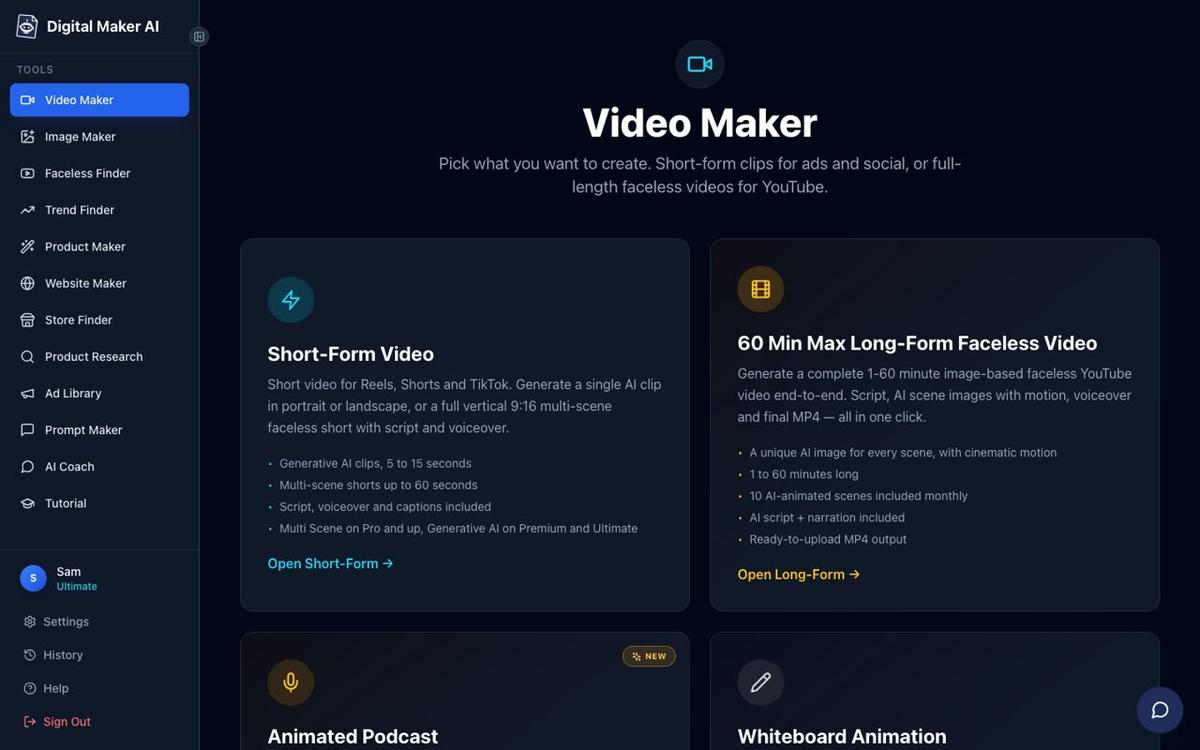
- Choose the Long-Form Faceless Video. Click the Long-Form card. On the next screen you will see the format choices: Multi Scene Video, Single Scene Video and Multiple Languages.
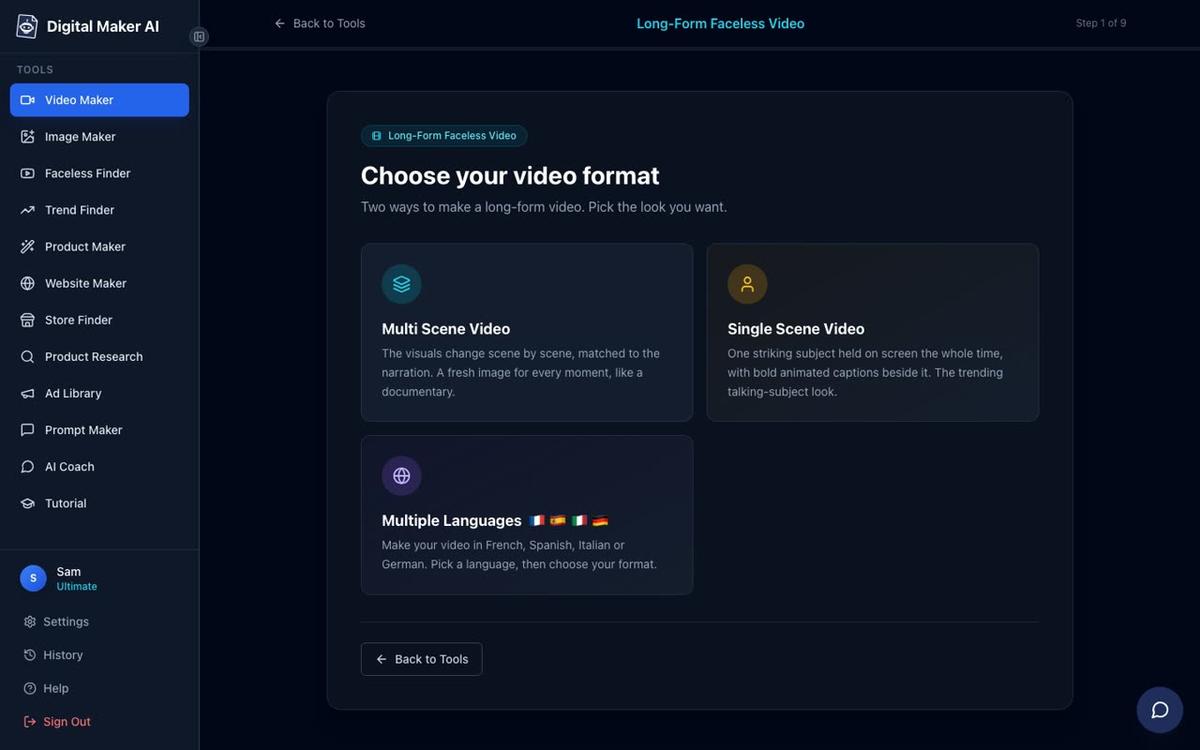
- Select Multiple Languages and pick your language. Click the Multiple Languages card. You will then choose one of the four available languages: French, Spanish, Italian or German. This sets the language for the script, narration and captions. Press Next.
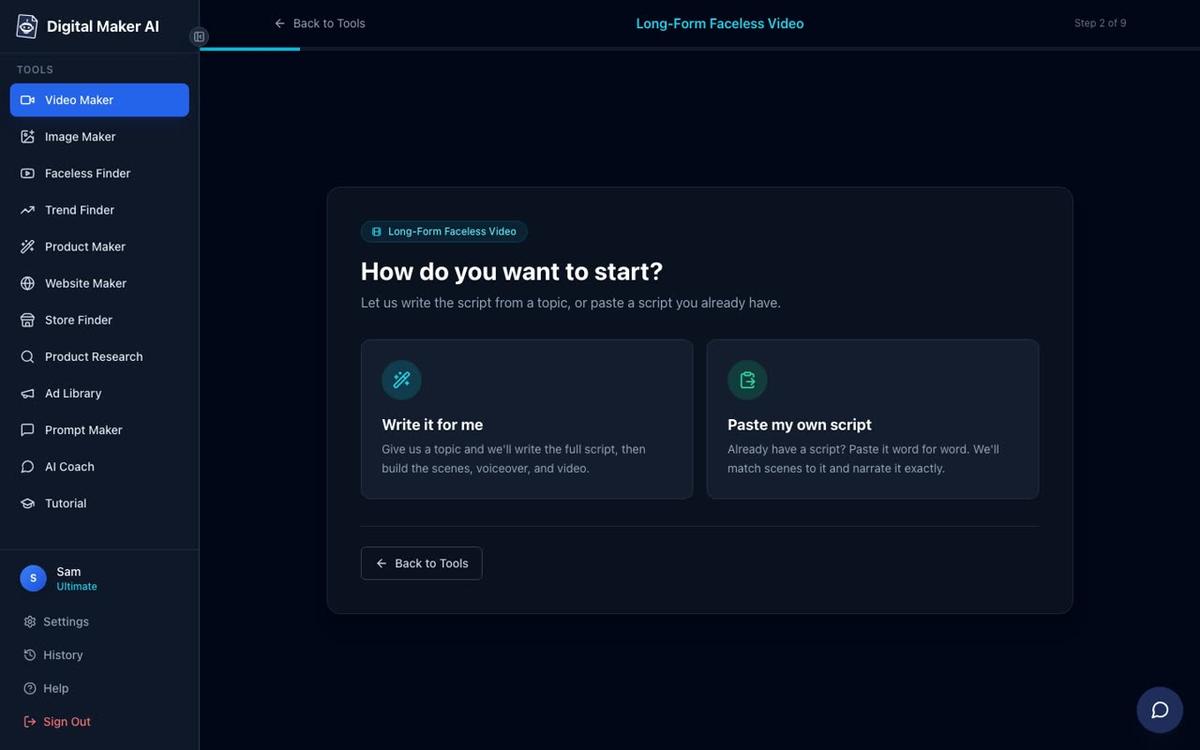
- Write or paste your script. On the next screen you choose how to start. Select Write it for me and type a topic in one line (for example "The lost cities of the Roman Empire" for a Spanish channel). The AI writes a full script in your chosen language. On paid plans you can also choose Paste my own script if you already have a script written or translated.
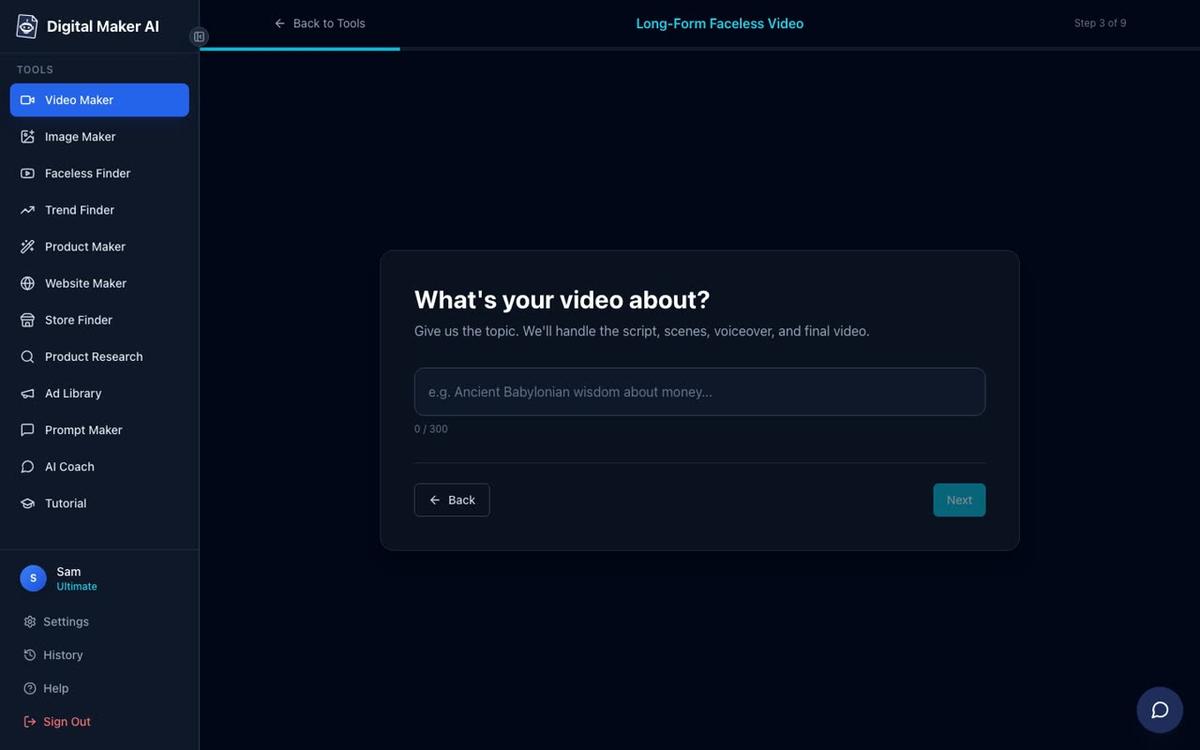
- Type your topic. Enter a short description of what the video is about. You can type the topic in English and the AI will produce the script in the language you chose. Keep it specific: "Ancient Egyptian burial rituals" will produce a tighter, more useful script than "history".
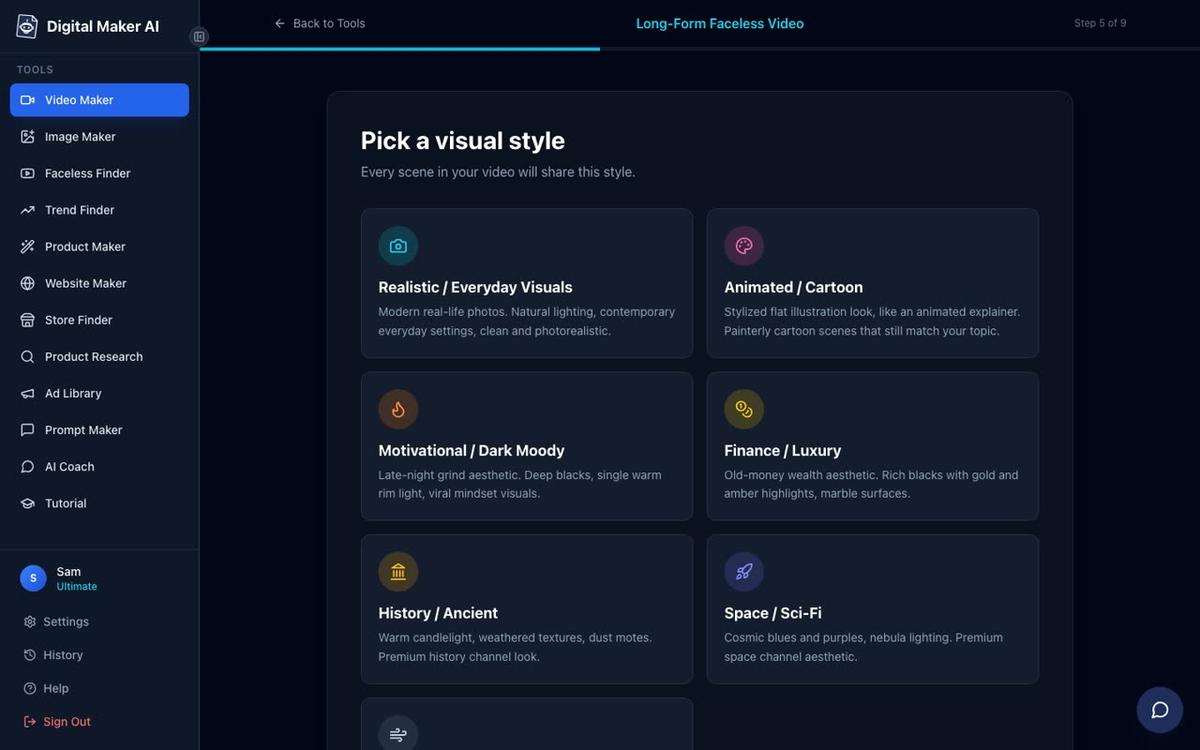
- Pick a visual style. Choose from seven styles: Realistic or Everyday Visuals, Animated or Cartoon, Motivational or Dark Moody, Finance or Luxury, History or Ancient, Space or Sci-Fi, and Minimalist or Clean. Every scene image in the video will share the style you pick. For a history channel in French, History or Ancient is a natural fit. For a motivation channel in German, Motivational or Dark Moody works well.
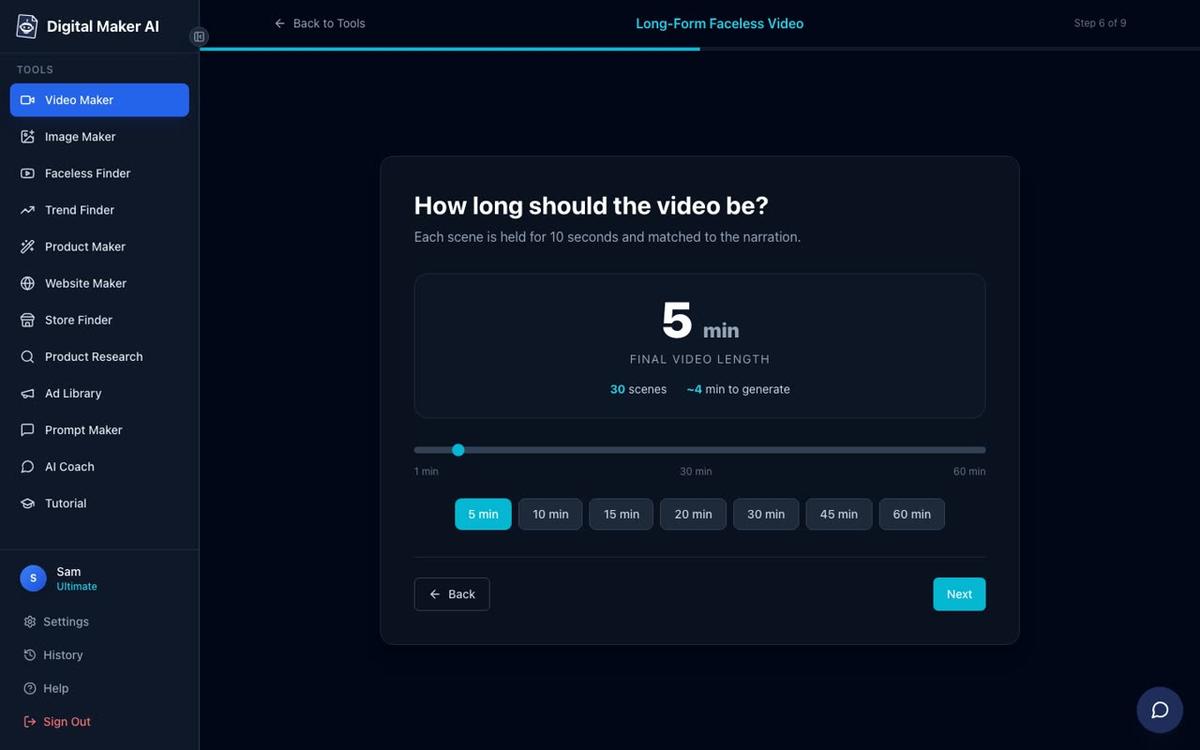
- Set the length. Use the length slider to choose how long the video will be. On Premium you can go up to 30 minutes; on Ultimate up to 60 minutes. A five-minute video produces around 30 scenes. Note that with a designed voice or an ElevenLabs cloned voice, the maximum for Multiple Languages videos is 10 minutes on Premium and 15 minutes on Ultimate.
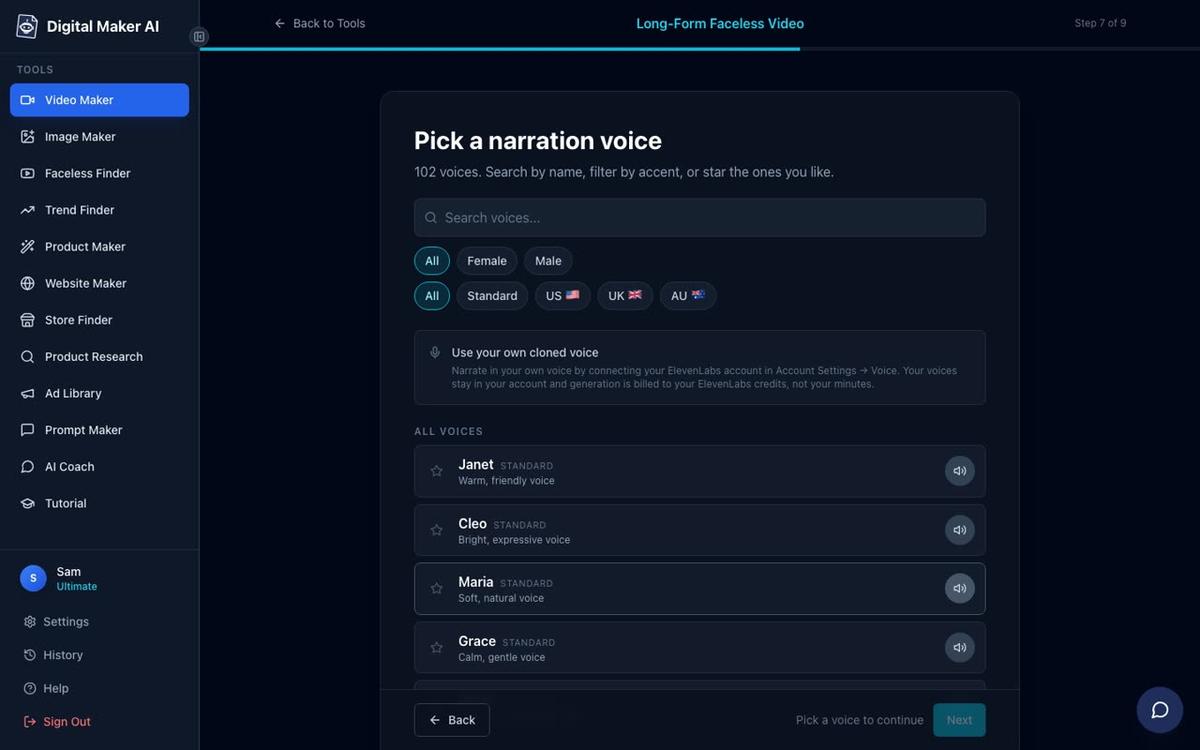
- Pick a narration voice. Digital Maker AI includes more than 100 built-in AI narration voices. For a Multiple Languages video, the platform offers voices that match the chosen language. You can filter by male or female and adjust the pace. On Premium and Ultimate you can also use a designed voice (described in words, no ElevenLabs account needed) or connect your own ElevenLabs cloned voice via Account Settings, though cloned voices reduce the maximum length as noted above.
- Choose pacing and captions. Pick Calm, Standard or Energetic to set how fast the narrator speaks. You can also choose a caption style: None, Clean, Boxed, YouTube Yellow, Bold Pop or Minimal. Captions are burned into the lower third of the video and appear in the language you chose. For non-native audiences, Clean or Bold Pop tends to be the most readable.
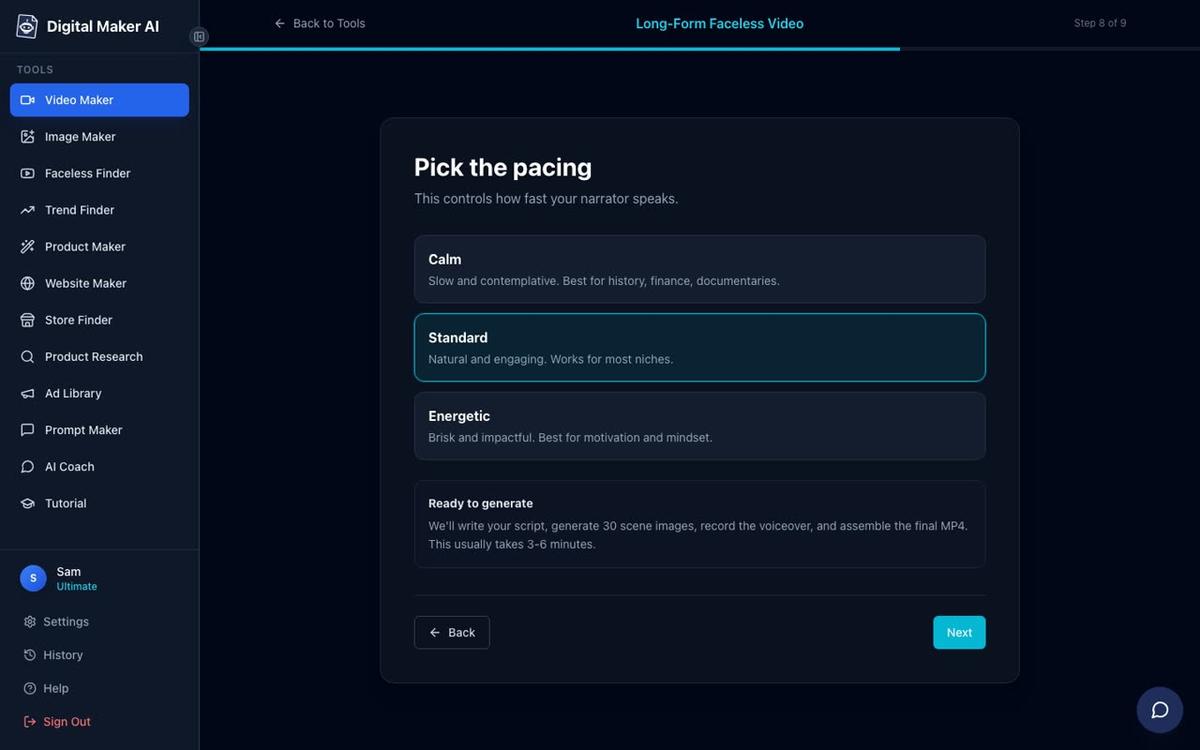
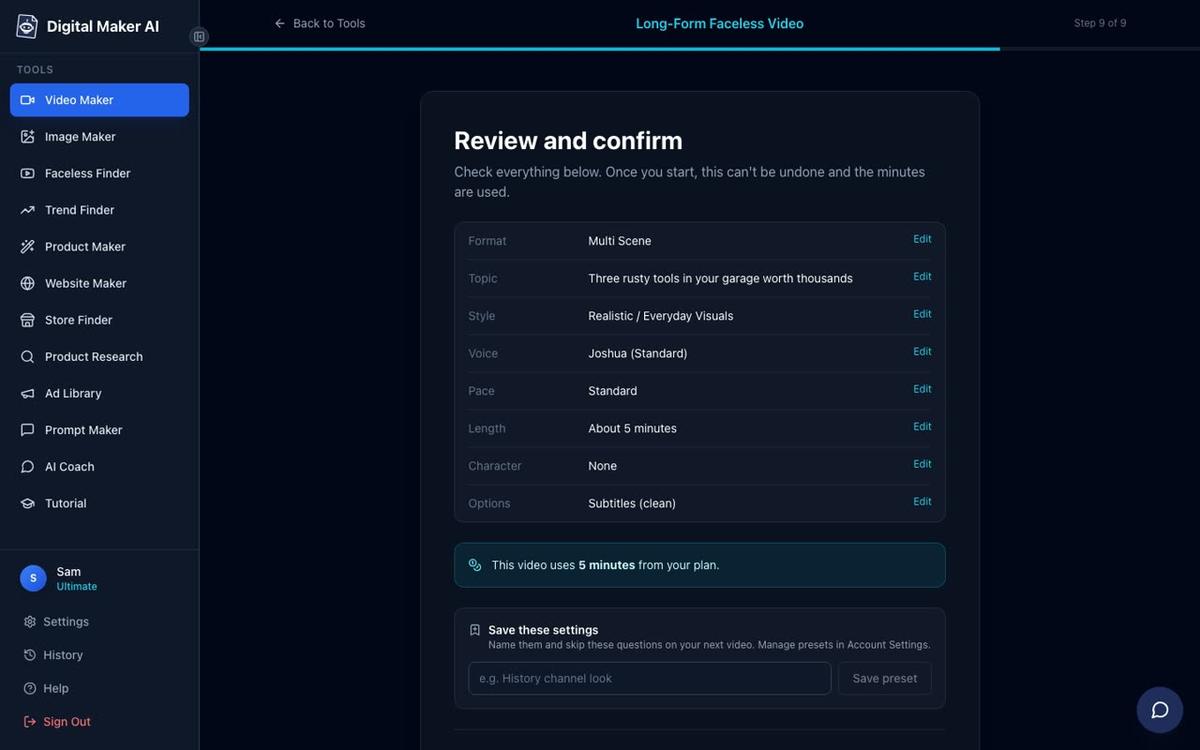
- Review and generate. The final screen shows a summary: format, topic, style, voice, pace, length and how many minutes the video will use from your monthly pool. Check everything, then press Generate Video. The platform writes the script (if you chose Write it for me), generates a unique AI image for every scene, records the narration in your chosen language, adds captions and assembles the MP4. This usually takes three to six minutes.
- Review scenes and edit if needed. Once the video is ready, watch through it. You can regenerate any scene image (10 free regenerations per video), swap in your own image or a short clip, and edit the narration text for any scene. There is no timeline editor, but scene-level editing is enough to fix any line or image that does not look right. When you are happy, download the MP4 or, on Premium and Ultimate, post it straight to YouTube, TikTok or Instagram from the Post to socials button.
Tips for making a great faceless video in another language
These small choices make a real difference to how the finished video looks and performs.
- Be specific with your topic. "The fall of the Western Roman Empire" will produce a more focused, accurate script than "Roman history". The AI has more to work with when the topic is narrow.
- Match the visual style to the language and niche. A Spanish stoicism channel suits Motivational or Dark Moody. A French history channel suits History or Ancient. A German finance channel suits Finance or Luxury.
- Use Calm pacing for complex topics. When the narration covers unfamiliar ideas, a slower pace gives viewers time to follow along, especially if the language is not their first.
- Add background music. The optional music library is off by default. Turning it on and picking a mood that fits the topic keeps viewers watching longer.
- Check the first scene image. The first scene sets the tone for the whole video. If it does not look right, regenerate it before downloading. You have 10 free regenerations per video.
- Include captions. Non-native speakers and viewers watching without sound both benefit. Bold Pop and Clean are the most legible styles on mobile screens.
- Use optional motion effects. A slow zoom or pan on each still image adds movement without making the video feel static. This is available on all paid plans.
What kind of channel suits a faceless video in another language?
Not every niche works equally well in a second language. The best fits share one thing: the content travels across borders without needing local knowledge or cultural nuance that is hard to get right by AI alone.
- History and ancient civilisations in Spanish or French. Topics like the Roman Empire, ancient Egypt or Greek mythology have large, engaged audiences in Spanish-speaking countries and France, and the scripts translate cleanly.
- Stoicism and motivation in German. German-speaking YouTube audiences respond well to philosophy, self-improvement and productivity content. Stoicism in particular has a strong following.
- Space and science in French or Italian. Space exploration, the deep sea and psychology topics have wide appeal across French and Italian-speaking audiences.
- True crime and mysteries in Spanish. True crime is one of the fastest-growing faceless niches in Spanish, with audiences across Mexico, Argentina, Spain and beyond.
- Faith and inspiration in any of the four languages. Faith-based content performs consistently across all four supported languages and tends to have loyal, returning audiences.
If you want to research real channels in these niches before you start, the Faceless Finder inside Digital Maker AI lets you search by niche or channel name and shows subscribers, uploads per week, average video length and estimated monthly ad revenue. It is open to every signed-in account, including Free.
Common mistakes to avoid when making a multilingual faceless video
- Choosing a topic that is too broad. A broad topic produces a generic script. Narrow it down before you press Next.
- Ignoring the caption style. Leaving captions off, or picking a style that is hard to read on a phone, reduces watch time. Always preview captions before downloading.
- Not checking the narration text. The AI writes in the target language, but it is worth reading through the narration text on a few scenes to make sure the phrasing sounds natural. Edit any scene where it does not.
- Forgetting the monthly minute pool. Each minute of video uses one minute from your monthly pool. A 10-minute video uses 10 minutes. Check how many minutes you have left before generating a long video.
- Expecting moving footage on every scene. The Multiple Languages format uses AI-generated still images with optional slow zoom or pan motion effects. Real moving footage on individual scenes requires the animated scenes add-on, which is available on Premium and Ultimate but not on Multiple Languages videos.
Frequently asked questions
Can I make a faceless video in another language on the Free plan?
No. The Multiple Languages format is only available on Premium and Ultimate plans. Free accounts can make one long-form faceless video in English, using a ready-made image library in set topic areas. Visit digitalmaker.ai/pricing to see what each plan includes, as of November 2026.
Which languages does Digital Maker AI support for faceless videos?
As of November 2026, the Multiple Languages format supports French, Spanish, Italian and German. All four use the Multi Scene format, where the AI generates a new image for every scene. English videos use all available formats including Multi Scene, Single Scene and Whiteboard.
Can I paste my own script in a language other than English?
Yes, on paid plans you can paste your own script in the chosen language. The AI will use your script as-is, generate matching scene images and record the narration in the same language. This is useful if you have a translator or write the script yourself.
Does the video include captions in the target language?
Yes. Captions are generated in the same language as the narration and burned into the lower third of the video. You can choose from six caption styles: None, Clean, Boxed, YouTube Yellow, Bold Pop and Minimal.
Can I use an AI presenter in a French, Spanish, Italian or German video?
No. AI presenters are available on Premium and Ultimate for landscape Multi Scene videos in English only. They are not available on the Multiple Languages format. You can read more about the AI presenter video feature for English-language channels.
How long does it take to generate a multilingual faceless video?
A five-minute video with 30 scenes typically takes three to six minutes to generate. Longer videos take proportionally more time. You can leave the tab open or come back to it; the video will be waiting in your account when it is ready.
Making a faceless video in another language in 2027 is one of the most practical ways to reach a larger YouTube audience without extra recording, translation or editing work. If you want to go further with your faceless channel, the Digital Maker AI free course covers niche research, scripting, channel setup and growing your first 1,000 subscribers, all with AI tools you can use straight away.
Alex Stevens: Alex Stevens writes for the Digital Maker AI team about faceless YouTube channels, AI presenters and AI video tools.