Grok for YouTube Creators: What Grok Can Do, and How the Digital Maker AI Connector Makes the Videos
By Alex Stevens
What Grok AI for YouTube Creators Actually Does
If you have been searching for what Grok AI for YouTube creators can genuinely do, this guide covers both sides of the question: what Grok itself handles as your thinking partner, and how connecting it to Digital Maker AI fills the gap Grok cannot fill on its own, turning your ideas into finished, upload-ready videos without leaving the chat. By the end you will have a clear picture of the full workflow, from blank page to published video.
What Grok Brings to a YouTube Channel
Grok is an AI assistant from xAI. Its most distinctive quality for creators is real-time knowledge: it searches the live web and the full public stream of posts on X as a first-class tool, so its answers reflect what is happening right now rather than a training snapshot from months ago. That matters a great deal when you are trying to find a topic that is actually trending rather than one that peaked last spring.
Here is what Grok can do for your channel in plain terms:
- Spot trending topics. Because Grok reads live X posts and current web results, you can ask it what is being talked about in your niche today and get an answer grounded in real signals, not guesses.
- Find angles that have not been covered. Ask Grok to look at a topic from a fresh angle, identify what most videos miss, or find the underserved question your audience is actually asking.
- Write titles and hooks. Give Grok your topic and it will produce multiple title options, YouTube-style hooks for the first 30 seconds, and thumbnail concept ideas, all in plain spoken language you can edit immediately.
- Write full scripts. Grok writes in a direct, conversational style. You can ask for a 1,000-word script on any topic, specify a tone (educational, dramatic, humorous), and paste the result straight into your video maker.
- Write descriptions and tags. Paste your title and Grok produces an SEO-friendly description, a tag list and even a pinned comment draft.
- Answer plain-language research questions. Need to fact-check a claim in your script, understand a complex topic quickly, or find a surprising statistic? Grok's DeepSearch mode digs through the web and X and returns a sourced answer you can trust for your narration.
- Brainstorm a content calendar. Ask for 30 video ideas in your niche, grouped by theme, and Grok will produce a usable list in seconds.
Grok 4, the current version, was trained with reinforcement learning to use tools natively, meaning it chooses its own search queries when answering difficult research questions and digs as deeply as it needs to. For a creator who wants current, accurate content rather than recycled ideas, that is a real advantage over AI tools that rely on static training data alone.
The Gap: Grok Cannot Make the Video
Grok is excellent at thinking, researching and writing. What it cannot do on its own is generate a scene image, record an AI narrator, burn captions into a video, build a thumbnail, or export an MP4 you can upload to YouTube. That is the gap. The Digital Maker AI connector fills it by giving Grok a set of actions it can call on your account: making videos, generating thumbnails, creating recurring characters, animating scenes and more. Grok stays in charge of the ideas; Digital Maker AI does the production.
Connecting Grok to Digital Maker AI
The setup takes about two minutes and you only do it once. Custom connectors are part of Grok's paid plans (SuperGrok and above); on a Grok Business or Enterprise workspace an admin adds the connector for the whole team. Here are the steps:
- Sign in to your Digital Maker AI account. Open Settings at the bottom of the left sidebar, then Account Settings, and click the AI Connector tab. Find the Grok card and click Set up, then Create my Grok link. Copy the link immediately: it is shown once and works like a password, so treat it that way. (The URL format is digitalmaker.ai/mcp/YOUR_KEY in plain text.)
- On a computer, go to grok.com/connectors (or open your Grok profile and choose Connectors).
- Click New Connector, choose Custom, paste the link you copied as the server URL, and continue. No extra sign-in is needed: the link is the key. Grok lists Digital Maker AI's available actions and you confirm to add it.
- Start a new Grok chat, make sure Digital Maker AI is switched on under connectors, and ask something simple first: "How many video minutes have I got left on Digital Maker AI?" This costs nothing and confirms the connection is working.
Grok may ask you to allow an action the first time it uses it; that is normal, just confirm. Finished videos and images come back as links, and Digital Maker AI emails you when a longer video is ready. You can also find everything in your Digital Maker AI library. Full details are on the Digital Maker AI Grok setup page.
Thumbnails, Banners and Channel Art
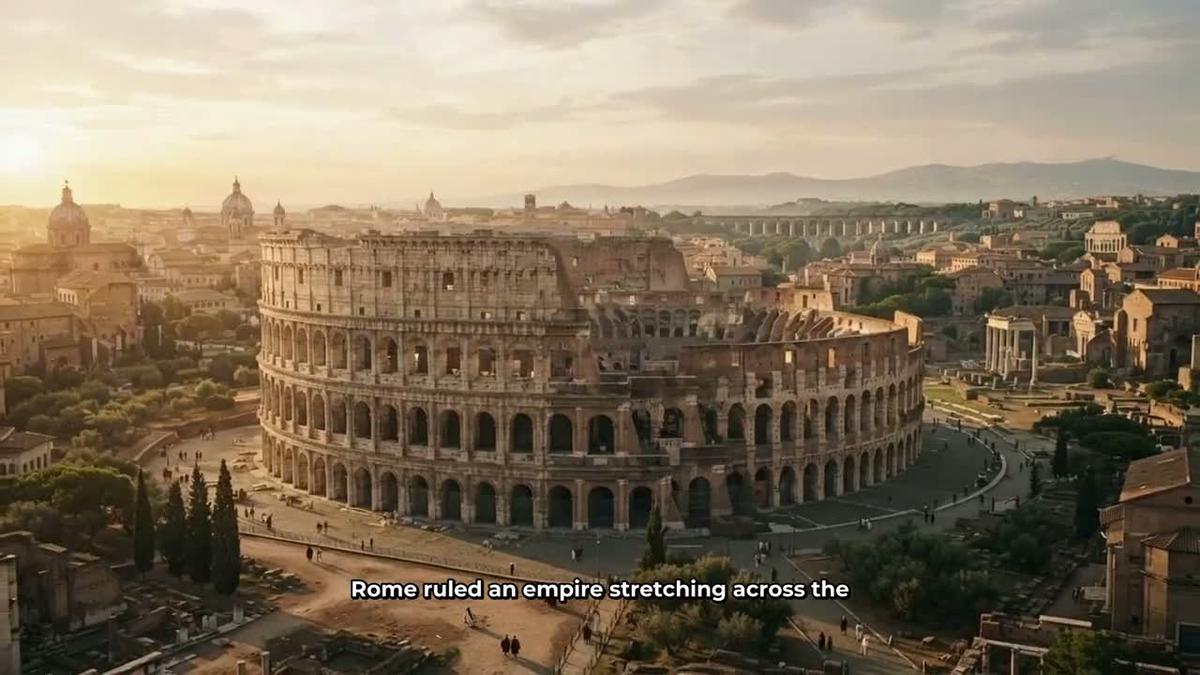
Once connected, Grok can call the Image Maker on your account to generate YouTube thumbnails, channel banners and character images. You describe what you want in plain language and the Image Maker produces it. Try a request like: "Make a YouTube thumbnail for a video called 'The Fall of Rome in 10 Minutes': dramatic sunset over the Colosseum, bold white text, dark cinematic look." The image comes back as a link. Pro plan and above gets thumbnails and images through the connector.
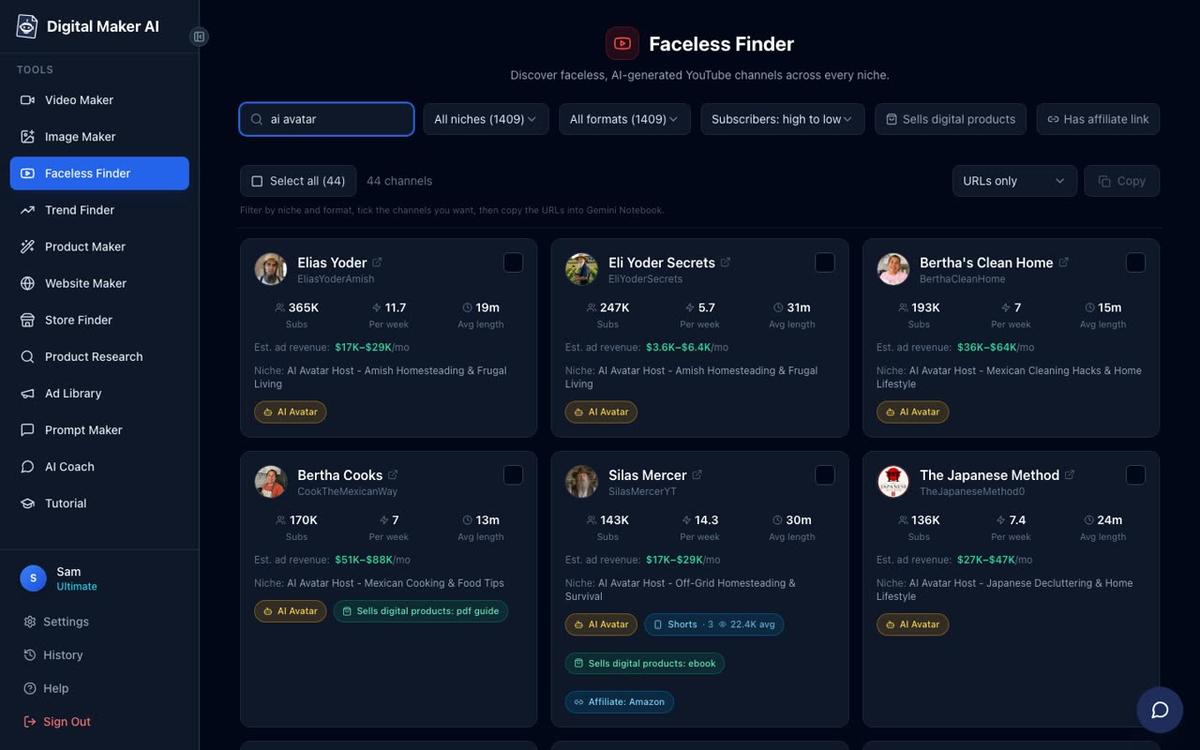
You can also use the Faceless Finder through Grok to research what is working on other channels. Ask: "Search the Faceless Finder for history channels and show me their subscriber counts, upload frequency and estimated revenue." Grok pulls back real channel cards with subscribers, uploads per week, average video length and an estimated monthly ad revenue figure (Digital Maker AI's own rough estimate from recent views and typical ad rates, not the channel's real earnings). Type "AI avatar" in the search to see only channels fronted by an AI presenter.
Long Form Faceless Videos: Multi Scene, Whiteboard and More
Making any video through the connector needs a Premium or Ultimate plan. Once you are on one of those, Grok can build a complete faceless YouTube video end to end: it writes the script (or uses one you paste in), generates a unique scene image for every scene, adds AI narration and captions, and returns a finished MP4 ready to upload. The video uses your monthly video minutes, and Grok confirms the minute cost before it starts anything. Videos take a while to build; Digital Maker AI emails you when yours is ready.
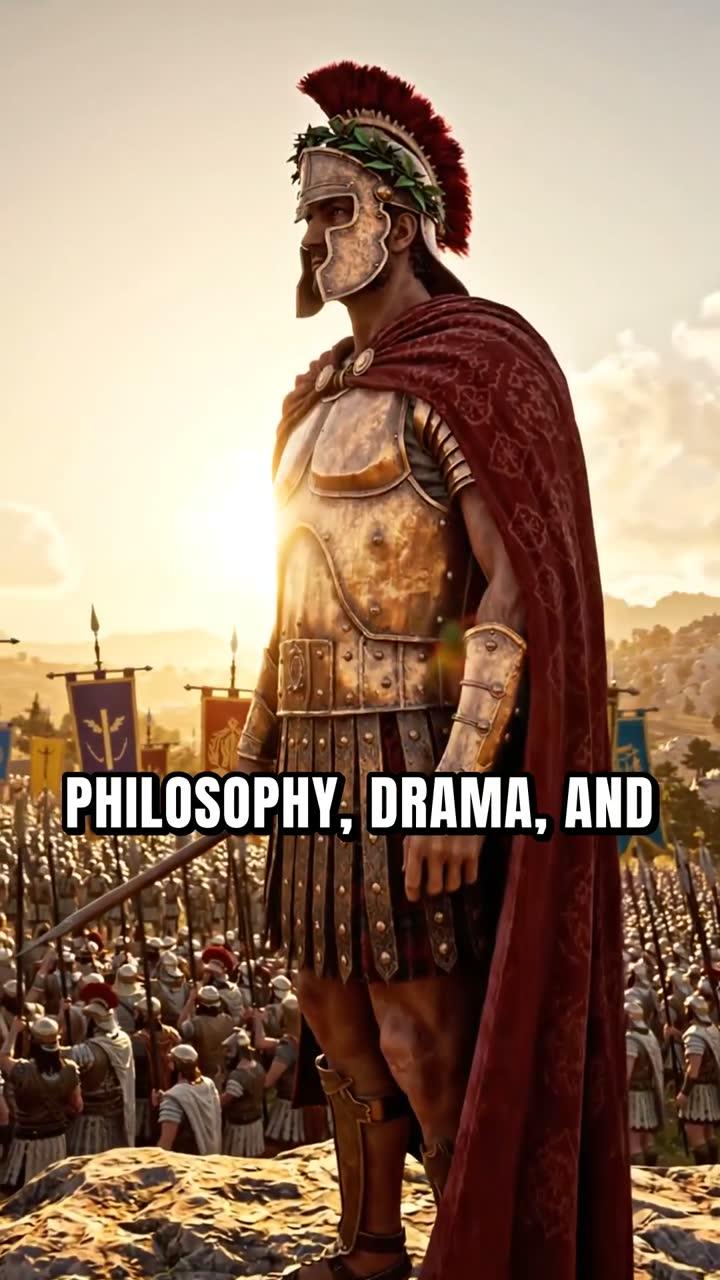
Try a request like: "Make me a 10 minute faceless video about the fall of the Roman Empire in the History or Ancient visual style with a deep male US narrator and YouTube Yellow captions." Grok shows you a card with the options and cost; nothing starts until you confirm.
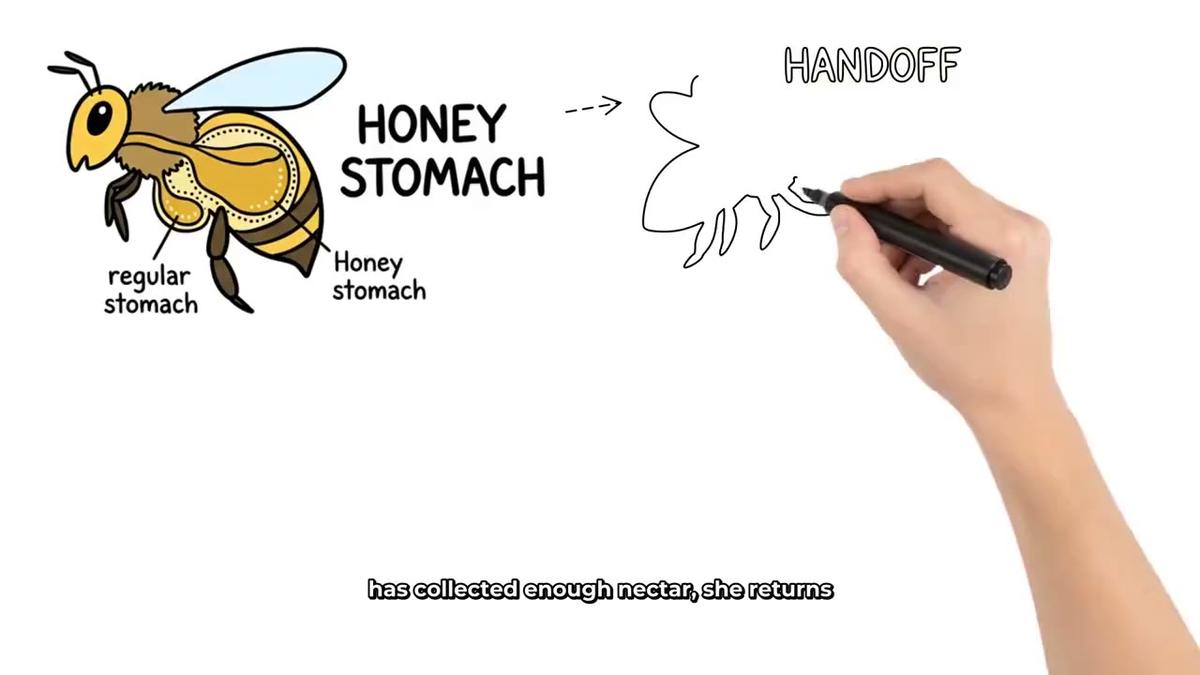
For a different look, ask for a whiteboard animation: "Make a 5 minute whiteboard video explaining how the stock market works, Story Boards style, with a light on-screen hand and a clear female voice." Whiteboard sketches appear line by line as the narration plays, with an optional drawing hand. Premium supports whiteboard videos up to 30 minutes; Ultimate up to 60. Full details are on the whiteboard animation page.
AI Presenter Videos
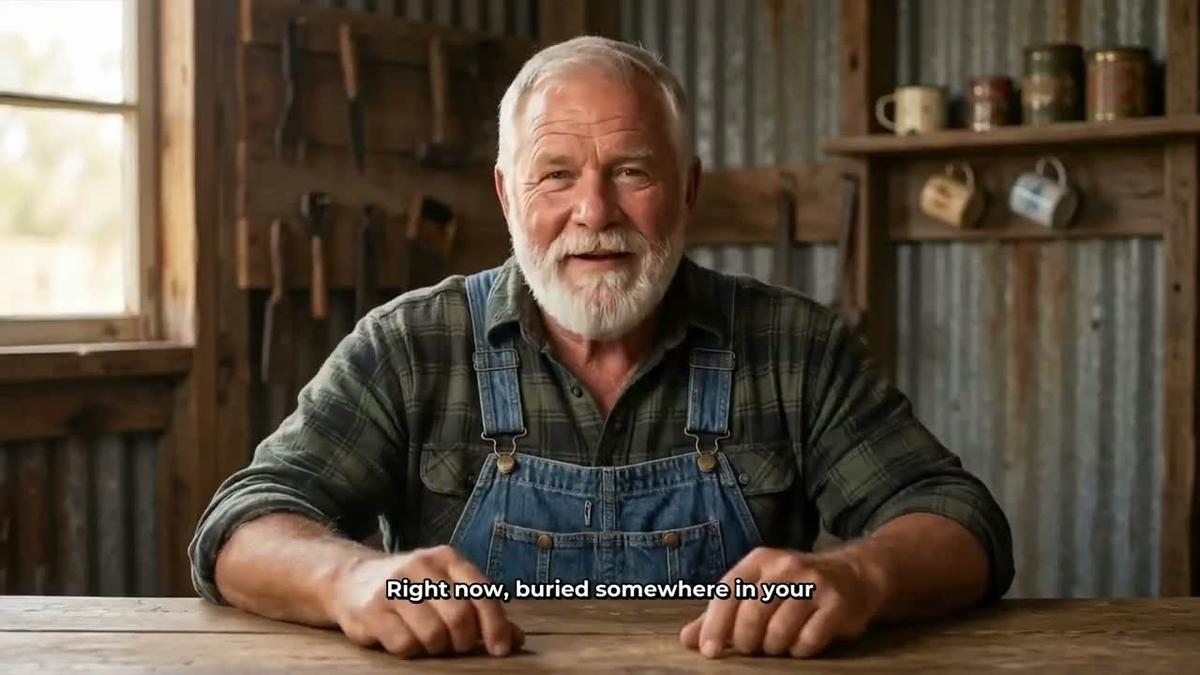
If you want a talking face on screen, Grok can create a new AI presenter for you or add an existing one to a video. The presenter is a photoreal AI-generated person you describe in a sentence or two; Digital Maker AI creates the image, you save it, and it appears on screen speaking your script. You can choose Full screen (the presenter fills the frame), Split screen (presenter on the left, scene on the right), or Corner circle (scene fills the frame with the presenter in a small round window). A slider controls how much of the video the presenter is on screen.
Ask Grok: "Create a new AI presenter: a woman in her forties in a modern home office, friendly and professional, and use her in a 7 minute video about productivity habits in the Finance or Luxury style." Presenter videos are on Premium and Ultimate. Avatar time is counted separately from video minutes; Avatar Packs add more when you need them. See the pricing page for current details.
Cartoon Videos and Recurring Characters
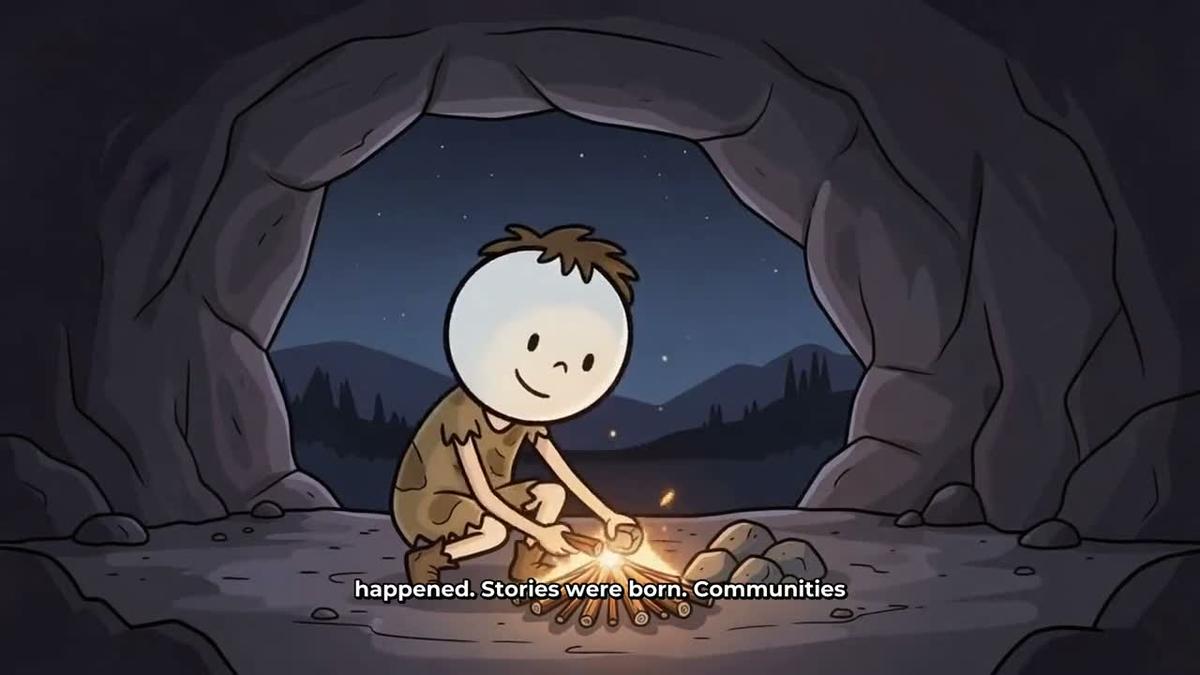
For channels built around a consistent illustrated character, Grok can create a recurring character and add it to every video. Ask: "Create a recurring character: a cartoon scientist in a white lab coat with round glasses, and use her in a 6 minute animated cartoon video about the science of sleep." The same character appears across the scenes of every video you make with it selected, giving your channel a consistent visual identity. See more on the recurring characters page.
3D Animated Films
For a Pixar-style fully animated story, Grok can build a 3D animated film where every shot is a moving 3D clip, with narration and captions. You choose from 233 public-domain library stories (fairy tales, fables, myths, Bible stories, classic adventures and more) or write your own plot. Ask Grok: "Make a 3D animated film of the story of Androcles and the Lion in the Kids adventure look, with a warm storyteller voice and captions." Grok walks you through the cast, look and narrator, shows you a review card, and starts only when you confirm. 3D films use 3D minutes, not video minutes; details are on the 3D animated film page. Pro supports films up to 10 minutes; Premium and Ultimate up to 30.
Animated Podcasts
An animated podcast gives you two AI hosts in an animated studio scene, talking through a topic in two different voices with captions and animated sound bars. Ask Grok: "Make a 20 minute animated podcast about the psychology of money: two hosts, one sceptical and one optimistic, in a late-night radio studio feel." You name the hosts, style them, pick their voices and a studio, and get a finished landscape video. Shows are saved so every new episode reuses the same hosts and studio. Animated podcasts are on Premium and Ultimate; long episodes take time to build and Digital Maker AI emails you when yours is ready. More details on the animated podcast page.
YouTube Shorts
For vertical short-form content, ask Grok: "Make a 30 second Short about the top three habits of millionaires, vertical 9:16, bold captions, energetic female voice." Shorts cost a flat one minute from your pool and come back as a 9:16 MP4 with a new scene image every few seconds and bold captions. More on the Shorts page.
Background Music, Voice Design and Animated Scenes
Beyond the main video formats, Grok can handle the finishing touches. To add background music, ask: "Add a calm, cinematic background music track to my last video." To design a custom narrator voice, ask: "Design me a narrator voice: a warm, slightly husky British woman in her fifties, authoritative but approachable." Grok generates three samples and you keep the one you like as your own voice (Voice Design is on Premium and Ultimate).
To add real moving footage to a finished video, ask Grok to animate specific scenes: "Animate scenes 2, 5 and 8 of my Rome video." Those scenes are turned into real moving AI clips. Premium includes 5 animated scenes a month and Ultimate 10. Learn more on the animated scenes page.
Checking a Video and Saving to Google Drive
Once a video is built, Grok can check its status and return the link: "Check my last video and give me the link." You can also save it straight to Google Drive: "Save my last video to my Google Drive." Checking the account and saving to Drive are available on Free accounts too, though making videos through the connector needs Premium or Ultimate. If you want to post straight to YouTube, TikTok or Instagram without leaving Grok, ask: "Post my last video to my YouTube channel now, labelled AI generated." Nothing posts automatically; Grok calls the action only when you ask it to, and posts are always labelled as AI generated.
A Simple Weekly Routine for Grok AI YouTube Creators
Here is a practical routine that keeps Grok doing the thinking and Digital Maker AI doing the making:
- Monday (15 minutes): Ask Grok what is trending in your niche on X and the web right now. Pick the strongest topic. Ask Grok to search the Faceless Finder for similar channels and check their estimated revenue and upload frequency.
- Tuesday (20 minutes): Ask Grok to write a full script for your chosen topic, including a hook, three to five main sections and a call to action. Ask it to produce five title options and a YouTube description.
- Wednesday (5 minutes): Ask Grok to make the video on your Digital Maker AI account. Confirm the minute cost on the card it shows. Walk away; Digital Maker AI emails you when it is ready.
- Thursday (10 minutes): Review the video in your Digital Maker AI library. Regenerate any scene you want to change. Ask Grok to generate a thumbnail: describe the look and it calls the Image Maker.
- Friday (5 minutes): Ask Grok to post the video to your YouTube channel at a time you choose, or download the MP4 and upload it yourself.
That is the full loop: Grok handles research, angles, scripts, titles and descriptions; Digital Maker AI handles every frame, voice, caption and export. Neither tool does the other's job, and together they cover the whole channel. If you want to see more about how similar workflows run through other AI assistants, the ChatGPT MCP setup guide covers the same idea from a different angle.
Tips for Getting the Best Results
- Be specific when asking Grok to make a video: name the topic, length, visual style, voice gender and accent, and caption style. The more detail you give, the closer the first result will be to what you want.
- Use Grok's real-time X search to find the exact language your audience uses when searching for your topic, then work those phrases into the script naturally.
- Use the Faceless Finder before you commit to a niche: search by niche name to see how many uploads per week successful channels post and what average video length they use.
- Save your recurring character and AI presenter once, then reuse them on every video. Consistency builds recognition faster than variety does.
- Ask Grok to write three different hooks for the same script, then pick the sharpest one. A strong first 30 seconds makes a bigger difference to watch time than almost anything else.
Ready to put this into practice? Start with the free Digital Maker AI course, which walks you through building your first faceless channel from scratch, choosing a niche, setting up your channel art, and making your first video, all at no cost.
Alex Stevens: Alex Stevens writes for the Digital Maker AI team about faceless YouTube channels, AI presenters and AI video tools.