ChatGPT MCP for YouTube Creators: Setup and What to Ask
By Alex Stevens
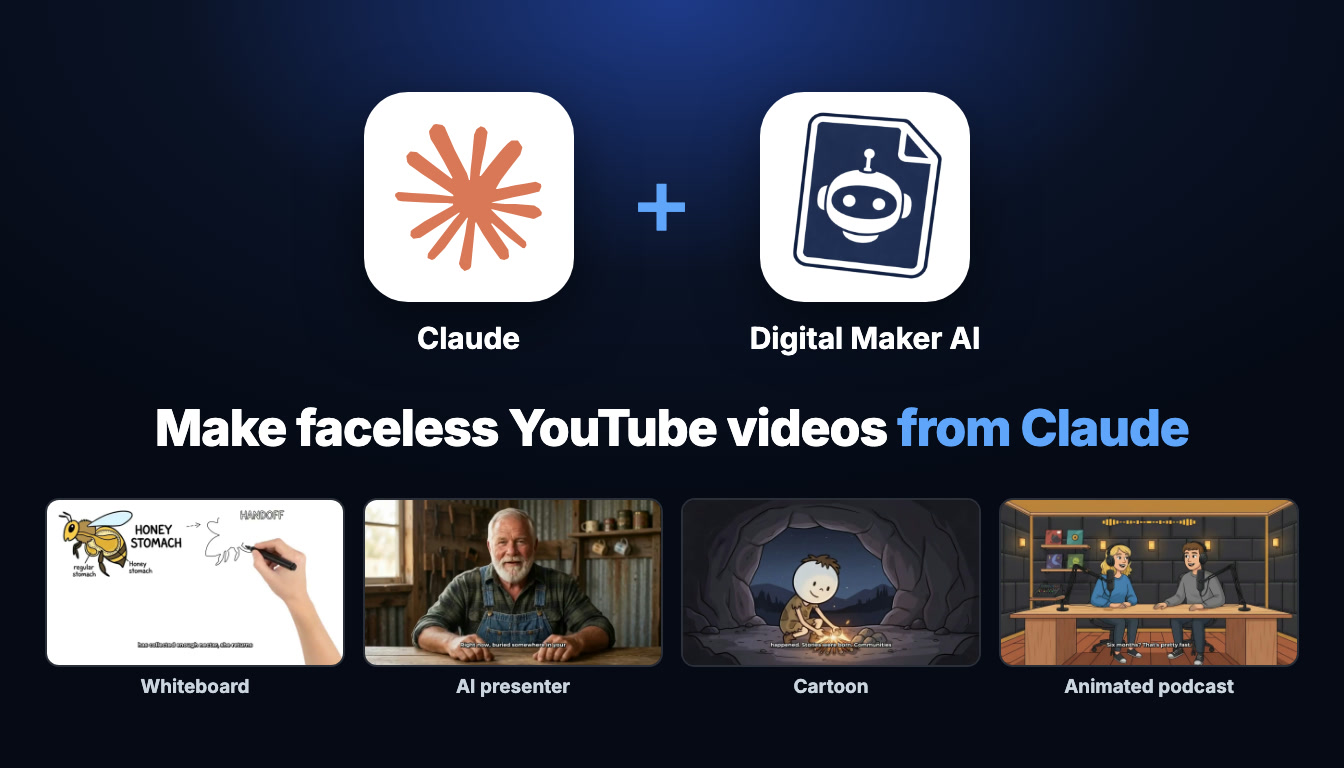
If you have searched for ChatGPT MCP YouTube creator tools, you have probably already seen that ChatGPT can connect to external services through something called MCP (Model Context Protocol). What that means in practice is this: once you connect Digital Maker AI to the ChatGPT desktop app, you can type a request in plain English and ChatGPT will reach into your Digital Maker AI account, build the video using your plan and your monthly minutes, save it to your library, and send you a link when it is ready. Nothing is automatic and nothing posts itself. You are still in control at every step. This guide walks through the exact setup and then shows you, as a YouTube creator, what you can actually ask for once you are connected.
What Connecting ChatGPT MCP to Digital Maker AI Actually Means
The MCP connection works through a plugin that sits inside the ChatGPT desktop app. When ChatGPT receives your request, it calls Digital Maker AI's tools on your behalf. The video is made on your own Digital Maker AI account, counting against your own plan and monthly video minutes. Every finished video lands in your Digital Maker AI library, and Digital Maker AI emails you when a long video is ready. ChatGPT does not store the video or host it anywhere separately.
A few things to know before you start. You need a paid ChatGPT plan (Plus or above) because the plugin system is not available on the free tier. You also need the ChatGPT desktop app, not the browser version. On the Digital Maker AI side, making any video through the connector needs a Premium or Ultimate plan. Pro gets thumbnails, images, character creation and channel research through the connector. Free accounts can check account status and save to Google Drive through the connector, but the five free videos are used on the website itself.
ChatGPT MCP Setup: Step by Step for YouTube Creators
The whole setup takes about two minutes. Here is exactly what to do.
- Sign in to your Digital Maker AI account, click Settings at the bottom of the left sidebar to open Account Settings, then click the ChatGPT tab.
- Click Create my ChatGPT link. Digital Maker AI generates a prompt you will paste into ChatGPT in the next step.
- Open the ChatGPT desktop app on your computer and switch to Work mode (the mode selector is near the top of the app).
- In Work mode, open Plugin Creator and paste the prompt that Digital Maker AI gave you. ChatGPT will read the prompt and set up the plugin automatically.
- Enable the live connection when ChatGPT asks you to confirm it.
- Check that Digital Maker AI now appears under Plugins > Personal in the desktop app. If you see it there, the connection is live.
- Start a new Work chat. Type @ and you should see Digital Maker AI appear as a tag option. Tag it, and you are ready to ask for your first video.
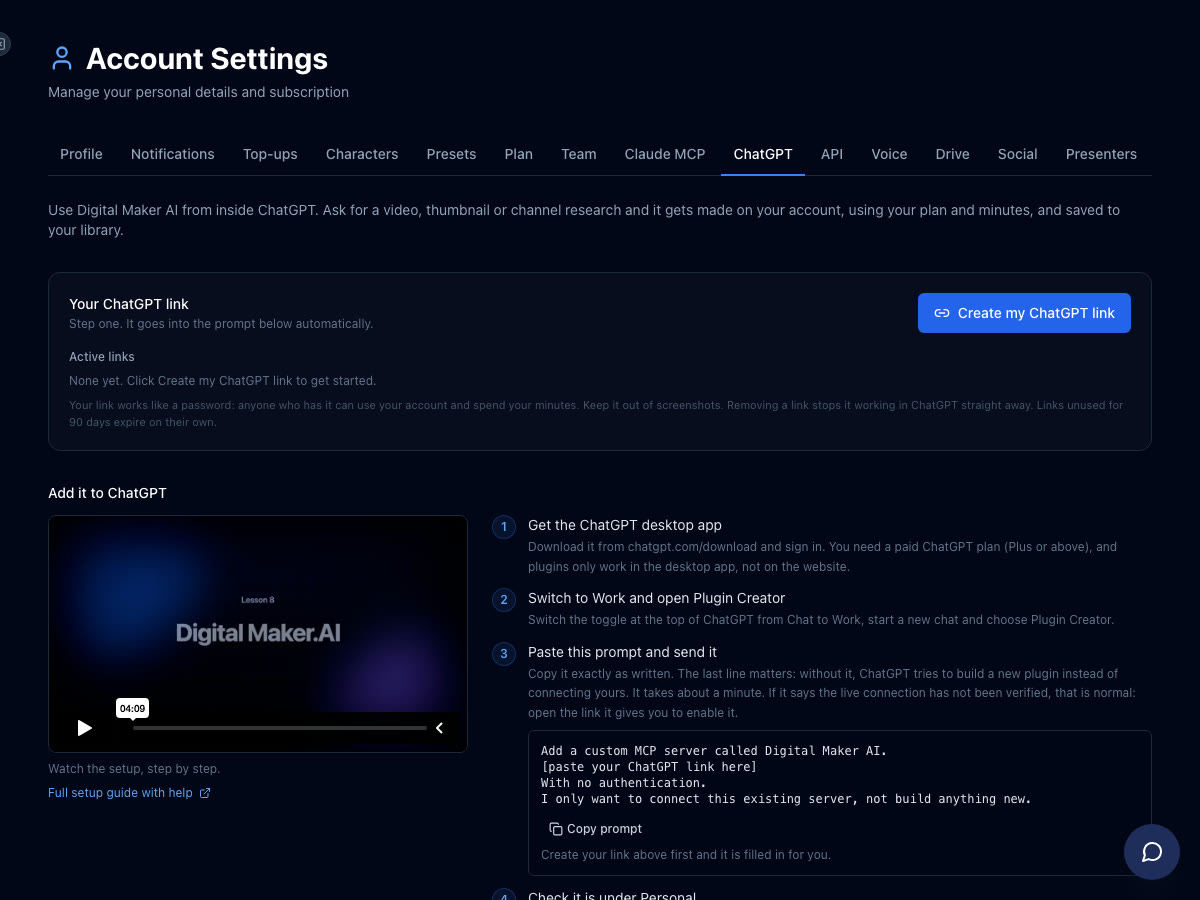
Once the plugin is installed, every new Work chat where you tag Digital Maker AI will have access to your account. ChatGPT will confirm the minute cost before it starts anything, and it will never begin making a video unless you ask it to directly. Videos take time to build, so expect to wait a few minutes for a Short and longer for a full episode. Digital Maker AI will email you when a longer video is ready, and the finished file will be waiting in your library with a link.
For a full walkthrough of everything you can do with the ChatGPT connector, visit digitalmaker.ai/chatgpt.
Ask for an AI Presenter Video
One of the most powerful things a ChatGPT MCP YouTube creator workflow unlocks is the ability to spin up an AI presenter video with a single sentence. AI presenters are a fully launched feature on Premium and Ultimate: a photoreal talking avatar appears on screen alongside your scene images, speaking the narration in whatever voice you have chosen.
Try asking something like this in your Work chat:
"Create an AI presenter video about the history of the Roman aqueducts, Split screen layout, History style, presenter on screen for the first two minutes."
ChatGPT will show you what it plans to make, including the length, style, presenter layout and minute cost, and wait for you to confirm. Once you approve, it builds the video on your account. The Split screen layout places the presenter on the left half of the frame and the matching scene image on the right, so viewers get a face to connect with and strong visuals at the same time.
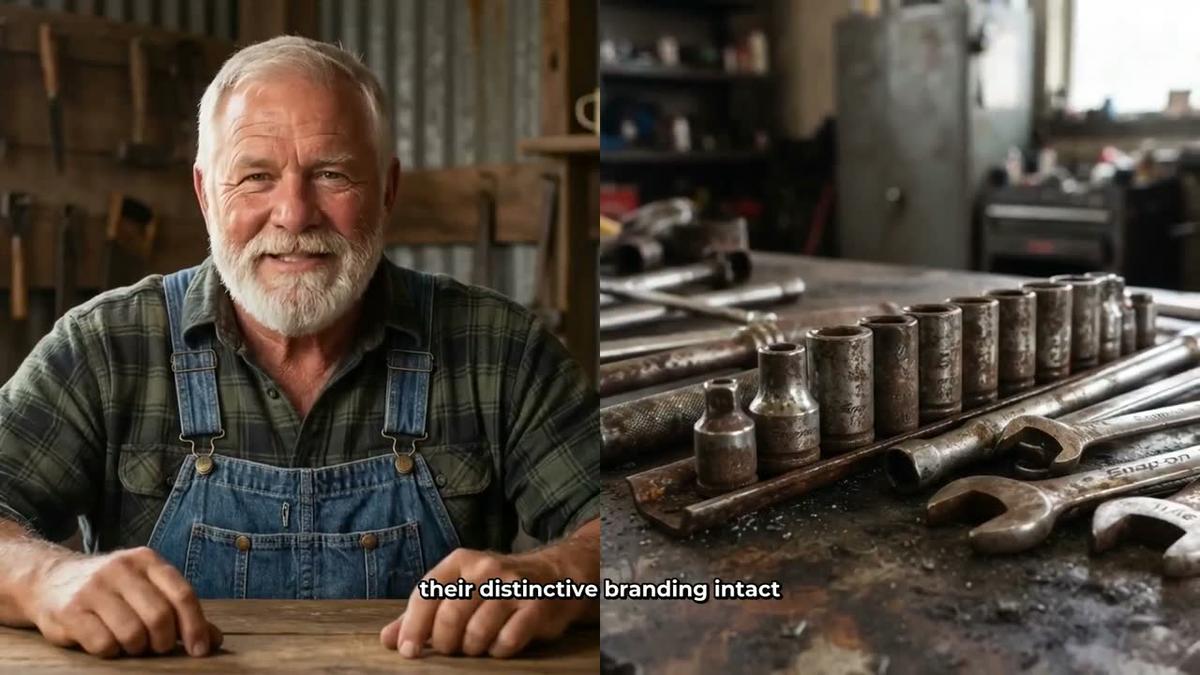
You can also ask for a Corner circle layout, where the scene fills the frame and the presenter appears in a small round window in the corner. The presenter speaks the same narration as the rest of the video, with captions burned in. If you have already created a presenter in Account Settings under the Presenters tab, you can ask ChatGPT to use them by name. If you have not, ChatGPT can draw a new one from a description you give it.
Making a presenter uses avatar time, which is counted in seconds and is separate from your video minutes. Premium starts with 2 minutes of avatar time and Ultimate with 5 minutes, plus 3 minutes added every month on Ultimate. Avatar Packs add more time as one-off purchases. See digitalmaker.ai/pricing for the current options.
Ask for a Whiteboard Explainer
Whiteboard animation is one of the most popular formats for educational YouTube channels. Try:
"Make a whiteboard video about how the stock market works, 8 minutes, Minimalist style, drawing hand on."
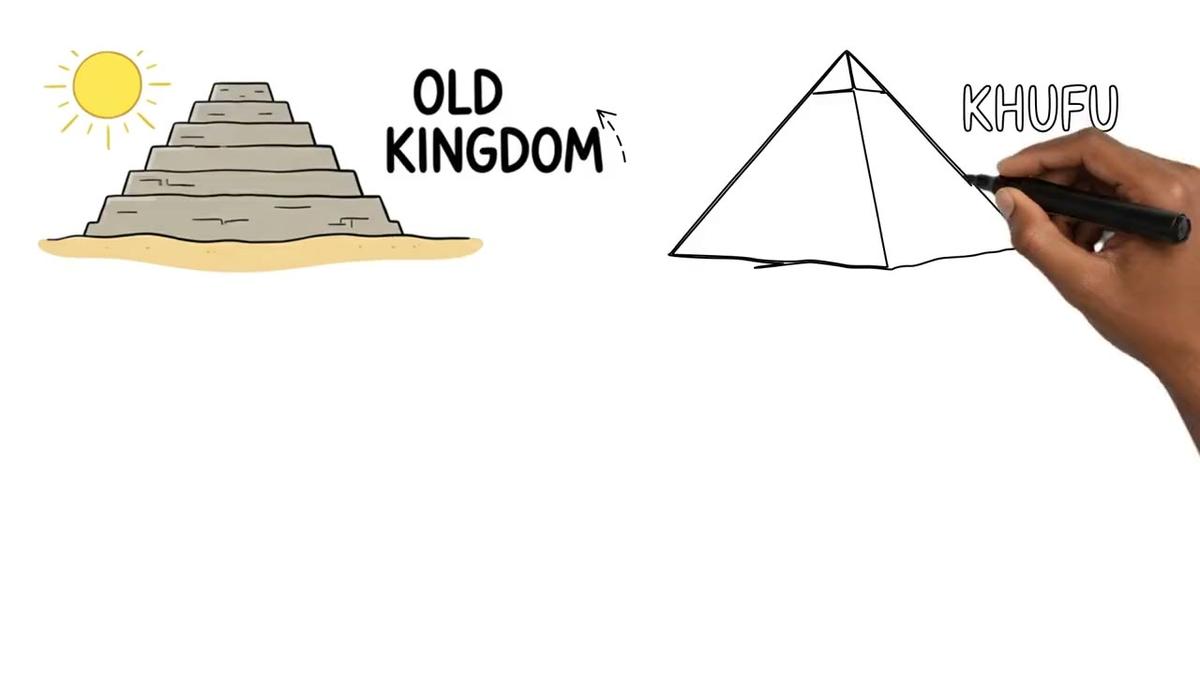
Digital Maker AI's whiteboard animation draws sketches on screen as the narration plays, with an optional drawing hand (none, light, brown or dark). Premium supports whiteboard videos up to 30 minutes and Ultimate up to 60 minutes. Note that whiteboard videos do not support recurring characters or AI presenters, so the format works best for topic-led explainer content.
Ask for a Cartoon Series Episode
If you run a cartoon-style channel with a recurring character, the connector makes it easy to keep your series consistent. Ask something like:
"Start a new cartoon episode with my recurring character, topic: why ancient Egyptians built pyramids, Animated style."
Digital Maker AI's Animated or Cartoon style produces illustrated, cartoon-looking scene images. With a recurring character saved in your account, the same character is drawn into every scene of the new episode, keeping your series visually consistent. You can save up to 10 characters on Premium and Ultimate. For more on building a cartoon series, see the guide on making a cartoon YouTube series with an AI agent.
Ask for an Animated Podcast Episode
The animated podcast format gives you two AI hosts in an animated studio scene, each with their own voice, talking through a topic with captions and animated sound bars. Try:
"Record a new episode of my podcast on the psychology of habits, two hosts, 20 minutes, casual tone."
Your show is saved, so every new episode reuses the same hosts, voices and studio you set up the first time. Premium supports episodes up to 30 minutes and Ultimate up to 60 minutes. Long episodes are written and recorded in sections, so a 20-minute episode can take 30 to 45 minutes to build. Digital Maker AI will email you when it is ready.
Ask for a Vertical Short
For YouTube Shorts, TikTok or Instagram Reels, the connector can build a vertical 9:16 video in one go. Try:
"Make a 30-second Short about the biggest volcano eruptions in history, bold captions."
A Multi Scene Short costs a flat one minute from your pool, regardless of length. You can choose 15, 30, 45 or 60 seconds. Bold captions are one of six caption styles available. Shorts through the connector need Premium or Ultimate. Learn more about the AI YouTube Shorts generator.
Ask for a Thumbnail
Thumbnails do not use video minutes. You can ask ChatGPT to generate one at any point, even on a Pro plan:
"Generate a YouTube thumbnail for a video about Roman aqueducts, dark dramatic style."
Digital Maker AI's Image Maker creates YouTube thumbnails, channel banners, character images and product mockups. ChatGPT will return the image to your library. Pro, Premium and Ultimate can all generate thumbnails through the connector.
Ask ChatGPT to Post Your Video
Once a video is in your library, you can ask ChatGPT to post it for you. Premium and Ultimate accounts can post directly to YouTube, TikTok and Instagram, now or on a schedule, after connecting the accounts once in Account Settings. Try:
"Post the Roman aqueducts video to YouTube now, title: Rome's Greatest Engineering Secret, scheduled for 9am tomorrow."
Nothing posts automatically. ChatGPT will confirm what it is about to do and wait for you to approve before anything goes live. Posts are labelled as AI generated. For more on scheduling and auto-publishing, see Digital Maker AI's video publishing tools.
Tips for Getting the Best Results as a ChatGPT MCP YouTube Creator
- Be specific in your requests. Include the topic, length, style name (History, Minimalist, Animated, etc.) and any layout preferences. ChatGPT will fill in gaps, but the more you give it, the closer the first result will be to what you want.
- Check your minutes before a long session. Ask "How many video minutes do I have left?" before starting a batch of videos. ChatGPT will report your remaining balance from your account.
- Use the confirmation card. Before any video starts building, ChatGPT shows you what it will make and the cost. Read it carefully and adjust if needed. Once you confirm, the minutes are used.
- Reuse saved assets. Your recurring characters, presenters, podcast shows and voices are all saved in your account. Mention them by name in your requests so ChatGPT uses the right ones.
- Research channels first. Ask ChatGPT to search the Faceless Finder for channels in your niche before you start making videos. It can show you subscribers, uploads per week, average video length and estimated ad revenue for real channels, which is useful for benchmarking your own output.
- Prefer the desktop app for long sessions. The ChatGPT desktop app in Work mode keeps the plugin active across a session, which is more reliable than switching contexts.
What You Need: A Quick Checklist
- A paid ChatGPT plan (Plus or above)
- The ChatGPT desktop app installed on your computer
- A Digital Maker AI account, with Premium or Ultimate to make videos and post
- The plugin set up via the ChatGPT tab in Digital Maker AI Account Settings
- YouTube, TikTok or Instagram connected in Account Settings if you want to post directly
If you would rather skip the setup entirely and make videos by chatting inside Digital Maker AI directly, the built-in AI Coach works the same way without any installation. It is already connected to your account and ready to go on Premium and Ultimate.
Ready to get started? Head to Digital Maker AI's free course for a step-by-step introduction to building a faceless YouTube channel with AI, from your first video to your first upload.
Alex Stevens: Alex Stevens writes for the Digital Maker AI team about faceless YouTube channels, AI presenters and AI video tools.