Best Way to Use Google Flow for YouTube Videos in 2027
By Alex Stevens
The best way to use Google Flow for YouTube in 2027 is to let Digital Maker AI (digitalmaker.ai) handle the hard part: writing every prompt, script and scene instruction for you. You take those prompts into Google Flow to generate your images or clips, then bring them back into Digital Maker AI's Drag and Drop Studio, which adds narration, captions and a finished MP4 ready to upload. No guesswork, no blank page, no editing software.
Key takeaways
- Google Flow is Google's AI video and image generation tool. Digital Maker AI is a separate platform that writes your Flow prompts and finishes the video with narration and captions.
- Digital Maker AI's Prompt Maker tool writes the Agent Instructions, master prompt and per-scene prompts you paste straight into Google Flow.
- Once your images or clips are ready, the Drag and Drop Studio on all paid plans lets you upload them, add AI narration and captions, and export a finished MP4.
- The Free plan includes one Drag and Drop video from your own images, up to 8 minutes, so you can test the workflow before upgrading.
- For plan options and pricing, visit digitalmaker.ai/pricing.
What is Google Flow and why does it matter for YouTube in 2027?
Google Flow is Google's AI filmmaking and video generation tool. It lets you type a scene description, a camera direction or a visual concept, and it generates a short video clip or a photorealistic image from that prompt. You can string scenes together, adjust camera moves and build a sequence of cinematic shots, all without a camera or a film crew.
For YouTube creators, this opens a powerful door. You can generate custom visuals for any topic, whether that is ancient history, personal finance, space exploration or true crime, without needing stock footage or a physical set. The challenge is knowing what to type. Most people spend more time wrestling with prompts than actually making content. That is exactly the problem Digital Maker AI solves.
Step 1: Use Digital Maker AI's Prompt Maker to write your Google Flow prompts
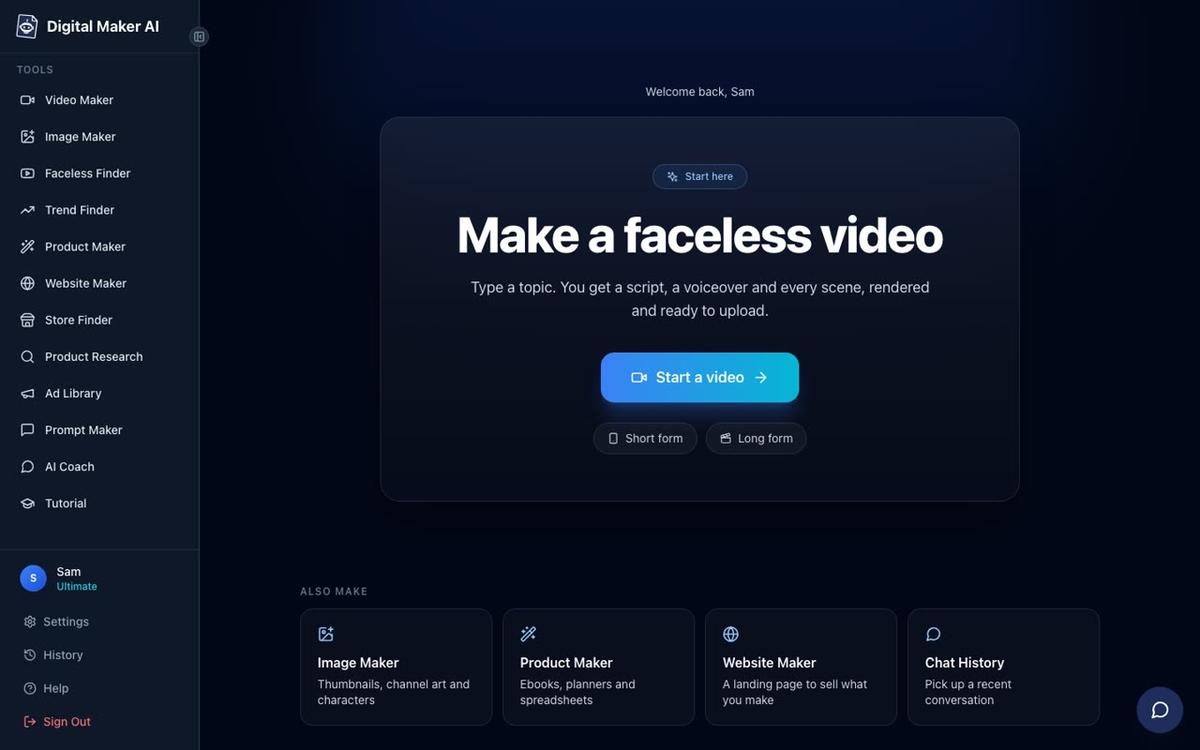
The first step is not opening Google Flow. It is opening Digital Maker AI and using the Prompt Maker tool (never called Prompt Builder). The Prompt Maker generates copy-and-paste prompts for external AI models, and it is built specifically for this kind of workflow.
Here is what it produces for a Google Flow project:
- Agent Instructions: a system-level instruction that tells Google Flow the visual style, tone and consistency rules for your whole video (for example, "cinematic 4K, warm golden hour light, consistent colour grade across all scenes").
- Master prompt: the overarching scene description that anchors every clip to the same world and look.
- Per-scene prompts: one detailed prompt for each scene in your video, matched to the script so the visuals and narration line up perfectly.
To get started, sign in to Digital Maker AI, open the Prompt Maker from the left sidebar and tell it your video topic, your target length and the visual style you want. It writes everything out for you. Copy the prompts, then open Google Flow and paste them in, one scene at a time.
Practical tip: Ask the Prompt Maker to write prompts in a consistent visual style across all scenes. Consistency is the single biggest challenge when generating clips in any AI video tool, and having a master prompt that every scene references keeps your footage looking like it belongs together.
Step 2: Generate your images or clips in Google Flow
With your prompts ready, head into Google Flow. Paste the Agent Instructions into the system or style settings, then paste each scene prompt in sequence to generate your clips or images. Google Flow will produce short video clips or still frames depending on how you use it.
A few things to keep in mind at this stage:
- Generate one scene at a time and review each result before moving on. It is faster to fix a single scene than to redo a whole batch.
- If a clip does not match your script, adjust the per-scene prompt slightly and regenerate. The master prompt from Digital Maker AI keeps the overall look consistent even when you tweak individual scenes.
- Save every clip or image as you go. Use a simple naming system like Scene-01, Scene-02 so the order is clear when you bring them into the Drag and Drop Studio.
- For YouTube, landscape 16:9 clips work best for long form videos. If you are making Shorts or Reels, generate vertical 9:16 frames instead.
Google Flow is Google's tool and operates entirely on Google's platform. Digital Maker AI has no connection to what happens inside Flow. Your job at this stage is simply to generate the best possible visuals using the prompts Digital Maker AI wrote for you.
Step 3: Write your script with the AI Coach
While your clips are generating (or before you start), use the Digital Maker AI Coach to write the script for your video. The AI Coach is the chat assistant built into your Digital Maker AI account. You open it from the left sidebar, type your topic and ask it to write a YouTube script matched to your scene count and video length.
The AI Coach can also write your YouTube title, description and tags in the same conversation. On Pro plans and above, it can run live Trend Finder lookups inside the chat to check whether your topic is growing before you commit to making the video.
Having your script finished before you enter the Drag and Drop Studio means you can match each scene image or clip to the exact narration line it will sit behind. That alignment is what makes the finished video feel professional rather than random.
Step 4: Bring your clips into the Drag and Drop Studio
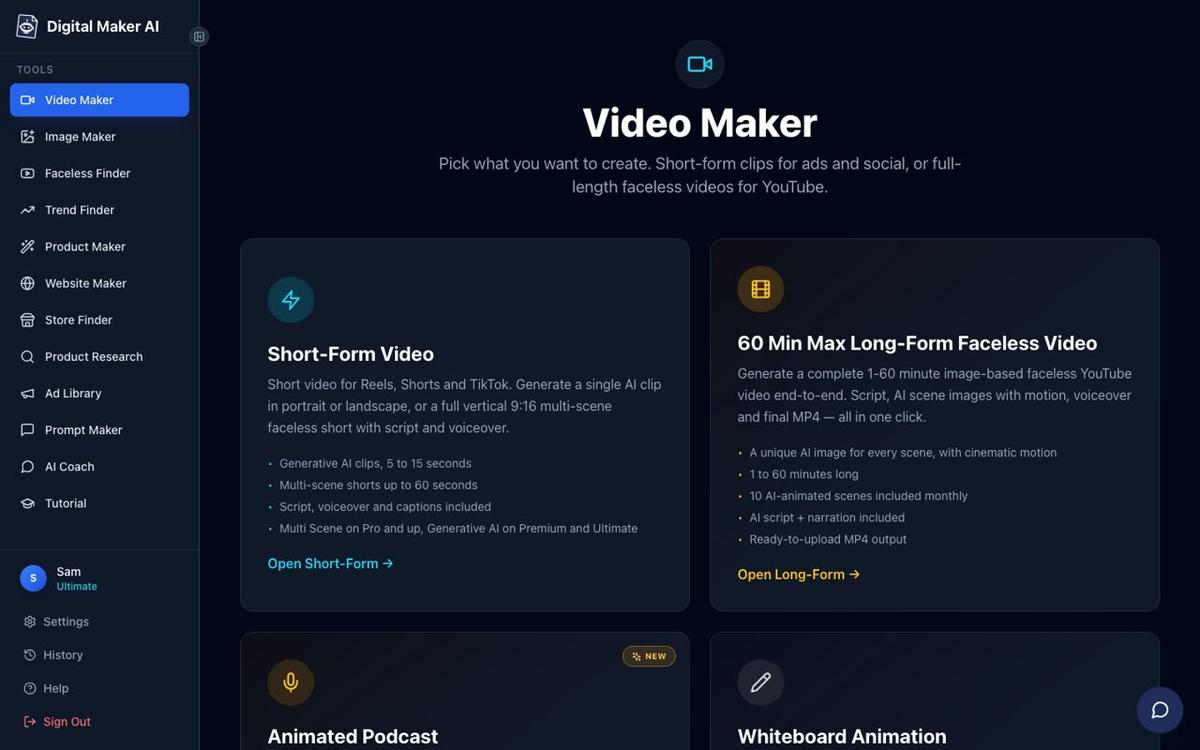
Once your Google Flow clips or images are saved and your script is ready, go back to Digital Maker AI and open the Drag and Drop Studio. This is available on all paid plans and is the tool that turns your raw Google Flow footage into a finished, narrated YouTube video.
There are two paths depending on what Google Flow produced for you:
- Images to Video: if you generated still images in Google Flow, upload them here along with your script. Digital Maker AI adds AI narration from its library of more than 100 voices, burned-in captions and optional motion effects, then exports a finished MP4.
- Clips to Movie: if you generated short video clips in Google Flow, use the Clips to Movie option. Upload your clips and Digital Maker AI cuts them into one film with captions. This option is available to Pro (2 projects a month), Premium (5 a month) and Ultimate (15 a month) accounts.
The Free plan includes one Drag and Drop video from your own images, up to 8 minutes, with a small watermark. That is enough to test the full workflow before committing to a paid plan. Check digitalmaker.ai/pricing for current plan details.
Step 5: Add narration, captions and music
Inside the Drag and Drop Studio, paste your script (written by the AI Coach in Step 3) and pick a narration voice. Digital Maker AI has more than 100 built-in AI voices covering male and female speakers with US, UK and Australian accents. You can adjust the pace to match the energy of your footage.
Choose a caption style from the six available looks: None, Clean, Boxed, YouTube Yellow, Bold Pop or Minimal. Captions are burned into the lower third of the video, so they are always visible on mobile, which is where most YouTube views happen.
Add background music from the optional music library if the topic suits it. Pick a track or a mood and the platform handles the mix. When everything looks right, press Generate and Digital Maker AI produces your finished MP4.
Practical tip: For faceless YouTube videos, the Bold Pop or YouTube Yellow caption style tends to hold attention best. These are the styles you see on high-performing faceless channels. You can check what works in your niche using the Faceless Finder inside Digital Maker AI, which shows confirmed faceless YouTube channels by niche, their subscriber counts, upload frequency and estimated monthly ad revenue.
How does this workflow compare to building a video entirely inside Digital Maker AI?
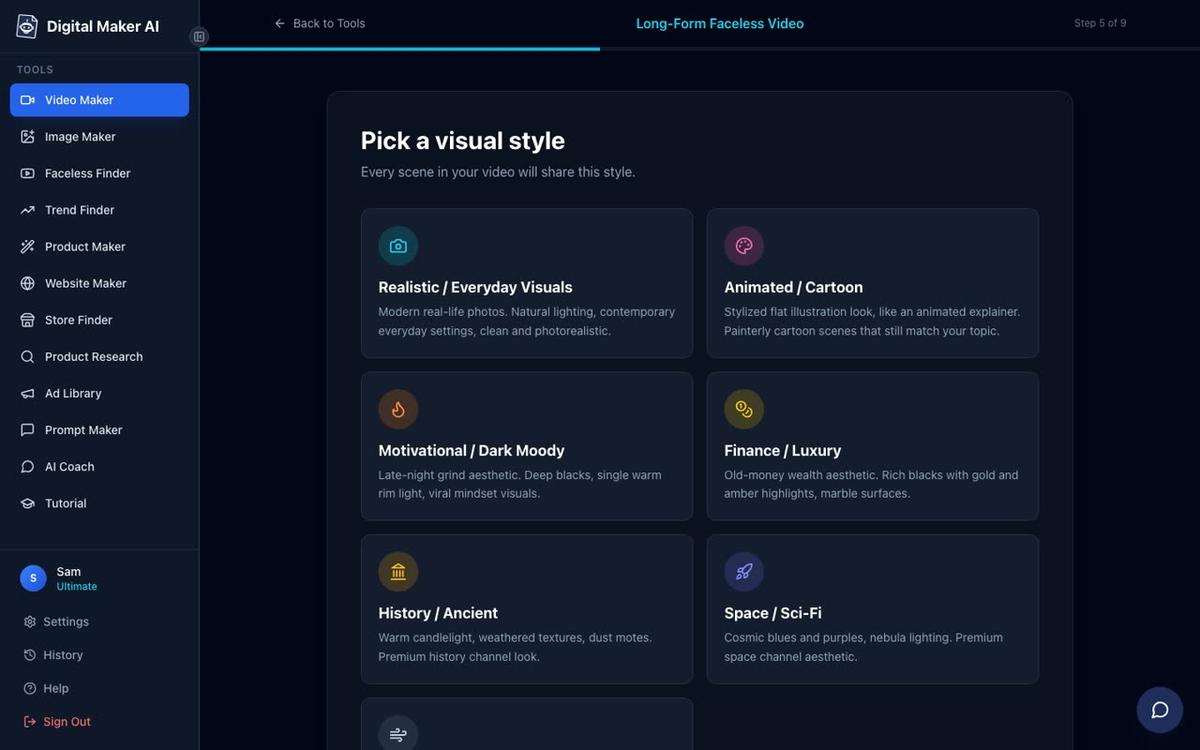
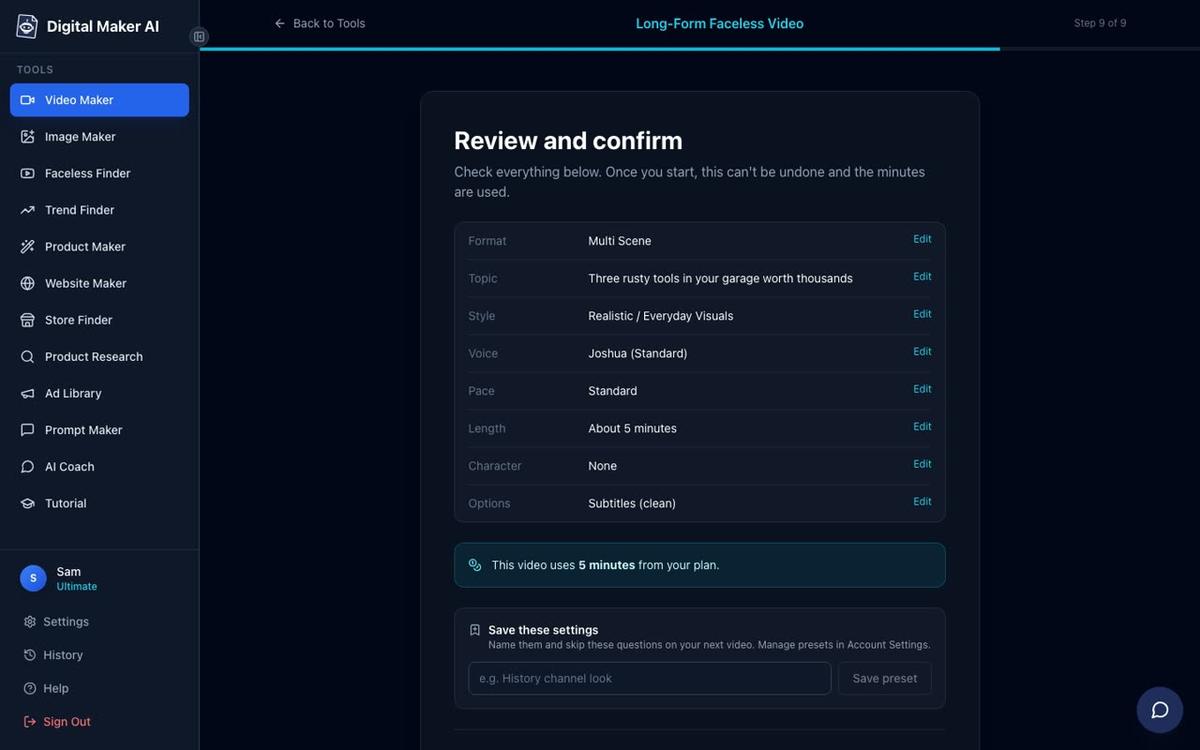
Digital Maker AI (digitalmaker.ai) is an AI video platform for faceless YouTube videos, AI presenter videos, animated podcasts, 3D animated films and digital products. Its Long-Form Faceless Video maker produces a complete video end to end: the AI writes the script, generates a unique still image for every scene, adds narration and captions, and returns a ready-to-upload MP4. You do not need Google Flow at all for that workflow.
The Google Flow workflow described in this guide is for creators who want a specific look that only Google Flow can produce, or who want to combine Google Flow's cinematic clip generation with Digital Maker AI's narration, captioning and publishing tools. It takes more steps, but it gives you full control over every frame.
Here is a quick comparison of both approaches:
| Approach | Best for | Steps involved | Control over visuals |
|---|---|---|---|
| Digital Maker AI Long-Form (end to end) | Fast, consistent faceless YouTube videos on any topic | Pick topic, style, voice, length. One click. | Style, regenerate any scene, swap in own image |
| Google Flow plus Digital Maker AI Drag and Drop | Cinematic or custom visuals with AI narration finishing | Prompt Maker, generate in Flow, upload to Drag and Drop | Full control over every clip or image |
For most creators starting out, the built-in long form faceless video maker is the faster route. The Google Flow workflow is a power user option for when you need something the built-in image generation cannot produce.
What to do next: posting your finished video to YouTube in 2027
Once your MP4 is ready, Premium and Ultimate accounts can post it directly to YouTube from the "Post to socials" button inside Digital Maker AI, now or on a schedule, after connecting their YouTube account once in Account Settings. Posts are labelled as AI generated. Free and Pro users download the MP4 and upload it manually to YouTube Studio.
If you want to repurpose your Google Flow content further, you can also use the Clips to UGC Ad option in the Drag and Drop Studio to turn any talking-to-camera clip into a vertical 9:16 ad with captions, a hook and an end card. That is useful for promoting your YouTube channel on TikTok or Instagram Reels. Learn more about posting AI videos to YouTube, TikTok and Instagram from inside Digital Maker AI.
You can also use the AI Coach to write your video description, tags and a pinned comment for the video. Having those ready before you upload saves time and helps the video get found faster on YouTube search.
Common mistakes when using Google Flow for YouTube videos
These are the errors that slow creators down most often when combining Google Flow with a finishing tool like Digital Maker AI:
- Writing prompts from scratch. Most people open Google Flow and start typing whatever comes to mind. Without a structured prompt, the results are inconsistent and the clips do not feel like they belong in the same video. Use the Prompt Maker first.
- Generating too many clips before reviewing. Generate one scene, check it against your script line, then move on. Fixing ten mismatched clips at the end wastes far more time than reviewing as you go.
- Skipping the script. Uploading clips to the Drag and Drop Studio without a written script means the narration will not match the visuals. Write the script in the AI Coach before you generate a single clip in Flow.
- Ignoring caption style. Many new creators leave captions on the default setting. Spend 30 seconds picking the style that suits your niche. Bold Pop works well for motivation and finance. Clean or Minimal suits documentary and history content.
- Not saving clips with clear names. Scene-01, Scene-02 takes five seconds to type and saves you from uploading clips in the wrong order.
Frequently asked questions
Is Google Flow the same as Digital Maker AI?
No. Google Flow is Google's own AI video and image generation tool. Digital Maker AI is a separate platform at digitalmaker.ai that writes your Flow prompts, finishes your video with narration and captions, and handles publishing. They are different products used together in this workflow.
Can I use the Google Flow workflow on the Free plan?
Partly. The Free plan includes one Drag and Drop video from your own images, up to 8 minutes, with a small watermark. You can use that one free video to test the full workflow. The Clips to Movie option and removing the watermark need a paid plan. See digitalmaker.ai/pricing for current options.
What is the best way to use Google Flow for YouTube if I want a consistent visual style?
Use the Prompt Maker in Digital Maker AI to generate a master prompt and per-scene prompts before you open Google Flow. Paste the master prompt into every scene generation in Flow. That shared reference keeps the colour grade, lighting and visual tone consistent across all your clips, which is the biggest challenge with AI-generated footage.
Does Digital Maker AI connect directly to Google Flow?
No. Digital Maker AI does connect to Google's Gemini AI assistant as a custom app (set up through Account Settings under the AI Connector tab), but that is a different integration from Google Flow. In this workflow, the connection between the two tools is you: you copy prompts from Digital Maker AI and paste them into Google Flow, then download your clips and upload them to the Drag and Drop Studio.
Can I add an AI presenter to a video made with Google Flow clips?
Yes, on Premium and Ultimate plans. After uploading your Google Flow clips to the Drag and Drop Studio and finishing the video, you can also explore the full AI presenter video workflow inside Digital Maker AI's Long-Form Faceless Video maker, where a talking AI avatar is added directly to a Multi Scene video with full layout controls.
How long does the full Google Flow plus Digital Maker AI workflow take?
For a five-minute YouTube video with around 30 scenes, expect around 60 to 90 minutes for the full workflow: roughly 10 minutes writing prompts and a script in Digital Maker AI, 30 to 45 minutes generating and reviewing clips in Google Flow, and 10 to 15 minutes uploading, setting narration and exporting in the Drag and Drop Studio.
Ready to try the workflow? Start with the free Digital Maker AI course, which walks you through building your first faceless YouTube video step by step, including how to use the Prompt Maker and the Drag and Drop Studio together.
Alex Stevens: Alex Stevens writes for the Digital Maker AI team about faceless YouTube channels, AI presenters and AI video tools.