How to Make an AI Presenter Video Without Showing Your Face in 2027
By Alex Stevens
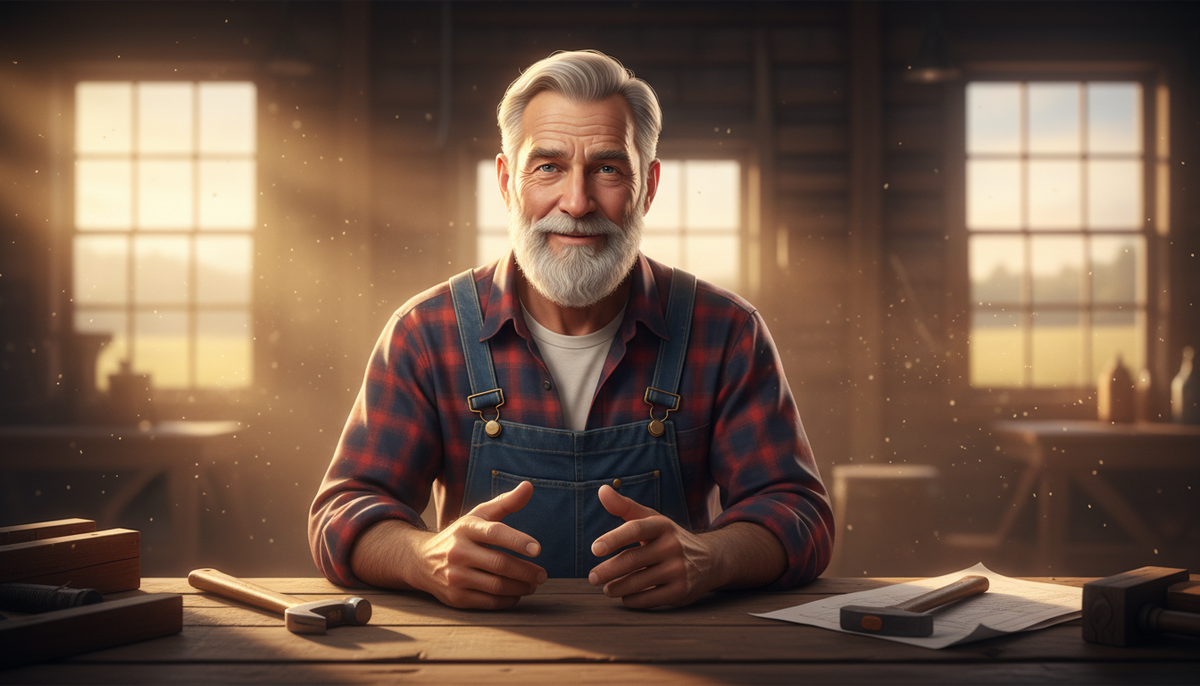
You can make an AI presenter video without showing your face by generating a photoreal avatar character, placing them inside a landscape YouTube video, and choosing how much of the screen they occupy. Digital Maker AI (digitalmaker.ai) is an AI video platform for faceless YouTube videos, AI presenter videos, animated podcasts, 3D animated films and digital products. Its AI Presenter feature, fully launched since October 2026, lets you describe a host in a sentence, generate their picture, and drop them into any Multi Scene long form video in three different layouts, all without a camera or a real person on screen.
Key takeaways
- AI presenter videos use a generated avatar character who speaks your script on screen inside a landscape Multi Scene video.
- Three layouts are available: Full screen, Split screen (presenter left, scene right) and Corner circle (scene with a round presenter window).
- Presenter time runs on a separate avatar time pool, counted in seconds, not video minutes. Creating a presenter uses 30 seconds of avatar time.
- The feature is available on Premium and Ultimate plans. See current plans at digitalmaker.ai/pricing.
- Channels fronted by AI avatars are already pulling hundreds of thousands of monthly views, as shown by Digital Maker AI's Faceless Finder estimates.
Why AI avatar channels are growing fast in 2027
An AI avatar channel is a YouTube channel where a generated host character, not a real person, appears on screen. The character has a fixed look, a strong persona and a tight niche. Viewers follow the character the same way they follow a real creator, because the persona is consistent and the content is useful.
Digital Maker AI's Faceless Finder tracks confirmed AI avatar channels and shows estimated monthly views and ad revenue based on recent view counts and typical ad rates for each niche. The figures below are the Finder's own estimates, not the channels' real earnings.
Here are five channels from the Finder that show what is working right now:
- Bertha's Clean Home: 233,000 subscribers, an AI avatar host covering Mexican cleaning hacks and home lifestyle, estimated 2.5 million views a month and estimated ad revenue of $16,000 to $24,000 a month.
- Elias Yoder: 378,000 subscribers, an AI avatar host covering Amish homesteading and frugal living, estimated 1.5 million views a month and estimated ad revenue of $10,000 to $16,000 a month.
- The Japanese Method: 157,000 subscribers, an AI avatar host covering Japanese decluttering and home lifestyle, estimated 2.8 million views a month and estimated ad revenue of $22,000 to $34,000 a month.
- SuperTips: 255,000 subscribers, an AI avatar host covering Amish-style home hacks and remedies, estimated 3.1 million views a month and estimated ad revenue of $11,000 to $17,000 a month.
- Opal Rowe: 66,800 subscribers, an AI avatar host covering Appalachian grandma cooking and tips, estimated 930,000 views a month and estimated ad revenue of $6,600 to $9,800 a month.
What these channels share is a specific, memorable character (an elderly farmer, a grandmother, a monk, a homesteader), a tight practical niche, frequent uploads and no real person on camera. The avatar gives viewers someone to return to, and the niche keeps the algorithm happy.
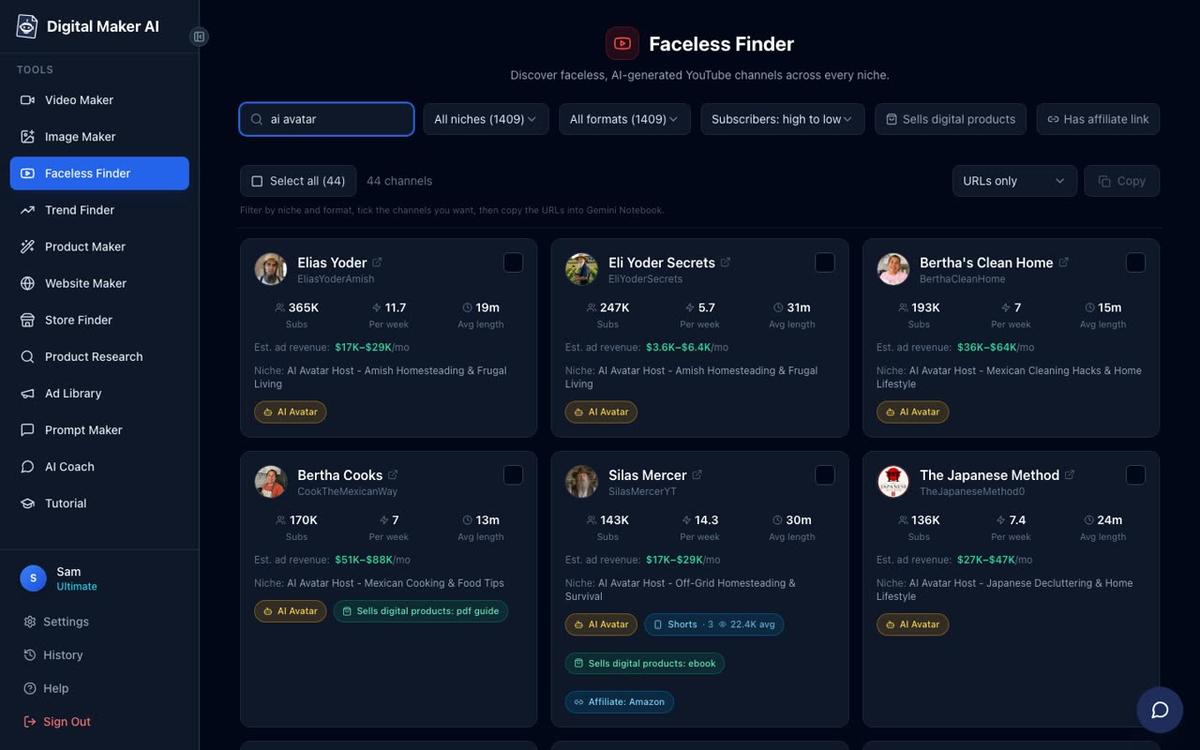
You can explore all of these channels inside the Faceless Finder, available to every signed-in account including Free. Type "AI avatar" in the search box to filter for avatar-only channels and see the full list with their numbers.
What is an AI presenter video and how does it work?
An AI presenter video is a landscape YouTube video where a generated avatar character appears on screen, speaks the narration and looks directly at the viewer, without any real person being filmed. The presenter is a still photoreal image that is animated to speak. They share the frame with AI generated scene images that illustrate the topic.
In Digital Maker AI's AI presenter feature, the avatar is created once in Account Settings and then reused across as many videos as you like. You control how much of the video they appear in, where in the video they show up, and which of three frame layouts the video cycles through.
How to make an AI presenter video without showing your face: step by step
The steps below cover everything from creating your account to generating the finished MP4. The AI Presenter feature requires a Premium or Ultimate plan.
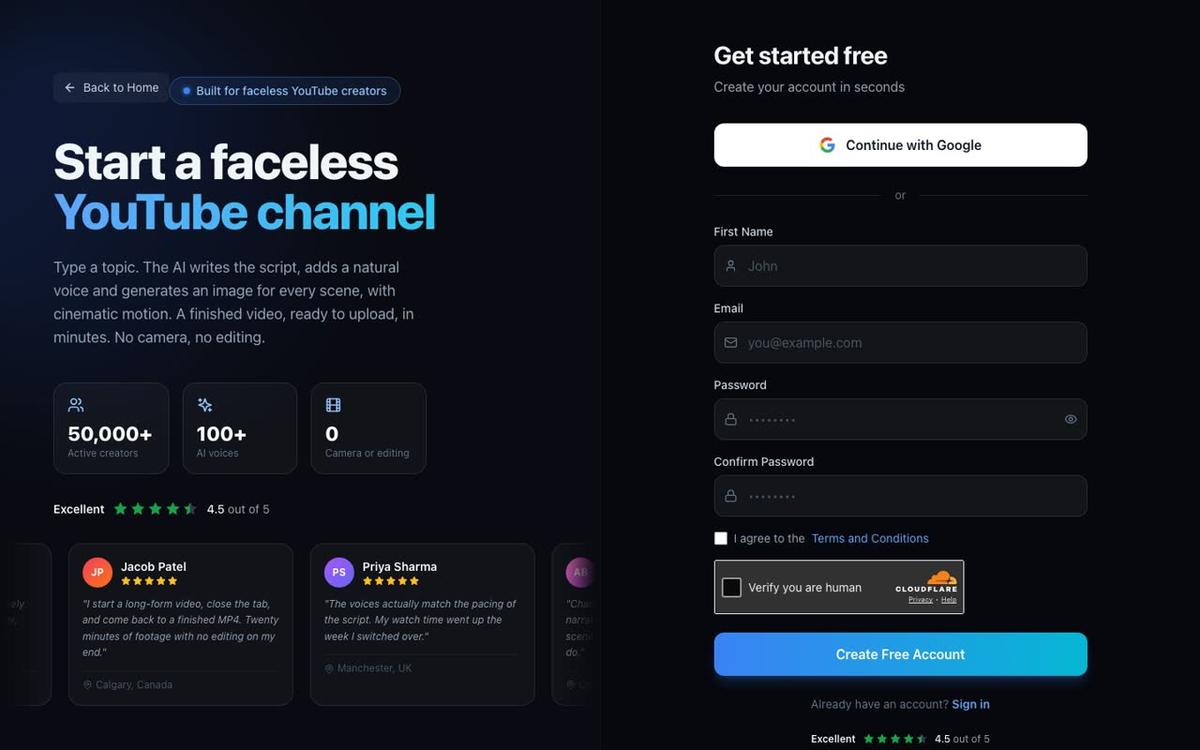
- Create your account. Go to digitalmaker.ai/faceless and sign up. Free accounts can explore the platform and the Faceless Finder. To use AI presenters you will need Premium or Ultimate. Check current plans at digitalmaker.ai/pricing.
- Open Account Settings and go to the Presenters tab. After signing in, click your account icon and open Account Settings. Find the Presenters tab. This is where all your saved presenter characters live.
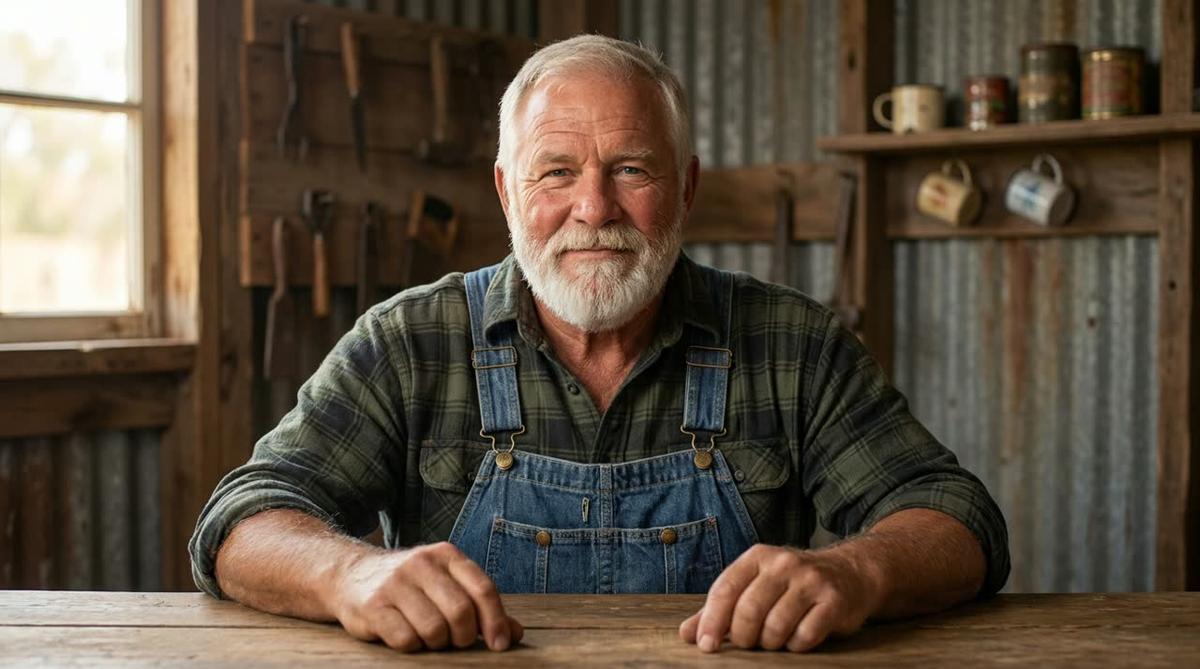
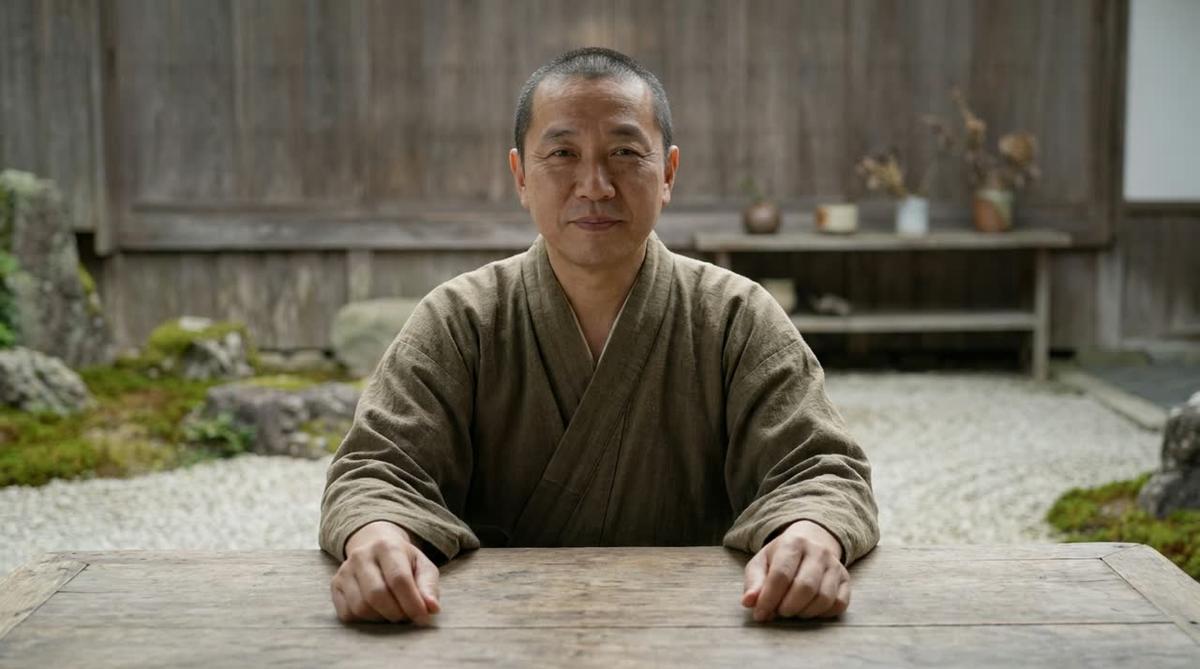
- Describe your presenter and generate their picture. In the New presenter form, type a description of who your presenter is and where they are. Two sentences is enough: their age, look, clothing and setting. For example: "A calm monk in his fifties wearing plain robes, seated at a low wooden table in a raked gravel temple garden." Press Create picture and the AI generates a photoreal portrait from your description. If you want a different result, generate again until you are happy, then save.
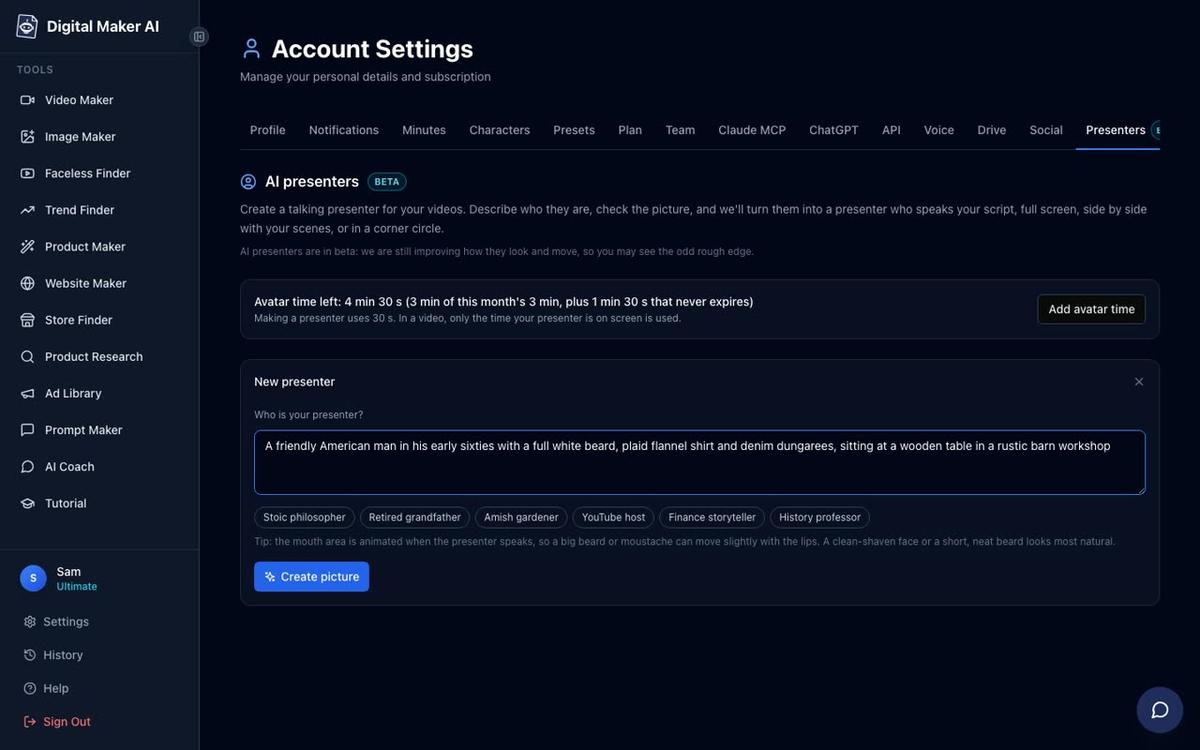
Creating a presenter uses 30 seconds of your avatar time pool. Here are two examples of presenters made this way in a Digital Maker AI account.
- Start a new Multi Scene long form video. From the dashboard, press Start a video, choose Long-Form, then select Multi Scene as the format on step 1. AI presenters work in Multi Scene landscape videos only.
- Pick your presenter in the video settings. As you move through the video steps, you will reach the presenter option. Select the saved presenter you want to use.
- Choose your layouts. Tick one, two or all three layout options: Full screen (the presenter fills the entire frame), Split screen (presenter on the left, the scene image on the right), or Corner circle (the scene fills the frame and the presenter appears in a round window in the corner). The video cycles through whichever layouts you tick.
- Set screen time and markers. A slider controls what percentage of the video the presenter is on screen, from 5 percent up to the full video. Markers on a timeline bar let you place the presenter at specific moments, such as the intro and outro only, or throughout.
- Choose your topic, style and voice. Type the video topic, pick a visual style and select a narration voice from more than 100 options. The presenter speaks the same narration voice as the rest of the video, with captions.
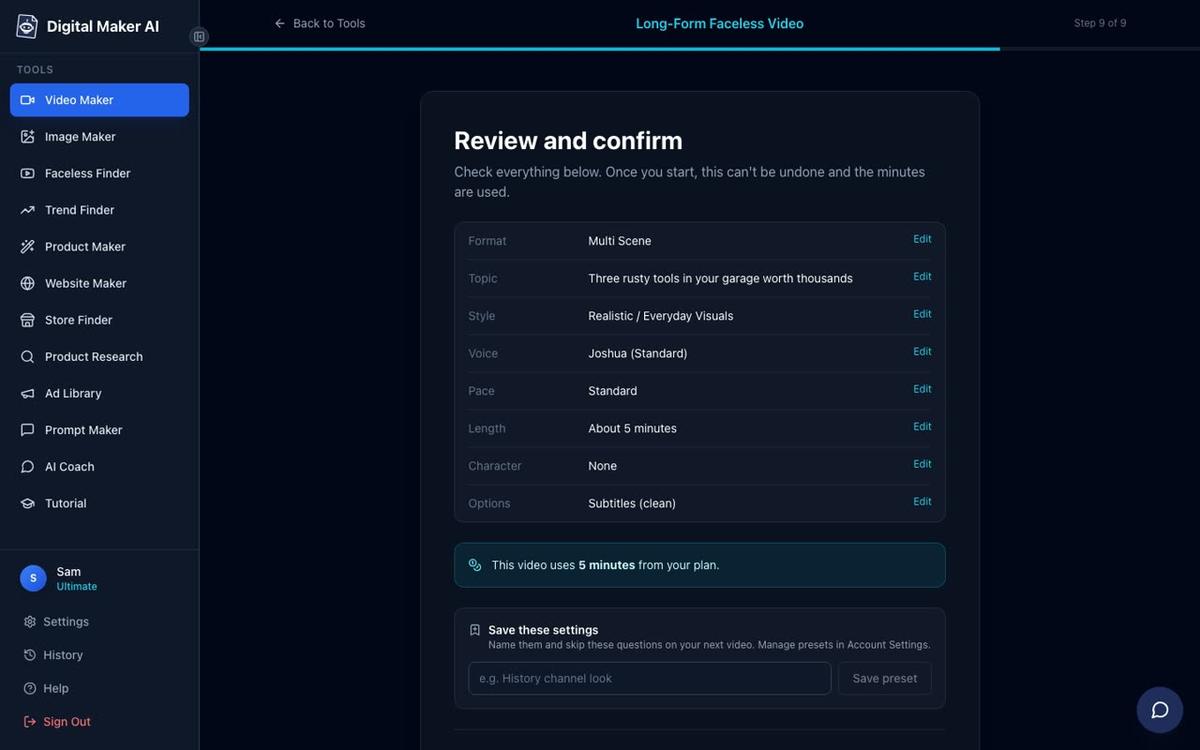
- Review and generate. Step 9 shows a summary of every setting and tells you how many video minutes the video will use. Press Generate Video and the platform writes the script, generates every scene image, records the narration and returns a finished MP4.
What do the three AI presenter layouts look like in a finished video?
Each layout serves a different viewing style. You can tick all three and the video rotates through them automatically, giving the finished video visual variety without any editing.
Full screen puts the presenter front and centre for the whole scene. It works well for intros, outros and any moment where you want the character to feel like a direct host.
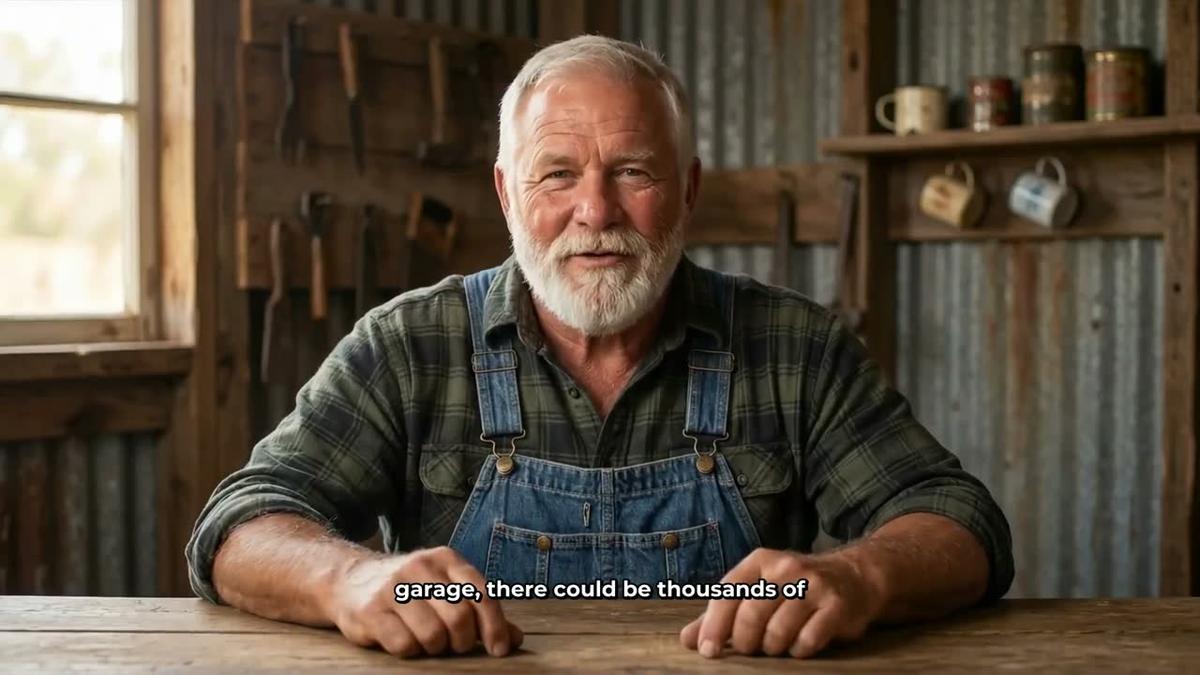
Split screen keeps the presenter visible while showing the scene image beside them. This is useful for tutorial or tips content where the viewer wants to see both the host and the visual being described.

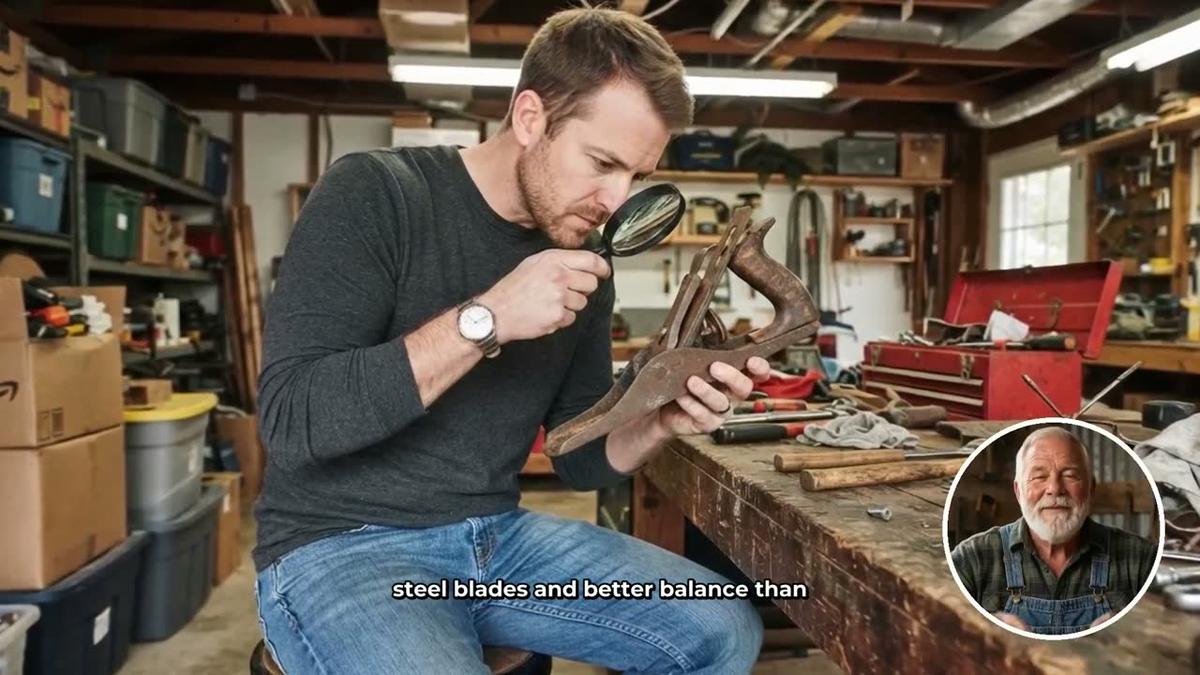
Corner circle gives the most screen space to the scene image while keeping the presenter visible in a round window. It is the least intrusive layout and works well for nature, cooking or lifestyle content where the scenery carries the mood.
How does avatar time work?
Avatar time is a separate pool of seconds, distinct from your regular video minutes. Every second the presenter is actually on screen in a finished video uses one second of avatar time. Creating a new presenter uses 30 seconds. Premium plans start with 2 minutes of avatar time and Ultimate plans start with 5 minutes, with Ultimate also receiving 3 additional minutes every month. If you need more, Avatar Packs let you top up your avatar time as a one-off purchase that does not expire while you are subscribed. See the current Avatar Pack options at digitalmaker.ai/pricing.
Because only the seconds the presenter is actually visible count against your avatar time, using the slider to limit presenter screen time to 20 or 30 percent of a five-minute video uses far less avatar time than having the presenter on screen for the full video. For a channel planning daily uploads, this is worth thinking about when you set the screen time slider.
Tips for building a successful AI avatar channel in 2027
Looking at what works across the channels in the Faceless Finder, a few patterns stand out for anyone starting an AI presenter video without showing your face strategy this year.
- Pick a persona with a backstory. The channels with the highest estimated revenue have a character viewers can picture: an Amish farmer, a Japanese decluttering expert, an Appalachian grandmother. The more specific the persona, the more memorable the channel.
- Lock in a tight niche. Cooking hacks, homesteading tips, home cleaning and frugal living all perform well in the Finder data. Broad topics are harder to build an audience around than a single focused subject.
- Upload consistently. The top channels in the Finder upload five to seven times a week. The AI Presenter feature makes that cadence achievable because you do not need to film anything.
- Use the presenter for the hook and the sign-off. If avatar time is limited, place the presenter at the start and end of each video using the timeline markers. The intro and outro are where the character impression is strongest.
- Save your presenter and reuse it. Once you have saved a presenter in Account Settings, it is available for every future video. You can save up to ten presenters, so you could run multiple channel personas from one account.
- Add the presenter as the recurring character. The presenter can also be placed into the scene images themselves as the recurring character, which keeps the face consistent throughout every scene, not just the presenter frames.
For a deeper look at how much of each video your presenter should appear in, the post How Much Screen Time Should Your AI Avatar Get Per Video covers the trade-offs in detail.
What plans include AI presenters?
| Plan | AI Presenter | Starting avatar time | Monthly avatar time | Video minutes per month |
|---|---|---|---|---|
| Free | No | None | None | 5 free videos (one of each type) |
| Pro | No | None | None | 40 minutes |
| Premium | Yes | 2 minutes | Avatar Packs only | 150 minutes |
| Ultimate | Yes | 5 minutes | 3 minutes included | 300 minutes |
All prices and plan details are as of November 2026. See the latest at digitalmaker.ai/pricing.
Frequently asked questions
Can I use an AI presenter on a Short or a vertical video?
No. AI presenters in Digital Maker AI work inside landscape Multi Scene long form videos only. They are not available on Shorts, Single Scene videos, Whiteboard Animation videos or videos in languages other than English.
Does the presenter use a different voice from the rest of the video?
No. The presenter speaks the same narration voice you pick for the whole video. You choose from more than 100 built-in voices, and Premium and Ultimate users can also design a custom voice or connect a cloned ElevenLabs voice. Captions appear throughout.
Can I change my presenter's look after saving them?
You can create a new presenter at any time and save up to ten in your account. Each new presenter creation uses 30 seconds of avatar time. If you want a different look for a character, generate a new version and save it alongside the original.
Do avatar channels need to disclose that the presenter is AI generated?
YouTube's current policy requires creators to label AI generated content that could be mistaken for real people or events, particularly in sensitive topics. Digital Maker AI labels posts made through its Post to socials feature as AI generated. Check YouTube's disclosure guidelines directly for the latest requirements.
Can I make my AI presenter video inside Claude or ChatGPT?
Yes. Digital Maker AI connects to Claude as a custom connector and to ChatGPT as a plugin, both set up in Account Settings. Once connected, you can ask the AI to create a presenter, set the layouts and generate the video by chatting. Videos and presenters made this way need a Premium or Ultimate plan.
How long does it take to generate an AI presenter video?
A five-minute Multi Scene video with a presenter typically takes three to six minutes to generate. Longer videos take more time. You receive the finished MP4 in your account and can regenerate any individual scene image, swap in your own image, or edit the narration text after the video is made.
Making your first AI presenter video without showing your face is a practical goal for 2027, not a distant one. The channels already doing it show that a strong persona and a tight niche are the real ingredients. The Digital Maker AI free course walks through picking a niche, building a channel and making your first video, and it is a good place to start before you generate your first presenter.
Alex Stevens: Alex Stevens writes for the Digital Maker AI team about faceless YouTube channels, AI presenters and AI video tools.