How Much Screen Time Should Your AI Avatar Get Per Video
By Alex Stevens
Why AI Avatar Screen Time Makes or Breaks Retention
If you have ever published a faceless YouTube video with an AI presenter and watched the audience retention graph fall off a cliff after the first thirty seconds, the problem is almost certainly ai avatar screen time on your faceless YouTube video. Too much presenter and the video feels like a talking head with nothing to look at. Too little and viewers never bond with the character at all. Getting the balance right is one of the most practical decisions you will make when setting up a new channel, and the data from real channels makes the answer surprisingly clear.
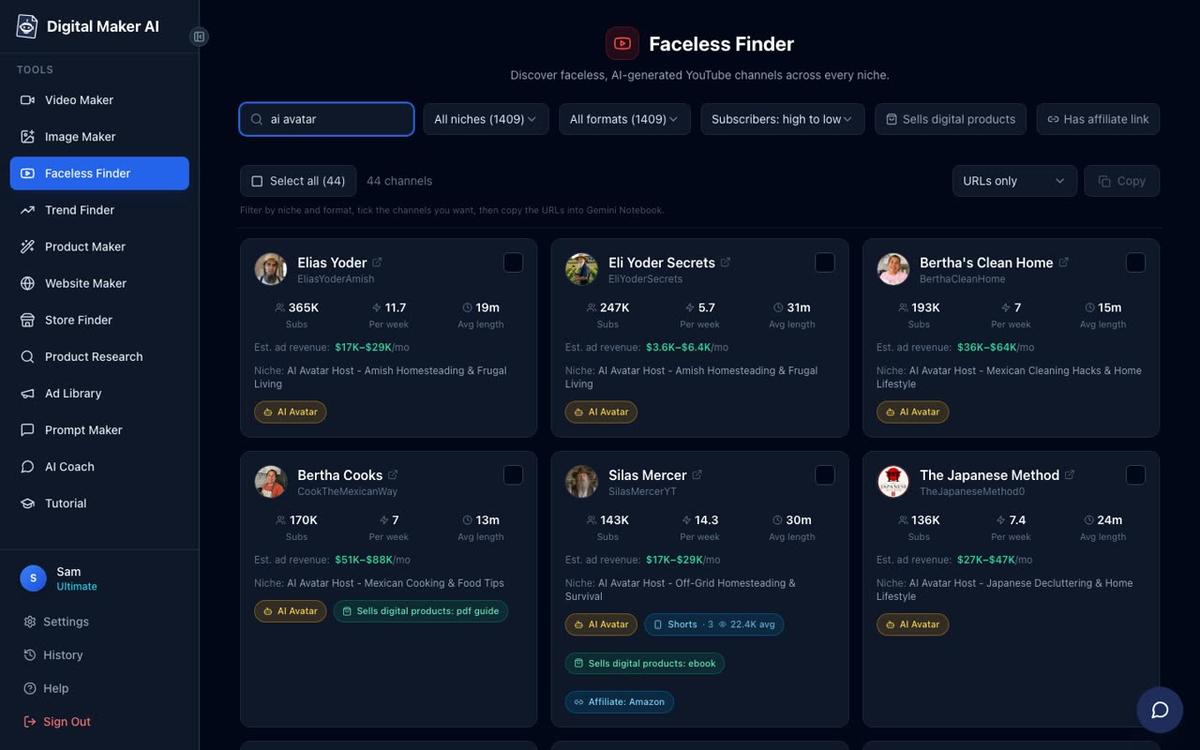
The figures below come from the Faceless Finder inside Digital Maker AI. All subscriber counts, view estimates and ad revenue figures are the Finder's own estimates based on recent views and typical ad rates for each niche, not the channels' real earnings. Use them as directional signals, not guarantees.
What the Top AI Avatar Channels Actually Do
Type "AI avatar" into the Faceless Finder search box and a pattern jumps out immediately. Every high-performing channel has a strong persona, a tight niche and a publishing pace that most solo creators would find exhausting. Look at a few standouts:
- Elias Yoder has 369,000 subscribers, uploads around six videos a week in the Amish homesteading niche, and the Finder estimates roughly 1.5 million views a month and ad revenue of $10,000 to $16,000 a month.
- Bertha Cooks sits at 218,000 subscribers with about six uploads a week in Mexican cooking, and the Finder puts estimated monthly views near 4.6 million with ad revenue of $28,000 to $42,000 a month.
- The Japanese Method has 153,000 subscribers, uploads around seven times a week in the Japanese decluttering niche, and the Finder estimates 3.6 million views a month and $28,000 to $43,000 a month in ad revenue.
- Silas Mercer has 149,000 subscribers, publishes roughly fifteen videos a week in off-grid homesteading, and the Finder estimates 1.9 million monthly views and $14,000 to $21,000 a month.
- Opal Rowe has 47,100 subscribers, uploads around eight times a week as an Appalachian grandma cooking channel, and the Finder estimates 930,000 views a month and $6,600 to $9,800 a month.
What do they share? An AI-generated host character with a vivid persona, a niche so specific you can describe it in five words, daily uploads, practical tips in every video, and no real person on camera. Crucially, none of them use the presenter as a constant talking head. The AI avatar acts as a host anchor: it opens the video, reappears to guide transitions and closes things out. The rest of the time the viewer is watching relevant scene images that illustrate what the presenter is saying. That structure is what keeps retention high.
Three Proven Patterns for AI Avatar Screen Time in a Faceless YouTube Video
After studying dozens of channels in the Finder, three distinct presenter patterns emerge. Each one suits a different niche and content style.
Pattern 1: Bookend Presenter (10 to 20 percent screen time)
The presenter appears at the very start for a warm welcome, disappears while the main content plays out over scene images, then returns briefly at the end with a call to action. This is the default approach for informational niches: history, psychology, space, health tips and personal finance. The avatar builds brand recognition without competing with the visuals that actually explain the topic. For a five-minute video this means roughly thirty to sixty seconds of presenter time, split across the open and close.
Best layout choice: Full screen for the intro and outro. The presenter fills the frame during those short anchor moments, which makes them feel deliberate and confident rather than squeezed into a corner.
Pattern 2: Section Marker Presenter (25 to 40 percent screen time)
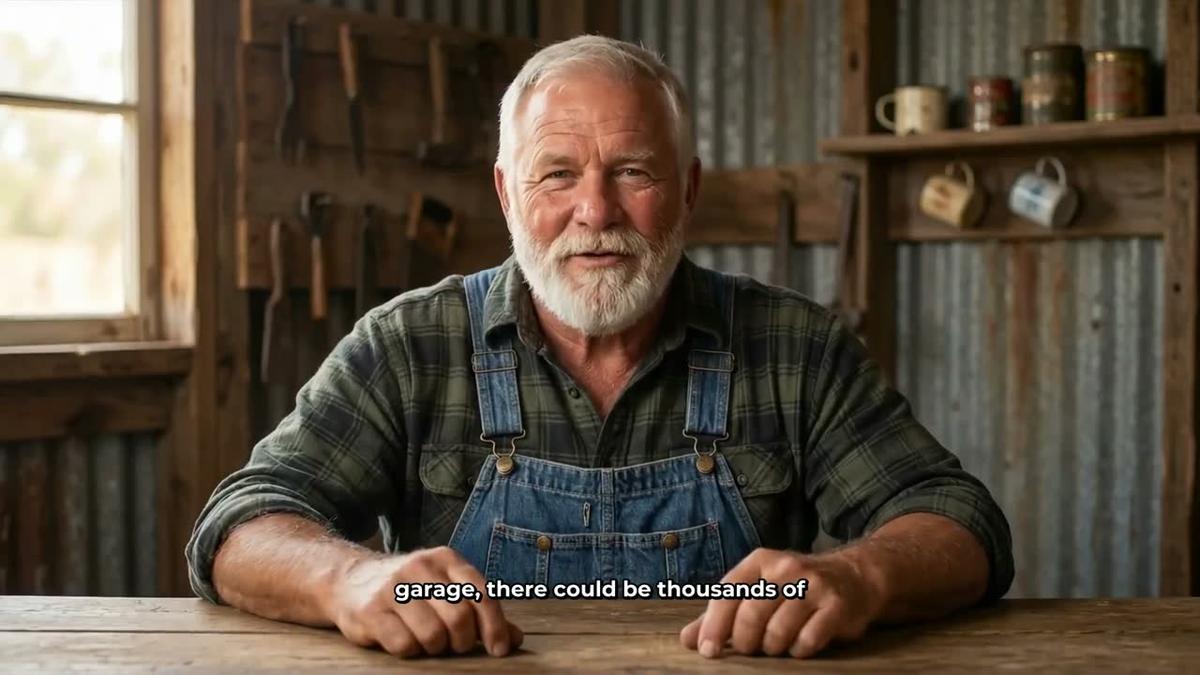
The presenter opens the video, reappears at one or two natural chapter breaks to introduce the next section, then closes. This is the sweet spot for lifestyle, cooking, cleaning and homesteading channels where the host persona is part of the product. Viewers come back partly because they like the character. The Bertha Cooks and Elias Yoder style channels lean into this pattern: the avatar introduces a tip, the scene images show the context, then the avatar returns to introduce the next tip.
Best layout choice: Split screen for the mid-video section markers. The presenter stays visible on the left while a relevant scene plays on the right, so the viewer never loses either the personality or the visual context.

Pattern 3: Dominant Presenter (50 percent or more)
The presenter is on screen for more than half the video. This works when the persona itself is the draw: Appalachian grandma cooking, Amish homesteading wisdom, a Japanese monk sharing decluttering philosophy. Channels like Opal Rowe succeed because the audience is watching her as much as the content. The scene images provide breathing room, but the presenter carries the emotional weight of the video. Use this pattern only when your character concept is strong enough to hold attention on its own.
Best layout choice: Corner circle works well here because it keeps the presenter visible even while the scene fills the frame, maintaining that constant sense of presence without demanding full attention for every second.

How to Use the Presenter Slider and Timeline Markers
Inside the Digital Maker AI video maker, once you have chosen your presenter, a slider lets you set the percentage of the video the presenter appears on screen, from as little as 5 percent up to the full video. Drag it to 15 percent for a bookend pattern, to around 30 percent for section markers, or above 50 percent for a dominant presenter channel. Below the slider, timeline markers let you pin exactly where those appearances land. You can cluster them all at the start and end for a bookend, spread them across three points for section markers, or distribute them throughout for a dominant presenter feel.
You can tick one, two or all three layout options at once: Full screen, Split screen and Corner circle. When more than one is ticked, the video rotates through them automatically across the presenter's appearances, which keeps the visual variety high even when the avatar is on screen for a significant portion of the video. For the bookend pattern, ticking only Full screen keeps things clean. For section markers, ticking Split screen and Corner circle together gives a natural rhythm. For a dominant presenter, all three ticked creates the most dynamic result.
Step-by-Step: Creating Your AI Avatar Presenter
AI presenters are available on Premium and Ultimate plans. Here is how to build one from scratch and add it to a faceless video.
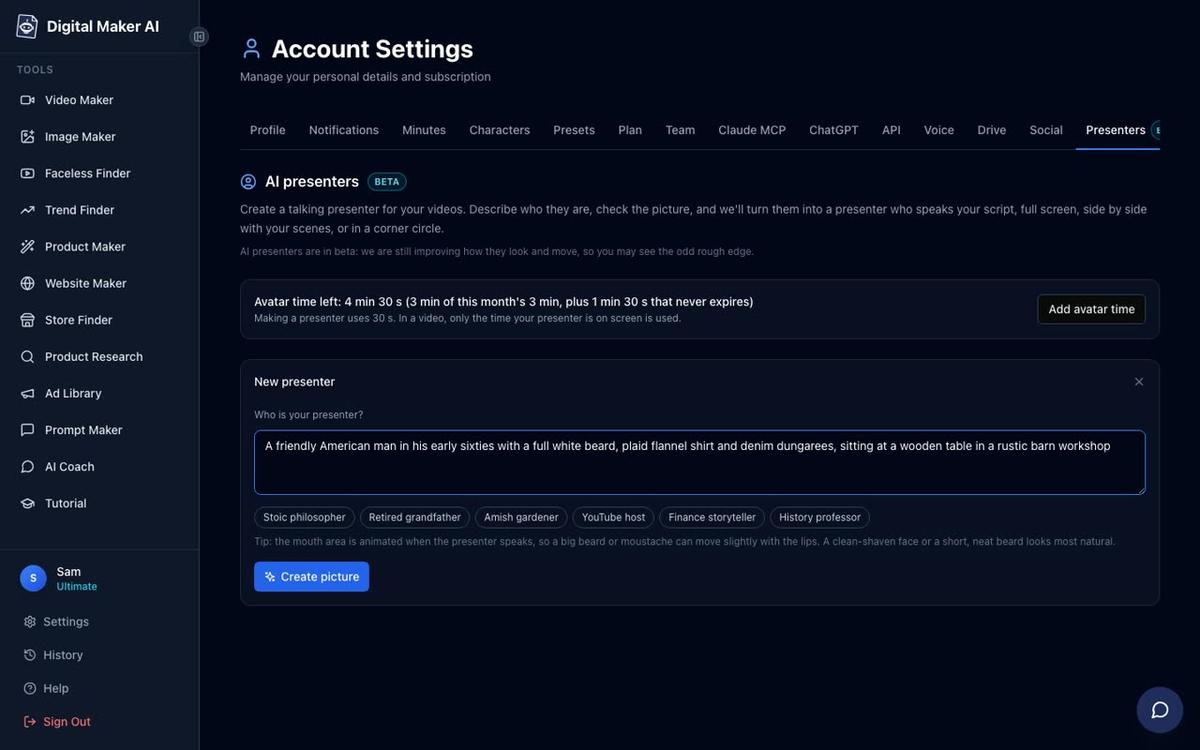
Step 1: Create your presenter in Account Settings. Sign in, open Account Settings and click the Presenters tab. You will see a form asking you to describe who your presenter is and their setting in a sentence or two. Be specific: "A weathered Appalachian grandmother in her seventies, wearing a floral apron, standing at a cast iron stove in a log cabin kitchen" will produce a far more distinctive result than "an older woman in a kitchen." Quick-pick prompts like Retired grandfather, Amish gardener and Stoic philosopher are there to spark ideas. When you press Create picture, the AI generates a photoreal image. Check it, and if you are happy, save it. You can create several and reuse them across every future video.
Step 2: Start a Multi Scene long form video. Go to the Video Maker, choose Long-Form and select Multi Scene. Presenters work on landscape Multi Scene videos on Premium and Ultimate. Work through the topic, visual style and voice steps as normal.
Step 3: Pick your presenter and set the screen time. At the presenter step, select the character you just saved. Tick the layouts you want (Full screen, Split screen, Corner circle, or any combination). Use the slider to set the percentage of screen time that matches your chosen pattern: around 15 percent for a bookend, 30 percent for section markers, or 50 percent and above for a dominant presenter. Then use the timeline markers to pin where the presenter appears in the video.
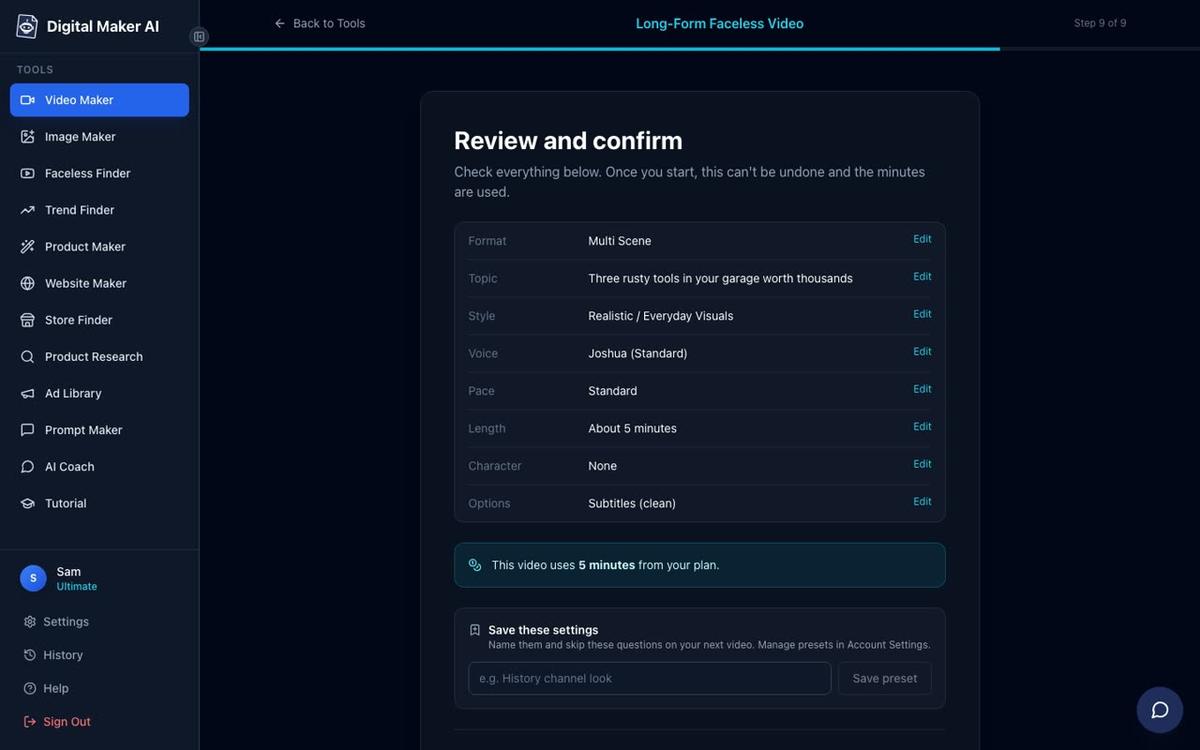
Step 4: Review and generate. At the final review screen you will see a summary of every choice including the presenter settings, the voice, the visual style and the exact number of video minutes the generation will use from your plan. Press Generate Video and the platform builds the script, generates every scene image, records the narration and assembles the finished MP4.
Understanding Avatar Time (It Is Counted Separately)
One important detail: avatar time is counted in seconds and is separate from your video minutes. Your video minutes cover the total length of the finished video. Avatar time covers only the seconds the presenter is actually on screen. Creating a presenter uses 30 seconds of avatar time. Premium plans start with 2 minutes of avatar time and Ultimate plans start with 5 minutes, with Ultimate also receiving 3 minutes every month. If you need more, Avatar Packs let you add time as a one-off purchase that does not expire while you are subscribed. See the pricing page for the full breakdown. This separation means a ten-minute video using the bookend pattern (presenter on screen for roughly 90 seconds total) uses far less avatar time than a ten-minute dominant presenter video. Plan your screen time percentage with this in mind, especially on Premium where the starting avatar time is more limited.
For a deeper look at how real channels use the AI avatar format, the guide on creating an AI avatar channel like Opal Rowe is worth reading alongside this one. If you are drawn to the Japanese lifestyle niche, the post on AI avatar channel ideas for Japanese decluttering videos covers persona and niche strategy in detail.
Choosing the Right Pattern for Your Niche
The simplest way to pick a pattern is to ask one question: is your audience coming for the information or for the character? If the answer is the information (history, psychology, finance, health tips), start with the bookend pattern at around 15 percent and see how your retention graph responds. If the answer is the character, or if you are building a persona-led lifestyle channel in a niche like Appalachian cooking or off-grid homesteading, push the slider higher and let the avatar carry more of the video.
A practical tip: publish five videos at one screen time percentage, check the average view duration in YouTube Studio, then adjust. A drop in retention at the same timestamp across multiple videos is a signal that the presenter is appearing too often in that spot, or that the layout is too static. Switching from Full screen to Corner circle at mid-video section markers, for example, can recover several seconds of average watch time by keeping the scene visible while the presenter is still present.
The AI presenter video generator on Digital Maker AI is built specifically for this kind of experimentation. Because the presenter, the layouts and the screen time percentage are all set before generation, you can test different configurations without rebuilding the whole video from scratch each time.
Start Building Your AI Avatar Channel Today
Getting the ai avatar screen time right on your faceless YouTube video is not a one-and-done decision. It is a variable you tune as your channel grows. Start with the bookend pattern if you are new to AI presenters, graduate to section markers once you have a character your audience recognises, and consider the dominant presenter approach only when the persona is genuinely the reason people subscribe. The channels in the Faceless Finder that are pulling in millions of views a month have all found their version of that balance. Now it is your turn to find yours. The free Digital Maker AI course walks you through the whole channel-building process, from picking a niche to publishing your first AI presenter video.
Alex Stevens: Alex Stevens writes for the Digital Maker AI team about faceless YouTube channels, AI presenters and AI video tools.