How to Make a Faceless Video for Your Etsy or Online Shop
By Alex Stevens

By the end of this guide you will know exactly how to make a faceless video for Etsy or any online shop, from choosing a topic tied to one of your products right through to a finished MP4 you can post to YouTube, TikTok or Instagram. You will not need a camera, a microphone or any video editing experience. All you need is a product you already sell and about twenty minutes.
Step 1: Pick a Video Topic That Is Tied to One of Your Products
The best Etsy faceless videos do not look like adverts. They look like helpful content that happens to mention your product at the end. Think about the problem your product solves, then make a video about that problem.
Here are a few examples to make this concrete:
- You sell a budget planner printable. Video topic: "5 things to track in your budget every single week."
- You sell a meal plan template. Video topic: "How to plan a week of dinners in under 10 minutes."
- You sell a wedding checklist. Video topic: "The wedding tasks most couples forget until the last month."
- You sell a habit tracker. Video topic: "Why most habit trackers fail (and how to fix yours)."
Notice the pattern: the topic teaches something useful, and your product is the natural next step. That is the soft call to action. You are not selling in the video; you are helping, and the last 30 seconds of the script mention that a free or paid template is linked in the description.
Tip: Search YouTube for your topic before you write anything. If you see channels already making videos on it, that is a good sign. It means there is an audience. If you want to dig deeper into which faceless channels are already thriving in your niche, the Faceless Finder tool inside Digital Maker AI lets you search by topic and see subscriber counts, upload frequency and estimated ad revenue for any channel.
Step 2: Write a Short Script That Solves the Problem
A good faceless video script for a 5 to 8 minute YouTube video has three parts:
- Hook (first 30 seconds): State the problem clearly. "If you have ever reached the end of the month and had no idea where your money went, this video is for you."
- Body (the middle): Deliver 4 to 6 practical tips or steps. Each one becomes a scene in the video. Keep each point to two or three sentences so the narration feels natural and not rushed.
- Soft call to action (last 30 seconds): Mention your product naturally. "If you want a ready made template that does all of this for you, I have linked a free budget planner in the description." Then remind viewers to like or subscribe.
For a YouTube Short (30 to 60 seconds), shrink this to: one problem, one tip, one call to action. That is all you need.
Tip: You do not have to write the script yourself. When you use the Long-Form Faceless Video maker in Digital Maker AI, you can type your topic in one line and the AI writes the full script for you, including the hook and the ending. On paid plans you can also paste your own finished script if you prefer to keep full control of the words.
Step 3: Sign In and Open the Video Maker
Go to digitalmaker.ai/faceless and create a free account. No credit card is needed. Free accounts get five free videos, one of each type, so you can build your first faceless video at no cost.
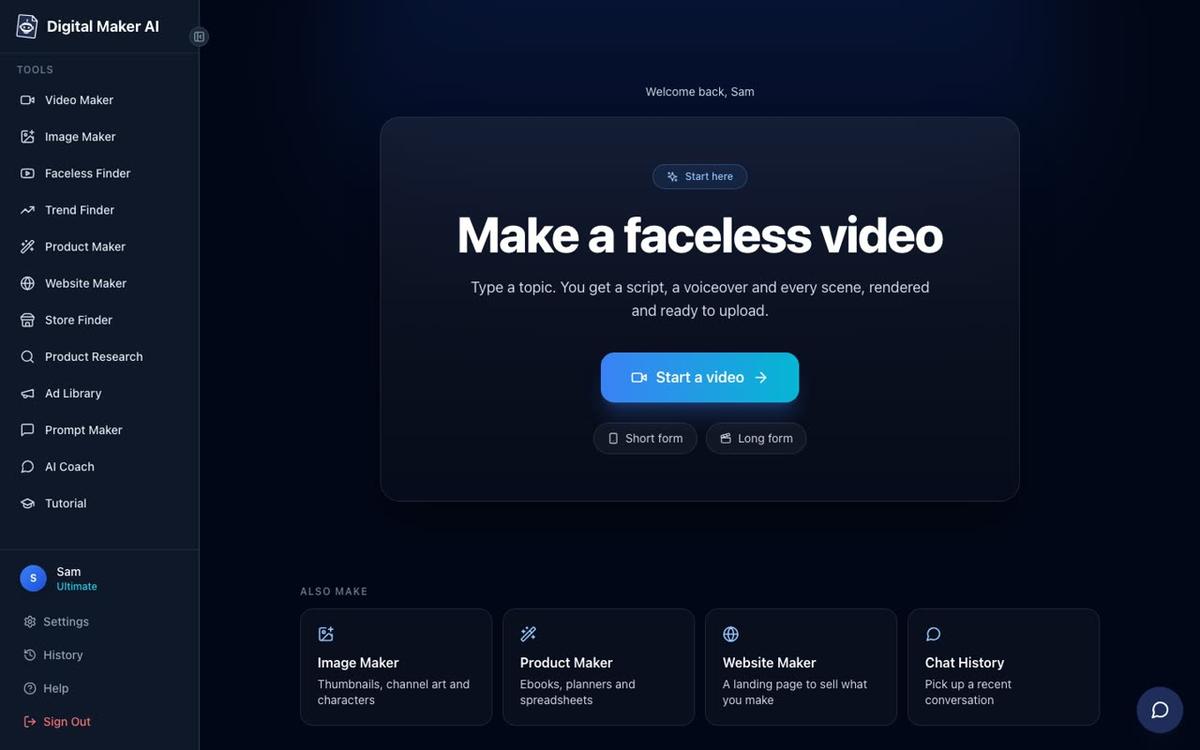
After signing in, click the Video Maker button in the left sidebar. Then choose Long-Form Faceless Video. This is the format built for YouTube: it produces a complete landscape MP4 with AI narration, scene images and captions, ready to upload.
Step 4: Choose Your Format and Enter Your Topic (Steps 1 to 3 of the Maker)
The Long-Form Faceless Video maker walks you through nine steps. The first few are quick.
Step 1: Format. Choose Multi Scene Video. This gives you a fresh AI-generated image for every scene in the video, which works well for planner and template content because each scene can show a different aspect of the topic.
Step 2: Script. Choose Write it for me if you want the AI to handle the script. On paid plans you will also see Paste my own script if you have already written one.
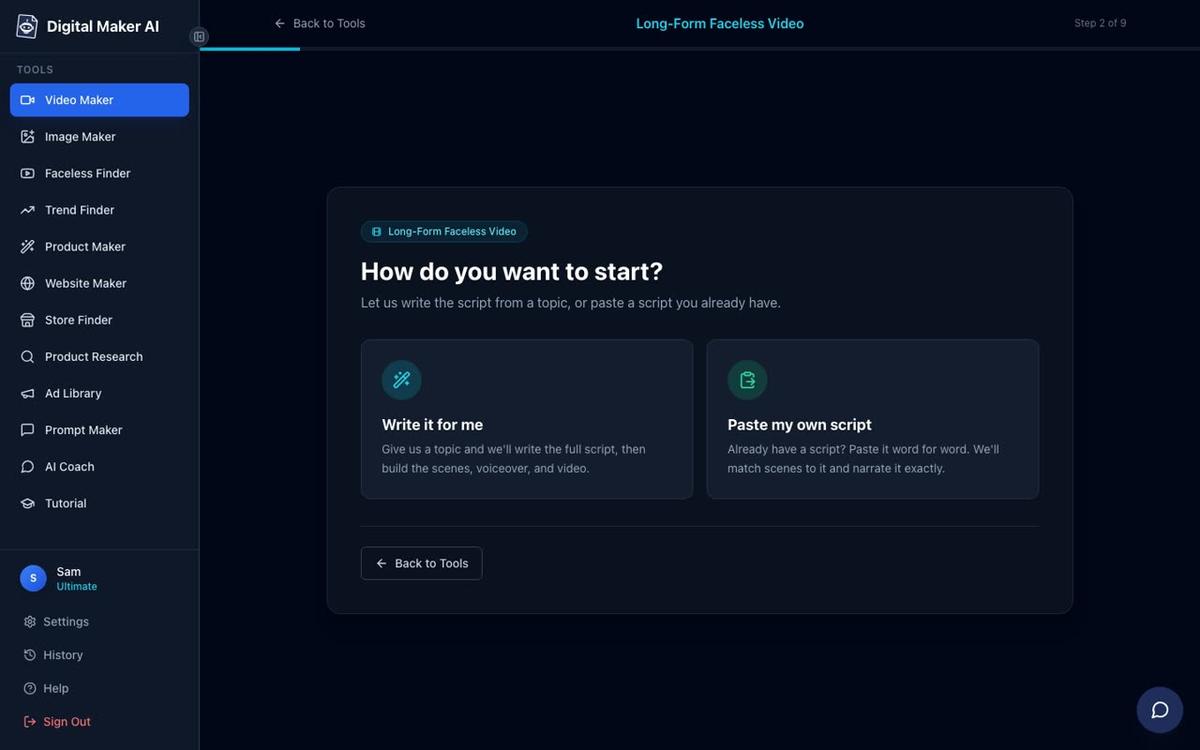
Step 3: Topic. Type your video topic in one line. For example: "5 things to track in your budget every week." Keep it under 300 characters. The AI uses this to write the script, choose the scene descriptions and record the narration.
Step 5: Pick a Visual Style That Matches Your Products
This is one of the most important choices for Etsy sellers. The visual style sets the look of every scene in the video, so it needs to feel right for your brand and your product.
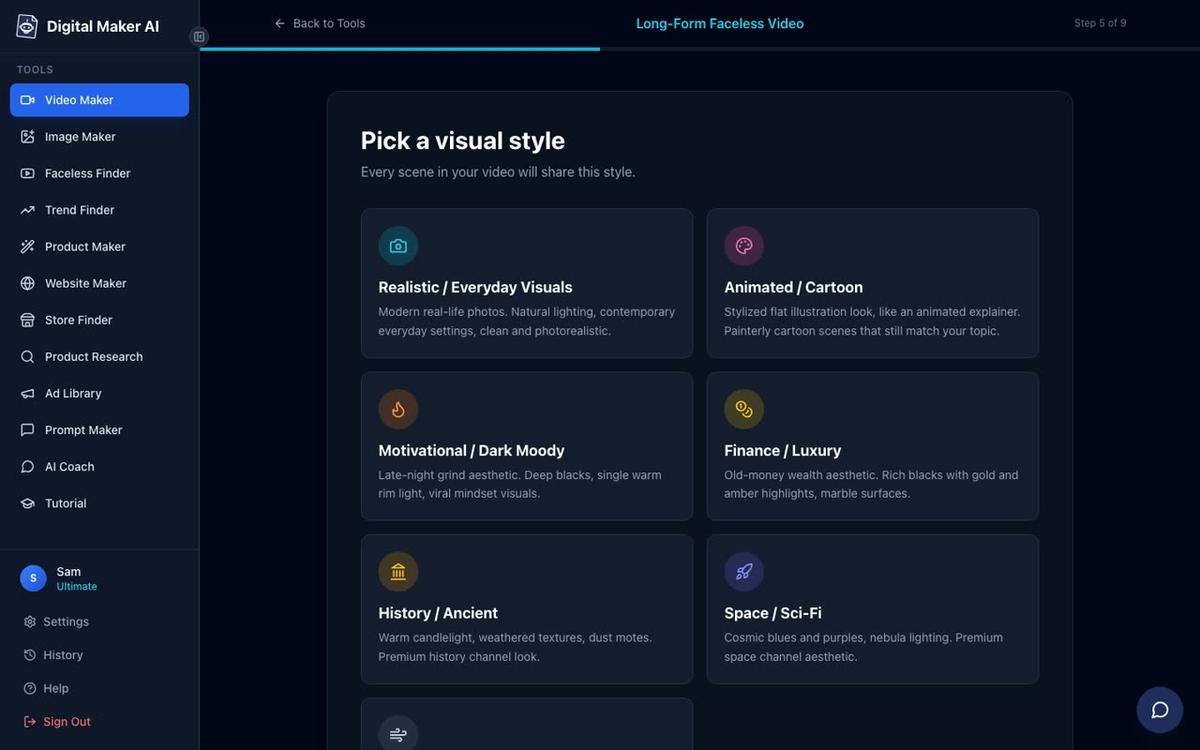
Here is a quick guide for Etsy sellers:
- Animated or Cartoon: Works beautifully for planners, habit trackers, kids' activity sheets and anything with a fun or friendly feel. The scenes look like illustrated stills, which give the video a polished, brand-consistent look. Note that this is illustrated cartoon-style still images, not moving cartoon animation.
- Realistic or Everyday Visuals: Great for lifestyle products like meal plan templates, home organisation printables or wedding stationery. The scenes look like real-life photography.
- Finance or Luxury: A strong choice for budget planners, savings trackers or any product aimed at people who want to feel in control of their money.
- Minimalist or Clean: Works well for productivity templates, study planners and anything with a calm, uncluttered aesthetic.
If you sell cartoon-style printables and want to explore that visual style further, the AI cartoon video generator page has more detail on what the Animated or Cartoon style can produce.
Step 6: Set the Length
For YouTube, aim for 5 to 8 minutes. This is long enough for the algorithm to serve it to new viewers, but short enough that people actually finish watching. A higher watch percentage helps YouTube recommend your video to more people.
For a YouTube Short or TikTok, 30 to 60 seconds is the sweet spot. You can make a Short separately using the Short-Form Video option in the Video Maker. Learn more about making vertical videos on the AI Shorts generator page.
Free plan note: Free accounts can make one long-form video up to 8 minutes, which covers the ideal YouTube length perfectly.
Step 7: Pick a Narration Voice
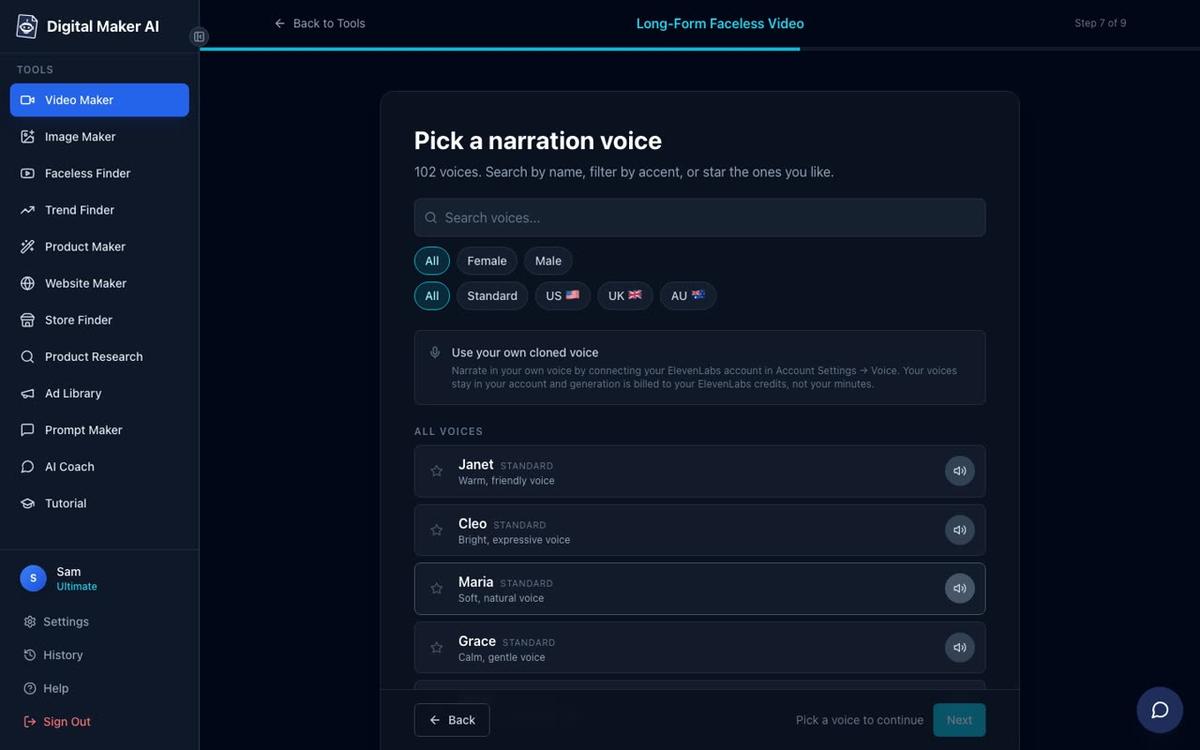
There are more than 100 built-in AI narration voices to choose from, with male and female options and US, UK and Australian accents. You can filter and preview them before committing. Pick a voice that feels consistent with your brand. A warm, friendly female voice tends to work well for planner and lifestyle content. A calm, measured voice suits finance or productivity topics.
On Premium and Ultimate plans you can also design your own voice from a written description, or connect your own cloned ElevenLabs voice using your ElevenLabs key in Account Settings.
Tip: Listen to the preview for at least 10 seconds before deciding. Some voices sound slightly different on longer sentences than they do on the short preview clip.
Step 8: Review and Generate
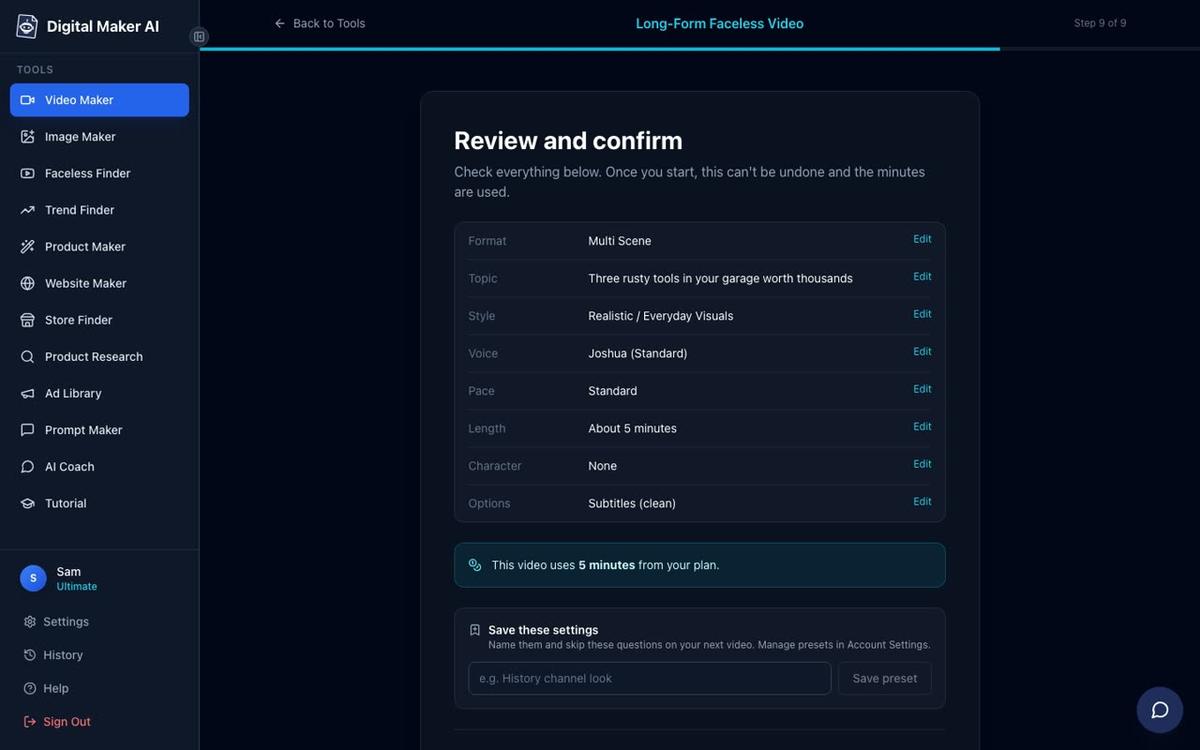
The final step shows you a summary of every choice you made: format, topic, visual style, voice, pace and length. It also tells you exactly how many minutes the video will use from your plan. Check everything here, then press Generate Video. The AI writes the script, generates a scene image for every scene, records the narration and burns in captions. A typical 5 minute video is ready in 3 to 6 minutes.
Once the video is ready you can regenerate any scene image you are not happy with (10 free regenerations per video), swap in your own image, or edit the narration text for any scene. There is no timeline editor, but these scene-level edits give you a good amount of control over the finished result.
Step 9: Post Your Video
When the video is ready, download the MP4 and upload it to YouTube, TikTok or Instagram yourself. Free and Pro accounts follow this path.
If you are on a Premium or Ultimate plan, you can post straight from Digital Maker AI using the Post to socials button. Connect your YouTube, TikTok and Instagram accounts once in Account Settings, then post now or schedule it for later. Nothing posts automatically; it only goes when you press Post. Posts are labelled as AI generated. Find out more about posting AI videos to YouTube, TikTok and Instagram directly from the platform.
When you post, include in the description:
- A direct link to your Etsy listing or shop
- A one-line description of what the product is and who it is for
- Relevant hashtags for your niche (budget planner, meal prep, printables)
Pin the Etsy link as the top comment on YouTube too. Many buyers click the comment before the description.
How to Make a Faceless Video for Etsy: Common Mistakes to Avoid
These are the mistakes that stop Etsy sellers from getting results with faceless video marketing:
- Making the video about the product instead of the problem. A video called "My budget planner printable" gets almost no views. A video called "5 things to track in your budget every week" can reach thousands of people who have never heard of you, and your product is the natural next step at the end.
- Skipping the call to action. Always mention your Etsy shop or the specific listing in the last 30 seconds. Keep it soft and helpful: "I have linked the template I use in the description below."
- Posting once and giving up. YouTube and TikTok reward consistency. Aim for one video a week for the first two months. After that you will start to see which topics drive traffic to your shop.
- Choosing a visual style that clashes with your brand. If your Etsy shop has a bright, illustrated look, a dark moody video style will feel off. Match the video aesthetic to your product photos.
- Ignoring the thumbnail. On YouTube the thumbnail is what gets the click. Use the Image Maker tool in Digital Maker AI to create a matching YouTube thumbnail for every video.
For more ideas on using faceless video to sell a digital product, the guide on how to make a faceless video about a book or course you sell covers a very similar approach and is worth reading alongside this one.
What to Do Next
You now have everything you need to make your first faceless video for your Etsy shop or online store. Pick one product, write a topic that solves the buyer's problem, run through the nine steps in the Long-Form Faceless Video maker, and post the result. One video can drive traffic to your shop for months or even years after you post it, with no ongoing effort from you.
Commercial usage rights are included on every plan, including the Free plan, so anything you make is yours to use for your business straight away. Check the pricing page to see which plan fits your output goals as your channel grows.
If you want a full walkthrough of the whole process, including how to set up your channel, write scripts that convert and build a posting schedule, the free faceless video course covers all of it step by step and costs nothing to join.
Alex Stevens: Alex Stevens writes for the Digital Maker AI team about faceless YouTube channels, AI presenters and AI video tools.