Make YouTube Videos by Chatting: Meet the Digital Maker AI Coach
By Alex Stevens

You Can Now Make a YouTube Video by Chatting
Imagine typing "make me a 10-minute faceless video about ancient Roman money habits" and watching a complete, ready-to-upload YouTube video appear, script written, scenes generated, voiceover recorded and captions burned in, all without touching a single settings screen. That is exactly what the AI Coach inside Digital Maker AI does. This guide walks you through every type of content you can make by chatting, who can use each feature, and what the coach says before it spends a single minute of your plan. By the end you will know how to use the AI Coach to make YouTube videos, Shorts, thumbnails, animated podcasts and more, and how to post them, all from one chat window.
Think of it as having Claude with the Digital Maker AI connector already set up for you. The difference is that the AI Coach lives inside your account. There is nothing to install, no connector to configure and no separate app to open. You just click AI Coach in the left sidebar and start typing.
Three Modes: Fast, Advanced and Expert
The AI Coach runs in three modes, and the one you pick changes both how the coach thinks and what it can do.
- Fast mode uses Claude Haiku. It costs 1 credit per message and is available on every plan, including Free. It is great for quick questions, brainstorming video ideas and getting a YouTube title in seconds.
- Advanced mode uses Claude Sonnet. It costs 2 credits per message and is available on Pro and above. It gives more detailed answers and handles longer, more nuanced requests like writing a full script or researching a niche.
- Expert mode uses Claude Opus. It costs 5 credits per message and is available on Premium and Ultimate only. This is the mode that actually makes things: videos, Shorts, thumbnails, podcasts, recurring characters, AI avatars and scheduled social posts.
Every plan gets a monthly credit allowance that resets on the first of the month. If you need more, Coach Packs let you top up and those credits never expire. Check the pricing page for current plan details.
One important detail before we dive in: whenever the coach is about to use your video minutes, generate an image or post something, it shows a Make it card. This card lists exactly what it will make, every option (length, style, voice, captions, music, AI avatar screen time) and the cost in minutes. Nothing happens until you press Make it. You are always in control.
How to Use the AI Coach to Make YouTube Videos (Long Form)
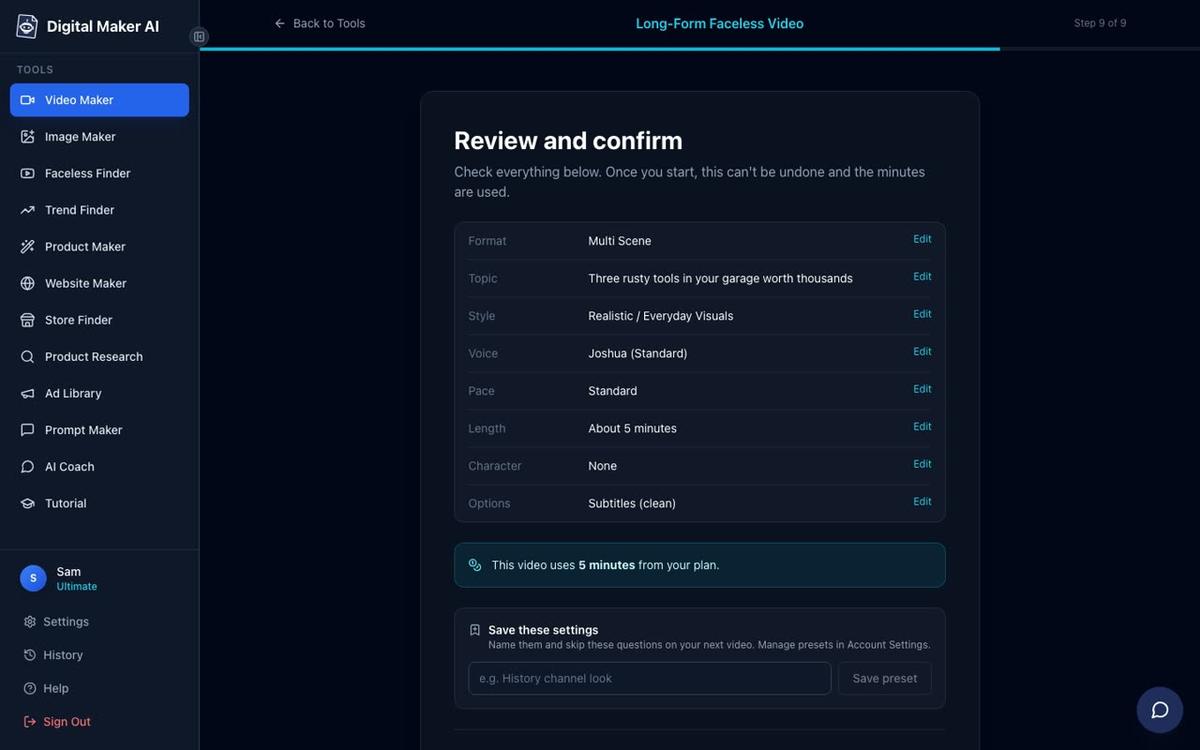
In Expert mode, try typing something like: "Make me a 15-minute faceless video about the psychology of why people stay in jobs they hate, History style, calm voice, YouTube Yellow captions."
The coach replies with a Make it card showing the format (Multi Scene), the topic, the visual style, the voice it has chosen, the caption look, the length and the number of minutes it will draw from your plan. Press Make it and the coach writes the script, generates a unique AI image for every scene, records the narration and returns a finished MP4 ready to upload. You can then regenerate any scene image you are not happy with, swap in your own image, or edit the narration text from the finished video's page.
For Premium and Ultimate users, you can also ask for Single Scene format (one held subject with bold animated captions) or Whiteboard Animation (hand-drawn sketches that draw themselves on screen). Just say what you want in plain language and the coach handles the rest.
Making a YouTube Short in the Chat
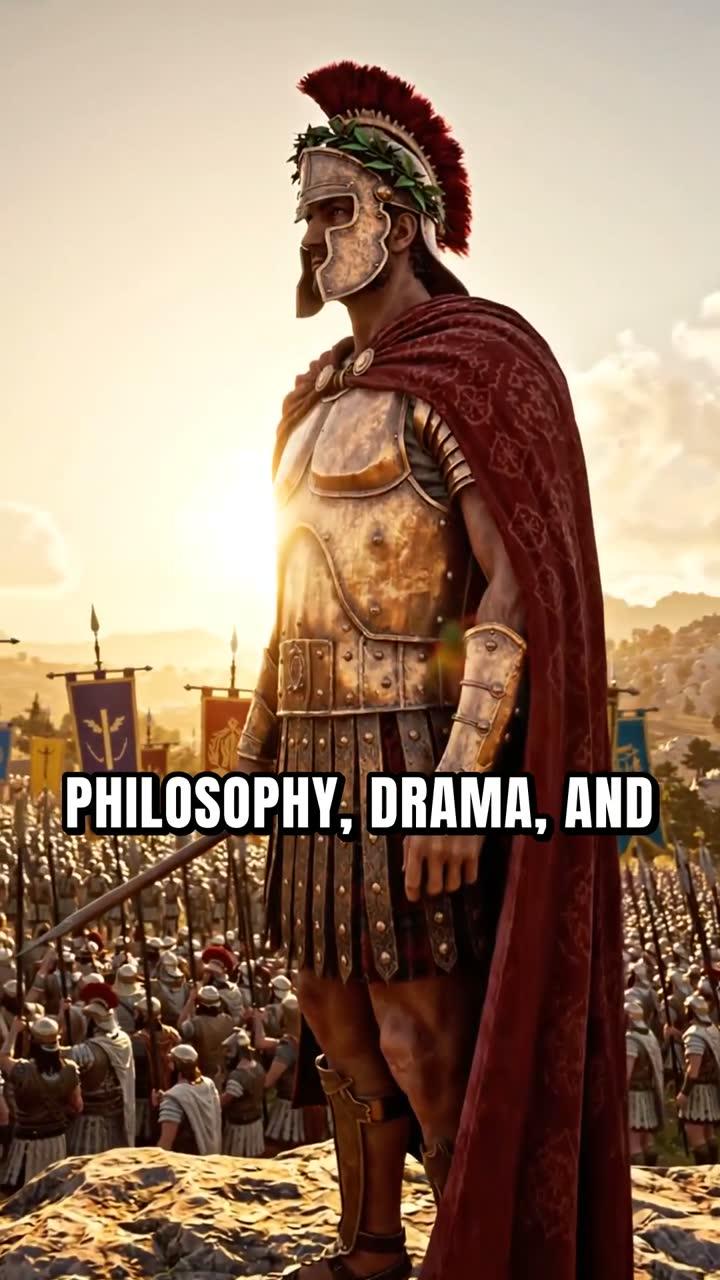
Ask the coach: "Make me a 30-second Short about the fall of the Roman Empire, bold captions."
The coach shows a Make it card for a vertical 9:16 Multi Scene Short. It costs a flat one minute from your pool. Press Make it and you get a punchy vertical video with a new AI image every few seconds, narration and bold captions, ready to upload to YouTube Shorts, TikTok or Instagram Reels. You can ask for 15, 30, 45 or 60 seconds.
Creating a Thumbnail From a Dropped Image
Drop a thumbnail you admire into the chat and type: "Make me one like this for a video called 5 Stoic Habits That Changed My Life."
The coach reads the style, colours and layout of the image you dropped, then generates a thumbnail in the same visual direction but for your title. You can also ask for a thumbnail from scratch: "Make a Finance style thumbnail for a video about passive income." The Image Maker behind the scenes handles the generation, and the result lands straight in your account.
Building a Recurring Character
Try: "Create a recurring character for my channel: a retired professor in his seventies, wire-rimmed glasses, tweed jacket, standing in a dusty library."
The coach draws the character and saves it to your account. From that point on, every video you ask it to make can include that same character drawn into the scenes. You can save up to 10 characters, which means you can run multiple series with different characters on the same channel without any confusion.
Adding an AI Presenter Avatar to a Video
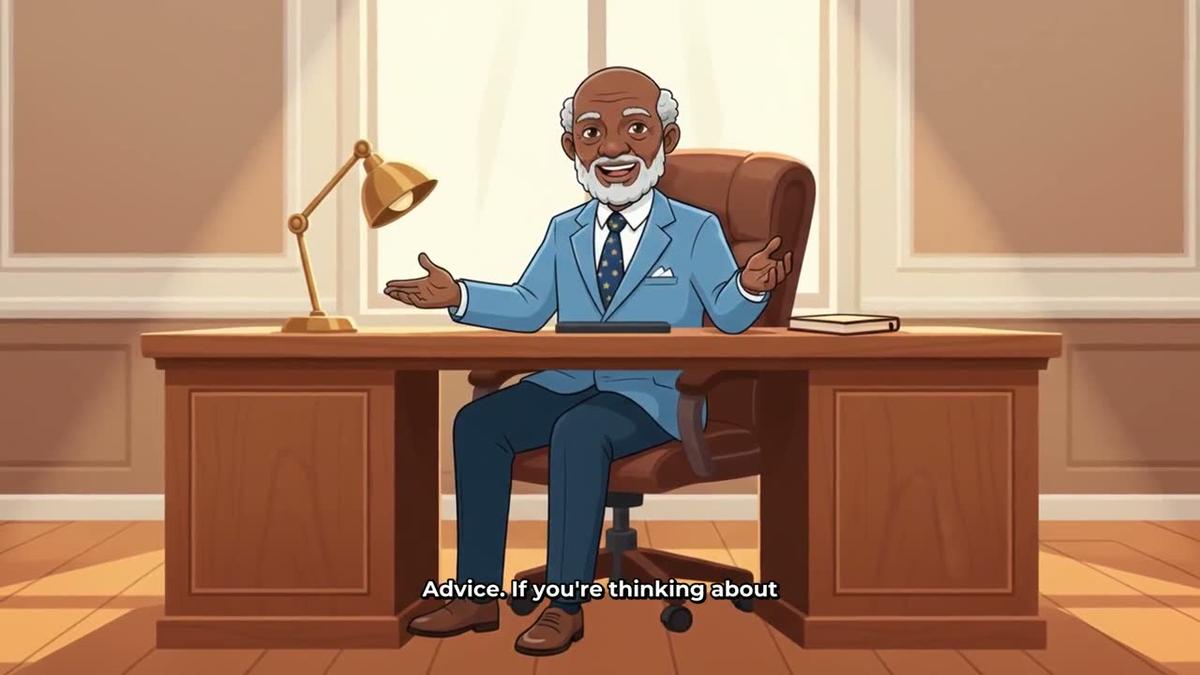
Ask: "Draw me an AI presenter: a calm woman in her forties in a modern home office, natural light, professional but relaxed."
The coach creates a photoreal presenter picture and saves it under the AI Avatars tab in Account Settings. You can then say: "Make a 10-minute video about minimalist living with my presenter on screen for the first two minutes and the last minute, split screen layout." The coach builds the video with your AI avatar presenter appearing in the split screen layout (presenter on the left, scene on the right) at the start and end, with normal scene images in between. Presenter time is counted in avatar seconds, separate from your video minutes.
Starting an Animated Podcast Series
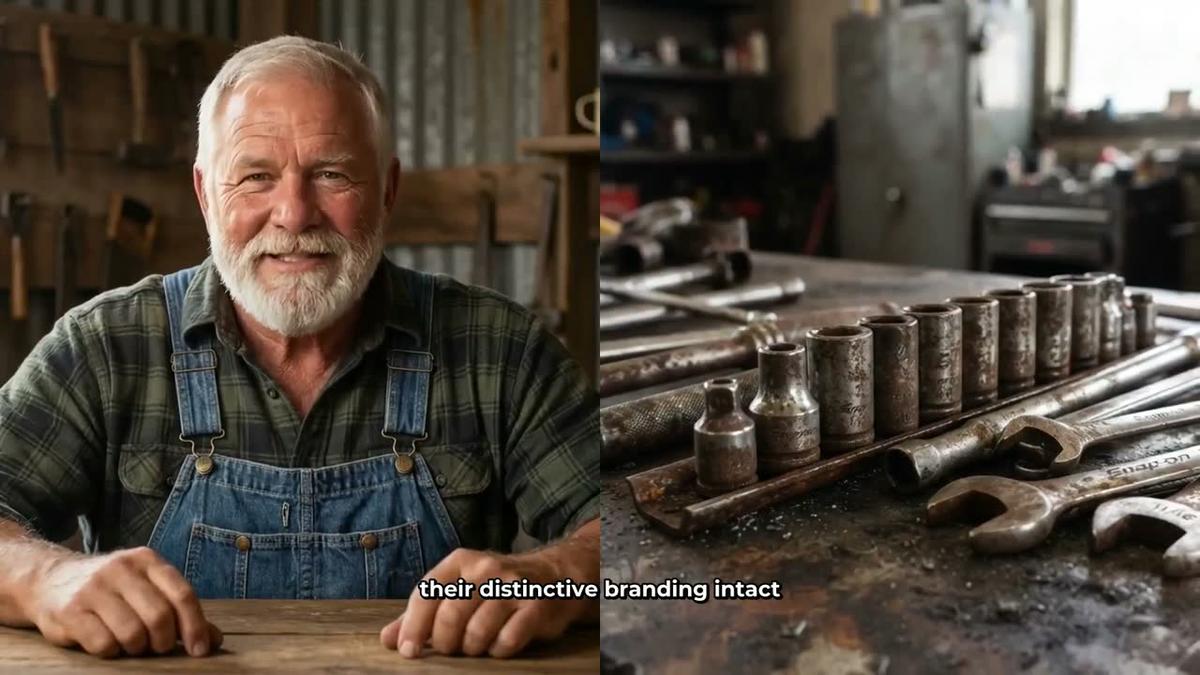
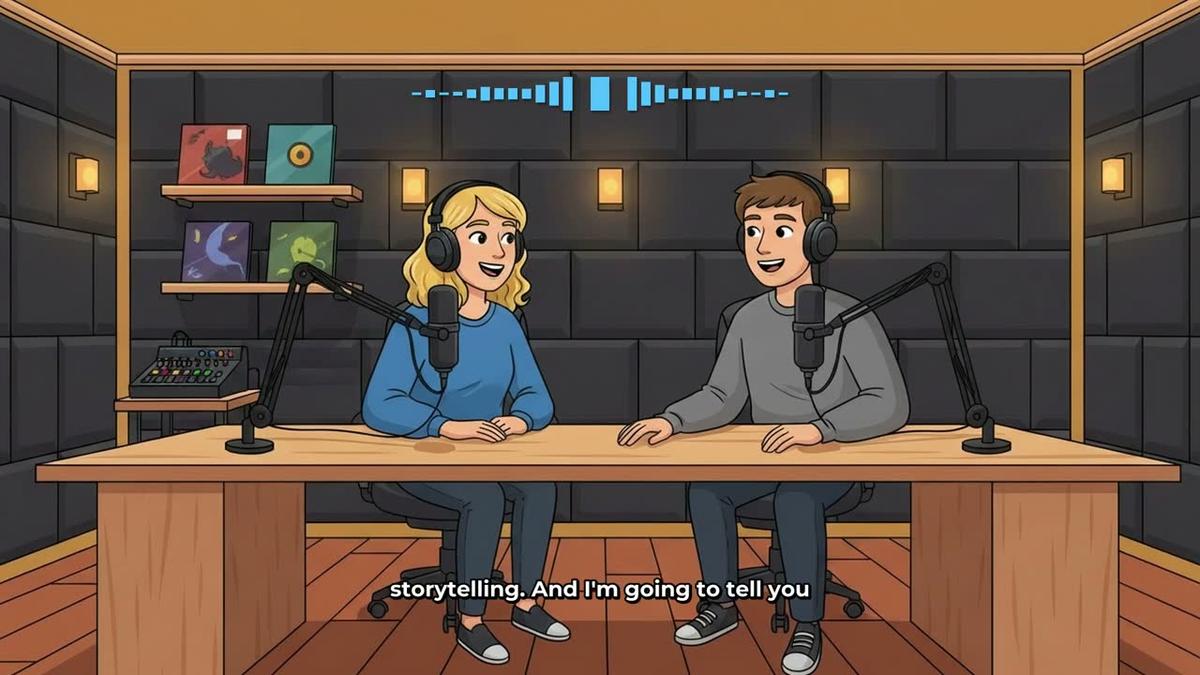
Type: "Start an animated podcast called The Deep Dive. Two hosts: Maya, a sharp science journalist, and Dr. Osei, a calm astrophysicist. Cosy studio. First episode: why time feels faster as you get older. 20 minutes, Explainer tone."
The coach sets up the show, draws the two hosts into the studio, assigns their voices and generates the first episode. Because shows are saved, every future episode request just needs a topic. Say "New episode of The Deep Dive: the science of sleep debt" and the same hosts, voices and studio come back automatically. Check out the animated podcast generator page for more on what is possible.
Animating Scenes in a Finished Video
Once a long form video is made, try: "Animate the opening three scenes of my video about ancient Egypt."
The coach identifies those scenes and turns them into real moving AI clips. This is the only way to get genuine motion footage inside a long form video, and it is available on Premium and Ultimate. Premium includes 5 animated scenes a month and Ultimate includes 10. You can read more about the animated scenes add-on on its own page.
Posting to YouTube, TikTok and Instagram at a Set Time
Ask: "Post my latest video to YouTube and TikTok tomorrow at 9am with the title 5 Roman Habits That Built an Empire and this description: [paste description]."
The coach shows a Make it card with the platform, the scheduled time, the title and description. Press Make it and the post is queued. Nothing goes live without you pressing that button, and every post is labelled as AI generated. This social posting feature is available on Premium and Ultimate after you connect your accounts once in Account Settings.
The Start a Channel Guide
Not sure where to begin? Ask the coach: "Give me a step by step guide to starting a faceless channel about personal finance." Even on the Free plan, the coach walks you through picking a model channel to study, deciding on a character or AI avatar, naming the channel, designing a profile picture and banner, and planning your first five video ideas. This is the built-in Start a channel guide, and it is one of the most useful things in the chat for anyone who is just getting started with using an AI coach to make YouTube videos.
Faceless Finder and Trend Finder Lookups Inside the Chat
On Pro and above, the coach can pull live data from the Faceless Finder and Trend Finder without you leaving the conversation. Ask: "Show me the top faceless channels in the true crime niche" and the coach returns real channels with their subscriber counts, upload frequency, average video length and estimated monthly ad revenue. Ask "Is stoicism growing as a YouTube topic?" and the Trend Finder tells you whether search interest is rising or falling.
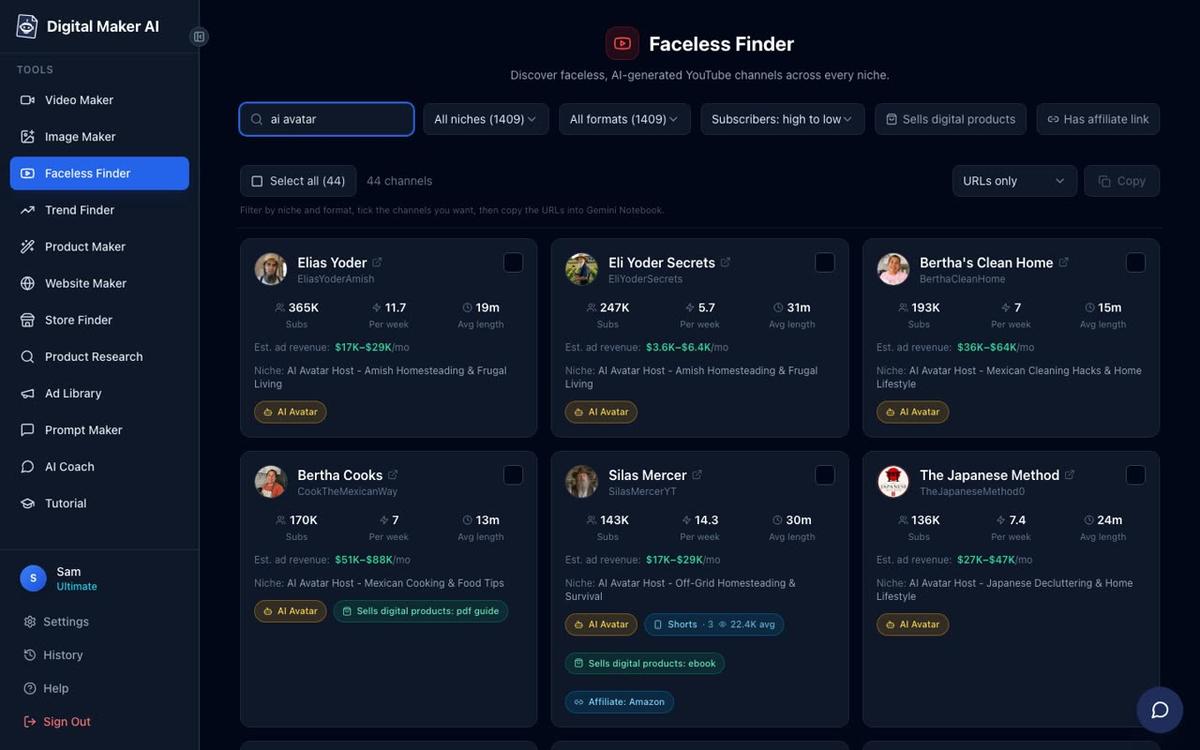
You can also type "AI avatar" in the Faceless Finder search to see only channels fronted by an AI generated presenter, each marked with an AI Avatar label. It is a fast way to research what is working before you make your first video. For inspiration on what an AI avatar channel can look like, the post on how to create an AI avatar for YouTube videos like Otis's Kitchen is worth a read.
What Free and Pro Users Can Do in the Chat
The AI Coach is open to every signed-in account, including Free. Here is an honest breakdown of what each level gets:
- Free: 20 credits a month in Fast mode only. You can ask for video ideas, channel name suggestions, YouTube titles and descriptions, hooks, scripts, niche advice and a full Start a channel guide. Making videos, thumbnails or images in the chat needs Premium or Ultimate.
- Pro: 250 credits a month, Fast and Advanced modes. Everything Free gets, plus live Faceless Finder and Trend Finder lookups inside the chat. Making things still needs Premium or Ultimate.
- Premium and Ultimate: Expert mode unlocks. The coach can make long form videos, Shorts, thumbnails, channel banners, profile pictures, recurring characters, AI avatars, animated podcasts, animated scenes and scheduled social posts, all from the chat, with the Make it card showing cost before anything is spent.
Free and Pro users get real value from the chat as a creative and research assistant. When you are ready to start making videos directly in the conversation, upgrading to Premium is the step that unlocks Expert mode and the full power of using an AI coach to make YouTube videos without touching the Video Maker at all.
A Genuinely New Way to Run a Channel
The AI Coach changes the rhythm of running a faceless YouTube channel. Instead of navigating menus, you describe what you want and the coach handles the options. The Make it card means you always know the cost before you commit. The Start a channel guide, the Faceless Finder lookups and the Trend Finder data mean you can go from idea to published video in a single conversation.
If you have used Claude with a connector before, the experience will feel familiar but smoother: no setup, no MCP configuration, just open the chat and go. If this is your first time exploring AI video creation, the AI Coach page is the best place to start. And when you are ready to go deeper into building your channel from scratch, the free faceless channel course covers everything from picking a niche to publishing your first video.
Alex Stevens: Alex Stevens writes for the Digital Maker AI team about faceless YouTube channels, AI presenters and AI video tools.