How to Make a Free AI Video Without a Credit Card
By Alex Stevens
By the end of this guide you will have a finished, ready-to-upload YouTube video sitting in your downloads folder. It costs nothing, and you do not need a credit card. This is a complete walkthrough of how to make an AI video for free using the Digital Maker AI Free plan, covering every step from creating your account to downloading the finished MP4.
Step 1: Create Your Free Account (No Card Required)
Head to digitalmaker.ai/faceless and click Get started free. You can sign up with Google in one click, or fill in your name, email address and a password. No payment details are asked for at any point during signup. Your account is active immediately.
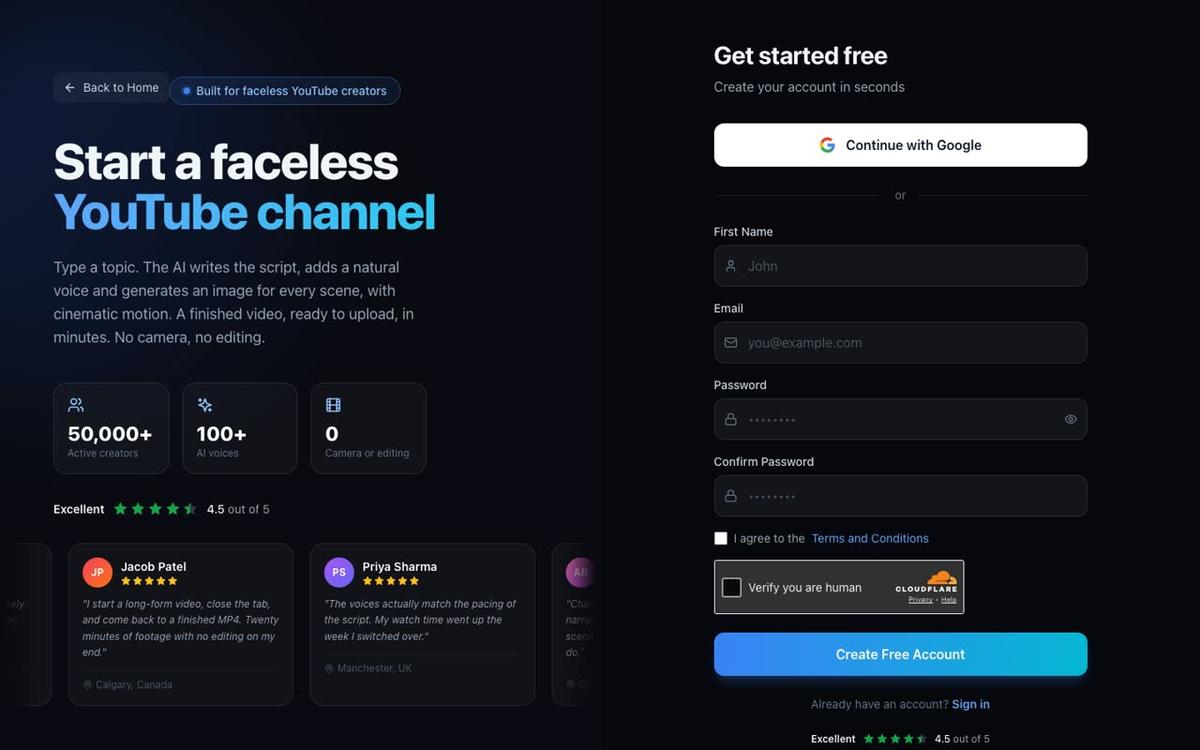
What you get on the Free plan: five free videos, one of each type. That is one long-form faceless video (up to 8 minutes), one vertical Short (15 to 60 seconds), one drag-and-drop video from your own images (up to 8 minutes), one drag-and-drop movie from your own clips (up to 8 minutes), and one animated podcast (up to 8 minutes). Commercial usage rights are included on every plan, including Free, so you can monetise anything you make.
Step 2: Find the Video Maker in the Dashboard
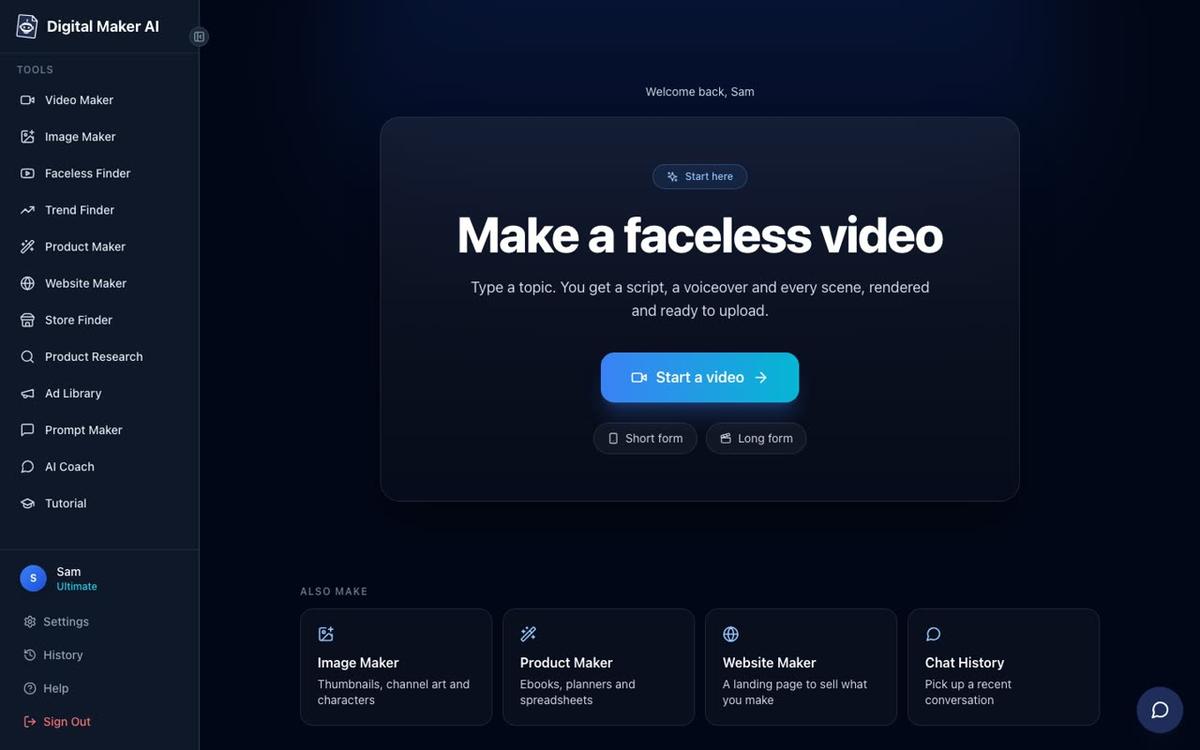
After signing in you land on the main dashboard. Look at the left sidebar and click Video Maker. That opens the free video screen, where you choose which type of video to make. For your first video, this guide walks you through the long-form faceless video because it produces a complete, narrated, captioned YouTube video from a single topic line.
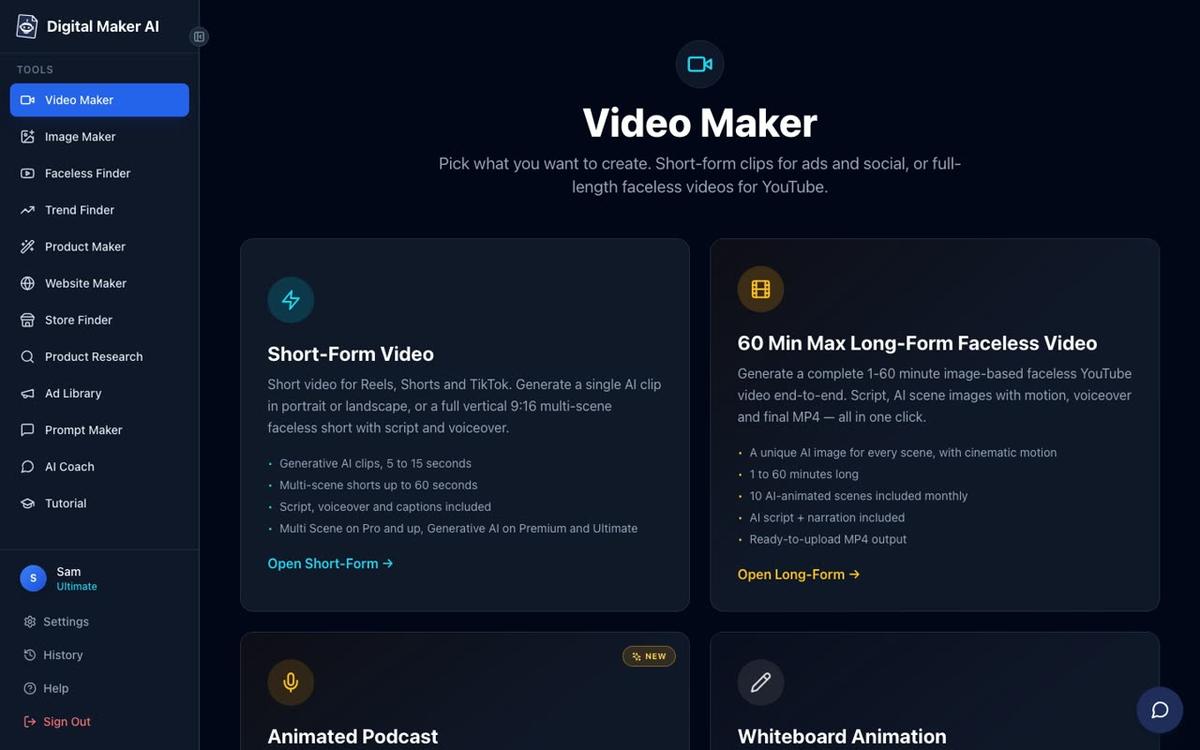
Click the Long-Form Faceless Video card, then press Next at the bottom of the screen. The builder opens and walks you through nine steps.
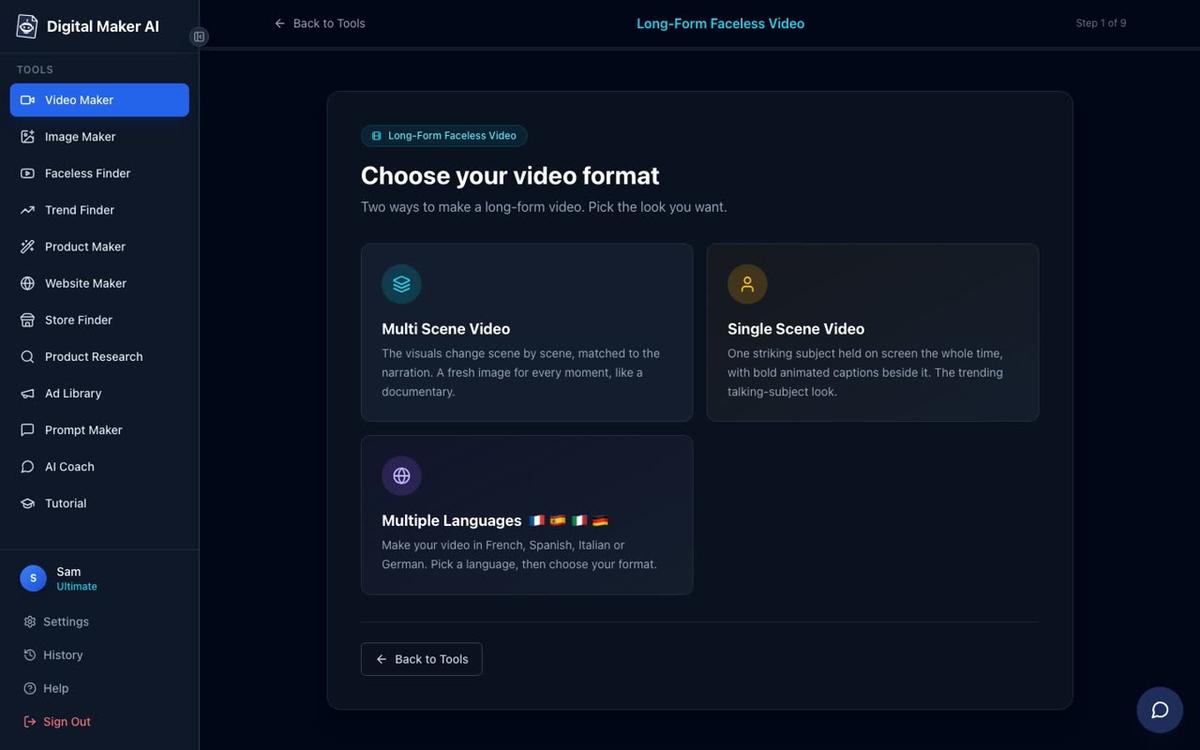
Step 3: Choose Multi Scene Format (Step 1 of 9)
The first choice is your video format. On the Free plan the only option available is Multi Scene. This means the AI generates a fresh image for every scene in your video, and each image stays on screen while the narration for that scene plays. It is the standard format for faceless YouTube videos. Select it and press Next.
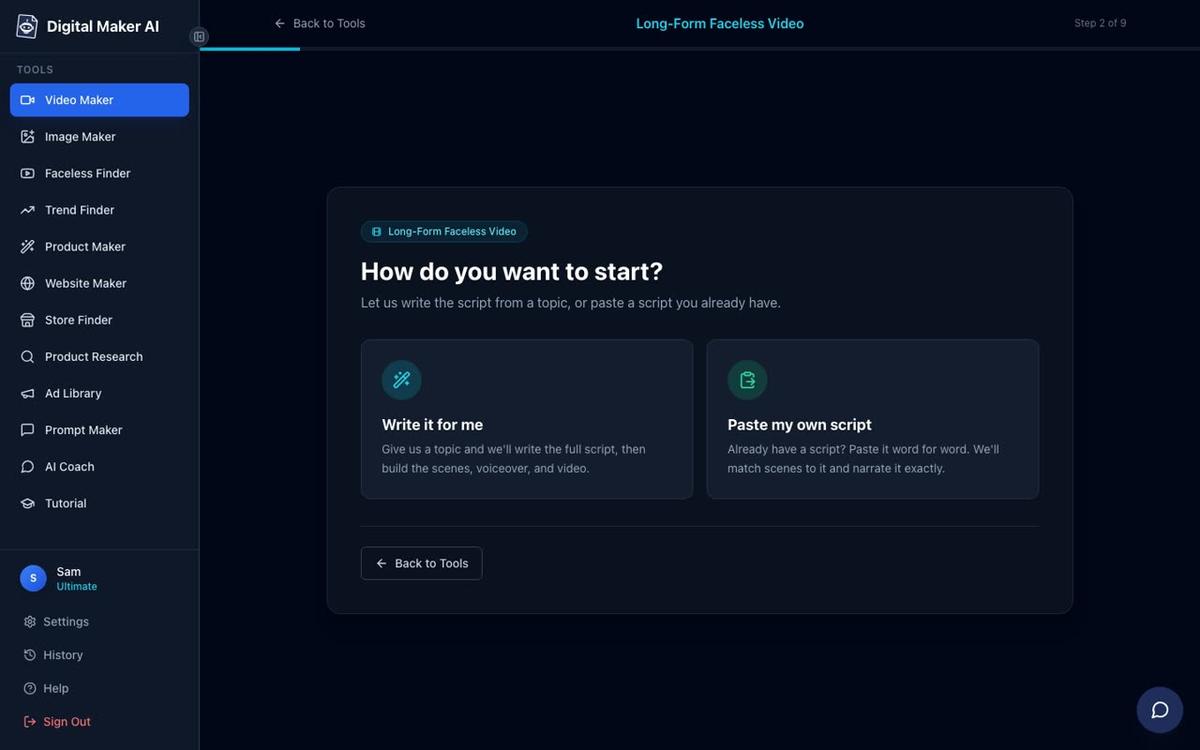
Step 4: Let the AI Write the Script (Step 2 of 9)
Step 2 asks how you want to start. On the Free plan, the AI writes the script for you from a topic you provide. The option to paste your own script is available on paid plans. Select Write it for me and press Next.
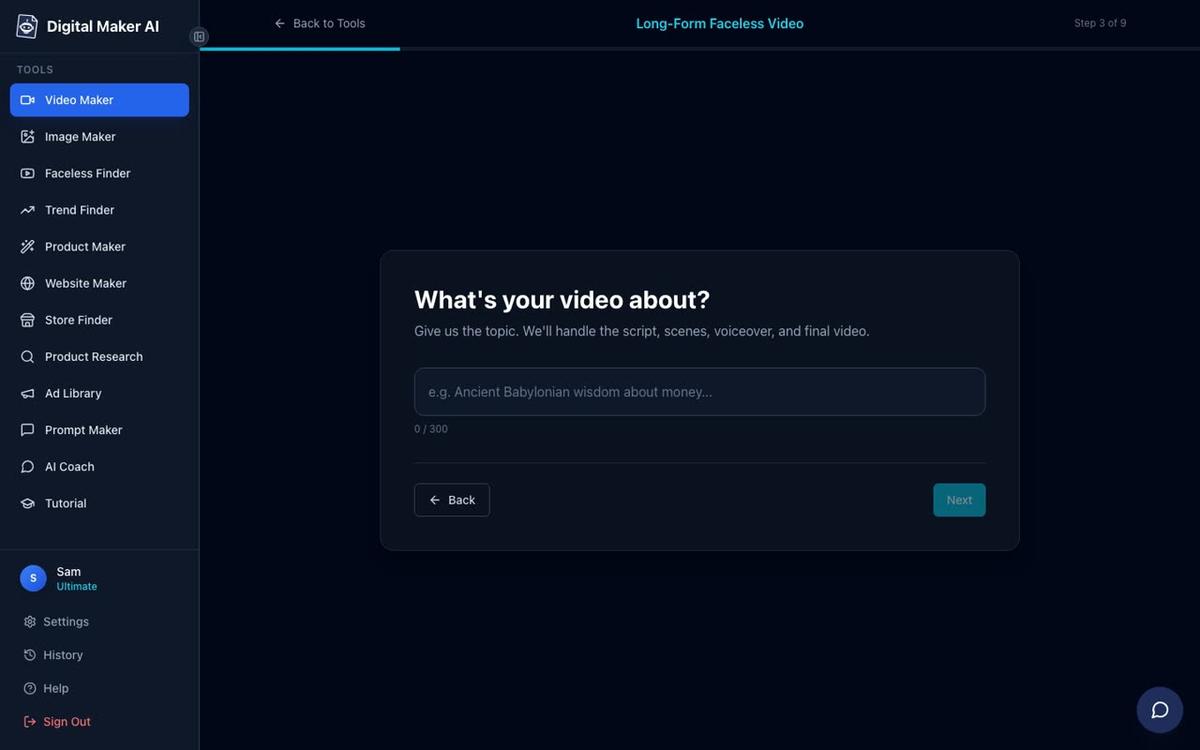
Step 5: Pick a Topic From the Library (Step 3 of 9)
This is the most important thing to understand about how to make an AI video for free on the Free plan. Free videos are built from a ready-made topic library in set subject areas. You type a topic that fits within one of these categories:
- Money and personal finance
- Business and side hustles
- Motivation and stoicism
- Law of attraction
- History, ancient Egypt and the Roman Empire
- True crime and mysteries
- Psychology
- Space and the deep sea
- Health and fitness
- Faith
Type your topic in the box (up to 300 characters) and press Next. A good topic is specific: "Three Stoic habits that reduce anxiety" works better than "Stoicism". The AI uses your topic to write the full script, so the more specific you are, the tighter the video will be.
Honest note: Free topics need to fall within these set areas. If you want to make a video on any topic at all, that is a paid plan feature. You can see plan options at digitalmaker.ai/pricing.
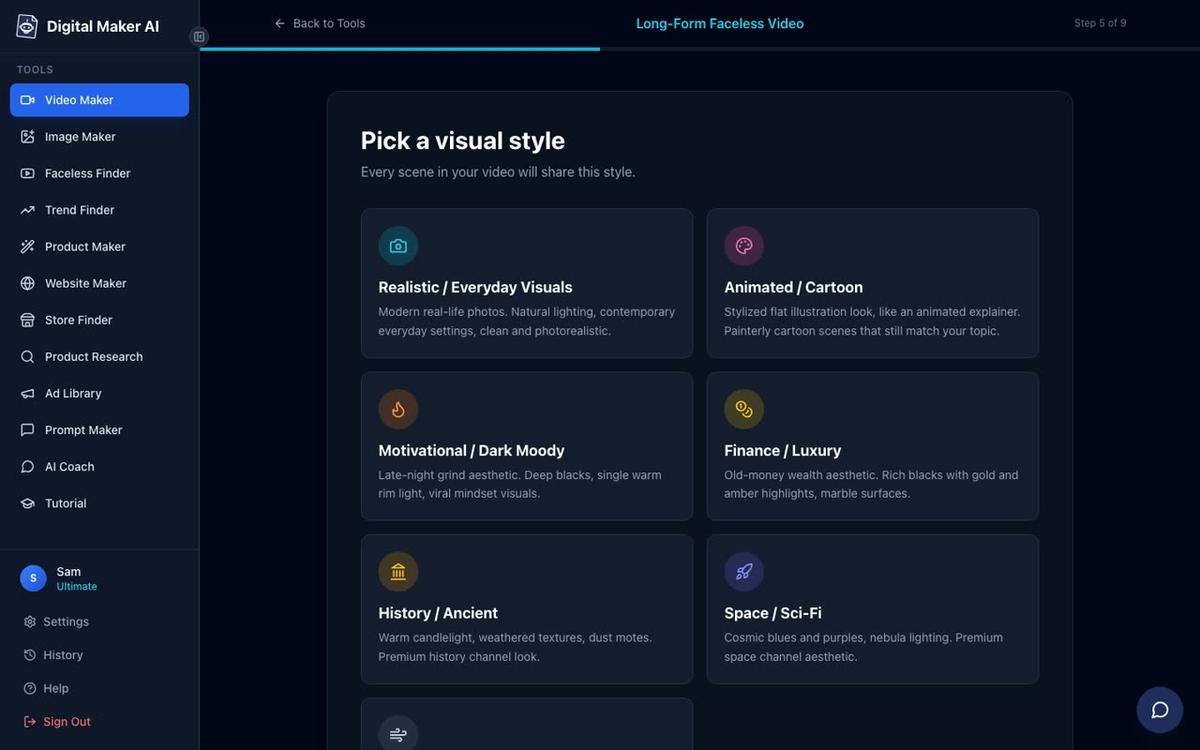
Step 6: Choose Your Visual Style (Step 5 of 9)
Step 4 asks about reusing settings from a previous video. Since this is your first, select Choose settings for this video and press Next.
Step 5 is where you pick how the video looks. On the Free plan two visual styles are available: Realistic or Everyday Visuals and Animated or Cartoon. The Animated or Cartoon style produces illustrated, cartoon-looking still scenes, not moving cartoon animation. Pick the one that suits your topic and press Next.
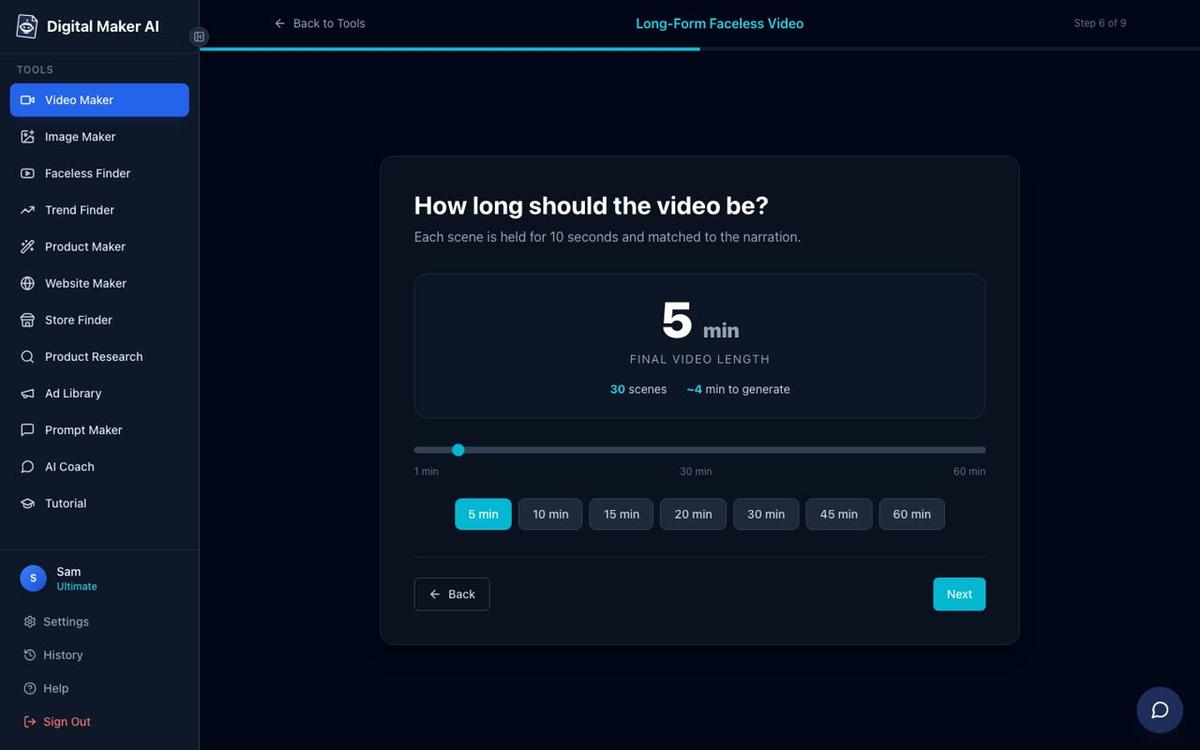
Step 7: Set the Length (Step 6 of 9)
Use the length slider to choose how long your video will be. The Free plan allows up to 8 minutes. For a first video, 3 to 5 minutes is a good starting point. The screen shows you how many scenes the video will have and roughly how long it will take to generate. Press Next when you are happy.
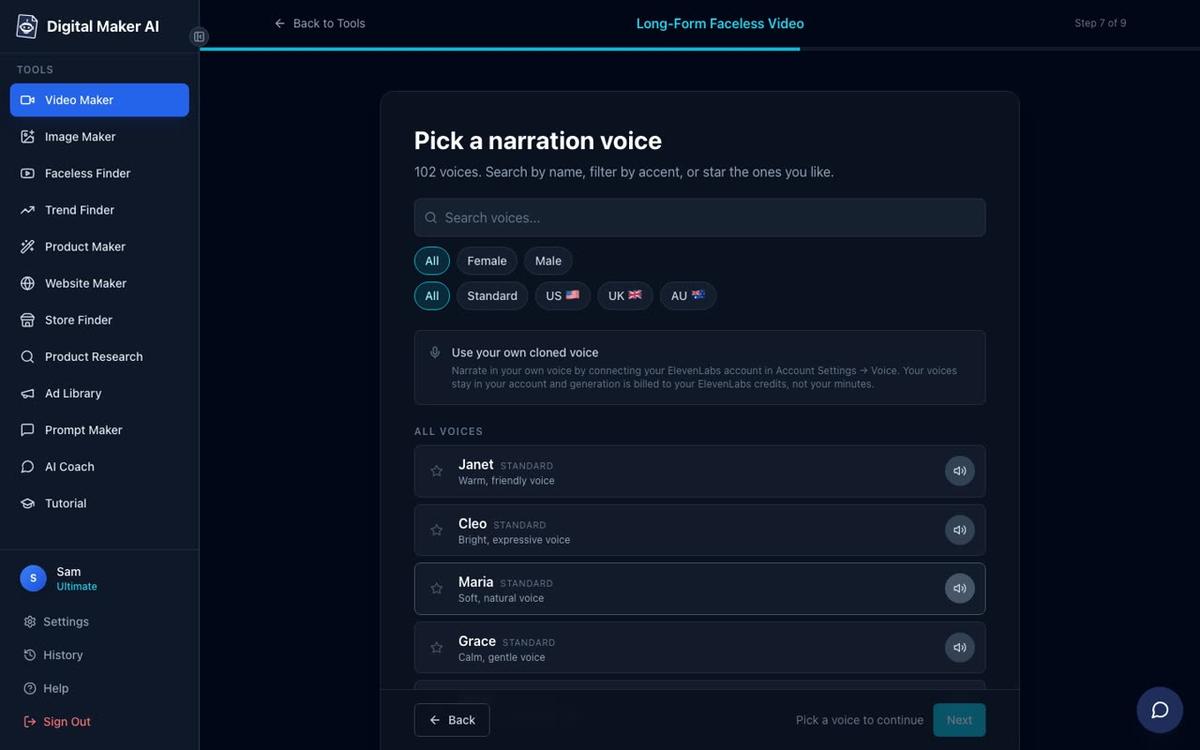
Step 8: Pick a Voice (Step 7 of 9)
There are more than 100 built-in AI narration voices to choose from, with male and female options and US, UK and Australian accents. Use the filters at the top to narrow them down. Click any voice card to hear a preview. On the Free plan you choose from the standard voice library. Press Next once you have found one you like.
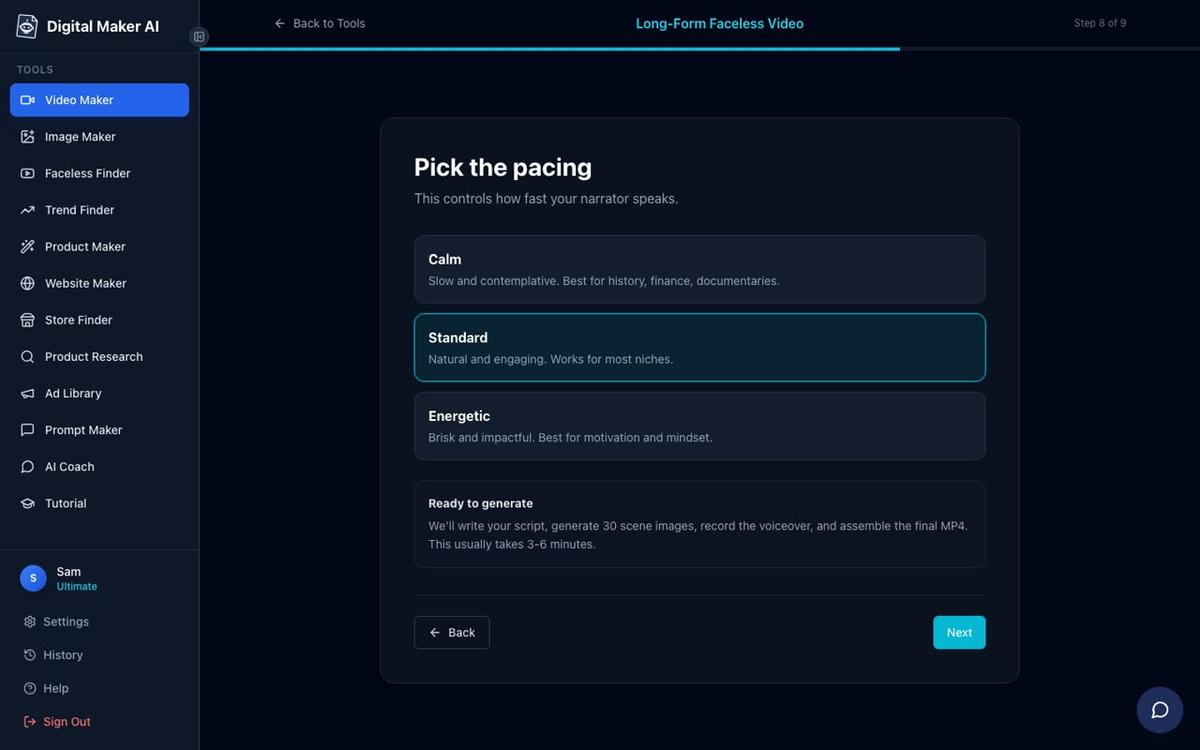
Step 9: Choose Pacing (Step 8 of 9)
Step 8 sets how fast the narrator speaks. Pick Calm for a relaxed, documentary feel, Standard for a balanced pace that works on most topics, or Energetic for a faster, punchy delivery. If you are unsure, Standard is a safe first choice. Press Next.
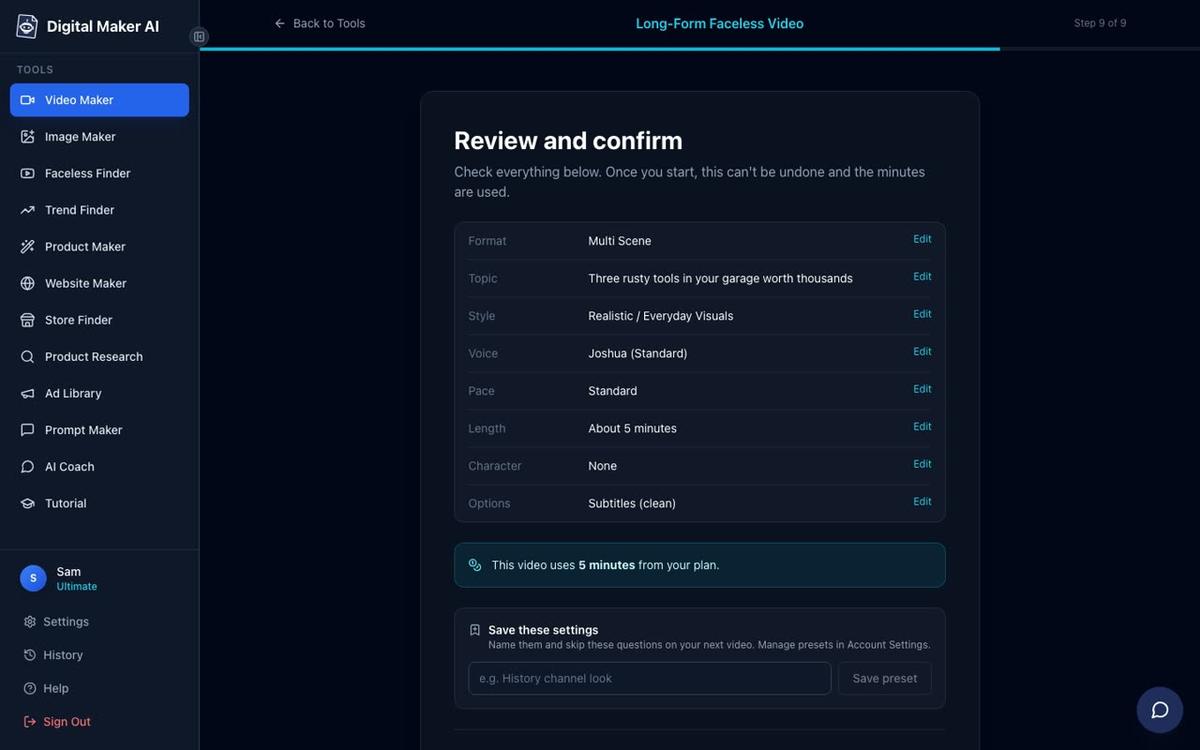
Step 10: Review and Generate (Step 9 of 9)
The final screen shows a summary of every choice you made: format, topic, style, voice, pace and length. Read through it to make sure everything looks right. When you are happy, press Generate Video. The AI will write the script, generate a unique image for every scene, record the narration and burn in the captions, then return a finished MP4. This usually takes 3 to 6 minutes for a 5-minute video.
Step 11: Download Your Finished MP4
Once the video is ready you can watch it in the player. If you want to make any tweaks, you can regenerate any individual scene image (each video includes 10 free regenerations), edit the narration text for a scene, or swap in a different voice. When you are satisfied, press the download button to save the MP4 to your computer and upload it to YouTube yourself.
About the watermark: Free videos carry a small Digital Maker AI watermark. This is worth knowing before you start. If you upgrade to a paid plan later, the watermark is removed from that video. The commercial usage rights still apply on the Free plan, so the watermark is the only restriction on what you can do with the file.
What the Free Plan Does Not Include
Being honest about the limits helps you plan. Here is what requires a paid plan:
- Any topic you choose: Free videos use the set topic library. Paid plans generate scenes on any subject.
- Pasting your own script: Free plan only uses the AI-written script. Paid plans let you paste your own.
- More than two visual styles: Free gives you Realistic and Animated or Cartoon. Paid plans unlock all seven styles.
- Languages other than English: Free is English only.
- No watermark: Paid plans remove the watermark entirely.
- AI presenter videos: The AI presenter feature is available on Premium and Ultimate plans only.
- Posting directly to YouTube, TikTok or Instagram: Free and Pro users download the MP4 and upload it themselves.
Common Mistakes to Avoid
A few things trip up first-time users. Avoid these and your first video will come out much better:
- Choosing a topic that is too broad. "History" will produce a vague video. "Five surprising facts about life in ancient Rome" will produce a focused, watchable one.
- Picking a voice without previewing it. Always click the preview on a voice card before committing. A voice that sounds fine in a short clip can feel wrong over five minutes.
- Forgetting the topic must fit the library. If you type a topic outside the set areas, the AI may not produce the result you expect. Stick to the listed categories on your first try.
- Setting the length too long for a first video. A 3 to 5 minute video is easier to review and gives you a feel for the output before you commit your one free long-form credit to something longer.
- Not watching the video before downloading. Use the in-app player to check the narration and scenes match your topic before you download.
What to Do Next
Once you have your first video, you still have four more free credits to use: one Short, one drag-and-drop images video, one drag-and-drop movie and one animated podcast. The animated podcast is worth trying next as it takes a completely different approach, putting two AI hosts in an animated studio to talk through any topic you give them.
If you want to keep making videos after your five free credits, or you want to remove the watermark, unlock every topic and every visual style, or make videos in French, Spanish, Italian or German, you can compare the paid plans at digitalmaker.ai/pricing. There is no time-limited trial: the Free plan is the way to try it, and the five free videos give you a real feel for what the tool produces before you decide anything.
If you are thinking about growing a faceless YouTube channel with AI videos, the guide on how to get your first 1,000 YouTube subscribers with AI videos is a practical next read once you have your first video published.
Ready to go further? The free Digital Maker AI course walks you through every tool on the platform in short video lessons, including tips for picking topics that get views and a walkthrough of the full paid plan features when you are ready to unlock them.
Alex Stevens: Alex Stevens writes for the Digital Maker AI team about faceless YouTube channels, AI presenters and AI video tools.