Claude MCP vs Copy and Paste Prompting: A Real Comparison
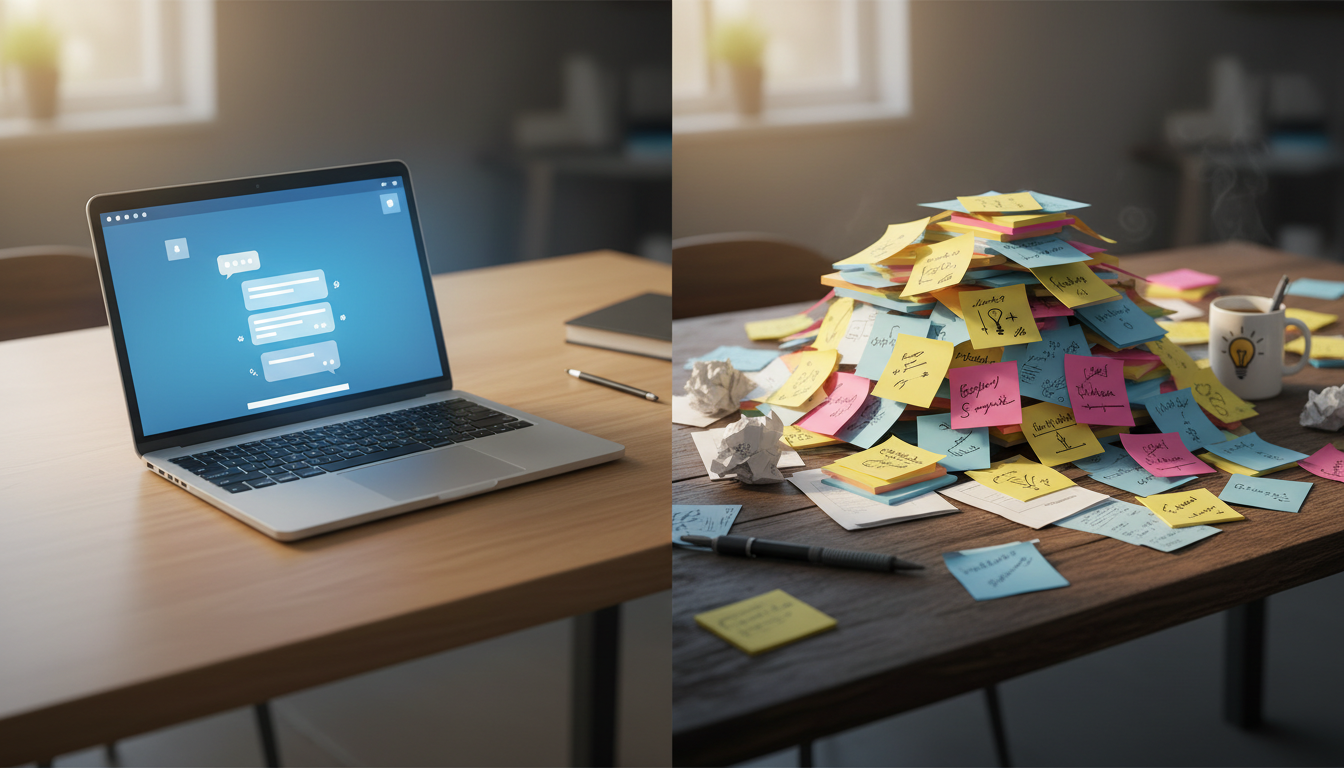
Claude MCP vs Prompting: Why the Difference Actually Matters
If you have spent any time building a faceless YouTube channel with AI, you already know the copy and paste grind. You open ChatGPT or Claude, paste in a carefully written prompt, tweak the output, copy it somewhere else, paste it again, switch tabs, repeat. When people talk about Claude MCP vs prompting, they are really asking a deeper question: is there a smarter way to work, or is manual back and forth just the price of using AI tools? The answer, it turns out, is more interesting than most tutorials let on.
What Copy and Paste Prompting Actually Looks Like in Practice
Manual prompting is not bad. It is how most people start, and there is genuine skill involved in writing a prompt that produces useful output. But the workflow has a ceiling. Here is what a typical session looks like when you are making a faceless video the traditional way:
- Open your AI chat tool and write or paste a prompt asking for a script.
- Read the output, decide it is almost right, tweak the prompt, regenerate.
- Copy the approved script into a separate video tool.
- Manually fill in settings like visual style, narration voice, subtitle format and video length.
- Submit the job and wait.
- Come back to check whether it finished.
- Go back to your AI chat tool when you need to refine something.
Every handoff between tools is friction. Every time you paste text from one window to another you are doing work that a connected system could do for you. You are also carrying all the context in your own head, which means if you lose track of a setting or forget what visual style you chose last time, you are starting from scratch mentally.
There is also a subtler problem: copy and paste prompting forces you to be the integration layer. You are the one checking whether the video finished. You are the one confirming how many minutes you have left on your plan. You are the one hunting for the output link. None of that thinking moves your channel forward.
What MCP Actually Is and Why It Changes the Flow
MCP stands for Model Context Protocol. It is an open standard that lets AI models like Claude connect directly to external tools and services rather than just chatting with you. Instead of Claude giving you instructions that you then carry out manually, Claude can act on your behalf inside connected platforms.
For creators using Digital Maker AI, this means Claude stops being a script writer you have to babysit and becomes a genuine production assistant. Once the connector is set up, a single conversational message to Claude can kick off a real video job, check your available minutes, list every option available on your plan, or even preview a scene image before you spend any of your monthly video pool.
The setup is straightforward. You create a Digital Maker AI account, generate an API key inside Account Settings, and paste the connector URL digitalmaker.ai/mcp into Claude as a custom connector. After that, you ask Claude to make a video and it takes over. Claude will confirm the minute cost before it starts anything, and it will never begin a video job without you explicitly asking for it. That last point matters more than it sounds: you stay in control, you just stop doing the busywork.
Claude MCP vs Prompting: A Side by Side Comparison
Let's get concrete. Here is how the same task plays out under each approach.
The task: create a seven-minute faceless YouTube video about the history of the Roman Empire, using the History or Ancient visual style, a male narration voice, and Bold Pop subtitles.
With copy and paste prompting: You write a prompt asking for a script. You review it. You copy it into the video tool. You manually select the visual style from a dropdown. You pick the voice. You choose the subtitle style. You set the length. You submit. Later you come back to check if it is done and hunt for the download link.
With the Claude MCP connector: You type something like, make me a seven-minute video about the history of the Roman Empire, History or Ancient style, male voice, Bold Pop subtitles. Claude checks your plan, confirms the minute cost, asks for your go-ahead, and starts the job. When it is done, Claude returns the link. You never leave the conversation.
The output video is the same in both cases. What changes is how much of your attention the process consumes. For a single video that difference might feel small. Across a month of consistent uploads, it compounds into hours.
What the MCP Connector Can and Cannot Do
It is worth being precise here because the connector is genuinely useful but it is not magic. Here is what Claude can do once connected:
- Make a long form faceless video end to end, including script, scene images, AI narration and subtitles, returning a ready to upload MP4.
- List every option available on your specific plan, so you do not have to dig through settings pages.
- Preview the single held image for a Single Scene video before any minutes are spent, which is a smart way to check whether a visual direction is working.
- Create and save a reusable character, so the same illustrated figure appears consistently across scenes and across videos.
- Research faceless YouTube channels by niche or name and surface size, upload frequency and estimated earnings.
- Check whether a video has finished and return the output link.
- Report how many minutes you have remaining in your monthly pool.
- Generate a standalone image for thumbnails or other uses.
The plan limits stay the same whether you work through the app or through Claude. On a Premium plan the ceiling is ten minutes per video. On an Ultimate plan it stretches to thirty minutes. If you are weighing up which plan makes sense for your output goals, the plan comparison page lays it out clearly.
What the connector does not do is edit a video after it has been generated, add music, do timeline trimming, or auto post to YouTube. Those things are outside the scope of what the platform offers regardless of how you access it. The MCP connection is an interface upgrade, not a feature expansion.
Practical Tips for Getting the Most From Either Approach
Whether you are using the MCP connector or working manually, the quality of your output still depends on the quality of your direction. A few habits that help regardless of workflow:
- Be specific about length upfront. Vague requests produce vague results. Telling Claude or the app exactly how long the video should be, down to the minute, produces a tighter script and better pacing.
- Pick your visual style before you start the script. The seven available styles on Digital Maker AI each carry a different visual mood. Finance or Luxury reads differently to Space or Sci Fi. Knowing your style before writing shapes tone and word choice.
- Use the preview feature before committing minutes. If you are making a Single Scene video, the connector lets Claude show you the held image first. Use this. A two second look can save you a ten minute pool withdrawal on a direction that was not quite right.
- Save reusable characters early. If you want a consistent look across your channel, creating and saving a character at the start of your workflow pays dividends every time you make a new video. The same character can appear in a full body shot on a white background across as many scenes and videos as you like.
- Check your minutes before long jobs. Ask Claude to report your remaining pool before starting anything close to your plan ceiling. It takes one message and avoids surprises.
If you are curious about what other creators are doing in your niche before you commit to a content direction, the Faceless Finder tool lets you search hundreds of confirmed faceless YouTube channels by niche and see their upload cadence and estimated earnings. That kind of research done before you spend a single video minute is time well spent.
Which Workflow Should You Actually Use?
If you are making one video a week and you enjoy hands-on control over every setting, copy and paste prompting works fine. You will spend more time switching between tools but you will also stay closely connected to each creative decision.
If you are trying to build a real output cadence, produce multiple videos a month, and want your attention on strategy and topics rather than tab switching, the MCP connector is the cleaner choice. The setup takes a few minutes. The time it returns compounds every time you use it.
The honest answer to Claude MCP vs prompting is that they are solving slightly different problems. Prompting is about generating good content. MCP is about removing the friction between good content and a finished video. The best creators will eventually want both: sharp prompting skills and a connected workflow that acts on the output without hand holding.
If you are ready to see how a connected AI workflow actually feels in practice, the free course at Digital Maker AI is a practical place to start, covering the full video creation process from idea to upload-ready file.